# Save Project

<span style="font-size: 14pt; font-family: Arial, Helvetica, sans-serif; color: rgb(0, 0, 0); font-weight: 300;">Saving a project allows you to return to it at a later time and ensures that you have a copy of the data in case of accidents. We</span><span style="font-family: Arial,Helvetica,sans-serif;"><span style="font-size: 14pt; color: rgb(0, 0, 0); font-weight: 400;"> STRONGLY</span><span style="font-size: 14pt; color: rgb(0, 0, 0); font-weight: 300;"> recommend periodic saving of your projects in order to guard against data loss.</span></span>

![](https://docs.t3rra.com/uploads/images/gallery/2025-03/scaled-1680-/Abdx5okg348deia-ejl7mlh9s6ljyuoionytq-png.png)

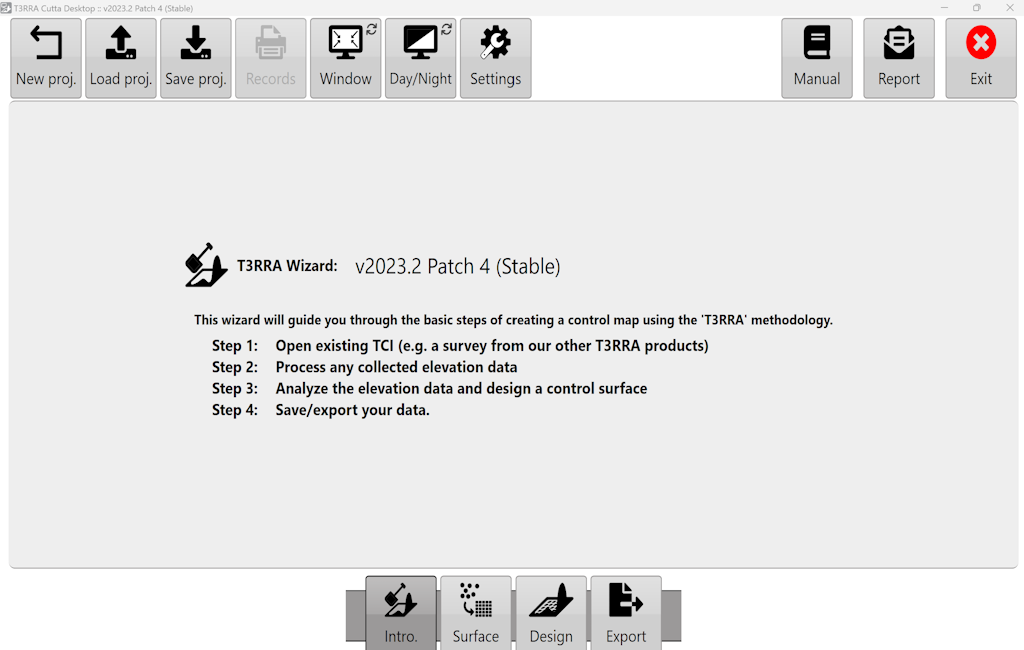
<span style="font-family: Arial,Helvetica,sans-serif;"><span style="font-size: 14pt; color: rgb(0, 0, 0); font-weight: 300;">The ‘</span><span style="font-size: 14pt; color: rgb(0, 0, 0); font-weight: 400;">Save project</span><span style="font-size: 14pt; color: rgb(0, 0, 0); font-weight: 300;">’ button can be found in the top left corner on any of the main wizard pages.</span></span>

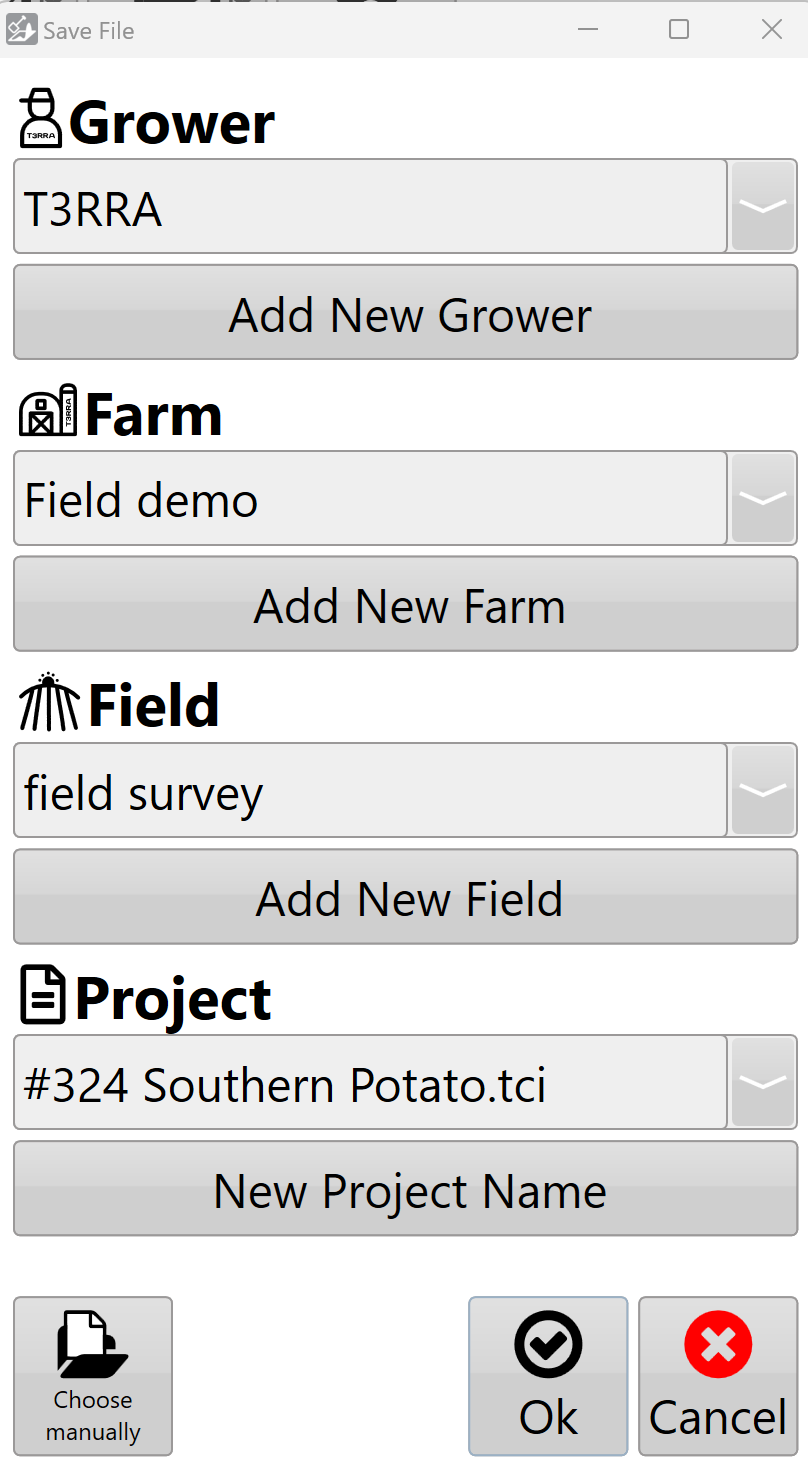
<span style="font-size: 14pt; font-family: Arial, Helvetica, sans-serif; color: rgb(0, 0, 0); font-weight: 300;">The '</span><span style="font-size: 14pt; font-family: Arial, Helvetica, sans-serif; color: rgb(0, 0, 0); font-weight: 400;">Save proj.</span><span dir="ltr" style="font-size: 14pt; font-family: Arial, Helvetica, sans-serif; color: rgb(0, 0, 0); font-weight: 300;">' button presents you with a screen that allows you to save using the following structure (see right).</span>

![](https://docs.t3rra.com/uploads/images/gallery/2025-03/scaled-1680-/PWaka3-cdvlylkedfuokfuzv9iupespl2sia-png.png)

<span style="font-size: 14pt; font-family: Arial, Helvetica, sans-serif; color: rgb(0, 0, 0); font-weight: 300;">You can enter:</span>

- <span style="font-size: 14pt; font-family: Arial, Helvetica, sans-serif; color: rgb(0, 0, 0); font-weight: 300;">Grower</span>
- <span style="font-size: 14pt; font-family: Arial, Helvetica, sans-serif; color: rgb(0, 0, 0); font-weight: 300;">Farm Name</span>
- <span style="font-size: 14pt; font-family: Arial, Helvetica, sans-serif; color: rgb(0, 0, 0); font-weight: 300;">Field Name</span>
- <span style="font-size: 14pt; font-family: Arial, Helvetica, sans-serif; color: rgb(0, 0, 0); font-weight: 300;">Project Name</span>

<span style="font-size: 14pt; font-family: Arial, Helvetica, sans-serif; color: rgb(0, 0, 0); font-weight: 300;">Or you can choose a previously saved value in any of the fields from the drop down list.</span>

<span style="font-size: 14pt; font-family: Arial, Helvetica, sans-serif; color: rgb(0, 0, 0); font-weight: 300;">Pressing the final '</span><span style="font-size: 14pt; font-family: Arial, Helvetica, sans-serif; color: rgb(0, 0, 0); font-weight: 400;">Ok</span><span style="font-size: 14pt; font-family: Arial, Helvetica, sans-serif; color: rgb(0, 0, 0); font-weight: 300;">' will save the project and add the file T3RRA’s structured file saving area.</span>

<span style="font-size: 14pt; font-family: Arial, Helvetica, sans-serif; color: rgb(0, 0, 0); font-weight: 300;">'</span><span style="font-size: 14pt; font-family: Arial, Helvetica, sans-serif; color: rgb(0, 0, 0); font-weight: 400;">Manually Choose Location</span><span style="font-size: 14pt; font-family: Arial, Helvetica, sans-serif; color: rgb(0, 0, 0); font-weight: 300;">' allows you to select an alternate location to save to.</span>

![](https://docs.t3rra.com/uploads/images/gallery/2025-03/scaled-1680-/iuN2tti9f1tpr1nusrsibj2hpswo-4vaqoyta-png.png)

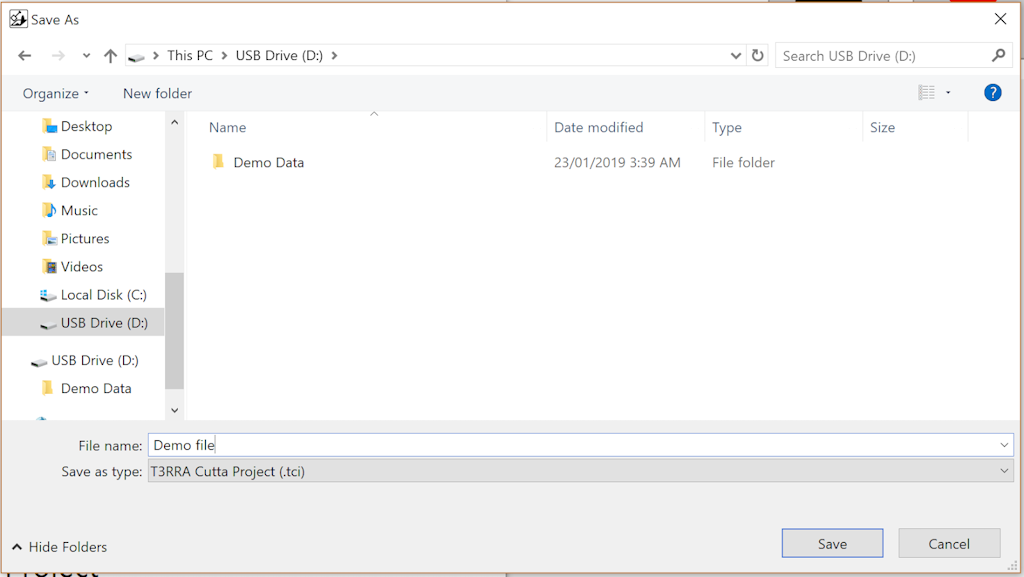
<span style="font-size: 14pt; font-family: Arial, Helvetica, sans-serif; color: rgb(0, 0, 0); font-weight: 300;">When manually choosing the save location there are two ways of navigating to where you would like to save the file.</span>

1. <span style="font-size: 14pt; font-family: Arial, Helvetica, sans-serif; color: rgb(0, 0, 0); font-weight: 300;">You can use the left portion of the window to navigate through folders to find the desired save location.  
    </span>
2. <span style="font-size: 14pt; font-family: Arial, Helvetica, sans-serif; color: rgb(0, 0, 0); font-weight: 300;">Using the main section in the center of the window you can navigate to the desired file save location.</span>

<span style="font-size: 14pt; font-family: Arial, Helvetica, sans-serif; color: rgb(0, 0, 0); font-weight: 300;">Once you have navigated to the location where you would like to save the file, enter a name for the file and press the save button.</span>

<span dir="ltr" style="font-size: 14pt; font-family: Arial, Helvetica, sans-serif; color: rgb(255, 0, 0); font-weight: 300;">NOTE: Project files are normal Windows files and can be stored anywhere on the computer. We recommend that you regularly copy your files to a location off the in-cab tablet in order to have them stored safely in case anything happens to your tablet or PC.</span>

### <span style="font-size: 24pt; font-family: Arial, Helvetica, sans-serif; color: rgb(0, 0, 0); font-weight: 400;">Autosaving</span>

<span style="font-size: 14pt; font-family: Arial, Helvetica, sans-serif; color: rgb(0, 0, 0); font-weight: 300;">T3RRA software autosaves project data at approximately 5 minute intervals. This is to assist in case of accidentally closing the software, or software or hardware failure.</span>

<span style="font-size: 14pt; font-family: Arial, Helvetica, sans-serif; color: rgb(0, 0, 0); font-weight: 300;">Autosave files have the same name and location as the open project, with the additional suffix ‘.backup’.</span>

<span style="font-size: 14pt; font-family: Arial, Helvetica, sans-serif; color: rgb(0, 0, 0); font-weight: 300;"><span style="border: none; display: inline-block; overflow: hidden; width: 605px; height: 73px;">![](https://docs.t3rra.com/uploads/images/gallery/2025-03/scaled-1680-/mfZ3cy0pf9ghsam7tvmifbsmut9osxbessdea-png.png)</span></span>

<span style="font-size: 14pt; font-family: Arial, Helvetica, sans-serif; color: rgb(0, 0, 0); font-weight: 300;">When a project is loaded a check is made to see if a backup exists for that project. If it does and the backup has a newer date/time stamp associated with it, you will be given the option of loading it.</span>

<span style="font-size: 14pt; font-family: Arial, Helvetica, sans-serif; color: rgb(0, 0, 0); font-weight: 300;">An autosave file has the same format as a regular project. From within Windows Explorer you can rename the autosave file and remove the .backup extension in order to keep both the original file and the autosaved version.</span>