# Regions in T3CD
## Create workable regions
Press **Regions** to divide a field into multiple workable areas. Regions are not available in drain-related functions. Each region can use different design options, such as different primary and secondary slopes or different levee designs.

NOTE: Different regions can use different design types: for example, a best-fit plane in one region and a multi-fit surface in another.
## Split regions
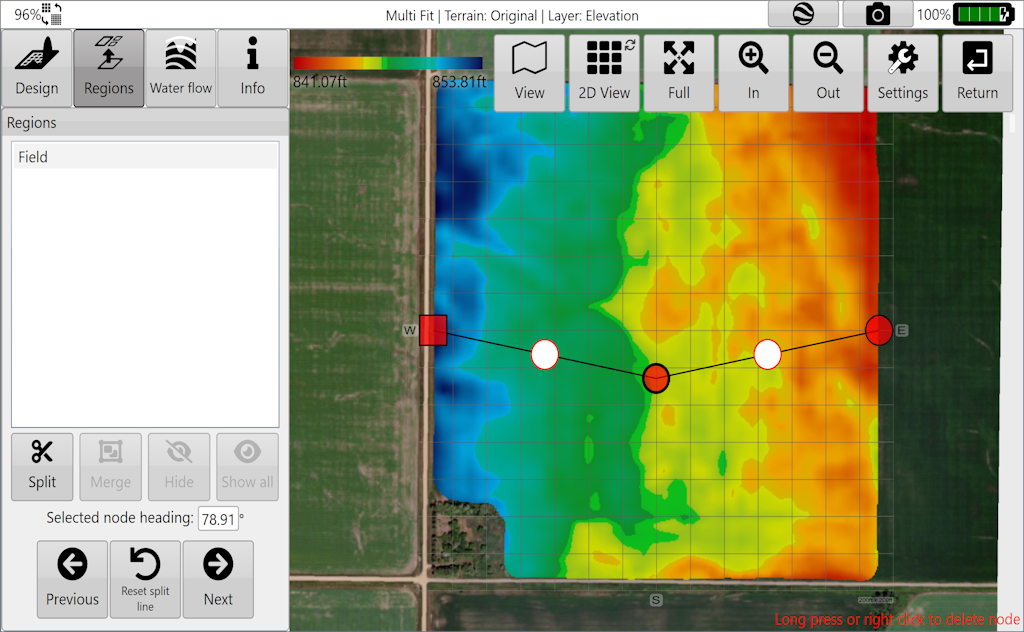
1. Position the splitting line across two edges of an existing region, or across the whole field if no regions exist. Move **Point A** and **Point B** directly with the touchscreen or mouse.
2. The split line is straight. To create a multi-segment split, tap and drag the white nodes.
3. You can split multiple times, then merge regions to build complex region shapes.
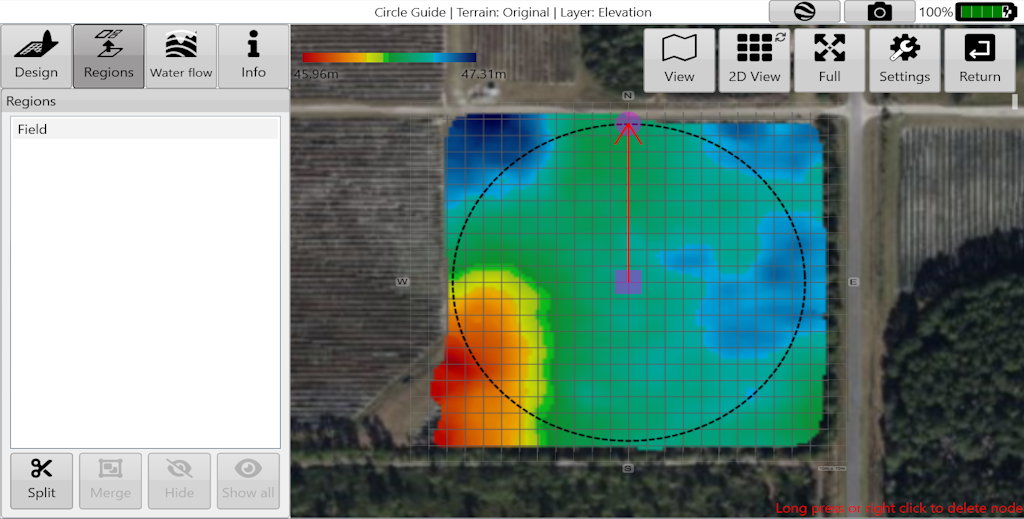
In the **Circle Guide** and **Levee** design tools, region splits use circles/levees instead of a line. These allow custom splits for pivot irrigation fields and rounded corners.
Press **Split** to confirm the split on the selected area.
## Merge, hide and restore regions
Select regions in the list, then press **Merge** to combine them into one region.
You can merge regions that are far apart. If one region contains two separate areas, position the split line between the two parts and press **Split** to separate them.
**Hide** deletes the design associated with the selected region(s). The region no longer exists as a separate area that can accept designs, but full-field designs can still be applied to it.
Press **Show all** to restore all hidden/deleted regions.
## Apply a design
When you have finished adding regions, press **Design**.
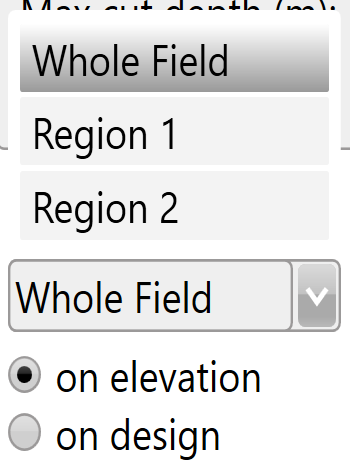
In multi-fit, best-fit, smoothing and levees, use the drop-down menu to select a region. Design changes then apply only to the selected region.
Choose whether to apply your design to the original elevation surface or to the design surface.