# Main Page
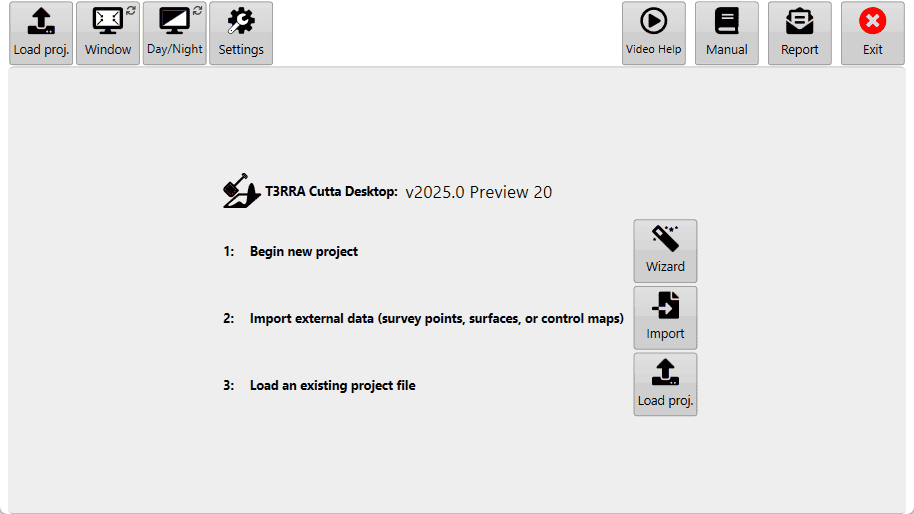
This is the first screen shown when T3RRA software opens. It also appears when you press ‘New Project’ on a Wizard page, as discussed in the Wizard section.
[](https://docs.t3rra.com/uploads/images/gallery/2026-03/uAyPuXqhgkv29Hba-image.png)## Points to note:
- The file name currently loaded will be displayed at the top of the screen if you are not using ‘Full Screen’ mode.
- The name of the software will be displayed.
- The version (v2023.2) will be displayed.
## In the center
When starting T3RRA Cutta Desktop, choose one of the three central options: begin a new project with the wizard, import data directly, or load an existing project.
[](https://docs.t3rra.com/uploads/images/gallery/2026-03/pxF42thWvmOGHydf-image.png) Wizard — Tap to start collecting data for a new project. The wizard guides you through collecting, surfacing, design and applying the new design.
[](https://docs.t3rra.com/uploads/images/gallery/2026-03/QnqHktnEPnTA5dL5-image.png) Import — Tap to import external data from sources such as CSV or LandXML files, or John Deere Ops Center. See the Import page for more information.
[](https://docs.t3rra.com/uploads/images/gallery/2026-03/huvDviZGd0bNMFtX-image.png) Load proj. — Tap to reopen a saved T3RRA project (\*.TCI) and continue where you left off. See Loading Projects for more information.
## Along the top
 Window — Switch between full screen and windowed modes. Windowed mode lets you view other pages on the tablet or computer while using T3RRA software. With a keyboard attached, F11 is the shortcut.
 Day, Night, & High Contrast modes — Choose a color scheme for the software.
- Day mode (1): Classic white (the mode used in the manual).
- High Contrast (2): Is an inverted version of classic white.
- Night mode (3): Has a black background and a green foreground.
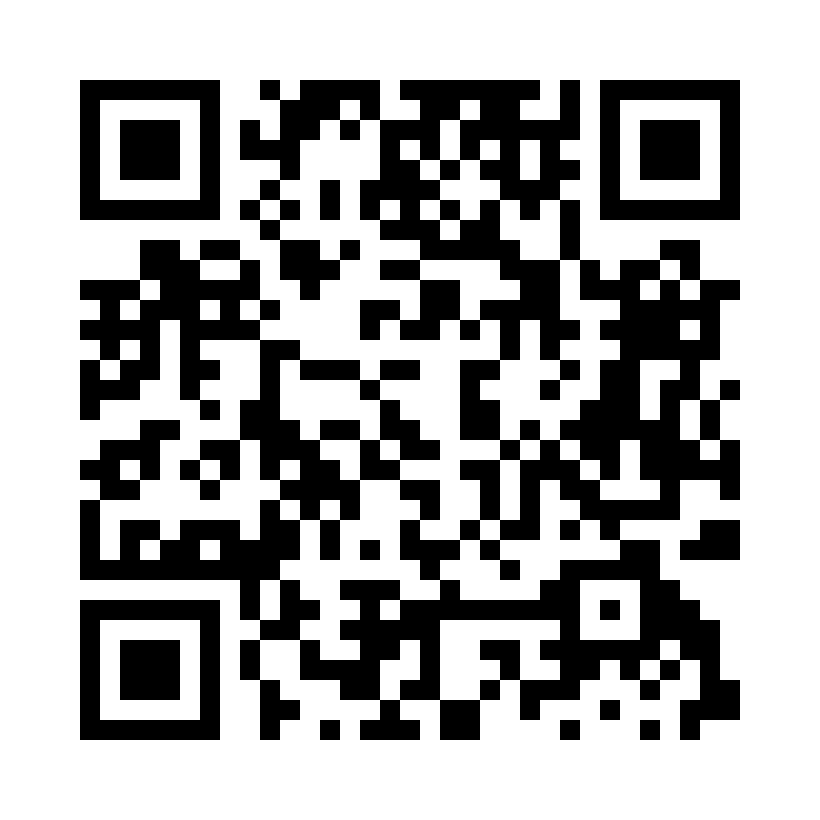
For a YouTube video tutorial on contrast adjustment visit [https://youtu.be/b-YLq5bELTk](https://youtu.be/b-YLq5bELTk) or use your phone to scan this barcode
 Settings — Once T3RRA software starts, first confirm that its configuration is correct. The next section explains the settings and how they operate; see the Settings article for more information.
 Manual — Press ‘Open Manual’ to download a digital copy of the manual and install it on your device. Once downloaded, the same button opens the manual.
 Report — Open the bug report/feature request window to report issues to T3RRA. The name and email address are filled automatically from the details linked to the software licence. An internet connection is required.
For a YouTube video tutorial on sending reports visit [https://youtu.be/YzdzwxzxydU](https://youtu.be/YzdzwxzxydU) or use your phone to scan this barcode.