# Loading Projects

## Open the project selection window

Use **Load proj.** to load saved T3RRA projects from your tablet or external sources such as USB drives.

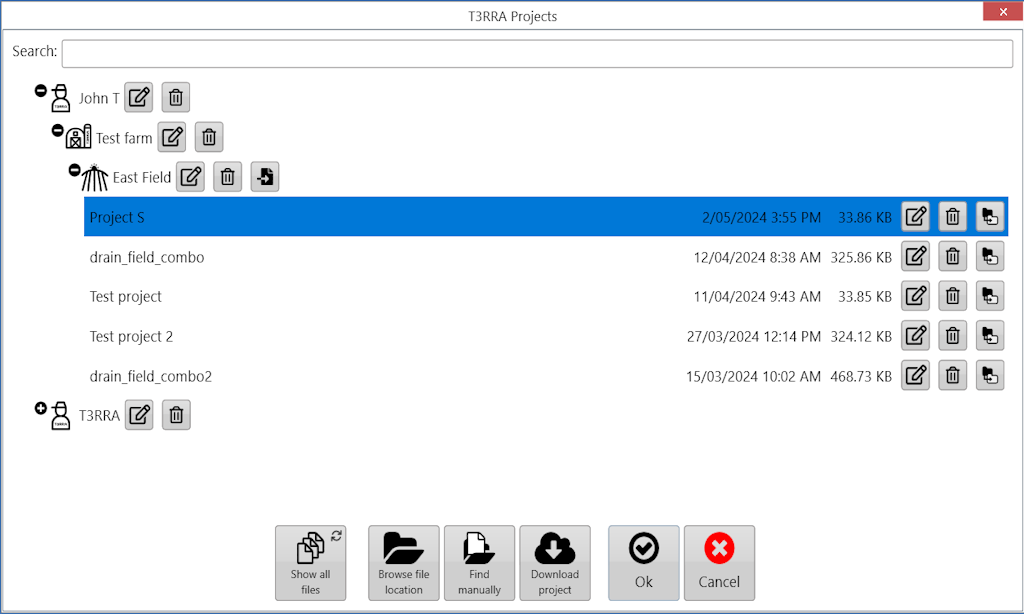
<span id="bkmrk-"></span>Press **Load proj.** at the top left or bottom center of the [Main Page](https://docs.t3rra.com/books/t3rra-cutta-desktop-manual/page/main-page "Main Page") to open the project selection window shown below.
![7E5ygeyx-syduxfhjpyjzdhk20dcjxw2w7aja-png.png](https://docs.t3rra.com/uploads/images/gallery/2025-03/scaled-1680-/7E5ygeyx-syduxfhjpyjzdhk20dcjxw2w7aja-png.png)

Select the project from the desired field, then press **OK**.

The **Grower/Farm/Field** file structure organizes projects. For information about these profiles and their setup, see later in this section.

<span id="bkmrk--2"></span>## Manage project files

Each file has three buttons:

- ![nqp7sbmiv-xoyoqbdrdy-t-wl1wijewnf8ojq-png.png](https://docs.t3rra.com/uploads/images/gallery/2025-03/scaled-1680-/nqp7sbmiv-xoyoqbdrdy-t-wl1wijewnf8ojq-png.png)**Left — rename:** the pencil-and-paper button renames the file.

- **Center — delete:** the trash-can button removes the file and moves it to the Windows Recycling Bin.
- **Right — move:** the two-folder button opens the same window used to save a file in T3RRA software, allowing you to move the project to a new location.

<span id="bkmrk--3"></span>## Show all files

![IG36rwuwkwz0srceepvta3ntqmbdvrsk3py0w-png.png](https://docs.t3rra.com/uploads/images/gallery/2025-03/scaled-1680-/IG36rwuwkwz0srceepvta3ntqmbdvrsk3py0w-png.png)

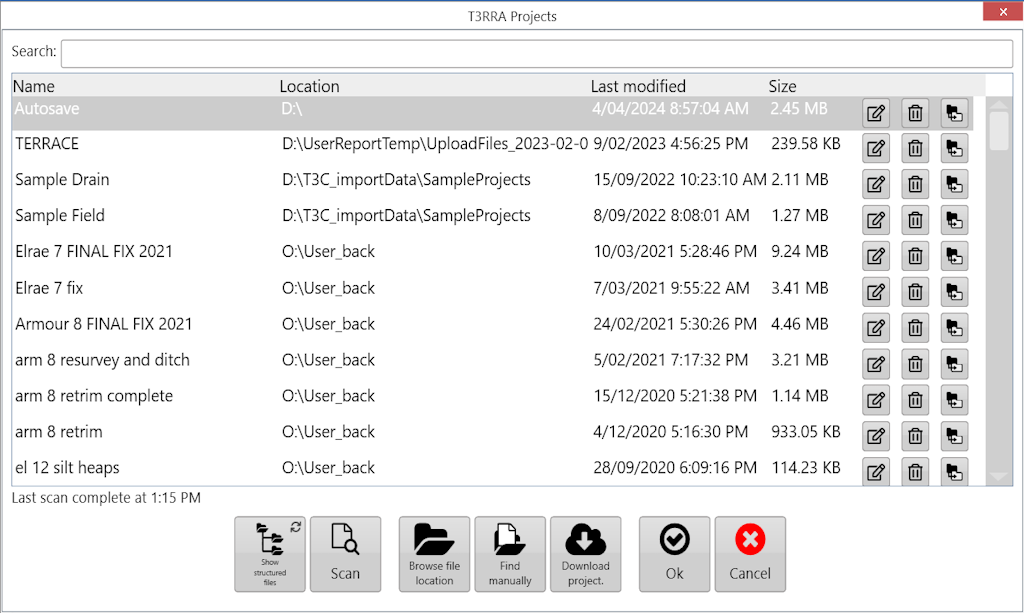
Choose **Show all files** to scan your computer’s **C:** drive. When the scan finishes, the list is populated with T3RRA Cutta project files.

<span id="bkmrk--6"></span>Enter text in **Search** to display only projects with matching file names.
<span id="bkmrk--7"></span>![Q3Iauu5ztc3fxj1swzbrgz1dhsatcaevjoxca-png.png](https://docs.t3rra.com/uploads/images/gallery/2025-03/scaled-1680-/Q3Iauu5ztc3fxj1swzbrgz1dhsatcaevjoxca-png.png)

<span id="bkmrk--9"></span>The progress bar at the lower right indicates that scanning is in progress.

When you find the desired file in the list, select it and press **Ok**.

<span id="bkmrk--10"></span>## Browse file location

![rc8llnzr2tmwjlz75eerahxouyfhig-lo0sdw-png.png](https://docs.t3rra.com/uploads/images/gallery/2025-03/scaled-1680-/rc8llnzr2tmwjlz75eerahxouyfhig-lo0sdw-png.png)

Click **Browse file location** to open the selected file’s location in File Explorer.

<span id="bkmrk--12"></span>## Find a project manually

<span id="bkmrk-%27find-manually%27-can--1">![Mmgwxymgkikx0nnvzm1w-woowcgfcnjw4fq5a-png.png](https://docs.t3rra.com/uploads/images/gallery/2025-03/scaled-1680-/Mmgwxymgkikx0nnvzm1w-woowcgfcnjw4fq5a-png.png)**Find manually** can be used for files outside the default T3RRA folder structure. Project files are normal Windows files and can be stored anywhere on the computer.</span>

<span id="bkmrk--13"></span>![k9Goumrw55i2tqqp5carwo0epfpeiuknppjmg-png.png](https://docs.t3rra.com/uploads/images/gallery/2025-03/scaled-1680-/k9Goumrw55i2tqqp5carwo0epfpeiuknppjmg-png.png)

<span id="bkmrk--15"></span>In the file explorer, find and select the T3C project file, then press **Open**.

<span id="bkmrk--16"></span>## Download from JD Ops Center

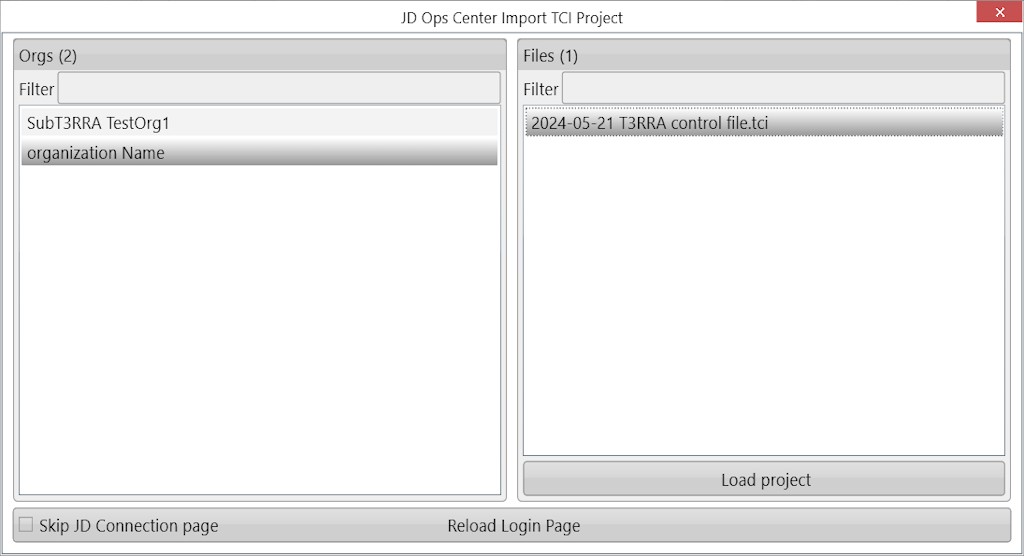
<span id="bkmrk--17">![0Tz2s6dvqcpcd8toeelxtrweojgjahpjatdea-png.png](https://docs.t3rra.com/uploads/images/gallery/2025-03/scaled-1680-/0Tz2s6dvqcpcd8toeelxtrweojgjahpjatdea-png.png)</span>Click **Download project** to open the JD Ops Center browser and view projects in JD Ops Center.
![IFKto8sl2yuwldnotsix74mf0vrqsxzpe6uiq-png.png](https://docs.t3rra.com/uploads/images/gallery/2025-03/scaled-1680-/IFKto8sl2yuwldnotsix74mf0vrqsxzpe6uiq-png.png)

Select the project and click **Load project**.

<span id="bkmrk--19"></span><span id="bkmrk--21"></span>## Check the loaded project stage

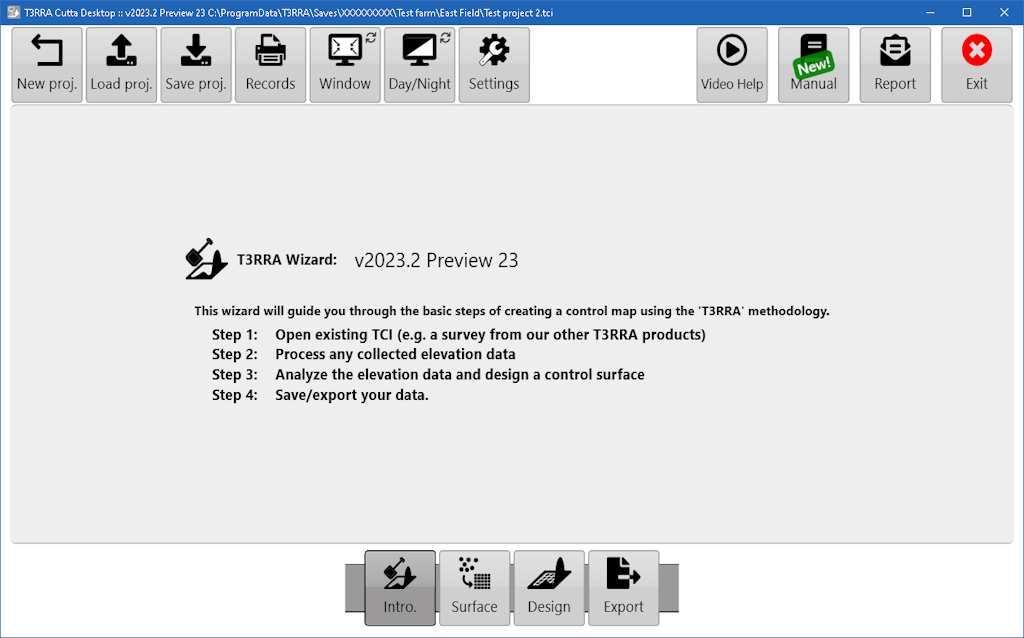
After a file has been selected and loaded, the wizard page should appear and show the project’s current stage.
![uxHaocycybshhqt6u-wqugd-62541rf8wsahw-png.png](https://docs.t3rra.com/uploads/images/gallery/2025-03/scaled-1680-/uxHaocycybshhqt6u-wqugd-62541rf8wsahw-png.png)

<span id="bkmrk--22"></span><span id="bkmrk--23"></span>