# Image Overlays

### <span style="border:none;display:inline-block;overflow:hidden;width:97px;height:97px;">![](https://docs.t3rra.com/uploads/images/gallery/2025-03/scaled-1680-/O8Hld8qngepjbh392gqqppxempi0hm4tgyrg-png.png)</span>

<span style="font-size: 14pt; font-family: Arial, Helvetica, sans-serif; color: rgb(0, 0, 0); font-weight: 300;">‘Image overlays’ allows geo-referenced image data to be imported into a field.</span>

<span style="font-family: Arial,Helvetica,sans-serif;"><span dir="ltr" style="font-size: 14pt; color: rgb(0, 0, 0); font-weight: 300;">The image overlay is accessed by pressing the View button at the top of the screen (Shown right).</span></span>

<span style="font-family: Arial,Helvetica,sans-serif;"><span style="border:1pt solid #000000;display:inline-block;overflow:hidden;width:297px;height:488px;">![](https://docs.t3rra.com/uploads/images/gallery/2025-03/scaled-1680-/5pnhhovxviea9wdmmtmcxv2yyq4wdxrrrsnrw-png.png)</span></span>

<span style="font-family: Arial,Helvetica,sans-serif;">  
</span>

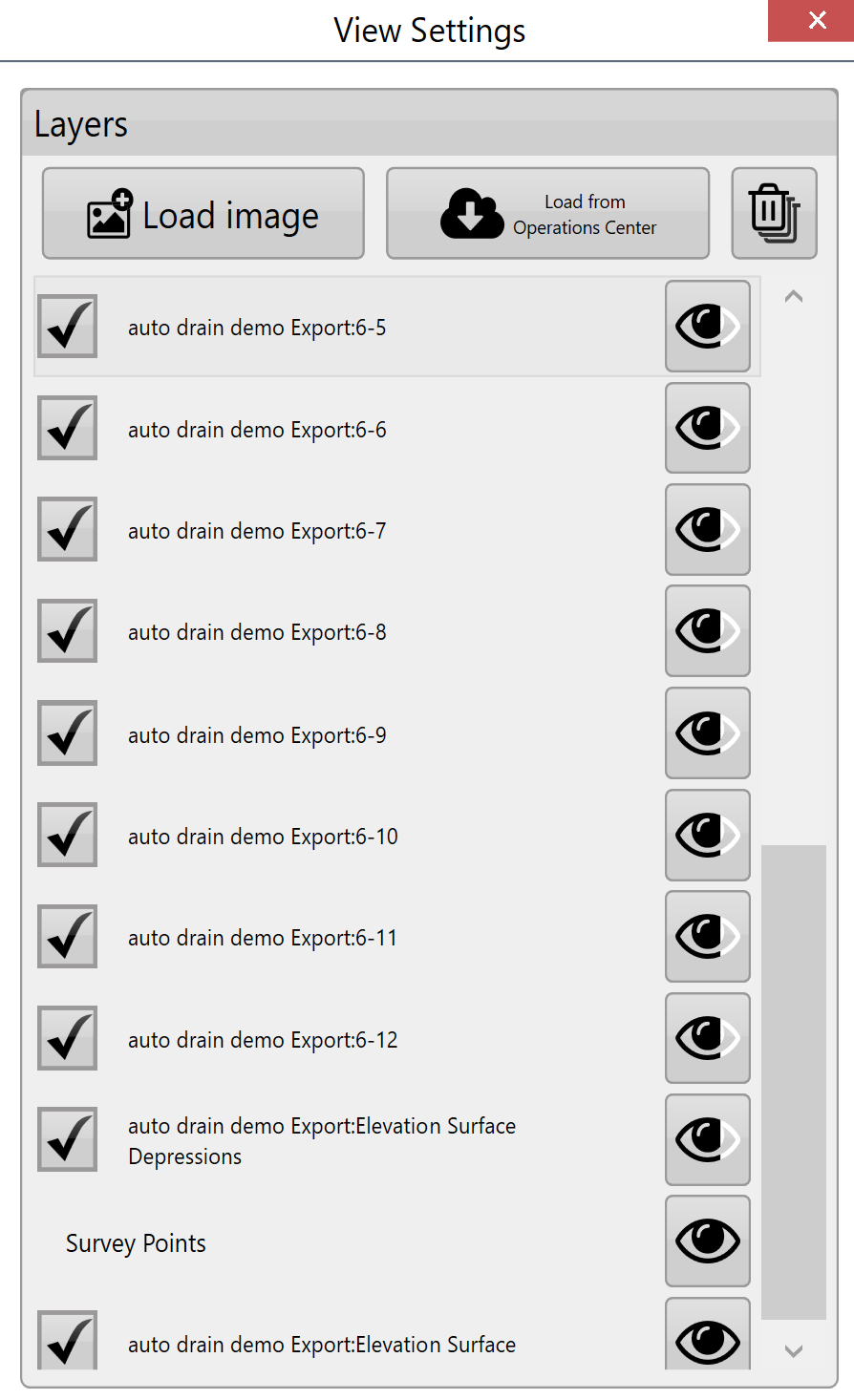
<span style="font-family: Arial,Helvetica,sans-serif;"><span dir="ltr" style="font-size: 14pt; color: rgb(0, 0, 0);">Load image - </span></span><span style="font-family: Arial,Helvetica,sans-serif;"><span dir="ltr" style="font-size: 14pt; color: rgb(0, 0, 0); font-weight: 300;">This is the primary method for adding overlay images to the field. When the button is pressed a file window will open to select the desired file. The file types that are currently supported as overlay images are </span><span style="font-size: 14pt; color: rgb(0, 0, 0); font-weight: 400;">.KML</span><span style="font-size: 14pt; color: rgb(0, 0, 0); font-weight: 300;"> and </span><span style="font-size: 14pt; color: rgb(0, 0, 0); font-weight: 400;">.TIFF</span><span style="font-size: 14pt; color: rgb(0, 0, 0); font-weight: 300;">.</span></span>

<span style="font-family: Arial,Helvetica,sans-serif;">  
</span>

<span style="font-family: Arial,Helvetica,sans-serif;"><span dir="ltr" style="font-size: 14pt; color: rgb(0, 0, 0);">Load image from JDOC - </span></span><span style="font-family: Arial,Helvetica,sans-serif;"><span dir="ltr" style="font-size: 14pt; color: rgb(0, 0, 0); font-weight: 300;">Images from the John Deere Operations Center can be downloaded into the image overlay. This is useful for comparing previous data (such as yields) with current survey data. </span></span>

<span style="font-family: Arial,Helvetica,sans-serif;">  
</span>

<span style="font-family: Arial,Helvetica,sans-serif;"><span dir="ltr" style="font-size: 14pt; color: rgb(0, 0, 0);">Delete images - </span></span><span style="font-family: Arial,Helvetica,sans-serif;"><span dir="ltr" style="font-size: 14pt; color: rgb(0, 0, 0); font-weight: 300;">Overlay images can be deleted by unchecking the box next to them and pressing the ‘delete images’ button. This will delete the layer from the available list.</span></span>

<span style="font-family: Arial,Helvetica,sans-serif;">  
</span>

<span style="font-family: Arial,Helvetica,sans-serif;"><span dir="ltr" style="font-size: 14pt; color: rgb(0, 0, 0);">Transparency - </span></span><span style="font-family: Arial,Helvetica,sans-serif;"><span dir="ltr" style="font-size: 14pt; color: rgb(0, 0, 0); font-weight: 300;">Overlay images can be set to be transparent so that layers below them can be seen. Check the box to the left of the layer and then press the transparency button on the right side.</span></span>

<span style="font-family: Arial,Helvetica,sans-serif;">  
</span>

<span style="font-family: Arial,Helvetica,sans-serif;"><span dir="ltr" style="font-size: 14pt; color: rgb(0, 0, 0);">Layers - </span></span><span dir="ltr" style="font-size: 14pt; font-family: Arial, Helvetica, sans-serif; color: rgb(0, 0, 0); font-weight: 300;">Pressing on any of the layers will cause it to be displayed over the others. Drag layers to adjust where they ‘sit’ on the image.</span>