# Exporting Guidance lines from T3RRA™ and importing into AutoTrac

<span style="font-size: 18px; font-family: Arial, Helvetica, sans-serif; color: rgb(0, 0, 0); font-weight: 400;">Remember that guidance lines are only available for Drains, Terraces, and Levees.</span>

<span style="font-size: 18px;"><span style="font-family: Arial,Helvetica,sans-serif;"><span style="color: rgb(0, 0, 0); font-weight: 300;">Should you wish to export guidance lines from T3RRA software for use with AutoTrac™ be sure to follow the following steps to be sure that the process is successful.</span></span></span>

<span style="font-size: 18px;"><span style="font-family: Arial,Helvetica,sans-serif;">  
</span></span>

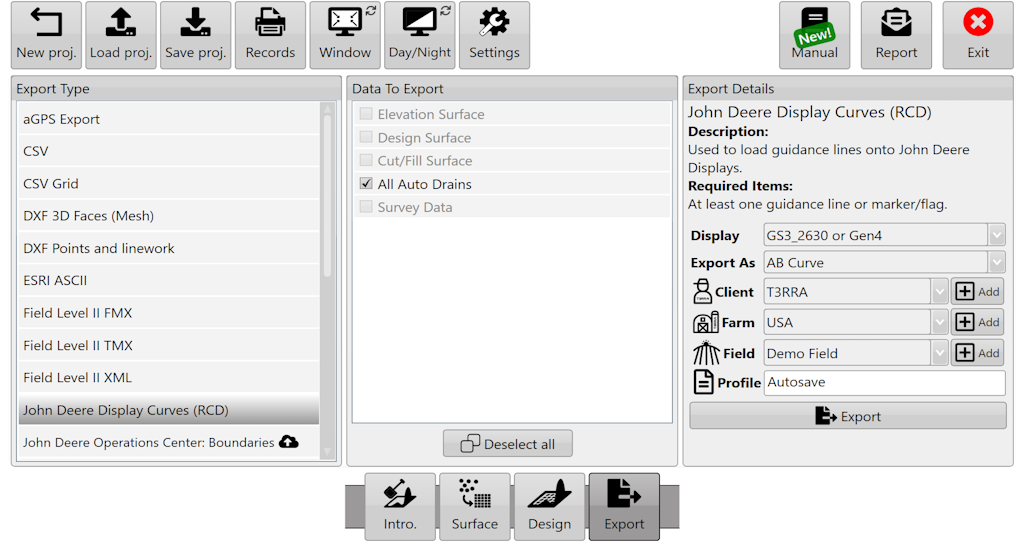
<span dir="ltr" style="font-size: 18px; font-family: Arial, Helvetica, sans-serif; color: rgb(0, 0, 0); font-weight: 300;">Exporting begins by pressing the Export button.</span>

<span dir="ltr" style="font-size: 14pt; font-family: Oswald, sans-serif; color: rgb(0, 0, 0); font-weight: 300;">![](https://docs.t3rra.com/uploads/images/gallery/2025-03/scaled-1680-/qVTsn1scfj-iowx6htq58-k5dto4qid7aduaw-png.png)</span>

<span style="font-size: 18px; font-family: Arial, Helvetica, sans-serif; color: rgb(0, 0, 0); font-weight: 400;">How to export guidance lines from T3RRA</span>

1. <span style="font-size: 18px;"><span style="font-family: Arial,Helvetica,sans-serif;"><span style="color: rgb(0, 0, 0); font-weight: 300;">Select the data to Export.</span></span></span>
2. <span style="font-size: 18px;"><span style="font-family: Arial,Helvetica,sans-serif;"><span style="color: rgb(0, 0, 0); font-weight: 300;">Select curve type.</span></span></span>
3. <span style="font-size: 18px;"><span style="font-family: Arial,Helvetica,sans-serif;"><span style="color: rgb(0, 0, 0); font-weight: 300;">Set the display to the model number of the John Deere display you will be using.</span></span></span>
4. <span style="font-size: 18px;"><span style="font-family: Arial,Helvetica,sans-serif;"><span style="color: rgb(0, 0, 0); font-weight: 300;">Input project information into client, farm, field and profile.</span></span></span>
5. <span style="font-size: 18px;"><span style="font-family: Arial,Helvetica,sans-serif;"><span style="color: rgb(0, 0, 0); font-weight: 300;">Press “Save” and a file with your guidance lines will be saved in the set location if you chose ‘John Deere Display Curves (RCD)’.</span></span></span>
6. <span style="font-size: 18px;"><span style="font-family: Arial,Helvetica,sans-serif;"><span style="color: rgb(0, 0, 0); font-weight: 300;">Press “Upload” and a file will be uploaded to JDOC where it can be assigned to equipment if you chose “John Deere Operations Center Curves (RCD)’.</span></span></span>

<span style="font-size: 18px;"><span style="font-family: Arial,Helvetica,sans-serif;">  
</span></span>

<span style="font-size: 18px;"><span style="font-family: Arial,Helvetica,sans-serif;">  
</span></span>

<span style="font-size: 18px;"><span style="font-family: Arial,Helvetica,sans-serif;">  
</span></span>

<span style="font-size: 18px;"><span style="font-family: Arial,Helvetica,sans-serif;">  
</span></span>

<span style="font-size: 18px;"><span style="font-family: Arial,Helvetica,sans-serif;"><span style="color: rgb(0, 0, 0); font-weight: 400;">How to transfer guidance lines to a John Deere display</span></span></span>

<span style="font-size: 18px;"><span style="font-family: Arial,Helvetica,sans-serif;"><span style="color: rgb(0, 0, 0); font-weight: 300;">(Instructions given are for the GS3 2630 Display, steps for other displays may vary: refer to the appropriate display manual)</span></span></span>

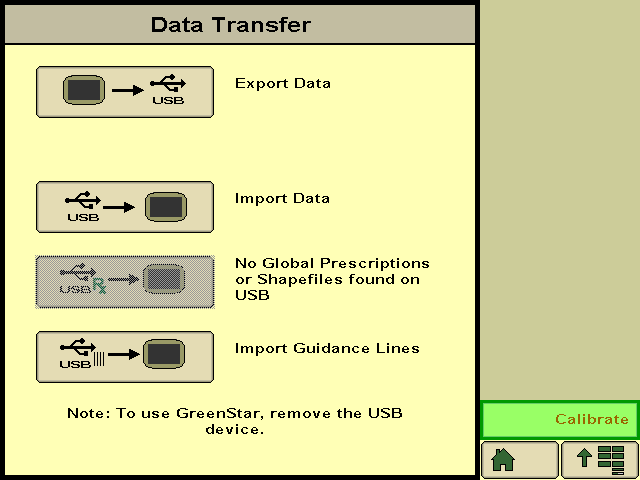
1. <span style="font-size: 18px;"><span style="font-family: Arial,Helvetica,sans-serif;"><span style="color: rgb(0, 0, 0); font-weight: 300;">Insert USB with guidance lines saved on it into John Deere Greenstar display. (The display will automatically detect the USB and display the available options.)</span></span></span>
2. <span style="font-size: 18px;"><span style="font-family: Arial,Helvetica,sans-serif;"><span dir="ltr" style="color: rgb(0, 0, 0); font-weight: 300;">Select “Import Guidance Lines” which should be the bottom option.</span></span></span>
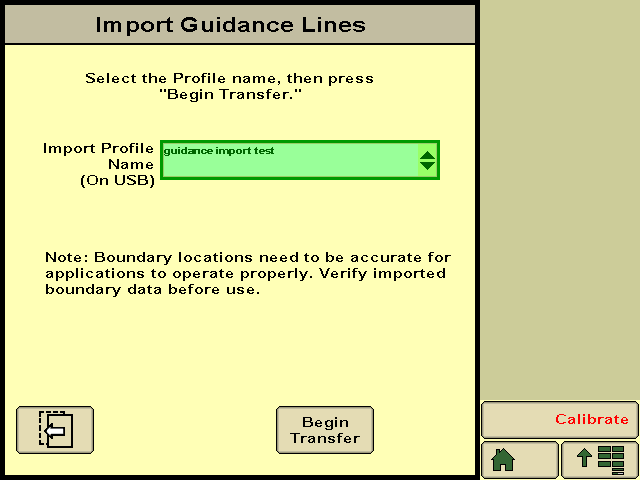
3. <span style="font-size: 18px;"><span style="font-family: Arial,Helvetica,sans-serif;"><span dir="ltr" style="color: rgb(0, 0, 0); font-weight: 300;"><span dir="ltr" style="color: rgb(0, 0, 0); font-weight: 300;">Select the desired profile and press “Begin Transfer”.\\</span></span></span></span>
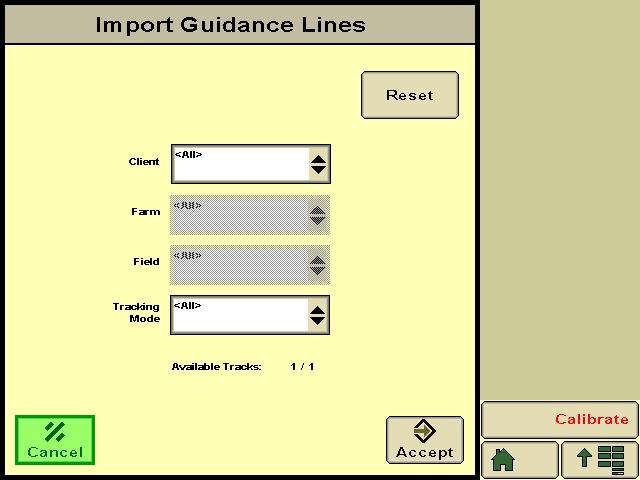
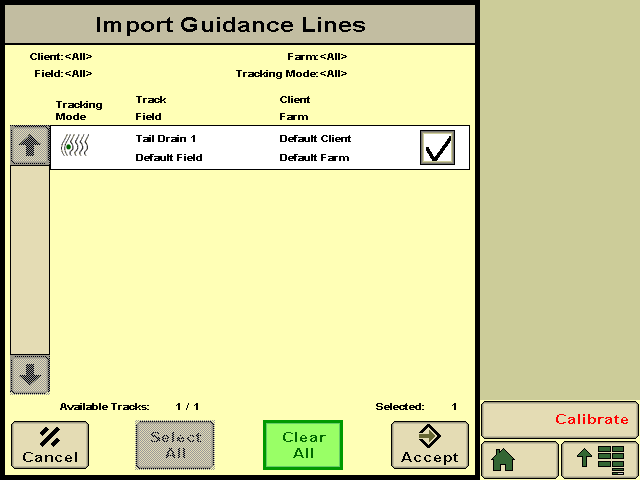
4. <span style="font-size: 18px;"><span style="font-family: Arial,Helvetica,sans-serif;"><span dir="ltr" style="color: rgb(0, 0, 0); font-weight: 300;">On this screen select which client, farm, field and tracking option of the file you want to import and press “Accept”. (The tracking option should be set to adaptive curves.)</span></span></span>
5. <span style="font-size: 18px;"><span style="font-family: Arial,Helvetica,sans-serif;"><span dir="ltr" style="color: rgb(0, 0, 0); font-weight: 300;"><span style="color: rgb(0, 0, 0); font-weight: 300;">Make sure the correct line/s you want to import are ticked and press “Accept”.</span></span></span></span>
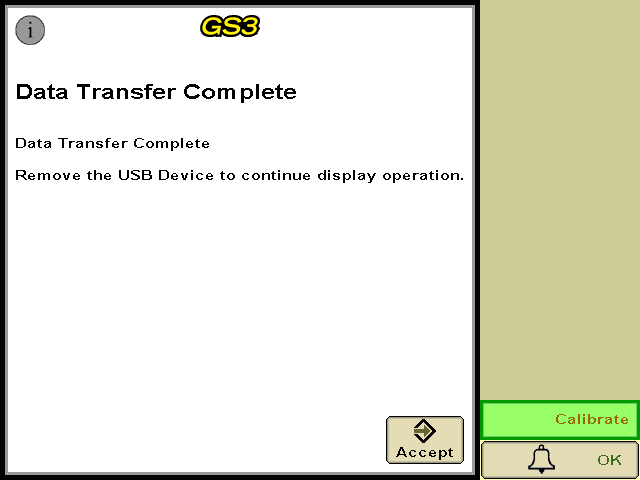
6. <span style="font-size: 18px;"><span style="font-family: Arial,Helvetica,sans-serif;"><span dir="ltr" style="color: rgb(0, 0, 0); font-weight: 300;"><span dir="ltr" style="color: rgb(0, 0, 0); font-weight: 300;"><span style="color: rgb(0, 0, 0); font-weight: 300;">A loading bar should appear, if everything has been successful the Data Transfer Complete screen should appear and you will be able to press “Accept”.</span></span></span></span></span>
7. <span dir="ltr" style="font-size: 14pt; font-family: Oswald, sans-serif; color: rgb(0, 0, 0); font-weight: 300;"><span dir="ltr" style="font-size: 14pt; font-family: Oswald, sans-serif; color: rgb(0, 0, 0); font-weight: 300;"><span dir="ltr" style="font-size: 18px; font-family: Arial, Helvetica, sans-serif; color: rgb(0, 0, 0); font-weight: 300;"><span style="color: rgb(0, 0, 0); font-weight: 300;">Your guidance lines have been imported to your John Deere Greenstar display and are now ready to be used with Autotrac™.</span></span></span></span>

<span dir="ltr" style="border:none;display:inline-block;overflow:hidden;width:268px;height:200px;">![](https://docs.t3rra.com/uploads/images/gallery/2025-03/scaled-1680-/WEYsysxehtkicw9ipbklha2sx-hdv2zq9jzza-png.png)</span>

<span style="border:none;display:inline-block;overflow:hidden;width:268px;height:201px;">![](https://docs.t3rra.com/uploads/images/gallery/2025-03/scaled-1680-/AO6yptjregbj17zvxd41omudy8s544rhojt1q-png.png)</span>

<span style="border:none;display:inline-block;overflow:hidden;width:268px;height:201px;">![](https://docs.t3rra.com/uploads/images/gallery/2025-03/scaled-1680-/LqYze1f57drek7pvfsxvwpa50ryrksphuapmg-png.png)</span>

<span style="border:none;display:inline-block;overflow:hidden;width:268px;height:201px;">![](https://docs.t3rra.com/uploads/images/gallery/2025-03/scaled-1680-/rX2vy8jnid42vnrhnn8k-aoudzhoc5ffxvqsq-png.png)</span>

<span style="border:none;display:inline-block;overflow:hidden;width:268px;height:201px;">![](https://docs.t3rra.com/uploads/images/gallery/2025-03/scaled-1680-/72Be5e96o6qmbm7f7a-spcokgu7dnbi1kwdrw-png.png)</span>