# Exporting Data

## ![](https://docs.t3rra.com/uploads/images/gallery/2025-03/scaled-1680-/OPGhip3w-aff0u7pyyjgjircyxvsoaelkmwzw-png.png)

<span dir="ltr" style="font-size: 18px; font-family: Arial, Helvetica, sans-serif; color: rgb(0, 0, 0); font-weight: 300;">Exporting allows data to be transferred to other programs. If you’re wanting to work within T3RRA, click the **[“Save Proj”](https://t3rra.freshdesk.com/en/support/solutions/articles/51000404411-save-project)** button at the top of the screen - it is far easier to work with this format than exporting and then re-importing the data.</span>

<span dir="ltr" style="font-size: 14pt; font-family: Oswald, sans-serif; color: rgb(0, 0, 0); font-weight: 300;">![](https://docs.t3rra.com/uploads/images/gallery/2025-03/scaled-1680-/zkP3j8pbppgnoi0pdvoyaatelg7ekfgbnygeq-png.png)</span>

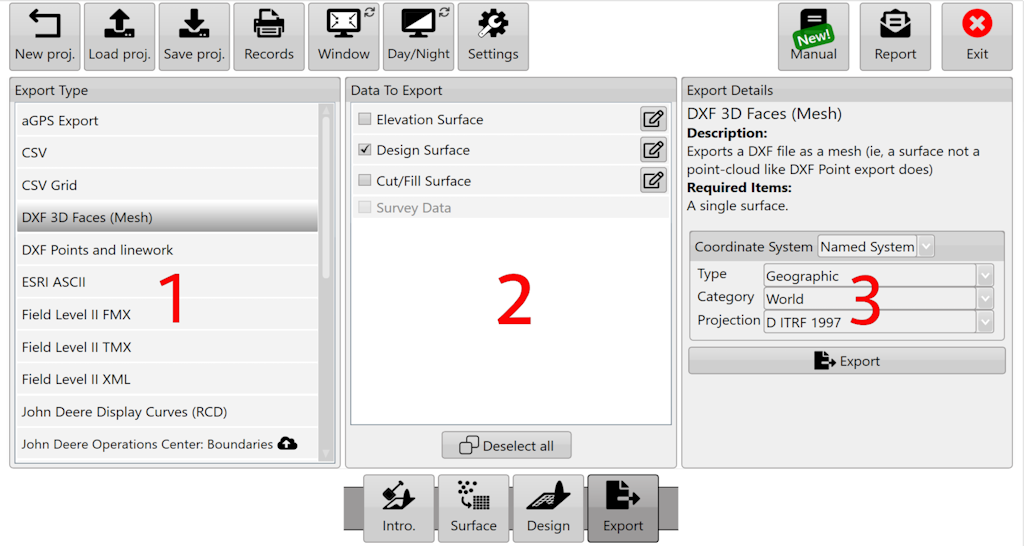
<span style="font-size: 18px; font-family: Arial, Helvetica, sans-serif; color: rgb(0, 0, 0); font-weight: 400;">Steps to export data</span>

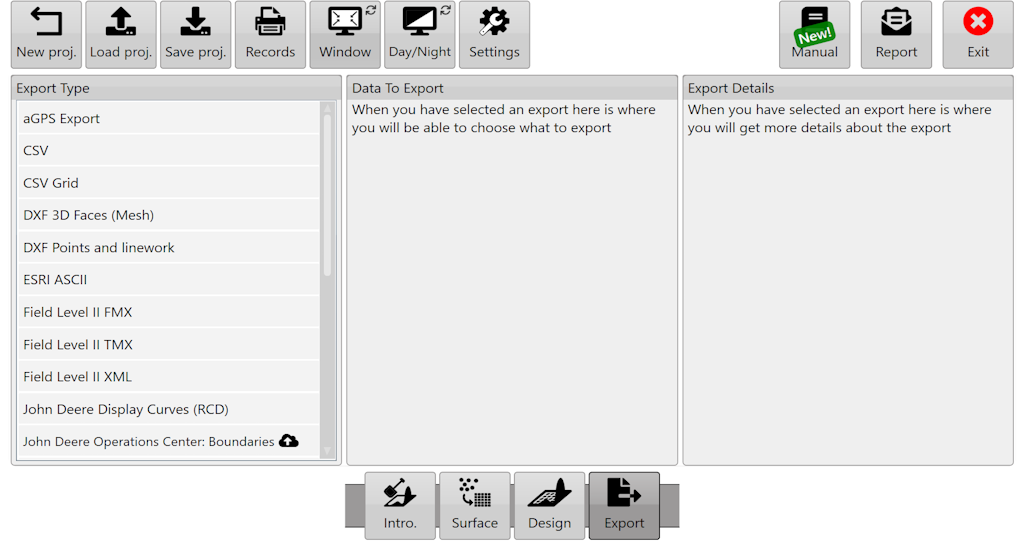
1. <span style="font-size: 18px;"><span style="font-family: Arial,Helvetica,sans-serif;"><span style="color: rgb(0, 0, 0); font-weight: 300;">Select the export format you want on the left.</span></span></span>
2. <span style="font-size: 18px;"><span style="font-family: Arial,Helvetica,sans-serif;"><span style="color: rgb(0, 0, 0); font-weight: 300;">Choose the data you wish to export. Clicking the button will allow you to change how the layer is exported (say if you wished to export a design surface as an elevation).</span></span></span>
3. <span dir="ltr" style="font-size: 18px; font-family: Arial, Helvetica, sans-serif; color: rgb(0, 0, 0); font-weight: 300;">Provide any additional information required (such as which projection you need) and click “Export”.</span>

<span dir="ltr" style="font-size: 18px; font-family: Arial, Helvetica, sans-serif; color: rgb(0, 0, 0); font-weight: 300;">Here is a video on **[Exporting Data.](https://youtu.be/m60FzuQGEdA?feature=shared)**</span>