# Elevation Grid

![](https://docs.t3rra.com/uploads/images/gallery/2025-03/scaled-1680-/JGL94tuub0evkmwza43wtkah1ibxvmhfs3gaw-png.png)

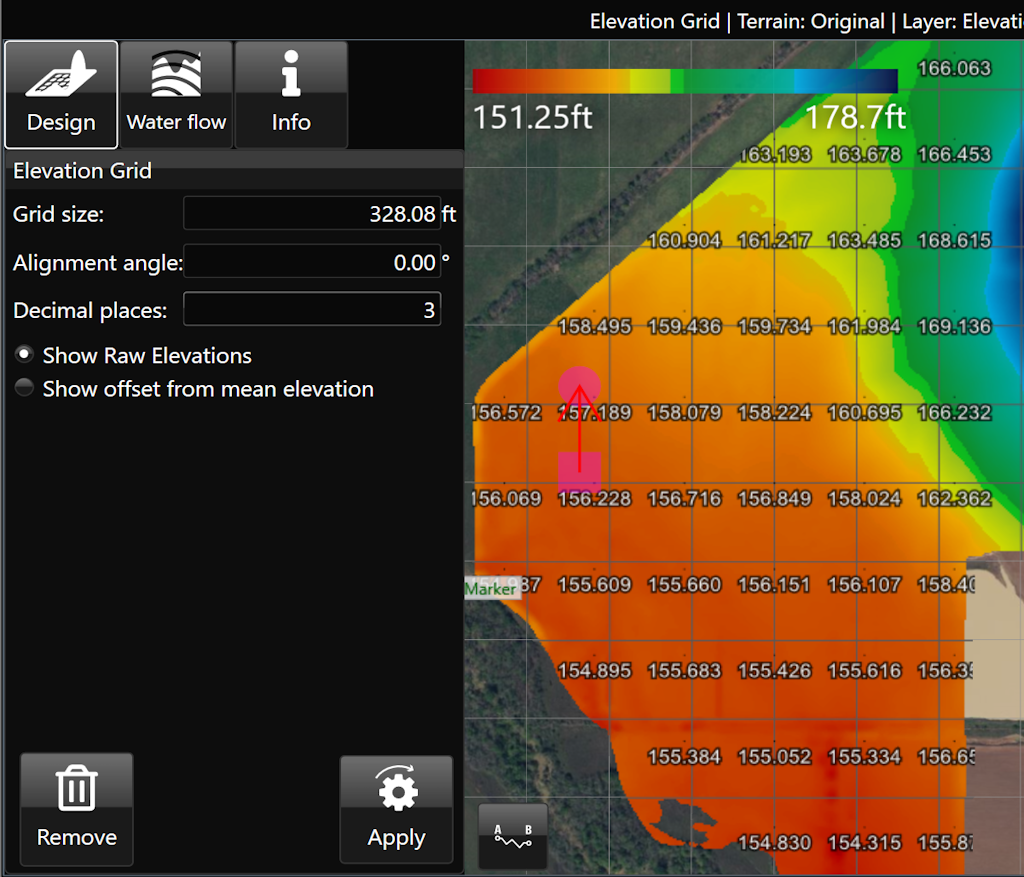
<span dir="ltr" style="box-sizing: border-box; font-size: 18px; font-family: Arial, Helvetica, sans-serif;">The ‘Elevations guide’ imposes a grid design on a field in the working area and displays the elevation of points at each junction on the grid. </span>

- <span style="font-size: 18px;"><span style="font-family: Arial,Helvetica,sans-serif;"><span style="box-sizing: border-box;">‘Grid cell size’. This option controls the size of the grid. Setting the size to 100m will result in each junction being 100 meters away from its neighbors.</span></span></span>
- <span style="font-size: 18px;"><span style="font-family: Arial,Helvetica,sans-serif;"><span style="box-sizing: border-box;">‘Alignment angle’ is a method of rotating the grid. </span></span></span>
- <span style="font-size: 18px;"><span style="font-family: Arial,Helvetica,sans-serif;"><span style="box-sizing: border-box;">‘Decimal places’. Sets how many decimal places will be visible on the grid values.</span></span></span>
- <span dir="ltr" style="box-sizing: border-box; font-size: 18px; font-family: Arial, Helvetica, sans-serif;">‘Show Raw Elevations’ and ‘Show offset from mean elevation’: These options will adjust what data is present on the grid. </span>
![](https://docs.t3rra.com/uploads/images/gallery/2025-03/scaled-1680-/CNpd4z0y-gls-9vnxv8um98wy1dgs42agvyza-png.png)