# T3RRA Cutta Desktop Manual

How to use T3RRA Cutta Desktop, our field analysis and design tool that has a similar look and feel to our in-cab products.

# Setting up T3RRA Cutta Desktop

# Hardware

## <span dir="ltr" style="font-size: 24pt; font-family: Arial, Helvetica, sans-serif; color: rgb(0, 0, 0); font-weight: 400;">Choosing a PC to run T3RRA softwar</span><span style="font-family: Arial,Helvetica,sans-serif;"><span dir="ltr" style="box-sizing: border-box; font-size: 24pt; color: rgb(0, 0, 0); font-weight: 400;">e </span></span>

<span style="font-family: Arial,Helvetica,sans-serif;"><span style="box-sizing: border-box; font-size: 14pt; color: rgb(0, 0, 0); font-weight: 400;">Windows &amp; OS maintenance</span></span>

<span style="font-family: Arial,Helvetica,sans-serif;">  
</span>

<span style="font-family: Arial,Helvetica,sans-serif;"><span style="box-sizing: border-box; font-size: 14pt; color: rgb(0, 0, 0); font-weight: 300;">Requirements:</span></span>

<span style="font-family: Arial,Helvetica,sans-serif;"><span dir="ltr" style="box-sizing: border-box; font-size: 14pt; color: rgb(0, 0, 0); font-weight: 300;">Windows 11 (64 bit)</span></span>

<span style="font-family: Arial,Helvetica,sans-serif;">  
</span>

<span style="font-family: Arial,Helvetica,sans-serif;"><span style="box-sizing: border-box; font-size: 14pt; color: rgb(0, 0, 0); font-weight: 300;">Recommended:</span></span>

<span style="font-family: Arial,Helvetica,sans-serif;"><span style="box-sizing: border-box; font-size: 14pt; color: rgb(0, 0, 0); font-weight: 300;">Intel i5 or better processor (manufactured 2021 or newer)</span></span>

<span style="font-family: Arial,Helvetica,sans-serif;"><span style="box-sizing: border-box; font-size: 14pt; color: rgb(0, 0, 0); font-weight: 300;">&gt;= 8GB RAM (more RAM facilitates larger fields)</span></span>

<span style="font-family: Arial,Helvetica,sans-serif;"><span style="box-sizing: border-box; font-size: 14pt; color: rgb(0, 0, 0); font-weight: 300;">&gt;= 256GB HDD</span></span>

<span style="font-family: Arial,Helvetica,sans-serif;"><span style="box-sizing: border-box; font-size: 14pt; color: rgb(0, 0, 0); font-weight: 300;">Integrated or better graphics card</span></span>

<span style="font-family: Arial,Helvetica,sans-serif;"><span style="box-sizing: border-box; font-size: 14pt; color: rgb(0, 0, 0); font-weight: 300;">Serial port (preferred) or USB port</span></span>

<span style="font-family: Arial,Helvetica,sans-serif;">  
</span>

<span style="font-family: Arial,Helvetica,sans-serif;">  
</span>

<span style="font-family: Arial,Helvetica,sans-serif;"><span style="box-sizing: border-box; font-size: 14pt; color: rgb(0, 0, 0); font-weight: 300;">Windows updates should be performed whenever an error is encountered or a new version of T3RRA software is downloaded. We suggest doing updates and testing software prior to the earthmoving season each year.</span></span>

<span style="font-family: Arial,Helvetica,sans-serif;">  
</span>

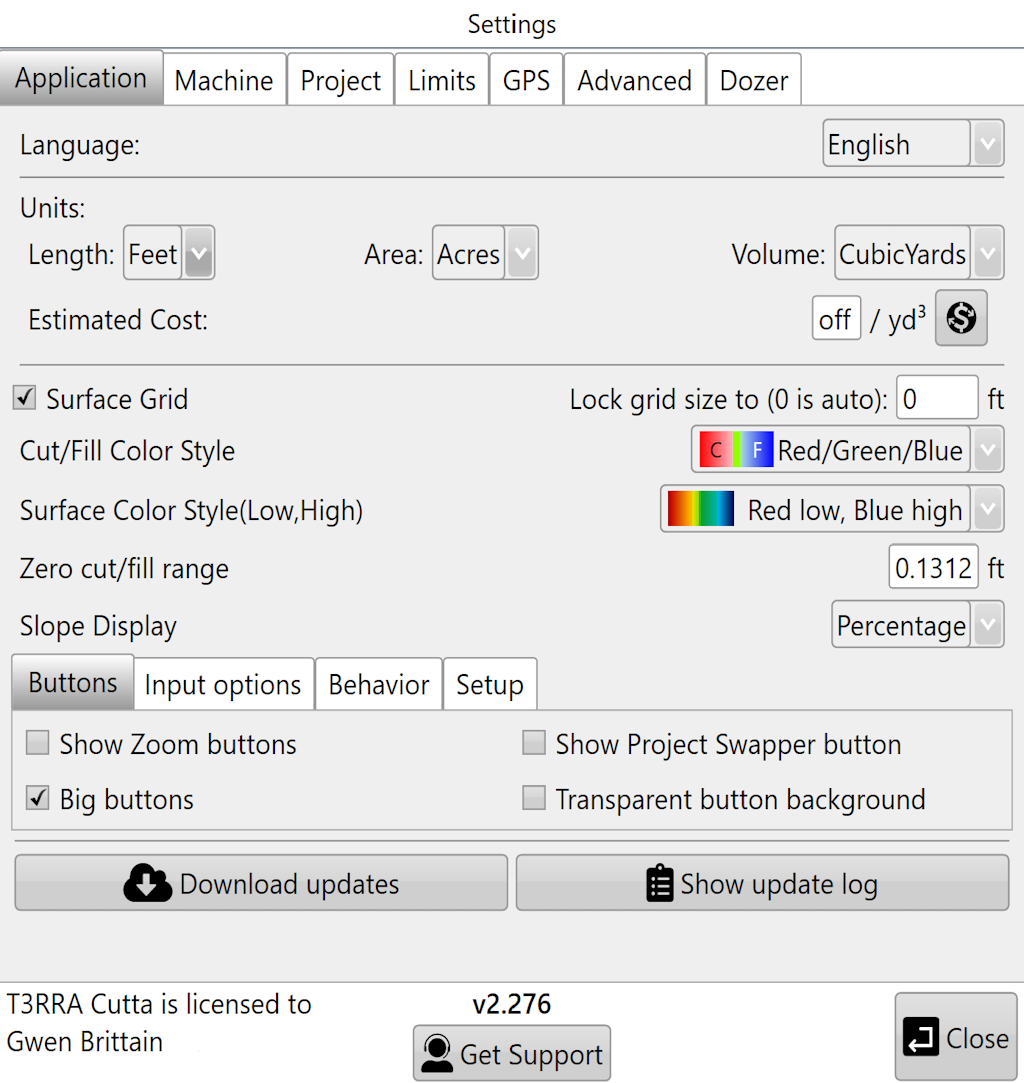
<span style="font-family: Arial,Helvetica,sans-serif;"><span style="box-sizing: border-box; font-size: 14pt; color: rgb(0, 0, 0); font-weight: 300;">REMEMBER to update T3RRA software after installation. Best practice is to regularly connect <span dir="ltr" style="color: rgb(0, 0, 0); font-size: 18.6667px; font-weight: 300; text-align: left; text-indent: 0px; display: inline !important;">your PC</span> to the internet at home or in the office to provide adequate time for software updates to occur and successfully install. After completing your earthmoving jobs, update your T3RRA software by opening the ‘</span><span style="box-sizing: border-box; font-size: 14pt; color: rgb(0, 0, 0); font-weight: 400;">Settings</span><span style="box-sizing: border-box; font-size: 14pt; color: rgb(0, 0, 0); font-weight: 300;">’ window, choosing the ‘</span><span style="box-sizing: border-box; font-size: 14pt; color: rgb(0, 0, 0); font-weight: 400;">Application</span><span style="box-sizing: border-box; font-size: 14pt; color: rgb(0, 0, 0); font-weight: 300;">’ tab, and then clicking ‘</span><span style="box-sizing: border-box; font-size: 14pt; color: rgb(0, 0, 0); font-weight: 400;">Download Updates</span><span style="box-sizing: border-box; font-size: 14pt; color: rgb(0, 0, 0); font-weight: 300;">’.</span></span>

<span style="font-family: Arial,Helvetica,sans-serif;">  
</span>

<span style="font-family: Arial,Helvetica,sans-serif;"><span style="box-sizing: border-box; font-size: 14pt; color: rgb(0, 0, 0); font-weight: 300;">If you are using antivirus software, help T3RRA Cutta run without interference by adding an exclusion for the T3RRA Cutta folder for your username. For more information, see </span>[<span style="box-sizing: border-box; font-size: 14pt; color: rgb(17, 85, 204); font-weight: 300; text-decoration-skip-ink: none;">T3RRA software will not install</span>](https://docs.google.com/document/d/1RNfeigY7utPoMsvrRS_3KnyfgzvPcrv305fHwjMDmJ8/edit#heading=h.9y21nlbxopg4)<span style="box-sizing: border-box; font-size: 14pt; color: rgb(0, 0, 0); font-weight: 300;"> in </span>[<span style="box-sizing: border-box; font-size: 14pt; color: rgb(17, 85, 204); font-weight: 300; text-decoration-skip-ink: none;">Troubleshooting</span>](https://docs.google.com/document/d/1RNfeigY7utPoMsvrRS_3KnyfgzvPcrv305fHwjMDmJ8/edit#heading=h.9wh5o68fyu60)<span style="box-sizing: border-box; font-size: 14pt; color: rgb(0, 0, 0); font-weight: 300;">.</span></span>

<span style="font-family: Arial,Helvetica,sans-serif;">  
</span>

<span style="font-family: Arial,Helvetica,sans-serif;"><span dir="ltr" style="font-size: 14pt; color: rgb(0, 0, 0); font-weight: 300;">Our software will run on any 64bit Windows 11 PC. It will run on a desktop, a laptop, or a tablet. It will work with a regular mouse and keyboard.</span></span>

<span style="font-family: Arial,Helvetica,sans-serif;">  
</span>

<span style="font-family: Arial,Helvetica,sans-serif;"><span dir="ltr" style="font-size: 14pt; color: rgb(0, 0, 0); font-weight: 300;">We expect all users to carefully consider the impact of a hardware failure, and the time lost due to waiting on a replacement, on their operation. If the potential losses from PC failure are high they should not consider the consumer grade PC option, or at the very least should have a backup option that can be quickly implemented.</span></span>

<span style="font-family: Arial,Helvetica,sans-serif;">  
</span>

<span style="font-family: Arial,Helvetica,sans-serif;"><span dir="ltr" style="font-size: 14pt; color: rgb(0, 0, 0); font-weight: 300;">The modern PC is a highly capable machine with the ability to run many different software applications and to be used in many different roles. We ask customers to consider the impact of using their PC for other activities. There are software programs and usage activities that can use up disk and processor resources. This may result in sluggish performance when running T3RRA software, and should be avoided.</span></span>

<span style="font-family: Arial,Helvetica,sans-serif;">  
</span>

<span style="font-family: Arial,Helvetica,sans-serif;"><span dir="ltr" style="font-size: 14pt; color: rgb(255, 0, 0); font-weight: 300;">NOTE: Maintaining your PC is extremely important. Perform both Windows updates and T3RRA updates on regular intervals.</span></span>

# Installing T3RRA Cutta Desktop Software
<span data-identifyelement="472" style="font-size: 14pt; font-family: Oswald, sans-serif; color: rgb(0, 0, 0); font-weight: 300;">![](https://docs.t3rra.com/uploads/images/gallery/2025-03/scaled-1680-/BvBzlcebbyodmum5jica8zpoos3o3um2nxqg-png.png)</span>

- <span data-identifyelement="477" style="font-size: 14pt; font-family: Arial, Helvetica, sans-serif; color: rgb(0, 0, 0); font-weight: 300;">Make sure you have a good internet connection and your c</span><span data-identifyelement="478" style="font-family: Arial,Helvetica,sans-serif;"><span data-identifyelement="479" style="font-size: 14pt; color: rgb(0, 0, 0); font-weight: 300;">omput</span><span data-identifyelement="480" style="font-size: 18px; color: rgb(0, 0, 0); font-weight: 300;">er has the latest Windows updates inst</span><span data-identifyelement="481" style="font-size: 14pt; color: rgb(0, 0, 0); font-weight: 300;">alled.</span></span>
- <span data-identifyelement="484" style="font-family: Arial,Helvetica,sans-serif;"><span data-identifyelement="485" style="font-size: 14pt; color: rgb(0, 0, 0); font-weight: 300;">T3RRA software is normally installed by your dealer</span><span data-identifyelement="486" dir="ltr" style="font-size: 14pt; color: rgb(0, 0, 0); font-weight: 300;">. Refer to Dealer T3RRA Install Manual. You will need the standalone T3RRA Cutta Desktop installer and the unlock code.</span><span data-identifyelement="487" style="font-size: 14pt; color: rgb(0, 0, 0); font-weight: 300;">  
    </span></span>

<span data-identifyelement="490" style="font-family: Arial,Helvetica,sans-serif;"><span data-identifyelement="491" style="font-size: 14pt; color: rgb(0, 0, 0); font-weight: 400;">Windows &amp; OS maintenance</span></span>

<span data-identifyelement="493" style="font-family: Arial,Helvetica,sans-serif;">  
</span>

<span data-identifyelement="496" style="font-family: Arial,Helvetica,sans-serif;"><span data-identifyelement="497" style="font-size: 14pt; color: rgb(0, 0, 0); font-weight: 300;">Requirements:</span></span>

<span data-identifyelement="499" style="font-family: Arial,Helvetica,sans-serif;"><span data-identifyelement="500" dir="ltr" style="font-size: 14pt; color: rgb(0, 0, 0); font-weight: 300;">Windows 11 (64 bit)</span></span>

<span data-identifyelement="502" style="font-family: Arial,Helvetica,sans-serif;">  
</span>

<span data-identifyelement="505" style="font-family: Arial,Helvetica,sans-serif;"><span data-identifyelement="506" style="font-size: 14pt; color: rgb(0, 0, 0); font-weight: 300;">Recommended:</span></span>

<span data-identifyelement="508" style="font-family: Arial,Helvetica,sans-serif;"><span data-identifyelement="509" style="font-size: 14pt; color: rgb(0, 0, 0); font-weight: 300;">Intel i5 or better processor (manufactured 2021 or newer)</span></span>

<span data-identifyelement="511" style="font-family: Arial,Helvetica,sans-serif;"><span data-identifyelement="512" style="font-size: 14pt; color: rgb(0, 0, 0); font-weight: 300;">&gt;= 8GB RAM (more RAM facilitates larger fields)</span></span>

<span data-identifyelement="514" style="font-family: Arial,Helvetica,sans-serif;"><span data-identifyelement="515" style="font-size: 14pt; color: rgb(0, 0, 0); font-weight: 300;">&gt;= 256GB HDD</span></span>

<span data-identifyelement="517" style="font-family: Arial,Helvetica,sans-serif;"><span data-identifyelement="518" style="font-size: 14pt; color: rgb(0, 0, 0); font-weight: 300;">Integrated or better graphics card</span></span>

<span data-identifyelement="520" style="font-family: Arial,Helvetica,sans-serif;"><span data-identifyelement="521" style="font-size: 14pt; color: rgb(0, 0, 0); font-weight: 300;">Serial port (preferred) or USB port</span></span>

<span data-identifyelement="523" style="font-family: Arial,Helvetica,sans-serif;">  
</span>

<span data-identifyelement="526" style="font-family: Arial,Helvetica,sans-serif;">  
</span>

<span data-identifyelement="529" style="font-family: Arial,Helvetica,sans-serif;"><span data-identifyelement="530" dir="ltr" style="font-size: 14pt; color: rgb(0, 0, 0); font-weight: 300;">Windows updates should be performed whenever an error is encountered or a new version of T3RRA software is downloaded. We suggest doing updates and testing software prior to the earthmoving season each year.</span></span>

<span data-identifyelement="532" style="font-family: Arial,Helvetica,sans-serif;">  
</span>

<span data-identifyelement="535" style="font-family: Arial,Helvetica,sans-serif;"><span data-identifyelement="536" dir="ltr" style="font-size: 14pt; color: rgb(0, 0, 0); font-weight: 300;">REMEMBER to update T3RRA software after installation. You can learn more about updating by following the link</span><span data-identifyelement="536" dir="ltr" style="font-size: 14pt; color: rgb(41, 105, 176); font-weight: 300;"> [How do you update?](https://t3rra.freshdesk.com/en/support/solutions/articles/51000404024-how-do-you-update-)</span><span data-identifyelement="536" dir="ltr" style="font-size: 14pt; color: rgb(0, 0, 0); font-weight: 300;"> in the</span><span data-identifyelement="536" dir="ltr" style="font-size: 14pt; color: rgb(44, 130, 201); font-weight: 300;"> </span><span data-identifyelement="536" dir="ltr" style="font-size: 14pt; color: rgb(41, 105, 176); font-weight: 300;">[Updating T3RRA software](https://t3rra.freshdesk.com/en/support/solutions/folders/51000450914)</span><span data-identifyelement="536" dir="ltr" style="font-size: 14pt; color: rgb(0, 0, 0); font-weight: 300;"> folder. Best practice is to regularly connect your tablet to the internet at home or in the office to provide adequate time for software updates to occur and successfully install. After completing your earthmoving jobs, update your T3RRA software by opening the ‘</span><span data-identifyelement="538" style="font-size: 14pt; color: rgb(0, 0, 0); font-weight: 400;">Settings</span><span data-identifyelement="539" style="font-size: 14pt; color: rgb(0, 0, 0); font-weight: 300;">’ window, choosing the ‘</span><span data-identifyelement="540" style="font-size: 14pt; color: rgb(0, 0, 0); font-weight: 400;">Application</span><span data-identifyelement="541" style="font-size: 14pt; color: rgb(0, 0, 0); font-weight: 300;">’ tab, and then clicking ‘</span><span data-identifyelement="542" style="font-size: 14pt; color: rgb(0, 0, 0); font-weight: 400;">Download Updates</span><span data-identifyelement="543" style="font-size: 14pt; color: rgb(0, 0, 0); font-weight: 300;">’.</span></span>

<span data-identifyelement="545" style="font-family: Arial,Helvetica,sans-serif;">  
</span>

<span data-identifyelement="548" style="font-family: Arial,Helvetica,sans-serif;"><span data-identifyelement="549" dir="ltr" style="font-size: 14pt; color: rgb(0, 0, 0); font-weight: 300;">If you are using antivirus software, help T3RRA run without interference by adding an exclusion for the T3RRA folder for your username. </span></span>

# Updating T3RRA Software

# How do you know an update is available?

<span dir="ltr" style="font-size: 14pt; font-family: Arial, Helvetica, sans-serif; color: rgb(0, 0, 0); font-weight: 300;">The software will check on startup to see if an updated version is available. This only happens if the computer or tablet on which it is running has an active internet connection. If so, one of two messages will be displayed briefly in the bottom left corner of the main window. One will note that the software is up to date and no update is available. However if an update is available the message will indicate the version number of this update.</span>

# How do you update?

<span style="font-size: 14pt; font-family: Arial, Helvetica, sans-serif; color: rgb(0, 0, 0); font-weight: 300;">Navigate to the ‘</span><span style="font-family: Arial,Helvetica,sans-serif;"><span style="font-size: 14pt; color: rgb(0, 0, 0); font-weight: 400;">Settings</span><span style="font-size: 14pt; color: rgb(0, 0, 0); font-weight: 300;">’ window and tap the '</span><span style="font-size: 14pt; color: rgb(0, 0, 0); font-weight: 400;">Download updates</span><span style="font-size: 14pt; color: rgb(0, 0, 0); font-weight: 300;">' button on the '</span><span style="font-size: 14pt; color: rgb(0, 0, 0); font-weight: 400;">Application</span></span><span style="font-size: 14pt; font-family: Arial, Helvetica, sans-serif; color: rgb(0, 0, 0); font-weight: 300;">' tab. If you are online and an update exists, downloading of the update will begin immediately.</span>

<span style="font-size: 11pt; font-family: Arial, sans-serif; color: rgb(0, 0, 0); font-weight: 400;"><span style="border: 1pt solid #000000; display: inline-block; overflow: hidden; width: 364px; height: 384px;">![](https://docs.t3rra.com/uploads/images/gallery/2025-03/scaled-1680-/th5er8ahtvctq1lumx3splztz4bmlby8xtiya-png.png)</span></span>

<span style="font-size: 14pt; font-family: Arial, Helvetica, sans-serif; color: rgb(0, 0, 0); font-weight: 300;">A window will appear showing the progress of the download. When complete you will be prompted to close the software and re-open it. At this time the upgrade process will be complete. A strong internet connection is recommended for updating.</span>

# When should you update?

<span style="font-size: 14pt; font-family: Arial, Helvetica, sans-serif; color: rgb(0, 0, 0); font-weight: 300;">Don’t fix what isn’t broken! If the software is doing everything you want then don’t tempt fate by changing anything. In particular don’t update the software while in the middle of an operation. Only update if there is a clear problem apparent, or if you have been advised to do so by your dealer. </span>

# What should you do if updating causes more problems than it fixes?

<span style="font-size: 14pt; font-family: Arial, Helvetica, sans-serif; color: rgb(0, 0, 0); font-weight: 300;">There is a provision to revert updates if needed. This is not a process that should normally be necessary, or that is recommended to be performed by customers. Please contact T3RRA or your dealer for information about this.</span>

# Hardware

# The Main Pages

# Main Page

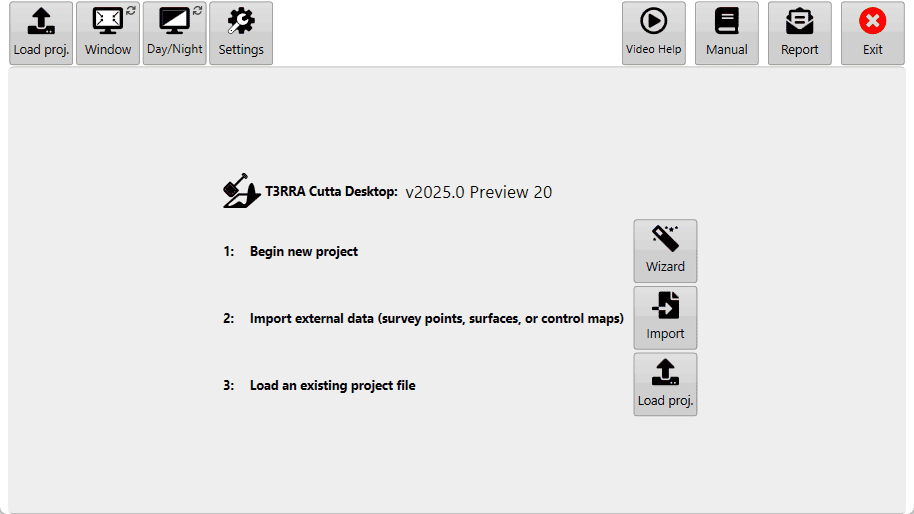
<span data-identifyelement="482" dir="ltr" style="font-size: 14pt; font-family: Arial, Helvetica, sans-serif; color: rgb(0, 0, 0); font-weight: 300;">When T3RRA software is first opened this will be the first screen you see. This screen is also shown when you press the ‘</span><span data-identifyelement="483" style="font-family: Arial,Helvetica,sans-serif;"><span data-identifyelement="484" style="font-size: 14pt; color: rgb(0, 0, 0); font-weight: 400;">New Project</span><span data-identifyelement="485" style="font-size: 14pt; color: rgb(0, 0, 0); font-weight: 300;">’ button on a Wizard page (discussed in the Wizard section).</span></span>

<span data-identifyelement="487" style="font-family: Arial,Helvetica,sans-serif;">  
</span>

[![image.png](https://docs.t3rra.com/uploads/images/gallery/2026-03/scaled-1680-/uAyPuXqhgkv29Hba-image.png)](https://docs.t3rra.com/uploads/images/gallery/2026-03/uAyPuXqhgkv29Hba-image.png)

<span data-identifyelement="498" style="font-family: Arial,Helvetica,sans-serif;"><span data-identifyelement="499" style="font-size: 14pt; color: rgb(0, 0, 0); font-weight: 300;">Points to note:</span></span>

- <span data-identifyelement="503" style="font-family: Arial,Helvetica,sans-serif;"><span data-identifyelement="504" style="font-size: 14pt; color: rgb(0, 0, 0); font-weight: 300;">The file name currently loaded will be displayed at the top of the screen if you are not using ‘Full Screen’ mode. </span></span>
- <span data-identifyelement="507" style="font-family: Arial,Helvetica,sans-serif;"><span data-identifyelement="508" dir="ltr" style="font-size: 14pt; color: rgb(0, 0, 0); font-weight: 300;">The name of the software will be displayed.</span></span>
- <span data-identifyelement="511" style="font-family: Arial,Helvetica,sans-serif;"><span data-identifyelement="512" dir="ltr" style="font-size: 14pt; color: rgb(0, 0, 0); font-weight: 300;">The version (v2023.2) will be displayed.</span></span>

## <span data-identifyelement="514" style="font-family: Arial,Helvetica,sans-serif;">In the center</span>

<span data-identifyelement="514" style="font-family: Arial,Helvetica,sans-serif;"><span data-identifyelement="498" style="font-family: Arial,Helvetica,sans-serif;"><span data-identifyelement="499" style="font-size: 14pt; color: rgb(0, 0, 0); font-weight: 300;">When you open T3RRA Cutta Desktop anew, you'll usually want to choose one of these three options. You can start a new project in the wizard, jump straight to importing data, or load an existing project.</span></span></span>

[![image.png](https://docs.t3rra.com/uploads/images/gallery/2026-03/scaled-1680-/pxF42thWvmOGHydf-image.png)](https://docs.t3rra.com/uploads/images/gallery/2026-03/pxF42thWvmOGHydf-image.png)

<span data-identifyelement="498" style="font-family: Arial,Helvetica,sans-serif;"><span data-identifyelement="499" style="font-size: 14pt; color: rgb(0, 0, 0); font-weight: 300;">**Wizard** - Tap this to enter the wizard and start collecting data for a new project. It leads you through the process of collecting, surfacing, design and applying the new design.</span></span>

[![image.png](https://docs.t3rra.com/uploads/images/gallery/2026-03/scaled-1680-/QnqHktnEPnTA5dL5-image.png)](https://docs.t3rra.com/uploads/images/gallery/2026-03/QnqHktnEPnTA5dL5-image.png)

<span data-identifyelement="498" style="font-family: Arial,Helvetica,sans-serif;"><span data-identifyelement="499" style="font-size: 14pt; color: rgb(0, 0, 0); font-weight: 300;">**Import** - Tap this to import external data from any of a variety of sources. This could be from files like CSV and LandXML, or John Deere Ops Center. For more information, see the [Import page](https://docs.t3rra.com/books/t3rra-cutta-desktop-manual/page/import-page "Import page").</span></span>

[![image.png](https://docs.t3rra.com/uploads/images/gallery/2026-03/scaled-1680-/huvDviZGd0bNMFtX-image.png)](https://docs.t3rra.com/uploads/images/gallery/2026-03/huvDviZGd0bNMFtX-image.png)

<span data-identifyelement="498" style="font-family: Arial,Helvetica,sans-serif;"><span data-identifyelement="499" style="font-size: 14pt; color: rgb(0, 0, 0); font-weight: 300;">**Load proj.** - Tap this to load a previously saved T3RRA project (\*.TCI). This allows you to continue where you left off last time. For more information, see [Loading Projects](https://docs.t3rra.com/books/t3rra-cutta-desktop-manual/page/loading-projects "Loading Projects").</span></span>

## <span data-identifyelement="514" style="font-family: Arial,Helvetica,sans-serif;">Along the top</span>

<span data-identifyelement="517" style="font-family: Arial,Helvetica,sans-serif;"><span data-identifyelement="518" style="border: none; display: inline-block; overflow: hidden; width: 107px; height: 119px;">![](https://docs.t3rra.com/uploads/images/gallery/2025-03/scaled-1680-/0Iagth5-laumnyhqvdbbaih-86ipgxfvtf3eg-png.png)</span></span>

<span data-identifyelement="521" style="font-family: Arial,Helvetica,sans-serif;"><span data-identifyelement="522" style="font-size: 14pt; color: rgb(0, 0, 0); font-weight: 400;">Window</span><span data-identifyelement="523" dir="ltr" style="font-size: 14pt; color: rgb(0, 0, 0); font-weight: 300;"> - this option allows you to switch T3RRA software between full screen mode or windowed mode. This is helpful if you need to be looking at other pages on the tablet or computer at the same time as using the T3RRA software. If a keyboard is attached you can use the shortcut of F11.</span></span>

<span data-identifyelement="525" style="font-family: Arial,Helvetica,sans-serif;">  
</span>

<span data-identifyelement="528" style="font-family: Arial,Helvetica,sans-serif;">  
</span>

<span data-identifyelement="531" style="font-family: Arial,Helvetica,sans-serif;"><span data-identifyelement="532" style="border: none; display: inline-block; overflow: hidden; width: 103px; height: 122px;">![](https://docs.t3rra.com/uploads/images/gallery/2025-03/scaled-1680-/RwGiv7ukl1mbwgfybzumpjjc-vvhubnspzclw-png.png)</span></span>

<span data-identifyelement="535" style="font-family: Arial,Helvetica,sans-serif;"><span data-identifyelement="536" style="font-size: 14pt; color: rgb(0, 0, 0); font-weight: 400;">Day, Night, &amp; High Contrast modes</span><span data-identifyelement="537" style="font-size: 14pt; color: rgb(0, 0, 0); font-weight: 300;"> - These are different color schemes for the software. </span></span>

<span data-identifyelement="539" style="font-family: Arial,Helvetica,sans-serif;"><span data-identifyelement="540" style="font-size: 14pt; color: rgb(0, 0, 0); font-weight: 300;">Day mode (1): Classic white (the mode used in the manual). </span></span>

<span data-identifyelement="542" style="font-family: Arial,Helvetica,sans-serif;"><span data-identifyelement="543" style="font-size: 14pt; color: rgb(0, 0, 0); font-weight: 300;">High Contrast (2): Is an inverted version of classic white. </span></span>

<span data-identifyelement="545" style="font-family: Arial,Helvetica,sans-serif;"><span data-identifyelement="546" style="font-size: 14pt; color: rgb(0, 0, 0); font-weight: 300;">Night mode (3): Has a black background and a green foreground.</span></span>

<div align="left" data-identifyelement="553" dir="ltr" id="bkmrk-for-a-youtube-video-" style="margin-left: 0pt; font-family: Arial, Helvetica, sans-serif;"><table data-identifyelement="554" style="border: none; border-collapse: collapse;"><colgroup data-identifyelement="555"><col data-identifyelement="556" width="490"></col><col data-identifyelement="557" width="134"></col></colgroup><tbody data-identifyelement="558"><tr data-identifyelement="559" style="height: 106.5pt;"><td data-identifyelement="560" style="padding: 5pt; overflow: hidden; overflow-wrap: break-word; border: 1pt solid rgb(241, 194, 50);"><span data-identifyelement="562" style="font-family: Arial,Helvetica,sans-serif;"><span data-identifyelement="563" style="font-size: 14pt; color: rgb(0, 0, 0); font-weight: 300;">For a YouTube video tutorial on contrast adjustment visit </span>[<span data-identifyelement="565" style="font-size: 14pt; color: rgb(17, 85, 204); font-weight: 300; text-decoration-skip-ink: none;">https://youtu.be/b-YLq5bELTk</span>](https://youtu.be/b-YLq5bELTk)<span data-identifyelement="566" style="font-size: 14pt; color: rgb(0, 0, 0); font-weight: 300;"> or use your phone to scan this barcode </span></span>

</td><td data-identifyelement="567" style="padding: 5pt; overflow: hidden; overflow-wrap: break-word; border: 1pt solid rgb(241, 194, 50);"><span data-identifyelement="569" style="font-family: Arial,Helvetica,sans-serif;"><span data-identifyelement="570" style="font-size: 14pt; color: rgb(0, 0, 0); font-weight: 300;"><span data-identifyelement="571" style="border: none; display: inline-block; overflow: hidden; width: 120px; height: 120px;">![](https://docs.t3rra.com/uploads/images/gallery/2025-03/scaled-1680-/WdIv2649pdbp6eskn3b3ik-y8ijlnzhiq02wa-png.png)</span></span></span>

</td></tr></tbody></table>

</div><span data-identifyelement="574" style="font-family: Arial,Helvetica,sans-serif;">  
</span>

<span data-identifyelement="577" style="font-family: Arial,Helvetica,sans-serif;"><span data-identifyelement="578" style="border: none; display: inline-block; overflow: hidden; width: 107px; height: 111px;">![](https://docs.t3rra.com/uploads/images/gallery/2025-03/scaled-1680-/oCXbztc70zpodu2ugta8s9wwbeqgptmtqnang-png.png)</span></span>

<span data-identifyelement="581" style="font-family: Arial,Helvetica,sans-serif;"><span data-identifyelement="582" style="font-size: 14pt; color: rgb(0, 0, 0); font-weight: 400;">Settings</span><span data-identifyelement="583" dir="ltr" style="font-size: 14pt; color: rgb(0, 0, 0); font-weight: 300;"> - After the T3RRA software has started the first step is to confirm the correctness of your software configuration. The different settings and how they operate will be covered in the next section. For more info on the settings page refer to the </span></span><span data-identifyelement="585" style="font-family: Arial,Helvetica,sans-serif;"><span data-identifyelement="586" dir="ltr" style="font-size: 14pt; color: rgb(41, 105, 176); font-weight: 300;">[Settings](https://t3rra.freshdesk.com/en/support/solutions/articles/51000404053-settings)</span><span data-identifyelement="586" dir="ltr" style="font-size: 14pt; color: rgb(0, 0, 0); font-weight: 300;"> article.</span></span>

<span data-identifyelement="592" style="font-family: Arial,Helvetica,sans-serif;">  
</span>

<span data-identifyelement="595" style="font-family: Arial,Helvetica,sans-serif;"><span data-identifyelement="596" style="border: none; display: inline-block; overflow: hidden; width: 98px; height: 114px;">![](https://docs.t3rra.com/uploads/images/gallery/2025-03/scaled-1680-/S0q1c7y1c4icorj2w6tuetdov9yslvrvtmvya-png.png)</span></span>

<span data-identifyelement="599" style="font-family: Arial,Helvetica,sans-serif;"><span data-identifyelement="600" style="font-size: 14pt; color: rgb(0, 0, 0); font-weight: 400;">Manual</span><span data-identifyelement="601" dir="ltr" style="font-size: 14pt; color: rgb(0, 0, 0); font-weight: 300;"> - The ‘Open Manual’ button will download a digital copy of the manual and install it on your device. After the manual has been downloaded, pressing the same button will open the manual.</span></span>

<span data-identifyelement="603" style="font-family: Arial,Helvetica,sans-serif;">  
</span>

<span data-identifyelement="606" style="font-family: Arial,Helvetica,sans-serif;">  
</span>

<span data-identifyelement="609" style="font-family: Arial,Helvetica,sans-serif;"><span data-identifyelement="610" style="border: none; display: inline-block; overflow: hidden; width: 98px; height: 114px;">![](https://docs.t3rra.com/uploads/images/gallery/2025-03/scaled-1680-/HiPzpe7t1tkxofvkhiikcrofe-lctsyrg6nqa-png.png)</span></span>

<span data-identifyelement="613" style="font-family: Arial,Helvetica,sans-serif;"><span data-identifyelement="614" style="font-size: 14pt; color: rgb(0, 0, 0); font-weight: 400;">Report</span><span data-identifyelement="615" style="font-size: 14pt; color: rgb(0, 0, 0); font-weight: 300;"> - The report button opens up a bug report/feature request window (shown below) allowing you to report issues to T3RRA. The name and email address fields of this window are automatically filled using the details linked to the software licence. You must be connected to the internet for this to work.</span></span>

<div align="left" data-identifyelement="622" dir="ltr" id="bkmrk-for-a-youtube-video--1" style="margin-left: 0pt;"><table data-identifyelement="623" style="border: none; border-collapse: collapse;"><colgroup data-identifyelement="624"><col data-identifyelement="625" width="490"></col><col data-identifyelement="626" width="134"></col></colgroup><tbody data-identifyelement="627"><tr data-identifyelement="628" style="height: 106.5pt;"><td data-identifyelement="629" style="padding: 5pt; overflow: hidden; overflow-wrap: break-word; font-family: Arial, Helvetica, sans-serif; border: 1pt solid rgb(241, 194, 50);"><span data-identifyelement="631" style="font-family: Arial,Helvetica,sans-serif;"><span data-identifyelement="632" style="font-size: 14pt; color: rgb(0, 0, 0); font-weight: 300;">For a YouTube video tutorial on sending reports visit </span>[<span data-identifyelement="634" style="font-size: 14pt; color: rgb(17, 85, 204); font-weight: 300; text-decoration-skip-ink: none;">https://youtu.be/YzdzwxzxydU</span>](https://youtu.be/YzdzwxzxydU)<span data-identifyelement="635" style="font-size: 14pt; color: rgb(0, 0, 0); font-weight: 300;"> or use your phone to scan this barcode.</span></span>

</td><td data-identifyelement="636" style="padding: 5pt; overflow: hidden; overflow-wrap: break-word; border: 1pt solid rgb(241, 194, 50);"><span data-identifyelement="638" style="font-family: Arial,Helvetica,sans-serif;"><span data-identifyelement="639" style="font-size: 14pt; color: rgb(0, 0, 0); font-weight: 300;"><span data-identifyelement="640" style="border: none; display: inline-block; overflow: hidden; width: 120px; height: 120px;">![](https://docs.t3rra.com/uploads/images/gallery/2025-03/scaled-1680-/PKcdqzvome0obyayzehxtrkwrxzlt3tgqjm2g-png.png)</span></span></span>

</td></tr></tbody></table>

</div>

# Settings

[![image.png](https://docs.t3rra.com/uploads/images/gallery/2026-03/scaled-1680-/zmAvfjsdhmeABIyc-image.png)](https://docs.t3rra.com/uploads/images/gallery/2026-03/zmAvfjsdhmeABIyc-image.png)

<span style="font-family: Arial,Helvetica,sans-serif;"><span data-identifyelement="499" dir="ltr" style="font-size: 14pt; color: rgb(0, 0, 0); font-weight: 400;">Settings can be found at the top of the screen when not viewing a map or exporting. This page has many options to control aspects of T3RRA Cutta Desktop, including map appearance, units, the size of buttons, etc.</span></span>

<span style="font-family: Arial,Helvetica,sans-serif;"><span data-identifyelement="487" style="font-size: 24pt; color: rgb(0, 0, 0); font-weight: 400;">Application Tab</span></span>

<span style="font-family: Arial,Helvetica,sans-serif;"><span data-identifyelement="493" style="font-size: 18pt; color: rgb(255, 255, 255); font-weight: 400;"><span data-identifyelement="494" style="border: 1pt solid #000000; display: inline-block; overflow: hidden; width: 530px; height: 561px;">![](https://docs.t3rra.com/uploads/images/gallery/2025-03/scaled-1680-/mQepj4w4qglphupoq-8jczneroaisiphc-qwq-jpg.jpeg)</span></span></span>

<span style="font-family: Arial,Helvetica,sans-serif;"><span data-identifyelement="499" dir="ltr" style="font-size: 14pt; color: rgb(0, 0, 0); font-weight: 400;">‘Language’ </span><span data-identifyelement="500" style="font-size: 14pt; color: rgb(0, 0, 0); font-weight: 300;">– Changes the language</span></span>

<span style="font-family: Arial,Helvetica,sans-serif;"><span data-identifyelement="502" style="font-size: 14pt; color: rgb(0, 0, 0); font-weight: 400;">‘Length’</span><span data-identifyelement="503" style="font-size: 14pt; color: rgb(0, 0, 0); font-weight: 300;"> - Changes unit of distance measurement.</span></span>

<span style="font-family: Arial,Helvetica,sans-serif;"><span data-identifyelement="505" style="font-size: 14pt; color: rgb(0, 0, 0); font-weight: 400;">‘Area’</span><span data-identifyelement="506" style="font-size: 14pt; color: rgb(0, 0, 0); font-weight: 300;"> - Changes unit of area measurement.</span></span>

<span style="font-family: Arial,Helvetica,sans-serif;"><span data-identifyelement="508" style="font-size: 14pt; color: rgb(0, 0, 0); font-weight: 400;">‘Volume’</span><span data-identifyelement="509" style="font-size: 14pt; color: rgb(0, 0, 0); font-weight: 300;"> - Changes unit of volume measurement.</span></span>

<span style="font-family: Arial,Helvetica,sans-serif;"><span data-identifyelement="513" style="font-size: 14pt; color: rgb(0, 0, 0); font-weight: 400;">‘Estimated Cost’</span><span data-identifyelement="514" style="font-size: 14pt; color: rgb(0, 0, 0); font-weight: 300;"> - Set an estimated cost per volume of dirt moved. To customize the currency format, click the button to the right. You can enter custom text before and after the amount. An example is shown on the right. This allows you to put your currency code and other information before and/or after the value.</span></span>

<span style="font-family: Arial,Helvetica,sans-serif;">![](https://docs.t3rra.com/uploads/images/gallery/2025-03/scaled-1680-/9US6ctkkmmm3uppfhdjgravquj8nxgvnnjwfa-png.png)</span>

<span style="font-family: Arial,Helvetica,sans-serif;"><span data-identifyelement="522" dir="ltr" style="font-size: 14pt; color: rgb(0, 0, 0); font-weight: 400;">‘Surface Grid’</span><span data-identifyelement="523" style="font-size: 14pt; color: rgb(0, 0, 0); font-weight: 300;"> -Determines whether or not to show the grid lines on the map. By default the grid changes size to best fit the size of the field. Dimensions for the grid size are displayed in the lower right corner of the scanned area.</span></span>

<span style="font-family: Arial,Helvetica,sans-serif;">  
</span>

<span style="font-family: Arial,Helvetica,sans-serif;"><span data-identifyelement="527" dir="ltr" style="font-size: 14pt; color: rgb(0, 0, 0); font-weight: 300;"> </span><span data-identifyelement="528" style="border: none; display: inline-block; overflow: hidden; width: 237px; height: 150px;">![](https://docs.t3rra.com/uploads/images/gallery/2025-03/scaled-1680-/q4pj-xgvgu-cc-6z5xtuvk6uxnfkwgoexwcma-png.png)</span></span>

<span style="font-family: Arial,Helvetica,sans-serif;">  
</span>

<span style="font-family: Arial,Helvetica,sans-serif;"><span dir="ltr" style="font-size: 14pt; color: rgb(0, 0, 0); font-weight: 400;">‘Lock grid size to’ </span><span style="font-size: 14pt; color: rgb(0, 0, 0); font-weight: 300;">– Users can adjust grid size manually. Leave empty to auto-size.</span></span>

<span style="font-family: Arial,Helvetica,sans-serif;"><span style="font-size: 14pt; color: rgb(0, 0, 0); font-weight: 400;">‘Cut/Fill Color Style’ </span><span style="font-size: 14pt; color: rgb(0, 0, 0); font-weight: 300;">– Set colors used for Cut/Fill to Magenta/Green or Red/Green/Blue. (Magenta as cuts/Green as fills, or Red as cuts/Green as neutral/Blue as fills)</span></span>

<span style="font-family: Arial,Helvetica,sans-serif;"><span style="font-size: 14pt; color: rgb(0, 0, 0); font-weight: 400;">‘Surface Color Style (Low,High)’ -</span><span style="font-size: 14pt; color: rgb(0, 0, 0); font-weight: 300;"> The surface color style allows you to change which colors represent your highs and lows. (this is limited to selecting from a drop down menu)</span></span>

<span style="font-family: Arial,Helvetica,sans-serif;"><span dir="ltr" style="font-size: 14pt; color: rgb(0, 0, 0); font-weight: 400;">‘Transparent button background’ -</span><span dir="ltr" style="font-size: 14pt; color: rgb(0, 0, 0); font-weight: 300;"> This setting will change the button backgrounds between gray and transparent when in design or implementation screens.</span></span>

<span style="font-family: Arial,Helvetica,sans-serif;"><span style="font-size: 14pt; color: rgb(0, 0, 0); font-weight: 400;">‘Slope Display’</span><span dir="ltr" style="font-size: 14pt; color: rgb(0, 0, 0); font-weight: 300;"> – Show slope as a Percentage or as a Ratio. (0.1% or 1/1000)</span></span>

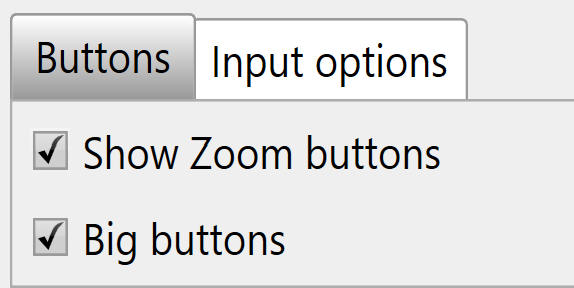
<span style="font-family: Arial,Helvetica,sans-serif;"><span style="font-size: 14pt; color: rgb(0, 0, 0); font-weight: 400;">‘Show zoom buttons’</span><span dir="ltr" style="font-size: 14pt; color: rgb(0, 0, 0); font-weight: 300;"> - Choose to use zoom buttons for zooming in and out instead of ‘two-finger touch zoom’.</span></span>

<span style="font-family: Arial,Helvetica,sans-serif;"><span style="font-size: 14pt; color: rgb(0, 0, 0); font-weight: 400;">‘Show screen keyboard’</span><span style="font-size: 14pt; color: rgb(0, 0, 0); font-weight: 300;"> - Choose to have the keyboard automatically open when needed.</span></span>

<span style="font-family: Arial,Helvetica,sans-serif;"><span dir="ltr" style="font-size: 14pt; color: rgb(0, 0, 0); font-weight: 300;">'Show Project Swapper button'- Shows the project swapper icon.</span></span>

<span style="font-family: Arial,Helvetica,sans-serif;"><span style="font-size: 14pt; color: rgb(0, 0, 0); font-weight: 400;">‘Estimated Cost’</span><span style="font-size: 14pt; color: rgb(0, 0, 0); font-weight: 300;"> – Cost per cubic meter, or cubic yard (this is calculated for cuts only). Currency is based on the current language.</span></span>

<span style="font-family: Arial,Helvetica,sans-serif;"><span style="font-size: 14pt; color: rgb(0, 0, 0); font-weight: 400;">'Download Updates' </span><span style="font-size: 14pt; color: rgb(0, 0, 0); font-weight: 300;">– Choose to update to the latest version when connected to the internet.</span></span>

<span style="font-family: Arial,Helvetica,sans-serif;"><span style="font-size: 14pt; color: rgb(0, 0, 0); font-weight: 400;">'Show update log'</span><span style="font-size: 14pt; color: rgb(0, 0, 0); font-weight: 300;"> – lists software update details.</span></span>

<div align="left" data-identifyelement="610" dir="ltr" id="bkmrk-for-a-youtube-video-" style="margin-left: 0pt; font-family: Arial, Helvetica, sans-serif;"><table data-identifyelement="611" style="border: none; border-collapse: collapse;"><colgroup data-identifyelement="612"><col data-identifyelement="613" width="490"></col><col data-identifyelement="614" width="134"></col></colgroup><tbody data-identifyelement="615"><tr data-identifyelement="616" style="height: 106.5pt;"><td data-identifyelement="617" style="padding: 5pt; overflow: hidden; overflow-wrap: break-word; border: 1pt solid rgb(241, 194, 50);"><span style="font-family: Arial,Helvetica,sans-serif;"><span data-identifyelement="619" style="font-size: 14pt; color: rgb(0, 0, 0); font-weight: 300;">For a youtube video tutorial on grid size override visit </span>[<span data-identifyelement="621" style="font-size: 14pt; color: rgb(17, 85, 204); font-weight: 300; text-decoration-skip-ink: none;">https://youtu.be/9rlCn1VuGlo</span>](https://youtu.be/9rlCn1VuGlo)<span data-identifyelement="622" style="font-size: 14pt; color: rgb(0, 0, 0); font-weight: 300;"> or use your phone to scan this barcode </span></span>

</td><td data-identifyelement="623" style="padding: 5pt; overflow: hidden; overflow-wrap: break-word; border: 1pt solid rgb(241, 194, 50);"><span style="font-family: Arial,Helvetica,sans-serif;"><span data-identifyelement="625" style="font-size: 14pt; color: rgb(0, 0, 0); font-weight: 300;"><span data-identifyelement="626" style="border: none; display: inline-block; overflow: hidden; width: 120px; height: 120px;">![](https://docs.t3rra.com/uploads/images/gallery/2025-03/scaled-1680-/73x5qezdb0qtzf2x-bau9yvq9ufmmvasnk0pw-png.png)</span></span></span>

</td></tr></tbody></table>

</div><span style="font-family: Arial,Helvetica,sans-serif;"><span data-identifyelement="765" style="font-size: 14pt; color: rgb(0, 0, 0); font-weight: 400;">  
</span></span>

### <span style="font-family: Arial,Helvetica,sans-serif;"><span data-identifyelement="768" style="font-size: 24pt; color: rgb(0, 0, 0); font-weight: 400;">Project Tab </span></span>

<span style="font-family: Arial,Helvetica,sans-serif;"><span data-identifyelement="774" style="font-size: 14pt; color: rgb(0, 0, 0); font-weight: 400;"><span data-identifyelement="775" style="border: 1pt solid #000000; display: inline-block; overflow: hidden; width: 364px; height: 270px;">![](https://docs.t3rra.com/uploads/images/gallery/2025-03/scaled-1680-/6V08gqjoftyknl5yattscels9-76wqgydztra-png.png)</span></span></span>

<span style="font-family: Arial,Helvetica,sans-serif;">  
</span>

<span style="font-family: Arial,Helvetica,sans-serif;"><span data-identifyelement="780" style="font-size: 14pt; color: rgb(0, 0, 0); font-weight: 400;">Settings made in the project tab will not be represented in a project that is open when the settings are changed.</span></span>

<span style="font-family: Arial,Helvetica,sans-serif;"><span data-identifyelement="784" style="font-size: 14pt; color: rgb(0, 0, 0); font-weight: 400;">Surface Pixel Size</span><span data-identifyelement="785" style="font-size: 14pt; color: rgb(0, 0, 0); font-weight: 300;"> - The default pixel size of 2 meters (~6 feet) should be adequate for most purposes. In some situations, it may make sense to decrease pixel size to 1 meter or even 0.5 meters (primarily to facilitate small interval contour creation, or to get good definition on drain batters/backslopes).</span></span>

<span style="font-family: Arial,Helvetica,sans-serif;"><span data-identifyelement="790" style="font-size: 14pt; color: rgb(0, 0, 0); font-weight: 300;">A field surface is represented using a “raster”. This is a grid of elevation heights. The individual cells in this grid are referred to as “pixels” and have a uniform edge size. The smaller the pixel size, the more pixels needed to cover a given area, and the more precise the elevation surface is.</span></span>

<span style="font-family: Arial,Helvetica,sans-serif;">  
</span>

<span style="font-family: Arial,Helvetica,sans-serif;"><span data-identifyelement="794" style="font-size: 14pt; color: rgb(0, 0, 0); font-weight: 400; text-decoration-skip-ink: none;">Points of interest</span></span>

- <span style="font-family: Arial,Helvetica,sans-serif;"><span data-identifyelement="798" style="font-size: 14pt; color: rgb(0, 0, 0); font-weight: 300;">If pixel size is too large then the field surface will not appear smooth, and short range changes in elevation may not be adequately represented.</span></span>
- <span style="font-family: Arial,Helvetica,sans-serif;"><span data-identifyelement="801" style="font-size: 14pt; color: rgb(0, 0, 0); font-weight: 300;">If the pixel size is too small, then the computer will have to work harder to process the data. Dividing the pixel size by two increases the amount of pixels by four.</span></span>

<span style="font-family: Arial,Helvetica,sans-serif;"><span data-identifyelement="803" dir="ltr" style="font-size: 14pt; color: rgb(0, 0, 0); font-weight: 300;"> </span></span>

<span style="font-family: Arial,Helvetica,sans-serif;">  
</span>

### <span style="font-family: Arial,Helvetica,sans-serif;"><span data-identifyelement="976" style="font-size: 24pt; color: rgb(0, 0, 0); font-weight: 400;">Advanced Settings Tab</span></span>

<span style="font-family: Arial,Helvetica,sans-serif;">  
</span>

<span style="font-family: Arial,Helvetica,sans-serif;"><span data-identifyelement="980" style="font-size: 14pt; color: rgb(0, 0, 0); font-weight: 300;"><span data-identifyelement="981" style="border: 1pt solid #000000; display: inline-block; overflow: hidden; width: 408px; height: 367px;">![](https://docs.t3rra.com/uploads/images/gallery/2025-03/scaled-1680-/Jw8covach03ogx6ewiirdqvrezbyllnhnn-4a-png.png)</span></span></span>

<span style="font-family: Arial,Helvetica,sans-serif;">  
</span>

<span style="font-family: Arial,Helvetica,sans-serif;"><span data-identifyelement="992" style="font-size: 14pt; color: rgb(0, 0, 0); font-weight: 300;">‘</span><span data-identifyelement="993" style="font-size: 14pt; color: rgb(0, 0, 0); font-weight: 400;">Enable diagnostic data</span><span data-identifyelement="994" dir="ltr" style="font-size: 14pt; color: rgb(0, 0, 0); font-weight: 300;">’ - </span></span><span style="font-family: Arial,Helvetica,sans-serif;"><span data-identifyelement="996" dir="ltr" style="font-size: 14pt; color: rgb(0, 0, 0); font-weight: 300;">It is highly recommended to keep this enabled because the data collected is valuable for us in assisting you if any issues should occur.</span></span>

<span style="font-family: Arial,Helvetica,sans-serif;">  
</span>

<span style="font-family: Arial,Helvetica,sans-serif;"><span data-identifyelement="1000" style="font-size: 14pt; color: rgb(0, 0, 0); font-weight: 300;">‘</span><span data-identifyelement="1001" style="font-size: 14pt; color: rgb(0, 0, 0); font-weight: 400;">Open Task Manager</span><span data-identifyelement="1002" style="font-size: 14pt; color: rgb(0, 0, 0); font-weight: 300;">’ will open the computer's task manager tool. This will display all current systems running on the computer.</span></span>

<span style="font-family: Arial,Helvetica,sans-serif;">  
</span>

<span style="font-family: Arial,Helvetica,sans-serif;"><span data-identifyelement="1006" style="font-size: 14pt; color: rgb(0, 0, 0); font-weight: 300;">‘</span><span data-identifyelement="1007" style="font-size: 14pt; color: rgb(0, 0, 0); font-weight: 400;">Explore error logs area</span><span data-identifyelement="1008" style="font-size: 14pt; color: rgb(0, 0, 0); font-weight: 300;">’ will open the folder on the tablet that contains all error log files. If you encounter an issue we recommend you send us the latest file so we can find the cause and correct it quickly.</span></span>

<span style="font-family: Arial,Helvetica,sans-serif;">  
</span>

<span style="font-family: Arial,Helvetica,sans-serif;"><span data-identifyelement="1012" style="font-size: 14pt; color: rgb(0, 0, 0); font-weight: 300;">‘</span><span data-identifyelement="1013" style="font-size: 14pt; color: rgb(0, 0, 0); font-weight: 400;">Version Manager</span><span data-identifyelement="1014" style="font-size: 14pt; color: rgb(0, 0, 0); font-weight: 300;">’</span></span>

<span style="font-family: Arial,Helvetica,sans-serif;"><span data-identifyelement="1016" dir="ltr" style="font-size: 14pt; color: rgb(0, 0, 0); font-weight: 300;">It allows you to revert back to a previous version.</span></span>

<span style="font-family: Arial,Helvetica,sans-serif;">  
</span>

<span style="font-family: Arial,Helvetica,sans-serif;"><span data-identifyelement="1028" style="font-size: 14pt; color: rgb(0, 0, 0); font-weight: 400;">‘Reset to Default’</span><span data-identifyelement="1029" style="font-size: 14pt; color: rgb(0, 0, 0); font-weight: 300;"> This will reset all settings to Default.</span></span>

<span style="font-family: Arial,Helvetica,sans-serif;">  
</span>

<span style="font-family: Arial,Helvetica,sans-serif;"><span data-identifyelement="1033" style="font-size: 14pt; color: rgb(0, 0, 0); font-weight: 300;">‘</span><span data-identifyelement="1034" style="font-size: 14pt; color: rgb(0, 0, 0); font-weight: 400;">Automatic backup frequency</span><span data-identifyelement="1035" style="font-size: 14pt; color: rgb(0, 0, 0); font-weight: 300;">’ This drop down menu allows you to change the frequency at which the T3RRA Software backs up your work. The different timing options are:</span></span>

<span style="font-family: Arial,Helvetica,sans-serif;"><span data-identifyelement="1037" style="font-size: 14pt; color: rgb(0, 0, 0); font-weight: 300;">Never = never backup save</span></span>

<span style="font-family: Arial,Helvetica,sans-serif;"><span data-identifyelement="1039" style="font-size: 14pt; color: rgb(0, 0, 0); font-weight: 300;">Low = backup save every 20 min </span></span>

<span style="font-family: Arial,Helvetica,sans-serif;"><span data-identifyelement="1041" style="font-size: 14pt; color: rgb(0, 0, 0); font-weight: 300;">Medium = backup save every 5 min</span></span>

<span style="font-family: Arial,Helvetica,sans-serif;"><span data-identifyelement="1043" style="font-size: 14pt; color: rgb(0, 0, 0); font-weight: 300;">High = backup save every 2 min.</span></span>

<span style="font-family: Arial,Helvetica,sans-serif;">  
</span>

<span style="font-family: Arial,Helvetica,sans-serif;"><span data-identifyelement="1047" style="font-size: 14pt; color: rgb(0, 0, 0); font-weight: 300;">‘</span><span data-identifyelement="1048" style="font-size: 14pt; color: rgb(0, 0, 0); font-weight: 400;">Terrain model Quality</span><span data-identifyelement="1049" dir="ltr" style="font-size: 14pt; color: rgb(0, 0, 0); font-weight: 300;">’ This setting is set to High by default most visible when looking at surfaces in 3D. When lowering the setting some details may appear to smooth out, the details and depressions are still there but are not represented in the 3d display.</span></span>

<span style="font-family: Arial,Helvetica,sans-serif;">  
</span>

<span style="font-family: Arial,Helvetica,sans-serif;"><span data-identifyelement="1053" style="font-size: 14pt; color: rgb(0, 0, 0); font-weight: 400;">‘Map update rate’</span><span data-identifyelement="1054" style="font-size: 14pt; color: rgb(0, 0, 0); font-weight: 300;"> This will alter the rate of the map updates during Surveying and Implementation.</span></span>

<span style="font-family: Arial,Helvetica,sans-serif;">  
</span>

<span style="font-family: Arial,Helvetica,sans-serif;">  
</span>

<span style="font-family: Arial,Helvetica,sans-serif;">  
</span>

# New Project Options

![](https://docs.t3rra.com/uploads/images/gallery/2025-03/scaled-1680-/1wx1l3e-7dn3zybjfk-wugfmuo84xarkkokmq-png.png)

<span style="font-family: Arial,Helvetica,sans-serif;">  
</span>

<span style="font-family: Arial,Helvetica,sans-serif;">  
</span>

<span style="font-family: Arial,Helvetica,sans-serif;"><span style="border:none;display:inline-block;overflow:hidden;width:103px;height:94px;">![](https://docs.t3rra.com/uploads/images/gallery/2025-03/scaled-1680-/jCTfxlk07xpluimzhol0ts4jluubie-puzaog-png.png)</span></span>

<span style="font-family: Arial,Helvetica,sans-serif;"><span style="font-size: 14pt; color: rgb(0, 0, 0); font-weight: 300;">Collect and process elevation data into a control map. When starting a new job this is the usual place to start.</span></span>

<span style="font-family: Arial,Helvetica,sans-serif;">  
</span>

<span style="font-family: Arial,Helvetica,sans-serif;"><span style="border:none;display:inline-block;overflow:hidden;width:107px;height:106px;">![](https://docs.t3rra.com/uploads/images/gallery/2025-03/scaled-1680-/GDvb7bz20a-buxz-ddla-8dqwrwc16cu-9i-w-png.png)</span></span>

<span style="font-family: Arial,Helvetica,sans-serif;">  
</span>

<span style="font-family: Arial,Helvetica,sans-serif;"><span style="font-size: 14pt; color: rgb(0, 0, 0); font-weight: 300;">Use an elevation data file from an external source. Various file formats are supported. </span></span>

<span style="font-family: Arial,Helvetica,sans-serif;"><span style="font-size: 14pt; color: rgb(0, 0, 0); font-weight: 300;"></span></span>

<span style="font-family: Arial,Helvetica,sans-serif;">  
</span>

<span style="font-family: Arial,Helvetica,sans-serif;"><span style="border:none;display:inline-block;overflow:hidden;width:103px;height:94px;">![](https://docs.t3rra.com/uploads/images/gallery/2025-03/scaled-1680-/w3ni-xd6cuw-hhsvriyta9ar0w84cy9qa8jia-png.png)</span></span>

<span style="font-family: Arial,Helvetica,sans-serif;"><span dir="ltr" style="font-size: 14pt; color: rgb(0, 0, 0); font-weight: 300;">Load an existing T3RRA control file from disk or the cloud. </span></span>

<span style="font-family: Arial,Helvetica,sans-serif;">  
</span>

<span style="font-family: Arial,Helvetica,sans-serif;">  
</span>

# Save Project

<span style="font-size: 14pt; font-family: Arial, Helvetica, sans-serif; color: rgb(0, 0, 0); font-weight: 300;">Saving a project allows you to return to it at a later time and ensures that you have a copy of the data in case of accidents. We</span><span style="font-family: Arial,Helvetica,sans-serif;"><span style="font-size: 14pt; color: rgb(0, 0, 0); font-weight: 400;"> STRONGLY</span><span style="font-size: 14pt; color: rgb(0, 0, 0); font-weight: 300;"> recommend periodic saving of your projects in order to guard against data loss.</span></span>

![](https://docs.t3rra.com/uploads/images/gallery/2025-03/scaled-1680-/Abdx5okg348deia-ejl7mlh9s6ljyuoionytq-png.png)

<span style="font-family: Arial,Helvetica,sans-serif;"><span style="font-size: 14pt; color: rgb(0, 0, 0); font-weight: 300;">The ‘</span><span style="font-size: 14pt; color: rgb(0, 0, 0); font-weight: 400;">Save project</span><span style="font-size: 14pt; color: rgb(0, 0, 0); font-weight: 300;">’ button can be found in the top left corner on any of the main wizard pages.</span></span>

<span style="font-size: 14pt; font-family: Arial, Helvetica, sans-serif; color: rgb(0, 0, 0); font-weight: 300;">The '</span><span style="font-size: 14pt; font-family: Arial, Helvetica, sans-serif; color: rgb(0, 0, 0); font-weight: 400;">Save proj.</span><span dir="ltr" style="font-size: 14pt; font-family: Arial, Helvetica, sans-serif; color: rgb(0, 0, 0); font-weight: 300;">' button presents you with a screen that allows you to save using the following structure (see right).</span>

![](https://docs.t3rra.com/uploads/images/gallery/2025-03/scaled-1680-/PWaka3-cdvlylkedfuokfuzv9iupespl2sia-png.png)

<span style="font-size: 14pt; font-family: Arial, Helvetica, sans-serif; color: rgb(0, 0, 0); font-weight: 300;">You can enter:</span>

- <span style="font-size: 14pt; font-family: Arial, Helvetica, sans-serif; color: rgb(0, 0, 0); font-weight: 300;">Grower</span>
- <span style="font-size: 14pt; font-family: Arial, Helvetica, sans-serif; color: rgb(0, 0, 0); font-weight: 300;">Farm Name</span>
- <span style="font-size: 14pt; font-family: Arial, Helvetica, sans-serif; color: rgb(0, 0, 0); font-weight: 300;">Field Name</span>
- <span style="font-size: 14pt; font-family: Arial, Helvetica, sans-serif; color: rgb(0, 0, 0); font-weight: 300;">Project Name</span>

<span style="font-size: 14pt; font-family: Arial, Helvetica, sans-serif; color: rgb(0, 0, 0); font-weight: 300;">Or you can choose a previously saved value in any of the fields from the drop down list.</span>

<span style="font-size: 14pt; font-family: Arial, Helvetica, sans-serif; color: rgb(0, 0, 0); font-weight: 300;">Pressing the final '</span><span style="font-size: 14pt; font-family: Arial, Helvetica, sans-serif; color: rgb(0, 0, 0); font-weight: 400;">Ok</span><span style="font-size: 14pt; font-family: Arial, Helvetica, sans-serif; color: rgb(0, 0, 0); font-weight: 300;">' will save the project and add the file T3RRA’s structured file saving area.</span>

<span style="font-size: 14pt; font-family: Arial, Helvetica, sans-serif; color: rgb(0, 0, 0); font-weight: 300;">'</span><span style="font-size: 14pt; font-family: Arial, Helvetica, sans-serif; color: rgb(0, 0, 0); font-weight: 400;">Manually Choose Location</span><span style="font-size: 14pt; font-family: Arial, Helvetica, sans-serif; color: rgb(0, 0, 0); font-weight: 300;">' allows you to select an alternate location to save to.</span>

![](https://docs.t3rra.com/uploads/images/gallery/2025-03/scaled-1680-/iuN2tti9f1tpr1nusrsibj2hpswo-4vaqoyta-png.png)

<span style="font-size: 14pt; font-family: Arial, Helvetica, sans-serif; color: rgb(0, 0, 0); font-weight: 300;">When manually choosing the save location there are two ways of navigating to where you would like to save the file.</span>

1. <span style="font-size: 14pt; font-family: Arial, Helvetica, sans-serif; color: rgb(0, 0, 0); font-weight: 300;">You can use the left portion of the window to navigate through folders to find the desired save location.  
    </span>
2. <span style="font-size: 14pt; font-family: Arial, Helvetica, sans-serif; color: rgb(0, 0, 0); font-weight: 300;">Using the main section in the center of the window you can navigate to the desired file save location.</span>

<span style="font-size: 14pt; font-family: Arial, Helvetica, sans-serif; color: rgb(0, 0, 0); font-weight: 300;">Once you have navigated to the location where you would like to save the file, enter a name for the file and press the save button.</span>

<span dir="ltr" style="font-size: 14pt; font-family: Arial, Helvetica, sans-serif; color: rgb(255, 0, 0); font-weight: 300;">NOTE: Project files are normal Windows files and can be stored anywhere on the computer. We recommend that you regularly copy your files to a location off the in-cab tablet in order to have them stored safely in case anything happens to your tablet or PC.</span>

### <span style="font-size: 24pt; font-family: Arial, Helvetica, sans-serif; color: rgb(0, 0, 0); font-weight: 400;">Autosaving</span>

<span style="font-size: 14pt; font-family: Arial, Helvetica, sans-serif; color: rgb(0, 0, 0); font-weight: 300;">T3RRA software autosaves project data at approximately 5 minute intervals. This is to assist in case of accidentally closing the software, or software or hardware failure.</span>

<span style="font-size: 14pt; font-family: Arial, Helvetica, sans-serif; color: rgb(0, 0, 0); font-weight: 300;">Autosave files have the same name and location as the open project, with the additional suffix ‘.backup’.</span>

<span style="font-size: 14pt; font-family: Arial, Helvetica, sans-serif; color: rgb(0, 0, 0); font-weight: 300;"><span style="border: none; display: inline-block; overflow: hidden; width: 605px; height: 73px;">![](https://docs.t3rra.com/uploads/images/gallery/2025-03/scaled-1680-/mfZ3cy0pf9ghsam7tvmifbsmut9osxbessdea-png.png)</span></span>

<span style="font-size: 14pt; font-family: Arial, Helvetica, sans-serif; color: rgb(0, 0, 0); font-weight: 300;">When a project is loaded a check is made to see if a backup exists for that project. If it does and the backup has a newer date/time stamp associated with it, you will be given the option of loading it.</span>

<span style="font-size: 14pt; font-family: Arial, Helvetica, sans-serif; color: rgb(0, 0, 0); font-weight: 300;">An autosave file has the same format as a regular project. From within Windows Explorer you can rename the autosave file and remove the .backup extension in order to keep both the original file and the autosaved version.</span>

# Loading Projects

<span dir="ltr" style="font-size: 14pt; font-family: Helvetica, sans-serif; color: rgb(0, 0, 0); font-weight: 300;">The ‘Load proj.’ button is used to load any saved T3RRA projects. T3RRA projects can be loaded in several different ways, allowing you to load files saved directly to your tablet or from external sources such as USB’s.</span>

<span style="font-family: Helvetica,sans-serif;"><span dir="ltr" style="font-size: 14pt; color: rgb(0, 0, 0); font-weight: 300;">To load a project press the '</span><span style="font-size: 14pt; color: rgb(0, 0, 0); font-weight: 400;">**Load proj.**</span><span style="font-size: 14pt; color: rgb(0, 0, 0); font-weight: 300;">' button in the top left corner or bottom center of the [Main Page](https://docs.t3rra.com/books/t3rra-cutta-desktop-manual/page/main-page "Main Page"). It will then present you with a page like the below.</span></span>

<span dir="ltr" style="font-family: Helvetica,sans-serif;">![](https://docs.t3rra.com/uploads/images/gallery/2025-03/scaled-1680-/7E5ygeyx-syduxfhjpyjzdhk20dcjxw2w7aja-png.png)</span>

<span style="font-family: Helvetica,sans-serif;"><span style="font-size: 14pt; color: rgb(0, 0, 0); font-weight: 300;">Select the project that you wish to load from the desired field and press '</span><span style="font-size: 14pt; color: rgb(0, 0, 0); font-weight: 400;">**OK**</span><span style="font-size: 14pt; color: rgb(0, 0, 0); font-weight: 300;">'</span></span>

<span style="font-family: Helvetica,sans-serif;"><span style="font-size: 14pt; color: rgb(0, 0, 0); font-weight: 300;">The ‘Grower/Farm/Field’ file structure allows for projects to be easily organized. For more information on these profiles and how they are set up see later in this section.</span></span>

<span style="font-family: Helvetica,sans-serif;"><span dir="ltr" style="font-size: 14pt; color: rgb(0, 0, 0); font-weight: 300;">Next to each file there are 3 buttons: </span></span>

- <span style="font-family: Helvetica,sans-serif;"><span style="font-size: 14pt; color: rgb(0, 0, 0); font-weight: 300;">![](https://docs.t3rra.com/uploads/images/gallery/2025-03/scaled-1680-/nqp7sbmiv-xoyoqbdrdy-t-wl1wijewnf8ojq-png.png)The left button with an image of a pencil and paper is a file renaming option.</span></span>
- <span style="font-family: Helvetica,sans-serif;"><span style="font-size: 14pt; color: rgb(0, 0, 0); font-weight: 300;">The center button with a trash can is a delete option allowing you to remove that file. Deleted files are moved to the Windows Recycling Bin.</span></span>
- <span style="font-family: Helvetica,sans-serif;"><span dir="ltr" style="font-size: 14pt; color: rgb(0, 0, 0); font-weight: 300;">The right button with the image of 2 folders is a file moving option, this brings up the same window you have when saving a file in T3RRA software allowing you to move the project to a new location.</span></span>

![](https://docs.t3rra.com/uploads/images/gallery/2025-03/scaled-1680-/IG36rwuwkwz0srceepvta3ntqmbdvrsk3py0w-png.png)

<span style="font-family: Helvetica,sans-serif;"><span dir="ltr" style="font-size: 14pt; color: rgb(0, 0, 0); font-weight: 300;">Choosing '</span><span style="font-size: 14pt; color: rgb(0, 0, 0); font-weight: 400;">**Show all files**</span><span dir="ltr" style="font-size: 14pt; color: rgb(0, 0, 0); font-weight: 300;">' will start a scan of your computer's C: drive. A list of the T3RRA Cutta project files will be populated once the scan has been finished.</span></span>

<span style="font-family: Helvetica,sans-serif;">  
</span>

<span style="font-family: Helvetica,sans-serif;"><span style="font-size: 14pt; color: rgb(0, 0, 0); font-weight: 300;">Entering text in ‘</span><span style="font-size: 14pt; color: rgb(0, 0, 0); font-weight: 400;">**Search**</span><span style="font-size: 14pt; color: rgb(0, 0, 0); font-weight: 300;">’ will limit the displayed projects to only with matching file names.</span></span>

<span style="font-family: Helvetica,sans-serif;">  
</span>

<span dir="ltr" style="font-family: Helvetica,sans-serif;">![](https://docs.t3rra.com/uploads/images/gallery/2025-03/scaled-1680-/Q3Iauu5ztc3fxj1swzbrgz1dhsatcaevjoxca-png.png)</span>

<span style="font-family: Helvetica,sans-serif;"><span style="font-size: 14pt; color: rgb(0, 0, 0); font-weight: 300;">Progress bar in the lower right indicates scanning in progress </span></span>

<span style="font-family: Helvetica,sans-serif;"><span style="font-size: 14pt; color: rgb(0, 0, 0); font-weight: 300;">Once the desired file has been found in the list, select the file and press ‘</span><span style="font-size: 14pt; color: rgb(0, 0, 0); font-weight: 400;">**Ok**</span><span dir="ltr" style="font-size: 14pt; color: rgb(0, 0, 0); font-weight: 300;">’.</span></span>

![](https://docs.t3rra.com/uploads/images/gallery/2025-03/scaled-1680-/rc8llnzr2tmwjlz75eerahxouyfhig-lo0sdw-png.png)

<span style="font-family: Helvetica,sans-serif;"><span dir="ltr" style="font-size: 14pt; color: rgb(0, 0, 0); font-weight: 300;">Click '</span><span style="font-size: 14pt; color: rgb(0, 0, 0); font-weight: 400;">**Browse file location**</span><span dir="ltr" style="font-size: 14pt; color: rgb(0, 0, 0); font-weight: 300;">' button to open selected file location in File Explorer.</span></span>

<span id="bkmrk-%27find-manually%27-can--1" style="font-family: Helvetica,sans-serif;"><span dir="ltr" style="font-size: 14pt; color: rgb(0, 0, 0); font-weight: 300;">![](https://docs.t3rra.com/uploads/images/gallery/2025-03/scaled-1680-/Mmgwxymgkikx0nnvzm1w-woowcgfcnjw4fq5a-png.png)'</span><span style="font-size: 14pt; color: rgb(0, 0, 0); font-weight: 400;">**Find manually**</span><span dir="ltr" style="font-size: 14pt; color: rgb(0, 0, 0); font-weight: 300;">' can be used when files are not saved in the default T3RRA folder structure. Project files are normal Windows files and can be stored anywhere on the computer.</span></span>

![](https://docs.t3rra.com/uploads/images/gallery/2025-03/scaled-1680-/k9Goumrw55i2tqqp5carwo0epfpeiuknppjmg-png.png)

<span style="font-family: Helvetica,sans-serif;">  
</span>

<span style="font-family: Helvetica,sans-serif;"><span dir="ltr" style="font-size: 14pt; color: rgb(0, 0, 0); font-weight: 300;">Use the file explorer to find the T3C project file, then select the file and press the ‘</span><span style="font-size: 14pt; color: rgb(0, 0, 0); font-weight: 400;">**Open**</span><span dir="ltr" style="font-size: 14pt; color: rgb(0, 0, 0); font-weight: 300;">’ button.</span></span>

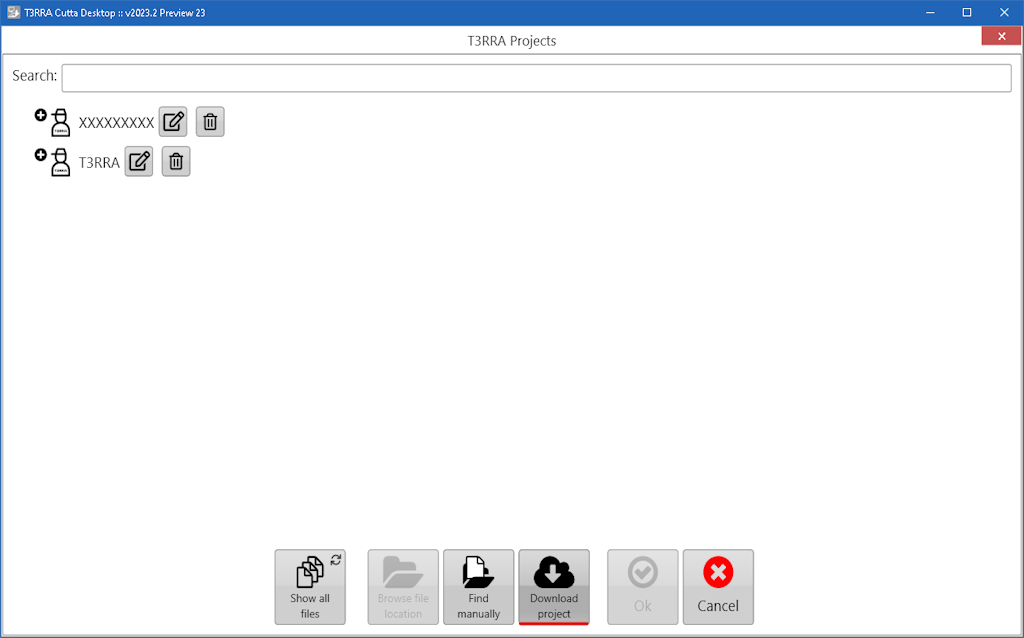
<span style="font-family: Helvetica,sans-serif;">![](https://docs.t3rra.com/uploads/images/gallery/2025-03/scaled-1680-/0Tz2s6dvqcpcd8toeelxtrweojgjahpjatdea-png.png)</span>

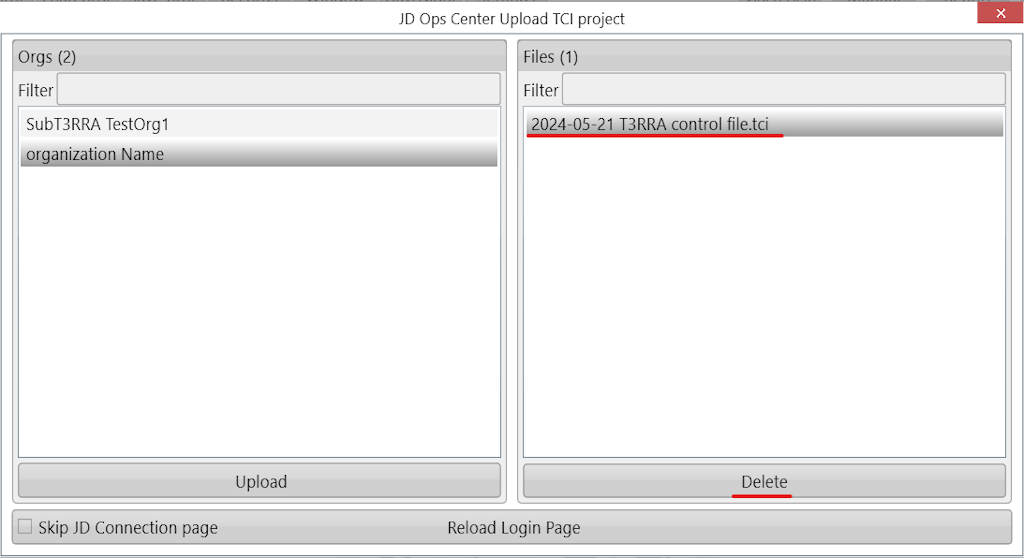
<span dir="ltr" style="font-size: 14pt; color: rgb(0, 0, 0); font-weight: 300;">Clicking '</span><span style="font-size: 14pt; color: rgb(0, 0, 0); font-weight: 400;">**Download project**</span><span dir="ltr" style="font-size: 14pt; color: rgb(0, 0, 0); font-weight: 300;">' will open JD Ops Center browser to show projects in JD Ops Center.</span>  
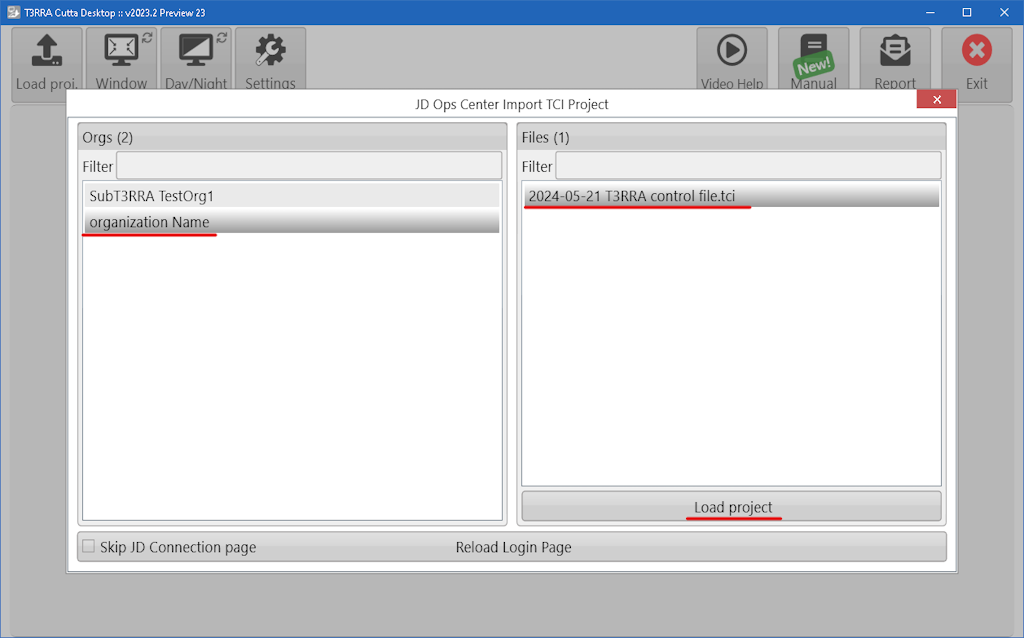
<span dir="ltr" style="font-size: 14pt; color: rgb(0, 0, 0); font-weight: 300;">![](https://docs.t3rra.com/uploads/images/gallery/2025-03/scaled-1680-/IFKto8sl2yuwldnotsix74mf0vrqsxzpe6uiq-png.png)</span>

<span dir="ltr" style="font-size: 14pt; color: rgb(0, 0, 0); font-weight: 300;"><span dir="ltr" style="font-size: 14pt; color: rgb(0, 0, 0); font-weight: 300;">Select project and Click ‘</span><span style="font-size: 14pt; color: rgb(0, 0, 0); font-weight: 400;">**Load project**</span><span dir="ltr" style="font-size: 14pt; color: rgb(0, 0, 0); font-weight: 300;">’ button.</span></span>

<span style="font-family: Helvetica,sans-serif;"><span dir="ltr" style="font-size: 14pt; color: rgb(0, 0, 0); font-weight: 300;">Once a file has been selected and loaded, the wizard page should appear and show the stage that the project is up to. </span></span>

<span style="font-family: Helvetica,sans-serif;">![](https://docs.t3rra.com/uploads/images/gallery/2025-03/scaled-1680-/uxHaocycybshhqt6u-wqugd-62541rf8wsahw-png.png)</span>

# Import page

<span data-identifyelement="482" dir="ltr" style="font-size: 14pt; font-family: Arial, Helvetica, sans-serif; color: rgb(0, 0, 0); font-weight: 300;">When you have collected your elevation or design data with an external tool, importing is the way to go. You can get here from the [Main Page](https://docs.t3rra.com/books/t3rra-cutta-desktop-manual/page/main-page "Main Page") or from the surfacing step in the wizard. When you first open the import page, you'll be presented with a list of import types.</span>

<p class="callout info"><span data-identifyelement="482" dir="ltr" style="font-size: 14pt; font-family: Arial, Helvetica, sans-serif; color: rgb(0, 0, 0); font-weight: 300;">Don't import a TCI file - Load it instead. See [Loading Projects](https://docs.t3rra.com/books/t3rra-cutta-desktop-manual/page/loading-projects "Loading Projects") for more information.</span></p>

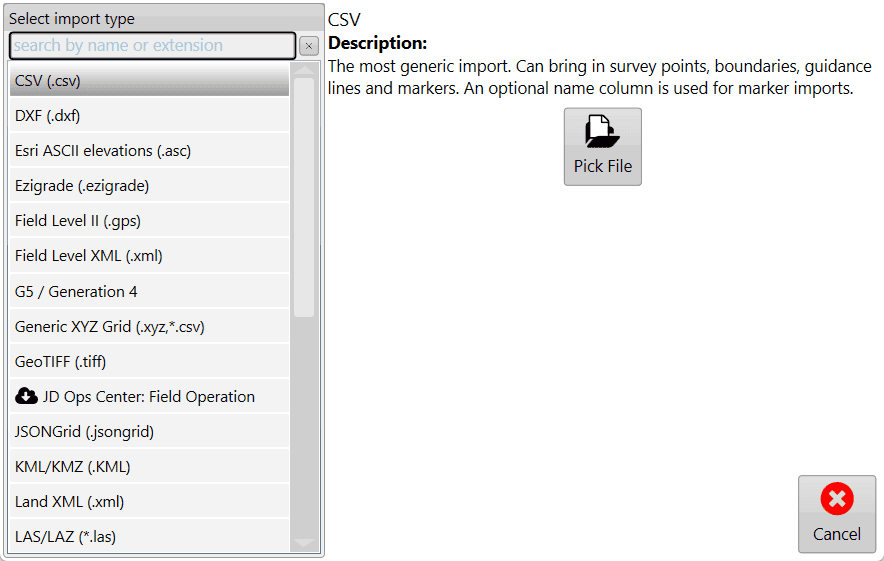
<span data-identifyelement="482" dir="ltr" style="font-size: 14pt; font-family: Arial, Helvetica, sans-serif; color: rgb(0, 0, 0); font-weight: 300;">If you see the one you want, tap it, but you can also search for the import using the text box at the top. Once you've selected your import type, tap the **Pick File** button on the right and navigate to your file(s).</span>

[![image.png](https://docs.t3rra.com/uploads/images/gallery/2026-03/scaled-1680-/fTk7S4wfSdzZ7Ast-image.png)](https://docs.t3rra.com/uploads/images/gallery/2026-03/fTk7S4wfSdzZ7Ast-image.png)

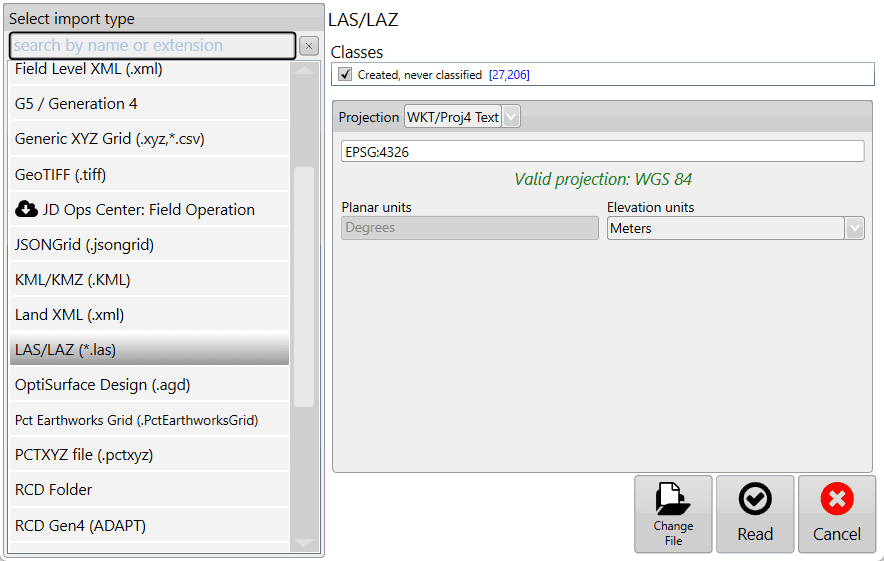
<span data-identifyelement="482" dir="ltr" style="font-size: 14pt; font-family: Arial, Helvetica, sans-serif; color: rgb(0, 0, 0); font-weight: 300;">Once you've selected the file(s) to import, if any more information is required, more options will be presented. In this case (LAS/LAZ), it gives you an opportunity to filter point classifications and the projection. If you picked the wrong file, tap **Change File**, otherwise, tap **Read** to continue with the import.</span>

[![image.png](https://docs.t3rra.com/uploads/images/gallery/2026-03/scaled-1680-/3efORK6t3sq27uuP-image.png)](https://docs.t3rra.com/uploads/images/gallery/2026-03/3efORK6t3sq27uuP-image.png)

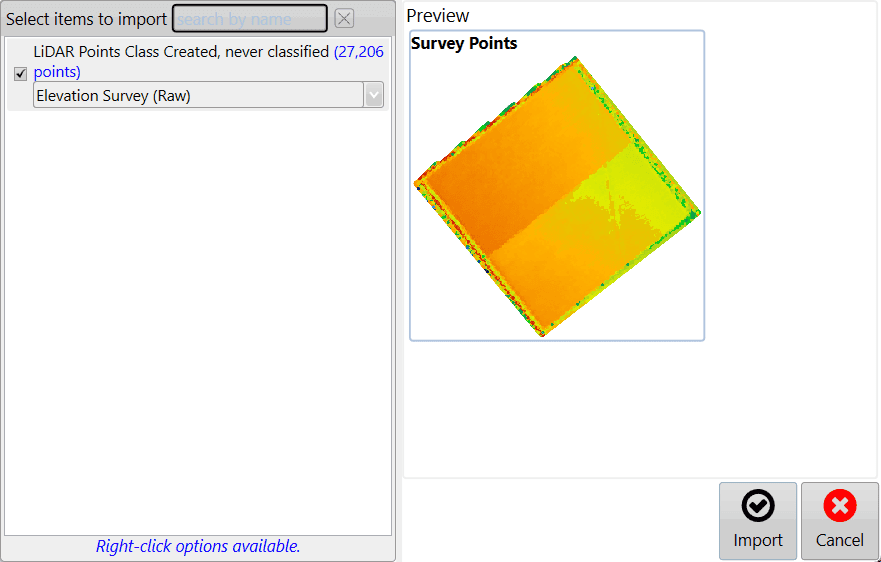
<span data-identifyelement="498" style="font-family: Arial,Helvetica,sans-serif;"><span data-identifyelement="499" style="font-size: 14pt; color: rgb(0, 0, 0); font-weight: 300;">The file(s) are then read and the contents available for import are listed. It's here that you can edit the details about each item found. For surfaces, you can mark them as Elevation or Design, and for points, you can mark them as surveys, drains, linework, markers, or boundaries. Once you're satisfied with your edits, tap **Import**, and you'll be able to work with your data.</span></span>

[![image.png](https://docs.t3rra.com/uploads/images/gallery/2026-03/scaled-1680-/OkVgOlW76CeVlhjx-image.png)](https://docs.t3rra.com/uploads/images/gallery/2026-03/OkVgOlW76CeVlhjx-image.png)

# Common tools found in the Wizard

# Zoom Control

### <span style="border:none;display:inline-block;overflow:hidden;width:162px;height:212px;">![](https://docs.t3rra.com/uploads/images/gallery/2025-03/scaled-1680-/BR77zxkee-j3st-pfveswnkzzkdtguliyvasg-jpeg.jpeg)</span>
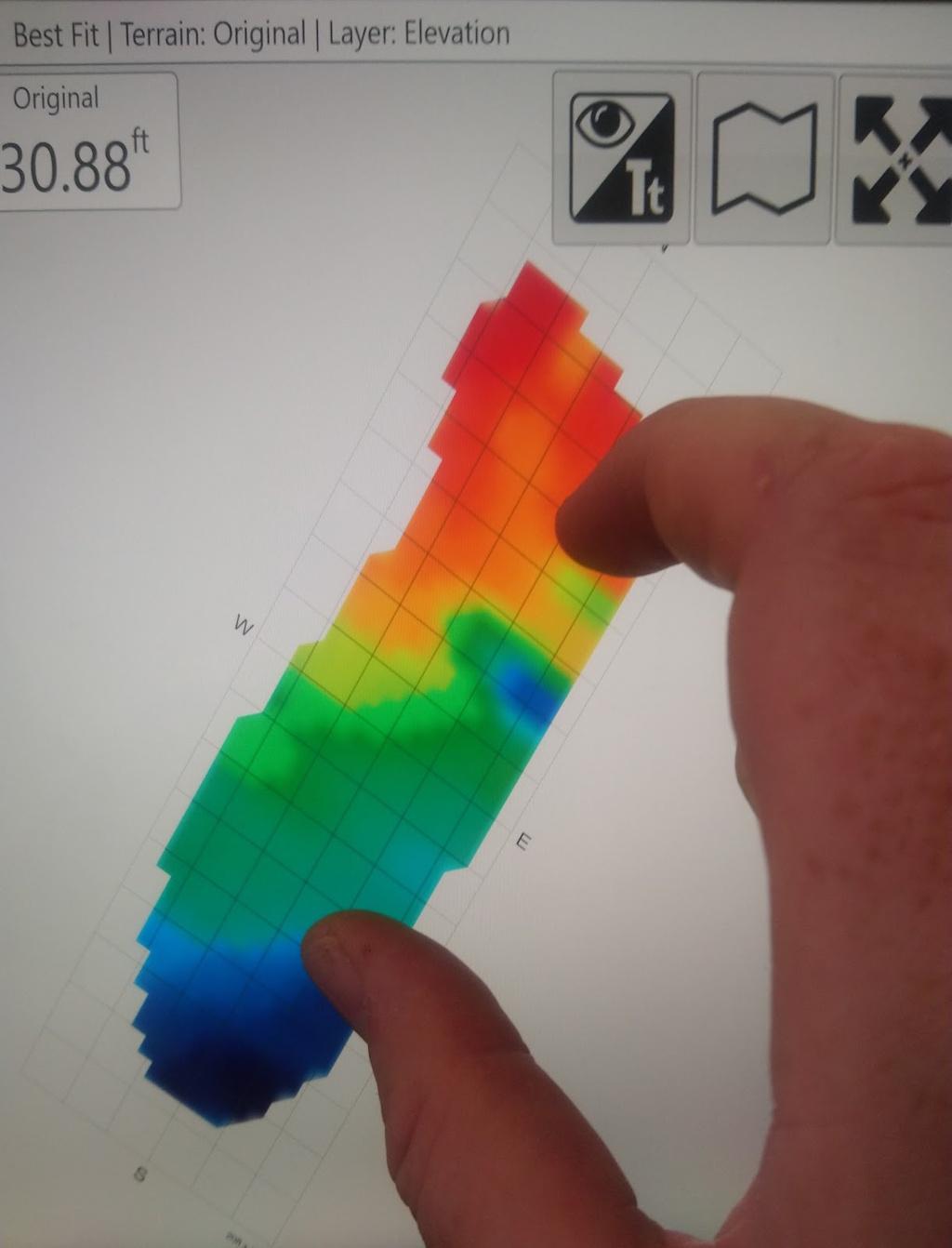
<span style="font-size: 14pt; font-family: Arial, Helvetica, sans-serif; color: rgb(0, 0, 0); font-weight: 300;">There are multiple methods available for zooming your map.</span>

<span style="font-family: Arial,Helvetica,sans-serif;">  
</span>

<span style="font-family: Arial,Helvetica,sans-serif;"><span dir="ltr" style="font-size: 14pt; color: rgb(0, 0, 0); font-weight: 300;">The first method that can be used is the 2-finger pinch controls (if using on a tablet). By pinching your fingers together on the screen you can zoom out and by moving your fingers apart you can zoom in. You can also use the scroll button on your mouse. </span></span>

<span style="font-family: Arial,Helvetica,sans-serif;">  
</span>

<span style="font-family: Arial,Helvetica,sans-serif;"><span style="font-size: 14pt; color: rgb(0, 0, 0); font-weight: 300;">The alternate method is the use of zoom in and zoom out buttons that can be added to the bar along the top right.</span></span>

<span style="font-family: Arial,Helvetica,sans-serif;">  
</span>

<span style="font-family: Arial,Helvetica,sans-serif;"><span style="border:none;display:inline-block;overflow:hidden;width:196px;height:116px;">![](https://docs.t3rra.com/uploads/images/gallery/2025-03/scaled-1680-/2arocqpbcs5b-tt-n9euozyv6mi8o1ovkc22a-png.png)</span></span>

<span style="font-family: Arial,Helvetica,sans-serif;">  
</span>

<span style="font-family: Arial,Helvetica,sans-serif;"><span style="font-size: 14pt; color: rgb(0, 0, 0); font-weight: 300;">The zoom buttons are not shown by default. To enable these buttons check the '</span><span style="font-size: 14pt; color: rgb(0, 0, 0); font-weight: 400;">Show zoom buttons</span><span style="font-size: 14pt; color: rgb(0, 0, 0); font-weight: 300;">' box under ‘</span><span style="font-size: 14pt; color: rgb(0, 0, 0); font-weight: 400;">Settings &gt; Application</span><span dir="ltr" style="font-size: 14pt; color: rgb(0, 0, 0); font-weight: 300;">’.</span></span>

<span style="font-family: Arial,Helvetica,sans-serif;">  
</span>

<span style="font-family: Arial,Helvetica,sans-serif;"><span style="border:none;display:inline-block;overflow:hidden;width:220px;height:107px;">![](https://docs.t3rra.com/uploads/images/gallery/2025-03/scaled-1680-/u8E6bi2-af3glfxvk13-w-hxywhmz-xs4syyg-png.png)</span></span>

<span style="font-family: Arial,Helvetica,sans-serif;">  
</span>

<span style="font-family: Arial,Helvetica,sans-serif;">  
</span>

<span style="font-family: Arial,Helvetica,sans-serif;">  
</span>

<span style="font-family: Arial,Helvetica,sans-serif;">  
</span>

<span style="font-family: Arial,Helvetica,sans-serif;">  
</span>

<span style="font-family: Arial,Helvetica,sans-serif;"><span style="border:none;display:inline-block;overflow:hidden;width:97px;height:116px;">![](https://docs.t3rra.com/uploads/images/gallery/2025-03/scaled-1680-/cZ8bot4odgm5xx2nt8fxtlqgtj-zkmr0wrlda-png.png)</span></span>

<span style="font-family: Arial,Helvetica,sans-serif;"><span style="font-size: 14pt; color: rgb(0, 0, 0); font-weight: 300;">Independent of these zoom controls is the '</span><span style="font-size: 14pt; color: rgb(0, 0, 0); font-weight: 400;">Zoom to full</span><span style="font-size: 14pt; color: rgb(0, 0, 0); font-weight: 300;">' button, this button does NOT need to be enabled. When pressed the button zooms the map in or out to the maximum size that shows the entire surface grid of the map.</span></span>

<span style="font-family: Arial,Helvetica,sans-serif;">  
</span>

<span style="font-family: Arial,Helvetica,sans-serif;">  
</span>

# Image Overlays

### <span style="border:none;display:inline-block;overflow:hidden;width:97px;height:97px;">![](https://docs.t3rra.com/uploads/images/gallery/2025-03/scaled-1680-/O8Hld8qngepjbh392gqqppxempi0hm4tgyrg-png.png)</span>

<span style="font-size: 14pt; font-family: Arial, Helvetica, sans-serif; color: rgb(0, 0, 0); font-weight: 300;">‘Image overlays’ allows geo-referenced image data to be imported into a field.</span>

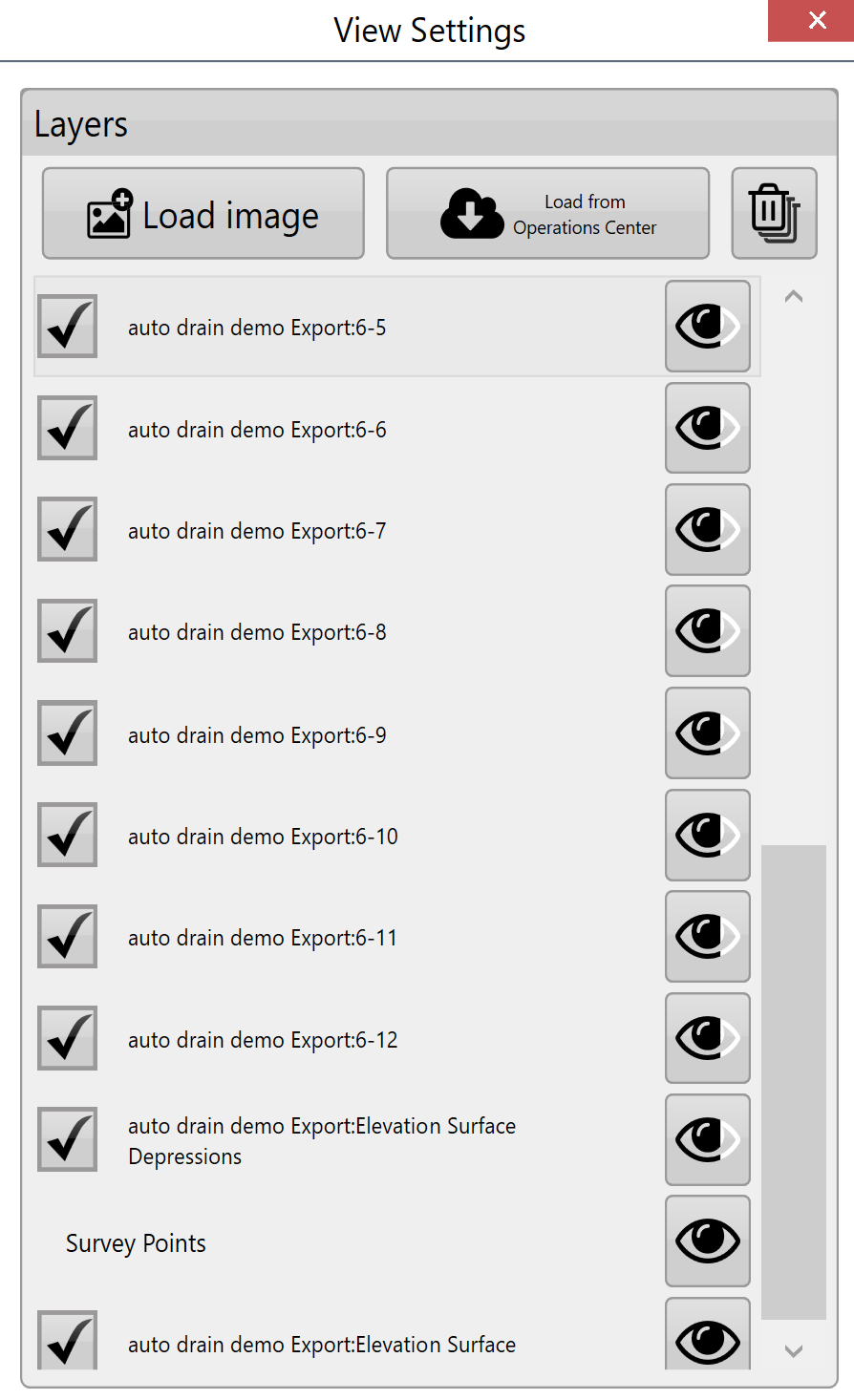
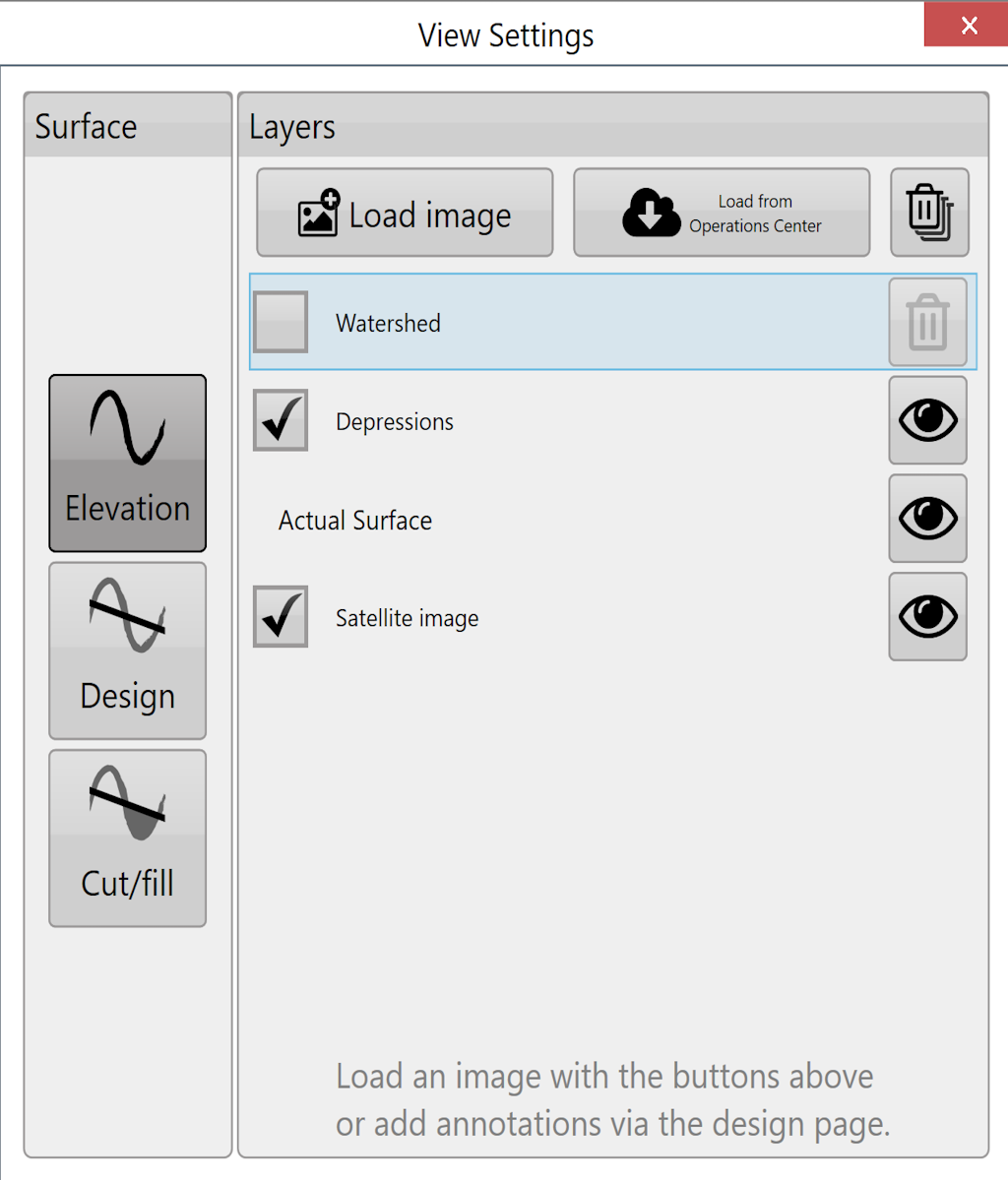
<span style="font-family: Arial,Helvetica,sans-serif;"><span dir="ltr" style="font-size: 14pt; color: rgb(0, 0, 0); font-weight: 300;">The image overlay is accessed by pressing the View button at the top of the screen (Shown right).</span></span>

<span style="font-family: Arial,Helvetica,sans-serif;"><span style="border:1pt solid #000000;display:inline-block;overflow:hidden;width:297px;height:488px;">![](https://docs.t3rra.com/uploads/images/gallery/2025-03/scaled-1680-/5pnhhovxviea9wdmmtmcxv2yyq4wdxrrrsnrw-png.png)</span></span>

<span style="font-family: Arial,Helvetica,sans-serif;">  
</span>

<span style="font-family: Arial,Helvetica,sans-serif;"><span dir="ltr" style="font-size: 14pt; color: rgb(0, 0, 0);">Load image - </span></span><span style="font-family: Arial,Helvetica,sans-serif;"><span dir="ltr" style="font-size: 14pt; color: rgb(0, 0, 0); font-weight: 300;">This is the primary method for adding overlay images to the field. When the button is pressed a file window will open to select the desired file. The file types that are currently supported as overlay images are </span><span style="font-size: 14pt; color: rgb(0, 0, 0); font-weight: 400;">.KML</span><span style="font-size: 14pt; color: rgb(0, 0, 0); font-weight: 300;"> and </span><span style="font-size: 14pt; color: rgb(0, 0, 0); font-weight: 400;">.TIFF</span><span style="font-size: 14pt; color: rgb(0, 0, 0); font-weight: 300;">.</span></span>

<span style="font-family: Arial,Helvetica,sans-serif;">  
</span>

<span style="font-family: Arial,Helvetica,sans-serif;"><span dir="ltr" style="font-size: 14pt; color: rgb(0, 0, 0);">Load image from JDOC - </span></span><span style="font-family: Arial,Helvetica,sans-serif;"><span dir="ltr" style="font-size: 14pt; color: rgb(0, 0, 0); font-weight: 300;">Images from the John Deere Operations Center can be downloaded into the image overlay. This is useful for comparing previous data (such as yields) with current survey data. </span></span>

<span style="font-family: Arial,Helvetica,sans-serif;">  
</span>

<span style="font-family: Arial,Helvetica,sans-serif;"><span dir="ltr" style="font-size: 14pt; color: rgb(0, 0, 0);">Delete images - </span></span><span style="font-family: Arial,Helvetica,sans-serif;"><span dir="ltr" style="font-size: 14pt; color: rgb(0, 0, 0); font-weight: 300;">Overlay images can be deleted by unchecking the box next to them and pressing the ‘delete images’ button. This will delete the layer from the available list.</span></span>

<span style="font-family: Arial,Helvetica,sans-serif;">  
</span>

<span style="font-family: Arial,Helvetica,sans-serif;"><span dir="ltr" style="font-size: 14pt; color: rgb(0, 0, 0);">Transparency - </span></span><span style="font-family: Arial,Helvetica,sans-serif;"><span dir="ltr" style="font-size: 14pt; color: rgb(0, 0, 0); font-weight: 300;">Overlay images can be set to be transparent so that layers below them can be seen. Check the box to the left of the layer and then press the transparency button on the right side.</span></span>

<span style="font-family: Arial,Helvetica,sans-serif;">  
</span>

<span style="font-family: Arial,Helvetica,sans-serif;"><span dir="ltr" style="font-size: 14pt; color: rgb(0, 0, 0);">Layers - </span></span><span dir="ltr" style="font-size: 14pt; font-family: Arial, Helvetica, sans-serif; color: rgb(0, 0, 0); font-weight: 300;">Pressing on any of the layers will cause it to be displayed over the others. Drag layers to adjust where they ‘sit’ on the image.</span>

# Choose Mode - 2D or 3D

#### <span style="font-size: 21pt; font-family: Arial, Helvetica, sans-serif; color: rgb(0, 0, 0); font-weight: 400;">Mode</span>

<span style="font-family: Arial,Helvetica,sans-serif;"><span style="font-size: 14pt; color: rgb(0, 0, 0); font-weight: 400;">2D View</span><span dir="ltr" style="font-size: 14pt; color: rgb(0, 0, 0); font-weight: 300;"> - By default the map will be displayed in a 2D aerial view.</span></span>

<span style="font-family: Arial,Helvetica,sans-serif;"><span dir="ltr" style="font-size: 14pt; color: rgb(0, 0, 0); font-weight: 300;">![](https://docs.t3rra.com/uploads/images/gallery/2025-03/scaled-1680-/8929-8wzuoonstve0nr-i-eh-wtvojz1eon0w-png.png)</span></span>

<span style="font-family: Arial,Helvetica,sans-serif;">  
</span>

<span style="font-family: Arial,Helvetica,sans-serif;"><span style="font-size: 14pt; color: rgb(0, 0, 0); font-weight: 400;">3D View</span><span style="font-size: 14pt; color: rgb(0, 0, 0); font-weight: 300;"> - When switching to 3D view the map will show all the terrain as small hills and valleys. In this viewing mode if you press the vertical scale magnifier (shown here) it will increase the exaggeration of these hills and valleys so that they can be more easily identified. The focal point when viewing in 3D can be changed by quickly double tapping on a position.</span></span>

<span style="font-family: Arial,Helvetica,sans-serif;"><span style="border:none;display:inline-block;overflow:hidden;width:98px;height:93px;">![](https://docs.t3rra.com/uploads/images/gallery/2025-03/scaled-1680-/nvulni52dgghz7xn6jmvqd5i5tuvhzr5tpcwq-png.png)</span></span>

<span style="font-family: Arial,Helvetica,sans-serif;">  
</span>

# View

<span style="box-sizing: border-box; font-family: Arial, Helvetica, sans-serif;"><span style="box-sizing: border-box; font-size: 14pt; color: rgb(0, 0, 0); font-weight: 300;">When viewing a map you have a variety of display options.</span></span>

<span style="box-sizing: border-box; font-family: Arial, Helvetica, sans-serif;">  
</span>

<span style="box-sizing: border-box; font-family: Arial, Helvetica, sans-serif;"><span dir="ltr" style="box-sizing: border-box; font-size: 14pt; color: rgb(0, 0, 0); font-weight: 300;">![](https://docs.t3rra.com/uploads/images/gallery/2025-03/scaled-1680-/eZ3rrzpy6aqxfnmuhdj5afc2jbdio0vskewqa-png.png)</span></span>

<span style="box-sizing: border-box; font-family: Arial, Helvetica, sans-serif;">  
</span>

#### <span style="box-sizing: border-box; font-family: Arial, Helvetica, sans-serif;"><span style="box-sizing: border-box; font-size: 21pt; color: rgb(0, 0, 0); font-weight: 400;">Surface</span></span>

<span style="box-sizing: border-box; font-family: Arial, Helvetica, sans-serif;"><span style="box-sizing: border-box; font-size: 14pt; color: rgb(0, 0, 0); font-weight: 300;">This refers to the source for the 3D topography and coloring of the map. There are 6 options:</span></span>

<span style="box-sizing: border-box; font-family: Arial, Helvetica, sans-serif;">  
</span>

<span style="box-sizing: border-box; font-family: Arial, Helvetica, sans-serif;"><span style="box-sizing: border-box; border: none; display: inline-block; overflow: hidden; width: 322px; height: 359px;">![](https://docs.t3rra.com/uploads/images/gallery/2025-03/scaled-1680-/ONsgrsqxs4czjn32oephe9ld-zektrytyww5g-png.png)</span></span>

<span style="box-sizing: border-box; font-family: Arial, Helvetica, sans-serif;"><span style="box-sizing: border-box; font-size: 14pt; color: rgb(0, 0, 0); font-weight: 400;">Elevation </span><span style="box-sizing: border-box; font-size: 14pt; color: rgb(0, 0, 0); font-weight: 300;">- This terrain viewing mode shows the map as the original surface prior to any dirt being moved. Displays the map in a Red to Blue gradient scale with Red being low areas and Blue being high areas.</span></span>

<span style="box-sizing: border-box; font-family: Arial, Helvetica, sans-serif;">  
</span>

<span style="box-sizing: border-box; font-family: Arial, Helvetica, sans-serif;"><span style="box-sizing: border-box; font-size: 14pt; color: rgb(0, 0, 0); font-weight: 400;">Design </span><span dir="ltr" style="box-sizing: border-box; font-size: 14pt; color: rgb(0, 0, 0); font-weight: 300;">- This viewing mode shows the design that has been applied. This is the surface that you are attempting to reach at the end of the dirt moving process. Has the same color scheme as Elevation.</span></span>

<span dir="ltr" style="box-sizing: border-box; font-family: Arial, Helvetica, sans-serif;">![](https://docs.t3rra.com/uploads/images/gallery/2025-03/scaled-1680-/NDpemmljtzmf5goc6dxm-cbam7kbkcllwtzdq-png.png)</span>

<span dir="ltr" style="color: rgb(0, 0, 0); font-family: Arial, Helvetica, sans-serif; font-size: 18.6667px; font-style: normal; font-variant-ligatures: normal; font-variant-caps: normal; font-weight: 300; letter-spacing: normal; orphans: 2; text-align: start; text-indent: 0px; text-transform: none; widows: 2; word-spacing: 0px; -webkit-text-stroke-width: 0px; white-space: normal;  text-decoration-thickness: initial; text-decoration-style: initial; text-decoration-color: initial; display: inline !important; float: none;">(Legend range is decided by both Elevation and Design surfaces.)</span>

<span style="box-sizing: border-box; font-family: Arial, Helvetica, sans-serif;"><span dir="ltr" style="box-sizing: border-box; font-size: 14pt; color: rgb(0, 0, 0); font-weight: 400;">Cut/Fill </span><span dir="ltr" style="box-sizing: border-box; font-size: 14pt; color: rgb(0, 0, 0); font-weight: 300;">- Shows where the design will be taking dirt from and where it will be putting it. Coloring of this layer depends on the current Cut/Fill color scheme (Settings &gt; Application). </span></span>

![](https://docs.t3rra.com/uploads/images/gallery/2025-03/scaled-1680-/ltJmxstzepss-kfwg2leeutwbu9dc4ouxbcwq-png.png)

<span dir="ltr" style="color: rgb(0, 0, 0); font-family: Arial, Helvetica, sans-serif; font-size: 18.6667px; font-style: normal; font-variant-ligatures: normal; font-variant-caps: normal; font-weight: 300; letter-spacing: normal; orphans: 2; text-align: start; text-indent: 0px; text-transform: none; widows: 2; word-spacing: 0px; -webkit-text-stroke-width: 0px; white-space: normal;  text-decoration-thickness: initial; text-decoration-style: initial; text-decoration-color: initial; display: inline !important; float: none;">(<span style="color: rgb(0, 0, 0); font-family: Arial, Helvetica, sans-serif; font-size: 18.6667px; font-style: normal; font-variant-ligatures: normal; font-variant-caps: normal; font-weight: 300; letter-spacing: normal; orphans: 2; text-align: start; text-indent: 0px; text-transform: none; widows: 2; word-spacing: 0px; -webkit-text-stroke-width: 0px; white-space: normal;  text-decoration-thickness: initial; text-decoration-style: initial; text-decoration-color: initial; display: inline !important; float: none;">Cut/Fill</span> legend shows histogram.)</span>

<span style="box-sizing: border-box; font-family: Arial, Helvetica, sans-serif;"><span dir="ltr" style="box-sizing: border-box; font-size: 14pt; color: rgb(0, 0, 0); font-weight: 300;">Satellite image - Toggles satellite image background on and off. The eye changes the visibility of the image to link to google earth. </span></span>

<span style="box-sizing: border-box; font-family: Arial, Helvetica, sans-serif;">  
</span>

#### <span style="box-sizing: border-box; font-family: Arial, Helvetica, sans-serif;"><span dir="ltr" style="box-sizing: border-box; font-size: 21pt; color: rgb(0, 0, 0); font-weight: 400;">Layers</span></span>

<span style="box-sizing: border-box; font-family: Arial, Helvetica, sans-serif;"><span style="box-sizing: border-box; font-size: 14pt; color: rgb(0, 0, 0); font-weight: 300;">Various defined layers can be turned on and off here. This includes the current surface (see above), depressions, drains, linework, and overlays such as KML that have been loaded. The buttons at the top allow you to load and clear layers, and beside each layer is a transparency toggle button. Click the button to change its transparency.</span></span>

<span style="box-sizing: border-box; font-family: Arial, Helvetica, sans-serif;"><span style="box-sizing: border-box; border: none; display: inline-block; overflow: hidden; width: 50px; height: 48px;">![](https://docs.t3rra.com/uploads/images/gallery/2025-03/scaled-1680-/hPl34jh-hylofuystozhl9alhramrmks0whxg-png.png)</span></span>

<span style="box-sizing: border-box; font-family: Arial, Helvetica, sans-serif;">  
</span>

<span style="box-sizing: border-box; font-family: Arial, Helvetica, sans-serif;"><span style="box-sizing: border-box; font-size: 14pt; color: rgb(255, 0, 0); font-weight: 300;">NOTE: The depressions layer is not shown if the project only has drains (and no elevation surface).</span></span>

<span style="box-sizing: border-box; font-family: Arial, Helvetica, sans-serif;">  
</span>

<div align="left" dir="ltr" id="bkmrk-for-a-youtube-video-" style="box-sizing: border-box; word-break: normal; overflow-wrap: break-word; font-size: 13px; line-height: 18px; color: rgb(24, 50, 71); font-style: normal; font-variant-ligatures: normal; font-variant-caps: normal; font-weight: 400; letter-spacing: normal; orphans: 2; text-indent: 0px; text-transform: none; widows: 2; word-spacing: 0px; -webkit-text-stroke-width: 0px; white-space: normal;  text-decoration-thickness: initial; text-decoration-style: initial; text-decoration-color: initial; margin-left: 0pt; font-family: Arial, Helvetica, sans-serif;"><table style="box-sizing: border-box; border-collapse: collapse; border-spacing: 0px; background-color: transparent; max-width: 100%; border: none; empty-cells: show; cursor: default;"><colgroup style="box-sizing: border-box;"><col style="box-sizing: border-box;" width="490"></col><col style="box-sizing: border-box;" width="134"></col></colgroup><tbody style="box-sizing: border-box;"><tr style="box-sizing: border-box; height: 106.5pt;"><td style="box-sizing: border-box; padding: 5pt; min-width: 5px; cursor: text; font-size: 13px; border: 1pt solid rgb(241, 194, 50); overflow: hidden; overflow-wrap: break-word;"><span style="box-sizing: border-box; font-family: Arial, Helvetica, sans-serif;"><span style="box-sizing: border-box; font-size: 14pt; color: rgb(0, 0, 0); font-weight: 300;">For a youtube video tutorial on modes and layers visit Markers</span>[<span style="box-sizing: border-box; font-size: 14pt; color: rgb(17, 85, 204); font-weight: 300; text-decoration-skip-ink: none;">https://youtu.be/x5FrylWjpfk</span>](https://youtu.be/x5FrylWjpfk)<span style="box-sizing: border-box; font-size: 14pt; color: rgb(0, 0, 0); font-weight: 300;"> or use your phone to scan this barcode </span></span>

</td><td style="box-sizing: border-box; padding: 5pt; min-width: 5px; cursor: text; font-size: 13px; border: 1pt solid rgb(241, 194, 50); overflow: hidden; overflow-wrap: break-word;"><span style="box-sizing: border-box; font-family: Arial, Helvetica, sans-serif;"><span style="box-sizing: border-box; font-size: 14pt; color: rgb(0, 0, 0); font-weight: 300;"><span style="box-sizing: border-box; border: none; display: inline-block; overflow: hidden; width: 120px; height: 120px;">![](https://docs.t3rra.com/uploads/images/gallery/2025-03/scaled-1680-/0xTtigsmr0ot1af0upeqisagdks-gpofpdw4g-png.png)</span></span></span>

</td></tr></tbody></table>

</div>

# Markers

<span dir="ltr" style="font-size: 14pt; font-family: Arial, Helvetica, sans-serif; color: rgb(0, 0, 0); font-weight: 300;">Markers on designs allow for setting points of interest at user-selected locations. This includes using a marker as a benchmark “control point” location in the design. To use a marker as a Benchmark location, refer to </span><span style="font-family: Arial,Helvetica,sans-serif;"><span style="font-size: 13pt; color: rgb(0, 0, 0); font-weight: 700;">‘</span><span style="font-size: 12pt; color: rgb(0, 0, 0); font-weight: 700;">Set Zero using a marker’</span><span style="font-size: 14pt; color: rgb(0, 0, 0); font-weight: 300;"> in the Implementation section of this manual.</span></span>

<span style="font-family: Arial,Helvetica,sans-serif;">  
</span>

<span style="font-family: Arial,Helvetica,sans-serif;"><span style="border:none;display:inline-block;overflow:hidden;width:103px;height:122px;">![](https://docs.t3rra.com/uploads/images/gallery/2025-03/scaled-1680-/6jCkvxwq1lq5ejbih-pusiqhymklb33pgkeyq-png.png)</span></span>

<span style="font-family: Arial,Helvetica,sans-serif;">  
</span>

<span style="font-family: Arial,Helvetica,sans-serif;"><span style="font-size: 14pt; color: rgb(0, 0, 0); font-weight: 400;">Set marker</span><span style="font-size: 14pt; color: rgb(0, 0, 0); font-weight: 300;"> - use this tool to set a marker on the map. Markers are always placed at the current location.</span></span>

<span style="font-family: Arial,Helvetica,sans-serif;">  
</span>

<span style="font-family: Arial,Helvetica,sans-serif;">  
</span>

<span style="font-family: Arial,Helvetica,sans-serif;"><span style="border:none;display:inline-block;overflow:hidden;width:221px;height:144px;">![](https://docs.t3rra.com/uploads/images/gallery/2025-03/scaled-1680-/2rWajzmxefjovcazxncl7mqjtt9m-eolfyykg-png.png)</span></span>

<span style="font-family: Arial,Helvetica,sans-serif;">  
</span>

<span style="font-family: Arial,Helvetica,sans-serif;"><span dir="ltr" style="font-size: 14pt; color: rgb(0, 0, 0); font-weight: 300;">When a new marker is created a window will appear allowing a name for the marker to be entered.</span></span>

<span style="font-family: Arial,Helvetica,sans-serif;">  
</span>

<span style="font-family: Arial,Helvetica,sans-serif;">  
</span>

<div align="left" dir="ltr" id="bkmrk-for-a-youtube-video-" style="margin-left: 0pt; font-family: Arial, Helvetica, sans-serif;"><span style="font-family: Arial,Helvetica,sans-serif;"></span><table style="border:none;border-collapse:collapse;"><colgroup><col width="490"></col><col width="134"></col></colgroup><tbody><tr style="height:106.5pt;"><td style="border-width: 1pt; border-style: solid; border-color: rgb(241, 194, 50); padding: 5pt; overflow: hidden; overflow-wrap: break-word;"><span style="font-family: Arial,Helvetica,sans-serif;"><span style="font-size: 14pt; color: rgb(0, 0, 0); font-weight: 300;">For a youtube video tutorial on setting markers visit </span>[<span style="font-size: 14pt; color: rgb(17, 85, 204); font-weight: 300; text-decoration-skip-ink: none;">https://youtu.be/sk7BdYk62K8</span>](https://youtu.be/sk7BdYk62K8)<span style="font-size: 14pt; color: rgb(0, 0, 0); font-weight: 300;"> or use your phone to scan this barcode </span></span>

</td><td style="border-width: 1pt; border-style: solid; border-color: rgb(241, 194, 50); padding: 5pt; overflow: hidden; overflow-wrap: break-word;"><span style="font-family: Arial,Helvetica,sans-serif;"><span style="font-size: 14pt; color: rgb(0, 0, 0); font-weight: 300;"><span style="border:none;display:inline-block;overflow:hidden;width:120px;height:120px;">![](https://docs.t3rra.com/uploads/images/gallery/2025-03/scaled-1680-/LDU9fvblqmreob7l1msop8xppehpako-nqs6w-png.png)</span></span></span>

</td></tr></tbody></table>

</div><span style="font-family: Arial,Helvetica,sans-serif;">  
</span>

<span style="font-family: Arial,Helvetica,sans-serif;">  
</span>

<span style="font-family: Arial,Helvetica,sans-serif;"><span style="border:none;display:inline-block;overflow:hidden;width:103px;height:123px;">![](https://docs.t3rra.com/uploads/images/gallery/2025-03/scaled-1680-/3bihqeaujz5m3lz9ba068uvr5q6mlnxbntu6w-png.png)</span></span>

<span style="font-family: Arial,Helvetica,sans-serif;">  
</span>

<span style="font-family: Arial,Helvetica,sans-serif;"><span style="font-size: 14pt; color: rgb(0, 0, 0); font-weight: 400;">Edit Marker</span><span style="font-size: 14pt; color: rgb(0, 0, 0); font-weight: 300;"> - this opens a window that allows you to select any marker on the map and edit it.</span></span>

<span style="font-family: Arial,Helvetica,sans-serif;">  
</span>

<span style="font-family: Arial,Helvetica,sans-serif;"><span style="font-size: 14pt; color: rgb(0, 0, 0); font-weight: 300;">The ‘Edit Marker’ button will open the below window allowing you to see the information of each marker that has been placed including heading, distance and height of the marker relative to your current position.</span></span>

<span style="font-family: Arial,Helvetica,sans-serif;"><span style="border:none;display:inline-block;overflow:hidden;width:392px;height:227px;">![](https://docs.t3rra.com/uploads/images/gallery/2025-03/scaled-1680-/dKpvbaxedyuxrungdrqla9tdg66ndaylnsgnq-png.png)</span></span>

<span style="font-family: Arial,Helvetica,sans-serif;"><span style="font-size: 14pt; color: rgb(0, 0, 0); font-weight: 300;">Pressing the button next to the marker name will let you change the name of the marker.</span></span>

<span style="font-size: 14pt; font-family: Arial, Helvetica, sans-serif; color: rgb(0, 0, 0); font-weight: 300;">The buttons at the bottom of the window allow you to select all the markers, delete the currently selected markers, export the currently selected markers and close the window. </span>

# Screenshot

<span style="font-size: 14pt; font-family: Arial, Helvetica, sans-serif; color: rgb(0, 0, 0); font-weight: 300;">In the top right of any mapping window is a small button with a camera. Pressing the camera button will take a screenshot of what is currently on the screen.</span>

<span style="font-family: Arial,Helvetica,sans-serif;">  
</span>

<span style="font-family: Arial,Helvetica,sans-serif;"><span style="border:none;display:inline-block;overflow:hidden;width:303px;height:123px;">![](https://docs.t3rra.com/uploads/images/gallery/2025-03/scaled-1680-/rkHzu-b5yrq2q7p1qsa9e-wvaeazprhyr8og-png.png)</span></span>

<span style="font-family: Arial,Helvetica,sans-serif;">  
</span>

<span style="font-family: Arial,Helvetica,sans-serif;"><span dir="ltr" style="font-size: 14pt; color: rgb(0, 0, 0); font-weight: 300;">After taking a screenshot a pop-up window will appear (shown below). Pressing ‘Yes’ will open the folder where the screenshot is saved. See the following Youtube video for more info on </span></span>[<span dir="ltr" style="font-size: 18px;">Screenshots</span>](https://www.youtube.com/watch?v=hjoM_rv3JE4).

# Battery Level

### <span style="border:none;display:inline-block;overflow:hidden;width:370px;height:94px;">![](https://docs.t3rra.com/uploads/images/gallery/2025-03/scaled-1680-/XyVn9vzwlwzcsrypgiua9fbkarfrh9-cord6a-png.png)</span>

<span style="font-size: 14pt; font-family: Arial, Helvetica, sans-serif; color: rgb(0, 0, 0); font-weight: 300;">In the top right of the screen next to the screenshot button you will find the Battery level indicator. </span>

<span style="font-size: 14pt; font-family: Arial, Helvetica, sans-serif; color: rgb(0, 0, 0); font-weight: 300;">This indicator displays the tablet/computer's battery level and whether it is plugged into power or not.</span>

# Google Earth

![](https://docs.t3rra.com/uploads/images/gallery/2025-03/scaled-1680-/7I3czzvcgjoj8qxkumxqmwj4k1a-swehnjpqa-png.png)

<span dir="ltr" style="font-family: Arial, Helvetica, sans-serif; font-size: 18px;">Google Earth will capture the current display area and overlay it on a satellite image of the field location. Check out the [Google Earth](https://www.youtube.com/watch?v=KP5TTMcTkws) Youtube video for more information. </span>

<span dir="ltr" style="font-family: Arial, Helvetica, sans-serif; font-size: 18px; color: rgb(226, 80, 65);">Note: You must have Google Earth Pro installed on your computer for this to work.</span>

# Surfacing

# Setting the Search Radius manually

<span style="font-family: Arial,Helvetica,sans-serif;"><span style="font-size: 14pt; color: rgb(0, 0, 0); font-weight: 300;">If the automatically generated search radius does not achieve what you expect it is possible to manually adjust the search radius in the bottom left corner of the surfacing page. There are a few things to take into account when manually adjusting the search radius.</span></span>

<span style="font-family: Arial,Helvetica,sans-serif;">  
</span>

<span style="font-family: Arial,Helvetica,sans-serif;"><span style="font-size: 14pt; color: rgb(0, 0, 0); font-weight: 300;">When converting discrete elevation points into a continuous surface, a ‘</span><span style="font-size: 14pt; color: rgb(0, 0, 0); font-weight: 400;">Search radius</span><span style="font-size: 14pt; color: rgb(0, 0, 0); font-weight: 300;">’ is required. To estimate the elevation at any point on the surface which was not directly measured, we look at the surrounding measured points. The distance the surfacing algorithm will look for surrounding points is determined by the search radius.</span></span>

<span style="font-family: Arial,Helvetica,sans-serif;">  
</span>

<span style="font-family: Arial,Helvetica,sans-serif;"><span style="border:1pt solid #000000;display:inline-block;overflow:hidden;width:583px;height:335px;">![](https://docs.t3rra.com/uploads/images/gallery/2025-03/scaled-1680-/wTxugzlh-fhzq-xqmym-brdl1oqg-ahtoznw-png.png)</span></span>

<span style="font-family: Arial,Helvetica,sans-serif;"><span style="font-size: 14pt; color: rgb(0, 0, 0); font-weight: 300;">Gaps will appear on the surface if the search radius is smaller than required. There is normally no visible effect on the resultant surface if the search radius is larger than required (although the surfacing will take longer to complete). In some instances surface artifacts will occur where the surface bridges across sections of the field where you would not expect it to. Examples might be a pond in a field, or the inside corner of an “L” shaped field. You can sometimes remove these areas by choosing a smaller search radius. Normally the effect of these artifacts is not great, although they can have impacts on your area and dirt volume records.</span></span>

<span style="font-family: Arial,Helvetica,sans-serif;">  
</span>

<span style="font-size: 14pt; font-family: Arial, Helvetica, sans-serif; color: rgb(0, 0, 0); font-weight: 300;">In general, a search radius should be about 2 times the swath width at which the data was collected. This sizing should ensure that the time it takes to apply the surface is still short but that as much data as possible is used to generate a representative map.</span>

# Inline Offsets

<span style="border:none;display:inline-block;overflow:hidden;width:103px;height:120px;">![](https://docs.t3rra.com/uploads/images/gallery/2025-03/scaled-1680-/KBZkei6n98prv6czupnomgufxu-ortn14gcia-png.png)</span>

<span style="font-size: 14pt; font-family: Arial, Helvetica, sans-serif; color: rgb(0, 0, 0); font-weight: 300;">Inline Offset, also known as Fix Lag, is a surfacing tool that assists in making corrections to elevation data that is imported from other sources.</span>

<span style="font-family: Arial,Helvetica,sans-serif;"><span style="font-size: 14pt; color: rgb(0, 0, 0); font-weight: 300;">To access this tool press the ‘Fix Lag’ button located at the left end of the tools at the bottom of the screen. Pressing this button will open a pop-up window that will provide you with the options to correct elevation alignment. </span></span>

<span style="font-family: Arial,Helvetica,sans-serif;">  
</span>

<span style="font-family: Arial,Helvetica,sans-serif;">  
</span>

<div align="left" dir="ltr" id="bkmrk-for-a-youtube-video-" style="margin-left: 0pt; font-family: Arial, Helvetica, sans-serif;"><span style="font-family: Arial,Helvetica,sans-serif;"></span><table style="border:none;border-collapse:collapse;"><colgroup><col width="490"></col><col width="134"></col></colgroup><tbody><tr style="height:106.5pt;"><td style="border-width: 1pt; border-style: solid; border-color: rgb(241, 194, 50); padding: 5pt; overflow: hidden; overflow-wrap: break-word;"><span style="font-family: Arial,Helvetica,sans-serif;"><span style="font-size: 14pt; color: rgb(0, 0, 0); font-weight: 300;">For a youtube video tutorial on Inline offset visit </span>[<span style="font-size: 14pt; color: rgb(17, 85, 204); font-weight: 300; text-decoration-skip-ink: none;">https://youtu.be/O9Sgkx-DffM</span>](https://youtu.be/O9Sgkx-DffM)<span style="font-size: 14pt; color: rgb(0, 0, 0); font-weight: 300;"> or use your phone to scan this barcode </span></span>

</td><td style="border-width: 1pt; border-style: solid; border-color: rgb(241, 194, 50); padding: 5pt; overflow: hidden; overflow-wrap: break-word;"><span style="font-family: Arial,Helvetica,sans-serif;"><span style="font-size: 14pt; color: rgb(0, 0, 0); font-weight: 300;"><span style="border:none;display:inline-block;overflow:hidden;width:120px;height:120px;">![](https://docs.t3rra.com/uploads/images/gallery/2025-03/scaled-1680-/ESFof3w-yq2yi5is7zz8jfybqa0q-nkzsfmtq-png.png)</span></span></span>

</td></tr></tbody></table>

</div><span style="font-family: Arial,Helvetica,sans-serif;">  
</span>

<span style="font-family: Arial,Helvetica,sans-serif;">  
</span>

<span style="font-family: Arial,Helvetica,sans-serif;"><span style="font-size: 14pt; color: rgb(0, 0, 0); font-weight: 300;">When correcting elevation data In the pop-up window it will be shown on the data behind the window. There are 2 separate sections that control the correction of elevation data in the pop-up window. </span></span>

<span style="font-family: Arial,Helvetica,sans-serif;"><span style="border:none;display:inline-block;overflow:hidden;width:380px;height:417px;">![](https://docs.t3rra.com/uploads/images/gallery/2025-03/scaled-1680-/Yqm82mmi3qai9kpz4tcsz6km4-hreina0n0fw-png.png)</span></span>

<span style="font-family: Arial,Helvetica,sans-serif;">  
</span>

<span style="font-family: Arial,Helvetica,sans-serif;"><span style="font-size: 14pt; color: rgb(0, 0, 0); font-weight: 300;">To control how far the data is shifted, move the slider or tap the text box to type in a distance. The slider has a maximum shift distance of 100ft (30m). In the ‘Shift distance’ window you are able to manually set the distance that the data will be shifted, like the slider the maximum value that can be set in the shift distance window is 100ft or 30m.</span></span>

<span style="font-family: Arial,Helvetica,sans-serif;">  
</span>

<span style="font-family: Arial,Helvetica,sans-serif;"><span style="font-size: 14pt; color: rgb(0, 0, 0); font-weight: 300;">The lower portion of the window controls the pass separation. Pass separation is how far must be between any point and the next point along before it is considered to be a new segment.</span></span>

<span style="font-family: Arial,Helvetica,sans-serif;">  
</span>

<span style="font-size: 14pt; font-family: Arial, Helvetica, sans-serif; color: rgb(0, 0, 0); font-weight: 300;">When making changes to the data in the inline offset window they will be reflected on the surface on the map - Check that your change has the desired effect before accepting.</span>

# Surfacing a survey also creates a design

<span style="font-size: 14pt; font-family: Arial, Helvetica, sans-serif; color: rgb(0, 0, 0); font-weight: 300;">This is a concept that can be confusing at first. When you surface a set of collected survey points you create a terrain model of the original elevation in the field. This is expected. But T3RRA software also automatically creates a design surface for you as well. This design surface is an exact duplicate of the original elevation surface.</span>

<span style="font-family: Arial,Helvetica,sans-serif;">  
</span>

<span style="font-family: Arial,Helvetica,sans-serif;"><span style="font-size: 14pt; color: rgb(0, 0, 0); font-weight: 300;">Because T3RRA software allows you to create design surfaces in separate regions of a field, and also create design surfaces based on existing design surfaces, it makes sense to always have a base layer to work off. And this base layer is an exact duplicate of the original surface.</span></span>

<span style="font-family: Arial,Helvetica,sans-serif;">  
</span>

<span style="font-size: 14pt; font-family: Arial, Helvetica, sans-serif; color: rgb(0, 0, 0); font-weight: 300;">A side effect of this automatic creation of design layers is that you can go straight to implementation after surfacing even if you have not specifically created a design (surfacing is normally automatic, so really you can usually skip directly to implementing directly after collecting!). A design surface does exist, it’s just that the cut/fill map is made up of 0 values for the whole field.</span>

# Editing Survey Points

<span dir="ltr" style="font-size: 14pt; font-family: Arial, Helvetica, sans-serif; color: rgb(0, 0, 0); font-weight: 300;">During surfacing, there are various different ways to edit/remove drain or survey points, as seen below.</span>

<span style="font-family: Arial,Helvetica,sans-serif;">  
</span>

<span style="font-family: Arial,Helvetica,sans-serif;"><span style="font-size: 14pt; color: rgb(0, 0, 0); font-weight: 700;">'Select by Z’</span><span style="font-size: 14pt; color: rgb(0, 0, 0); font-weight: 400;"> </span><span dir="ltr" style="font-size: 14pt; color: rgb(0, 0, 0); font-weight: 300;">allows you to select elevation points by their height. After you click on it, you’ll see a graph of all your elevation data. Choose the data you want to select by clicking on the two dashed lines and using them to ‘wrap’ the data you want to select. When you click “Apply” you will be able to see the selection on the map. The selected points will be black.</span></span>

<span style="font-family: Arial,Helvetica,sans-serif;"><span dir="ltr" style="font-size: 14pt; color: rgb(0, 0, 0); font-weight: 300;">![](https://docs.t3rra.com/uploads/images/gallery/2025-03/scaled-1680-/Bc86rm1kuq6klk4ro-5mp0cu8a-apcleyd18g-png.png)</span></span>

<span style="font-size: 14pt; font-family: Arial, Helvetica, sans-serif; color: rgb(0, 0, 0); font-weight: 700;">‘Select by lasso’</span><span style="font-size: 14pt; font-family: Arial, Helvetica, sans-serif; color: rgb(0, 0, 0); font-weight: 300;"> allows a freeform selection. Press down on the map and drag your finger to draw around the data you wish to edit. A blue dotted line will show what you are about to select. The data will be selected when you release your finger.</span>

![](https://docs.t3rra.com/uploads/images/gallery/2025-03/scaled-1680-/optnxsa-fcxrjg1wehkrxwvejpvvgacsyefqg-png.png)

<span style="font-size: 14pt; font-family: Arial, Helvetica, sans-serif; color: rgb(0, 0, 0); font-weight: 300;">**'**</span>**<span style="font-size: 14pt; font-family: Arial, Helvetica, sans-serif; color: rgb(0, 0, 0);">Select by circle</span>**<span style="font-size: 14pt; font-family: Arial, Helvetica, sans-serif; color: rgb(0, 0, 0); font-weight: 300;">**'** will select everything within the circumference of the drawn circle. Press down at the center of the circle and then drag outwards. A blue dotted line will show what you are about to select. The data will be selected when you release your finger.</span>

![](https://docs.t3rra.com/uploads/images/gallery/2025-03/scaled-1680-/Y6B8qree0zhooj8wukbldgbizl8z5x8s-gxrg-png.png)

<span style="font-size: 14pt; font-family: Arial, Helvetica, sans-serif; color: rgb(0, 0, 0); font-weight: 300;">**'**</span>**<span style="font-size: 14pt; font-family: Arial, Helvetica, sans-serif; color: rgb(0, 0, 0);">Select by path</span>**<span style="font-size: 14pt; font-family: Arial, Helvetica, sans-serif; color: rgb(0, 0, 0); font-weight: 300;">**'** will delete all consecutive points between point A and point B. Press down on the point where you would like to start and drag the point to an end point. All points that had been collected on that path between these two points will be selected. The data will be selected when you release your finger.</span>

<span dir="ltr" style="font-size: 14pt; font-family: Arial, Helvetica, sans-serif; color: rgb(0, 0, 0); font-weight: 300;">![](https://docs.t3rra.com/uploads/images/gallery/2025-03/scaled-1680-/zfclrka7p8uwdegisivvekpwokmq0wkut7u7w-png.png)</span>

<span style="border:none;display:inline-block;overflow:hidden;width:103px;height:109px;">![](https://docs.t3rra.com/uploads/images/gallery/2025-03/scaled-1680-/Vt0ef7erqg6vqsb63iftqxsrnr9ojk5c3spow-png.png)</span>

<span style="font-size: 14pt; font-family: Arial, Helvetica, sans-serif; color: rgb(0, 0, 0); font-weight: 300;">While these functions are in use their buttons will display large red circles on them. This indicates that deleting is active. This is to help make sure you do not accidentally select things while trying to perform other tasks such as moving the screen or zooming. Pressing the buttons will cancel selection.</span>

<span style="font-size: 14pt; font-family: Arial, Helvetica, sans-serif; color: rgb(0, 0, 0); font-weight: 300;">Once selections have been made you have two options.</span>

#### <span style="font-size: 21pt; font-family: Arial, Helvetica, sans-serif; color: rgb(0, 0, 0); font-weight: 400;">Deleting Survey/Drain Points</span>

<span style="font-size: 14pt; font-family: Arial, Helvetica, sans-serif; color: rgb(0, 0, 0); font-weight: 300;">Click on the “Delete” button that appears after selecting points. This will immediately delete the selected points. It’s recommended to save before doing this as the change is permanent.</span>

<span dir="ltr" style="font-size: 14pt; font-family: Arial, Helvetica, sans-serif; color: rgb(0, 0, 0); font-weight: 300;">![](https://docs.t3rra.com/uploads/images/gallery/2025-03/scaled-1680-/IBhsyiibq6cndeuscolxv3kxvj6frxuptjwpa-png.png)</span>

#### <span style="font-size: 21pt; font-family: Arial, Helvetica, sans-serif; color: rgb(0, 0, 0); font-weight: 400;">Changing height of Survey/Drain Points</span>

<span style="font-size: 14pt; font-family: Arial, Helvetica, sans-serif; color: rgb(0, 0, 0); font-weight: 300;">Click on the “Modify Elevation button” and you will then see the below screen. Enter the amount to change the elevation by and click “Apply”. Your data will immediately be updated and you will be able to see the change on screen. It’s recommended to save before doing this as the change is permanent.</span>

<span dir="ltr" style="font-size: 14pt; font-family: Arial, Helvetica, sans-serif; color: rgb(0, 0, 0); font-weight: 300;">![](https://docs.t3rra.com/uploads/images/gallery/2025-03/scaled-1680-/4cHigjjzinnpenvvds31qicwpuqrbewqsq4g-png.png)</span>

<div align="left" dir="ltr" id="bkmrk-for-a-youtube-video-" style="margin-left:0pt;"><table style="border:none;border-collapse:collapse;"><colgroup style="font-family: Arial, Helvetica, sans-serif;"><col width="490"></col><col width="134"></col></colgroup><tbody><tr style="height:106.5pt;"><td style="border-width: 1pt; border-style: solid; border-color: rgb(241, 194, 50); padding: 5pt; overflow: hidden; overflow-wrap: break-word; font-family: Arial, Helvetica, sans-serif;"><span style="font-size: 14pt; font-family: Arial, Helvetica, sans-serif; color: rgb(0, 0, 0); font-weight: 300;">For a youtube video tutorial on editing points visit </span>[<span style="font-size: 14pt; font-family: Arial, Helvetica, sans-serif; color: rgb(17, 85, 204); font-weight: 300; text-decoration-skip-ink: none;">https://youtu.be/Q0581DSU7j4</span>](https://youtu.be/Q0581DSU7j4)<span style="font-size: 14pt; font-family: Arial, Helvetica, sans-serif; color: rgb(0, 0, 0); font-weight: 300;"> or use your phone to scan this barcode </span>

</td><td style="border-width: 1pt; border-style: solid; border-color: rgb(241, 194, 50); padding: 5pt; overflow: hidden; overflow-wrap: break-word;"><span style="font-size: 14pt; font-family: Oswald, sans-serif; color: rgb(0, 0, 0); font-weight: 300;"><span style="border:none;display:inline-block;overflow:hidden;width:120px;height:120px;">![](https://docs.t3rra.com/uploads/images/gallery/2025-03/scaled-1680-/GGZzwwd8rj2ifhkt5nst80-raipnjhuczdtpg-png.png)</span></span>

</td></tr></tbody></table>

</div>

# Common Design Tools

# Regions in T3CD

<span style="font-family: Helvetica, sans-serif;"><span dir="ltr" style="font-size: 14pt; color: rgb(35,31,32); font-weight: 300;">![Xx18kms2p0bkynvj5d4gdropbc009sydzh8qq-png.png](https://docs.t3rra.com/uploads/images/gallery/2025-03/scaled-1680-/Xx18kms2p0bkynvj5d4gdropbc009sydzh8qq-png.png)</span></span><span style="font-family: Arial, Helvetica, sans-serif;"><span dir="ltr" style="font-size: 14pt; color: rgb(35,31,32); font-weight: 300;">To create regions, press the ‘</span><span style="font-size: 14pt; color: rgb(35,31,32); font-weight: 400;">**Regions**</span><span style="font-size: 14pt; color: rgb(35,31,32); font-weight: 300;">’ button </span><span dir="ltr" style="font-size: 14pt; color: rgb(32,32,32); font-weight: 300;">(regions are not available</span></span><span style="font-family: Arial, Helvetica, sans-serif;"><span dir="ltr" style="font-size: 14pt; color: rgb(32,32,32); font-weight: 300;"> in drain related functions). </span></span><span style="font-family: Arial, Helvetica, sans-serif;"><span style="font-size: 14pt; color: rgb(0,0,0); font-weight: 300;">The </span><span style="font-size: 14pt; color: rgb(35,31,32); font-weight: 300;">‘</span><span style="font-size: 14pt; color: rgb(35,31,32); font-weight: 400;">**Regions**</span><span style="font-size: 14pt; color: rgb(35,31,32); font-weight: 300;">’ </span><span dir="ltr" style="font-size: 14pt; color: rgb(0,0,0); font-weight: 300;">tool is used to split a field into multiple workable areas. Different design options can be applied to multiple different regions. For example, you can apply different primary and secondary slopes, or different levee designs in each region.</span></span>

<p class="callout danger"><span style="font-family: Arial, Helvetica, sans-serif; color: rgb(107, 0, 0);"><span dir="ltr" style="font-size: 14pt; font-weight: 300;">NOTE: It is possible to create different design types in different regions. You can have a best-fit plane in one region, and a multi-fit surface in another, for instance.</span></span></p>

![E92bbmbohvp-wea74lngrw0mpgckgvuckrhlq-png.png](https://docs.t3rra.com/uploads/images/gallery/2025-03/scaled-1680-/E92bbmbohvp-wea74lngrw0mpgckgvuckrhlq-png.png)

<span style="font-family: Arial, Helvetica, sans-serif;"><span dir="ltr" style="font-size: 14pt; color: rgb(0,0,0); font-weight: 300;">Regions are created by moving a splitting line across two edges of an existing region, or whole field if no regions exist. The split line is set by moving </span><span style="font-size: 14pt; color: rgb(0,0,0); font-weight: 400;">**Point A**</span><span style="font-size: 14pt; color: rgb(0,0,0); font-weight: 300;"> and </span><span style="font-size: 14pt; color: rgb(0,0,0); font-weight: 400;">**Point B**</span><span dir="ltr" style="font-size: 14pt; color: rgb(0,0,0); font-weight: 300;"> into position. T<span dir="ltr" style="color: rgb(0,0,0); font-family: Arial, Helvetica, sans-serif; text-align: left; text-indent: 0px; font-size: 14pt; font-weight: 300;">he line can be positioned by</span></span><span dir="ltr" style="font-size: 14pt; color: rgb(0,0,0); font-weight: 300;"> moving the points directly using the touchscreen or mouse. The split line is straight, but tapping and dragging the white nodes let you create multi-segment splits. In addition, you can split multiple times, then merge regions to make complex region shapes.</span></span>

<span style="font-size: 8px;">![E6gabmfpiqfitzsj8hczm-9yn0nlzptb2vndw-png.png](https://docs.t3rra.com/uploads/images/gallery/2025-03/scaled-1680-/E6gabmfpiqfitzsj8hczm-9yn0nlzptb2vndw-png.png)</span>

<p class="callout success"><span style="font-family: Arial, Helvetica, sans-serif; color: rgb(0, 75, 5);"><span dir="ltr" style="font-size: 14pt; font-weight: 300;">In the Circle Guide and Levee design tools, the region split uses the circle/levees instead of a line. This is great for creating custom region splits for things like pivot irrigation fields and rounded corners.</span></span></p>

<span style="font-family: Arial, Helvetica, sans-serif;">  
<span dir="ltr" style="font-size: 14pt; color: rgb(0,0,0); font-weight: 300;"><span dir="ltr" style="font-size: 14pt; color: rgb(0,0,0); font-weight: 300;">The '</span><span style="font-size: 14pt; color: rgb(0,0,0); font-weight: 400;">**Split**</span><span dir="ltr" style="font-size: 14pt; color: rgb(0,0,0); font-weight: 300;">' button confirms the “split” on the selected area.</span> </span></span>

<span style="font-family: Arial, Helvetica, sans-serif;">  
</span>

<span style="font-family: Arial, Helvetica, sans-serif;"><span dir="ltr" style="font-size: 14pt; color: rgb(0,0,0); font-weight: 300;">The '</span><span style="font-size: 14pt; color: rgb(0,0,0); font-weight: 400;">**Merge**</span><span dir="ltr" style="font-size: 14pt; color: rgb(0,0,0); font-weight: 300;">' button will merge regions selected in the list into one region.</span></span>

<p class="callout warning"><span style="font-family: Arial, Helvetica, sans-serif;"><span dir="ltr" style="font-size: 14pt; color: rgb(0,0,0); font-weight: 300;">You can merge regions that are far apart. Also, if you find a region that has two separate areas, you can split it by positioning the split line between the two parts and pressing the '**Split**' button.</span></span></p>

<span style="font-family: Arial, Helvetica, sans-serif;"><span style="font-size: 14pt; color: rgb(0,0,0); font-weight: 300;">The ‘</span><span style="font-size: 14pt; color: rgb(0,0,0); font-weight: 400;">**Hide**</span><span dir="ltr" style="font-size: 14pt; color: rgb(0,0,0); font-weight: 300;">’ button will delete whatever design exists with the selected region(s). At this point the region will not exist as a separate area that can accept designs. It can, however, still have full-field designs applied to it.</span></span>

<span style="font-family: Arial, Helvetica, sans-serif;">  
</span>

<span style="font-family: Arial, Helvetica, sans-serif;"><span style="font-size: 14pt; color: rgb(0,0,0); font-weight: 300;">The ‘</span><span style="font-size: 14pt; color: rgb(0,0,0); font-weight: 400;">**Show all**</span><span style="font-size: 14pt; color: rgb(0,0,0); font-weight: 300;">’ button will restore all hidden/deleted regions.</span></span>

<span dir="ltr" style="font-size: 14pt; font-family: Arial, Helvetica, sans-serif; color: rgb(0,0,0); font-weight: 300;">![ivXx3kynlmltuqkmxq8teofcsyx4qfw6i63fa-png.png](https://docs.t3rra.com/uploads/images/gallery/2025-03/scaled-1680-/ivXx3kynlmltuqkmxq8teofcsyx4qfw6i63fa-png.png)<span dir="ltr" style="font-size: 14pt; font-family: Arial, Helvetica, sans-serif; color: rgb(0,0,0); font-weight: 300;">Press the '</span><span style="font-size: 14pt; font-family: Arial, Helvetica, sans-serif; color: rgb(0,0,0); font-weight: 400;">**Design**</span><span dir="ltr" style="font-size: 14pt; font-family: Arial, Helvetica, sans-serif; color: rgb(0,0,0); font-weight: 300;">' button when you have finished adding your regions. </span></span>

<span style="font-size: 14pt; font-family: Arial, Helvetica, sans-serif; color: rgb(0,0,0); font-weight: 300;">In certain design functions (multi-fit, best-fit, smoothing, and levees) different regions can be selected from a drop down menu allowing you to make design changes to only the selected region.</span>

![Ty5ijqsn6pmfnfgk6misxkzxv5ajc2nbv-eya-png.png](https://docs.t3rra.com/uploads/images/gallery/2025-03/scaled-1680-/Ty5ijqsn6pmfnfgk6misxkzxv5ajc2nbv-eya-png.png) <span dir="ltr" style="font-size: 14pt; font-family: Helvetica, sans-serif; color: rgb(0,0,0); font-weight: 300;">Choose to apply your design to the original elevation surface or to the design surface.</span>

# Rainfall Simulator

#### ![](https://docs.t3rra.com/uploads/images/gallery/2025-03/scaled-1680-/nnWf1b-bdtbjpdnbkrdjgxtlqb8r4izrjqccw-png.png)

<span style="font-size: 14pt; font-family: Arial, Helvetica, sans-serif; color: rgb(0, 0, 0); font-weight: 300;">One of the many unique features of the T3RRA product suite is our inclusion of a rainfall simulation tool. This allows a very visual and easily relatable analysis of how a field surface affects water runoff and ponding.</span>

<span style="font-family: Arial,Helvetica,sans-serif;"><span style="font-size: 14pt; color: rgb(0, 0, 0); font-weight: 300;">It should first be used after a survey and prior to any design being placed on the field. The intent of this is twofold:</span></span>

1. <span style="font-family: Arial,Helvetica,sans-serif;"><span style="font-size: 14pt; color: rgb(0, 0, 0); font-weight: 300;">To verify that the created surface does in fact truly represent the field. By looking at the water flow, a person familiar with the field will usually be able to say “Yes, that is the normal pattern of water runoff I would see”. In this case the operator can be confident that the survey has created an accurate model of the field. On the other hand, if the simulation produces results that are not expected it may be wise to critically revisit the survey and perhaps collect more data.</span></span>
2. <span style="font-family: Arial,Helvetica,sans-serif;"><span style="font-size: 14pt; color: rgb(0, 0, 0); font-weight: 300;">To compare the design with the original surface. It is expected that the design will result in a pattern of drainage different to the original. Analyzing the design will quickly tell you if the new surface is going to have the effect on drainage that you expect.</span></span>

<span style="font-family: Arial,Helvetica,sans-serif;">![](https://docs.t3rra.com/uploads/images/gallery/2025-03/scaled-1680-/pQJ9qu28otec9ztfbmm4tustbu-hk75p9n0bg-png.png)</span>

<span style="font-family: Arial,Helvetica,sans-serif;"><span style="font-size: 14pt; color: rgb(0, 0, 0); font-weight: 300;">The rainfall simulator </span><span style="font-size: 14pt; color: rgb(0, 0, 0); font-weight: 400;">cannot </span><span style="font-size: 14pt; color: rgb(0, 0, 0); font-weight: 300;">tell you how long a field will take to drain. There are simply too many variables, such as the soil type, the soil moisture level and the soil depth before reaching hardpan. Such a calculation is beyond the scope of this software. It can however provide you with an indication of how much faster one design will be over another. You can do this by comparing the iteration counter value of two different designs at a given drainage % value. Even so, be aware that the timing information of the simulation is qualitative in nature, not quantitative.</span></span>

<span style="font-family: Arial,Helvetica,sans-serif;">  
</span>

<div align="left" dir="ltr" id="bkmrk-for-a-youtube-video-" style="margin-left: 0pt; font-family: Arial, Helvetica, sans-serif;"><table style="border: none; border-collapse: collapse;"><colgroup><col width="490"></col><col width="134"></col></colgroup><tbody><tr style="height: 106.5pt;"><td style="padding: 5pt; overflow: hidden; overflow-wrap: break-word; border: 1pt solid rgb(241, 194, 50);"><span style="font-family: Arial,Helvetica,sans-serif;"><span style="font-size: 14pt; color: rgb(0, 0, 0); font-weight: 300;">For a youtube video tutorial on the rainfall simulator visit </span>[<span style="font-size: 14pt; color: rgb(17, 85, 204); font-weight: 300; text-decoration-skip-ink: none;">https://youtu.be/LJ5Vw9Q7tqA</span>](https://youtu.be/LJ5Vw9Q7tqA)<span style="font-size: 14pt; color: rgb(0, 0, 0); font-weight: 300;"> or use your phone to scan this barcode </span></span>

</td><td style="padding: 5pt; overflow: hidden; overflow-wrap: break-word; border: 1pt solid rgb(241, 194, 50);"><span style="font-family: Arial,Helvetica,sans-serif;"><span style="font-size: 14pt; color: rgb(0, 0, 0); font-weight: 300;"><span style="border: none; display: inline-block; overflow: hidden; width: 120px; height: 120px;">![](https://docs.t3rra.com/uploads/images/gallery/2025-03/scaled-1680-/vILkkm4rl1yka6mohgy-ouicsv-hjzlv47skg-png.png)</span></span></span>

</td></tr></tbody></table>

</div><span style="font-family: Arial,Helvetica,sans-serif;"><span style="font-size: 14pt; color: rgb(0, 0, 0); font-weight: 300;">When the water simulation is stopped, you can switch between the design and original surfaces to compare changes in water flow.</span></span>

<span style="font-family: Arial,Helvetica,sans-serif;"><span style="font-size: 14pt; color: rgb(0, 0, 0); font-weight: 300;">The '**Stop at counter**' is useful if you want to compare the remaining water at a specific counter value between design and original surfaces.</span></span>

<p class="callout info"><span style="font-size: 14pt; font-family: Arial, Helvetica, sans-serif; color: rgb(0, 0, 0); font-weight: 300;">The water simulation can be viewed in 2D or 3D just like when examining elevation and design surfaces normally.</span></p>

# Earthworks Information

<span dir="ltr" style="font-size: 14pt; font-family: Arial, Helvetica, sans-serif; color: rgb(0, 0, 0); font-weight: 300;">Press the '</span><span style="font-family: Arial,Helvetica,sans-serif;"><span style="font-size: 14pt; color: rgb(0, 0, 0); font-weight: 400;">i</span><span dir="ltr" style="font-size: 14pt; color: rgb(0, 0, 0); font-weight: 300;">' button to view earthwork details.</span></span>

<span style="font-family: Arial,Helvetica,sans-serif;">  
</span>

<span style="font-family: Arial,Helvetica,sans-serif;"><span style="font-size: 14pt; color: rgb(0, 0, 0); font-weight: 300;">Note: pressing within the ‘</span><span style="font-size: 14pt; color: rgb(0, 0, 0); font-weight: 400;">Info</span><span style="font-size: 14pt; color: rgb(0, 0, 0); font-weight: 300;">’ text box will expand the view to full screen.</span></span>

<span style="font-family: Arial,Helvetica,sans-serif;">  
</span>

<span style="font-family: Arial,Helvetica,sans-serif;"><span style="font-size: 14pt; color: rgb(0, 0, 0); font-weight: 300;">Each region will have its own set of earthworks details and cut/fill summary.</span></span>

<span style="font-family: Arial,Helvetica,sans-serif;">  
</span>

<span style="font-family: Arial,Helvetica,sans-serif;"><span style="font-size: 14pt; color: rgb(0, 0, 0); font-weight: 300;">Press the '</span><span style="font-size: 14pt; color: rgb(0, 0, 0); font-weight: 400;">Records</span><span style="font-size: 14pt; color: rgb(0, 0, 0); font-weight: 300;">' button (shown as a printer) to save design details (in PDF format) to a folder for record keeping and documentation purposes.</span></span>

<span style="font-family: Arial,Helvetica,sans-serif;">  
</span>

<span style="font-family: Arial,Helvetica,sans-serif;"><span style="font-size: 14pt; color: rgb(0, 0, 0); font-weight: 300;">Press the '</span><span style="font-size: 14pt; color: rgb(0, 0, 0); font-weight: 400;">Activity Log</span><span style="font-size: 14pt; color: rgb(0, 0, 0); font-weight: 300;">' button (shown as a clipboard) to view the activity that a file has undergone. This includes things like file save times and when/what design functions have been applied to a file.</span></span>

<span style="font-family: Arial,Helvetica,sans-serif;">  
</span>

<span style="font-family: Arial,Helvetica,sans-serif;"><span dir="ltr" style="font-size: 14pt; color: rgb(0, 0, 0); font-weight: 300;">Note: formerly there was a KMZ and Upload to John Deere button on this screen. These have been moved to the [Export step](https://t3rra.freshdesk.com/support/solutions/articles/51000404051-exporting-data).</span></span>

<span style="font-family: Arial,Helvetica,sans-serif;">  
</span>

<div align="left" dir="ltr" id="bkmrk-for-a-youtube-video-" style="margin-left: 0pt; font-family: Arial, Helvetica, sans-serif;"><table style="border:none;border-collapse:collapse;"><colgroup><col width="490"></col><col width="134"></col></colgroup><tbody><tr style="height:106.5pt;"><td style="border-width: 1pt; border-style: solid; border-color: rgb(241, 194, 50); padding: 5pt; overflow: hidden; overflow-wrap: break-word;"><span style="font-family: Arial,Helvetica,sans-serif;"><span style="font-size: 14pt; color: rgb(0, 0, 0); font-weight: 300;">For a youtube video tutorial on Earthwork information visit </span>[<span style="font-size: 14pt; color: rgb(17, 85, 204); font-weight: 300; text-decoration-skip-ink: none;">https://youtu.be/U0RB2av-vow</span>](https://youtu.be/U0RB2av-vow)<span style="font-size: 14pt; color: rgb(0, 0, 0); font-weight: 300;"> or use your phone to scan this barcode </span></span>

</td><td style="border-width: 1pt; border-style: solid; border-color: rgb(241, 194, 50); padding: 5pt; overflow: hidden; overflow-wrap: break-word;"><span style="font-family: Arial,Helvetica,sans-serif;"><span style="font-size: 14pt; color: rgb(0, 0, 0); font-weight: 300;"><span style="border:none;display:inline-block;overflow:hidden;width:120px;height:120px;">![](https://docs.t3rra.com/uploads/images/gallery/2025-03/scaled-1680-/EQ3mzachaq6pdufggjyfduvswj0dnicgwq2eq-png.png)</span></span></span>

</td></tr></tbody></table>

</div><span style="font-family: Arial,Helvetica,sans-serif;">  
</span>

<span style="font-family: Arial,Helvetica,sans-serif;"><span style="border:none;display:inline-block;overflow:hidden;width:103px;height:121px;">![](https://docs.t3rra.com/uploads/images/gallery/2025-03/scaled-1680-/YDUhir-hk-rrbvncknnoyubty78utq-8rqxpg-png.png)</span></span>

##### <span style="font-family: Arial,Helvetica,sans-serif;"><span style="font-size: 20pt; color: rgb(0, 0, 0); font-weight: 400;">Notes on printing records</span></span>

<span style="font-family: Arial,Helvetica,sans-serif;">  
</span>

<span style="font-family: Arial,Helvetica,sans-serif;"><span style="font-size: 14pt; color: rgb(0, 0, 0); font-weight: 300;">The ‘</span><span style="font-size: 14pt; color: rgb(0, 0, 0); font-weight: 400;">Records</span><span style="font-size: 14pt; color: rgb(0, 0, 0); font-weight: 300;">’ feature in T3RRA software creates a PDF document and saves it to the hard drive. This document is meant to give an overview of the operation being performed by the software. It is suitable for record keeping purposes, or for supplying to field managers or clients.</span></span>

<span style="font-family: Arial,Helvetica,sans-serif;">  
</span>

<span style="font-family: Arial,Helvetica,sans-serif;"><span style="font-size: 14pt; color: rgb(0, 0, 0); font-weight: 300;">It includes the following:</span></span>

- <span style="font-family: Arial,Helvetica,sans-serif;"><span style="font-size: 14pt; color: rgb(0, 0, 0); font-weight: 300;">Map of the original surface</span></span>
- <span style="font-family: Arial,Helvetica,sans-serif;"><span style="font-size: 14pt; color: rgb(0, 0, 0); font-weight: 300;">Map of the design surface</span></span>
- <span style="font-family: Arial,Helvetica,sans-serif;"><span style="font-size: 14pt; color: rgb(0, 0, 0); font-weight: 300;">Map of Cut and Fill areas</span></span>
- <span style="font-family: Arial,Helvetica,sans-serif;"><span style="font-size: 14pt; color: rgb(0, 0, 0); font-weight: 300;">Statistics relating to the earthworks</span></span>

<span style="font-family: Arial,Helvetica,sans-serif;">  
</span>

<span style="font-family: Arial,Helvetica,sans-serif;"><span style="font-size: 14pt; color: rgb(0, 0, 0); font-weight: 300;">The maps created in the report will include a grid overlay showing data values.</span></span>

<span style="font-family: Arial,Helvetica,sans-serif;">  
</span>

<span style="font-family: Arial,Helvetica,sans-serif;"><span style="font-size: 14pt; color: rgb(0, 0, 0); font-weight: 300;"><span style="border:none;display:inline-block;overflow:hidden;width:597px;height:326px;">![](https://docs.t3rra.com/uploads/images/gallery/2025-03/scaled-1680-/XBfx3yzip4kwyopzydhxdusl8chjgzzy50srg-png.png)</span></span></span>

#####   


##### ![](https://docs.t3rra.com/uploads/images/gallery/2025-03/scaled-1680-/OySwxbb9ikfwjvkag0yd628vujnfcfeb7j7dw-png.png)

#####   


##### <span style="font-family: Arial,Helvetica,sans-serif;"><span style="font-size: 20pt; color: rgb(0, 0, 0); font-weight: 400;">Notes on the Activity Log</span></span>

<span style="font-family: Arial,Helvetica,sans-serif;">  
</span>

<span style="font-family: Arial,Helvetica,sans-serif;"><span style="font-size: 14pt; color: rgb(0, 0, 0); font-weight: 300;">The ‘</span><span style="font-size: 14pt; color: rgb(0, 0, 0); font-weight: 400;">Activity Log</span><span style="font-size: 14pt; color: rgb(0, 0, 0); font-weight: 300;">’ is designed to provide a history of the user actions that were performed in a project. It keeps a sequential history of the design actions that have been performed. This is helpful in understanding what methods were used in order to go from the original design surface to the final design surface. Where possible a record of slopes, directions, and design tools utilized are kept. As we allow designs to be performed on existing designs and differently in different regions, the steps and actions taken to go from the original surface to the final design surface can be quite complicated. </span></span>

<span style="font-family: Arial,Helvetica,sans-serif;">  
</span>

<span style="font-family: Arial,Helvetica,sans-serif;"><span style="font-size: 14pt; color: rgb(0, 0, 0); font-weight: 300;">The ‘</span><span style="font-size: 14pt; color: rgb(0, 0, 0); font-weight: 400;">Activity Log</span><span style="font-size: 14pt; color: rgb(0, 0, 0); font-weight: 300;">’ also keeps a record of the results of a design action (in the form of the resulting dirt balance statistics).</span></span>

<span style="font-family: Arial,Helvetica,sans-serif;">  
</span>

<span style="font-family: Arial,Helvetica,sans-serif;"><span style="font-size: 14pt; color: rgb(0, 0, 0); font-weight: 300;">If the user is in doubt about steps taken or parameters used, they can refer back to this log. The log entries include a date and time in order to remove confusion about when the actions were performed.</span></span>

<span style="font-family: Arial,Helvetica,sans-serif;">  
</span>

<span style="font-family: Arial,Helvetica,sans-serif;"><span style="font-size: 14pt; color: rgb(0, 0, 0); font-weight: 300;">The log can also be used to compare two or more design options. Because the results of each design operation are kept in the log it can be easier to simply compare them there rather than trying to remember them, or write down the results.</span></span>

<span style="font-family: Arial,Helvetica,sans-serif;"><span style="border:none;display:inline-block;overflow:hidden;width:103px;height:100px;">![](https://docs.t3rra.com/uploads/images/gallery/2025-03/scaled-1680-/G4A85rm5ri3ngjgucx7el-ecopqwqrqb3azoq-png.png)</span></span>

<span style="font-family: Arial,Helvetica,sans-serif;">  
</span>

<span style="font-family: Arial,Helvetica,sans-serif;"><span style="font-size: 14pt; color: rgb(0, 0, 0); font-weight: 300;">If you want to save or email the log you can copy it into the clipboard using the ‘</span><span style="font-size: 14pt; color: rgb(0, 0, 0); font-weight: 400;">Copy</span></span><span style="font-size: 14pt; font-family: Arial, Helvetica, sans-serif; color: rgb(0, 0, 0); font-weight: 300;">’ button. Then paste it into any other application.</span>

# Calculator

#### <span style="border:none;display:inline-block;overflow:hidden;width:118px;height:120px;">![](https://docs.t3rra.com/uploads/images/gallery/2025-03/scaled-1680-/Uj7wcfa2bniiyxfq1tocoltohnbwkwfk1cyvw-png.png)</span>

<span style="font-size: 14pt; font-family: Arial, Helvetica, sans-serif; color: rgb(0, 0, 0); font-weight: 300;">In some tools that require a value to be input a calculator will be available.</span>

<span style="font-family: Arial,Helvetica,sans-serif;"><span style="font-size: 14pt; color: rgb(0, 0, 0); font-weight: 300;">The purpose of the calculator is to take some of the stress away from creating field and drain designs.</span></span>

<span style="font-family: Arial,Helvetica,sans-serif;">  
</span>

<span style="font-family: Arial,Helvetica,sans-serif;"><span style="font-size: 14pt; color: rgb(0, 0, 0); font-weight: 300;">In addition to being able to calculate, the calculator comes with a function to add quick values.</span></span>

<span style="font-family: Arial,Helvetica,sans-serif;"><span style="font-size: 14pt; color: rgb(0, 0, 0); font-weight: 300;">These are helpful if you are not wanting to find the exact value and just want to get moving as quickly as possible.</span></span>

<span style="border:none;display:inline-block;overflow:hidden;width:308px;height:203px;">![](https://docs.t3rra.com/uploads/images/gallery/2025-03/scaled-1680-/Gee0mhfqxyaje-lapgl5ciuzbrhvsglsljxka-png.png)</span>

<span style="border:none;display:inline-block;overflow:hidden;width:345px;height:272px;">![](https://docs.t3rra.com/uploads/images/gallery/2025-03/scaled-1680-/zdTg1llwq6mtvnnmnleoyg375rykfb85qu7jq-png.png)</span>

# Full Field Design tools

# Design Functions

<span style="border:none;display:inline-block;overflow:hidden;width:103px;height:116px;">![](https://docs.t3rra.com/uploads/images/gallery/2025-03/scaled-1680-/0Ttiqzb73c-2h-fpahbwlecrxlaw1g3jmzlnq-png.png)</span>

<span style="font-size: 18px; font-family: Arial, Helvetica, sans-serif; color: rgb(0, 0, 0); font-weight: 300;">Best-fit </span><span style="font-size: 18px;"><span style="font-family: Arial,Helvetica,sans-serif;"><span style="color: rgb(0, 0, 0); font-weight: 300;"></span></span></span>

<span style="font-size: 18px;"><span style="font-family: Arial,Helvetica,sans-serif;"><span style="color: rgb(0, 0, 0); font-weight: 300;">'</span><span style="color: rgb(0, 0, 0); font-weight: 400;">Best-fit</span></span></span><span style="font-size: 18px; font-family: Arial, Helvetica, sans-serif; color: rgb(0, 0, 0); font-weight: 300;">' creates a plane of best fit for the field or region. The best-fit calculation produces the slope and direction required to achieve a single plane, while minimizing the amount of dirt moved.</span>

<span style="border:none;display:inline-block;overflow:hidden;width:103px;height:120px;">![](https://docs.t3rra.com/uploads/images/gallery/2025-03/scaled-1680-/on0wadbcqqfu5vo-9xx-eqpnratmx-3lqlo8w-png.png)</span>

<span dir="ltr" style="font-size: 18px; font-family: Arial, Helvetica, sans-serif; color: rgb(0, 0, 0); font-weight: 300;">Multi-fit </span>

<span style="font-size: 18px;"><span style="font-family: Arial,Helvetica,sans-serif;"><span style="color: rgb(0, 0, 0); font-weight: 300;">'</span><span style="color: rgb(0, 0, 0); font-weight: 400;">Multi-fit</span></span></span><span dir="ltr" style="font-size: 18px; font-family: Arial, Helvetica, sans-serif; color: rgb(0, 0, 0); font-weight: 300;">' builds multiple smaller planes that follow the contours of the ground to drain water in a single direction, usually in the direction of irrigation and/or wheel tracks. The minimum and maximum slopes influence the individual plane design which will improve the drainage on a field while moving as little soil as possible by staying truer to the existing elevation gradients.</span>

<span dir="ltr" style="font-size: 14pt; font-family: Oswald, sans-serif; color: rgb(0, 0, 0); font-weight: 300;"><span style="border:none;display:inline-block;overflow:hidden;width:98px;height:116px;">![](https://docs.t3rra.com/uploads/images/gallery/2025-03/scaled-1680-/oGokdvilykaxw6m1hsvh4nzvvam1qq2k7g0qa-png.jpeg)</span></span>

<span dir="ltr" style="font-size: 18px; font-family: Arial, Helvetica, sans-serif; color: rgb(0, 0, 0); font-weight: 300;">Smooth</span>

<span style="font-family: Arial, Helvetica, sans-serif; font-size: 18px;"><span style="color: rgb(0, 0, 0); font-weight: 300;">'</span><span style="color: rgb(0, 0, 0); font-weight: 400;">Smooth</span><span dir="ltr" style="color: rgb(0, 0, 0); font-weight: 300;">' is used to smooth out gradients on a surface. The strength of smoothing is adjustable to influence the smoothing effect. The option of region blending allows you to set a slope between regions on your field to allow for smooth transition between regions.</span></span>

<span style="border:none;display:inline-block;overflow:hidden;width:98px;height:115px;">![](https://lh7-us.googleusercontent.com/hu8mdojf5nG5-YpK5FHnw6Qzvmyp-K9FtNwpJ4WvidmwrRy1yno0P7R6hTle8hwWfWScz6-VPdRy5Gc0zdedYAb6_6EOqTGzUYQ3ffc8wMoALxzIa2KxIK_fu-FHYoePel8Hyre62Ce6QJrjQWcIFg)</span>

<span dir="ltr" style="font-size: 18px; font-family: Arial, Helvetica, sans-serif; color: rgb(0, 0, 0); font-weight: 300;">Offset</span>

<span style="font-size: 18px; font-family: Arial, Helvetica, sans-serif; color: rgb(0, 0, 0); font-weight: 300;">This tool alters a surface’s elevation by adjusting it up or down. This relates to the importing and exporting of dirt volumes. A use case might be the importing of an inch of topsoil which you want to spread evenly over an entire region or field.</span>

# AB Profile Tool

![](https://docs.t3rra.com/uploads/images/gallery/2025-03/scaled-1680-/25okrszfp5moblz3ruqnkzsu4ntjm9xo0m63w-png.png)

<span dir="ltr" style="font-family: Arial, Helvetica, sans-serif; font-size: 18px;">AB Profile Tool - In the Design step of T3RRA Cutta Desktop, the AB Profile Tool allows the user to draw an AB line anywhere on the surface and view the side profile of the elevation between the two nodes. Access the tool using the icon above in the bottom left corner of the map. The square node is the "anchor" and point "A" and will represent the left hand side of the graph, and the round node can be moved to extend the line and set the "B" point representing the far right of the graph. Use this tool to get a better visual representation of the slope anywhere on the surface.</span>

<span dir="ltr" style="font-family: Arial, Helvetica, sans-serif; font-size: 18px;">![](https://docs.t3rra.com/uploads/images/gallery/2025-03/scaled-1680-/bVMk13h3ngefnyco1klkk985f3gt1hlqpzgkq-png.png)</span>

<span dir="ltr" style="font-family: Arial, Helvetica, sans-serif; font-size: 18px;">![](https://docs.t3rra.com/uploads/images/gallery/2025-03/scaled-1680-/n0bbslznca5udpf3onsjwuv61rvcbj-scsejw-png.png)</span>

<span dir="ltr" style="font-family: Arial, Helvetica, sans-serif; font-size: 18px;">Here is a video on the**<span style="color: rgb(0, 0, 0);"> </span>**<span style="color: rgb(0, 0, 0);">[**AB Profile Tool.**](https://youtu.be/YUf4oJScaog?feature=shared)</span></span>

# Best-fit Design

<span style="font-size: 18px; font-family: Arial, Helvetica, sans-serif; color: rgb(0, 0, 0); font-weight: 300;">'</span><span style="font-size: 18px;"><span style="font-family: Arial,Helvetica,sans-serif;"><span style="color: rgb(0, 0, 0); font-weight: 400;">Best-fit</span><span style="color: rgb(0, 0, 0); font-weight: 300;">' creates a plane of best fit for the field or region. The best-fit calculation produces the slope and direction required to achieve a single plane, while minimizing the amount of dirt moved.</span></span></span>

<span style="font-size: 18px;"><span style="font-family: Arial,Helvetica,sans-serif;">  
</span></span>

- <span style="font-size: 18px;"><span style="font-family: Arial,Helvetica,sans-serif;"><span style="color: rgb(0, 0, 0); font-weight: 300;">A Best-fit design provides a single plane that most accurately fits the existing topography. Using a Best-fit plane ensures that you move the least amount of dirt possible to create a single plane for a field. Note that this can still result in large amounts of dirt being moved.</span></span></span>

<span style="font-size: 18px;"><span style="font-family: Arial,Helvetica,sans-serif;">  
</span></span>

- <span style="font-size: 18px;"><span style="font-family: Arial,Helvetica,sans-serif;"><span style="color: rgb(0, 0, 0); font-weight: 300;">Tip: Dividing the field into regions, then fitting single planes to each region can help to decrease dirt volumes.</span></span></span>

<span style="font-size: 18px;"><span style="font-family: Arial,Helvetica,sans-serif;">  
</span></span>

<span style="font-size: 18px; font-family: Arial, Helvetica, sans-serif; color: rgb(35, 31, 32); font-weight: 300;">Enter design details to create a plane, or instruct the T3RRA software to auto-calculate your design details.</span>

<span style="border:none;display:inline-block;overflow:hidden;width:264px;height:401px;">![](https://docs.t3rra.com/uploads/images/gallery/2025-03/scaled-1680-/gtorcge6mbwov37ft-91wy6lcwuo578wr9crw-png.png)</span>

<span style="font-size: 18px; font-family: Arial, Helvetica, sans-serif; color: rgb(0, 0, 0); font-weight: 400;">Setting slope parameters</span>

<span style="font-size: 18px;"><span style="font-family: Arial,Helvetica,sans-serif;"><span style="color: rgb(0, 0, 0); font-weight: 300;">The software will try to find the most appropriate line of best fit, however the primary and secondary slopes can also be manually set.</span></span></span>

<span style="font-size: 18px;"><span style="font-family: Arial,Helvetica,sans-serif;"><span style="color: rgb(255, 0, 0); font-weight: 300;">(It is recommended that only users with a good understanding of Laser Plane systems use manual settings) </span></span></span>

<span style="font-size: 18px;"><span style="font-family: Arial,Helvetica,sans-serif;"><span style="color: rgb(0, 0, 0); font-weight: 300;">To manually set the primary slope direction check the box labeled '</span><span style="color: rgb(0, 0, 0); font-weight: 400;">Manually set primary slope direction</span><span style="color: rgb(0, 0, 0); font-weight: 300;">'.   
</span><span style="color: rgb(255, 0, 0); font-weight: 300;">When in doubt, consult an irrigation engineer. </span></span></span>

<span style="font-size: 18px; font-family: Arial, Helvetica, sans-serif; color: rgb(0, 0, 0); font-weight: 300;">Cut/fill ratio, Max cut depth, &amp; Import can be set in 2 locations. The defaults that will be applied to new projects can be set in the Project tab of settings (see section B) or in the lower left corner of the Best-Fit (and Multi-Fit) page.</span>

<span style="border:none;display:inline-block;overflow:hidden;width:411px;height:196px;">![](https://docs.t3rra.com/uploads/images/gallery/2025-03/scaled-1680-/jEJlozvt-uh86yxid22c0gsyjk-npwekjsqwa-png.png)</span>

<span style="font-size: 18px; font-family: Arial, Helvetica, sans-serif; color: rgb(0, 0, 0); font-weight: 300;">The '</span><span style="font-size: 18px;"><span style="font-family: Arial,Helvetica,sans-serif;"><span style="color: rgb(0, 0, 0); font-weight: 400;">Cut/fill ratio</span><span style="color: rgb(0, 0, 0); font-weight: 300;">' is determined by the type of material being moved and how much of it will “settle” or “shrink” once compacted. This value depends on soil characteristics.</span></span></span>

<span style="font-size: 18px;"><span style="font-family: Arial,Helvetica,sans-serif;">  
</span></span>

<span style="font-size: 18px;"><span style="font-family: Arial,Helvetica,sans-serif;"><span style="color: rgb(0, 0, 0); font-weight: 300;">Enter a '</span><span style="color: rgb(0, 0, 0); font-weight: 400;">Max cut</span></span></span><span style="font-size: 18px; font-family: Arial, Helvetica, sans-serif; color: rgb(0, 0, 0); font-weight: 300;">' for the maximum allowed cut depth. The following warning will appear to notify you if any points on the map exceed the max cut depth. adjustments may be required.</span>

<span style="font-size: 14pt; font-family: Oswald, sans-serif; color: rgb(0, 0, 0); font-weight: 300;">  
</span><span style="border:none;display:inline-block;overflow:hidden;width:428px;height:173px;">![](https://docs.t3rra.com/uploads/images/gallery/2025-03/scaled-1680-/Q4hzzpztwewgciu6ondsa5vk84xyatyy0cga-png.png)</span>

<span style="font-family: Arial, Helvetica, sans-serif; font-size: 18px;">  
</span>

<span style="font-size: 18px;"><span style="font-family: Arial,Helvetica,sans-serif;"><span style="color: rgb(0, 0, 0); font-weight: 300;">The '</span><span style="color: rgb(0, 0, 0); font-weight: 400;">Import</span></span></span><span dir="ltr" style="font-size: 18px; font-family: Arial, Helvetica, sans-serif; color: rgb(0, 0, 0); font-weight: 300;">' section is used when you need to bring in dirt from a stockpile or export dirt from the field to another area. Change the amount to a negative value for exporting.</span>

# Multi-fit Design

<span style="font-size: 18px; font-family: Arial, Helvetica, sans-serif; color: rgb(35, 31, 32); font-weight: 300;">Select the '</span><span style="font-size: 18px;"><span style="font-family: Arial,Helvetica,sans-serif;"><span style="color: rgb(35, 31, 32); font-weight: 400;">Multi-fit</span><span dir="ltr" style="color: rgb(35, 31, 32); font-weight: 300;">' button to create an optimized non-linear surface with slopes between the entered minimum and maximum. Multi-fit balances the dirt down the field in the direction you specify. The balancing occurs within strips, and is great for working within rows and moving minimal dirt.</span></span></span>

<span style="font-size: 18px;"><span style="font-family: Arial,Helvetica,sans-serif;">  
</span></span>

<span style="font-size: 18px;"><span style="font-family: Arial,Helvetica,sans-serif;"><span style="color: rgb(0, 0, 0); font-weight: 300;">• A Multi-Fit design allows the slopes to vary within set tolerances and can greatly reduce the amount of dirt moved.</span></span></span>

<span style="font-size: 18px;"><span style="font-family: Arial,Helvetica,sans-serif;"><span dir="ltr" style="color: rgb(0, 0, 0); font-weight: 300;">• Dividing the field into regions can further decrease the dirt movement required. </span><span style="color: rgb(35, 31, 32); font-weight: 300;">Enter details in the below panel and into all fields to generate a Multi-fit plane. </span></span></span>

<span style="font-size: 18px; font-family: Arial, Helvetica, sans-serif; color: rgb(35, 31, 32); font-weight: 300;">NOTE: If ‘min%’ or ‘max%’ are left blank the design results will not be desirable.</span>

<span style="border:none;display:inline-block;overflow:hidden;width:348px;height:324px;">![](https://docs.t3rra.com/uploads/images/gallery/2025-03/scaled-1680-/gazkrdyuseia4u0gd2h8ho2kq2oxojmzsk7rg-png.png)</span>

<span style="font-size: 18px; font-family: Arial, Helvetica, sans-serif; color: rgb(0, 0, 0); font-weight: 300;">'</span><span style="font-size: 18px;"><span style="font-family: Arial,Helvetica,sans-serif;"><span style="color: rgb(0, 0, 0); font-weight: 400;">Set slope range</span><span style="color: rgb(0, 0, 0); font-weight: 300;">'</span></span></span>

<span style="font-size: 18px;"><span style="font-family: Arial,Helvetica,sans-serif;"><span style="color: rgb(0, 0, 0); font-weight: 300;">You can use the iGrade™ Plane Calculator to find out the average slope percentage. Alternatively you can find this in T3RRA Cutta by doing a plane of best fit in a direction and then looking at the primary and cross slopes in the plane statistics window. If in doubt, consult an irrigation engineer.</span></span></span>

<span style="font-size: 18px;"><span style="font-family: Arial,Helvetica,sans-serif;">  
</span></span>

<span style="font-size: 18px;"><span style="font-family: Arial,Helvetica,sans-serif;"><span style="color: rgb(0, 0, 0); font-weight: 300;">'</span><span style="color: rgb(0, 0, 0); font-weight: 400;">Perform cross-strip optimization</span><span style="color: rgb(0, 0, 0); font-weight: 300;">'</span></span></span>

<span style="font-size: 18px;"><span style="font-family: Arial,Helvetica,sans-serif;"><span style="color: rgb(0, 0, 0); font-weight: 300;">This will attempt to tilt the strip sections to match the actual side slope present. Use in fields that have high side slopes (&gt;2% slope). It is unlikely to provide any benefit in relatively flat fields. (this is enabled by default)</span></span></span>

<span style="font-size: 18px;"><span style="font-family: Arial,Helvetica,sans-serif;">  
</span></span>

<span style="font-size: 18px;"><span style="font-family: Arial,Helvetica,sans-serif;"><span style="color: rgb(0, 0, 0); font-weight: 300;">'</span><span style="color: rgb(0, 0, 0); font-weight: 400;">Perform preliminary side slope adjustment</span><span style="color: rgb(0, 0, 0); font-weight: 300;">'</span></span></span>

<span style="font-size: 18px;"><span style="font-family: Arial,Helvetica,sans-serif;"><span style="color: rgb(0, 0, 0); font-weight: 300;">This will cause an initial side slope adjustment to occur. It will attempt to ensure that the side slope is no greater than the minimum row slope (use if water might have a tendency to run across rows rather than down the rows).</span></span></span>

<span style="font-size: 18px;"><span style="font-family: Arial,Helvetica,sans-serif;">  
</span></span>

<span style="font-family: Arial, Helvetica, sans-serif; font-size: 18px;"><span style="color: rgb(0, 0, 0); font-weight: 400;">Cut/fill ratio</span><span style="color: rgb(0, 0, 0); font-weight: 300;">, </span><span style="color: rgb(0, 0, 0); font-weight: 400;">Max cut depth</span><span style="color: rgb(0, 0, 0); font-weight: 300;">, &amp; </span><span style="color: rgb(0, 0, 0); font-weight: 400;">Import</span><span style="color: rgb(0, 0, 0); font-weight: 700;"> </span><span style="color: rgb(0, 0, 0); font-weight: 300;">can be set in 2 locations. The defaults that will be applied to new projects can be set in the Project tab of settings (see section B) or in the lower left corner of the Multi-Fit (and Best-Fit) page.</span></span>

<span style="border:none;display:inline-block;overflow:hidden;width:456px;height:174px;">![](https://docs.t3rra.com/uploads/images/gallery/2025-03/scaled-1680-/L43ozk-7g9bqpdmtfeehf2xdaqexvhrflwtnq-png.png)</span>

<span style="font-size: 18px; font-family: Arial, Helvetica, sans-serif; color: rgb(0, 0, 0); font-weight: 300;">The '</span><span style="font-size: 18px;"><span style="font-family: Arial,Helvetica,sans-serif;"><span style="color: rgb(0, 0, 0); font-weight: 400;">Cut/fill ratio</span><span style="color: rgb(0, 0, 0); font-weight: 300;">' is determined by the type of material being moved and what percentage of it will “settle” or “shrink” once compacted. </span></span></span>

<span style="font-size: 18px;"><span style="font-family: Arial,Helvetica,sans-serif;">  
</span></span>

<span style="font-size: 18px;"><span style="font-family: Arial,Helvetica,sans-serif;"><span style="color: rgb(0, 0, 0); font-weight: 300;">Enter a '</span><span style="color: rgb(0, 0, 0); font-weight: 400;">Max cut depth</span></span></span><span style="font-size: 18px; font-family: Arial, Helvetica, sans-serif; color: rgb(0, 0, 0); font-weight: 300;">' for the maximum allowed cut depth. The following warning will appear to notify you if any points on the map exceed the max cut depth. adjustments may be required.</span>

<span style="border:none;display:inline-block;overflow:hidden;width:382px;height:154px;">![](https://docs.t3rra.com/uploads/images/gallery/2025-03/scaled-1680-/Uger9bjxkxbf-atasa4z4h08cdc5y5sygqxqa-png.png)</span>

<span style="font-size: 18px; font-family: Arial, Helvetica, sans-serif; color: rgb(0, 0, 0); font-weight: 300;">The '</span><span style="font-size: 18px;"><span style="font-family: Arial,Helvetica,sans-serif;"><span style="color: rgb(0, 0, 0); font-weight: 400;">Import</span></span></span><span dir="ltr" style="font-size: 18px; font-family: Arial, Helvetica, sans-serif; color: rgb(0, 0, 0); font-weight: 300;">' section is used when you need to bring in dirt from a stockpile or export dirt from the field to another area. Change the amount to a negative value for exporting.</span>

# Smooth Design

<span dir="ltr" style="font-size: 14pt; font-family: Oswald, sans-serif; color: rgb(0, 0, 0); font-weight: 300;"><span style="font-size: 14pt; font-family: Oswald, sans-serif; color: rgb(0, 0, 0); font-weight: 300;"><span style="font-size: 14pt; font-family: Oswald, sans-serif; color: rgb(0, 0, 0); font-weight: 300;"><span style="font-size: 14pt; font-family: Oswald, sans-serif; color: rgb(0, 0, 0); font-weight: 300;"><span style="border:none;display:inline-block;overflow:hidden;width:103px;height:97px;">![](https://docs.t3rra.com/uploads/images/gallery/2025-03/scaled-1680-/GN2bzhgwper8zb7ilv4qwpcjv6wijhufpulia-png.png)</span></span></span></span></span>

<span style="font-size: 18px; font-family: Arial, Helvetica, sans-serif; color: rgb(0, 0, 0); font-weight: 300;">Select the '</span><span style="font-size: 18px;"><span style="font-family: Arial,Helvetica,sans-serif;"><span style="color: rgb(0, 0, 0); font-weight: 400;">Smooth</span><span style="color: rgb(0, 0, 0); font-weight: 300;">' button to create a more regular surface with fewer and more gradual ridges and dips. The smoothing strength can be adjusted to produce a stronger or lesser effect as needed.</span></span></span>

<span style="font-size: 18px;"><span style="font-family: Arial,Helvetica,sans-serif;">  
</span></span>

<span dir="ltr" style="font-size: 18px; font-family: Arial, Helvetica, sans-serif; color: rgb(0, 0, 0); font-weight: 300;">Before</span>

<span dir="ltr" style="font-size: 14pt; font-family: Oswald, sans-serif; color: rgb(0, 0, 0); font-weight: 300;">![](https://docs.t3rra.com/uploads/images/gallery/2025-03/scaled-1680-/3iMgns4axm4-38qpyn1w55l70hiv4kk5tfsfg-png.png)</span>

<span dir="ltr" style="font-size: 18px; font-family: Arial, Helvetica, sans-serif; color: rgb(0, 0, 0); font-weight: 300;">After</span>

<span dir="ltr" style="font-size: 14pt; font-family: Oswald, sans-serif; color: rgb(0, 0, 0); font-weight: 300;">![](https://docs.t3rra.com/uploads/images/gallery/2025-03/scaled-1680-/xJKg4590w0qp1ynlu-wdau09-sgea-plbnlvq-png.png)</span>

# Regular Smoothing

<span style="font-size: 18px; font-family: Arial, Helvetica, sans-serif; color: rgb(0, 0, 0); font-weight: 300;">Regular smoothing applies an averaging filter to the surface of the field to remove bumps and dips. <span dir="ltr">![](https://docs.t3rra.com/uploads/images/gallery/2025-03/scaled-1680-/zP6mwmvzohl1i0g4gcxwwt1pkr-rqfxwqc68g-png.png)</span></span>

<span style="font-size: 18px;"><span style="font-family: Arial,Helvetica,sans-serif;"><span style="color: rgb(0, 0, 0); font-weight: 300;">The ‘</span><span style="color: rgb(0, 0, 0); font-weight: 400;">Smoothing strength</span><span style="color: rgb(0, 0, 0); font-weight: 300;">’ slide bar controls how smooth it is by increasing the radius that is used in calculations. The smaller the slider value, the less of an effect the smoothing will have. </span></span></span>

<span style="font-size: 18px; font-family: Arial, Helvetica, sans-serif; color: rgb(0, 0, 0); font-weight: 300;">Smoothing can be applied to the whole field, or to individual regions. It can be applied to the original surface, or to an existing design.</span>

# Directional Smoothing

<span style="font-size: 18px; font-family: Arial, Helvetica, sans-serif; color: rgb(0, 0, 0); font-weight: 300;">'</span><span style="font-size: 18px;"><span style="font-family: Arial,Helvetica,sans-serif;"><span style="color: rgb(0, 0, 0); font-weight: 400;">Directional smooth</span><span style="color: rgb(0, 0, 0); font-weight: 300;">' is a check box just below regular smoothing. </span></span></span>

<span style="font-size: 18px;"><span style="font-family: Arial,Helvetica,sans-serif;">  
</span></span>

<span style="font-size: 18px;"><span style="font-family: Arial,Helvetica,sans-serif;"><span style="color: rgb(0, 0, 0); font-weight: 300;">Directional smoothing causes the smoothing effect to be stronger in a particular direction and weaker in the perpendicular direction.</span></span></span>

<span style="font-size: 18px;"><span style="font-family: Arial,Helvetica,sans-serif;">  
</span></span>

<span style="font-size: 18px;"><span style="font-family: Arial,Helvetica,sans-serif;"><span style="color: rgb(0, 0, 0); font-weight: 300;">Enter the primary smoothing direction in the provided text box.</span></span></span>

<span style="font-size: 18px;"><span style="font-family: Arial,Helvetica,sans-serif;">  
</span></span>

<span style="font-size: 18px;"><span style="font-family: Arial,Helvetica,sans-serif;"><span style="color: rgb(0, 0, 0); font-weight: 300;">'</span><span style="color: rgb(0, 0, 0); font-weight: 400;">Smoothing strength in the primary direction</span><span style="color: rgb(0, 0, 0); font-weight: 300;">' allows you to set the influence radius in that direction.</span></span></span>

<span style="font-size: 18px;"><span style="font-family: Arial,Helvetica,sans-serif;"><span style="color: rgb(0, 0, 0); font-weight: 300;">  
'</span><span style="color: rgb(0, 0, 0); font-weight: 400;">Smoothing strength in the secondary direction</span></span></span><span style="font-size: 18px; font-family: Arial, Helvetica, sans-serif; color: rgb(0, 0, 0); font-weight: 300;">' controls the influence radius at a 90 degree angle to the primary direction.</span>

![](https://docs.t3rra.com/uploads/images/gallery/2025-03/scaled-1680-/jSiom5qqi6iubpawuqnt3cyphcxqvarh-bsww-png.png)

# Region Blending

<span dir="ltr" style="font-size: 18px; font-family: Arial, Helvetica, sans-serif; color: rgb(0, 0, 0); font-weight: 300;">Region blending allows you to “feather” the edges of [regions](https://t3rra.freshdesk.com/en/support/solutions/articles/51000399103-regions-in-t3cd) to allow for smooth transitions between regions.</span>

<span style="font-size: 18px;"><span style="font-family: Arial,Helvetica,sans-serif;">  
</span></span>

<span style="font-size: 18px;"><span style="font-family: Arial,Helvetica,sans-serif;"><span style="color: rgb(0, 0, 0); font-weight: 400;">'Max Allowable slope'</span><span style="color: rgb(0, 0, 0); font-weight: 300;"> lets you set the maximum steepness that can be used to achieve a region blend.</span></span></span>

<span style="font-size: 18px;"><span style="font-family: Arial,Helvetica,sans-serif;">  
</span></span>

<span style="font-size: 18px;"><span style="font-family: Arial,Helvetica,sans-serif;"><span style="color: rgb(0, 0, 0); font-weight: 400;">'Distance from Region line' </span><span dir="ltr" style="color: rgb(0, 0, 0); font-weight: 300;">limits how far into each region the blend can go, in order to help make sure that other design elements are not affected.</span></span></span>

<span style="font-size: 18px;"><span style="font-family: Arial,Helvetica,sans-serif;">  
</span></span>

<span style="font-size: 18px;"><span style="font-family: Arial,Helvetica,sans-serif;"><span dir="ltr" style="color: rgb(0, 0, 0); font-weight: 300;">NOTE: changes made with region blending may not be obvious in 2D view but can be much more prominent in 3D view, or in the cut/fill map.</span></span></span>

<span style="font-size: 18px;"><span style="font-family: Arial,Helvetica,sans-serif;">  
</span></span>

<span style="font-size: 18px;"><span style="font-family: Arial,Helvetica,sans-serif;"><span style="color: rgb(0, 0, 0); font-weight: 300;">Press '</span><span style="color: rgb(0, 0, 0); font-weight: 400;">Apply</span><span style="color: rgb(0, 0, 0); font-weight: 300;">' after parameters are entered in order to see effects.</span></span></span>

<span style="font-size: 18px;"><span style="font-family: Arial,Helvetica,sans-serif;">  
</span></span>

<span dir="ltr" style="font-size: 18px; font-family: Arial, Helvetica, sans-serif; color: rgb(0, 0, 0); font-weight: 300;">Before</span>

<span dir="ltr" style="font-size: 14pt; font-family: Oswald, sans-serif; color: rgb(0, 0, 0); font-weight: 300;">![](https://docs.t3rra.com/uploads/images/gallery/2025-03/scaled-1680-/D6ebvsf166wfyoebj0ijdiin0sl0e0eij9r6g-png.png)</span>

<span style="font-size: 18px;">After</span>

![](https://docs.t3rra.com/uploads/images/gallery/2025-03/scaled-1680-/ss6k7crvzdthcx2bt2a4wzquiqdgdul6x9bkg-png.png)

# Offset Design

<span style="font-size: 18px; font-family: Arial, Helvetica, sans-serif; color: rgb(0, 0, 0); font-weight: 300;">Select the '</span><span style="font-size: 18px;"><span style="font-family: Arial,Helvetica,sans-serif;"><span style="color: rgb(0, 0, 0); font-weight: 400;">Offset</span></span></span><span dir="ltr" style="font-size: 18px; font-family: Arial, Helvetica, sans-serif; color: rgb(0, 0, 0); font-weight: 300;">' button to raise or lower the surface height of a field or region. </span>

<span dir="ltr" style="font-size: 18px; font-family: Arial, Helvetica, sans-serif; color: rgb(0, 0, 0); font-weight: 300;">![](https://docs.t3rra.com/uploads/images/gallery/2025-03/scaled-1680-/9xu2zb9g1j0ds2wwwzf7s32annb4tvkyxqu-w-png.png)</span>

<span dir="ltr" style="font-size: 18px; font-family: Arial, Helvetica, sans-serif; color: rgb(0, 0, 0); font-weight: 300;">This can help with:</span>

- <span style="font-size: 18px;"><span style="font-family: Arial,Helvetica,sans-serif;"><span dir="ltr" style="color: rgb(0, 0, 0); font-weight: 300;">Importing and exporting dirt</span></span></span>
- <span style="font-size: 18px;"><span style="font-family: Arial,Helvetica,sans-serif;"><span dir="ltr" style="color: rgb(0, 0, 0); font-weight: 300;">Addition or removal of topsoil</span></span></span>
- <span dir="ltr" style="font-size: 18px; font-family: Arial, Helvetica, sans-serif; color: rgb(0, 0, 0); font-weight: 300;">Raising pads</span>

<span style="font-size: 14pt; font-family: Oswald, sans-serif; color: rgb(0, 0, 0); font-weight: 300;"><span style="border: 1pt solid #000000; display: inline-block; overflow: hidden; width: 624px; height: 372px;">![](https://docs.t3rra.com/uploads/images/gallery/2025-03/scaled-1680-/DxM0s6ftdwhauonzf4kizh3lken-yac87muog-png.png)</span></span>

![](https://docs.t3rra.com/uploads/images/gallery/2025-03/scaled-1680-/Ubz7yqofsyotqrmxbrut00rhsrekwb-iwidsw-png.png)

<span style="font-size: 18px; font-family: Arial, Helvetica, sans-serif; color: rgb(0, 0, 0); font-weight: 300;">You can either:</span>

- <span style="font-size: 18px;"><span style="font-family: Arial,Helvetica,sans-serif;"><span style="color: rgb(0, 0, 0); font-weight: 300;">manually enter the desired offset amount (this can also be adjusted in set increments using the up and down arrows) </span></span></span>
- <span style="font-size: 18px; font-family: Arial, Helvetica, sans-serif; color: rgb(0, 0, 0); font-weight: 300;">use the calculator to help set the offset amount. The calculator is useful if you want to offset the surface by a certain volume of imported or exported dirt. </span>
    
    
    - <span dir="ltr">**Formular**  
        </span><span dir="ltr">Left over volume = (Cut/Fill ratio \* Volumn of cut) + Volume of fill.  
        Result = (Import + Left over volume) / Selected area</span>

[![OffsetCalculator.png](https://docs.t3rra.com/uploads/images/gallery/2025-12/scaled-1680-/pzpUXbpmE5UzGxOo-offsetcalculator.png)](https://docs.t3rra.com/uploads/images/gallery/2025-12/pzpUXbpmE5UzGxOo-offsetcalculator.png)

<span style="font-size: 18px; font-family: Arial, Helvetica, sans-serif; color: rgb(0, 0, 0); font-weight: 300;">Negative import values are considered exports.</span>

<span style="font-size: 18px;"><span style="font-family: Arial,Helvetica,sans-serif;">  
</span></span>

<span style="font-size: 18px;"><span style="font-family: Arial,Helvetica,sans-serif;"><span style="color: rgb(0, 0, 0); font-weight: 300;">Press '</span><span style="color: rgb(0, 0, 0); font-weight: 400;">Apply</span><span style="color: rgb(0, 0, 0); font-weight: 300;">' (shown as the offset design icon) after parameters are entered.</span></span></span>

<span style="font-size: 18px;"><span style="font-family: Arial,Helvetica,sans-serif;">  
</span></span>

<span style="font-size: 18px;"><span style="font-family: Arial,Helvetica,sans-serif;"><span style="color: rgb(0, 0, 0); font-weight: 300;">Once you are happy with the design follow the steps in the '</span><span style="color: rgb(0, 0, 0);"><span style="font-weight: 300; text-decoration-skip-ink: none;">completing your design</span></span></span></span><span style="font-size: 18px; font-family: Arial, Helvetica, sans-serif; color: rgb(0, 0, 0); font-weight: 300;">' section.</span>

# Drain Design Tools

When designing drains, there are several aspects that you will find that are across all the different Drain Design tools.   
  
The most important feature of the drain design tools that you will find will be the cross section found at the bottom of the screen. The cross section displays all the ups and downs along the drain surface.  
  
The cross section is made up of three different lines. The Red line is the proposed design that you are currently working on. The Blue line is the existing surface that has been surveyed. The Yellow dotted line is the current design surface, when starting a new design this will be overlapped with the Blue line and when a design is applied it will overlap with the Red line UNLESS a second design is being made on top of that.

# Auto-Drains Design

![](https://docs.t3rra.com/uploads/images/gallery/2025-03/scaled-1680-/ec12xrpbmh5-qticpthcjpoduttm7bf8ykokg-png.png)

<span style="font-size: 18px; font-family: Arial, Helvetica, sans-serif; color: rgb(35, 31, 32); font-weight: 300;">You can use Auto-Drains to </span><span style="font-size: 18px;"><span style="font-family: Arial,Helvetica,sans-serif;"><span dir="ltr" style="color: rgb(0, 0, 0); font-weight: 300;">automatically generate drain paths for wet areas in your field. It will calculate optimal ditch lines to drain depressions. </span></span></span>

<span style="font-size: 18px;"><span style="font-family: Arial,Helvetica,sans-serif;">  
</span></span>

<span style="font-size: 18px;"><span style="font-family: Arial,Helvetica,sans-serif;"><span dir="ltr" style="color: rgb(0, 0, 0); font-weight: 300;">There are two tab pages present in Auto-Drains:</span></span></span>

<span style="font-size: 18px;"><span style="font-family: Arial,Helvetica,sans-serif;">  
</span></span>

1. <span style="font-size: 18px;"><span style="font-family: Arial,Helvetica,sans-serif;"><span style="color: rgb(0, 0, 0); font-weight: 300;">‘</span><span style="color: rgb(0, 0, 0); font-weight: 400;">Create</span><span style="color: rgb(0, 0, 0); font-weight: 300;">’ controls the parameters that must be met before drains are applied to the surface.</span></span></span>
2. <span style="font-size: 18px;"><span style="font-family: Arial,Helvetica,sans-serif;"><span style="color: rgb(0, 0, 0); font-weight: 300;">‘</span><span style="color: rgb(0, 0, 0); font-weight: 400;">Edit Drains</span><span dir="ltr" style="color: rgb(0, 0, 0); font-weight: 300;">’ allows for editing of the drain paths.</span></span></span>

<span style="font-size: 18px;"><span style="font-family: Arial,Helvetica,sans-serif;">  
</span></span>

<span style="font-size: 18px;"><span style="font-family: Arial,Helvetica,sans-serif;">  
</span></span>

<span dir="ltr" style="font-size: 18px; font-family: Arial, Helvetica, sans-serif; color: rgb(0, 0, 0); font-weight: 300;">'Create"</span>

<span dir="ltr" style="font-size: 14pt; font-family: Oswald, sans-serif; color: rgb(0, 0, 0); font-weight: 300;">![](https://docs.t3rra.com/uploads/images/gallery/2025-03/scaled-1680-/eyent5i0a863-ttcociybrekzxx0pemczbtkq-png.png)</span>

<span dir="ltr" style="font-size: 18px; font-family: Arial, Helvetica, sans-serif; color: rgb(0, 0, 0); font-weight: 300;">'Edit'</span>

<span dir="ltr" style="font-size: 14pt; font-family: Oswald, sans-serif; color: rgb(0, 0, 0); font-weight: 300;">![](https://docs.t3rra.com/uploads/images/gallery/2025-03/scaled-1680-/5icpv0a5hxk2vpthfvdq34mnblpvmn1lnwtyw-png.png)</span>

<span dir="ltr" style="font-size: 14pt; font-family: Oswald, sans-serif; color: rgb(0, 0, 0); font-weight: 300;">  
</span>

# Create Drains

<span style="font-size: 18px; font-family: Arial, Helvetica, sans-serif; color: rgb(0, 0, 0); font-weight: 400;">‘Line smoothing strength</span><span style="font-size: 18px;"><span style="font-family: Arial,Helvetica,sans-serif;"><span style="color: rgb(0, 0, 0); font-weight: 300;">’ adjusts how many sharp turns and how smoothly the drain lines flow. The further to the right the slider is the more round the lines will be (with decreased sharp turns).</span></span></span>

<span style="font-size: 18px;"><span style="font-family: Arial,Helvetica,sans-serif;">  
</span></span>

<span style="font-size: 18px;"><span style="font-family: Arial,Helvetica,sans-serif;"><span style="color: rgb(0, 0, 0); font-weight: 400;">‘Surface smooth strength’ </span><span style="color: rgb(0, 0, 0); font-weight: 300;">adjusts the surface by applying an averaging filter to the surface of the field to remove bumps and dips without creating a full field earthwork design.</span></span></span>

<span style="font-size: 18px;"><span style="font-family: Arial,Helvetica,sans-serif;">  
</span></span>

<span style="font-size: 18px;"><span style="font-family: Arial,Helvetica,sans-serif;"><span style="color: rgb(0, 0, 0); font-weight: 300;">'</span><span style="color: rgb(0, 0, 0); font-weight: 400;">Min. drain length</span><span style="color: rgb(0, 0, 0); font-weight: 300;">' will set the minimum length a drain must be to be displayed on the surface.</span></span></span>

<span style="font-size: 18px;"><span style="font-family: Arial,Helvetica,sans-serif;">  
</span></span>

<span style="font-size: 18px;"><span style="font-family: Arial,Helvetica,sans-serif;"><span style="color: rgb(0, 0, 0); font-weight: 300;">‘</span><span style="color: rgb(0, 0, 0); font-weight: 400;">Min. depression area</span><span style="color: rgb(0, 0, 0); font-weight: 300;">' will set the minimum surface area a depression must cover before T3RRA software will consider draining it.</span></span></span>

<span style="font-size: 18px;"><span style="font-family: Arial,Helvetica,sans-serif;">  
</span></span>

<span style="font-size: 18px;"><span style="font-family: Arial,Helvetica,sans-serif;"><span style="color: rgb(0, 0, 0); font-weight: 300;">'</span><span style="color: rgb(0, 0, 0); font-weight: 400;">Min. depression volume</span><span style="color: rgb(0, 0, 0); font-weight: 300;">' allows you to also set a minimum volume for a depression before a drain will be implemented.</span></span></span>

<span style="font-size: 18px;"><span style="font-family: Arial,Helvetica,sans-serif;">  
</span></span>

<span style="font-size: 18px;"><span style="font-family: Arial,Helvetica,sans-serif;"><span style="color: rgb(0, 0, 0); font-weight: 300;">‘</span><span style="color: rgb(0, 0, 0); font-weight: 400;">Add Stop Line</span><span style="color: rgb(0, 0, 0); font-weight: 300;">’ will create a black line on the screen with large red anchors at each end. Drain lines will not cross this line. To confirm the placement, press the ‘</span><span style="color: rgb(0, 0, 0); font-weight: 400;">Lock Stop Lines</span><span style="color: rgb(0, 0, 0); font-weight: 300;">’ button that will appear next to the ‘</span><span style="color: rgb(0, 0, 0); font-weight: 400;">Add Stop Line</span><span style="color: rgb(0, 0, 0); font-weight: 300;">’ button. Pressing the white anchor in the center of the lines will create another red anchor so that lines can be adjusted. Additional stop lines can be added by pressing the ‘</span><span style="color: rgb(0, 0, 0); font-weight: 400;">Add Stop Line</span></span></span><span style="font-size: 18px; font-family: Arial, Helvetica, sans-serif; color: rgb(0, 0, 0); font-weight: 300;">’ button again.</span>

<span dir="ltr" style="font-size: 14pt; font-family: Oswald, sans-serif; color: rgb(0, 0, 0); font-weight: 300;"><span style="border:none;display:inline-block;overflow:hidden;width:339px;height:598px;">![](https://docs.t3rra.com/uploads/images/gallery/2025-03/scaled-1680-/Ftnskbuhrtr1zgqc3bc0vzkmxtctin-svwzma-png.png)</span></span>

<span style="font-size: 18px; font-family: Arial, Helvetica, sans-serif; color: rgb(0, 0, 0); font-weight: 400;"> A depression will only be drained if it meets all of the minimum length, area, and volume criteria.</span>

# Edit Drains

<span style="font-size: 18px; font-family: Arial, Helvetica, sans-serif; color: rgb(0, 0, 0); font-weight: 300;">The ‘</span><span style="font-size: 18px;"><span style="font-family: Arial,Helvetica,sans-serif;"><span style="color: rgb(0, 0, 0); font-weight: 400;">Existing Drains</span></span></span><span dir="ltr" style="font-size: 18px; font-family: Arial, Helvetica, sans-serif; color: rgb(0, 0, 0); font-weight: 300;">’ list will show all drains in the current project.</span>

<span style="border:none;display:inline-block;overflow:hidden;width:314px;height:571px;">![](https://docs.t3rra.com/uploads/images/gallery/2025-03/scaled-1680-/ztrw3-buyykza7gls3ih6ny7xqar2knlmps8g-png.png)</span>

- <span style="font-size: 18px; font-family: Arial, Helvetica, sans-serif; color: rgb(0, 0, 0); font-weight: 300;">Tapping on any of the drains in the list will select or unselect it. Multiple drains can be selected.</span>
- <span style="font-size: 18px;"><span style="font-family: Arial,Helvetica,sans-serif;"><span style="color: rgb(0, 0, 0); font-weight: 300;">Pressing the ‘</span><span style="color: rgb(0, 0, 0); font-weight: 400;">Delete</span><span style="color: rgb(0, 0, 0); font-weight: 300;">’ button while drains are selected will delete all of the selected drains.</span></span></span>
- <span style="font-size: 18px;"><span style="font-family: Arial,Helvetica,sans-serif;"><span style="color: rgb(0, 0, 0); font-weight: 300;">The ‘</span><span style="color: rgb(0, 0, 0); font-weight: 400;">Delete All</span><span style="color: rgb(0, 0, 0); font-weight: 300;">’ button will delete all drains in the list (even if they have not been selected).</span></span></span>
- <span style="font-size: 18px;"><span style="font-family: Arial,Helvetica,sans-serif;"><span style="color: rgb(0, 0, 0); font-weight: 300;">The ‘</span><span style="color: rgb(0, 0, 0); font-weight: 400;">Move Lines</span><span style="color: rgb(0, 0, 0); font-weight: 300;">’ button will change all the drain lines on the surface (shown in bottom image).</span></span></span>
- <span style="font-size: 18px;"><span style="font-family: Arial,Helvetica,sans-serif;"><span style="color: rgb(0, 0, 0); font-weight: 300;">Drain lines will have blue dots along them to indicate they can be moved to adjust the drain path.</span></span></span>
- <span style="font-size: 18px;"><span style="font-family: Arial,Helvetica,sans-serif;"><span style="color: rgb(0, 0, 0); font-weight: 300;">When moving drain lines always start at the origin point (which can also be moved) and move downhill. </span></span></span>
- <span style="font-size: 18px;"><span style="font-family: Arial,Helvetica,sans-serif;"><span style="color: rgb(0, 0, 0); font-weight: 300;">The drain lines will automatically adjust their paths according to your changes to ensure they flow off the edge of the surface.</span></span></span>
- <span style="font-size: 18px;"><span style="font-family: Arial,Helvetica,sans-serif;"><span style="color: rgb(0, 0, 0); font-weight: 300;">Press '</span><span style="color: rgb(0, 0, 0); font-weight: 400;">Save Changes</span><span style="color: rgb(0, 0, 0); font-weight: 300;">' to keep changes or ‘</span><span style="color: rgb(0, 0, 0); font-weight: 400;">Discard Changes</span><span dir="ltr" style="color: rgb(0, 0, 0); font-weight: 300;">’ to revert to the original paths.</span></span></span>

<span style="font-size: 14pt; font-family: Oswald, sans-serif; color: rgb(0, 0, 0); font-weight: 300;"><span style="border:none;display:inline-block;overflow:hidden;width:624px;height:376px;">![](https://docs.t3rra.com/uploads/images/gallery/2025-03/scaled-1680-/er5faorw-mkhjewaz1jgldyy1lcnhgeo0njow-png.png)</span></span>

<span style="font-size: 14pt; font-family: Arial, Helvetica, sans-serif; color: rgb(255, 0, 0); font-weight: 300;">NOTE: If you make an adjustment on a drain line and make a second adjustment closer to the origin point the first adjustment will revert to the line's original state. Auto-drains ALWAYS flow downhill from the point of the last change.</span>

<span style="font-family: Arial,Helvetica,sans-serif;">  
</span>

<span style="font-family: Arial,Helvetica,sans-serif;"><span style="font-size: 14pt; color: rgb(0, 0, 0); font-weight: 300;">Once you are happy with the drains go back to the wizard page and use the ‘</span><span style="font-size: 14pt; color: rgb(0, 0, 0); font-weight: 400;">Drain Design</span><span style="font-size: 14pt; color: rgb(0, 0, 0); font-weight: 300;">’ function to set their profiles and cross sections.</span></span>

# Pattern Drain Design

<span style="font-size: 18px; font-family: Arial, Helvetica, sans-serif; color: rgb(35, 31, 32); font-weight: 300;">This design tool allows for simple design of many parallel drains at once.</span><span style="font-size: 18px; font-family: Arial, Helvetica, sans-serif; color: rgb(0, 0, 0); font-weight: 300;"></span>

<span style="font-size: 14pt; font-family: Oswald, sans-serif; color: rgb(0, 0, 0); font-weight: 300;"><span style="border:1pt solid #000000;display:inline-block;overflow:hidden;width:624px;height:376px;">![](https://docs.t3rra.com/uploads/images/gallery/2025-03/scaled-1680-/KwHd33udgt82ji4rgaww5uustxqve6vkk4j8w-png.png)</span></span>

<span style="border:none;display:inline-block;overflow:hidden;width:300px;height:546px;">![](https://docs.t3rra.com/uploads/images/gallery/2025-03/scaled-1680-/5s3xuj0jtxb8ero6btizofod1nrbomd2vrnzq-png.png)</span>

<span style="font-size: 18px; font-family: Arial, Helvetica, sans-serif; color: rgb(0, 0, 0); font-weight: 300;">The pattern drain window allows you to select specific drains to delete.</span>

<span style="font-size: 18px;"><span style="font-family: Arial,Helvetica,sans-serif;">  
</span></span>

<span style="font-size: 18px;"><span style="font-family: Arial,Helvetica,sans-serif;"><span style="color: rgb(0, 0, 0); font-weight: 300;">The '</span><span style="color: rgb(0, 0, 0); font-weight: 400;">Delete</span><span style="color: rgb(0, 0, 0); font-weight: 300;">' and '</span><span style="color: rgb(0, 0, 0); font-weight: 400;">Clear All</span><span style="color: rgb(0, 0, 0); font-weight: 300;">' buttons allow you to either delete selected drains or all pattern drains.</span></span></span>

<span style="font-size: 18px;"><span style="font-family: Arial,Helvetica,sans-serif;">  
</span></span>

<span style="font-size: 18px;"><span style="font-family: Arial,Helvetica,sans-serif;"><span style="color: rgb(0, 0, 0); font-weight: 300;">'</span><span style="color: rgb(0, 0, 0); font-weight: 400;">Drain length</span><span style="color: rgb(0, 0, 0); font-weight: 300;">' can either be set here or by moving the red circle on the design map.</span></span></span>

<span style="font-size: 18px;"><span style="font-family: Arial,Helvetica,sans-serif;">  
</span></span>

<span style="font-size: 18px;"><span style="font-family: Arial,Helvetica,sans-serif;"><span style="color: rgb(0, 0, 0); font-weight: 300;">'</span><span style="color: rgb(0, 0, 0); font-weight: 400;">Drain Heading</span><span style="color: rgb(0, 0, 0); font-weight: 300;">' is the direction that the drains run (represented as degrees).</span></span></span>

<span style="font-size: 18px;"><span style="font-family: Arial,Helvetica,sans-serif;">  
</span></span>

<span style="font-size: 18px;"><span style="font-family: Arial,Helvetica,sans-serif;"><span style="color: rgb(0, 0, 0); font-weight: 300;">‘</span><span style="color: rgb(0, 0, 0); font-weight: 400;">Padlock</span><span style="color: rgb(0, 0, 0); font-weight: 300;">’ button changes the behavior of the copied drains in relation to the original.</span></span></span>

<span style="font-size: 18px;"><span style="font-family: Arial,Helvetica,sans-serif;"><span style="color: rgb(0, 0, 0); font-weight: 300;">locked - This locks ‘Drain Heading’ to ‘Offset Direction’ so if either are adjusted the other will change to match.</span></span></span>

<span style="font-size: 18px;"><span style="font-family: Arial,Helvetica,sans-serif;"><span style="color: rgb(0, 0, 0); font-weight: 300;">Unlocked - ‘Drain Heading’ and ‘Offset Direction’ can be set independently of each other.</span></span></span>

<span style="font-size: 18px;"><span style="font-family: Arial,Helvetica,sans-serif;">  
</span></span>

<span style="font-size: 18px;"><span style="font-family: Arial,Helvetica,sans-serif;"><span style="color: rgb(0, 0, 0); font-weight: 300;">'</span><span style="color: rgb(0, 0, 0); font-weight: 400;">Offset Direction</span><span style="color: rgb(0, 0, 0); font-weight: 300;">' sets the direction in which copy drains will be created from the original.</span></span></span>

<span style="font-size: 18px;"><span style="font-family: Arial,Helvetica,sans-serif;">  
</span></span>

<span style="font-size: 18px;"><span style="font-family: Arial,Helvetica,sans-serif;"><span style="color: rgb(0, 0, 0); font-weight: 300;">'</span><span style="color: rgb(0, 0, 0); font-weight: 400;">Drain Count</span><span style="color: rgb(0, 0, 0); font-weight: 300;">' is the number of drain copies you want to add (not including the original drain).</span></span></span>

<span style="font-size: 18px;"><span style="font-family: Arial,Helvetica,sans-serif;">  
</span></span>

<span style="font-size: 18px;"><span style="font-family: Arial,Helvetica,sans-serif;"><span style="color: rgb(0, 0, 0); font-weight: 300;">'</span><span style="color: rgb(0, 0, 0); font-weight: 400;">Drain Offset (Parallel)</span><span style="color: rgb(0, 0, 0); font-weight: 300;">' is the distance between each line of the copies. (if the padlock is unlocked this will not show in the example until it is manually updated.)</span></span></span>

<span style="font-size: 18px;"><span style="font-family: Arial,Helvetica,sans-serif;">  
</span></span>

<span style="font-size: 18px;"><span style="font-family: Arial,Helvetica,sans-serif;"><span style="color: rgb(0, 0, 0); font-weight: 300;">‘</span><span style="color: rgb(0, 0, 0); font-weight: 400;">Drain Offset (Origin)</span><span style="color: rgb(0, 0, 0); font-weight: 300;">’ is the set distance between the origin point of each copy.</span></span></span>

<span style="font-size: 18px;"><span style="font-family: Arial,Helvetica,sans-serif;">  
</span></span>

<span style="font-size: 18px;"><span style="font-family: Arial,Helvetica,sans-serif;"><span style="color: rgb(0, 0, 0); font-weight: 300;">Press '</span><span style="color: rgb(0, 0, 0); font-weight: 400;">Apply</span><span style="color: rgb(0, 0, 0); font-weight: 300;">' (shown as the pattern drain icon) after parameters are entered.</span></span></span>

<span style="font-size: 18px;"><span style="font-family: Arial,Helvetica,sans-serif;">  
</span></span>

<span style="font-size: 18px;"><span style="font-family: Arial,Helvetica,sans-serif;"><span style="color: rgb(35, 31, 32); font-weight: 300;">Once you are happy with the drain paths use the ‘</span><span style="color: rgb(35, 31, 32); font-weight: 400;">Drain Design</span></span></span><span style="font-size: 18px; font-family: Arial, Helvetica, sans-serif; color: rgb(35, 31, 32); font-weight: 300;">’ function to design the profile and cross section of the drains.</span>

# Manual Drains

<span style="border:none;display:inline-block;overflow:hidden;width:114px;height:120px;">![](https://docs.t3rra.com/uploads/images/gallery/2025-03/scaled-1680-/wbj6qx3wnfgpfgx2qgdbaubz83b8hbxbdxcvq-png.png)</span>

<span dir="ltr" style="font-size: 18px; font-family: Arial, Helvetica, sans-serif; color: rgb(35, 31, 32); font-weight: 300;">Create manual drains on a full field elevation surface by placing the drain line along the desired drain path. Tap on a white node to create more purple nodes for nonlinear drain lines. The purple nodes have an elevation height value present in the Design parameters for reference.</span>

- <span style="box-sizing: border-box; font-size: 18px;"><span style="box-sizing: border-box; font-family: Arial, Helvetica, sans-serif;"><span style="box-sizing: border-box; color: rgb(35, 31, 32); font-weight: 300;">Press Apply to create the drain path.</span></span></span>
- <span style="box-sizing: border-box; font-size: 18px;"><span style="box-sizing: border-box; font-family: Arial, Helvetica, sans-serif;"><span style="box-sizing: border-box; color: rgb(35, 31, 32); font-weight: 300;">Delete drains one at a time or Delete All</span></span></span>
- <span style="box-sizing: border-box; font-size: 18px;"><span style="box-sizing: border-box; font-family: Arial, Helvetica, sans-serif;"><span dir="ltr" style="box-sizing: border-box; color: rgb(35, 31, 32); font-weight: 300;">Choose Edit to relocate the drain path.</span></span></span>

<span style="font-size: 14pt; font-family: Oswald, sans-serif; color: rgb(35, 31, 32); font-weight: 300;"><span style="border:1pt solid #000000;display:inline-block;overflow:hidden;width:624px;height:335px;">![](https://docs.t3rra.com/uploads/images/gallery/2025-03/scaled-1680-/OWfzrmo-otd-ikcgxusp5w7gnagayjuq8hloa-png.png)</span></span>

# Drain Design

![](https://docs.t3rra.com/uploads/images/gallery/2025-03/scaled-1680-/Ls8ozirew1ocr2allidzupquw1t3cov-ngcha-png.png)

<span style="font-size: 18px; font-family: Arial, Helvetica, sans-serif; color: rgb(35, 31, 32); font-weight: 300;">Drain </span><span style="font-size: 18px;"><span style="font-family: Arial,Helvetica,sans-serif;"><span style="color: rgb(35, 31, 32); font-weight: 300;">paths can be created by:</span></span></span>

- <span style="font-size: 18px;"><span style="font-family: Arial,Helvetica,sans-serif;"><span style="color: rgb(35, 31, 32); font-weight: 300;">Surveying them in the '</span><span style="color: rgb(35, 31, 32); font-weight: 400;">Collection</span><span style="color: rgb(35, 31, 32); font-weight: 300;">' wizard step</span></span></span>
- <span style="font-size: 18px;"><span style="font-family: Arial,Helvetica,sans-serif;"><span style="color: rgb(35, 31, 32); font-weight: 300;">Importing them</span></span></span>
- <span style="font-size: 18px;"><span style="font-family: Arial,Helvetica,sans-serif;"><span style="color: rgb(35, 31, 32); font-weight: 300;">Using the Auto drains tool</span></span></span>
- <span style="font-size: 18px;"><span style="font-family: Arial,Helvetica,sans-serif;"><span style="color: rgb(35, 31, 32); font-weight: 300;">Using the Pattern drains tool</span></span></span>

<span style="font-size: 18px;"><span style="font-family: Arial,Helvetica,sans-serif;">  
</span></span>

<span style="font-size: 18px;"><span style="font-family: Arial,Helvetica,sans-serif;"><span style="color: rgb(35, 31, 32); font-weight: 400;">Drain Design</span></span></span><span style="font-size: 18px; font-family: Arial, Helvetica, sans-serif; color: rgb(35, 31, 32); font-weight: 300;"> allows slope profile and cross section design choices before “burning” (embedding) drains into the map for implementation.</span>

![](https://docs.t3rra.com/uploads/images/gallery/2025-03/scaled-1680-/Cn81sx1ro7oqisini8mqzbrz1tnwtwboiqhsq-png.png)

<span style="font-size: 18px; font-family: Arial, Helvetica, sans-serif; color: rgb(35, 31, 32); font-weight: 300;">NOTE: If a surface &amp; drain exist, the surface should be designed first &amp; the drain second. If you need to edit drain elevation data you can return to the '</span><span style="font-size: 18px;"><span style="font-family: Arial,Helvetica,sans-serif;"><span style="color: rgb(35, 31, 32); font-weight: 400;">Collect</span><span style="color: rgb(35, 31, 32); font-weight: 300;">' wizard step to edit the drain line. However you will lose current project designs.</span></span></span>

<span style="font-size: 18px;"><span style="font-family: Arial,Helvetica,sans-serif;">  
</span></span>

<span style="font-size: 18px;"><span style="font-family: Arial,Helvetica,sans-serif;"><span style="color: rgb(0, 0, 0); font-weight: 300;">Select a drain and the depth/elevation profile of the drain will show in the plot at bottom right (this chart may need to be dragged up into view). Use the '</span><span style="color: rgb(0, 0, 0); font-weight: 400;">AB Reverse</span><span style="color: rgb(0, 0, 0); font-weight: 300;">' button to make sure your drain is falling from left to right in the profile chart, this will make sure that slope values are all positive and make adjustments a lot easier.</span></span></span>

<span style="font-size: 18px;"><span style="font-family: Arial,Helvetica,sans-serif;">  
</span></span>

<span style="font-size: 18px;"><span style="font-family: Arial,Helvetica,sans-serif;"><span dir="ltr" style="color: rgb(0, 0, 0); font-weight: 300;">Drain paths can be changed into roads by entering a negative backslope. This will cause</span></span></span><span dir="ltr" style="font-size: 18px; font-family: Arial, Helvetica, sans-serif; color: rgb(0, 0, 0); font-weight: 300;"> the drain design to be inverted.</span>

<span dir="ltr" style="font-size: 14pt; font-family: Oswald, sans-serif; color: rgb(0, 0, 0); font-weight: 300;">![](https://docs.t3rra.com/uploads/images/gallery/2025-03/scaled-1680-/TMpdvhlaecvsmjdrsnrlfgvwgdc7djcz8ynog-png.png)</span>

<span style="font-size: 18px; font-family: Arial, Helvetica, sans-serif; color: rgb(255, 0, 0); font-weight: 300;">NOTE: The positioning/layout of drain paths is not considered part of '</span><span style="font-size: 18px;"><span style="font-family: Arial,Helvetica,sans-serif;"><span style="color: rgb(255, 0, 0); font-weight: 400;">Drain Design</span><span style="color: rgb(255, 0, 0); font-weight: 300;">'. They can be adjusted in the surfacing step for driven drains or in auto drains/pattern drains.</span></span></span>

<span style="font-size: 18px;"><span style="font-family: Arial,Helvetica,sans-serif;">  
</span></span>

<span style="font-size: 18px;"><span style="font-family: Arial,Helvetica,sans-serif;"><span style="color: rgb(0, 0, 0); font-weight: 700;">When applying drain designs there are 3 different modes that adjust the path of the drain which are Linear fit, Best fit and Multi fit.</span></span></span>

<span style="font-size: 18px;"><span style="font-family: Arial,Helvetica,sans-serif;">  
</span></span>

#### <span style="font-size: 18px;"><span style="font-family: Arial,Helvetica,sans-serif;"><span style="color: rgb(0, 0, 0); font-weight: 400;">**Linear fit**</span></span></span>

<span style="font-size: 18px;"><span style="font-family: Arial,Helvetica,sans-serif;"><span style="color: rgb(0, 0, 0); font-weight: 300;">Creates a single straight plane along the drain path. </span></span></span>

<span style="font-size: 18px;"><span style="font-family: Arial,Helvetica,sans-serif;">  
</span></span>

<span style="font-size: 18px;"><span style="font-family: Arial,Helvetica,sans-serif;"><span style="color: rgb(0, 0, 0); font-weight: 300;">'</span><span style="color: rgb(0, 0, 0); font-weight: 400;">Slope</span><span style="color: rgb(0, 0, 0); font-weight: 300;">'- is the gradient at which the drain is installed to ensure that water flows in the direction you want.</span></span></span>

<span style="font-size: 18px;"><span style="font-family: Arial,Helvetica,sans-serif;">  
</span></span>

<span style="font-size: 18px;"><span style="font-family: Arial,Helvetica,sans-serif;"><span style="color: rgb(0, 0, 0); font-weight: 300;">'</span><span style="color: rgb(0, 0, 0); font-weight: 400;">Offset</span></span></span><span dir="ltr" style="font-size: 18px; font-family: Arial, Helvetica, sans-serif; color: rgb(0, 0, 0); font-weight: 300;">'- allows for vertical offsetting of the drain. Setting a positive value will lift the offset creating a fill effect along the entire drain, while a negative value in the offset will lower the design height creating a deeper cut drain.</span>

<span dir="ltr" style="font-size: 14pt; font-family: Oswald, sans-serif; color: rgb(0, 0, 0); font-weight: 300;">![](https://docs.t3rra.com/uploads/images/gallery/2025-03/scaled-1680-/Njk0rhgyackzak-9wieh4za1f4pqezjqa8wgg-png.png)</span>

####   


#### <span style="font-size: 18px; font-family: Arial, Helvetica, sans-serif; color: rgb(0, 0, 0); font-weight: 400;">**Best fit**</span>

<span style="font-size: 18px;"><span style="font-family: Arial,Helvetica,sans-serif;"><span style="color: rgb(0, 0, 0); font-weight: 300;">Adjusts the slope to try and follow the natural curve of the field. Similar to multi-fit field design. Cutta Ditch</span></span></span>

<span style="font-size: 18px;"><span style="font-family: Arial,Helvetica,sans-serif;">  
</span></span>

<span style="font-size: 18px;"><span style="font-family: Arial,Helvetica,sans-serif;"><span style="color: rgb(255, 0, 0); font-weight: 300;">NOTE: Best-fit in drains is equivalent to Multi-fit in full field design. This incongruity comes from a desire to try and match the naming conventions of the John Deere SWP+ product (which is superseded by T3RRA Cutta and T3RRA Ditch).</span></span></span>

<span style="font-size: 18px;"><span style="font-family: Arial,Helvetica,sans-serif;">  
</span></span>

<span style="font-size: 18px;"><span style="font-family: Arial,Helvetica,sans-serif;"><span style="color: rgb(0, 0, 0); font-weight: 300;">‘</span><span style="color: rgb(0, 0, 0); font-weight: 400;">Min. Slope</span><span style="color: rgb(0, 0, 0); font-weight: 300;">’- The lowest gradient of slope you will accept in the drain. </span></span></span>

<span style="font-size: 18px;"><span style="font-family: Arial,Helvetica,sans-serif;">  
</span></span>

<span style="font-size: 18px;"><span style="font-family: Arial,Helvetica,sans-serif;"><span style="color: rgb(0, 0, 0); font-weight: 300;">‘</span><span style="color: rgb(0, 0, 0); font-weight: 400;">Max. Slope</span><span style="color: rgb(0, 0, 0); font-weight: 300;">’- The highest gradient slope you will accept in the drain</span></span></span>

<span style="font-size: 18px;"><span style="font-family: Arial,Helvetica,sans-serif;">  
</span></span>

<span style="font-size: 18px;"><span style="font-family: Arial,Helvetica,sans-serif;"><span style="color: rgb(0, 0, 0); font-weight: 300;">‘</span><span style="color: rgb(0, 0, 0); font-weight: 400;">Min. Cut</span><span style="color: rgb(0, 0, 0); font-weight: 300;">’- ensures the design will consistently cut at least this amount.</span></span></span>

<span style="font-size: 18px;"><span style="font-family: Arial,Helvetica,sans-serif;">  
</span></span>

<span style="font-size: 18px;"><span style="font-family: Arial,Helvetica,sans-serif;"><span style="color: rgb(0, 0, 0); font-weight: 300;">‘</span><span style="color: rgb(0, 0, 0); font-weight: 400;">Max. Cut</span></span></span><span dir="ltr" style="font-size: 18px; font-family: Arial, Helvetica, sans-serif; color: rgb(0, 0, 0); font-weight: 300;">’ sets the maximum depth that the design will cut to and ensures that it never exceeds this point.</span>

<span dir="ltr" style="font-size: 14pt; font-family: Oswald, sans-serif; color: rgb(0, 0, 0); font-weight: 300;">![](https://docs.t3rra.com/uploads/images/gallery/2025-03/scaled-1680-/ob69wyckx8-9gtfeoasfjvet2hakit6kss1hg-png.png)</span>

####   


#### <span style="font-size: 18px; font-family: Arial, Helvetica, sans-serif; color: rgb(0, 0, 0); font-weight: 400;">**Multi fit**</span>

<span style="font-size: 18px;"><span style="font-family: Arial,Helvetica,sans-serif;"><span style="color: rgb(0, 0, 0); font-weight: 300;">Applies both cut and fill, and can be used to remove points of erosion and build up that would cause issues. Best used when maintaining existing drains.</span></span></span>

<span style="font-size: 18px;"><span style="font-family: Arial,Helvetica,sans-serif;">  
</span></span>

<span style="font-size: 18px;"><span style="font-family: Arial,Helvetica,sans-serif;"><span style="color: rgb(0, 0, 0); font-weight: 300;">‘</span><span style="color: rgb(0, 0, 0); font-weight: 400;">Min. Slope</span><span style="color: rgb(0, 0, 0); font-weight: 300;">’- The minimum allowable gradient of the slope.</span></span></span>

<span style="font-size: 18px;"><span style="font-family: Arial,Helvetica,sans-serif;"><span style="color: rgb(0, 0, 0); font-weight: 300;">‘</span><span style="color: rgb(0, 0, 0); font-weight: 400;">Max. Slope</span><span style="color: rgb(0, 0, 0); font-weight: 300;">’- The maximum allowable gradient of the slope.</span></span></span>

<span style="font-size: 18px;"><span style="font-family: Arial,Helvetica,sans-serif;"><span style="color: rgb(0, 0, 0); font-weight: 300;">‘</span><span style="color: rgb(0, 0, 0); font-weight: 400;">Start Elevation</span><span style="color: rgb(0, 0, 0); font-weight: 300;">’- The desired elevation point at which the design will begin (at point A). Set to be greater than, equal to, or less than the set value adjusting the start elevation value of the design to be no higher or lower than the set value </span></span></span>

<span style="font-size: 18px;"><span style="font-family: Arial,Helvetica,sans-serif;"><span style="color: rgb(0, 0, 0); font-weight: 300;">‘</span><span style="color: rgb(0, 0, 0); font-weight: 400;">End Elevation</span><span style="color: rgb(0, 0, 0); font-weight: 300;">’- The desired elevation of the final point on the design also referred to as (point B). Set to be greater than, equal to, or less than the set value to ensure that the final elevation of the design is not higher or lower than the set value.</span></span></span>

<span dir="ltr" style="font-size: 18px; font-family: Arial, Helvetica, sans-serif; color: rgb(0, 0, 0); font-weight: 300;">NOTE: Multi fit tries to balance the cuts and fills using the start and end elevations. If the design parameters won’t work you will see the message: “Model is too constrained” .</span>

<span dir="ltr" style="font-size: 14pt; font-family: Oswald, sans-serif; color: rgb(0, 0, 0); font-weight: 300;">![](https://docs.t3rra.com/uploads/images/gallery/2025-03/scaled-1680-/PSecqzccxvxlrxzfbdbkoa1iskqsecxdzjufa-png.png)</span>

#### <span style="font-size: 18px; font-family: Arial, Helvetica, sans-serif; color: rgb(0, 0, 0); font-weight: 400;">**General settings**</span>

<span style="font-size: 18px;"><span style="font-family: Arial,Helvetica,sans-serif;"><span style="color: rgb(0, 0, 0); font-weight: 300;">These settings are present in all drain design modes.</span></span></span>

<span style="font-size: 18px;"><span style="font-family: Arial,Helvetica,sans-serif;">  
</span></span>

<span style="font-family: Arial, Helvetica, sans-serif; font-size: 18px;"><span style="color: rgb(0, 0, 0); font-weight: 300;">‘</span><span style="color: rgb(0, 0, 0); font-weight: 400;">Cut/Fill ratio</span><span dir="ltr" style="color: rgb(0, 0, 0); font-weight: 300;">’ - please refer to definitions in appendix. The following settings and buttons are all constant <span style="color: rgb(0, 0, 0); font-style: normal; font-variant-ligatures: normal; font-variant-caps: normal; font-weight: 300; letter-spacing: normal; orphans: 2; text-align: left; text-indent: 0px; text-transform: none; widows: 2; word-spacing: 0px; -webkit-text-stroke-width: 0px; white-space: normal; text-decoration-thickness: initial; text-decoration-style: initial; text-decoration-color: initial; float: none; display: inline !important;">between all three modes in Drain Design.</span></span></span>

<span dir="ltr" style="font-size: 14pt; font-family: Oswald, sans-serif; color: rgb(0, 0, 0); font-weight: 300;">![](https://docs.t3rra.com/uploads/images/gallery/2025-03/scaled-1680-/RNCg1grtgvytu6tp1ebvc-hd4tvkwbo6r0cow-png.png)</span>

<span style="font-size: 14pt; font-family: Arial, Helvetica, sans-serif; color: rgb(0, 0, 0); font-weight: 300;">'</span><span style="font-family: Arial,Helvetica,sans-serif;"><span style="font-size: 14pt; color: rgb(0, 0, 0); font-weight: 400;">Copy To All</span><span style="font-size: 14pt; color: rgb(0, 0, 0); font-weight: 300;">' - copy the settings of the currently selected drain to all other drains present in the project. If all drains are likely to require similar parameters this can be a big time saver.</span></span>

<span style="font-family: Arial,Helvetica,sans-serif;">  
</span>

<span style="font-family: Arial,Helvetica,sans-serif;"><span style="font-size: 14pt; color: rgb(0, 0, 0); font-weight: 300;">'</span><span style="font-size: 14pt; color: rgb(0, 0, 0); font-weight: 400;">Backslope</span><span dir="ltr" style="font-size: 14pt; color: rgb(0, 0, 0); font-weight: 300;">' (batter) is the gradient of the drain walls. A higher backslope value means a sharper drop into the drain. If no backslope is desired, leave the 'Backslope' box unchecked. If you wish to make a road, enter a negative backslope value. </span></span>

<span style="font-family: Arial,Helvetica,sans-serif;">  
</span>

<span style="font-family: Arial,Helvetica,sans-serif;"><span dir="ltr" style="font-size: 14pt; color: rgb(0, 0, 0); font-weight: 300;">"Symmetric' when checked, will mirror the batter design. When unchecked, the batter slope can be changed independently for both sides.</span></span>

<span style="font-family: Arial,Helvetica,sans-serif;">  
</span>

<span style="font-family: Arial,Helvetica,sans-serif;"><span style="font-size: 14pt; color: rgb(0, 0, 0); font-weight: 300;">‘</span><span style="font-size: 14pt; color: rgb(0, 0, 0); font-weight: 400;">Lock Backslope</span><span style="font-size: 14pt; color: rgb(0, 0, 0); font-weight: 300;">’ is mainly intended to be used when working with drain lines - not full surfaces. Will cause the surface to be ignored and the backslopes will be created to their maximum extent. Note: that the drain bottom will always be burnt in, regardless of the surface elevation. I.e., if you offset a drain up 5m, you would always have a drain bottom burnt in, regardless of if lock backslope is on or off</span></span>

<span style="font-family: Arial,Helvetica,sans-serif;">  
</span>

<span style="font-family: Arial,Helvetica,sans-serif;"><span style="font-size: 14pt; color: rgb(0, 0, 0); font-weight: 300;">'</span><span dir="ltr" style="font-size: 14pt; color: rgb(0, 0, 0); font-weight: 400;">Drain Width</span><span style="font-size: 14pt; color: rgb(0, 0, 0); font-weight: 300;">' allows you to control how wide the bottom of the drain is. The drain bottom is always horizontal. If you want a drain bottom with a defined non-zero cross slope you should manually set the cross slope control on your implement in the ‘Implementation’ stage of operation.</span></span>

<span style="font-family: Arial,Helvetica,sans-serif;">  
</span>

<span style="font-family: Arial,Helvetica,sans-serif;"><span style="font-size: 14pt; color: rgb(0, 0, 0); font-weight: 300;">'</span><span style="font-size: 14pt; color: rgb(0, 0, 0); font-weight: 400;">Cut/fill ratio</span><span style="font-size: 14pt; color: rgb(0, 0, 0); font-weight: 300;">' allows you to compensate for soil compaction characteristics.</span></span>

<span style="font-family: Arial,Helvetica,sans-serif;">  
</span>

<span style="font-family: Arial,Helvetica,sans-serif;"><span style="font-size: 14pt; color: rgb(0, 0, 0); font-weight: 300;">'</span><span style="font-size: 14pt; color: rgb(0, 0, 0); font-weight: 400;">Apply All</span><span style="font-size: 14pt; color: rgb(0, 0, 0); font-weight: 300;">' allows you to apply all the drains in the field, not just the drain that is currently selected.</span></span>

<span style="font-family: Arial,Helvetica,sans-serif;">  
</span>

<span style="font-family: Arial,Helvetica,sans-serif;"><span style="font-size: 14pt; color: rgb(0, 0, 0); font-weight: 300;">Choosing to apply ‘</span><span style="font-size: 14pt; color: rgb(0, 0, 0); font-weight: 400;">on elevation</span><span style="font-size: 14pt; color: rgb(0, 0, 0); font-weight: 300;">’ or ‘</span><span style="font-size: 14pt; color: rgb(0, 0, 0); font-weight: 400;">on design</span><span style="font-size: 14pt; color: rgb(0, 0, 0); font-weight: 300;">’ chooses the elevation profile that is used to calculate the designed surface. For example, one drain requires a different design than the others present, you will apply the design ‘on elevation’ to All then select the drain from the drop down and apply a different design ‘on design’ to that drain alone.</span></span>

<span style="font-family: Arial,Helvetica,sans-serif;"><span style="font-size: 14pt; color: rgb(0, 0, 0); font-weight: 300;">NOTE: choosing to design on a design will continue to lower the surface of the drain.</span></span>

<span style="font-family: Arial,Helvetica,sans-serif;">  
</span>

<span style="font-family: Arial,Helvetica,sans-serif;"><span dir="ltr" style="font-size: 14pt; color: rgb(0, 0, 0); font-weight: 300;">'Reverse' button reverses the profile as it is displayed in the profile view. This also affects how the software designs the profile as the software will always try to slope the design from left to right. The '</span><span dir="ltr" style="font-size: 14pt; color: rgb(0, 0, 0); font-weight: 400;">Reverse'</span><span dir="ltr" style="font-size: 14pt; color: rgb(0, 0, 0); font-weight: 300;"> button reverses the drain direction. It effectively reverses the direction calculations are performed on the drain. This is useful when the drain was surveyed from low to high elevation.</span></span>

<span style="font-family: Arial,Helvetica,sans-serif;">  
</span>

<span style="font-family: Arial,Helvetica,sans-serif;"><span style="font-size: 14pt; color: rgb(0, 0, 0); font-weight: 300;">Press '</span><span style="font-size: 14pt; color: rgb(0, 0, 0); font-weight: 400;">Apply All</span><span style="font-size: 14pt; color: rgb(0, 0, 0); font-weight: 300;">' (the image of 3 cogs) to apply all drains at once</span></span>

<span style="font-family: Arial,Helvetica,sans-serif;">  
</span>

<span style="font-family: Arial,Helvetica,sans-serif;"><span style="font-size: 14pt; color: rgb(0, 0, 0); font-weight: 300;">Press '</span><span style="font-size: 14pt; color: rgb(0, 0, 0); font-weight: 400;">Apply</span><span style="font-size: 14pt; color: rgb(0, 0, 0); font-weight: 300;">' (the image of 1 cog) to apply only the currently selected drain.</span></span>

<span style="font-family: Arial,Helvetica,sans-serif;"><span style="font-size: 14pt; color: rgb(35, 31, 32); font-weight: 300;">After editing your drains in the surveying step, return to create a new drain design in the '</span><span style="font-size: 14pt; color: rgb(35, 31, 32); font-weight: 400;">Design</span><span dir="ltr" style="font-size: 14pt; color: rgb(35, 31, 32); font-weight: 300;">' wizard step. If a surface and drain exist, the surface should be designed first and the drain second.</span></span>

<span style="font-family: Arial,Helvetica,sans-serif;">  
</span>

<span style="font-family: Arial,Helvetica,sans-serif;"><span style="font-size: 14pt; color: rgb(0, 0, 0); font-weight: 300;">After designing the drain and applying it, it is “burned” (embedded) into the field surface model. At this point you can begin implementing in the same way you would a normal field design. If you are using a constant depth drain cutting implement you may not be interested in the depth profile. You may want to only rely on the paths for guidance and not elevation control. In this case there is no need to create the drain profile (unless you want to look at the effects of the drains in the rainfall simulation).</span></span>

<span style="font-family: Arial,Helvetica,sans-serif;">  
</span>

<span style="font-family: Arial,Helvetica,sans-serif;"><span style="font-size: 14pt; color: rgb(0, 0, 0); font-weight: 300;">Option: Use the [**'Export'**](https://t3rra.freshdesk.com/en/support/solutions/folders/51000450920)</span><span style="font-size: 14pt; color: rgb(0, 0, 0); font-weight: 300;"> button on the wizard screen to export the drain paths to an RCD folder structure (JD Guidance lines). You can export ditch track guidance lines that will steer your tractor on exactly the right path to accurately and efficiently remove your wet areas (John Deere AutoTrac<span style="font-size: 0.6em;">™</span> required). </span></span>

<span style="font-family: Arial,Helvetica,sans-serif;"><span dir="ltr" style="font-size: 14pt; color: rgb(0, 0, 0); font-weight: 300;">Here is a video on **[Drain Design Tools.](https://youtu.be/SdABdEDjHyA?feature=shared)** </span></span>

# Terrace Design

# Terrace Design

<span style="font-size: 18px; font-family: Arial, Helvetica, sans-serif; color: rgb(0, 0, 0); font-weight: 300;">'Terraces'</span><span style="font-size: 18px; font-family: Arial, Helvetica, sans-serif; color: rgb(0, 0, 0); font-weight: 300;"> allows you to create Guidance curves to mark terraces for erosion control.</span>

<span style="font-size: 14pt; font-family: Oswald, sans-serif; color: rgb(0, 0, 0); font-weight: 300;"><span style="border:none;display:inline-block;overflow:hidden;width:624px;height:394px;">![](https://docs.t3rra.com/uploads/images/gallery/2025-03/scaled-1680-/zlCmmvlvlhhz3kxeuibfe1bwzav-gxepvkphq-png.png)</span></span>

<span style="font-size: 18px; font-family: Arial, Helvetica, sans-serif; color: rgb(0, 0, 0); font-weight: 300;">When you first enter the terraces tool, a start line is displayed on the map. This is where your terraces will start from. There are a few parameters for terraces:</span>

<span style="font-size: 18px;"><span style="font-family: Arial,Helvetica,sans-serif;">  
</span></span>

- <span style="font-size: 18px;"><span style="font-family: Arial,Helvetica,sans-serif;"><span style="color: rgb(0, 0, 0); font-weight: 300;">‘</span><span style="color: rgb(0, 0, 0); font-weight: 400;">Bank grade</span><span style="color: rgb(0, 0, 0); font-weight: 300;">’ allows you to control the slope of the terraces. This will affect how quickly water flows down each terrace.</span></span></span>
- <span style="font-size: 18px;"><span style="font-family: Arial,Helvetica,sans-serif;"><span style="color: rgb(0, 0, 0); font-weight: 300;">‘</span><span style="color: rgb(0, 0, 0); font-weight: 400;">Direction</span><span style="color: rgb(0, 0, 0); font-weight: 300;">’ controls how terraces flow from the start line. To the left, right or to the left and right (both) of the start line. If you want the terraces to flow towards the start line, make the bank grade negative (e.g. 0.2% to -0.2%).</span></span></span>
- <span style="font-size: 18px;"><span style="font-family: Arial,Helvetica,sans-serif;"><span style="color: rgb(0, 0, 0); font-weight: 300;">‘</span><span style="color: rgb(0, 0, 0); font-weight: 400;">Spacing</span><span style="color: rgb(0, 0, 0); font-weight: 300;">’ controls whether the starting positions of the terraces are controlled by Vertical distance (elevation drop) or Horizontal distance (distance traveled along the start line). Each time a terrace is added (with the \[Add Terrace\] button in the lower right of the design pane), it updates the ‘Next’ distance on the right.</span></span></span>
- <span style="font-size: 18px;"><span style="font-family: Arial,Helvetica,sans-serif;"><span style="color: rgb(0, 0, 0); font-weight: 300;">Each terrace added is listed in the center. In the list, you can change each terrace’s start distance, or delete it. It also shows you how far the terrace extends.</span></span></span>
- <span style="font-size: 18px;"><span style="font-family: Arial,Helvetica,sans-serif;"><span style="color: rgb(0, 0, 0); font-weight: 300;">The ‘</span><span style="color: rgb(0, 0, 0); font-weight: 400;">Smoothness</span><span style="color: rgb(0, 0, 0); font-weight: 300;">’ slider controls how much the surface irregularities are smoothed out. If your terrace lines are too jagged, you may increase this slider. Note, however, that high smoothing will lead the terraces to not follow the ‘Bank grade’ as closely. This may lead to wet spots and/or require earth moving to ensure drainage.</span></span></span>
- <span style="font-size: 18px;"><span style="font-family: Arial,Helvetica,sans-serif;"><span style="color: rgb(0, 0, 0); font-weight: 300;">‘</span><span style="color: rgb(0, 0, 0); font-weight: 400;">Add Stop Line</span><span style="color: rgb(0, 0, 0); font-weight: 300;">’ adds a new black line to the map with large red circles at each end. Position one or more stop lines using the red circles to terminate terrace lines at the right location (e.g. a waterway).</span></span></span>

<span style="font-size: 18px;"><span style="font-family: Arial,Helvetica,sans-serif;">  
</span></span>

<span style="font-size: 18px;"><span style="font-family: Arial,Helvetica,sans-serif;"><span style="color: rgb(0, 0, 0); font-weight: 300;">Once you’ve created terraces with one start line (also called a ‘set’), you may use the smaller Plus button at the top to add a new start line. You can add as many start lines as desired. To switch between start lines, use the ‘</span><span style="color: rgb(0, 0, 0); font-weight: 400;">Set</span><span style="color: rgb(0, 0, 0); font-weight: 300;">’ drop down, or simply tap on one of its purple circles on the map. If you want to remove a start line (including the full terrace set), select it and click the delete button at the top.</span></span></span>

<span style="font-size: 18px;"><span style="font-family: Arial,Helvetica,sans-serif;">  
</span></span>

<span dir="ltr" style="font-size: 18px; font-family: Arial, Helvetica, sans-serif; color: rgb(0, 0, 0); font-weight: 300;">Once you’re done creating and laying out the terraces, you may export them as guidance lines, etc.</span>

<span dir="ltr" style="font-size: 18px; font-family: Arial, Helvetica, sans-serif; color: rgb(0, 0, 0); font-weight: 300;">Here is a video on how to use [**Terraces**](https://youtu.be/iMdKKKnJRdo?feature=shared)**.**</span>

# Levee Design

How to create and edit levee lines.

# Levee Design

[![image.png](https://docs.t3rra.com/uploads/images/gallery/2025-03/scaled-1680-/PAkimage.png)](https://docs.t3rra.com/uploads/images/gallery/2025-03/PAkimage.png)

<span style="font-size: 18px;"><span style="font-family: Arial,Helvetica,sans-serif;"><span style="color: rgb(0, 0, 0); font-weight: bold;">'Levees'</span></span></span><span dir="ltr" style="font-size: 18px; font-family: Arial, Helvetica, sans-serif; color: rgb(0, 0, 0); font-weight: 300;"> allows you to create guidance lines that follow set elevations. They have many names, such as contour lines, level curves, and isoheights. Levees can help reduce erosion, reduce runoff, and promote water capture.</span>

  
<span style="font-family: Arial, Helvetica, sans-serif; font-size: 18px;">![](https://docs.t3rra.com/uploads/images/gallery/2025-03/scaled-1680-/c1Dsfgbqiyoh1lpblzh9qrtwon1ehc4-wmk1w-png.png)</span>

- <span style="font-size: 18px;"><span style="font-family: Arial,Helvetica,sans-serif;"><span style="color: rgb(0, 0, 0); font-weight: 300;">Levees can be added at set intervals.</span></span></span>
- <span style="font-size: 18px;"><span style="font-family: Arial,Helvetica,sans-serif;"><span style="color: rgb(0, 0, 0); font-weight: 300;">Levees can be smoothed.</span></span></span>
- <span style="font-size: 18px;"><span style="font-family: Arial,Helvetica,sans-serif;"><span style="color: rgb(0, 0, 0); font-weight: 300;">Levees can be selectively deleted.</span></span></span>
- <span style="font-size: 18px;"><span style="font-family: Arial,Helvetica,sans-serif;"><span style="color: rgb(0, 0, 0); font-weight: 300;">Levees can be applied selectively to field regions.</span></span></span>
- <span style="font-size: 18px;"><span style="font-family: Arial,Helvetica,sans-serif;"><span dir="ltr" style="color: rgb(0, 0, 0); font-weight: 300;">Levees can be exported as guidance curves for use with John Deere AutoTrac</span></span></span><span style="font-size: 18px; font-family: Arial, Helvetica, sans-serif; color: rgb(0, 0, 0); font-weight: 300;">™.</span>

<span style="font-size: 18px; font-family: Arial, Helvetica, sans-serif; color: rgb(0, 0, 0); font-weight: 300;">Levees can be used to split regions. When doing so, we recommend splitting with a small number of levees. Splitting regions at levees consumes the levees in the process. To create more levees after this, it's recommended to change the elevation or vertical interval to get best results.</span>

# Levee Creation Parameters

<span style="font-family: Arial, Helvetica, sans-serif; font-size: 18px;">**<span style="color: rgb(0, 0, 0);">'</span><span style="color: rgb(0, 0, 0);">Start Elevation</span>**<span style="color: rgb(0, 0, 0); font-weight: 300;">**'** </span><span dir="ltr" style="color: rgb(60, 64, 67); font-weight: 300;">will be populated automatically. You can also choose the ‘Start Elevation’ by manually pressing on the ‘Start Elevation’ button and then touching the design map at the location you would like to start the levees from. Press Finish selecting to apply.</span></span>

![](https://docs.t3rra.com/uploads/images/gallery/2025-03/scaled-1680-/9pC1o-vbrjkasbvnsxulvms0opwi1asphvza-png.png)

**<span style="font-size: 18px; font-family: Arial, Helvetica, sans-serif; color: rgb(0, 0, 0);">'</span>**<span style="font-size: 18px;"><span style="font-family: Arial,Helvetica,sans-serif;">**<span style="color: rgb(0, 0, 0);">Vertical interval</span>**<span style="color: rgb(0, 0, 0); font-weight: 300;">**'** tells T3RRA Cutta and T3RRA Ditch how much elevation change from the previous levee is needed before adding another levee.</span></span></span>

<span style="font-size: 18px;"><span style="font-family: Arial,Helvetica,sans-serif;">**<span style="color: rgb(0, 0, 0);">'</span><span style="color: rgb(0, 0, 0);">Reverse numbering</span>**<span style="color: rgb(0, 0, 0); font-weight: 300;">**'** – By default levees are numbered from highest elevation to lowest, reverse numbering switches it to count up from the lowest elevation.</span></span></span>

<span style="font-size: 18px;"><span style="font-family: Arial,Helvetica,sans-serif;">**<span style="color: rgb(0, 0, 0);">'Line smooth levees'</span>**<span style="color: rgb(0, 0, 0); font-weight: 300;"> adjusts how many sharp turns and how smoothly the levee lines will be created. The further to the right the slider is the more round the lines will be (with decreased sharp turns).</span></span></span>

<span style="font-size: 18px;"><span style="font-family: Arial,Helvetica,sans-serif;">**<span style="color: rgb(0, 0, 0);">'</span><span style="color: rgb(0, 0, 0);">Surface smooth strength'</span>**<span style="color: rgb(0, 0, 0); font-weight: 300;"> adjusts the surface by applying an averaging filter to the surface of the field to remove bumps and dips without creating a full field earthwork design.</span></span></span>

<span style="font-size: 18px;"><span style="font-family: Arial,Helvetica,sans-serif;">**<span style="color: rgb(0, 0, 0);">'</span><span style="color: rgb(0, 0, 0);">Min. size</span>**<span style="color: rgb(0, 0, 0); font-weight: 300;">**'** determines the minimum length a levee must be before it is included as a drivable path. Levees that are shorter than this will appear grayed out and not be available as paths.</span></span></span>

<span style="font-size: 18px;"><span style="font-family: Arial,Helvetica,sans-serif;">**<span style="color: rgb(0, 0, 0);">'</span><span style="color: rgb(0, 0, 0);">Delete contour lines</span>**<span style="color: rgb(0, 0, 0); font-weight: 300;">**'** will bring up a window allowing you to enter the number associated with the levees you want to remove.</span></span></span>

<span style="font-size: 18px;"><span style="font-family: Arial,Helvetica,sans-serif;"><span style="color: rgb(0, 0, 0); font-weight: 300;">Like other design tools, Levees allows you to use the original elevation surface or the design surface as the basis for the calculations. It may be beneficial to perform a landforming operation on this field prior to putting in levees and then base the levees off the design surface. </span></span></span>

<span style="font-size: 18px;"><span style="font-family: Arial,Helvetica,sans-serif;"><span style="color: rgb(0, 0, 0); font-weight: 300;">  
<span style="background-color: rgb(248, 202, 198);">Cutta</span> Even if you are not performing a landforming operation it can sometimes be useful to perform a light smoothing design on the surface first before attempting to lay out levees (ie, to work around poor data). Be warned though - If large changes are made before creating levees, they may not work properly.</span></span></span>

<span style="font-size: 18px;"><span style="font-family: Arial,Helvetica,sans-serif;"><span style="color: rgb(0, 0, 0); font-weight: 300;">Press **'**</span>**<span style="color: rgb(0, 0, 0);">Apply</span>**<span style="color: rgb(0, 0, 0); font-weight: 300;">**'** after parameters are entered. </span></span></span><span style="font-size: 18px;"><span style="font-family: Arial,Helvetica,sans-serif;"><span style="color: rgb(0, 0, 0); font-weight: 300;">Levees can be applied to regions separately. This is great to change the spacing of levees across a field.</span></span></span>

**<span style="font-size: 18px; color: rgb(186, 55, 42);"><span style="font-family: Arial,Helvetica,sans-serif;"><span dir="ltr">NOTE: Levees can be added to each region individually.</span></span></span>**

<span dir="ltr" style="font-size: 18px; font-family: Arial, Helvetica, sans-serif; color: rgb(0, 0, 0); font-weight: 300;">[![image.png](https://docs.t3rra.com/uploads/images/gallery/2025-03/scaled-1680-/image.png)](https://docs.t3rra.com/uploads/images/gallery/2025-03/image.png)Exporting will allow the lines to be saved in many formats, including guidance curves that can be loaded to John Deere’s guidance system.</span>

[![image.png](https://docs.t3rra.com/uploads/images/gallery/2025-03/scaled-1680-/R1Zimage.png)](https://docs.t3rra.com/uploads/images/gallery/2025-03/R1Zimage.png)

<span dir="ltr" style="font-size: 18px; font-family: Arial, Helvetica, sans-serif; color: rgb(0, 0, 0); font-weight: 300;">Select the Export button on the main page to start exporting levees. Then select the export type on the left. In the middle will appear list of exportable items - select 'All Levees' as shown on the right.</span>

<p class="callout info align-left"><span dir="ltr" style="font-size: 18px; font-family: Arial, Helvetica, sans-serif; color: rgb(0, 0, 0); font-weight: 300;">[![image.png](https://docs.t3rra.com/uploads/images/gallery/2025-03/scaled-1680-/uSUimage.png)](https://docs.t3rra.com/uploads/images/gallery/2025-03/uSUimage.png)  
  
For a YouTube video tutorial on Levees, visit [https://youtu.be/V8NLmRCQEx0](https://youtu.be/V8NLmRCQEx0) or use your phone to scan this barcode.</span></p>

# Analysis Tools

# Overview

 ![](https://docs.t3rra.com/uploads/images/gallery/2025-03/scaled-1680-/KKsbisiuccix6mkpobdwvopknfg95-nqnt0sw-png.png)

<span dir="ltr" style="font-family: Arial, Helvetica, sans-serif; font-size: 18px;">T3RRA Cutta Desktop offers several tools for analysis beyond what is included in our In-cab packages. These tools allow the user to further analyze and understand how their design will perform once implementation has been completed.</span>

<span dir="ltr" style="font-family: Arial, Helvetica, sans-serif; font-size: 18px;">Circle Guide - Creates a circle for reference on the surface.</span>

<span dir="ltr" style="font-family: Arial, Helvetica, sans-serif; font-size: 18px;">Elevation Grid - Overlays a grid with elevation values at each junction.</span>

<span dir="ltr" style="font-family: Arial, Helvetica, sans-serif; font-size: 18px;">Flow Paths - Overlays arrows in a grid pattern that show the estimated direction of flow at each junction.</span>

<span dir="ltr" style="font-family: Arial, Helvetica, sans-serif; font-size: 18px;">Watershed - Identifies the areas of the surface that will flow together to the same exit point on the field.</span>

<span dir="ltr" style="font-family: Arial, Helvetica, sans-serif; font-size: 18px;">Edit Markers - <span style="color: rgb(24, 50, 71); font-style: normal; font-variant-ligatures: normal; font-variant-caps: normal; font-weight: 400; letter-spacing: normal; orphans: 2; text-align: start; text-indent: 0px; text-transform: none; widows: 2; word-spacing: 0px; -webkit-text-stroke-width: 0px; white-space: normal; text-decoration-thickness: initial; text-decoration-style: initial; text-decoration-color: initial; float: none; display: inline !important;">allows you to view, edit, and create markers on the elevation surface.</span></span>

# Circle Guide

 ![](https://docs.t3rra.com/uploads/images/gallery/2025-03/scaled-1680-/vKnpxwuwfv91hpw7msekm6dv8blsfnaolm3w-png.png)

<span dir="ltr" style="box-sizing: border-box; font-size: 18px; font-family: Arial, Helvetica, sans-serif;">The ‘Circle guide’ tool will display the radius and total area covered by the set circle. To use the tool, drag the square center marker of the circle to the desired point or enter the coordinates. Then, click on the node at the perimeter of the circle and drag it in or out until the desired radius is achieved. Alternatively, you can enter the circle radius if it is known. Hit apply to overlay the circle outline onto the map.</span>

<span style="font-size: 18px;">  
</span>

![](https://docs.t3rra.com/uploads/images/gallery/2025-03/scaled-1680-/QYyqju6sdhyg7jhp0vmcppyorelmy7fdnl3wq-png.png)

<span style="font-family: Arial, Helvetica, sans-serif; font-size: 18px;">Here is a video on the<span style="color: rgb(0, 0, 0);"> **[Circle Guide Tool.](https://youtu.be/kmlCQ8V_DFk?feature=shared)**</span></span>

# Elevation Grid

![](https://docs.t3rra.com/uploads/images/gallery/2025-03/scaled-1680-/JGL94tuub0evkmwza43wtkah1ibxvmhfs3gaw-png.png)

<span dir="ltr" style="box-sizing: border-box; font-size: 18px; font-family: Arial, Helvetica, sans-serif;">The ‘Elevations guide’ imposes a grid design on a field in the working area and displays the elevation of points at each junction on the grid. </span>

- <span style="font-size: 18px;"><span style="font-family: Arial,Helvetica,sans-serif;"><span style="box-sizing: border-box;">‘Grid cell size’. This option controls the size of the grid. Setting the size to 100m will result in each junction being 100 meters away from its neighbors.</span></span></span>
- <span style="font-size: 18px;"><span style="font-family: Arial,Helvetica,sans-serif;"><span style="box-sizing: border-box;">‘Alignment angle’ is a method of rotating the grid. </span></span></span>
- <span style="font-size: 18px;"><span style="font-family: Arial,Helvetica,sans-serif;"><span style="box-sizing: border-box;">‘Decimal places’. Sets how many decimal places will be visible on the grid values.</span></span></span>
- <span dir="ltr" style="box-sizing: border-box; font-size: 18px; font-family: Arial, Helvetica, sans-serif;">‘Show Raw Elevations’ and ‘Show offset from mean elevation’: These options will adjust what data is present on the grid. </span>
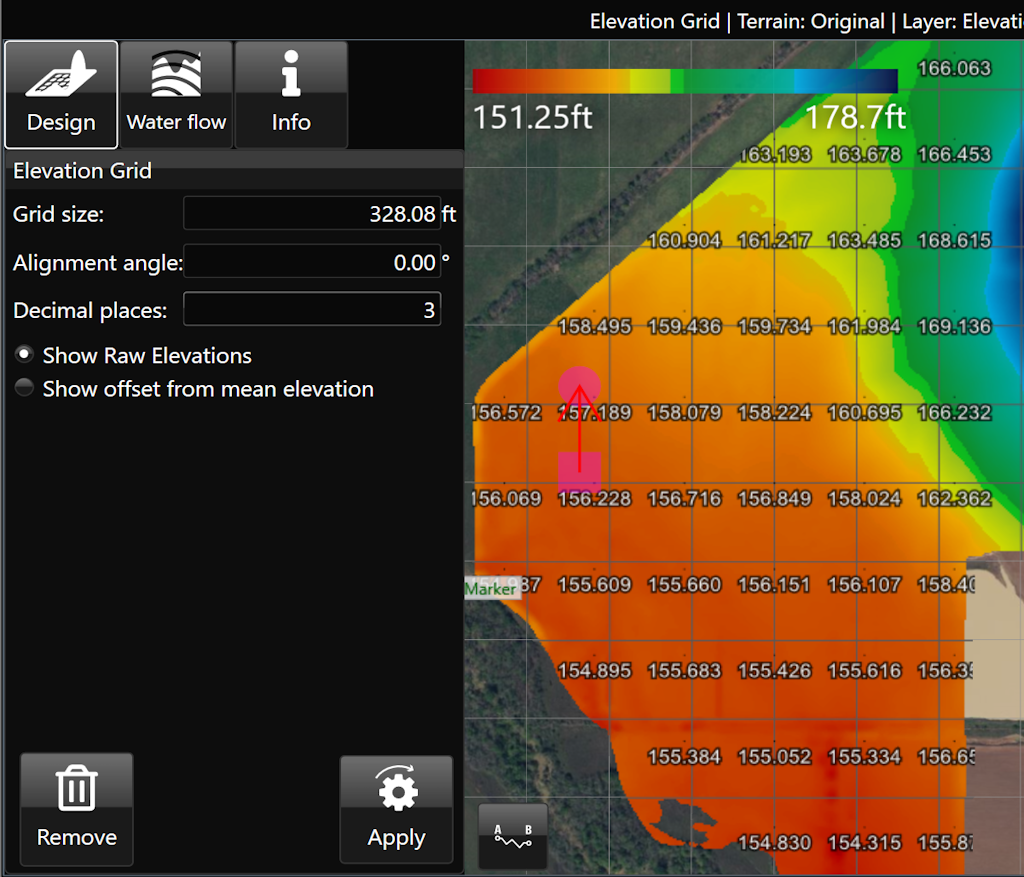
![](https://docs.t3rra.com/uploads/images/gallery/2025-03/scaled-1680-/CNpd4z0y-gls-9vnxv8um98wy1dgs42agvyza-png.png)

# Flow Paths

![](https://docs.t3rra.com/uploads/images/gallery/2025-03/scaled-1680-/pelzbzks-6y9kjq6y0e-m3vmdaujs5y1pbxq-png.png)

<span dir="ltr" style="box-sizing: border-box; font-size: 16px; font-family: Arial, Helvetica, sans-serif;">‘Flow Paths’ creates a grid on the field with arrows at each junction that point in the direction that water is expected to flow. </span>

- <span style="font-family: Arial,Helvetica,sans-serif;"><span dir="ltr" style="box-sizing: border-box; font-size: 16px;">‘Grid size’. Adjusting this value will make the individual squares of the grid larger or smaller. </span></span>
- <span style="font-family: Arial,Helvetica,sans-serif;"><span dir="ltr" style="box-sizing: border-box; font-size: 16px;">‘Alignment angle’. This option allows you to change the direction of the grid. The direction is set as the position of the yellow circle in relation to the yellow square.</span></span>
- <span style="font-family: Arial,Helvetica,sans-serif;"><span dir="ltr" style="box-sizing: border-box; font-size: 16px;">‘Slope calculation area’. The further to the right that the slider is, the larger the area that T3RRA Cutta Desktop takes as a sample to find the water flow direction.</span></span>

<span dir="ltr" style="box-sizing: border-box; font-size: 16px;">![](https://docs.t3rra.com/uploads/images/gallery/2025-03/scaled-1680-/ytDuuamvvxnk5muw8bcoyqzitxb7wile5sfrg-png.png)</span>

<span dir="ltr" style="font-family: Arial, Helvetica, sans-serif; font-size: 18px;">Here is a video on the **[<span style="color: rgb(0, 0, 0);">Flow Paths Tool.</span>](https://youtu.be/CotcDrDcMF8?feature=shared)**</span>

# Watershed

![](https://docs.t3rra.com/uploads/images/gallery/2025-03/scaled-1680-/dal6sa2fth0wdkxbkq4mudib4z7n-dgkvdwq-png.png)

<span dir="ltr" style="box-sizing: border-box; font-size: 16px; font-family: Arial, Helvetica, sans-serif;">The Watershed tool identifies the areas of the surface that will flow together to the same exit point on a field. The working area will display the surface in a patchwork of colors, these indicate your watersheds and what will flow out where. The specific colors do not matter, they are only to help identify individual watersheds.</span>

- <span style="font-family: Arial,Helvetica,sans-serif;"><span dir="ltr" style="box-sizing: border-box; font-size: 16px;">‘Surface smooth strength’ provides control to adjust the level of detail on the surface.</span></span>
- <span style="font-family: Arial,Helvetica,sans-serif;"><span style="box-sizing: border-box; font-size: 16px;">‘Segmentation method’ will select a general water event to display watersheds. The options are: </span></span>
    - <span style="font-family: Arial,Helvetica,sans-serif;"><span dir="ltr" style="box-sizing: border-box; font-size: 16px;">Hybrid - Immersion and Rainfall event happening simultaneously.</span></span>
    - <span style="font-family: Arial,Helvetica,sans-serif;"><span dir="ltr" style="box-sizing: border-box; font-size: 16px;">Immersion - submersion of the surface by water as it engulfs the area as in a flooding event.</span></span>
    - <span style="font-family: Arial,Helvetica,sans-serif;"><span dir="ltr" style="box-sizing: border-box; font-size: 16px;">Rainfall- a fall or shower of rain.</span></span>

<span dir="ltr" style="box-sizing: border-box; font-size: 16px;">  
</span>

<span dir="ltr" style="box-sizing: border-box; font-size: 16px;">![](https://docs.t3rra.com/uploads/images/gallery/2025-03/scaled-1680-/1zpuwzsxq5w693iscy-qydnrnamy737dpgtxg-png.png)</span>

<div id="bkmrk-here-is-a-video-on-t" style="box-sizing: border-box; word-break: normal; overflow-wrap: break-word; font-size: 13px; line-height: 18px; color: rgb(24, 50, 71); font-family: -apple-system, BlinkMacSystemFont, "Segoe UI", Roboto, "Helvetica Neue", Arial, sans-serif; font-weight: 400; text-align: start; text-indent: 0px;"><span dir="ltr" style="font-family: Arial, Helvetica, sans-serif; font-size: 18px;">Here is a video on the **[<span style="color: rgb(0, 0, 0);">Watershed Tool.</span>](https://youtu.be/3auu7hyCDR4?feature=shared)**</span></div>

# Edit Markers

![](https://docs.t3rra.com/uploads/images/gallery/2025-03/scaled-1680-/Ewmgpbt9io-zihskpyyf9-po77-5vpbx5hca-png.png)

<span dir="ltr" style="font-size: 18px; font-family: Arial, Helvetica, sans-serif;">'Edit Markers' allows you to view, edit, and create markers on the elevation surface. Each marker is listed by name and includes the Latitude/Longitude as well as the elevation. [**<span style="color: rgb(0, 0, 0);">Markers</span>**](https://t3rra.freshdesk.com/en/support/solutions/articles/51000404061-markers) can be moved, renamed, or deleted as desired. Additionally, coordinates and elevation can be entered manually.</span>

![](https://docs.t3rra.com/uploads/images/gallery/2025-03/scaled-1680-/EGOr8tz9inen47etjo0dj44sshqznk4dcvtwq-png.png)

# Completing Your Design

# Completing Your Design

<span style="font-size: 18px; font-family: Arial, Helvetica, sans-serif; color: rgb(0, 0, 0); font-weight: 300;">Once satisfied with your design surface and/or drain.</span>

<span style="font-size: 18px;"><span style="font-family: Arial,Helvetica,sans-serif;">  
</span></span>

<span style="font-size: 18px;"><span style="font-family: Arial,Helvetica,sans-serif;">  
</span></span>

<span style="font-size: 18px;"><span style="font-family: Arial,Helvetica,sans-serif;">  
</span></span>

<span style="font-size: 18px;"><span style="font-family: Arial,Helvetica,sans-serif;">  
</span></span>

<span style="font-size: 18px;"><span style="font-family: Arial,Helvetica,sans-serif;"><span style="color: rgb(35, 31, 32); font-weight: 300;">1. Select the '</span><span style="color: rgb(35, 31, 32); font-weight: 400;">Return</span><span style="color: rgb(35, 31, 32); font-weight: 300;">' button</span></span></span><span dir="ltr" style="font-size: 18px; font-family: Arial, Helvetica, sans-serif; color: rgb(0, 0, 0); font-weight: 300;">. (Top right corner)</span>

<span dir="ltr" style="font-size: 14pt; font-family: Oswald, sans-serif; color: rgb(0, 0, 0); font-weight: 300;">![](https://docs.t3rra.com/uploads/images/gallery/2025-03/scaled-1680-/KD81om-xmyshdcycdg-bbalxwdpg6kocf-tcw-png.png)</span>

<span style="font-size: 18px; font-family: Arial, Helvetica, sans-serif; color: rgb(35, 31, 32); font-weight: 300;">2. Select '</span><span style="font-size: 18px;"><span style="font-family: Arial,Helvetica,sans-serif;"><span style="color: rgb(35, 31, 32); font-weight: 400;">Yes</span></span></span><span dir="ltr" style="font-size: 18px; font-family: Arial, Helvetica, sans-serif; color: rgb(35, 31, 32); font-weight: 300;">' to keep the design surface.</span>

<span dir="ltr" style="font-size: 14pt; font-family: Oswald, sans-serif; color: rgb(35, 31, 32); font-weight: 300;">![](https://docs.t3rra.com/uploads/images/gallery/2025-03/scaled-1680-/XPS9fvbiec5mbsnighycilv-rri-lw1xkm8ua-png.png)</span>

<span style="font-size: 14pt; font-family: Arial, Helvetica, sans-serif; color: rgb(35, 31, 32); font-weight: 300;">3. Select the **['Save proj.'](https://t3rra.freshdesk.com/en/support/solutions/articles/51000404411-save-project)**</span><span style="font-family: Arial,Helvetica,sans-serif;"><span style="font-size: 14pt; color: rgb(35, 31, 32); font-weight: 300;"> button to save the T3RRA project.</span></span>

<span style="font-family: Arial,Helvetica,sans-serif;">  
</span>

![](https://docs.t3rra.com/uploads/images/gallery/2025-03/scaled-1680-/R4Q3k2dclunxfvqzouzkrtwt2wqdxtayxda1a-png.png)

# Exporting Data

# Exporting Data

## ![](https://docs.t3rra.com/uploads/images/gallery/2025-03/scaled-1680-/OPGhip3w-aff0u7pyyjgjircyxvsoaelkmwzw-png.png)

<span dir="ltr" style="font-size: 18px; font-family: Arial, Helvetica, sans-serif; color: rgb(0, 0, 0); font-weight: 300;">Exporting allows data to be transferred to other programs. If you’re wanting to work within T3RRA, click the **[“Save Proj”](https://t3rra.freshdesk.com/en/support/solutions/articles/51000404411-save-project)** button at the top of the screen - it is far easier to work with this format than exporting and then re-importing the data.</span>

<span dir="ltr" style="font-size: 14pt; font-family: Oswald, sans-serif; color: rgb(0, 0, 0); font-weight: 300;">![](https://docs.t3rra.com/uploads/images/gallery/2025-03/scaled-1680-/zkP3j8pbppgnoi0pdvoyaatelg7ekfgbnygeq-png.png)</span>

<span style="font-size: 18px; font-family: Arial, Helvetica, sans-serif; color: rgb(0, 0, 0); font-weight: 400;">Steps to export data</span>

1. <span style="font-size: 18px;"><span style="font-family: Arial,Helvetica,sans-serif;"><span style="color: rgb(0, 0, 0); font-weight: 300;">Select the export format you want on the left.</span></span></span>
2. <span style="font-size: 18px;"><span style="font-family: Arial,Helvetica,sans-serif;"><span style="color: rgb(0, 0, 0); font-weight: 300;">Choose the data you wish to export. Clicking the button will allow you to change how the layer is exported (say if you wished to export a design surface as an elevation).</span></span></span>
3. <span dir="ltr" style="font-size: 18px; font-family: Arial, Helvetica, sans-serif; color: rgb(0, 0, 0); font-weight: 300;">Provide any additional information required (such as which projection you need) and click “Export”.</span>

<span dir="ltr" style="font-size: 18px; font-family: Arial, Helvetica, sans-serif; color: rgb(0, 0, 0); font-weight: 300;">Here is a video on **[Exporting Data.](https://youtu.be/m60FzuQGEdA?feature=shared)**</span>

# Exporting Guidance lines from T3RRA™ and importing into AutoTrac

<span style="font-size: 18px; font-family: Arial, Helvetica, sans-serif; color: rgb(0, 0, 0); font-weight: 400;">Remember that guidance lines are only available for Drains, Terraces, and Levees.</span>

<span style="font-size: 18px;"><span style="font-family: Arial,Helvetica,sans-serif;"><span style="color: rgb(0, 0, 0); font-weight: 300;">Should you wish to export guidance lines from T3RRA software for use with AutoTrac™ be sure to follow the following steps to be sure that the process is successful.</span></span></span>

<span style="font-size: 18px;"><span style="font-family: Arial,Helvetica,sans-serif;">  
</span></span>

<span dir="ltr" style="font-size: 18px; font-family: Arial, Helvetica, sans-serif; color: rgb(0, 0, 0); font-weight: 300;">Exporting begins by pressing the Export button.</span>

<span dir="ltr" style="font-size: 14pt; font-family: Oswald, sans-serif; color: rgb(0, 0, 0); font-weight: 300;">![](https://docs.t3rra.com/uploads/images/gallery/2025-03/scaled-1680-/qVTsn1scfj-iowx6htq58-k5dto4qid7aduaw-png.png)</span>

<span style="font-size: 18px; font-family: Arial, Helvetica, sans-serif; color: rgb(0, 0, 0); font-weight: 400;">How to export guidance lines from T3RRA</span>

1. <span style="font-size: 18px;"><span style="font-family: Arial,Helvetica,sans-serif;"><span style="color: rgb(0, 0, 0); font-weight: 300;">Select the data to Export.</span></span></span>
2. <span style="font-size: 18px;"><span style="font-family: Arial,Helvetica,sans-serif;"><span style="color: rgb(0, 0, 0); font-weight: 300;">Select curve type.</span></span></span>
3. <span style="font-size: 18px;"><span style="font-family: Arial,Helvetica,sans-serif;"><span style="color: rgb(0, 0, 0); font-weight: 300;">Set the display to the model number of the John Deere display you will be using.</span></span></span>
4. <span style="font-size: 18px;"><span style="font-family: Arial,Helvetica,sans-serif;"><span style="color: rgb(0, 0, 0); font-weight: 300;">Input project information into client, farm, field and profile.</span></span></span>
5. <span style="font-size: 18px;"><span style="font-family: Arial,Helvetica,sans-serif;"><span style="color: rgb(0, 0, 0); font-weight: 300;">Press “Save” and a file with your guidance lines will be saved in the set location if you chose ‘John Deere Display Curves (RCD)’.</span></span></span>
6. <span style="font-size: 18px;"><span style="font-family: Arial,Helvetica,sans-serif;"><span style="color: rgb(0, 0, 0); font-weight: 300;">Press “Upload” and a file will be uploaded to JDOC where it can be assigned to equipment if you chose “John Deere Operations Center Curves (RCD)’.</span></span></span>

<span style="font-size: 18px;"><span style="font-family: Arial,Helvetica,sans-serif;">  
</span></span>

<span style="font-size: 18px;"><span style="font-family: Arial,Helvetica,sans-serif;">  
</span></span>

<span style="font-size: 18px;"><span style="font-family: Arial,Helvetica,sans-serif;">  
</span></span>

<span style="font-size: 18px;"><span style="font-family: Arial,Helvetica,sans-serif;">  
</span></span>

<span style="font-size: 18px;"><span style="font-family: Arial,Helvetica,sans-serif;"><span style="color: rgb(0, 0, 0); font-weight: 400;">How to transfer guidance lines to a John Deere display</span></span></span>

<span style="font-size: 18px;"><span style="font-family: Arial,Helvetica,sans-serif;"><span style="color: rgb(0, 0, 0); font-weight: 300;">(Instructions given are for the GS3 2630 Display, steps for other displays may vary: refer to the appropriate display manual)</span></span></span>

1. <span style="font-size: 18px;"><span style="font-family: Arial,Helvetica,sans-serif;"><span style="color: rgb(0, 0, 0); font-weight: 300;">Insert USB with guidance lines saved on it into John Deere Greenstar display. (The display will automatically detect the USB and display the available options.)</span></span></span>
2. <span style="font-size: 18px;"><span style="font-family: Arial,Helvetica,sans-serif;"><span dir="ltr" style="color: rgb(0, 0, 0); font-weight: 300;">Select “Import Guidance Lines” which should be the bottom option.</span></span></span>
3. <span style="font-size: 18px;"><span style="font-family: Arial,Helvetica,sans-serif;"><span dir="ltr" style="color: rgb(0, 0, 0); font-weight: 300;"><span dir="ltr" style="color: rgb(0, 0, 0); font-weight: 300;">Select the desired profile and press “Begin Transfer”.\\</span></span></span></span>
4. <span style="font-size: 18px;"><span style="font-family: Arial,Helvetica,sans-serif;"><span dir="ltr" style="color: rgb(0, 0, 0); font-weight: 300;">On this screen select which client, farm, field and tracking option of the file you want to import and press “Accept”. (The tracking option should be set to adaptive curves.)</span></span></span>
5. <span style="font-size: 18px;"><span style="font-family: Arial,Helvetica,sans-serif;"><span dir="ltr" style="color: rgb(0, 0, 0); font-weight: 300;"><span style="color: rgb(0, 0, 0); font-weight: 300;">Make sure the correct line/s you want to import are ticked and press “Accept”.</span></span></span></span>
6. <span style="font-size: 18px;"><span style="font-family: Arial,Helvetica,sans-serif;"><span dir="ltr" style="color: rgb(0, 0, 0); font-weight: 300;"><span dir="ltr" style="color: rgb(0, 0, 0); font-weight: 300;"><span style="color: rgb(0, 0, 0); font-weight: 300;">A loading bar should appear, if everything has been successful the Data Transfer Complete screen should appear and you will be able to press “Accept”.</span></span></span></span></span>
7. <span dir="ltr" style="font-size: 14pt; font-family: Oswald, sans-serif; color: rgb(0, 0, 0); font-weight: 300;"><span dir="ltr" style="font-size: 14pt; font-family: Oswald, sans-serif; color: rgb(0, 0, 0); font-weight: 300;"><span dir="ltr" style="font-size: 18px; font-family: Arial, Helvetica, sans-serif; color: rgb(0, 0, 0); font-weight: 300;"><span style="color: rgb(0, 0, 0); font-weight: 300;">Your guidance lines have been imported to your John Deere Greenstar display and are now ready to be used with Autotrac™.</span></span></span></span>

<span dir="ltr" style="border:none;display:inline-block;overflow:hidden;width:268px;height:200px;">![](https://docs.t3rra.com/uploads/images/gallery/2025-03/scaled-1680-/WEYsysxehtkicw9ipbklha2sx-hdv2zq9jzza-png.png)</span>

<span style="border:none;display:inline-block;overflow:hidden;width:268px;height:201px;">![](https://docs.t3rra.com/uploads/images/gallery/2025-03/scaled-1680-/AO6yptjregbj17zvxd41omudy8s544rhojt1q-png.png)</span>

<span style="border:none;display:inline-block;overflow:hidden;width:268px;height:201px;">![](https://docs.t3rra.com/uploads/images/gallery/2025-03/scaled-1680-/LqYze1f57drek7pvfsxvwpa50ryrksphuapmg-png.png)</span>

<span style="border:none;display:inline-block;overflow:hidden;width:268px;height:201px;">![](https://docs.t3rra.com/uploads/images/gallery/2025-03/scaled-1680-/rX2vy8jnid42vnrhnn8k-aoudzhoc5ffxvqsq-png.png)</span>

<span style="border:none;display:inline-block;overflow:hidden;width:268px;height:201px;">![](https://docs.t3rra.com/uploads/images/gallery/2025-03/scaled-1680-/72Be5e96o6qmbm7f7a-spcokgu7dnbi1kwdrw-png.png)</span>

# Importing Guidance Lines from USB to a John Deere Gen4/G5 Display

<span dir="ltr" style="font-family: Arial, Helvetica, sans-serif; font-size: 18px;">How to import guidance lines from a USB drive to a John Deere Gen4/G5 Display:</span>

- <span dir="ltr" style="font-family: Arial, Helvetica, sans-serif; font-size: 18px;">Insert the USB into the USB port on the right hand side of the cab in a Gen4/G5 CommandCenter equipped machine, or into the USB port on the display if using a Gen4/G5 Universal display.</span>

<span dir="ltr" style="font-family: Arial, Helvetica, sans-serif; font-size: 18px;">USB Prompt will show after USB is inserted</span>

![](https://docs.t3rra.com/uploads/images/gallery/2025-03/scaled-1680-/GFqjgqcxjd3snfnapw12my9sgzzxjqcgydwjg-png.png)

<span dir="ltr" style="font-family: Arial, Helvetica, sans-serif; font-size: 18px;">Access USB from Main Menu &gt; System &gt; File Manager &gt; Import if not prompted or if the prompt screen is closed accidentally. Hit "Next" to view File Folders</span>

![](https://docs.t3rra.com/uploads/images/gallery/2025-03/scaled-1680-/lrPx1eg6keg-jdzx-gvaa4o1xb-naop4zzl4g-png.png)

<span dir="ltr" style="font-family: Arial, Helvetica, sans-serif; font-size: 18px;">Check the box next to the folder and then hit "Next" in the bottom right corner of the display.</span>

![](https://docs.t3rra.com/uploads/images/gallery/2025-03/scaled-1680-/GlRq88ntuyrrtbxuoaqgobh45yuix5yom-lvg-png.png)

<span dir="ltr" style="font-family: Arial, Helvetica, sans-serif; font-size: 18px;">Make sure the boxes are checked and no unwanted data is listed. Hit "Import".</span>

![](https://docs.t3rra.com/uploads/images/gallery/2025-03/scaled-1680-/5VW7wvuaimcvoq2-7alcu3xf8thbrpcltmdaw-png.png)

<span dir="ltr" style="font-family: Arial, Helvetica, sans-serif; font-size: 18px;">When the data imports you will see this prompt. If the import fails, format the flash drive, re-download the files, and attempt the import again.</span>

![](https://docs.t3rra.com/uploads/images/gallery/2025-03/scaled-1680-/EPqbhhlsbayt1mvv-ky1tdcf15rlk0hhkc7oq-png.png)

<span dir="ltr" style="font-family: Arial, Helvetica, sans-serif; font-size: 18px;">The file is now ready to use. From the Autotrac screen, hit "Set Track".</span>

![](https://docs.t3rra.com/uploads/images/gallery/2025-03/scaled-1680-/objwvcqmp5oqprpjuur-3dooyt-cubg7icfsq-png.png)

<span dir="ltr" style="font-family: Arial, Helvetica, sans-serif; font-size: 18px;">In the Guidance Track List page, select the desired Guidance Track and hit "OK".</span>

![](https://docs.t3rra.com/uploads/images/gallery/2025-03/scaled-1680-/bMOochtufofznxkswixmjqlhvnlccwmsumi6g-png.png)

<span dir="ltr" style="font-family: Arial, Helvetica, sans-serif; font-size: 18px;">The Guidance track is now ready to be used.</span>

# Exporting Guidance Lines to John Deere Operations Center

<span dir="ltr" style="font-size: 18px;">If desired, you can export guidance lines straight to John Deere Operations Center where they can be organized and transferred remotely to connected machines. </span>

<span style="font-size: 18px; font-family: Arial, Helvetica, sans-serif;">  
</span>

<span dir="ltr" style="font-size: 18px; font-family: Arial, Helvetica, sans-serif;">Design your drains, levees, or terraces or load the project with the desired linework.</span>

<span dir="ltr" style="font-size: 18px;">![](https://docs.t3rra.com/uploads/images/gallery/2025-03/scaled-1680-/0vkm8xt6mixmmmgptklkemrfscen4tdgcv8jw-png.png)</span>

<span dir="ltr" style="font-size: 18px; font-family: Arial, Helvetica, sans-serif;">Go to the **[<span style="color: rgb(0, 0, 0);">Export</span>](https://t3rra.freshdesk.com/en/support/solutions/articles/51000404051-exporting-data)** step.</span>

![](https://docs.t3rra.com/uploads/images/gallery/2025-03/scaled-1680-/oD3pyrpmhbxagjmz-ks802yszgofmg86j5rvw-png.png)

<span dir="ltr" style="font-size: 18px; font-family: Arial, Helvetica, sans-serif;">Choose "John Deere Operations Center: Curves (RCD)", choose the linework, enter your Export Details, and select Upload. If this is the first time you have attempted to transfer files to Ops Center, you will be prompted to sign in to your MyJohnDeere account.</span>

![](https://docs.t3rra.com/uploads/images/gallery/2025-03/scaled-1680-/i8hc51k1rbu8f8prhs-najjriri5eiza9yo-g-png.png)

<span dir="ltr" style="font-family: Arial, Helvetica, sans-serif; font-size: 18px;">When prompted, choose your Ops Center organization and hit Upload. </span>
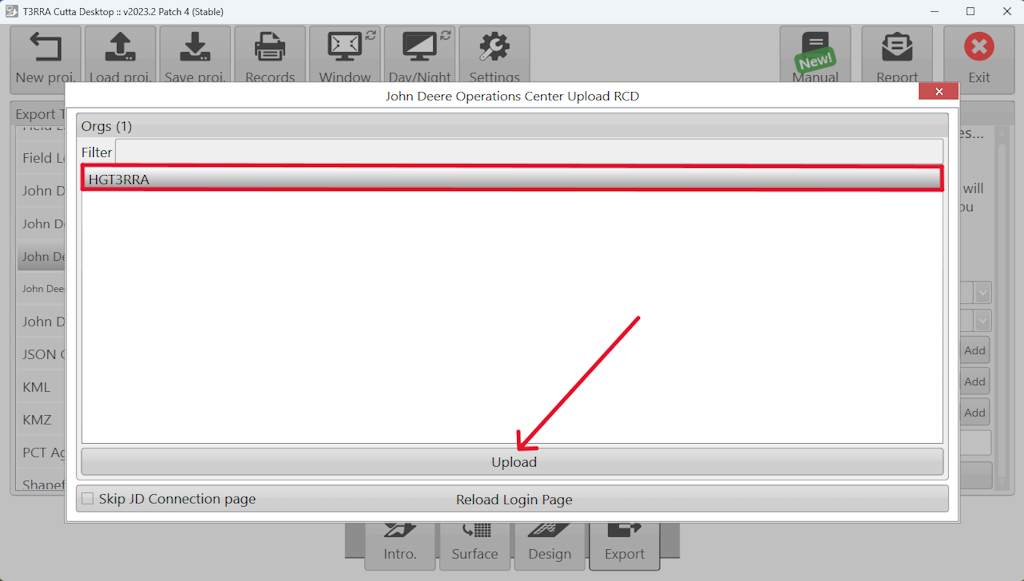
![](https://docs.t3rra.com/uploads/images/gallery/2025-03/scaled-1680-/jxI4cmhr75sxwfimf0oezcc8vjhr9dvxbjdqg-png.png)

<span dir="ltr" style="font-family: Arial, Helvetica, sans-serif; font-size: 18px;">Edit the file name if desired. This will make it easier to find in the Files page of your Ops Center account.</span>

![](https://docs.t3rra.com/uploads/images/gallery/2025-03/scaled-1680-/Heifm7jnk8-bidc-awf1pnh22wfski0whe5og-png.png)

<span dir="ltr" style="font-family: Arial, Helvetica, sans-serif; font-size: 18px;">Once complete, you will be asked if you would like to view the exported file in Ops Center. If you would like to confirm the transfer, select Yes.</span>

![](https://docs.t3rra.com/uploads/images/gallery/2025-03/scaled-1680-/kFgk3icpt5fdhjezmglhmklgz7ook86ck4fww-png.png)

<span dir="ltr" style="font-family: Arial, Helvetica, sans-serif; font-size: 18px;">You will be directed to the Files page of your connected Ops Center account where the file containing the linework will be present.</span>

![](https://docs.t3rra.com/uploads/images/gallery/2025-03/scaled-1680-/SIrl-qontmfqt96xdq8ukaryaqg4hqili2shw-png.png)

<span dir="ltr" style="font-family: Arial, Helvetica, sans-serif; font-size: 18px;">To view the guidance lines, go to the Setup tab and select Land. From Land, you will be able to select the field you entered in the export step in T3CD. Choose the field. </span>
![](https://docs.t3rra.com/uploads/images/gallery/2025-03/scaled-1680-/mHX3qlqfhiodrhy-kvd73zu5odspqwrhnezsa-png.png)

<span dir="ltr" style="font-family: Arial, Helvetica, sans-serif; font-size: 18px;">You can now see the linework you designed as guidance tracks. You can now use them in Setup Files or Work Plans and send them to the appropriate connected machines to use in conjunction with T3RRA In-Cab software while implementing your design.</span>

![](https://docs.t3rra.com/uploads/images/gallery/2025-03/scaled-1680-/tvay-i2xtsl3wxqhodr1zvkebxjo309uzthma-png.png)

# Exporting T3RRA Control File to JD Ops Center

<span dir="ltr" style="font-size: 18px; font-family: Arial, Helvetica, sans-serif;">Go to the **[<span style="color: rgb(0, 0, 0);">Export</span>](https://t3rra.freshdesk.com/en/support/solutions/articles/51000404051-exporting-data)** step.</span>

![](https://docs.t3rra.com/uploads/images/gallery/2025-03/scaled-1680-/nUppyrpmhbxagjmz-ks802yszgofmg86j5rvw-png.png)

<span dir="ltr" style="font-size: 18px; font-family: Arial, Helvetica, sans-serif;">Choose "JD Ops Center: T3RRA Control File(.tci)", choose data to export and select Upload. If this is the first time you have attempted to transfer files to JD Ops Center, you will be prompted to sign in to your MyJohnDeere account.</span>

<span dir="ltr" style="font-size: 18px; font-family: Arial, Helvetica, sans-serif;">![](https://docs.t3rra.com/uploads/images/gallery/2025-03/scaled-1680-/Us6yfryoza7-8yfkpipzyhdxxni0ki7vprs0w-png.png)</span>

<span dir="ltr" style="color: rgb(0, 0, 0); font-family: Arial, Helvetica, sans-serif; font-size: 18px; font-style: normal; font-variant-ligatures: normal; font-variant-caps: normal; font-weight: 400; letter-spacing: normal; orphans: 2; text-align: left; text-indent: 0px; text-transform: none; widows: 2; word-spacing: 0px; -webkit-text-stroke-width: 0px; white-space: normal;  text-decoration-thickness: initial; text-decoration-style: initial; text-decoration-color: initial; display: inline !important; float: none;">When prompted, choose your Ops Center organization and hit Upload.</span>

<span style="color: rgb(0, 0, 0); font-family: Arial, Helvetica, sans-serif; font-size: 18px; font-style: normal; font-variant-ligatures: normal; font-variant-caps: normal; font-weight: 400; letter-spacing: normal; orphans: 2; text-align: left; text-indent: 0px; text-transform: none; widows: 2; word-spacing: 0px; -webkit-text-stroke-width: 0px; white-space: normal;  text-decoration-thickness: initial; text-decoration-style: initial; text-decoration-color: initial; display: inline !important; float: none;">Edit the file name if desired.</span>

![](https://docs.t3rra.com/uploads/images/gallery/2025-03/scaled-1680-/wdBcflzj4-z2ega7c3qrdvcmssp0xz0h-atjw-png.png)

<span dir="ltr" style="color: rgb(0, 0, 0); font-family: Arial, Helvetica, sans-serif; font-size: 18px; font-weight: 400; text-align: left; text-indent: 0px; display: inline !important;">If you want to remove uploaded T3RRA Control File. Select uploaded file in the list and c<span dir="ltr" style="color: rgb(0, 0, 0); font-family: Arial, Helvetica, sans-serif; font-size: 18px; font-style: normal; font-variant-ligatures: normal; font-variant-caps: normal; font-weight: 400; letter-spacing: normal; orphans: 2; text-align: left; text-indent: 0px; text-transform: none; widows: 2; word-spacing: 0px; -webkit-text-stroke-width: 0px; white-space: normal;  text-decoration-thickness: initial; text-decoration-style: initial; text-decoration-color: initial; display: inline !important; float: none;">lick "Delete" button.</span></span>

![](https://docs.t3rra.com/uploads/images/gallery/2025-03/scaled-1680-/tmZblqntrvgfve9fffcosokioosdd47yvctng-png.png)

<span dir="ltr" style="color: rgb(0, 0, 0); font-family: Arial, Helvetica, sans-serif; font-size: 18px; font-style: normal; font-variant-ligatures: normal; font-variant-caps: normal; font-weight: 400; letter-spacing: normal; orphans: 2; text-align: left; text-indent: 0px; text-transform: none; widows: 2; word-spacing: 0px; -webkit-text-stroke-width: 0px; white-space: normal;  text-decoration-thickness: initial; text-decoration-style: initial; text-decoration-color: initial; display: inline !important; float: none;">You can download the uploaded T3RRA Control File in Project Load window.</span>

<span dir="ltr" style="color: rgb(0, 0, 0); font-family: Arial, Helvetica, sans-serif; font-size: 18px; font-style: normal; font-variant-ligatures: normal; font-variant-caps: normal; font-weight: 400; letter-spacing: normal; orphans: 2; text-align: left; text-indent: 0px; text-transform: none; widows: 2; word-spacing: 0px; -webkit-text-stroke-width: 0px; white-space: normal;  text-decoration-thickness: initial; text-decoration-style: initial; text-decoration-color: initial; display: inline !important; float: none;">Hit "Load proj".</span>

<span dir="ltr" style="color: rgb(0, 0, 0); font-family: Arial, Helvetica, sans-serif; font-size: 18px; font-style: normal; font-variant-ligatures: normal; font-variant-caps: normal; font-weight: 400; letter-spacing: normal; orphans: 2; text-align: left; text-indent: 0px; text-transform: none; widows: 2; word-spacing: 0px; -webkit-text-stroke-width: 0px; white-space: normal;  text-decoration-thickness: initial; text-decoration-style: initial; text-decoration-color: initial; display: inline !important; float: none;">![](https://docs.t3rra.com/uploads/images/gallery/2025-03/scaled-1680-/cBSrrvh4bf1cjmphfhs4to2w3ub2sowvh-hiw-png.png)</span>

<span dir="ltr" style="color: rgb(0, 0, 0); font-family: Arial, Helvetica, sans-serif; font-size: 18px; font-style: normal; font-variant-ligatures: normal; font-variant-caps: normal; font-weight: 400; letter-spacing: normal; orphans: 2; text-align: left; text-indent: 0px; text-transform: none; widows: 2; word-spacing: 0px; -webkit-text-stroke-width: 0px; white-space: normal;  text-decoration-thickness: initial; text-decoration-style: initial; text-decoration-color: initial; display: inline !important; float: none;">Click "Download project".</span>

![](https://docs.t3rra.com/uploads/images/gallery/2025-03/scaled-1680-/FNtb77iluablgojnlombchwmyc-xzaaevaegw-png.png)

<span dir="ltr" style="color: rgb(0, 0, 0); font-family: Arial, Helvetica, sans-serif; font-size: 18px; font-weight: 400; text-align: left; text-indent: 0px; display: inline !important;">Select <span dir="ltr" style="color: rgb(0, 0, 0); font-family: Arial, Helvetica, sans-serif; font-size: 18px; font-style: normal; font-variant-ligatures: normal; font-variant-caps: normal; font-weight: 400; letter-spacing: normal; orphans: 2; text-align: left; text-indent: 0px; text-transform: none; widows: 2; word-spacing: 0px; -webkit-text-stroke-width: 0px; white-space: normal;  text-decoration-thickness: initial; text-decoration-style: initial; text-decoration-color: initial; display: inline !important; float: none;">organization</span>, T3RRA Control File and hit Load project.</span>

![](https://docs.t3rra.com/uploads/images/gallery/2025-03/scaled-1680-/QYQlxv3fmxh4x5bn23gyzbpirgs61aavjoyfq-png.png)