# Full Field Design tools

# Design Functions
<span style="border:none;display:inline-block;overflow:hidden;width:103px;height:116px;">![](https://docs.t3rra.com/uploads/images/gallery/2025-03/scaled-1680-/0Ttiqzb73c-2h-fpahbwlecrxlaw1g3jmzlnq-png.png)</span>

<span style="font-size: 18px; font-family: Arial, Helvetica, sans-serif; color: rgb(0, 0, 0); font-weight: 300;">Best-fit </span><span style="font-size: 18px;"><span style="font-family: Arial,Helvetica,sans-serif;"><span style="color: rgb(0, 0, 0); font-weight: 300;"></span></span></span>

<span style="font-size: 18px;"><span style="font-family: Arial,Helvetica,sans-serif;"><span style="color: rgb(0, 0, 0); font-weight: 300;">'</span><span style="color: rgb(0, 0, 0); font-weight: 400;">Best-fit</span></span></span><span style="font-size: 18px; font-family: Arial, Helvetica, sans-serif; color: rgb(0, 0, 0); font-weight: 300;">' creates a plane of best fit for the field or region. The best-fit calculation produces the slope and direction required to achieve a single plane, while minimizing the amount of dirt moved.</span>

<span style="border:none;display:inline-block;overflow:hidden;width:103px;height:120px;">![](https://docs.t3rra.com/uploads/images/gallery/2025-03/scaled-1680-/on0wadbcqqfu5vo-9xx-eqpnratmx-3lqlo8w-png.png)</span>

<span dir="ltr" style="font-size: 18px; font-family: Arial, Helvetica, sans-serif; color: rgb(0, 0, 0); font-weight: 300;">Multi-fit </span>

<span style="font-size: 18px;"><span style="font-family: Arial,Helvetica,sans-serif;"><span style="color: rgb(0, 0, 0); font-weight: 300;">'</span><span style="color: rgb(0, 0, 0); font-weight: 400;">Multi-fit</span></span></span><span dir="ltr" style="font-size: 18px; font-family: Arial, Helvetica, sans-serif; color: rgb(0, 0, 0); font-weight: 300;">' builds multiple smaller planes that follow the contours of the ground to drain water in a single direction, usually in the direction of irrigation and/or wheel tracks. The minimum and maximum slopes influence the individual plane design which will improve the drainage on a field while moving as little soil as possible by staying truer to the existing elevation gradients.</span>

<span dir="ltr" style="font-size: 14pt; font-family: Oswald, sans-serif; color: rgb(0, 0, 0); font-weight: 300;"><span style="border:none;display:inline-block;overflow:hidden;width:98px;height:116px;">![](https://docs.t3rra.com/uploads/images/gallery/2025-03/scaled-1680-/oGokdvilykaxw6m1hsvh4nzvvam1qq2k7g0qa-png.jpeg)</span></span>

<span dir="ltr" style="font-size: 18px; font-family: Arial, Helvetica, sans-serif; color: rgb(0, 0, 0); font-weight: 300;">Smooth</span>

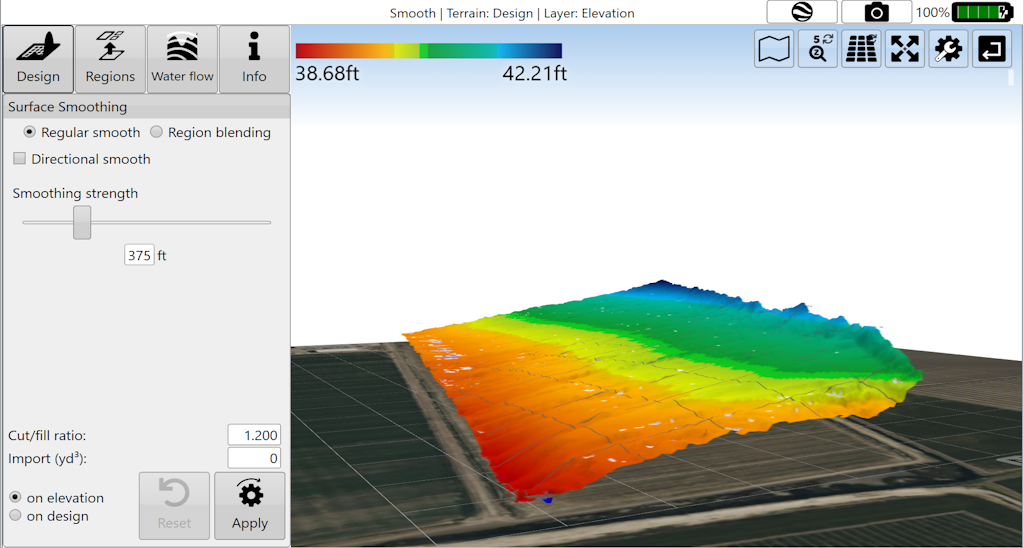
<span style="font-family: Arial, Helvetica, sans-serif; font-size: 18px;"><span style="color: rgb(0, 0, 0); font-weight: 300;">'</span><span style="color: rgb(0, 0, 0); font-weight: 400;">Smooth</span><span dir="ltr" style="color: rgb(0, 0, 0); font-weight: 300;">' is used to smooth out gradients on a surface. The strength of smoothing is adjustable to influence the smoothing effect. The option of region blending allows you to set a slope between regions on your field to allow for smooth transition between regions.</span></span>

<span style="border:none;display:inline-block;overflow:hidden;width:98px;height:115px;">![](https://lh7-us.googleusercontent.com/hu8mdojf5nG5-YpK5FHnw6Qzvmyp-K9FtNwpJ4WvidmwrRy1yno0P7R6hTle8hwWfWScz6-VPdRy5Gc0zdedYAb6_6EOqTGzUYQ3ffc8wMoALxzIa2KxIK_fu-FHYoePel8Hyre62Ce6QJrjQWcIFg)</span>

<span dir="ltr" style="font-size: 18px; font-family: Arial, Helvetica, sans-serif; color: rgb(0, 0, 0); font-weight: 300;">Offset</span>

<span style="font-size: 18px; font-family: Arial, Helvetica, sans-serif; color: rgb(0, 0, 0); font-weight: 300;">This tool alters a surface’s elevation by adjusting it up or down. This relates to the importing and exporting of dirt volumes. A use case might be the importing of an inch of topsoil which you want to spread evenly over an entire region or field.</span>

# AB Profile Tool

![](https://docs.t3rra.com/uploads/images/gallery/2025-03/scaled-1680-/25okrszfp5moblz3ruqnkzsu4ntjm9xo0m63w-png.png)

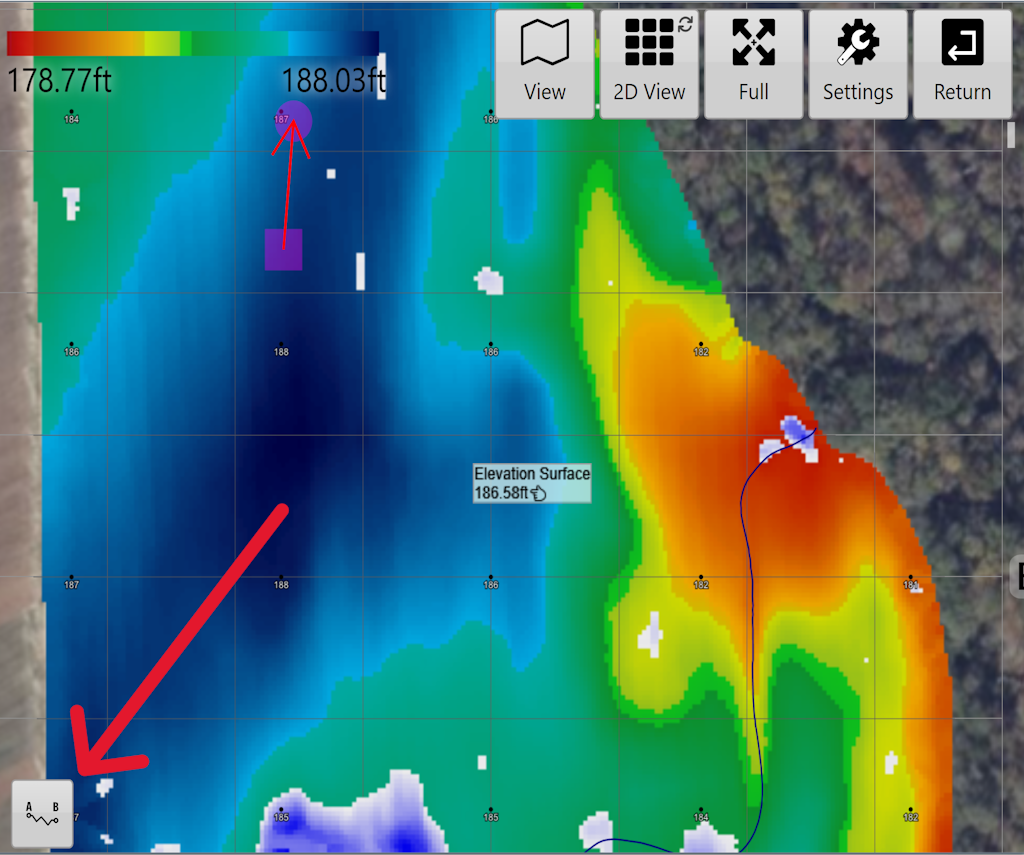
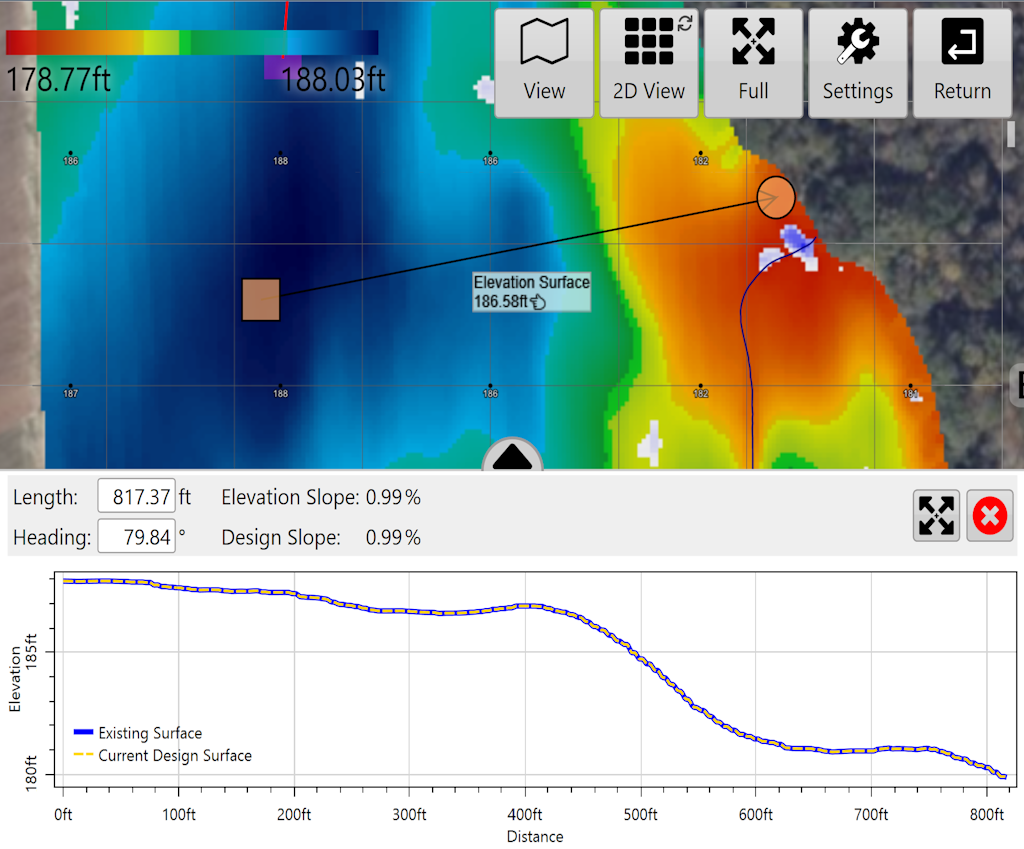
<span dir="ltr" style="font-family: Arial, Helvetica, sans-serif; font-size: 18px;">AB Profile Tool - In the Design step of T3RRA Cutta Desktop, the AB Profile Tool allows the user to draw an AB line anywhere on the surface and view the side profile of the elevation between the two nodes. Access the tool using the icon above in the bottom left corner of the map. The square node is the "anchor" and point "A" and will represent the left hand side of the graph, and the round node can be moved to extend the line and set the "B" point representing the far right of the graph. Use this tool to get a better visual representation of the slope anywhere on the surface.</span>

<span dir="ltr" style="font-family: Arial, Helvetica, sans-serif; font-size: 18px;">![](https://docs.t3rra.com/uploads/images/gallery/2025-03/scaled-1680-/bVMk13h3ngefnyco1klkk985f3gt1hlqpzgkq-png.png)</span>

<span dir="ltr" style="font-family: Arial, Helvetica, sans-serif; font-size: 18px;">![](https://docs.t3rra.com/uploads/images/gallery/2025-03/scaled-1680-/n0bbslznca5udpf3onsjwuv61rvcbj-scsejw-png.png)</span>

<span dir="ltr" style="font-family: Arial, Helvetica, sans-serif; font-size: 18px;">Here is a video on the**<span style="color: rgb(0, 0, 0);"> </span>**<span style="color: rgb(0, 0, 0);">[**AB Profile Tool.**](https://youtu.be/YUf4oJScaog?feature=shared)</span></span>

# Best-fit Design

<span style="font-size: 18px; font-family: Arial, Helvetica, sans-serif; color: rgb(0, 0, 0); font-weight: 300;">'</span><span style="font-size: 18px;"><span style="font-family: Arial,Helvetica,sans-serif;"><span style="color: rgb(0, 0, 0); font-weight: 400;">Best-fit</span><span style="color: rgb(0, 0, 0); font-weight: 300;">' creates a plane of best fit for the field or region. The best-fit calculation produces the slope and direction required to achieve a single plane, while minimizing the amount of dirt moved.</span></span></span>

<span style="font-size: 18px;"><span style="font-family: Arial,Helvetica,sans-serif;">  
</span></span>

- <span style="font-size: 18px;"><span style="font-family: Arial,Helvetica,sans-serif;"><span style="color: rgb(0, 0, 0); font-weight: 300;">A Best-fit design provides a single plane that most accurately fits the existing topography. Using a Best-fit plane ensures that you move the least amount of dirt possible to create a single plane for a field. Note that this can still result in large amounts of dirt being moved.</span></span></span>

<span style="font-size: 18px;"><span style="font-family: Arial,Helvetica,sans-serif;">  
</span></span>

- <span style="font-size: 18px;"><span style="font-family: Arial,Helvetica,sans-serif;"><span style="color: rgb(0, 0, 0); font-weight: 300;">Tip: Dividing the field into regions, then fitting single planes to each region can help to decrease dirt volumes.</span></span></span>

<span style="font-size: 18px;"><span style="font-family: Arial,Helvetica,sans-serif;">  
</span></span>

<span style="font-size: 18px; font-family: Arial, Helvetica, sans-serif; color: rgb(35, 31, 32); font-weight: 300;">Enter design details to create a plane, or instruct the T3RRA software to auto-calculate your design details.</span>

<span style="border:none;display:inline-block;overflow:hidden;width:264px;height:401px;">![](https://docs.t3rra.com/uploads/images/gallery/2025-03/scaled-1680-/gtorcge6mbwov37ft-91wy6lcwuo578wr9crw-png.png)</span>

<span style="font-size: 18px; font-family: Arial, Helvetica, sans-serif; color: rgb(0, 0, 0); font-weight: 400;">Setting slope parameters</span>

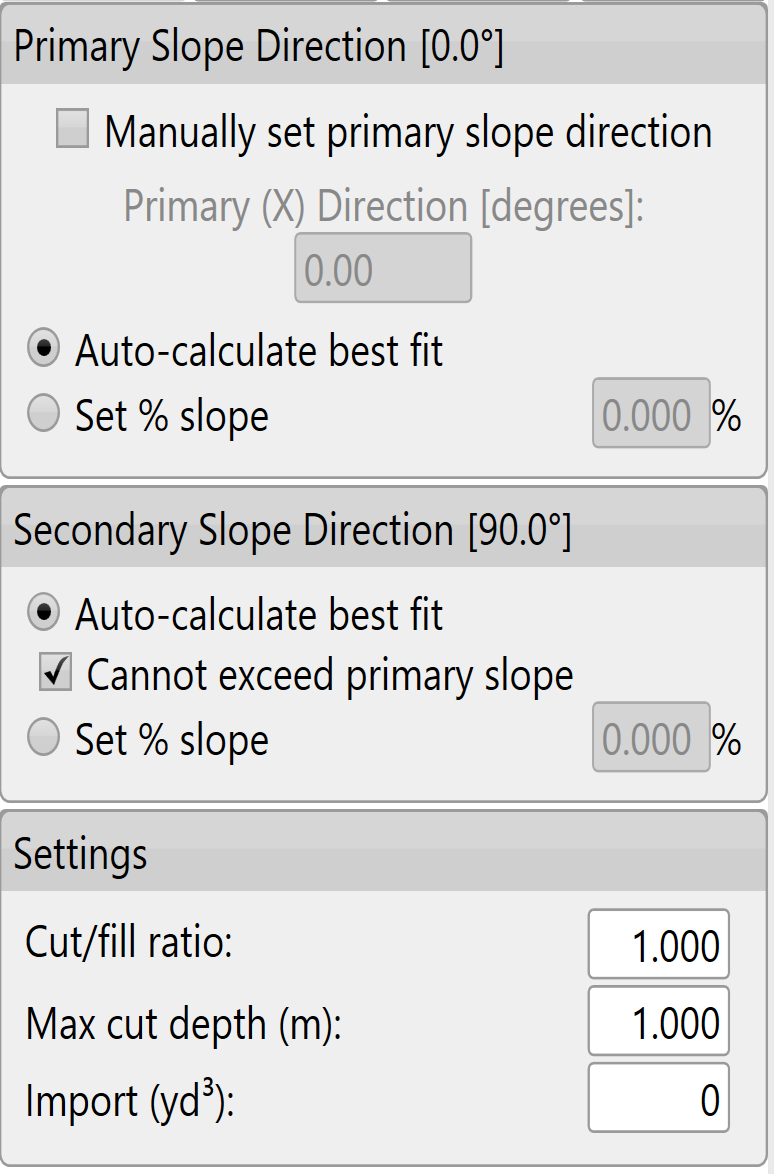
<span style="font-size: 18px;"><span style="font-family: Arial,Helvetica,sans-serif;"><span style="color: rgb(0, 0, 0); font-weight: 300;">The software will try to find the most appropriate line of best fit, however the primary and secondary slopes can also be manually set.</span></span></span>

<span style="font-size: 18px;"><span style="font-family: Arial,Helvetica,sans-serif;"><span style="color: rgb(255, 0, 0); font-weight: 300;">(It is recommended that only users with a good understanding of Laser Plane systems use manual settings) </span></span></span>

<span style="font-size: 18px;"><span style="font-family: Arial,Helvetica,sans-serif;"><span style="color: rgb(0, 0, 0); font-weight: 300;">To manually set the primary slope direction check the box labeled '</span><span style="color: rgb(0, 0, 0); font-weight: 400;">Manually set primary slope direction</span><span style="color: rgb(0, 0, 0); font-weight: 300;">'.   
</span><span style="color: rgb(255, 0, 0); font-weight: 300;">When in doubt, consult an irrigation engineer. </span></span></span>

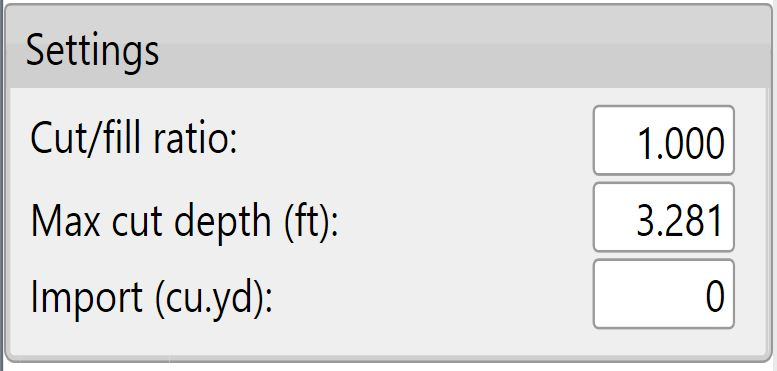
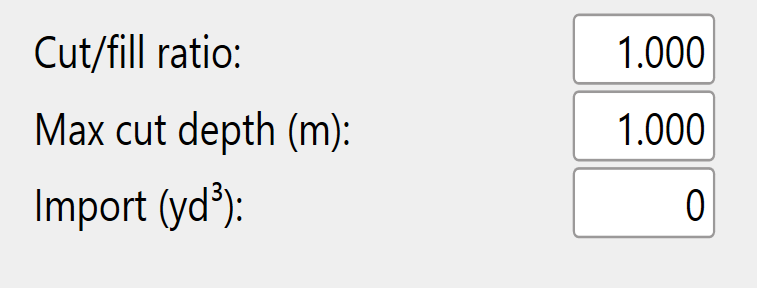
<span style="font-size: 18px; font-family: Arial, Helvetica, sans-serif; color: rgb(0, 0, 0); font-weight: 300;">Cut/fill ratio, Max cut depth, &amp; Import can be set in 2 locations. The defaults that will be applied to new projects can be set in the Project tab of settings (see section B) or in the lower left corner of the Best-Fit (and Multi-Fit) page.</span>

<span style="border:none;display:inline-block;overflow:hidden;width:411px;height:196px;">![](https://docs.t3rra.com/uploads/images/gallery/2025-03/scaled-1680-/jEJlozvt-uh86yxid22c0gsyjk-npwekjsqwa-png.png)</span>

<span style="font-size: 18px; font-family: Arial, Helvetica, sans-serif; color: rgb(0, 0, 0); font-weight: 300;">The '</span><span style="font-size: 18px;"><span style="font-family: Arial,Helvetica,sans-serif;"><span style="color: rgb(0, 0, 0); font-weight: 400;">Cut/fill ratio</span><span style="color: rgb(0, 0, 0); font-weight: 300;">' is determined by the type of material being moved and how much of it will “settle” or “shrink” once compacted. This value depends on soil characteristics.</span></span></span>

<span style="font-size: 18px;"><span style="font-family: Arial,Helvetica,sans-serif;">  
</span></span>

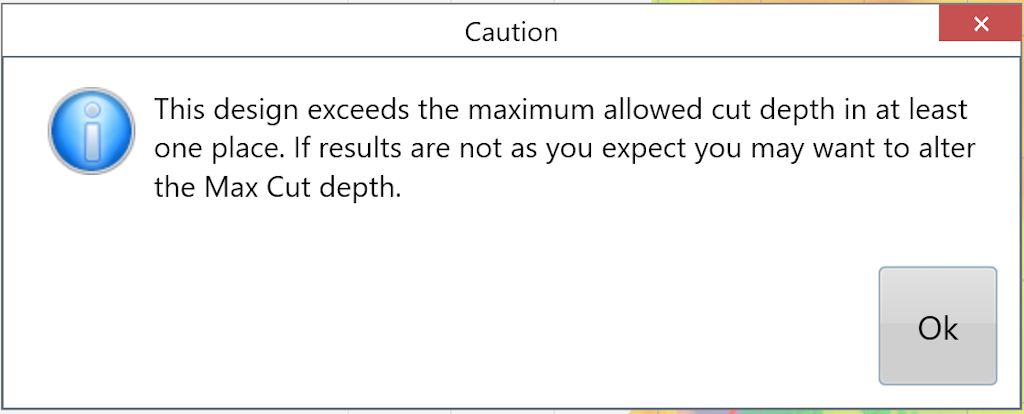
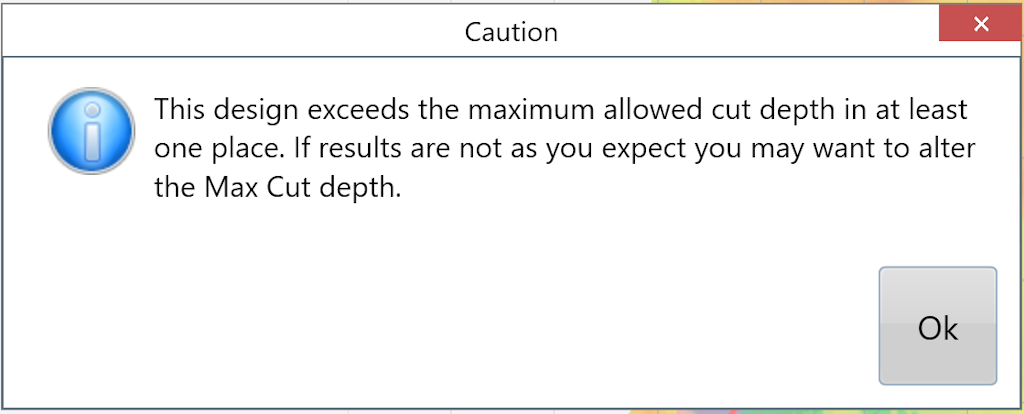
<span style="font-size: 18px;"><span style="font-family: Arial,Helvetica,sans-serif;"><span style="color: rgb(0, 0, 0); font-weight: 300;">Enter a '</span><span style="color: rgb(0, 0, 0); font-weight: 400;">Max cut</span></span></span><span style="font-size: 18px; font-family: Arial, Helvetica, sans-serif; color: rgb(0, 0, 0); font-weight: 300;">' for the maximum allowed cut depth. The following warning will appear to notify you if any points on the map exceed the max cut depth. adjustments may be required.</span>

<span style="font-size: 14pt; font-family: Oswald, sans-serif; color: rgb(0, 0, 0); font-weight: 300;">  
</span><span style="border:none;display:inline-block;overflow:hidden;width:428px;height:173px;">![](https://docs.t3rra.com/uploads/images/gallery/2025-03/scaled-1680-/Q4hzzpztwewgciu6ondsa5vk84xyatyy0cga-png.png)</span>

<span style="font-family: Arial, Helvetica, sans-serif; font-size: 18px;">  
</span>

<span style="font-size: 18px;"><span style="font-family: Arial,Helvetica,sans-serif;"><span style="color: rgb(0, 0, 0); font-weight: 300;">The '</span><span style="color: rgb(0, 0, 0); font-weight: 400;">Import</span></span></span><span dir="ltr" style="font-size: 18px; font-family: Arial, Helvetica, sans-serif; color: rgb(0, 0, 0); font-weight: 300;">' section is used when you need to bring in dirt from a stockpile or export dirt from the field to another area. Change the amount to a negative value for exporting.</span>

# Multi-fit Design

<span style="font-size: 18px; font-family: Arial, Helvetica, sans-serif; color: rgb(35, 31, 32); font-weight: 300;">Select the '</span><span style="font-size: 18px;"><span style="font-family: Arial,Helvetica,sans-serif;"><span style="color: rgb(35, 31, 32); font-weight: 400;">Multi-fit</span><span dir="ltr" style="color: rgb(35, 31, 32); font-weight: 300;">' button to create an optimized non-linear surface with slopes between the entered minimum and maximum. Multi-fit balances the dirt down the field in the direction you specify. The balancing occurs within strips, and is great for working within rows and moving minimal dirt.</span></span></span>

<span style="font-size: 18px;"><span style="font-family: Arial,Helvetica,sans-serif;">  
</span></span>

<span style="font-size: 18px;"><span style="font-family: Arial,Helvetica,sans-serif;"><span style="color: rgb(0, 0, 0); font-weight: 300;">• A Multi-Fit design allows the slopes to vary within set tolerances and can greatly reduce the amount of dirt moved.</span></span></span>

<span style="font-size: 18px;"><span style="font-family: Arial,Helvetica,sans-serif;"><span dir="ltr" style="color: rgb(0, 0, 0); font-weight: 300;">• Dividing the field into regions can further decrease the dirt movement required. </span><span style="color: rgb(35, 31, 32); font-weight: 300;">Enter details in the below panel and into all fields to generate a Multi-fit plane. </span></span></span>

<span style="font-size: 18px; font-family: Arial, Helvetica, sans-serif; color: rgb(35, 31, 32); font-weight: 300;">NOTE: If ‘min%’ or ‘max%’ are left blank the design results will not be desirable.</span>

<span style="border:none;display:inline-block;overflow:hidden;width:348px;height:324px;">![](https://docs.t3rra.com/uploads/images/gallery/2025-03/scaled-1680-/gazkrdyuseia4u0gd2h8ho2kq2oxojmzsk7rg-png.png)</span>

<span style="font-size: 18px; font-family: Arial, Helvetica, sans-serif; color: rgb(0, 0, 0); font-weight: 300;">'</span><span style="font-size: 18px;"><span style="font-family: Arial,Helvetica,sans-serif;"><span style="color: rgb(0, 0, 0); font-weight: 400;">Set slope range</span><span style="color: rgb(0, 0, 0); font-weight: 300;">'</span></span></span>

<span style="font-size: 18px;"><span style="font-family: Arial,Helvetica,sans-serif;"><span style="color: rgb(0, 0, 0); font-weight: 300;">You can use the iGrade™ Plane Calculator to find out the average slope percentage. Alternatively you can find this in T3RRA Cutta by doing a plane of best fit in a direction and then looking at the primary and cross slopes in the plane statistics window. If in doubt, consult an irrigation engineer.</span></span></span>

<span style="font-size: 18px;"><span style="font-family: Arial,Helvetica,sans-serif;">  
</span></span>

<span style="font-size: 18px;"><span style="font-family: Arial,Helvetica,sans-serif;"><span style="color: rgb(0, 0, 0); font-weight: 300;">'</span><span style="color: rgb(0, 0, 0); font-weight: 400;">Perform cross-strip optimization</span><span style="color: rgb(0, 0, 0); font-weight: 300;">'</span></span></span>

<span style="font-size: 18px;"><span style="font-family: Arial,Helvetica,sans-serif;"><span style="color: rgb(0, 0, 0); font-weight: 300;">This will attempt to tilt the strip sections to match the actual side slope present. Use in fields that have high side slopes (&gt;2% slope). It is unlikely to provide any benefit in relatively flat fields. (this is enabled by default)</span></span></span>

<span style="font-size: 18px;"><span style="font-family: Arial,Helvetica,sans-serif;">  
</span></span>

<span style="font-size: 18px;"><span style="font-family: Arial,Helvetica,sans-serif;"><span style="color: rgb(0, 0, 0); font-weight: 300;">'</span><span style="color: rgb(0, 0, 0); font-weight: 400;">Perform preliminary side slope adjustment</span><span style="color: rgb(0, 0, 0); font-weight: 300;">'</span></span></span>

<span style="font-size: 18px;"><span style="font-family: Arial,Helvetica,sans-serif;"><span style="color: rgb(0, 0, 0); font-weight: 300;">This will cause an initial side slope adjustment to occur. It will attempt to ensure that the side slope is no greater than the minimum row slope (use if water might have a tendency to run across rows rather than down the rows).</span></span></span>

<span style="font-size: 18px;"><span style="font-family: Arial,Helvetica,sans-serif;">  
</span></span>

<span style="font-family: Arial, Helvetica, sans-serif; font-size: 18px;"><span style="color: rgb(0, 0, 0); font-weight: 400;">Cut/fill ratio</span><span style="color: rgb(0, 0, 0); font-weight: 300;">, </span><span style="color: rgb(0, 0, 0); font-weight: 400;">Max cut depth</span><span style="color: rgb(0, 0, 0); font-weight: 300;">, &amp; </span><span style="color: rgb(0, 0, 0); font-weight: 400;">Import</span><span style="color: rgb(0, 0, 0); font-weight: 700;"> </span><span style="color: rgb(0, 0, 0); font-weight: 300;">can be set in 2 locations. The defaults that will be applied to new projects can be set in the Project tab of settings (see section B) or in the lower left corner of the Multi-Fit (and Best-Fit) page.</span></span>

<span style="border:none;display:inline-block;overflow:hidden;width:456px;height:174px;">![](https://docs.t3rra.com/uploads/images/gallery/2025-03/scaled-1680-/L43ozk-7g9bqpdmtfeehf2xdaqexvhrflwtnq-png.png)</span>

<span style="font-size: 18px; font-family: Arial, Helvetica, sans-serif; color: rgb(0, 0, 0); font-weight: 300;">The '</span><span style="font-size: 18px;"><span style="font-family: Arial,Helvetica,sans-serif;"><span style="color: rgb(0, 0, 0); font-weight: 400;">Cut/fill ratio</span><span style="color: rgb(0, 0, 0); font-weight: 300;">' is determined by the type of material being moved and what percentage of it will “settle” or “shrink” once compacted. </span></span></span>

<span style="font-size: 18px;"><span style="font-family: Arial,Helvetica,sans-serif;">  
</span></span>

<span style="font-size: 18px;"><span style="font-family: Arial,Helvetica,sans-serif;"><span style="color: rgb(0, 0, 0); font-weight: 300;">Enter a '</span><span style="color: rgb(0, 0, 0); font-weight: 400;">Max cut depth</span></span></span><span style="font-size: 18px; font-family: Arial, Helvetica, sans-serif; color: rgb(0, 0, 0); font-weight: 300;">' for the maximum allowed cut depth. The following warning will appear to notify you if any points on the map exceed the max cut depth. adjustments may be required.</span>

<span style="border:none;display:inline-block;overflow:hidden;width:382px;height:154px;">![](https://docs.t3rra.com/uploads/images/gallery/2025-03/scaled-1680-/Uger9bjxkxbf-atasa4z4h08cdc5y5sygqxqa-png.png)</span>

<span style="font-size: 18px; font-family: Arial, Helvetica, sans-serif; color: rgb(0, 0, 0); font-weight: 300;">The '</span><span style="font-size: 18px;"><span style="font-family: Arial,Helvetica,sans-serif;"><span style="color: rgb(0, 0, 0); font-weight: 400;">Import</span></span></span><span dir="ltr" style="font-size: 18px; font-family: Arial, Helvetica, sans-serif; color: rgb(0, 0, 0); font-weight: 300;">' section is used when you need to bring in dirt from a stockpile or export dirt from the field to another area. Change the amount to a negative value for exporting.</span>

# Smooth Design

<span dir="ltr" style="font-size: 14pt; font-family: Oswald, sans-serif; color: rgb(0, 0, 0); font-weight: 300;"><span style="font-size: 14pt; font-family: Oswald, sans-serif; color: rgb(0, 0, 0); font-weight: 300;"><span style="font-size: 14pt; font-family: Oswald, sans-serif; color: rgb(0, 0, 0); font-weight: 300;"><span style="font-size: 14pt; font-family: Oswald, sans-serif; color: rgb(0, 0, 0); font-weight: 300;"><span style="border:none;display:inline-block;overflow:hidden;width:103px;height:97px;">![](https://docs.t3rra.com/uploads/images/gallery/2025-03/scaled-1680-/GN2bzhgwper8zb7ilv4qwpcjv6wijhufpulia-png.png)</span></span></span></span></span>

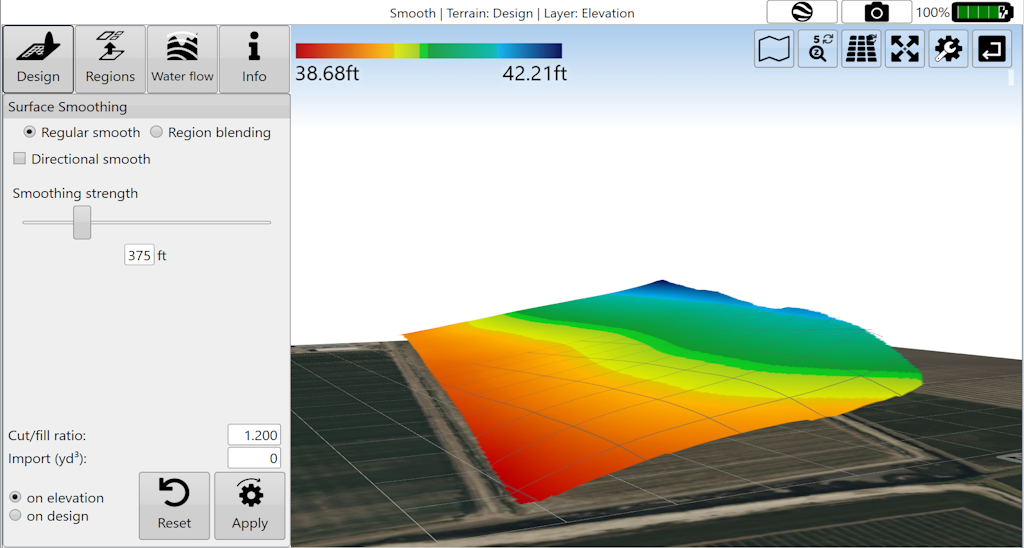
<span style="font-size: 18px; font-family: Arial, Helvetica, sans-serif; color: rgb(0, 0, 0); font-weight: 300;">Select the '</span><span style="font-size: 18px;"><span style="font-family: Arial,Helvetica,sans-serif;"><span style="color: rgb(0, 0, 0); font-weight: 400;">Smooth</span><span style="color: rgb(0, 0, 0); font-weight: 300;">' button to create a more regular surface with fewer and more gradual ridges and dips. The smoothing strength can be adjusted to produce a stronger or lesser effect as needed.</span></span></span>

<span style="font-size: 18px;"><span style="font-family: Arial,Helvetica,sans-serif;">  
</span></span>

<span dir="ltr" style="font-size: 18px; font-family: Arial, Helvetica, sans-serif; color: rgb(0, 0, 0); font-weight: 300;">Before</span>

<span dir="ltr" style="font-size: 14pt; font-family: Oswald, sans-serif; color: rgb(0, 0, 0); font-weight: 300;">![](https://docs.t3rra.com/uploads/images/gallery/2025-03/scaled-1680-/3iMgns4axm4-38qpyn1w55l70hiv4kk5tfsfg-png.png)</span>

<span dir="ltr" style="font-size: 18px; font-family: Arial, Helvetica, sans-serif; color: rgb(0, 0, 0); font-weight: 300;">After</span>

<span dir="ltr" style="font-size: 14pt; font-family: Oswald, sans-serif; color: rgb(0, 0, 0); font-weight: 300;">![](https://docs.t3rra.com/uploads/images/gallery/2025-03/scaled-1680-/xJKg4590w0qp1ynlu-wdau09-sgea-plbnlvq-png.png)</span>

# Regular Smoothing

<span style="font-size: 18px; font-family: Arial, Helvetica, sans-serif; color: rgb(0, 0, 0); font-weight: 300;">Regular smoothing applies an averaging filter to the surface of the field to remove bumps and dips. <span dir="ltr">![](https://docs.t3rra.com/uploads/images/gallery/2025-03/scaled-1680-/zP6mwmvzohl1i0g4gcxwwt1pkr-rqfxwqc68g-png.png)</span></span>
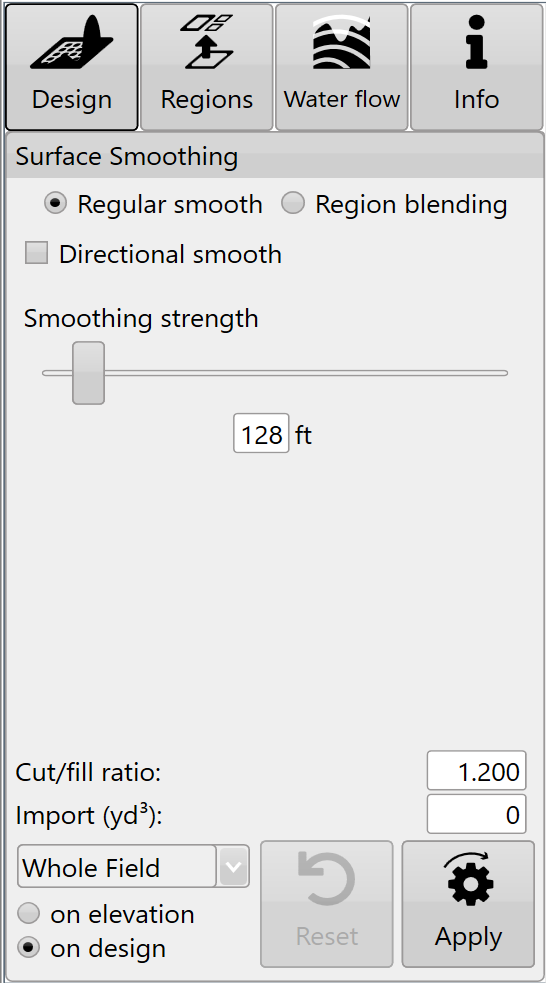
<span style="font-size: 18px;"><span style="font-family: Arial,Helvetica,sans-serif;"><span style="color: rgb(0, 0, 0); font-weight: 300;">The ‘</span><span style="color: rgb(0, 0, 0); font-weight: 400;">Smoothing strength</span><span style="color: rgb(0, 0, 0); font-weight: 300;">’ slide bar controls how smooth it is by increasing the radius that is used in calculations. The smaller the slider value, the less of an effect the smoothing will have. </span></span></span>

<span style="font-size: 18px; font-family: Arial, Helvetica, sans-serif; color: rgb(0, 0, 0); font-weight: 300;">Smoothing can be applied to the whole field, or to individual regions. It can be applied to the original surface, or to an existing design.</span>

# Directional Smoothing

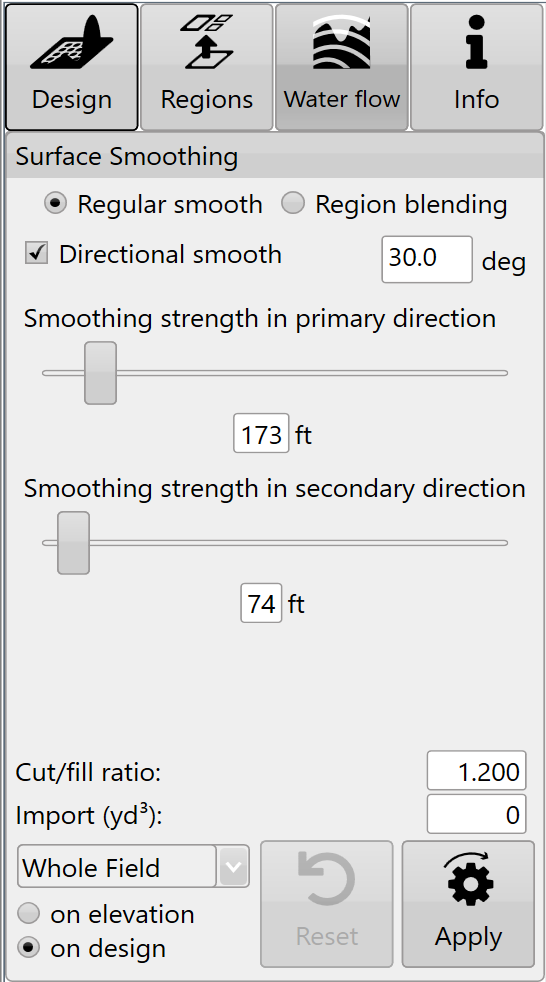
<span style="font-size: 18px; font-family: Arial, Helvetica, sans-serif; color: rgb(0, 0, 0); font-weight: 300;">'</span><span style="font-size: 18px;"><span style="font-family: Arial,Helvetica,sans-serif;"><span style="color: rgb(0, 0, 0); font-weight: 400;">Directional smooth</span><span style="color: rgb(0, 0, 0); font-weight: 300;">' is a check box just below regular smoothing. </span></span></span>

<span style="font-size: 18px;"><span style="font-family: Arial,Helvetica,sans-serif;">  
</span></span>

<span style="font-size: 18px;"><span style="font-family: Arial,Helvetica,sans-serif;"><span style="color: rgb(0, 0, 0); font-weight: 300;">Directional smoothing causes the smoothing effect to be stronger in a particular direction and weaker in the perpendicular direction.</span></span></span>

<span style="font-size: 18px;"><span style="font-family: Arial,Helvetica,sans-serif;">  
</span></span>

<span style="font-size: 18px;"><span style="font-family: Arial,Helvetica,sans-serif;"><span style="color: rgb(0, 0, 0); font-weight: 300;">Enter the primary smoothing direction in the provided text box.</span></span></span>

<span style="font-size: 18px;"><span style="font-family: Arial,Helvetica,sans-serif;">  
</span></span>

<span style="font-size: 18px;"><span style="font-family: Arial,Helvetica,sans-serif;"><span style="color: rgb(0, 0, 0); font-weight: 300;">'</span><span style="color: rgb(0, 0, 0); font-weight: 400;">Smoothing strength in the primary direction</span><span style="color: rgb(0, 0, 0); font-weight: 300;">' allows you to set the influence radius in that direction.</span></span></span>

<span style="font-size: 18px;"><span style="font-family: Arial,Helvetica,sans-serif;"><span style="color: rgb(0, 0, 0); font-weight: 300;">  
'</span><span style="color: rgb(0, 0, 0); font-weight: 400;">Smoothing strength in the secondary direction</span></span></span><span style="font-size: 18px; font-family: Arial, Helvetica, sans-serif; color: rgb(0, 0, 0); font-weight: 300;">' controls the influence radius at a 90 degree angle to the primary direction.</span>

![](https://docs.t3rra.com/uploads/images/gallery/2025-03/scaled-1680-/jSiom5qqi6iubpawuqnt3cyphcxqvarh-bsww-png.png)

# Region Blending

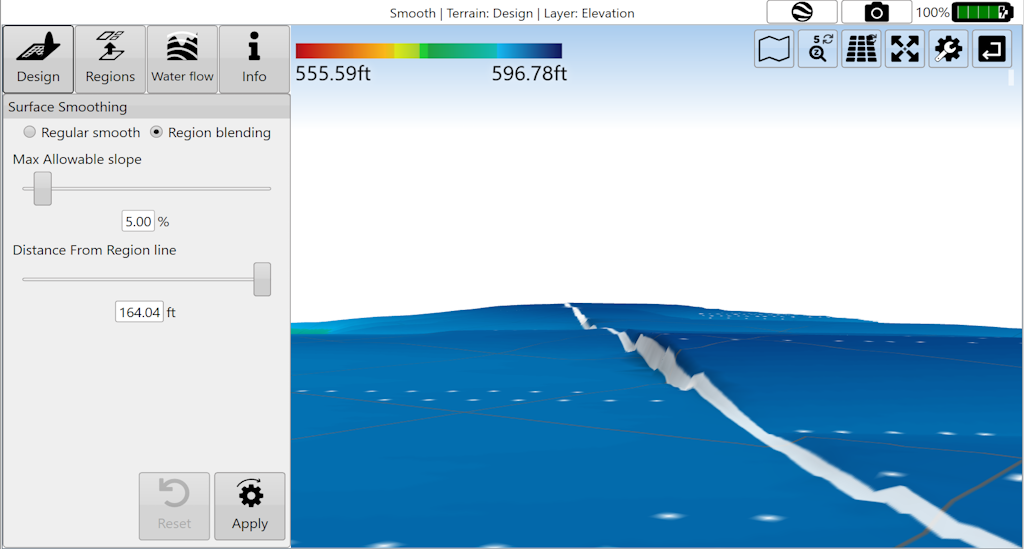
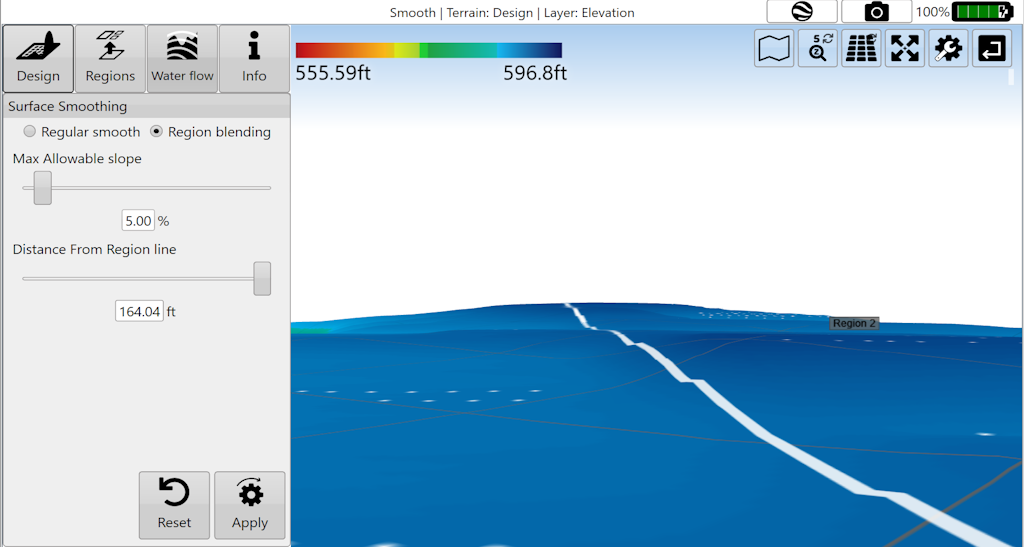
<span dir="ltr" style="font-size: 18px; font-family: Arial, Helvetica, sans-serif; color: rgb(0, 0, 0); font-weight: 300;">Region blending allows you to “feather” the edges of [regions](https://t3rra.freshdesk.com/en/support/solutions/articles/51000399103-regions-in-t3cd) to allow for smooth transitions between regions.</span>

<span style="font-size: 18px;"><span style="font-family: Arial,Helvetica,sans-serif;">  
</span></span>

<span style="font-size: 18px;"><span style="font-family: Arial,Helvetica,sans-serif;"><span style="color: rgb(0, 0, 0); font-weight: 400;">'Max Allowable slope'</span><span style="color: rgb(0, 0, 0); font-weight: 300;"> lets you set the maximum steepness that can be used to achieve a region blend.</span></span></span>

<span style="font-size: 18px;"><span style="font-family: Arial,Helvetica,sans-serif;">  
</span></span>

<span style="font-size: 18px;"><span style="font-family: Arial,Helvetica,sans-serif;"><span style="color: rgb(0, 0, 0); font-weight: 400;">'Distance from Region line' </span><span dir="ltr" style="color: rgb(0, 0, 0); font-weight: 300;">limits how far into each region the blend can go, in order to help make sure that other design elements are not affected.</span></span></span>

<span style="font-size: 18px;"><span style="font-family: Arial,Helvetica,sans-serif;">  
</span></span>

<span style="font-size: 18px;"><span style="font-family: Arial,Helvetica,sans-serif;"><span dir="ltr" style="color: rgb(0, 0, 0); font-weight: 300;">NOTE: changes made with region blending may not be obvious in 2D view but can be much more prominent in 3D view, or in the cut/fill map.</span></span></span>

<span style="font-size: 18px;"><span style="font-family: Arial,Helvetica,sans-serif;">  
</span></span>

<span style="font-size: 18px;"><span style="font-family: Arial,Helvetica,sans-serif;"><span style="color: rgb(0, 0, 0); font-weight: 300;">Press '</span><span style="color: rgb(0, 0, 0); font-weight: 400;">Apply</span><span style="color: rgb(0, 0, 0); font-weight: 300;">' after parameters are entered in order to see effects.</span></span></span>

<span style="font-size: 18px;"><span style="font-family: Arial,Helvetica,sans-serif;">  
</span></span>

<span dir="ltr" style="font-size: 18px; font-family: Arial, Helvetica, sans-serif; color: rgb(0, 0, 0); font-weight: 300;">Before</span>

<span dir="ltr" style="font-size: 14pt; font-family: Oswald, sans-serif; color: rgb(0, 0, 0); font-weight: 300;">![](https://docs.t3rra.com/uploads/images/gallery/2025-03/scaled-1680-/D6ebvsf166wfyoebj0ijdiin0sl0e0eij9r6g-png.png)</span>

<span style="font-size: 18px;">After</span>

![](https://docs.t3rra.com/uploads/images/gallery/2025-03/scaled-1680-/ss6k7crvzdthcx2bt2a4wzquiqdgdul6x9bkg-png.png)

# Offset Design

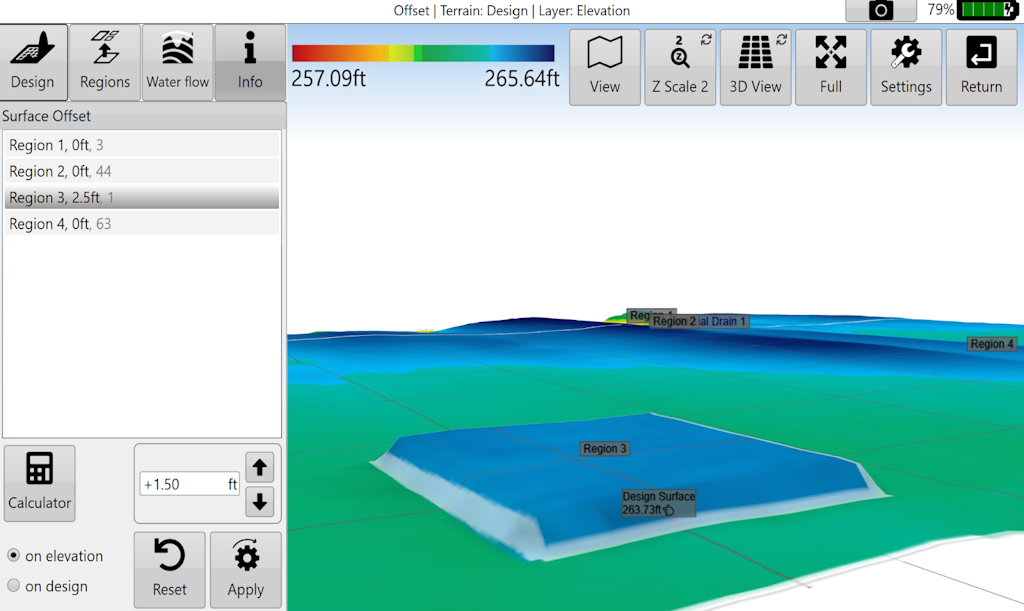
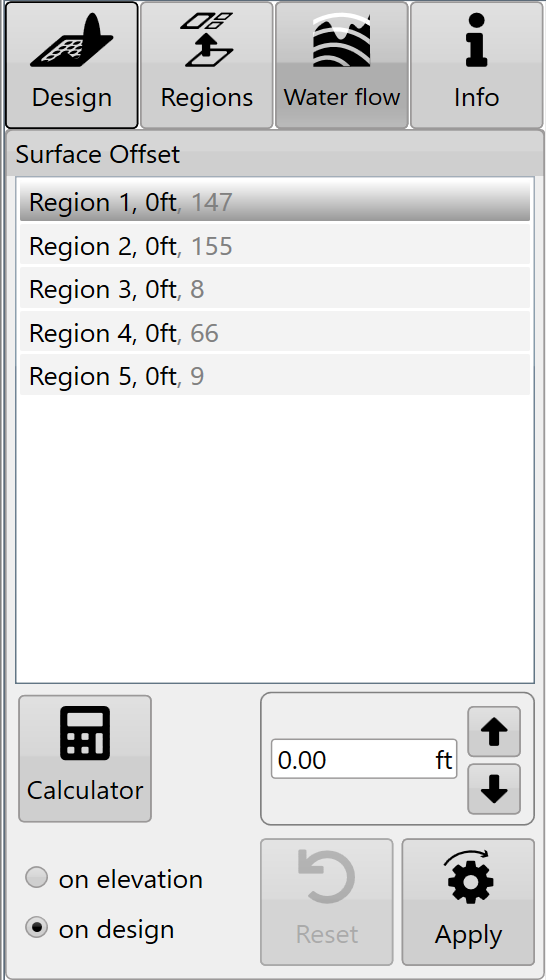
<span style="font-size: 18px; font-family: Arial, Helvetica, sans-serif; color: rgb(0, 0, 0); font-weight: 300;">Select the '</span><span style="font-size: 18px;"><span style="font-family: Arial,Helvetica,sans-serif;"><span style="color: rgb(0, 0, 0); font-weight: 400;">Offset</span></span></span><span dir="ltr" style="font-size: 18px; font-family: Arial, Helvetica, sans-serif; color: rgb(0, 0, 0); font-weight: 300;">' button to raise or lower the surface height of a field or region. </span>
<span dir="ltr" style="font-size: 18px; font-family: Arial, Helvetica, sans-serif; color: rgb(0, 0, 0); font-weight: 300;">![](https://docs.t3rra.com/uploads/images/gallery/2025-03/scaled-1680-/9xu2zb9g1j0ds2wwwzf7s32annb4tvkyxqu-w-png.png)</span>

<span dir="ltr" style="font-size: 18px; font-family: Arial, Helvetica, sans-serif; color: rgb(0, 0, 0); font-weight: 300;">This can help with:</span>

- <span style="font-size: 18px;"><span style="font-family: Arial,Helvetica,sans-serif;"><span dir="ltr" style="color: rgb(0, 0, 0); font-weight: 300;">Importing and exporting dirt</span></span></span>
- <span style="font-size: 18px;"><span style="font-family: Arial,Helvetica,sans-serif;"><span dir="ltr" style="color: rgb(0, 0, 0); font-weight: 300;">Addition or removal of topsoil</span></span></span>
- <span dir="ltr" style="font-size: 18px; font-family: Arial, Helvetica, sans-serif; color: rgb(0, 0, 0); font-weight: 300;">Raising pads</span>

<span style="font-size: 14pt; font-family: Oswald, sans-serif; color: rgb(0, 0, 0); font-weight: 300;"><span style="border: 1pt solid #000000; display: inline-block; overflow: hidden; width: 624px; height: 372px;">![](https://docs.t3rra.com/uploads/images/gallery/2025-03/scaled-1680-/DxM0s6ftdwhauonzf4kizh3lken-yac87muog-png.png)</span></span>

![](https://docs.t3rra.com/uploads/images/gallery/2025-03/scaled-1680-/Ubz7yqofsyotqrmxbrut00rhsrekwb-iwidsw-png.png)

<span style="font-size: 18px; font-family: Arial, Helvetica, sans-serif; color: rgb(0, 0, 0); font-weight: 300;">You can either:</span>

- <span style="font-size: 18px;"><span style="font-family: Arial,Helvetica,sans-serif;"><span style="color: rgb(0, 0, 0); font-weight: 300;">manually enter the desired offset amount (this can also be adjusted in set increments using the up and down arrows) </span></span></span>
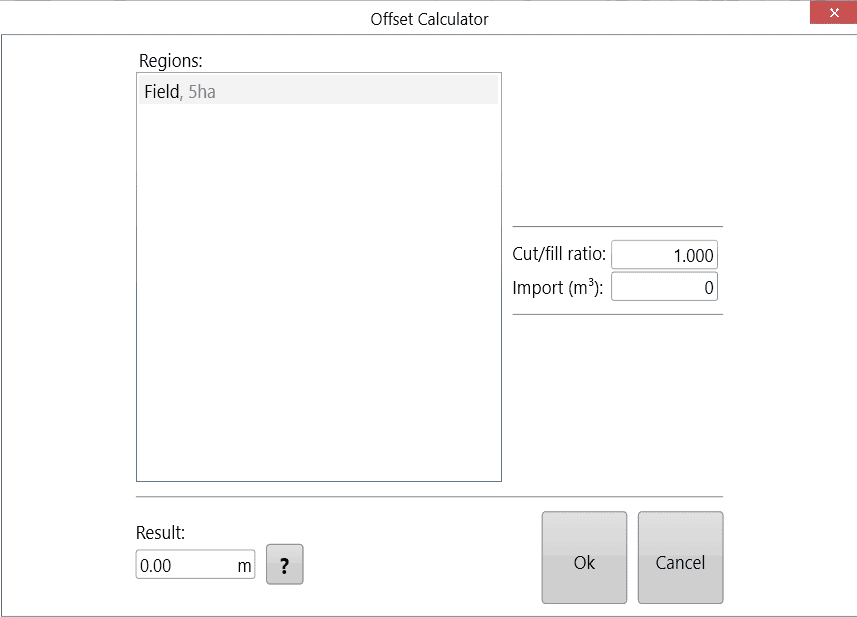
- <span style="font-size: 18px; font-family: Arial, Helvetica, sans-serif; color: rgb(0, 0, 0); font-weight: 300;">use the calculator to help set the offset amount. The calculator is useful if you want to offset the surface by a certain volume of imported or exported dirt. </span>
    
    
    - <span dir="ltr">**Formular**  
        </span><span dir="ltr">Left over volume = (Cut/Fill ratio \* Volumn of cut) + Volume of fill.  
        Result = (Import + Left over volume) / Selected area</span>

[![OffsetCalculator.png](https://docs.t3rra.com/uploads/images/gallery/2025-12/scaled-1680-/pzpUXbpmE5UzGxOo-offsetcalculator.png)](https://docs.t3rra.com/uploads/images/gallery/2025-12/pzpUXbpmE5UzGxOo-offsetcalculator.png)

<span style="font-size: 18px; font-family: Arial, Helvetica, sans-serif; color: rgb(0, 0, 0); font-weight: 300;">Negative import values are considered exports.</span>

<span style="font-size: 18px;"><span style="font-family: Arial,Helvetica,sans-serif;">  
</span></span>

<span style="font-size: 18px;"><span style="font-family: Arial,Helvetica,sans-serif;"><span style="color: rgb(0, 0, 0); font-weight: 300;">Press '</span><span style="color: rgb(0, 0, 0); font-weight: 400;">Apply</span><span style="color: rgb(0, 0, 0); font-weight: 300;">' (shown as the offset design icon) after parameters are entered.</span></span></span>

<span style="font-size: 18px;"><span style="font-family: Arial,Helvetica,sans-serif;">  
</span></span>

<span style="font-size: 18px;"><span style="font-family: Arial,Helvetica,sans-serif;"><span style="color: rgb(0, 0, 0); font-weight: 300;">Once you are happy with the design follow the steps in the '</span><span style="color: rgb(0, 0, 0);"><span style="font-weight: 300; text-decoration-skip-ink: none;">completing your design</span></span></span></span><span style="font-size: 18px; font-family: Arial, Helvetica, sans-serif; color: rgb(0, 0, 0); font-weight: 300;">' section.</span>