# Exporting Data

# Exporting Data

## ![](https://docs.t3rra.com/uploads/images/gallery/2025-03/scaled-1680-/OPGhip3w-aff0u7pyyjgjircyxvsoaelkmwzw-png.png)
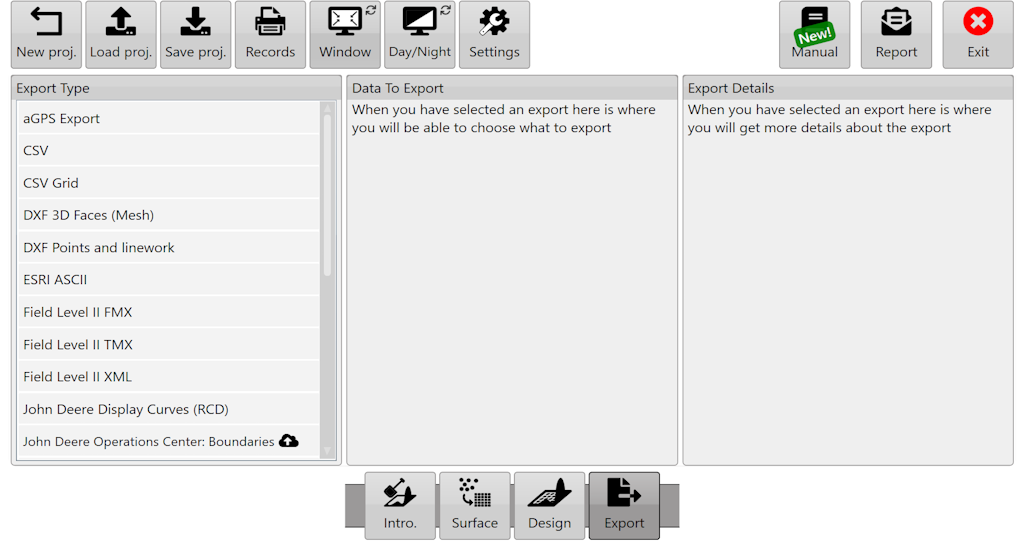
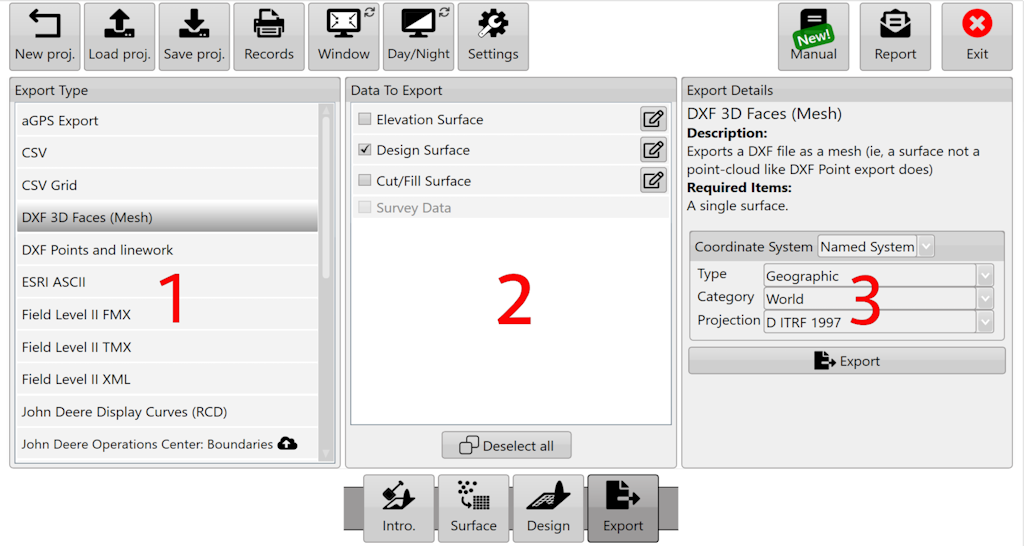
<span dir="ltr" style="font-size: 18px; font-family: Arial, Helvetica, sans-serif; color: rgb(0, 0, 0); font-weight: 300;">Exporting allows data to be transferred to other programs. If you’re wanting to work within T3RRA, click the **[“Save Proj”](https://t3rra.freshdesk.com/en/support/solutions/articles/51000404411-save-project)** button at the top of the screen - it is far easier to work with this format than exporting and then re-importing the data.</span>

<span dir="ltr" style="font-size: 14pt; font-family: Oswald, sans-serif; color: rgb(0, 0, 0); font-weight: 300;">![](https://docs.t3rra.com/uploads/images/gallery/2025-03/scaled-1680-/zkP3j8pbppgnoi0pdvoyaatelg7ekfgbnygeq-png.png)</span>

<span style="font-size: 18px; font-family: Arial, Helvetica, sans-serif; color: rgb(0, 0, 0); font-weight: 400;">Steps to export data</span>

1. <span style="font-size: 18px;"><span style="font-family: Arial,Helvetica,sans-serif;"><span style="color: rgb(0, 0, 0); font-weight: 300;">Select the export format you want on the left.</span></span></span>
2. <span style="font-size: 18px;"><span style="font-family: Arial,Helvetica,sans-serif;"><span style="color: rgb(0, 0, 0); font-weight: 300;">Choose the data you wish to export. Clicking the button will allow you to change how the layer is exported (say if you wished to export a design surface as an elevation).</span></span></span>
3. <span dir="ltr" style="font-size: 18px; font-family: Arial, Helvetica, sans-serif; color: rgb(0, 0, 0); font-weight: 300;">Provide any additional information required (such as which projection you need) and click “Export”.</span>

<span dir="ltr" style="font-size: 18px; font-family: Arial, Helvetica, sans-serif; color: rgb(0, 0, 0); font-weight: 300;">Here is a video on **[Exporting Data.](https://youtu.be/m60FzuQGEdA?feature=shared)**</span>

# Exporting Guidance lines from T3RRA™ and importing into AutoTrac

<span style="font-size: 18px; font-family: Arial, Helvetica, sans-serif; color: rgb(0, 0, 0); font-weight: 400;">Remember that guidance lines are only available for Drains, Terraces, and Levees.</span>

<span style="font-size: 18px;"><span style="font-family: Arial,Helvetica,sans-serif;"><span style="color: rgb(0, 0, 0); font-weight: 300;">Should you wish to export guidance lines from T3RRA software for use with AutoTrac™ be sure to follow the following steps to be sure that the process is successful.</span></span></span>

<span style="font-size: 18px;"><span style="font-family: Arial,Helvetica,sans-serif;">  
</span></span>

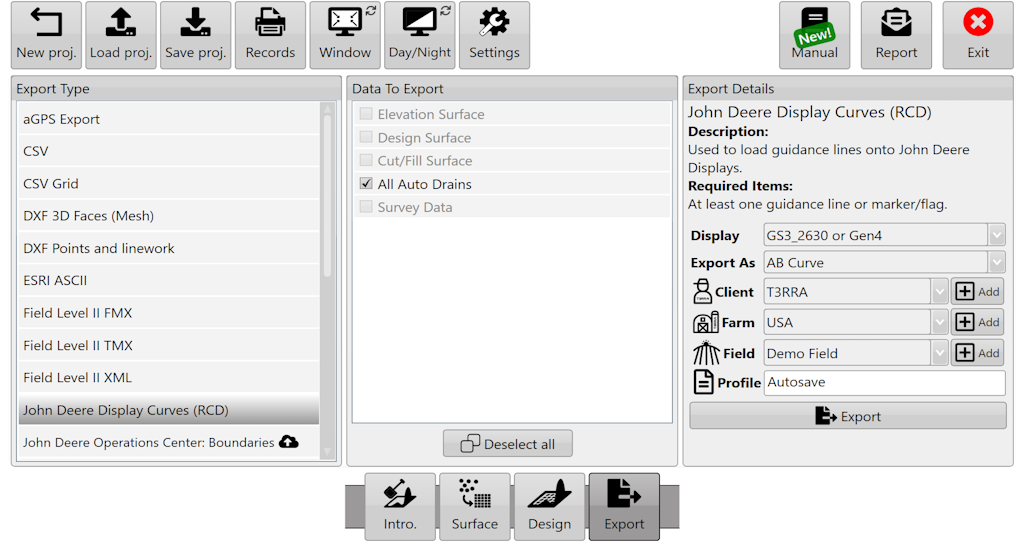
<span dir="ltr" style="font-size: 18px; font-family: Arial, Helvetica, sans-serif; color: rgb(0, 0, 0); font-weight: 300;">Exporting begins by pressing the Export button.</span>

<span dir="ltr" style="font-size: 14pt; font-family: Oswald, sans-serif; color: rgb(0, 0, 0); font-weight: 300;">![](https://docs.t3rra.com/uploads/images/gallery/2025-03/scaled-1680-/qVTsn1scfj-iowx6htq58-k5dto4qid7aduaw-png.png)</span>

<span style="font-size: 18px; font-family: Arial, Helvetica, sans-serif; color: rgb(0, 0, 0); font-weight: 400;">How to export guidance lines from T3RRA</span>

1. <span style="font-size: 18px;"><span style="font-family: Arial,Helvetica,sans-serif;"><span style="color: rgb(0, 0, 0); font-weight: 300;">Select the data to Export.</span></span></span>
2. <span style="font-size: 18px;"><span style="font-family: Arial,Helvetica,sans-serif;"><span style="color: rgb(0, 0, 0); font-weight: 300;">Select curve type.</span></span></span>
3. <span style="font-size: 18px;"><span style="font-family: Arial,Helvetica,sans-serif;"><span style="color: rgb(0, 0, 0); font-weight: 300;">Set the display to the model number of the John Deere display you will be using.</span></span></span>
4. <span style="font-size: 18px;"><span style="font-family: Arial,Helvetica,sans-serif;"><span style="color: rgb(0, 0, 0); font-weight: 300;">Input project information into client, farm, field and profile.</span></span></span>
5. <span style="font-size: 18px;"><span style="font-family: Arial,Helvetica,sans-serif;"><span style="color: rgb(0, 0, 0); font-weight: 300;">Press “Save” and a file with your guidance lines will be saved in the set location if you chose ‘John Deere Display Curves (RCD)’.</span></span></span>
6. <span style="font-size: 18px;"><span style="font-family: Arial,Helvetica,sans-serif;"><span style="color: rgb(0, 0, 0); font-weight: 300;">Press “Upload” and a file will be uploaded to JDOC where it can be assigned to equipment if you chose “John Deere Operations Center Curves (RCD)’.</span></span></span>

<span style="font-size: 18px;"><span style="font-family: Arial,Helvetica,sans-serif;">  
</span></span>

<span style="font-size: 18px;"><span style="font-family: Arial,Helvetica,sans-serif;">  
</span></span>

<span style="font-size: 18px;"><span style="font-family: Arial,Helvetica,sans-serif;">  
</span></span>

<span style="font-size: 18px;"><span style="font-family: Arial,Helvetica,sans-serif;">  
</span></span>

<span style="font-size: 18px;"><span style="font-family: Arial,Helvetica,sans-serif;"><span style="color: rgb(0, 0, 0); font-weight: 400;">How to transfer guidance lines to a John Deere display</span></span></span>

<span style="font-size: 18px;"><span style="font-family: Arial,Helvetica,sans-serif;"><span style="color: rgb(0, 0, 0); font-weight: 300;">(Instructions given are for the GS3 2630 Display, steps for other displays may vary: refer to the appropriate display manual)</span></span></span>

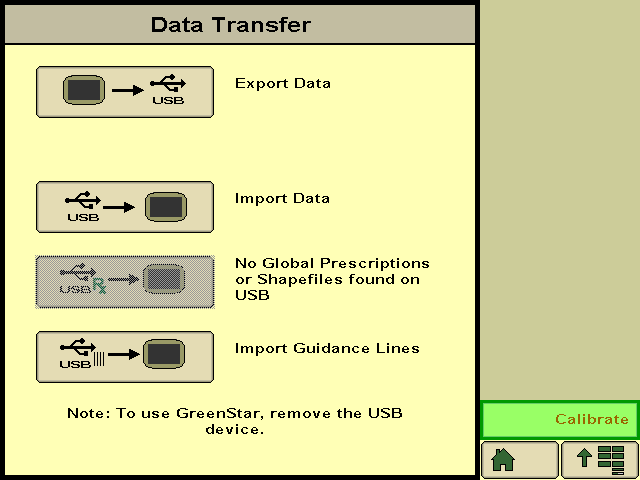
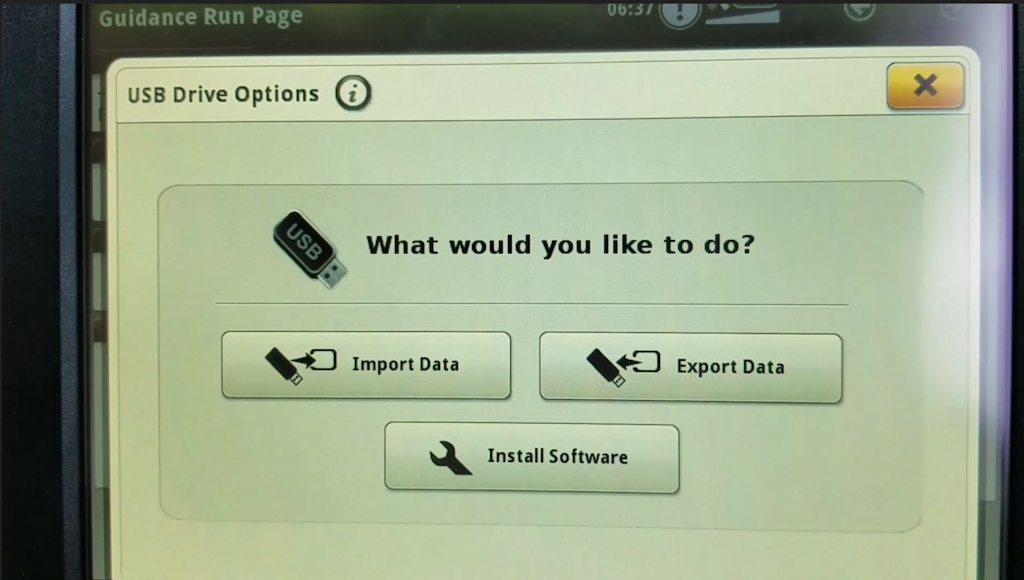
1. <span style="font-size: 18px;"><span style="font-family: Arial,Helvetica,sans-serif;"><span style="color: rgb(0, 0, 0); font-weight: 300;">Insert USB with guidance lines saved on it into John Deere Greenstar display. (The display will automatically detect the USB and display the available options.)</span></span></span>
2. <span style="font-size: 18px;"><span style="font-family: Arial,Helvetica,sans-serif;"><span dir="ltr" style="color: rgb(0, 0, 0); font-weight: 300;">Select “Import Guidance Lines” which should be the bottom option.</span></span></span>
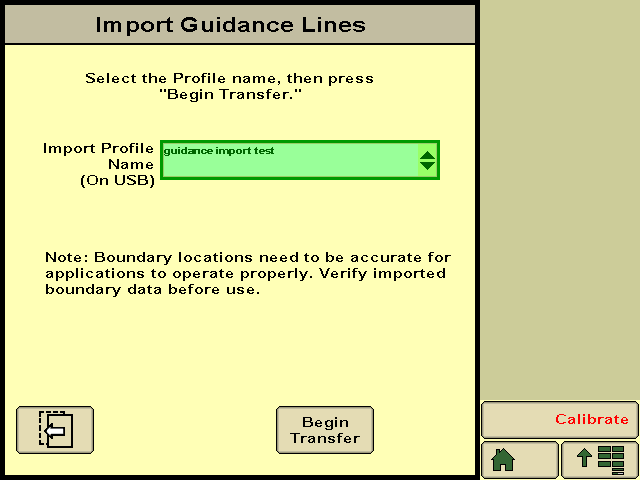
3. <span style="font-size: 18px;"><span style="font-family: Arial,Helvetica,sans-serif;"><span dir="ltr" style="color: rgb(0, 0, 0); font-weight: 300;"><span dir="ltr" style="color: rgb(0, 0, 0); font-weight: 300;">Select the desired profile and press “Begin Transfer”.\\</span></span></span></span>
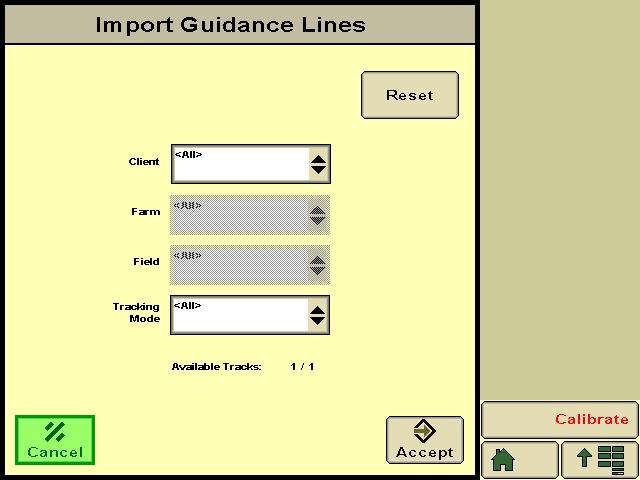
4. <span style="font-size: 18px;"><span style="font-family: Arial,Helvetica,sans-serif;"><span dir="ltr" style="color: rgb(0, 0, 0); font-weight: 300;">On this screen select which client, farm, field and tracking option of the file you want to import and press “Accept”. (The tracking option should be set to adaptive curves.)</span></span></span>
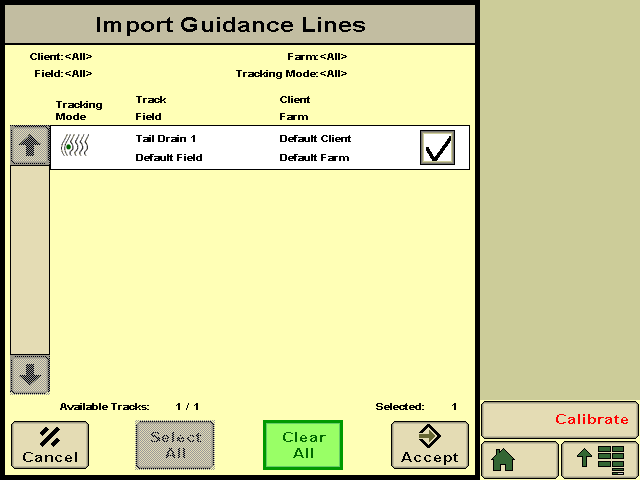
5. <span style="font-size: 18px;"><span style="font-family: Arial,Helvetica,sans-serif;"><span dir="ltr" style="color: rgb(0, 0, 0); font-weight: 300;"><span style="color: rgb(0, 0, 0); font-weight: 300;">Make sure the correct line/s you want to import are ticked and press “Accept”.</span></span></span></span>
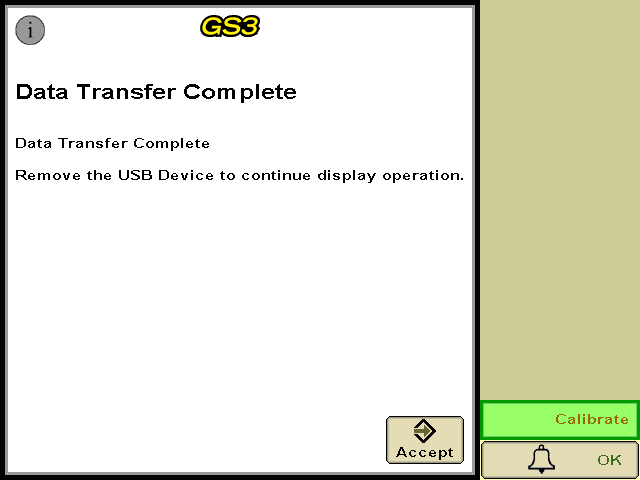
6. <span style="font-size: 18px;"><span style="font-family: Arial,Helvetica,sans-serif;"><span dir="ltr" style="color: rgb(0, 0, 0); font-weight: 300;"><span dir="ltr" style="color: rgb(0, 0, 0); font-weight: 300;"><span style="color: rgb(0, 0, 0); font-weight: 300;">A loading bar should appear, if everything has been successful the Data Transfer Complete screen should appear and you will be able to press “Accept”.</span></span></span></span></span>
7. <span dir="ltr" style="font-size: 14pt; font-family: Oswald, sans-serif; color: rgb(0, 0, 0); font-weight: 300;"><span dir="ltr" style="font-size: 14pt; font-family: Oswald, sans-serif; color: rgb(0, 0, 0); font-weight: 300;"><span dir="ltr" style="font-size: 18px; font-family: Arial, Helvetica, sans-serif; color: rgb(0, 0, 0); font-weight: 300;"><span style="color: rgb(0, 0, 0); font-weight: 300;">Your guidance lines have been imported to your John Deere Greenstar display and are now ready to be used with Autotrac™.</span></span></span></span>

<span dir="ltr" style="border:none;display:inline-block;overflow:hidden;width:268px;height:200px;">![](https://docs.t3rra.com/uploads/images/gallery/2025-03/scaled-1680-/WEYsysxehtkicw9ipbklha2sx-hdv2zq9jzza-png.png)</span>

<span style="border:none;display:inline-block;overflow:hidden;width:268px;height:201px;">![](https://docs.t3rra.com/uploads/images/gallery/2025-03/scaled-1680-/AO6yptjregbj17zvxd41omudy8s544rhojt1q-png.png)</span>

<span style="border:none;display:inline-block;overflow:hidden;width:268px;height:201px;">![](https://docs.t3rra.com/uploads/images/gallery/2025-03/scaled-1680-/LqYze1f57drek7pvfsxvwpa50ryrksphuapmg-png.png)</span>

<span style="border:none;display:inline-block;overflow:hidden;width:268px;height:201px;">![](https://docs.t3rra.com/uploads/images/gallery/2025-03/scaled-1680-/rX2vy8jnid42vnrhnn8k-aoudzhoc5ffxvqsq-png.png)</span>

<span style="border:none;display:inline-block;overflow:hidden;width:268px;height:201px;">![](https://docs.t3rra.com/uploads/images/gallery/2025-03/scaled-1680-/72Be5e96o6qmbm7f7a-spcokgu7dnbi1kwdrw-png.png)</span>

# Importing Guidance Lines from USB to a John Deere Gen4/G5 Display

<span dir="ltr" style="font-family: Arial, Helvetica, sans-serif; font-size: 18px;">How to import guidance lines from a USB drive to a John Deere Gen4/G5 Display:</span>

- <span dir="ltr" style="font-family: Arial, Helvetica, sans-serif; font-size: 18px;">Insert the USB into the USB port on the right hand side of the cab in a Gen4/G5 CommandCenter equipped machine, or into the USB port on the display if using a Gen4/G5 Universal display.</span>

<span dir="ltr" style="font-family: Arial, Helvetica, sans-serif; font-size: 18px;">USB Prompt will show after USB is inserted</span>

![](https://docs.t3rra.com/uploads/images/gallery/2025-03/scaled-1680-/GFqjgqcxjd3snfnapw12my9sgzzxjqcgydwjg-png.png)

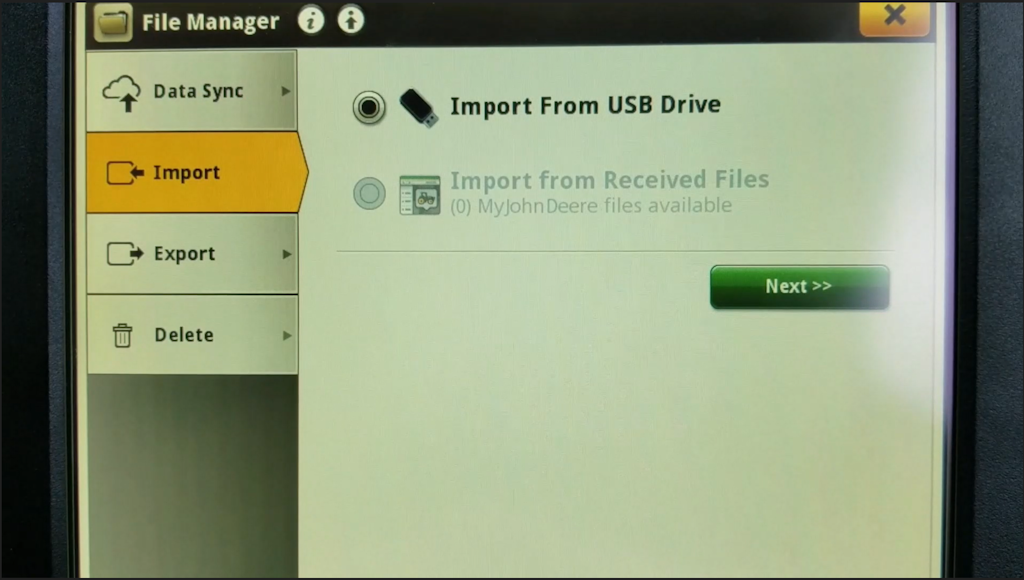
<span dir="ltr" style="font-family: Arial, Helvetica, sans-serif; font-size: 18px;">Access USB from Main Menu &gt; System &gt; File Manager &gt; Import if not prompted or if the prompt screen is closed accidentally. Hit "Next" to view File Folders</span>

![](https://docs.t3rra.com/uploads/images/gallery/2025-03/scaled-1680-/lrPx1eg6keg-jdzx-gvaa4o1xb-naop4zzl4g-png.png)

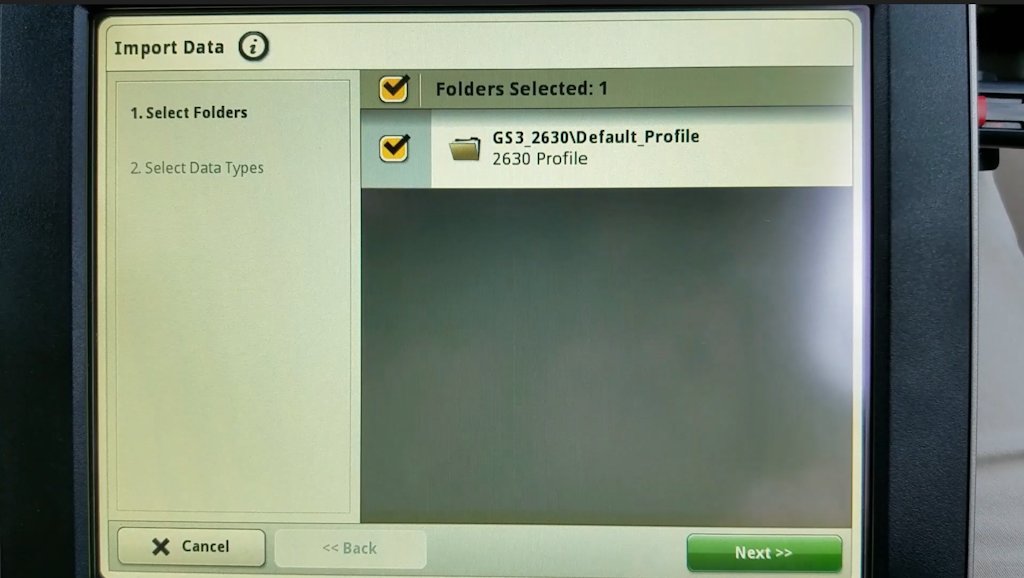
<span dir="ltr" style="font-family: Arial, Helvetica, sans-serif; font-size: 18px;">Check the box next to the folder and then hit "Next" in the bottom right corner of the display.</span>

![](https://docs.t3rra.com/uploads/images/gallery/2025-03/scaled-1680-/GlRq88ntuyrrtbxuoaqgobh45yuix5yom-lvg-png.png)

<span dir="ltr" style="font-family: Arial, Helvetica, sans-serif; font-size: 18px;">Make sure the boxes are checked and no unwanted data is listed. Hit "Import".</span>

![](https://docs.t3rra.com/uploads/images/gallery/2025-03/scaled-1680-/5VW7wvuaimcvoq2-7alcu3xf8thbrpcltmdaw-png.png)

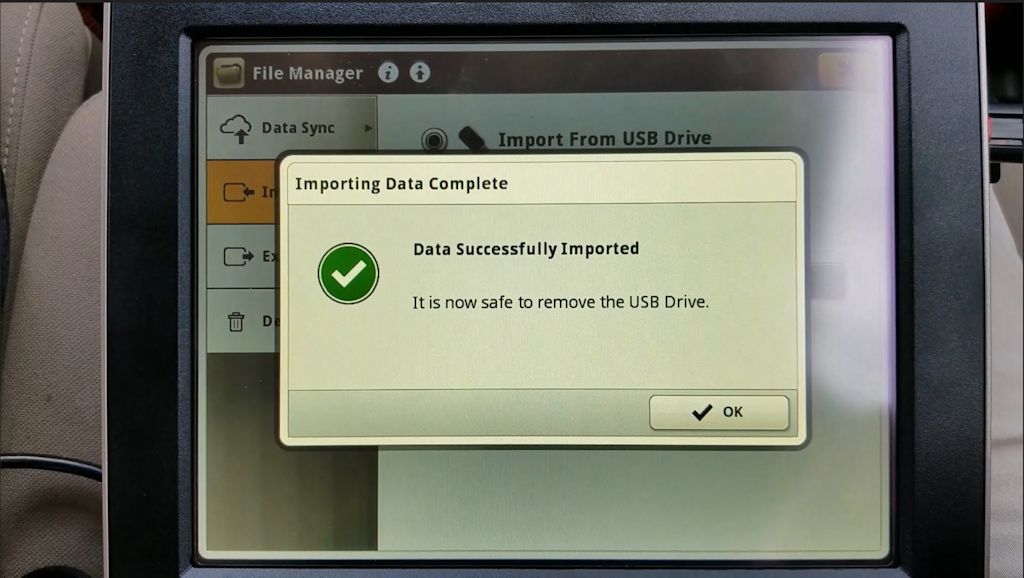
<span dir="ltr" style="font-family: Arial, Helvetica, sans-serif; font-size: 18px;">When the data imports you will see this prompt. If the import fails, format the flash drive, re-download the files, and attempt the import again.</span>

![](https://docs.t3rra.com/uploads/images/gallery/2025-03/scaled-1680-/EPqbhhlsbayt1mvv-ky1tdcf15rlk0hhkc7oq-png.png)

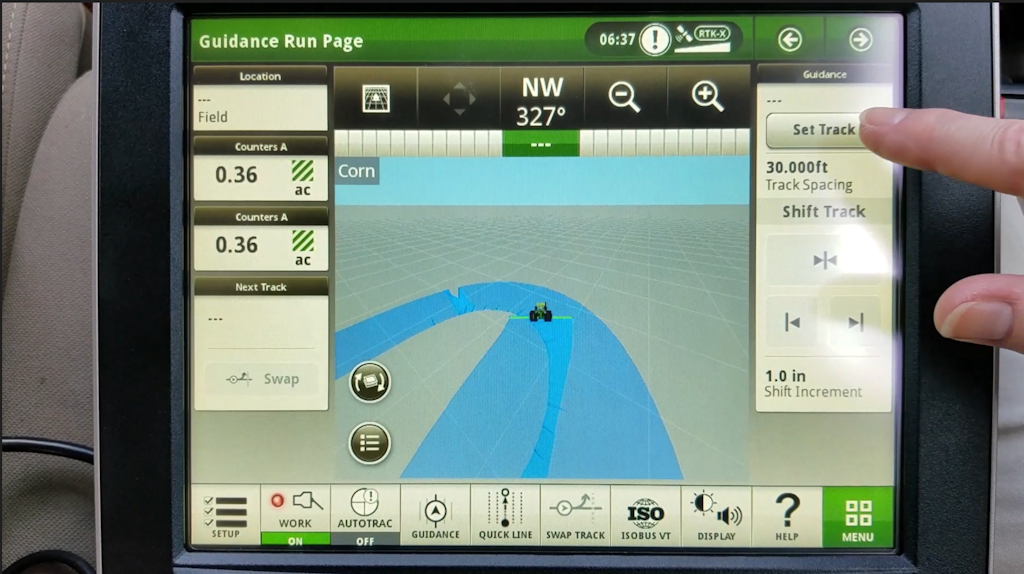
<span dir="ltr" style="font-family: Arial, Helvetica, sans-serif; font-size: 18px;">The file is now ready to use. From the Autotrac screen, hit "Set Track".</span>

![](https://docs.t3rra.com/uploads/images/gallery/2025-03/scaled-1680-/objwvcqmp5oqprpjuur-3dooyt-cubg7icfsq-png.png)

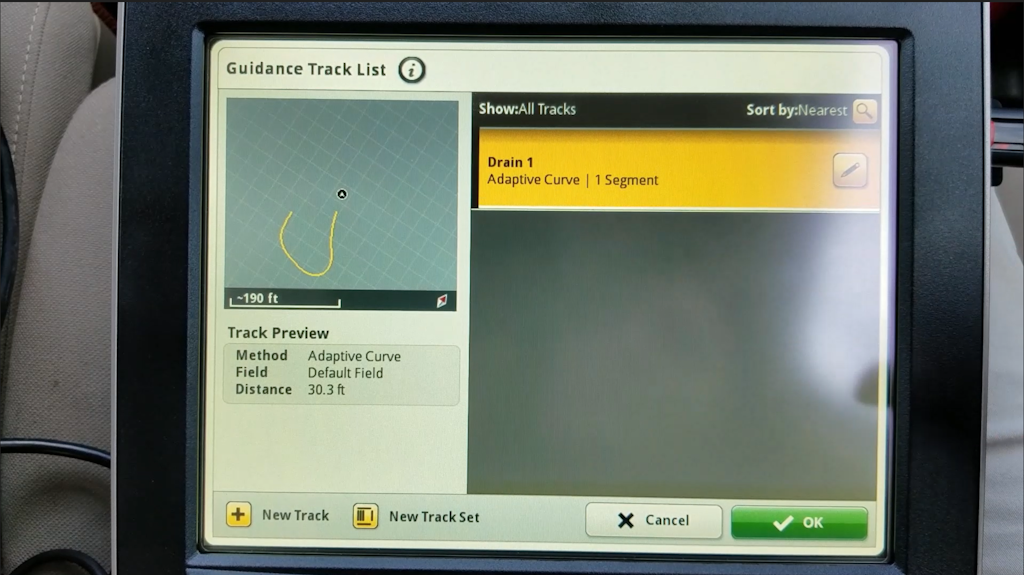
<span dir="ltr" style="font-family: Arial, Helvetica, sans-serif; font-size: 18px;">In the Guidance Track List page, select the desired Guidance Track and hit "OK".</span>

![](https://docs.t3rra.com/uploads/images/gallery/2025-03/scaled-1680-/bMOochtufofznxkswixmjqlhvnlccwmsumi6g-png.png)

<span dir="ltr" style="font-family: Arial, Helvetica, sans-serif; font-size: 18px;">The Guidance track is now ready to be used.</span>

# Exporting Guidance Lines to John Deere Operations Center

<span dir="ltr" style="font-size: 18px;">If desired, you can export guidance lines straight to John Deere Operations Center where they can be organized and transferred remotely to connected machines. </span>

<span style="font-size: 18px; font-family: Arial, Helvetica, sans-serif;">  
</span>

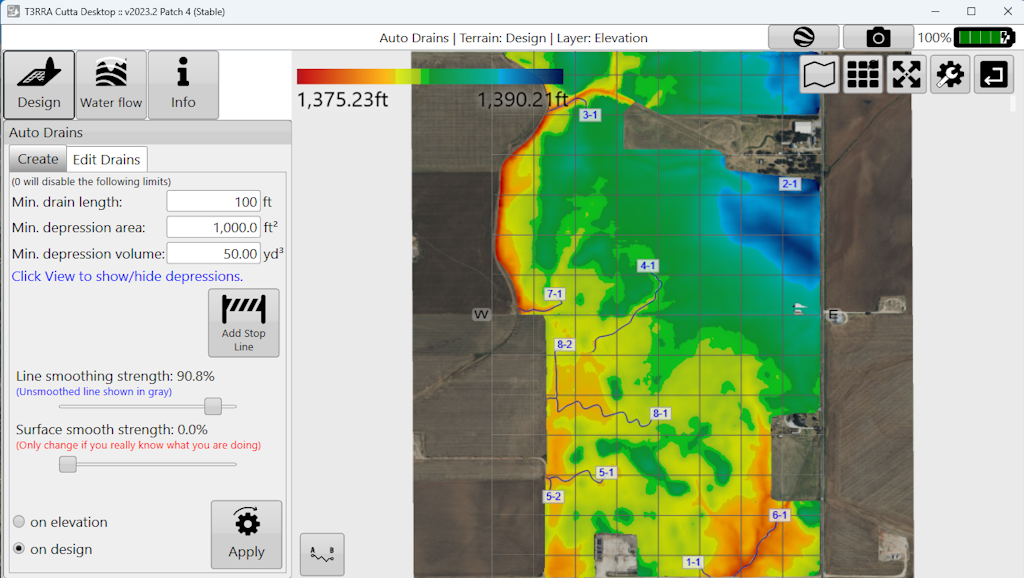
<span dir="ltr" style="font-size: 18px; font-family: Arial, Helvetica, sans-serif;">Design your drains, levees, or terraces or load the project with the desired linework.</span>

<span dir="ltr" style="font-size: 18px;">![](https://docs.t3rra.com/uploads/images/gallery/2025-03/scaled-1680-/0vkm8xt6mixmmmgptklkemrfscen4tdgcv8jw-png.png)</span>

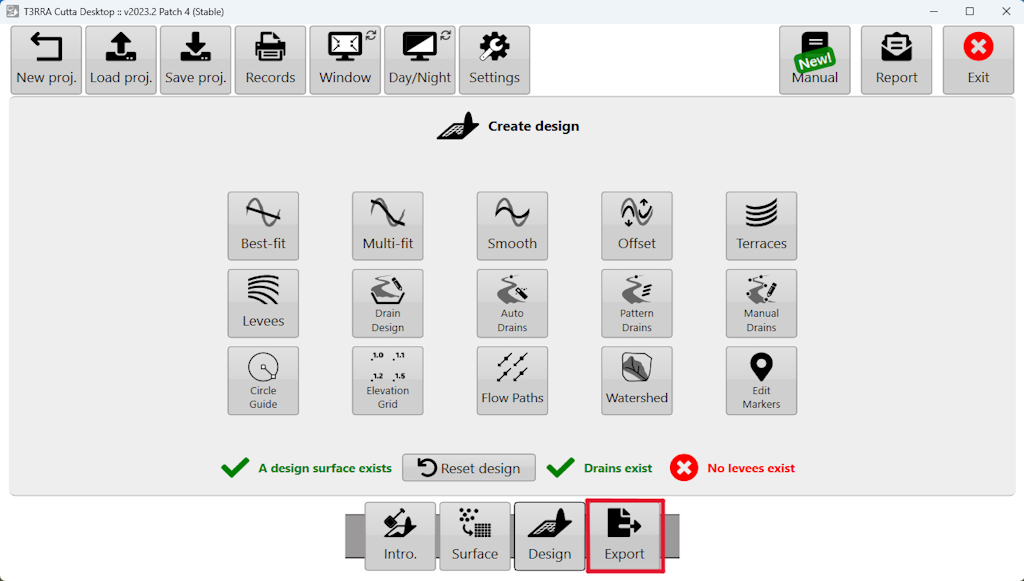
<span dir="ltr" style="font-size: 18px; font-family: Arial, Helvetica, sans-serif;">Go to the **[<span style="color: rgb(0, 0, 0);">Export</span>](https://t3rra.freshdesk.com/en/support/solutions/articles/51000404051-exporting-data)** step.</span>

![](https://docs.t3rra.com/uploads/images/gallery/2025-03/scaled-1680-/oD3pyrpmhbxagjmz-ks802yszgofmg86j5rvw-png.png)

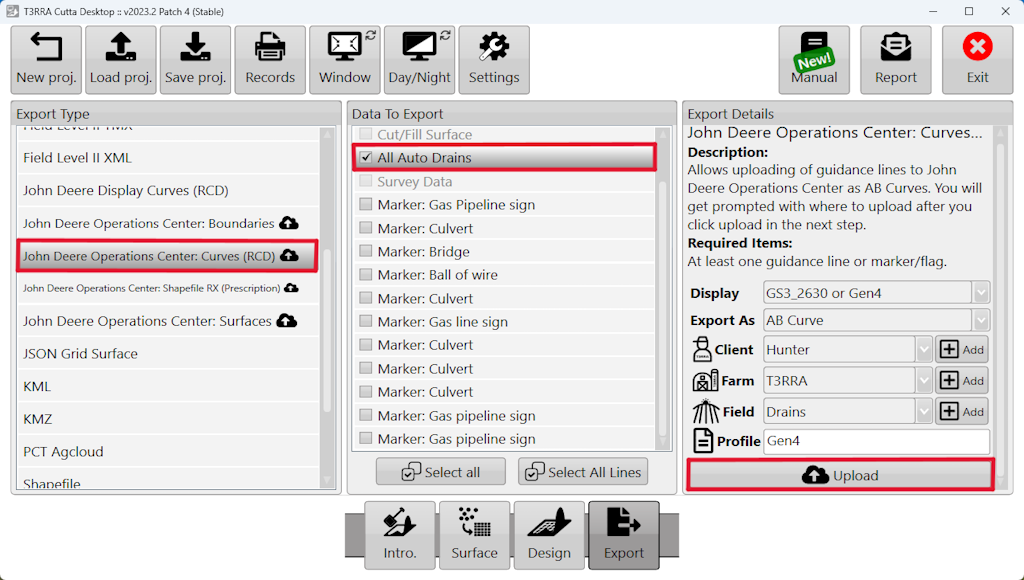
<span dir="ltr" style="font-size: 18px; font-family: Arial, Helvetica, sans-serif;">Choose "John Deere Operations Center: Curves (RCD)", choose the linework, enter your Export Details, and select Upload. If this is the first time you have attempted to transfer files to Ops Center, you will be prompted to sign in to your MyJohnDeere account.</span>

![](https://docs.t3rra.com/uploads/images/gallery/2025-03/scaled-1680-/i8hc51k1rbu8f8prhs-najjriri5eiza9yo-g-png.png)

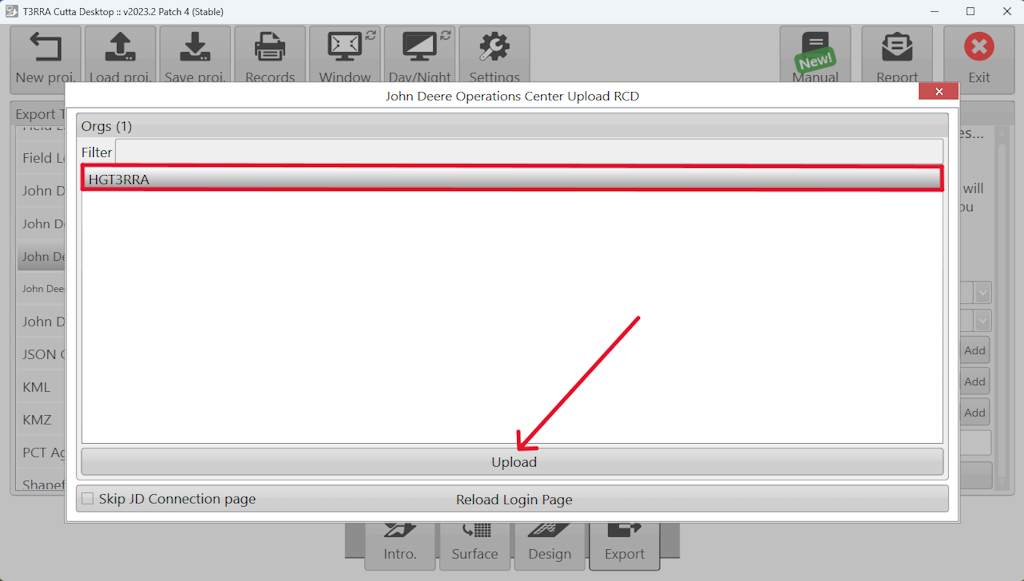
<span dir="ltr" style="font-family: Arial, Helvetica, sans-serif; font-size: 18px;">When prompted, choose your Ops Center organization and hit Upload. </span>
![](https://docs.t3rra.com/uploads/images/gallery/2025-03/scaled-1680-/jxI4cmhr75sxwfimf0oezcc8vjhr9dvxbjdqg-png.png)

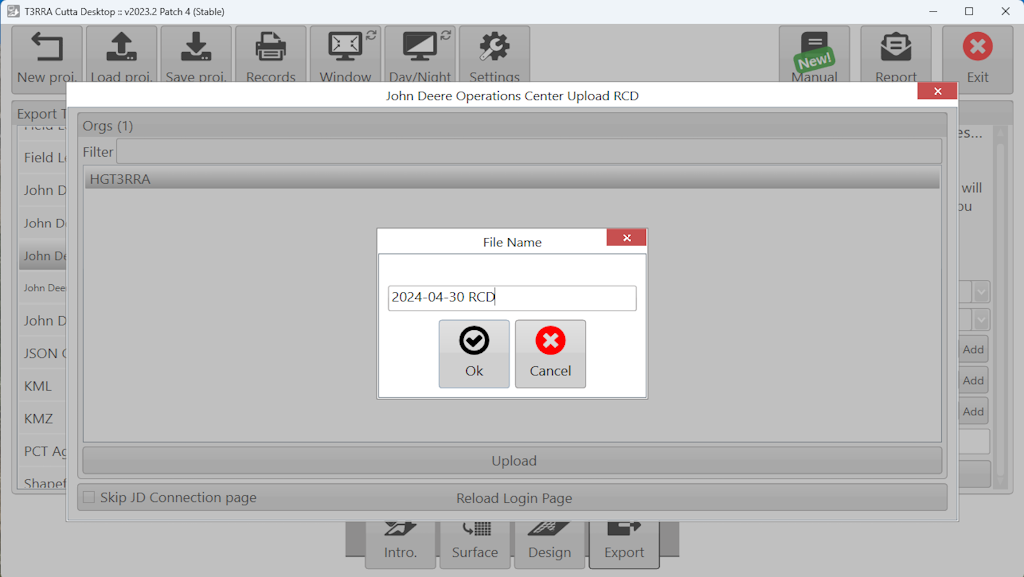
<span dir="ltr" style="font-family: Arial, Helvetica, sans-serif; font-size: 18px;">Edit the file name if desired. This will make it easier to find in the Files page of your Ops Center account.</span>

![](https://docs.t3rra.com/uploads/images/gallery/2025-03/scaled-1680-/Heifm7jnk8-bidc-awf1pnh22wfski0whe5og-png.png)

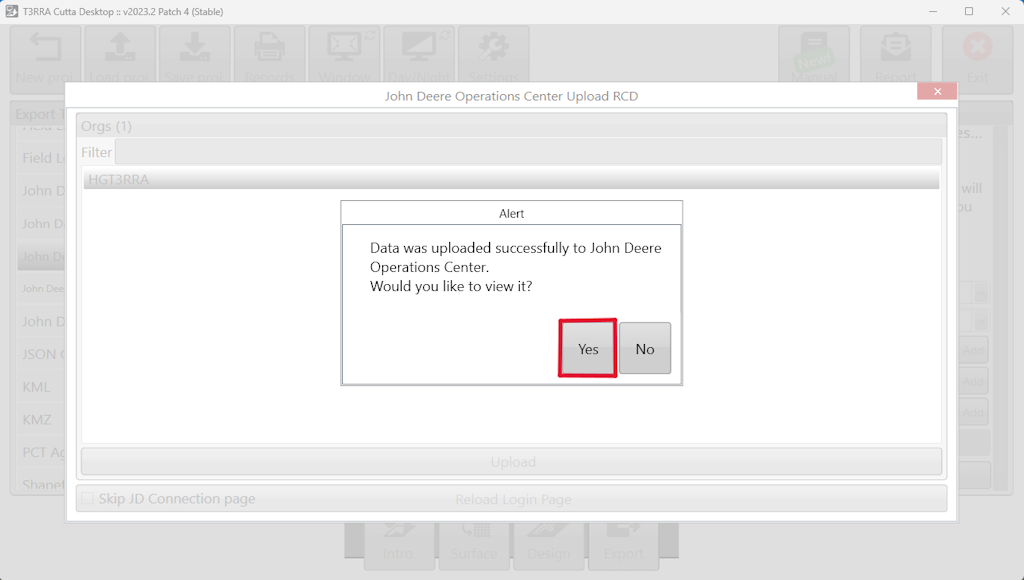
<span dir="ltr" style="font-family: Arial, Helvetica, sans-serif; font-size: 18px;">Once complete, you will be asked if you would like to view the exported file in Ops Center. If you would like to confirm the transfer, select Yes.</span>

![](https://docs.t3rra.com/uploads/images/gallery/2025-03/scaled-1680-/kFgk3icpt5fdhjezmglhmklgz7ook86ck4fww-png.png)

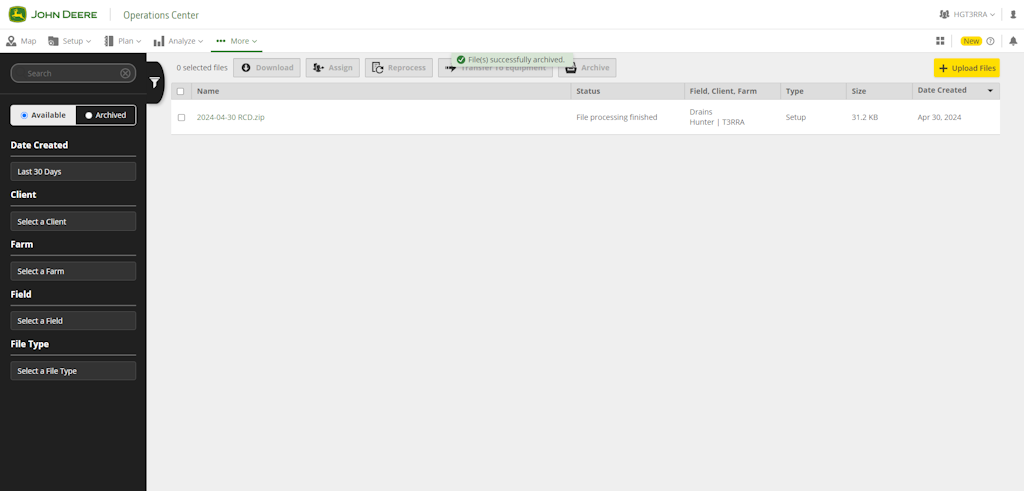
<span dir="ltr" style="font-family: Arial, Helvetica, sans-serif; font-size: 18px;">You will be directed to the Files page of your connected Ops Center account where the file containing the linework will be present.</span>

![](https://docs.t3rra.com/uploads/images/gallery/2025-03/scaled-1680-/SIrl-qontmfqt96xdq8ukaryaqg4hqili2shw-png.png)

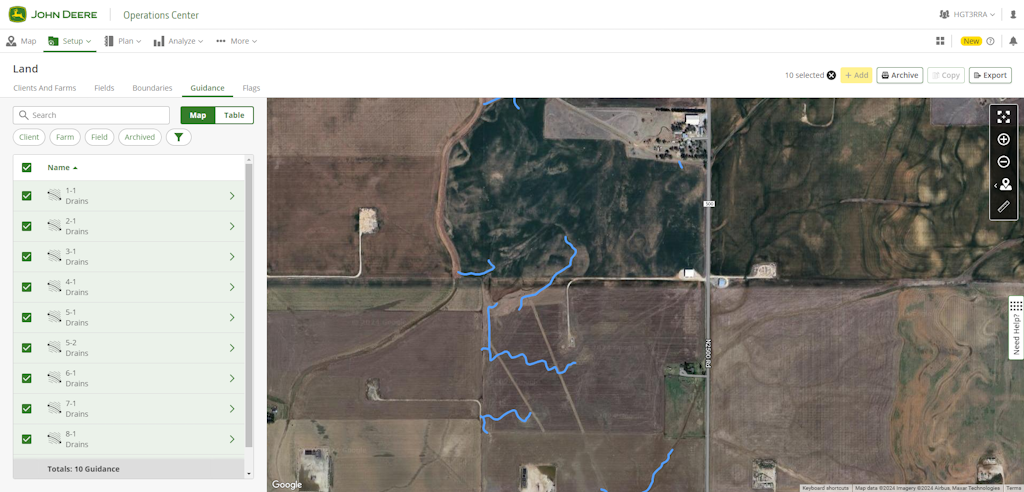
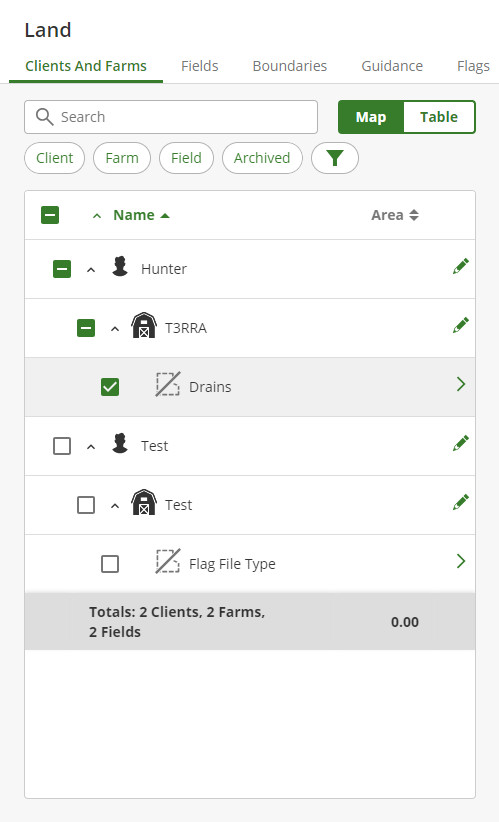
<span dir="ltr" style="font-family: Arial, Helvetica, sans-serif; font-size: 18px;">To view the guidance lines, go to the Setup tab and select Land. From Land, you will be able to select the field you entered in the export step in T3CD. Choose the field. </span>
![](https://docs.t3rra.com/uploads/images/gallery/2025-03/scaled-1680-/mHX3qlqfhiodrhy-kvd73zu5odspqwrhnezsa-png.png)

<span dir="ltr" style="font-family: Arial, Helvetica, sans-serif; font-size: 18px;">You can now see the linework you designed as guidance tracks. You can now use them in Setup Files or Work Plans and send them to the appropriate connected machines to use in conjunction with T3RRA In-Cab software while implementing your design.</span>

![](https://docs.t3rra.com/uploads/images/gallery/2025-03/scaled-1680-/tvay-i2xtsl3wxqhodr1zvkebxjo309uzthma-png.png)

# Exporting T3RRA Control File to JD Ops Center

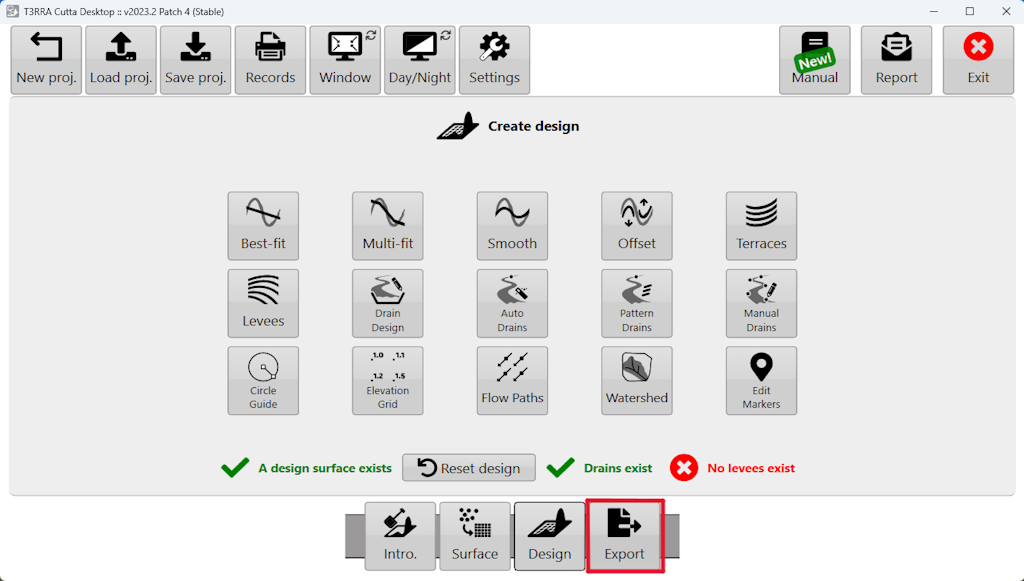
<span dir="ltr" style="font-size: 18px; font-family: Arial, Helvetica, sans-serif;">Go to the **[<span style="color: rgb(0, 0, 0);">Export</span>](https://t3rra.freshdesk.com/en/support/solutions/articles/51000404051-exporting-data)** step.</span>

![](https://docs.t3rra.com/uploads/images/gallery/2025-03/scaled-1680-/nUppyrpmhbxagjmz-ks802yszgofmg86j5rvw-png.png)

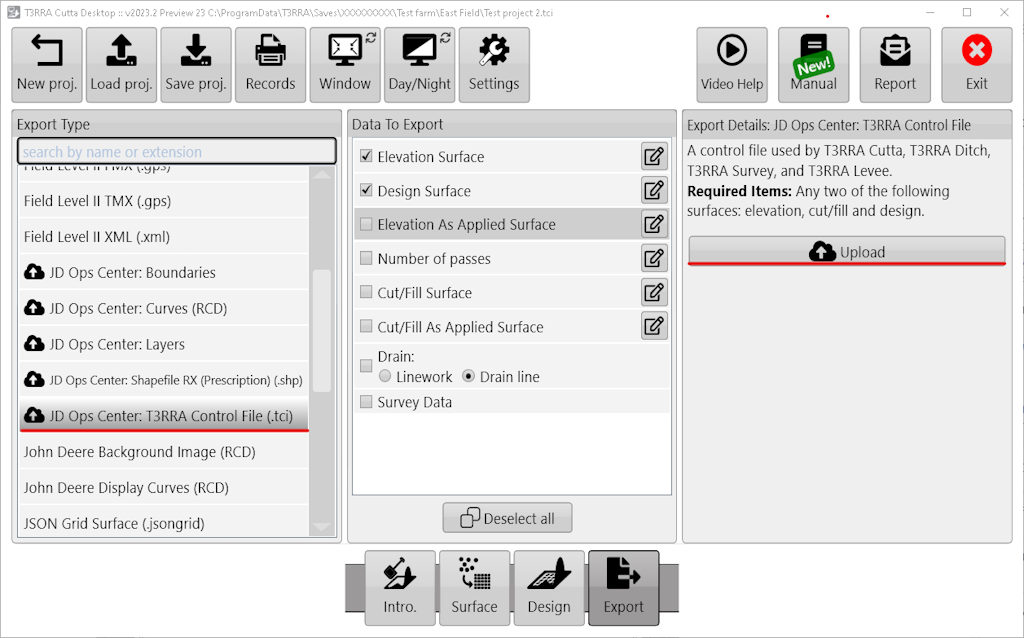
<span dir="ltr" style="font-size: 18px; font-family: Arial, Helvetica, sans-serif;">Choose "JD Ops Center: T3RRA Control File(.tci)", choose data to export and select Upload. If this is the first time you have attempted to transfer files to JD Ops Center, you will be prompted to sign in to your MyJohnDeere account.</span>

<span dir="ltr" style="font-size: 18px; font-family: Arial, Helvetica, sans-serif;">![](https://docs.t3rra.com/uploads/images/gallery/2025-03/scaled-1680-/Us6yfryoza7-8yfkpipzyhdxxni0ki7vprs0w-png.png)</span>

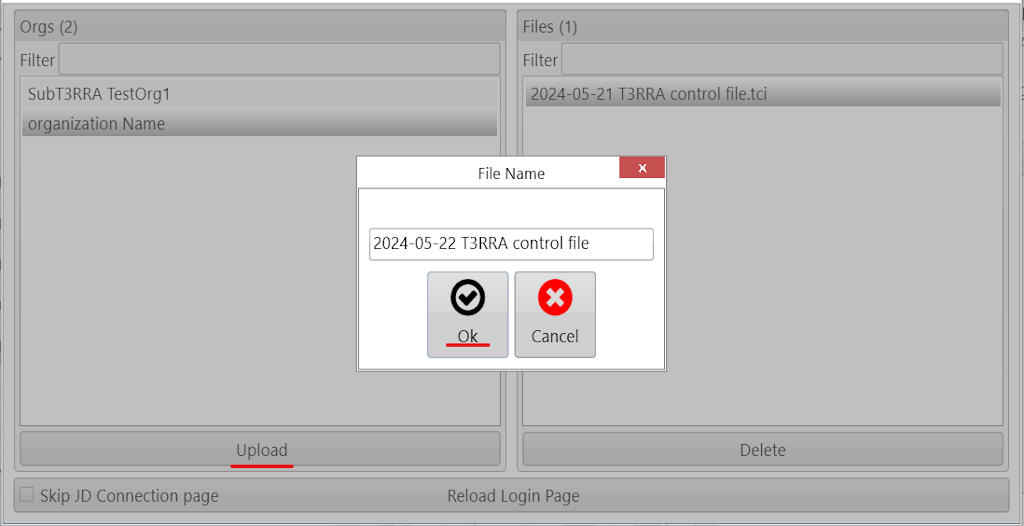
<span dir="ltr" style="color: rgb(0, 0, 0); font-family: Arial, Helvetica, sans-serif; font-size: 18px; font-style: normal; font-variant-ligatures: normal; font-variant-caps: normal; font-weight: 400; letter-spacing: normal; orphans: 2; text-align: left; text-indent: 0px; text-transform: none; widows: 2; word-spacing: 0px; -webkit-text-stroke-width: 0px; white-space: normal;  text-decoration-thickness: initial; text-decoration-style: initial; text-decoration-color: initial; display: inline !important; float: none;">When prompted, choose your Ops Center organization and hit Upload.</span>

<span style="color: rgb(0, 0, 0); font-family: Arial, Helvetica, sans-serif; font-size: 18px; font-style: normal; font-variant-ligatures: normal; font-variant-caps: normal; font-weight: 400; letter-spacing: normal; orphans: 2; text-align: left; text-indent: 0px; text-transform: none; widows: 2; word-spacing: 0px; -webkit-text-stroke-width: 0px; white-space: normal;  text-decoration-thickness: initial; text-decoration-style: initial; text-decoration-color: initial; display: inline !important; float: none;">Edit the file name if desired.</span>

![](https://docs.t3rra.com/uploads/images/gallery/2025-03/scaled-1680-/wdBcflzj4-z2ega7c3qrdvcmssp0xz0h-atjw-png.png)

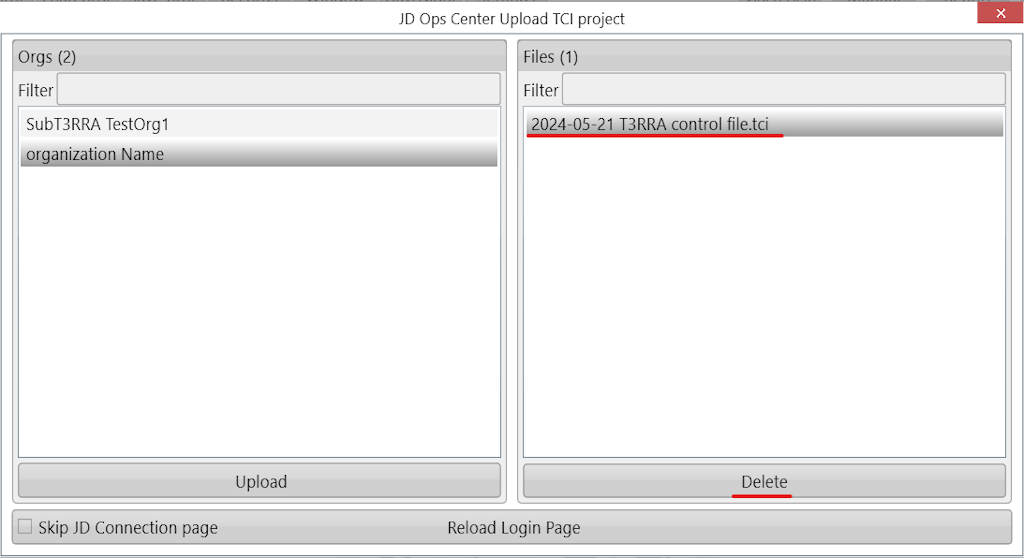
<span dir="ltr" style="color: rgb(0, 0, 0); font-family: Arial, Helvetica, sans-serif; font-size: 18px; font-weight: 400; text-align: left; text-indent: 0px; display: inline !important;">If you want to remove uploaded T3RRA Control File. Select uploaded file in the list and c<span dir="ltr" style="color: rgb(0, 0, 0); font-family: Arial, Helvetica, sans-serif; font-size: 18px; font-style: normal; font-variant-ligatures: normal; font-variant-caps: normal; font-weight: 400; letter-spacing: normal; orphans: 2; text-align: left; text-indent: 0px; text-transform: none; widows: 2; word-spacing: 0px; -webkit-text-stroke-width: 0px; white-space: normal;  text-decoration-thickness: initial; text-decoration-style: initial; text-decoration-color: initial; display: inline !important; float: none;">lick "Delete" button.</span></span>

![](https://docs.t3rra.com/uploads/images/gallery/2025-03/scaled-1680-/tmZblqntrvgfve9fffcosokioosdd47yvctng-png.png)

<span dir="ltr" style="color: rgb(0, 0, 0); font-family: Arial, Helvetica, sans-serif; font-size: 18px; font-style: normal; font-variant-ligatures: normal; font-variant-caps: normal; font-weight: 400; letter-spacing: normal; orphans: 2; text-align: left; text-indent: 0px; text-transform: none; widows: 2; word-spacing: 0px; -webkit-text-stroke-width: 0px; white-space: normal;  text-decoration-thickness: initial; text-decoration-style: initial; text-decoration-color: initial; display: inline !important; float: none;">You can download the uploaded T3RRA Control File in Project Load window.</span>

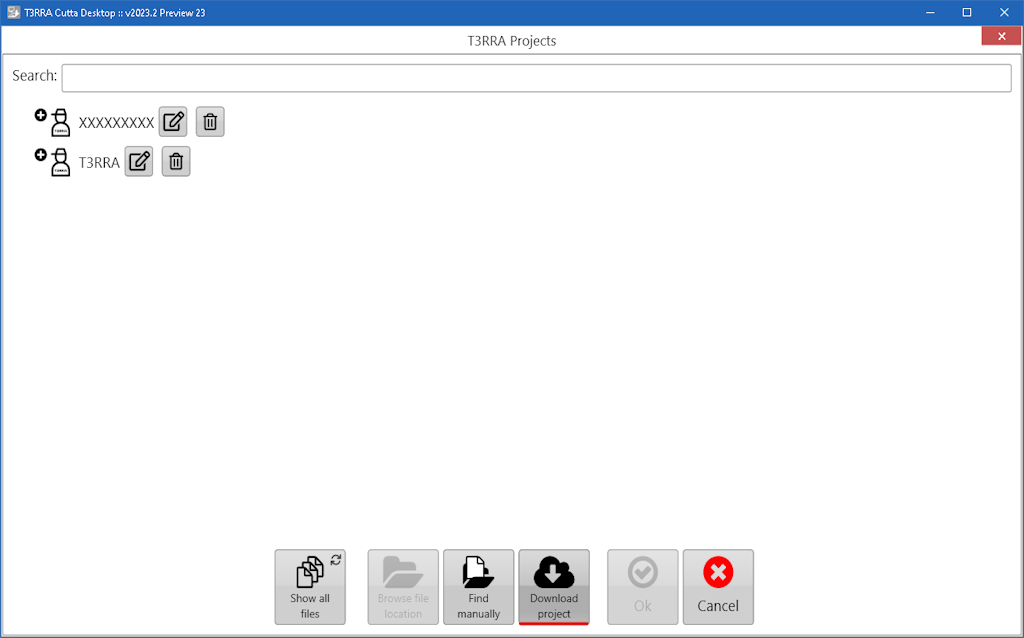
<span dir="ltr" style="color: rgb(0, 0, 0); font-family: Arial, Helvetica, sans-serif; font-size: 18px; font-style: normal; font-variant-ligatures: normal; font-variant-caps: normal; font-weight: 400; letter-spacing: normal; orphans: 2; text-align: left; text-indent: 0px; text-transform: none; widows: 2; word-spacing: 0px; -webkit-text-stroke-width: 0px; white-space: normal;  text-decoration-thickness: initial; text-decoration-style: initial; text-decoration-color: initial; display: inline !important; float: none;">Hit "Load proj".</span>

<span dir="ltr" style="color: rgb(0, 0, 0); font-family: Arial, Helvetica, sans-serif; font-size: 18px; font-style: normal; font-variant-ligatures: normal; font-variant-caps: normal; font-weight: 400; letter-spacing: normal; orphans: 2; text-align: left; text-indent: 0px; text-transform: none; widows: 2; word-spacing: 0px; -webkit-text-stroke-width: 0px; white-space: normal;  text-decoration-thickness: initial; text-decoration-style: initial; text-decoration-color: initial; display: inline !important; float: none;">![](https://docs.t3rra.com/uploads/images/gallery/2025-03/scaled-1680-/cBSrrvh4bf1cjmphfhs4to2w3ub2sowvh-hiw-png.png)</span>

<span dir="ltr" style="color: rgb(0, 0, 0); font-family: Arial, Helvetica, sans-serif; font-size: 18px; font-style: normal; font-variant-ligatures: normal; font-variant-caps: normal; font-weight: 400; letter-spacing: normal; orphans: 2; text-align: left; text-indent: 0px; text-transform: none; widows: 2; word-spacing: 0px; -webkit-text-stroke-width: 0px; white-space: normal;  text-decoration-thickness: initial; text-decoration-style: initial; text-decoration-color: initial; display: inline !important; float: none;">Click "Download project".</span>

![](https://docs.t3rra.com/uploads/images/gallery/2025-03/scaled-1680-/FNtb77iluablgojnlombchwmyc-xzaaevaegw-png.png)

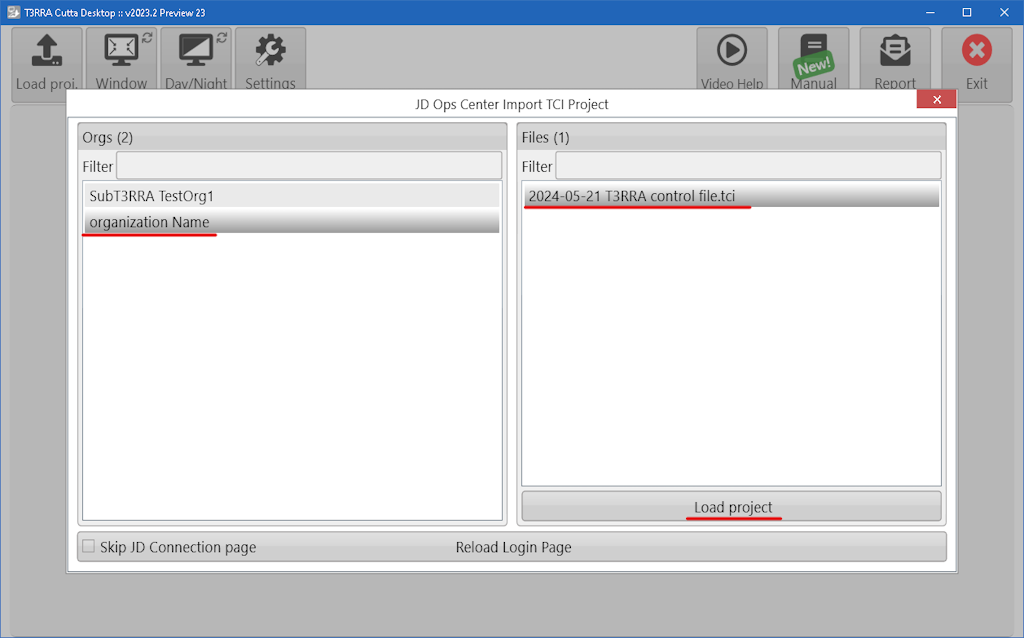
<span dir="ltr" style="color: rgb(0, 0, 0); font-family: Arial, Helvetica, sans-serif; font-size: 18px; font-weight: 400; text-align: left; text-indent: 0px; display: inline !important;">Select <span dir="ltr" style="color: rgb(0, 0, 0); font-family: Arial, Helvetica, sans-serif; font-size: 18px; font-style: normal; font-variant-ligatures: normal; font-variant-caps: normal; font-weight: 400; letter-spacing: normal; orphans: 2; text-align: left; text-indent: 0px; text-transform: none; widows: 2; word-spacing: 0px; -webkit-text-stroke-width: 0px; white-space: normal;  text-decoration-thickness: initial; text-decoration-style: initial; text-decoration-color: initial; display: inline !important; float: none;">organization</span>, T3RRA Control File and hit Load project.</span>

![](https://docs.t3rra.com/uploads/images/gallery/2025-03/scaled-1680-/QYQlxv3fmxh4x5bn23gyzbpirgs61aavjoyfq-png.png)