# Analysis Tools

# Overview

 ![](https://docs.t3rra.com/uploads/images/gallery/2025-03/scaled-1680-/KKsbisiuccix6mkpobdwvopknfg95-nqnt0sw-png.png)

<span dir="ltr" style="font-family: Arial, Helvetica, sans-serif; font-size: 18px;">T3RRA Cutta Desktop offers several tools for analysis beyond what is included in our In-cab packages. These tools allow the user to further analyze and understand how their design will perform once implementation has been completed.</span>

<span dir="ltr" style="font-family: Arial, Helvetica, sans-serif; font-size: 18px;">Circle Guide - Creates a circle for reference on the surface.</span>

<span dir="ltr" style="font-family: Arial, Helvetica, sans-serif; font-size: 18px;">Elevation Grid - Overlays a grid with elevation values at each junction.</span>

<span dir="ltr" style="font-family: Arial, Helvetica, sans-serif; font-size: 18px;">Flow Paths - Overlays arrows in a grid pattern that show the estimated direction of flow at each junction.</span>

<span dir="ltr" style="font-family: Arial, Helvetica, sans-serif; font-size: 18px;">Watershed - Identifies the areas of the surface that will flow together to the same exit point on the field.</span>

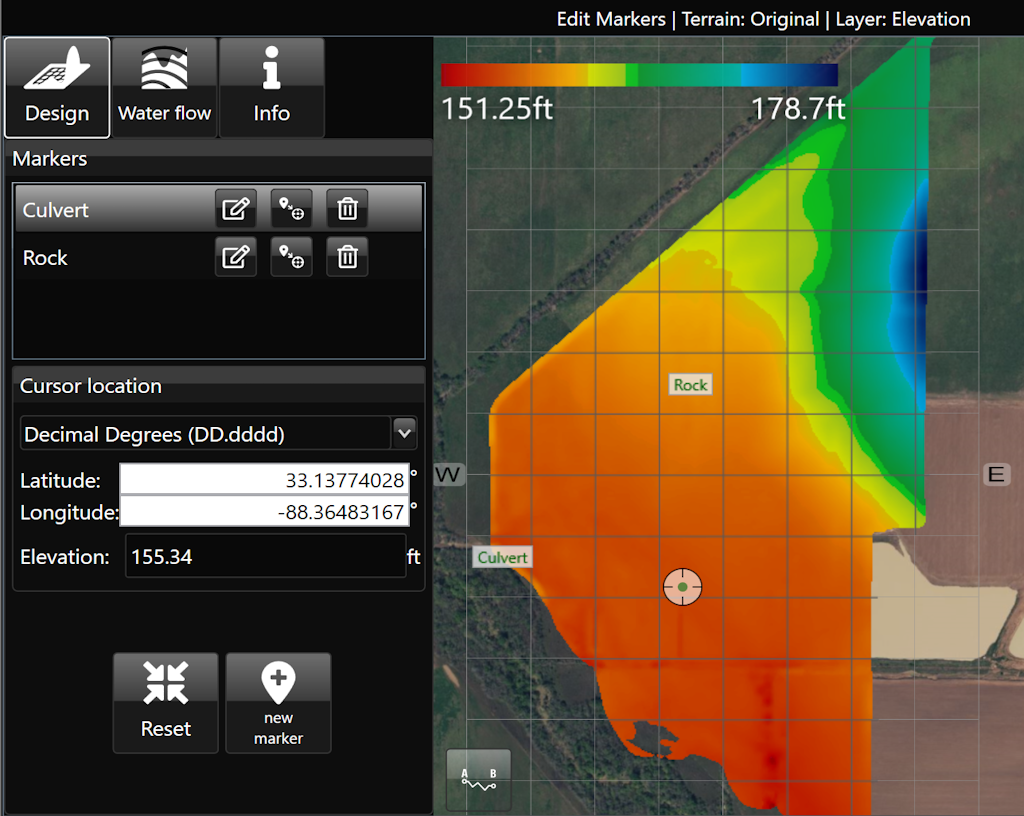
<span dir="ltr" style="font-family: Arial, Helvetica, sans-serif; font-size: 18px;">Edit Markers - <span style="color: rgb(24, 50, 71); font-style: normal; font-variant-ligatures: normal; font-variant-caps: normal; font-weight: 400; letter-spacing: normal; orphans: 2; text-align: start; text-indent: 0px; text-transform: none; widows: 2; word-spacing: 0px; -webkit-text-stroke-width: 0px; white-space: normal; text-decoration-thickness: initial; text-decoration-style: initial; text-decoration-color: initial; float: none; display: inline !important;">allows you to view, edit, and create markers on the elevation surface.</span></span>

# Circle Guide

 ![](https://docs.t3rra.com/uploads/images/gallery/2025-03/scaled-1680-/vKnpxwuwfv91hpw7msekm6dv8blsfnaolm3w-png.png)

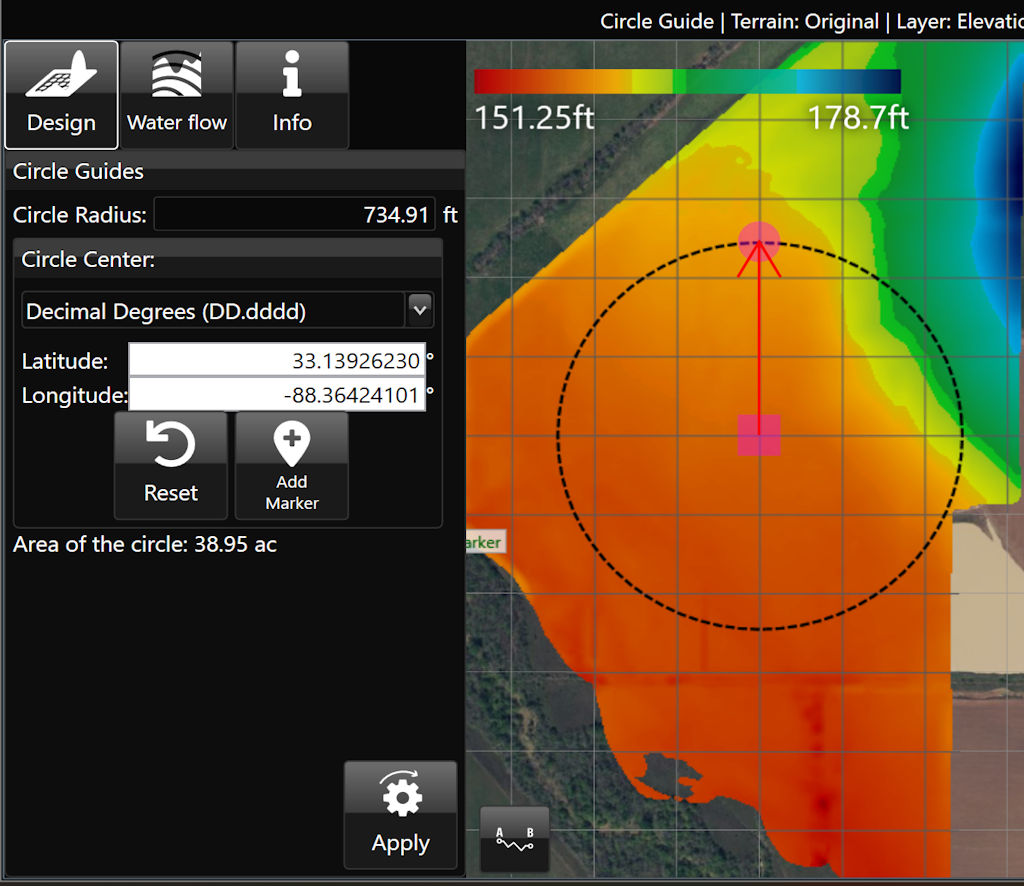
<span dir="ltr" style="box-sizing: border-box; font-size: 18px; font-family: Arial, Helvetica, sans-serif;">The ‘Circle guide’ tool will display the radius and total area covered by the set circle. To use the tool, drag the square center marker of the circle to the desired point or enter the coordinates. Then, click on the node at the perimeter of the circle and drag it in or out until the desired radius is achieved. Alternatively, you can enter the circle radius if it is known. Hit apply to overlay the circle outline onto the map.</span>

<span style="font-size: 18px;">  
</span>

![](https://docs.t3rra.com/uploads/images/gallery/2025-03/scaled-1680-/QYyqju6sdhyg7jhp0vmcppyorelmy7fdnl3wq-png.png)

<span style="font-family: Arial, Helvetica, sans-serif; font-size: 18px;">Here is a video on the<span style="color: rgb(0, 0, 0);"> **[Circle Guide Tool.](https://youtu.be/kmlCQ8V_DFk?feature=shared)**</span></span>

# Elevation Grid

![](https://docs.t3rra.com/uploads/images/gallery/2025-03/scaled-1680-/JGL94tuub0evkmwza43wtkah1ibxvmhfs3gaw-png.png)

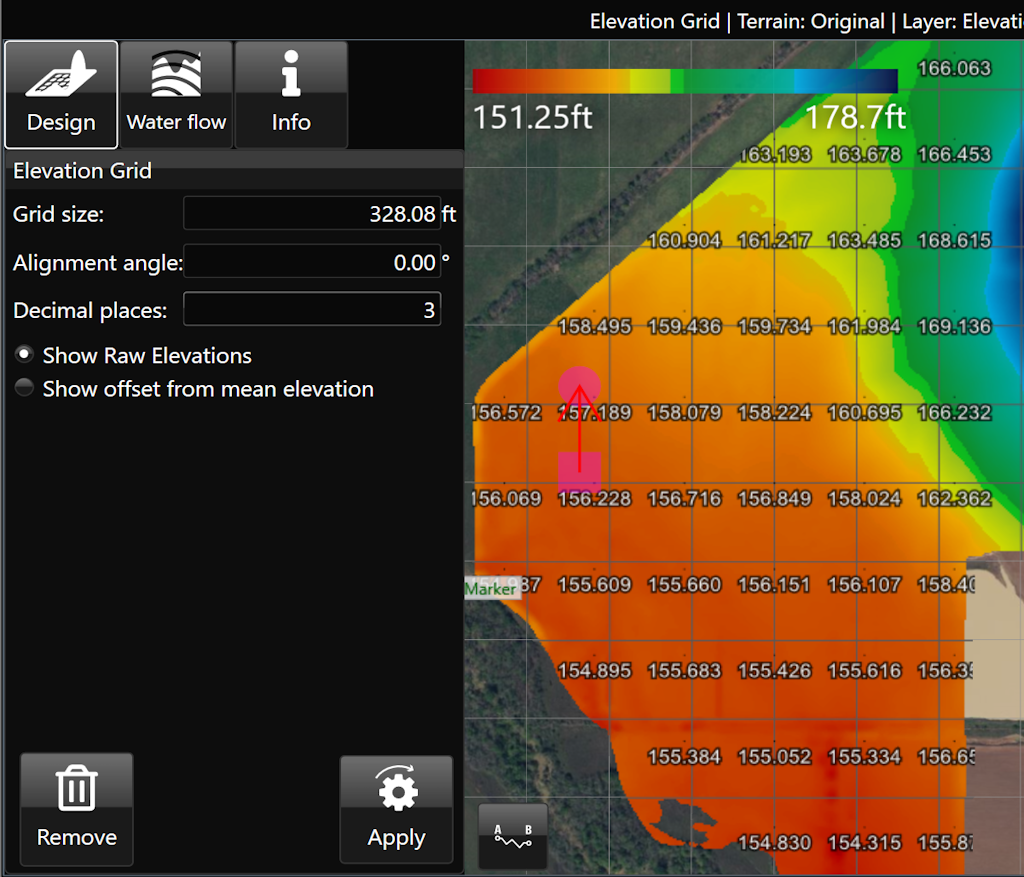
<span dir="ltr" style="box-sizing: border-box; font-size: 18px; font-family: Arial, Helvetica, sans-serif;">The ‘Elevations guide’ imposes a grid design on a field in the working area and displays the elevation of points at each junction on the grid. </span>

- <span style="font-size: 18px;"><span style="font-family: Arial,Helvetica,sans-serif;"><span style="box-sizing: border-box;">‘Grid cell size’. This option controls the size of the grid. Setting the size to 100m will result in each junction being 100 meters away from its neighbors.</span></span></span>
- <span style="font-size: 18px;"><span style="font-family: Arial,Helvetica,sans-serif;"><span style="box-sizing: border-box;">‘Alignment angle’ is a method of rotating the grid. </span></span></span>
- <span style="font-size: 18px;"><span style="font-family: Arial,Helvetica,sans-serif;"><span style="box-sizing: border-box;">‘Decimal places’. Sets how many decimal places will be visible on the grid values.</span></span></span>
- <span dir="ltr" style="box-sizing: border-box; font-size: 18px; font-family: Arial, Helvetica, sans-serif;">‘Show Raw Elevations’ and ‘Show offset from mean elevation’: These options will adjust what data is present on the grid. </span>
![](https://docs.t3rra.com/uploads/images/gallery/2025-03/scaled-1680-/CNpd4z0y-gls-9vnxv8um98wy1dgs42agvyza-png.png)

# Flow Paths

![](https://docs.t3rra.com/uploads/images/gallery/2025-03/scaled-1680-/pelzbzks-6y9kjq6y0e-m3vmdaujs5y1pbxq-png.png)

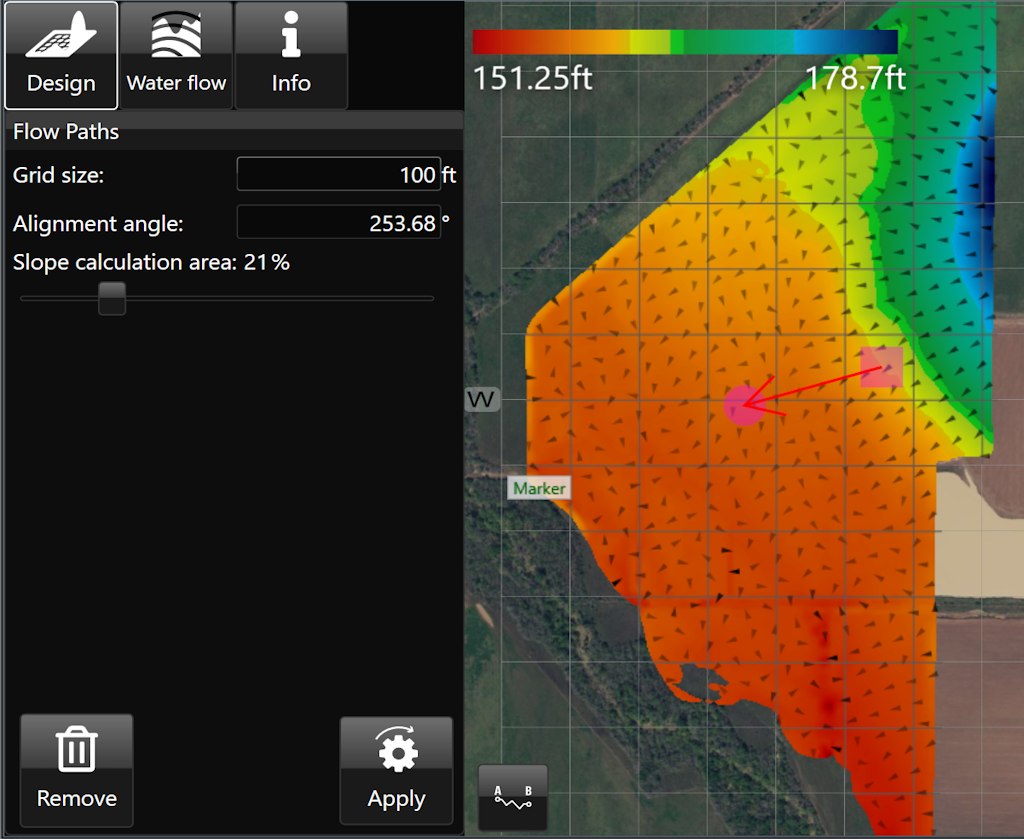
<span dir="ltr" style="box-sizing: border-box; font-size: 16px; font-family: Arial, Helvetica, sans-serif;">‘Flow Paths’ creates a grid on the field with arrows at each junction that point in the direction that water is expected to flow. </span>

- <span style="font-family: Arial,Helvetica,sans-serif;"><span dir="ltr" style="box-sizing: border-box; font-size: 16px;">‘Grid size’. Adjusting this value will make the individual squares of the grid larger or smaller. </span></span>
- <span style="font-family: Arial,Helvetica,sans-serif;"><span dir="ltr" style="box-sizing: border-box; font-size: 16px;">‘Alignment angle’. This option allows you to change the direction of the grid. The direction is set as the position of the yellow circle in relation to the yellow square.</span></span>
- <span style="font-family: Arial,Helvetica,sans-serif;"><span dir="ltr" style="box-sizing: border-box; font-size: 16px;">‘Slope calculation area’. The further to the right that the slider is, the larger the area that T3RRA Cutta Desktop takes as a sample to find the water flow direction.</span></span>

<span dir="ltr" style="box-sizing: border-box; font-size: 16px;">![](https://docs.t3rra.com/uploads/images/gallery/2025-03/scaled-1680-/ytDuuamvvxnk5muw8bcoyqzitxb7wile5sfrg-png.png)</span>

<span dir="ltr" style="font-family: Arial, Helvetica, sans-serif; font-size: 18px;">Here is a video on the **[<span style="color: rgb(0, 0, 0);">Flow Paths Tool.</span>](https://youtu.be/CotcDrDcMF8?feature=shared)**</span>

# Watershed

![](https://docs.t3rra.com/uploads/images/gallery/2025-03/scaled-1680-/dal6sa2fth0wdkxbkq4mudib4z7n-dgkvdwq-png.png)

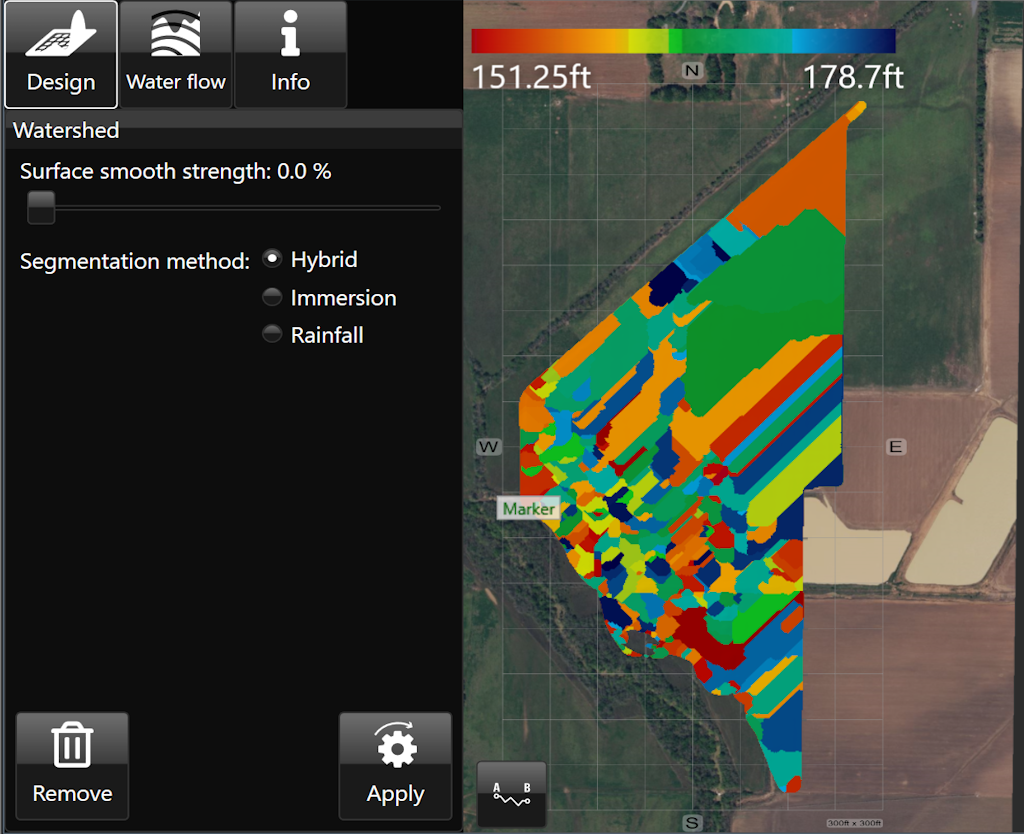
<span dir="ltr" style="box-sizing: border-box; font-size: 16px; font-family: Arial, Helvetica, sans-serif;">The Watershed tool identifies the areas of the surface that will flow together to the same exit point on a field. The working area will display the surface in a patchwork of colors, these indicate your watersheds and what will flow out where. The specific colors do not matter, they are only to help identify individual watersheds.</span>

- <span style="font-family: Arial,Helvetica,sans-serif;"><span dir="ltr" style="box-sizing: border-box; font-size: 16px;">‘Surface smooth strength’ provides control to adjust the level of detail on the surface.</span></span>
- <span style="font-family: Arial,Helvetica,sans-serif;"><span style="box-sizing: border-box; font-size: 16px;">‘Segmentation method’ will select a general water event to display watersheds. The options are: </span></span>
    - <span style="font-family: Arial,Helvetica,sans-serif;"><span dir="ltr" style="box-sizing: border-box; font-size: 16px;">Hybrid - Immersion and Rainfall event happening simultaneously.</span></span>
    - <span style="font-family: Arial,Helvetica,sans-serif;"><span dir="ltr" style="box-sizing: border-box; font-size: 16px;">Immersion - submersion of the surface by water as it engulfs the area as in a flooding event.</span></span>
    - <span style="font-family: Arial,Helvetica,sans-serif;"><span dir="ltr" style="box-sizing: border-box; font-size: 16px;">Rainfall- a fall or shower of rain.</span></span>

<span dir="ltr" style="box-sizing: border-box; font-size: 16px;">  
</span>

<span dir="ltr" style="box-sizing: border-box; font-size: 16px;">![](https://docs.t3rra.com/uploads/images/gallery/2025-03/scaled-1680-/1zpuwzsxq5w693iscy-qydnrnamy737dpgtxg-png.png)</span>

<div id="bkmrk-here-is-a-video-on-t" style="box-sizing: border-box; word-break: normal; overflow-wrap: break-word; font-size: 13px; line-height: 18px; color: rgb(24, 50, 71); font-family: -apple-system, BlinkMacSystemFont, "Segoe UI", Roboto, "Helvetica Neue", Arial, sans-serif; font-weight: 400; text-align: start; text-indent: 0px;"><span dir="ltr" style="font-family: Arial, Helvetica, sans-serif; font-size: 18px;">Here is a video on the **[<span style="color: rgb(0, 0, 0);">Watershed Tool.</span>](https://youtu.be/3auu7hyCDR4?feature=shared)**</span></div>

# Edit Markers

![](https://docs.t3rra.com/uploads/images/gallery/2025-03/scaled-1680-/Ewmgpbt9io-zihskpyyf9-po77-5vpbx5hca-png.png)

<span dir="ltr" style="font-size: 18px; font-family: Arial, Helvetica, sans-serif;">'Edit Markers' allows you to view, edit, and create markers on the elevation surface. Each marker is listed by name and includes the Latitude/Longitude as well as the elevation. [**<span style="color: rgb(0, 0, 0);">Markers</span>**](https://t3rra.freshdesk.com/en/support/solutions/articles/51000404061-markers) can be moved, renamed, or deleted as desired. Additionally, coordinates and elevation can be entered manually.</span>

![](https://docs.t3rra.com/uploads/images/gallery/2025-03/scaled-1680-/EGOr8tz9inen47etjo0dj44sshqznk4dcvtwq-png.png)