# 6.3 | Zoom Controls

## Pinch to zoom

Use a two-finger pinch on the screen: move your fingers together to zoom out, or apart to zoom in.

<span id="bkmrk--3"></span><span id="bkmrk--4"></span><span id="bkmrk--5"></span><span id="bkmrk--9"></span>

## Enable zoom buttons

Alternatively, use the zoom in and zoom out buttons on the bar at the top right.
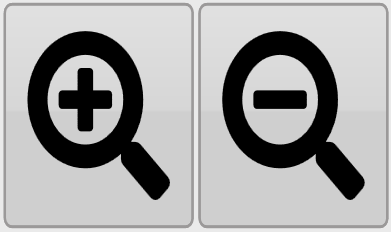
![Zoom in and zoom out controls with plus and minus magnifying-glass icons.](https://docs.t3rra.com/uploads/images/gallery/2025-03/scaled-1680-/iD8kjairoculrex4xdv1gqutaczehahrkygmq-png.png)

<span id="bkmrk--11"></span>

The zoom buttons are hidden by default. Under **Settings &gt; Application**, select **Show zoom buttons** to enable them.
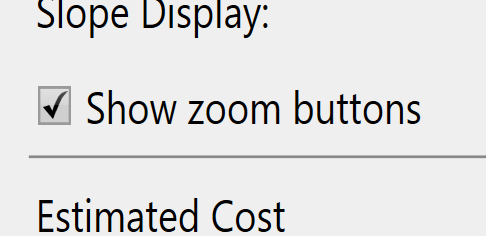
![Checked Show zoom buttons checkbox in the application settings.](https://docs.t3rra.com/uploads/images/gallery/2025-03/scaled-1680-/M57qpuhjj7jo1w5uxn2rha24fk8an9ueougfg-png.png)

<span id="bkmrk--13"></span>

## Show the entire surface grid

The **Zoom to full** button works independently of these zoom controls and does not need to be enabled. Press it to zoom in or out to the largest map view that shows the entire surface grid.
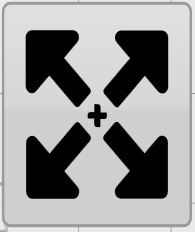
![Zoom to full button with four diagonal outward-pointing arrows.](https://docs.t3rra.com/uploads/images/gallery/2025-03/scaled-1680-/DlMgvqkxojetxyvsimhl7nhbo2sjoexrneyqq-png.png)