# 5.6 | Advanced Settings Tab
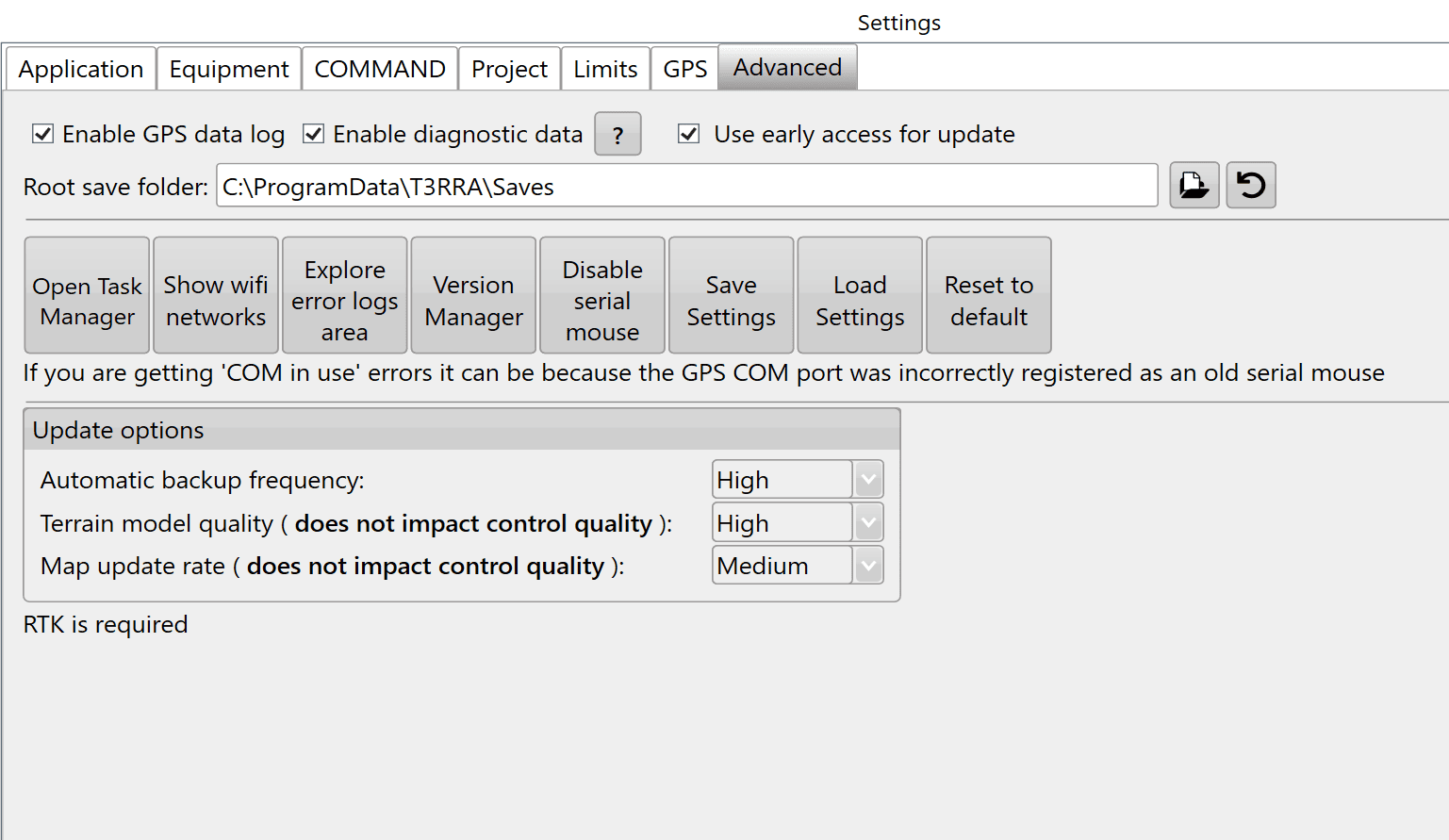*Advanced tab in Settings*
## Logging
### Enable GPS data log
Keeping this enabled is highly recommended. The GPS data log accompanies error reports to help find a solution.
### Enable diagnostic data
Keeping this enabled is highly recommended: the collected data helps support assist you when issues occur.
### Use early access for update
Enables software updates to early access (preview) versions of the software. Opt in to receive new features, enhancements and fixes before they are included in a stable release.
### Root save folder
Specifies the default location where T3RRA saves project files and associated data. Users can manually enter a folder path or select the folder icon to browse for a different location. The reset icon restores the default save location (`C:\ProgramData\T3RRA\Saves`).
## Troubleshooting tools
**Open Task Manager** opens the computer's task manager tool, which displays all systems currently running on the computer.
**Show Wi-Fi networks** opens the computer's Wi-Fi network panel. The tablet needs to be connected to Wi-Fi to enable the use of the remote support tools.
**Explore error logs area** opens the Windows folder on the tablet containing all error log files. If an issue occurs, send support the latest file to help identify and correct the cause quickly.
### Version Manager
Use Version Manager to downgrade the software version if you experience a particularly bad error. Adding a support request when you use this is highly recommended.
### Disable serial mouse
Disabling the serial mouse can correct a cursor that jumps around the screen or “COM in use” errors.
**Reset to Default** resets all settings to default.
## Saving Settings
**Save settings** will save the current software configuration and preferences for future use.
**Load settings** will load previously saved settings.
**Reset to default** will restore all software settings to their original default values.
## Backup and display settings
**Automatic backup frequency** is a drop-down menu for changing how often T3RRA Software backs up your work. Options are Never, Low, Medium and High.
**Terrain model Quality** defaults to High. Its effect is most visible on surfaces in 3D: lowering it may smooth out displayed details. The details and depressions remain, but are not represented in the 3D display.
**Map update rate** changes how often the map updates during Surveying and Implementation.