5.1 | Application Tab

Units
Language changes the application language.
Length selects the distance measurement unit.
Area selects the area measurement unit.
Volume selects the volume measurement unit.
Estimated cost
Estimated Cost sets the estimated cost per volume of dirt moved. To customise the currency format, click the button to the right. Enter custom text before and/or after the amount, such as a currency code or other information. The Custom currency example shows the resulting format.
The cost is per cubic meter or cubic yard and is calculated for cuts only.
Custom currency example: $1,234.56+tax (Before $, After +tax; two decimals)

Map display
Surface Grid controls whether grid lines appear on the map. By default, the grid resizes to best fit the field. The grid dimensions appear in the lower-right corner of the scanned area.
Lock grid size to: sets the grid size manually. Set it to 0 for auto-size.
Cut/Fill Color Style selects Magenta/Green or Red/Green/Blue. In Magenta/Green, magenta represents cuts and green represents fills. In Red/Green/Blue, red represents cuts, green is neutral and blue represents fills.
Surface Color Style (Low,High) changes the colours representing surface highs and lows. Choose from the drop-down menu; choices are limited to that menu.
Zero Cut/Fill Range sets the vertical range considered “on-grade”, helping identify areas requiring heavy earth moving. It does not change the design height or scraper blade height.
Slope Display shows slope as a Percentage or Ratio, for example 0.1% or 1/1000.
Buttons
Show Project Swapper button controls whether the project swapper button is displayed.
Input options
Show screen keyboard opens the keyboard automatically when needed.
Show Calculator displays a calculator when needed while entering values.
Behaviour
Collection Beep enables audible notifications when elevation points are collected.
Updates and support
Use Download Updates to update to the latest version when connected to the internet.
Show update log lists software update details.
Set Support helps your dealer provide remote support. An Internet connection is required.
Click the Setup remote support button.
Get Support before installation: Setup remote support; Not installed
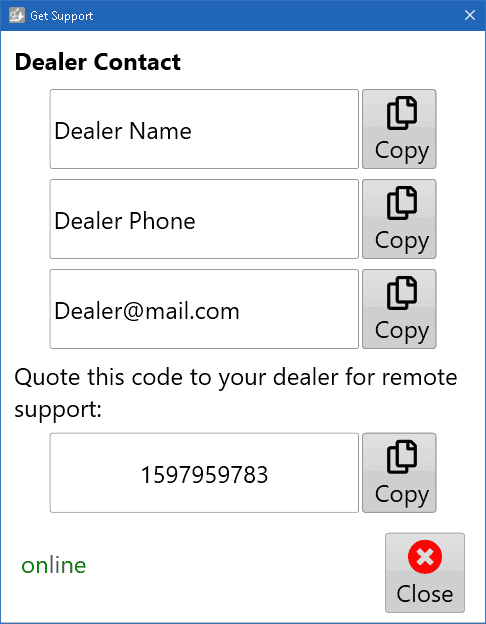
Get Support after installation: remote-support code and online status
After installation, a code appears. Your support person uses this code to connect to your computer and help you. When they connect, AnyDesk opens a confirmation window. Click the green [Accept] button to accept their help.
Select Close to save settings and exit the settings dialog.