4.3 | Importing Data
The native project format for T3RRA software is the T3RRA Project File (.tci). Before using data from a supported external source in a project, bring it into the project with Import.
T3RRA Design offers additional import and conversion capabilities for preparing many other file formats for use with T3RRA software.
T3RRA Apply does not support data import. It can only use designs created in, or provided by, other T3RRA projects.
Loading and importing
In T3RRA software and this manual, loading and importing are distinct operations:
- Loading opens an existing T3RRA
.tciproject file. - Importing brings external or third-party data into a T3RRA project.
A .tci project can normally be loaded directly. External data may need extra import steps: T3RRA may require information about the source data, or may need to interpret or convert it before use.
Import a file
Import external data while creating a project, or add it to an existing project at any time.
1. Open the Import window
Select Import on the Main Page or in the Wizard's Collect step.
With a keyboard connected, you can also open the Import window by pressing Ctrl+I.
2. Select the import type and file
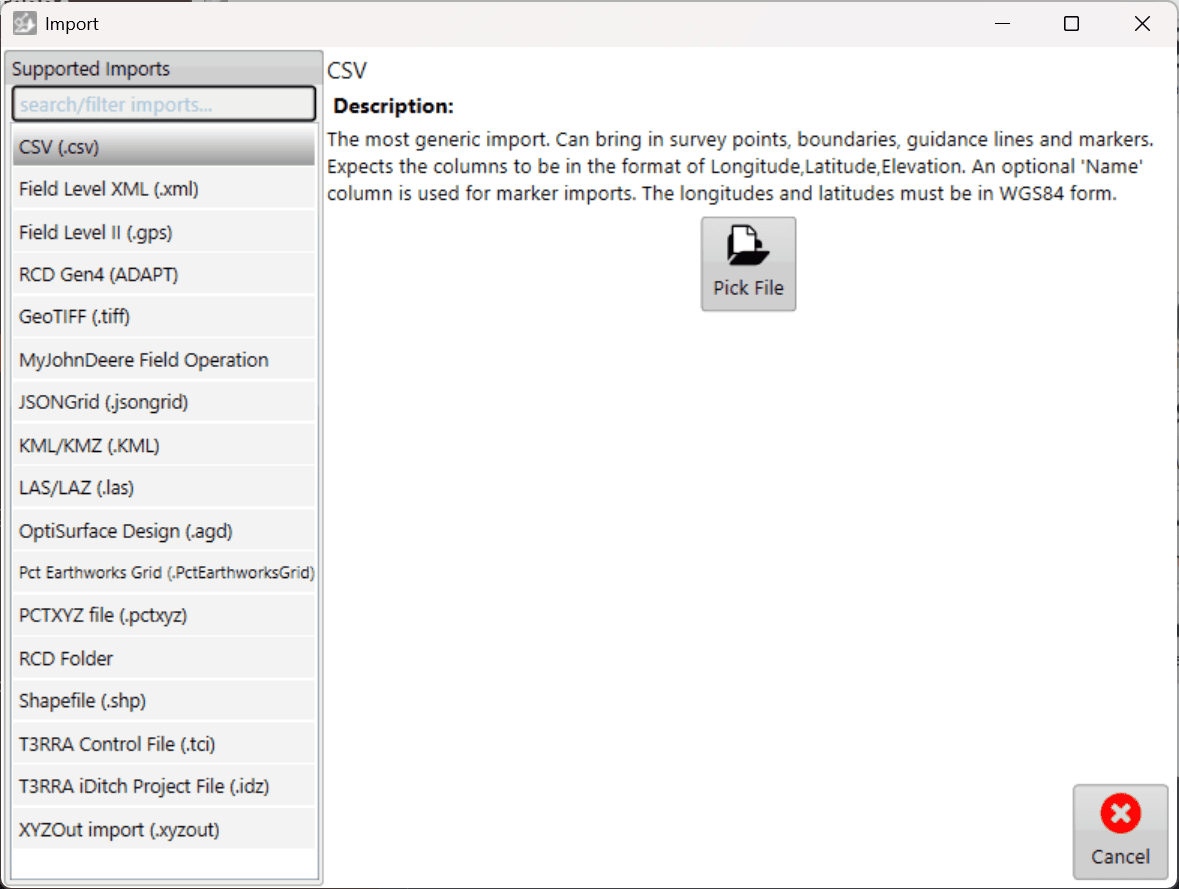
Choose the appropriate data or file type from the left side of the Import window.
Select Pick File, then browse to the file you want to import and select it.
3. Configure the import
Some file types need additional information before they can be read, such as the coordinate system or projection.
Enter the required information, then select Read in the lower-right corner.
CSV data containing latitude and longitude coordinates must use WGS84 for those coordinates.
4. Review the data
After the file has been read, select the data to import. The right side of the window shows a preview of the available data.
T3RRA attempts to identify the file's data type automatically. If it identifies the wrong type, select the correct type using the available drop-down menus.
Review the data and your selections, then select Import.

5. Continue with the imported data
After the import finishes, the data is available in the project for surfacing and design operations as required.
Importing elevation survey point data automatically creates the corresponding surface in T3RRA.
