**Maintain your tablet regularly.** During planned maintenance periods, install Windows updates, T3RRA software updates and any recommended driver or firmware updates. Keeping the operating system and software current helps maximise reliability and performance.
# 1.5 | Consider the System as a Whole Accurate machine control relies on the **entire landforming system**, not on T3RRA software alone. T3RRA software combines terrain design, guidance and implementation with the machine-control capabilities of COMMAND hardware. To achieve the expected accuracy, the mechanical, hydraulic, electrical, GNSS and software components must work together reliably. T3RRA software performance depends on the condition, configuration and calibration of the surrounding equipment. Software alone cannot compensate for poor machine maintenance, inaccurate GNSS positioning or incorrect COMMAND configuration. ## Before beginning work Verify each of the following before beginning work: - The machine is in good mechanical, hydraulic and electrical condition. - The implement is correctly installed and in good working order. - The RTK GNSS receiver, corrections source and, where applicable, base station are configured for reliable positioning accuracy. - COMMAND Hardware is correctly configured and calibrated. - The tablet PC is up to date, has sufficient available storage and is free from unnecessary software that may reduce system performance. - T3RRA software is correctly installed, configured and updated to the latest recommended version. ## Operator responsibility**Stay alert when using T3RRA software.** T3RRA software and COMMAND Hardware assist the operator to improve productivity and grading accuracy; they do not replace the operator’s judgement, awareness or responsibility. Continuously monitor machine behaviour, positioning accuracy and work quality during every operation, and be prepared to intervene whenever required. Failure to do so may reduce accuracy, produce unsatisfactory work or create unsafe operating conditions.
# 1.6 | System Startup ## Starting T3RRA Software Most installations are configured to **start T3RRA software automatically** when the tablet PC boots. If the software does not start automatically and you want to enable this functionality, follow the configuration instructions in the accompanying troubleshooting guide. If T3RRA software has not started automatically after Windows has finished loading, launch it manually: **double-click the appropriate desktop shortcut**.**Important:** Save any work in progress before restarting the software. A reliable internet connection is recommended for downloading updates.
## When should you update? As a general rule, **avoid updating software while actively working in the field**. Recommended times to install updates are: - Before an earthmoving season starts. - Between jobs. - When your T3RRA dealer or support representative advises it. - When an update addresses a problem you have experienced or adds functionality you require. If the current version operates reliably and your application does not require an update, there is generally no need to update immediately. ## Reverting an update Previous software versions can be restored if an update causes unexpected issues. Perform a software rollback only under guidance from T3RRA or your authorised dealer. If you need assistance, contact T3RRA Technical Support before attempting to revert to an earlier version. # 1.9 | Glossary {{@693}} # 2 | COMMAND System Overview # 2.1 | System Architecture {{@774}} # 2.2 | Supported Implement Types {{@777}} # 2.3 | GNSS Receiver & IMU Compatibility {{@778}} # 2.4 | Tractor / Electrohydraulic Compatibility {{@792}} # 2.5 | Selecting System Components {{@797}} # 3 | COMMAND Installation 3 | Installation Overview The **COMMAND** system is to be installed in a structured sequence to ensure correct operation and to minimise installation issues. Follow the steps below in order. Do not skip steps or complete them out of sequence. Installation Steps 1. **Complete Pre-Installation Requirements** Confirm that the tractor, power supply, and components meet system requirements. 2. **Install the ECU** Select a suitable mounting location and securely install the COMMAND ECU. 3. **Install Cab Components** Install operator interface components including the arm/engage switch, joystick, and tablet. 4. **Connect Hydraulic Interfaces** Connect the system to the tractor’s electrohydraulic valves or external valve interfaces. 5. **Install and Configure GNSS and IMU** Connect and configure the GNSS receiver and IMU as required. 6. **Configure Display and Communication** Set up NMEA output and ensure communication between system components is functioning correctly. 7. **Verify System Operation** Perform system checks to confirm correct installation and functionality before operation. # 3.1 | Pre-Installation Tractor RequirementsAll requirements in this section must be confirmed before installing the **COMMAND** system.
Failure to meet these requirements may result in improper operation or system damage.
**Confirm the following before proceeding:** - Tractor compatibility - Power supply suitability - Communication interfaces (ISOBUS or CANBUS, RS232 NMEA 0183) Details for each requirement are provided in the following sections. {{@801}} # 3.2 | Pre-Installation Power Requirements {{@770}} # 3.3 | Pre-Installation ISOBUS Requirements {{@771}} # 3.4 | Electronic Control Unit (ECU) Installation**IMPORTANT**: Please ensure you have read the safety information in the previous chapter before commencing installation of **COMMAND**.
### Machine Preparation Complete the following steps before beginning installation of the **COMMAND** ECU:| **Step** | **Check** |
| Move the tractor and implement to a level, hard surface suitable for maintenance work. | |
| Center the steering wheels. For articulated tractors, engage the articulation locks to prevent movement. | |
| Fully lower any attachments or implements to the ground to ensure stability. | |
| Turn off the engine and remove the ignition key. | |
| Block both the front and rear wheels to prevent accidental movement of the machine during installation. | |
| Allow the engine and hydraulic system to cool completely before working near hot components. | |
| Disconnect the battery cables. Place a **“Do Not Operate”** tag in a visible location in the cab, and install a **lockout box** on the battery terminal to prevent accidental power reconnection. | |
| Before opening any hydraulic, pneumatic, or coolant lines, relieve system pressure. Use caution when removing fill caps or hose fittings—cover the area with a clean rag to contain any residual pressure or fluid spray. | |
| Unbox all kit components and verify the contents against the packing list. Lay out the parts on a clean, organized work surface to streamline installation. |
This section covers installation of a typical RuggON tablet supplied by T3RRA, but these instructions are also relevant to those opting to use their own tablet PC.
## Tablet Mounting Options [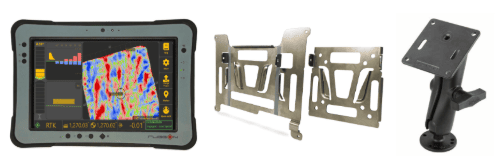](https://docs.t3rra.com/uploads/images/gallery/2026-09/6qQimage.png) The tablet must be mounted somewhere in the cab where the operator can maintain good visibility of the screen.**Ensure the tablet does not obstruct operator visibility while driving.**
Installation of the tablet for **T3RRA Software** is carried out in the same fashion as for any other T3RRA software installation. We highly recommend the RuggON PX501 or SOL7 as a tablet computer solution for use with **T3RRA Software** and provide various accessories for mounting them in the T3RRA Shop. ## Mounting the Tablet 1. Fasten the square silver tablet VESA plate to the square black RAM arm VESA plate. 2. Using a suitable RAM mount or adapter bracket, create a mounting point for the swivelling RAM arm and fasten it to the tractor cab. 3. Position the VESA plate appropriately so that the tablet can be slotted into and removed from the mount easily when required. 4. Fasten the larger silver tablet plate to the back of the PX501 using the provided screws. 5. The tablet is now ready to be slotted into the VESA plate on the black RAM arm and repositioned to the correct viewing angle. 6. The tablet is now ready for connection to **COMMAND**. ## Connecting the Tablet to COMMAND [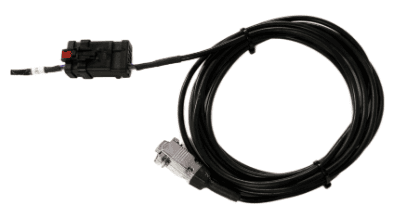](https://docs.t3rra.com/uploads/images/gallery/2025-07/wtZdGGvTz1VKzyxH-image.png) [](https://docs.t3rra.com/uploads/images/gallery/2025-05/cutout-ruggon-rammount.png) 1. Using a **T3H-T001** or **T3H-T002** cable, connect the 12-way AMPSEAL connector to the matching red and black AMPSEAL connector on the T3H-C002 ECU breakout harness. 2. Run the serial cable along the tractor cab wall neatly and fasten to any available points using zip or twist ties. 3. Connect the silver DB9 right angled (RA) or straight connection to the tablet and then secure the connector screws using a small screwdriver. 4. Bundle and tie up any extra length of cable somewhere out of the way. # 3.9 | Joystick Connection (Optional) {{@807}} # 3.10 | Tractor Valve Set-up -John Deere # Modern John Deere (CANBUS) {{@760}} --- # John Deere Legacy (Analog) {{@762}} # 3.11 | Tractor Valve Set-up - CNH # CNH Direct Connect (AFS Connect / PLM Intelligence) {{@761}} --- # CNH Pre AFS Connect / PLM Intelligence {{@844}} # 3.12 | Tractor Valve Set-up - Versatile # Versatile — Analog Scraper Control {{@1255}} # 3.13 | Tractor Valve Set-up - Fendt ## Fendt ONE — 900 Gen 6/7 & 1000 Gen 2/3 {{@1260}} --- # Fendt 800 SCR/S4 {{@1263}} --- # Fendt 900 SCR/S4 {{@1261}} --- # Fendt / Challenger MT {{@1262}} # 3.14 | Receiver Connection and Configuration - John Deere StarFire {{@752}} # 3.15 | Receiver Connection and Configuration - Modern NMEA 2000 # Case, New Holland, Trimble {{@754}} # 3.16 | Receiver Connection and Configuration - Trimble FMX/GFX/TMX with Ag25 {{@753}} # 3.17 | Receiver Connection and Configuration - NMEA 0183 (RS232) {{@756}} # 3.18 | IMU Installation and Configuration {{@751}} # 4 | COMMAND Commissioning and Configuration # 4.1 | Connecting to the COMMAND ECU To access **COMMAND** ECU settings, enter the **Settings** menu and select the **COMMAND** tab. The Machine page is used to setup the connection between T3RRA software and the **COMMAND** ECU in addition to selecting the machine profile being used. To get to this page, first go to the [COMMAND Settings](https://docs.t3rra.com/books/level-command-manual/page/42-command-settings "COMMAND Settings") page and click the top left '**Machine**' button. ## ECU Serial Connection Begin by connecting to the **COMMAND** ECU using the Comms tab. Select the correct COM port from the list OR Click the '**Scan ports**' button to search for **COMMAND** data among all serial ports present. If the ECU is detected successfully, click **Connect**. [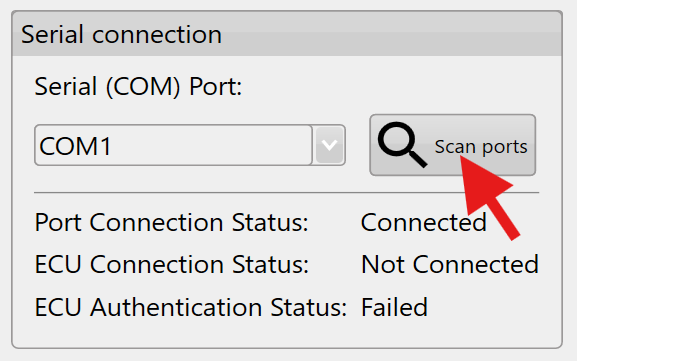](https://docs.t3rra.com/uploads/images/gallery/2026-10/26Vimage.png) [](https://docs.t3rra.com/uploads/images/gallery/2026-10/image-28.png) #### Connection Failure If T3RRA Software fails to connect to the ECU over the chosen COM port, a warning will be displayed. Verify power and communication connections before retrying. #### Successful Connection [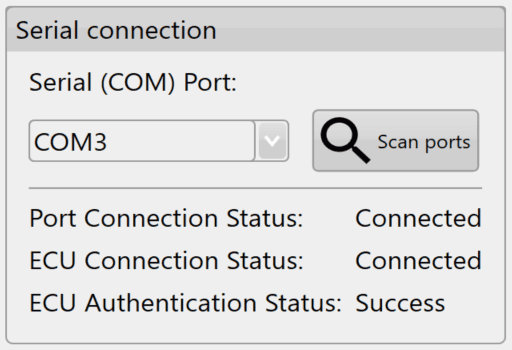](https://docs.t3rra.com/uploads/images/gallery/2026-10/image-27.png) Once connected to the ECU successfully, T3RRA Software will: - Establish communication with the ECU - Read stored parameters - Load the current machine configuration # 4.2 | Checking for Software & Firmware UpdatesBefore proceeding with machine configuration and calibration, ensure both the T3RRA Software application and the **COMMAND** ECU are updated to the latest available versions.
### Recommended Procedure 1. Connect to the **COMMAND** ECU successfully as performed in section 3.1.[](https://docs.t3rra.com/uploads/images/gallery/2026-10/lD1image.png) 2. Press **Back** to return to the COMMAND Settings Overview page, then press **Done** to return to the Apply View. 3. Check for available **Level COMMAND** software updates by pressing **More** > **Update/Changelog** > **Download Updates**: 4. Allow the updates to complete and restart **Level COMMAND** if prompted. 5. Return to the Apply View. 6. Check for available **COMMAND** ECU firmware updates by pressing **More** > **COMMAND** **Settings** > **Admin** > **Update to Latest**. 7. Allow any updates to install completely. 8. Restart the ECU by turning off the machine and restarting. Software and firmware updates may include:[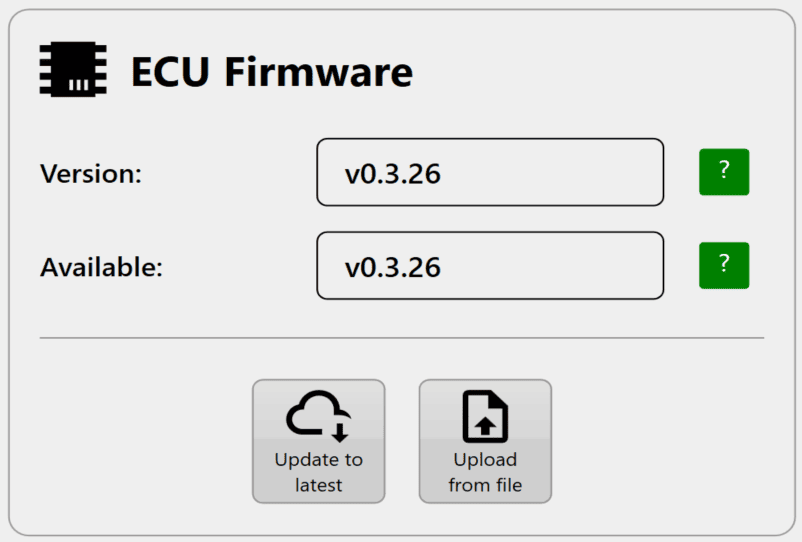](https://docs.t3rra.com/uploads/images/gallery/2026-10/image-29.png) - Feature improvements - Bug fixes - GNSS compatibility updates - Calibration improvements - Stability enhancements After updating: - Verify communication with the ECU - Ensure no active faults or warnings are present at machine-level. # 4.3 | Selecting A Machine Profile #### Profile The profile is used to select the type of implement being used, for detailed information on available profiles please refer to the **COMMAND** hardware manual section. [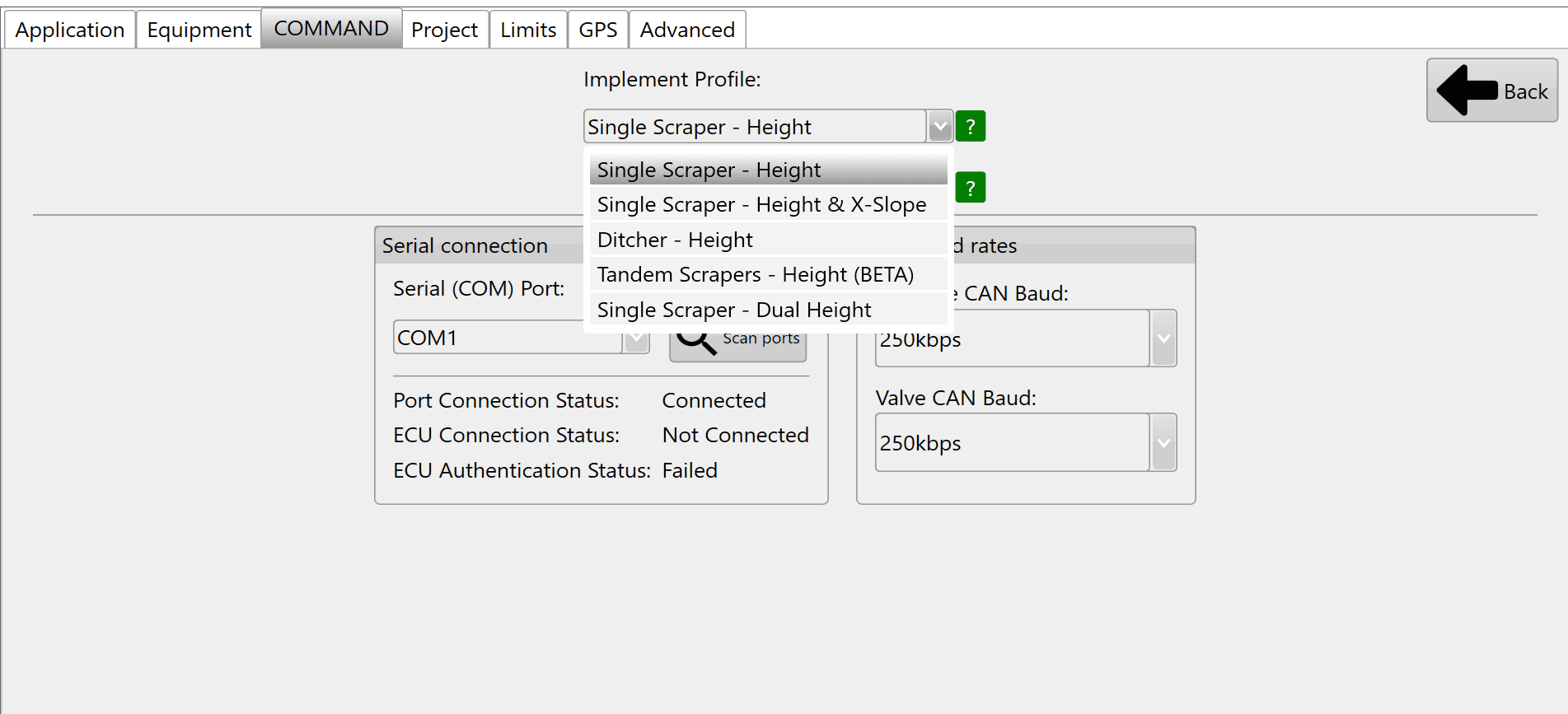](https://docs.t3rra.com/uploads/images/gallery/2026-10/HI6image.png) After selecting the appropriate machine profile, enter a **Blade Width** in the field shown - a red exclamation mark icon indicates that the blade width has not been set yet. [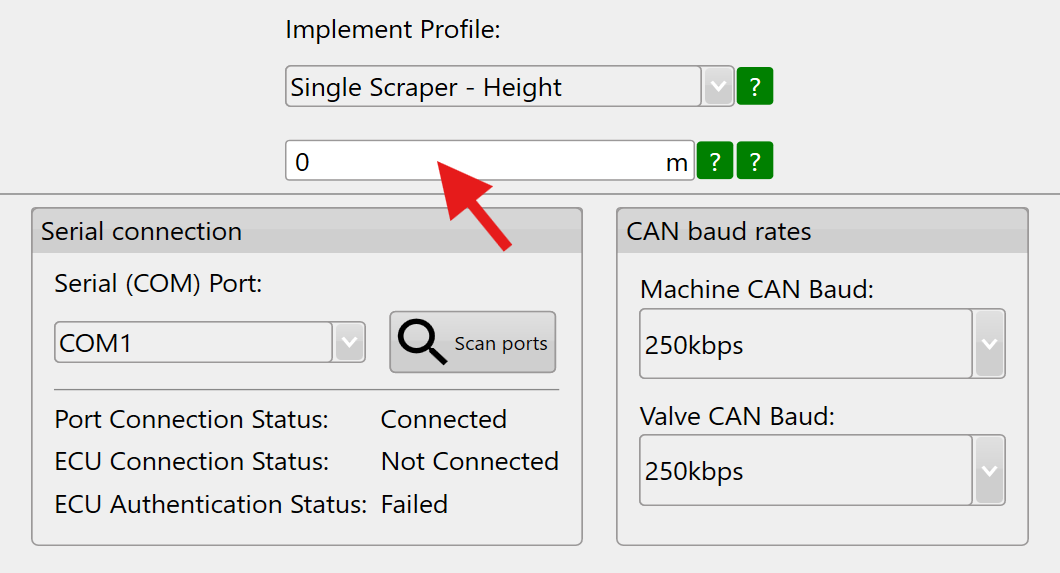](https://docs.t3rra.com/uploads/images/gallery/2026-10/L7Himage.png) [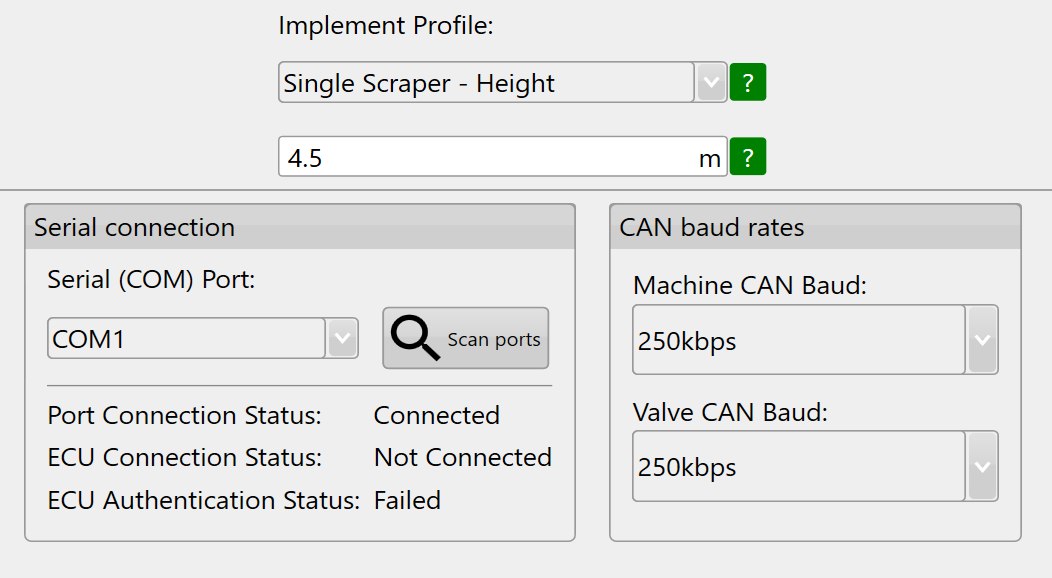](https://docs.t3rra.com/uploads/images/gallery/2026-10/4Hvimage.png) Press "**Back**" to return to the COMMAND Settings Overview and continue to **3.4 | Configuring GNSS**. # 4.4 | Configuring GNSS The Inputs/Offsets page is used for selection of input sensors, such as GNSS receivers for height control or Inertial Measurement Unts (IMU) for terrain compensation and Tilt / X-slope control. [](https://docs.t3rra.com/uploads/images/gallery/2026-10/ACUimage.png) ## GNSS Input Configuration ### Pre-configuration Before configuring **COMMAND** for use with receivers such as StarFire, ensure that the following settings have been checked and enabled/disabled as follows within the relevant system (e.g. Greenstar display for StarFire receivers): #### Shared Signal - OFF/Disabled Shared Signal functionality allows two StarFire Receivers to share correctional signals in dual-receiver applications, providing the benefits of the higher signal level. This setting should be set to OFF/Disabled for usage with **COMMAND**. #### RTK-X - OFF/Disabled John Deere RTK-X is a backup correction feature for StarFire™ receivers that maintains high-accuracy guidance for up to 14 days if the primary radio or mobile RTK signal is lost. This setting should be set to OFF/Disabled for usage with **COMMAND**. ### [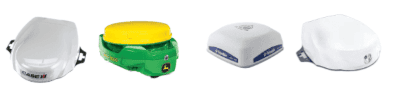](https://docs.t3rra.com/uploads/images/gallery/2026-07/3VHkOhSrBCz4Z9gh-image.png)Inputs All **COMMAND** machine profiles have at least one height control function intended for use with a GNSS receiver for vertical position feedback. [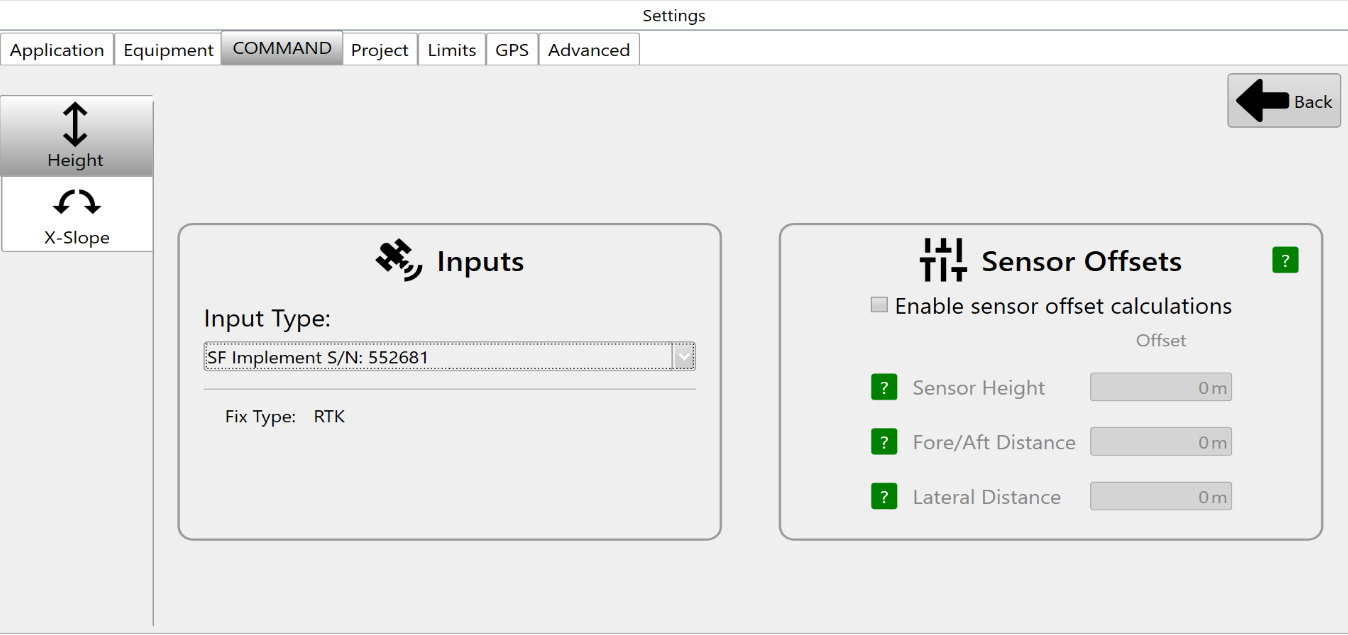](https://docs.t3rra.com/uploads/images/gallery/2026-10/uJNimage.png) Tap on the dropdown box below **Input Type** to view the different GNSS input options currently available. This dropdown will update with any StarFire or NMEA 2000 receivers currently connected, which are then displayed with either "SF" or "N2K" followed by the receiver serial number. Verify that each function ("Height" if using a single receiver, "Height 1" & "Height 2" if using tandem or dual receivers) has a Fix Type of RTK before proceeding.**Fix Type MUST be RTK for accurate automatic control operation** - lower accuracy fix types such as GPS only, Differential or Float RTK are not appropriate for accurate implement position control. Poor GNSS quality will affect machine positioning and automatic control performance.
### Sensor Offsets If using a GNSS receiver with **Level COMMAND** that is not capable of IMU-based terrain compensation, sensor offset calculations can be enabled. **Blade Width -** Enter the height of the GNSS receiver's measurement point above the cutting edge of the blade. Positive = Above the cutting edge Negative = Below the cutting edge **Fore/Aft Distance** - Enter the distance forward or backward from the cutting edge of the blade to the GNSS receiver centre point. Positive = Behind the cutting edge Negative = In front of the cutting edge **Lateral Distance** Enter the distance between the GNSS receiver centre point to the middle of the cutting edge of the blade. Positive = To the right side of the middle as if standing behind the scraper Negative = To the left side of the middle as if standing behind the scraper ##### Sensor Offsets Example: In the example screenshot below, the GNSS receiver has been mounted:[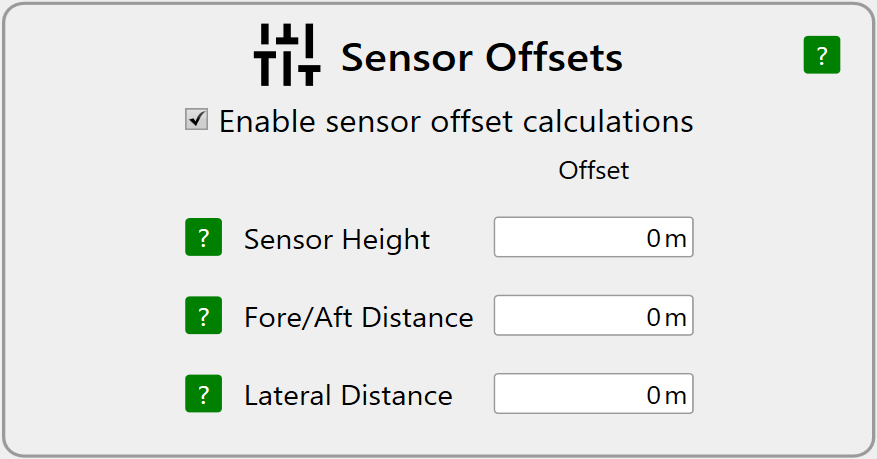](https://docs.t3rra.com/uploads/images/gallery/2026-10/mWxz1cimage.png) - 2 metres above the blade cutting edge - 0.5 metres behind the blade (away from the tractor) - 0.3 metres to the left of the middle of the blade (looking toward the rear of the scraper)Inputs / Offsets setup is now complete for profiles with only a height control function.
If using Height & X-Slope, Tandem receiver or dual receiver profiles, continue on to set up the second control function's inputs/offsets.
## X-Slope Input Configuration[](https://docs.t3rra.com/uploads/images/gallery/2025-08/U29nEhkS4ovruLO1-image.png) Some **COMMAND** machine profiles have a Tilt / X-slope control function intended for use with an IMU for blade tilt / x-slope angle feedback. Tap on the **Input Type** dropdown box to view currently connected IMU sensors, and select the desired input sensor. [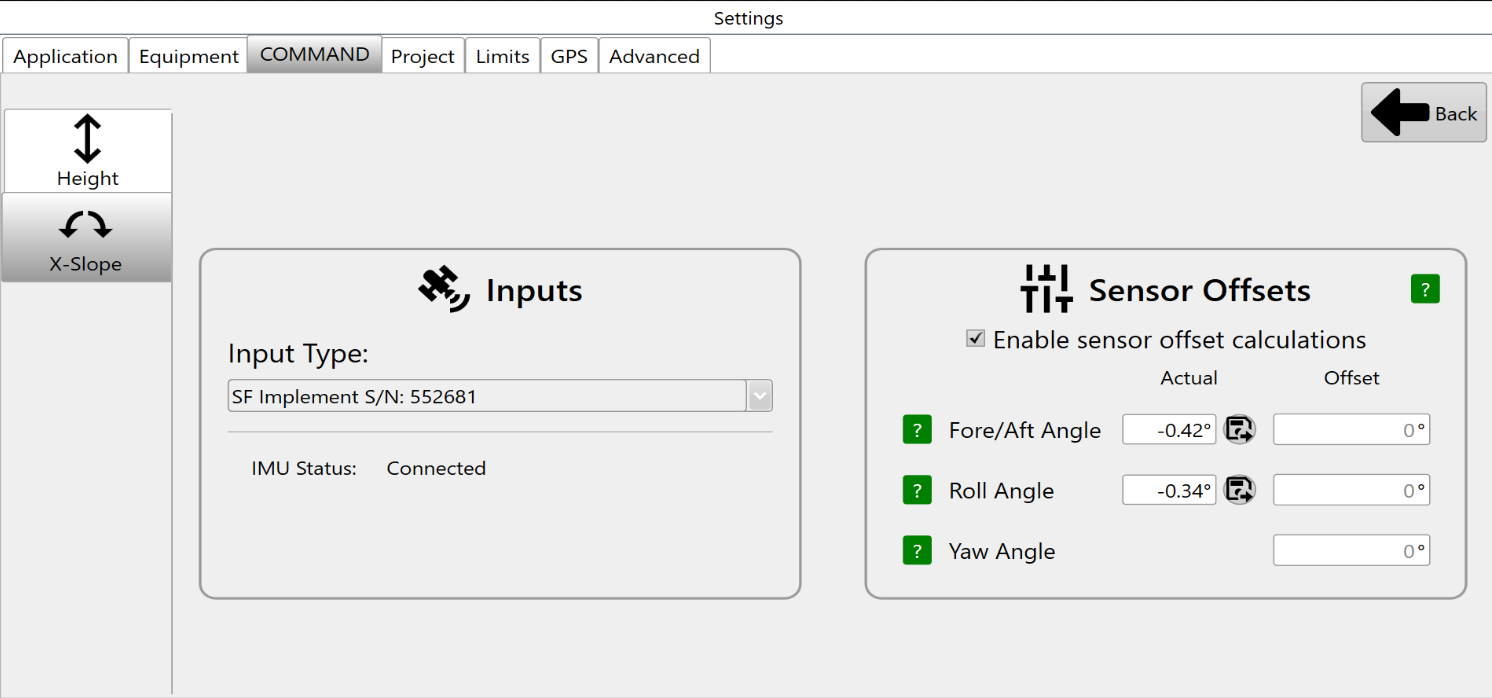](https://docs.t3rra.com/uploads/images/gallery/2026-10/6FDimage.png) Once selected, **IMU Status** will change to Connected. Additionally, the **Actual** values for **Fore/Aft Angle** and **Roll Angle** below **Sensor Offsets** will begin updating with the current angle of the selected IMU sensor. ### Accounting for IMU Mounting with Offsets In cases where the IMU sensor has not been mounted on the blade at a perfect 0 degree pitch and/or roll angle, the save offset buttons can be used to set the **Fore/Aft Angle** and **Roll Angle** offsets to the current angle reading. Before doing so, use equipment such as a spirit level, or a known level surface to ensure the blade is completely level. Once done, press the **Save** icons to set each of the two offset values to the current angles.Offsets are saved in the **COMMAND** ECU and only need to be changed if the position of the IMU sensor has changed, or if fitting the IMU to a different implement.
[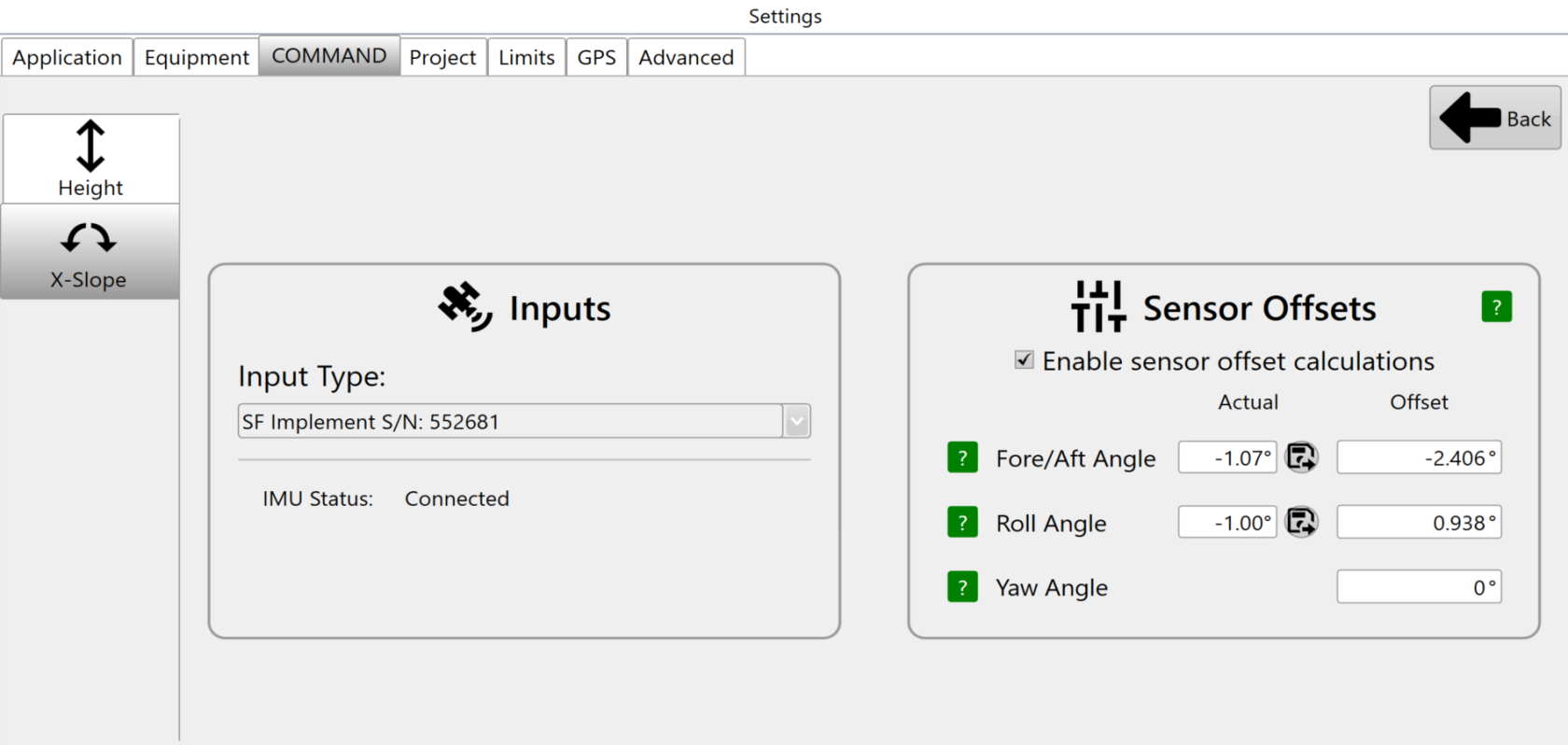](https://docs.t3rra.com/uploads/images/gallery/2026-10/image-30.png) Press "**Back**" to return to the COMMAND Settings Overview and continue on to 4**.5 | Setting Valve Configurations**. # 4.5 | Configuring Valve Outputs The **Valve Configs** page is used to set up the control output interface for each control function.Appropriate signals of that interfacetype are then generated when automatic or manually controlling the implement. External joystick inputs are also configured on this page when making use of an analog or J1939 CANBUS joystick. [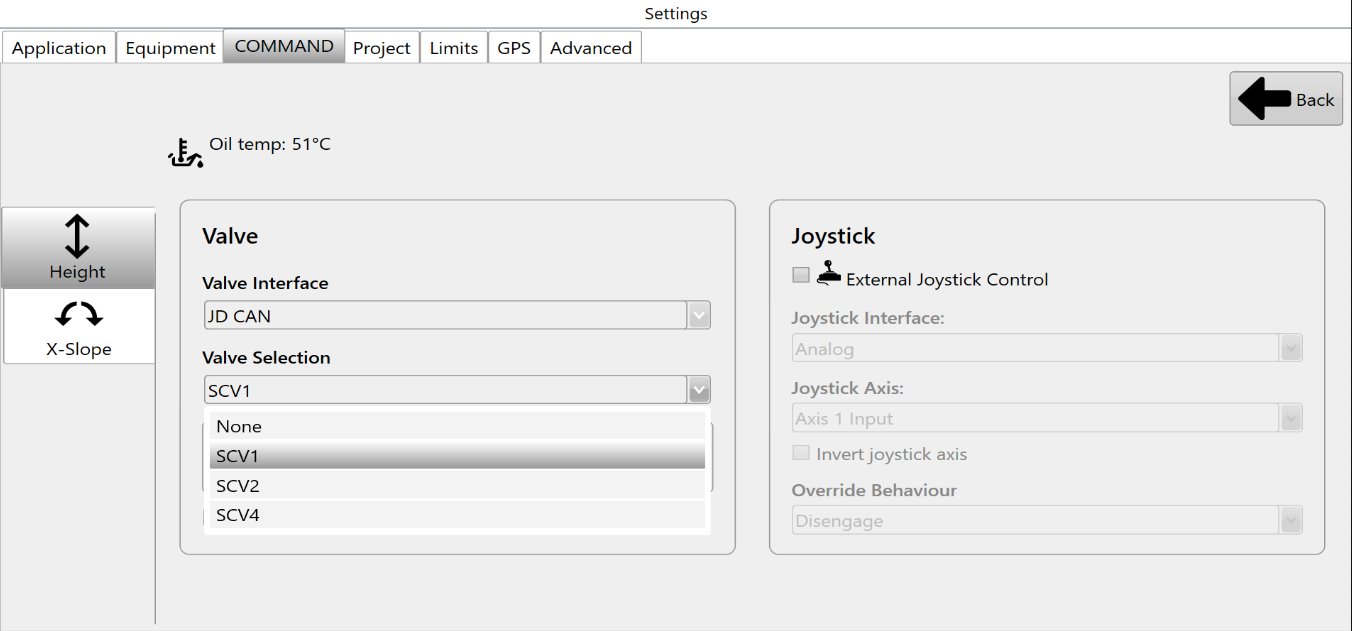](https://docs.t3rra.com/uploads/images/gallery/2026-10/Rlaimage.png) At the top left corner of the screen, buttons will be shown if there are two available control functions. If using a Height control only machine profile, only the Height page is displayed. ## Selecting the Valve Interface Select the appropriate **Valve Interface** for the tractor, machine or external valves being used for that function. To begin with, set the desired **Valve Interface** type for the Height control function.Different **Valve Interface** selections display different **Valve Number** selections depending on how they work - for more information please see the section in the **COMMAND** manual.
## Selecting the Valve Number When selecting **Valve Interface** options like JD CAN, J1939 and Fendt ONE will only display valve numbers that have been detected on the ISOBUS or machine CANBUS. Once detected on the ISOBUS or machine CANBUS, any available SCV / Remote / Auxiliary valve selections will be displayed in the **Valve Selection** list as shown: [](https://docs.t3rra.com/uploads/images/gallery/2026-10/Rlaimage.png) Analog valve interfaces such as Proportional Solenoid and PWM to 0-5V always display all available **Valve Selection** options. Valve signals for these selections generally rely on harnessing to connect the outputs of the **COMMAND** ECU to the proportional solenoid or laser system inputs. ## Valve Status **Valve Status** provides information on the current status of the selected **Valve Interface** and **Valve Selection**. The table below explains each of the different possible valve statuses that may appear:| **Status** | **Description** |
| Valve Unavailable | The selected valve is not available for use. |
| Waiting for Manual SCV Input | Move the SCV lever corresponding to the selected SCV - this must be done when using John Deere tractors. |
| Short to Ground | An overload has been detected and the resistance between the valve signal output pin and ground is near-zero, holding the output low. |
| Short to Batt | An overload has been detected and the valve signal output pin is being fed power from another source holding the output high. |
| Open Load | A connection or valve issue has been detected, and the resistance between valve signal output pin is too high, indicating a broken wire or valve solenoid/coil. |
| SCVs Locked | The SCVs must be unlocked using the console SCV padlock button. |
| System Not Armed | The **COMMAND** Arm/Engage switch must be armed or re-armed. If the Arm/Engage switch is currently Off: - Switch the Arm/Engage switch to the middle position. If the Arm/Engage switch is currently in the middle position: - Switch the Arm/Engage switch to the OFF position, and then back to the middle position. |
| Ready | The selected valve is currently not active and the ECU is ready for automatic control or manual control commands for that function. |
Regardless of **Override Behaviour** selection, **COMMAND** will always prioritise joystick/manual control signals over automatic control signals to maintain full operator control of the implement.
# 3.6 | Valve Threshold Calibration Valve Threshold Calibration establishes the minimum and maximum hydraulic outputs used by Automatic Control. Correct calibration ensures the implement can move smoothly for small corrections while still achieving full operating speed when required. [](https://docs.t3rra.com/uploads/images/gallery/2026-10/VSLimage.png) Access the **COMMAND** valve calibration page by going to: **More** > **COMMAND Settings** > **Valve Cals**. - **Minimum Threshold (Min %)** determines the lowest output that reliably opens the hydraulic valve. - **Maximum Threshold (Max %)** limits the highest output available to Automatic Control. [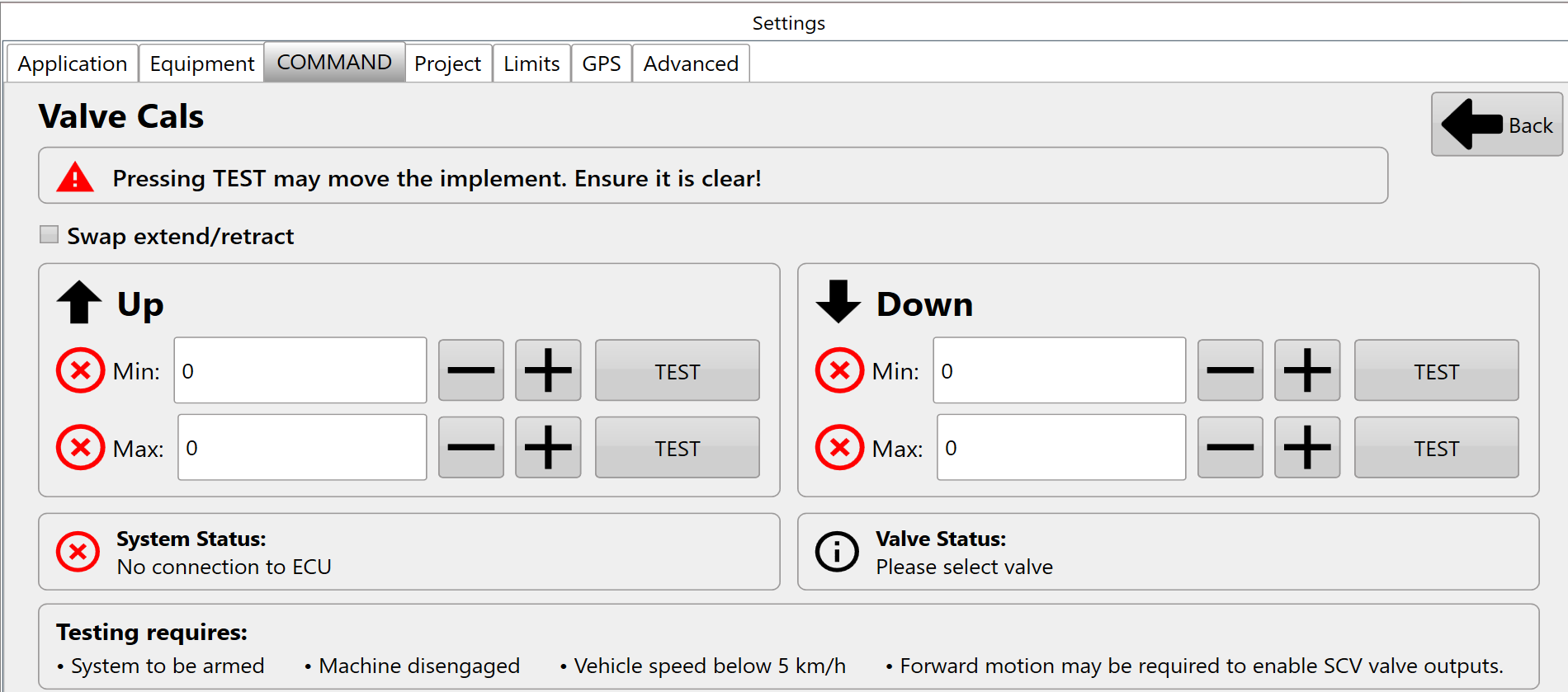](https://docs.t3rra.com/uploads/images/gallery/2026-10/TMoimage.png) ## Calibration ProcedureThe **COMMAND** ECU will not request movement of the implement unless the user has pressed one of the test buttons and is holding the engage button.
1. Select the function and direction to calibrate. 2. Press **TEST** and hold the machine **ENGAGE** button when instructed. 3. Increase **Min. %** until the implement begins moving consistently at a very slow speed, e.g. about 1 centimetre per second. 4. Adjust **Max. %** as required: - For proportional solenoids, limit output to approximately **1800 mA**. - Reduce further if lower maximum implement speed is desired. 5. Repeat for all active directions and functions. #### Calibration Test Buttons The "+", "−" and "TEST" buttons are used during the calibration process to incrementally increase or reduce a given threshold, which can then be tested using the process described in the next section. #### Calibration Progress Icons This[](https://docs.t3rra.com/uploads/images/gallery/2025-08/8R3Nua9ds9TqSVa6-icon-uncalibrated.png) icon indicates that a value has not been calibrated yet. All minimum and maximum values for all active functions must be calibrated before performing automatic control. This [](https://docs.t3rra.com/uploads/images/gallery/2025-08/PdI75CypPWpfqpjF-icon-calibrated.png)icon indicates that a value has been calibrated. Once all min and max values display this icon, the function has been successfully calibrated.Ticks next to Min or Max values mean that the test button was pressed, but **do not indicate a correctly calibrated function**.
## Verification Verify that: - Implement movement begins smoothly when Min % is tested. - No excessive delay or valve chatter occurs. - Full-speed movement is available when Max % is tested without hydraulic instability. - All calibration indicators show as complete before commissioning proceeds. # 4.7 | Cylinder Ratio Calibration ## Overview [](https://docs.t3rra.com/uploads/images/gallery/2026-10/rAMimage.png) Cylinder Ratio Calibration compensates for differences in implement movement speeds between opposing control directions. Hydraulic systems rarely move at identical speeds in both directions. Differences in cylinder geometry, implement weight, hydraulic flow characteristics, machine design and gravity can all influence the speed at which the implement moves. For elevation control, the implement may raise more slowly than it lowers due to implement weight and hydraulic loading. For cross-slope control, left and right tilt movements may also occur at slightly different rates due to cylinder geometry and hydraulic system characteristics. Cylinder Ratio Calibration measures the time taken to move the implement through its full range of motion in each direction and automatically calculates a correction ratio used by Automatic Control. ## Calibration Procedure ### Elevation (Raise / Lower) 1. Position the implement at its lowest operating position.[](https://docs.t3rra.com/uploads/images/gallery/2026-10/67Rimage.png) 2. Press **Start** in the **Up** section. 3. Immediately raise the implement at full manual control speed until maximum height is reached. 4. Press **Stop** when maximum height is reached. 5. Press **Start** in the **Down** section. 6. Immediately lower the implement at full manual control speed until minimum height is reached - do not make contact with the ground, stop the implement before it does.[](https://docs.t3rra.com/uploads/images/gallery/2026-10/SIcimage.png) 7. Press **Stop** when minimum height is reached. 8. Press **Calc** to generate the Elevation Cylinder Ratio. [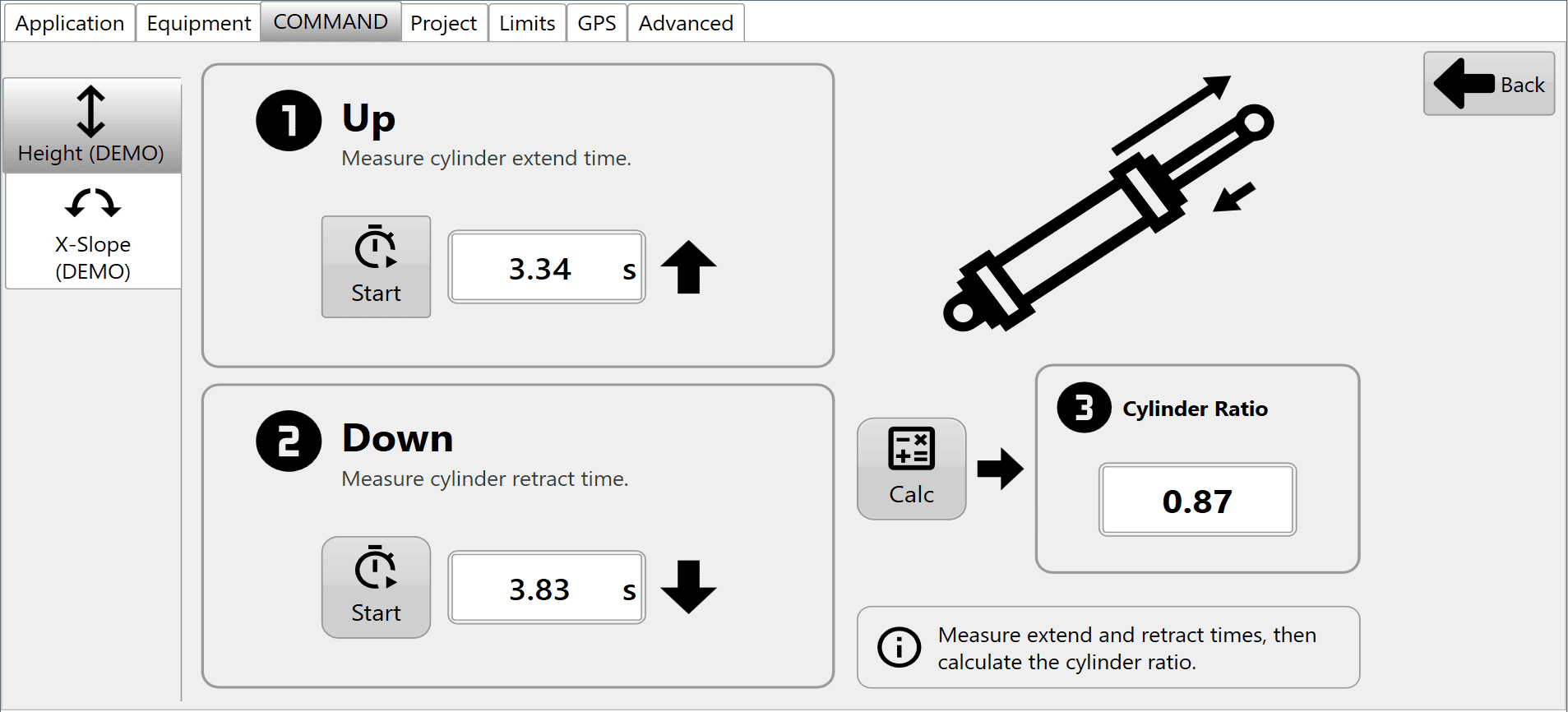](https://docs.t3rra.com/uploads/images/gallery/2026-10/VBYimage.png) ### Cross-Slope (Left / Right) 1. Position the implement at one end of its available tilt range. 2. Press **Start Left** or **Start Right** as appropriate. 3. Immediately move the implement at full manual control speed until the opposite end of travel is reached. 4. Press **Stop** when the limit of travel is reached. 5. Repeat for the opposite direction. 6. Press **Calc** to generate the Cross-Slope Cylinder Ratio.[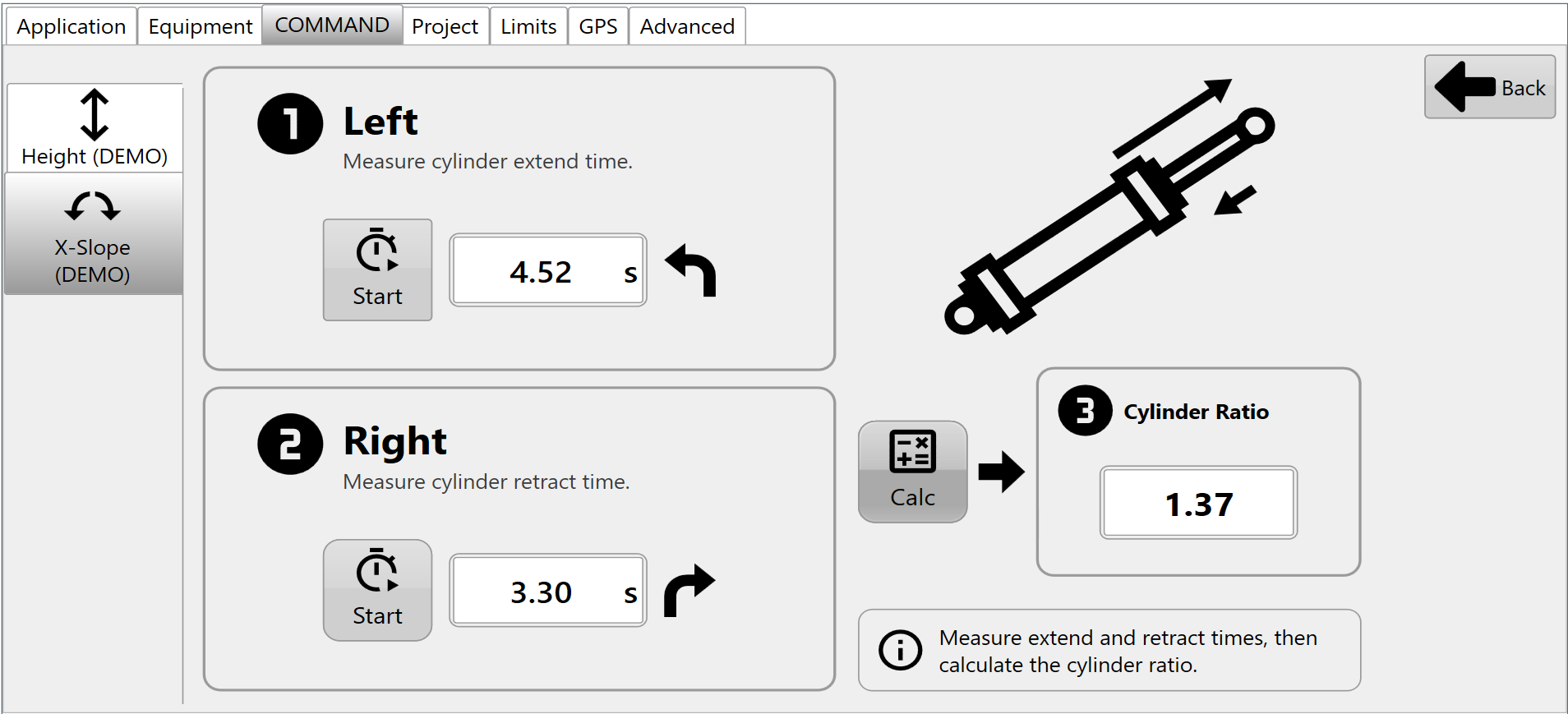](https://docs.t3rra.com/uploads/images/gallery/2026-10/8xlimage.png)## Verification After calibration: - Implement movements should respond consistently in both directions during Automatic Control. - Neither direction should appear noticeably slower or more aggressive than the opposite direction. - If hydraulic components, cylinders, valves or plumbing are modified, cylinder calibration should be repeated. Continue to **3.8 | Tuning Automatic Implement Control**. # 4.8 | Tuning Automatic Implement Control The purpose of tuning is to achieve stable, accurate Automatic Control that follows the design surface smoothly without excessive lag or oscillation. The Tuning page provides the controls and feedback required to optimise control performance. To find the tuning page from the Apply View, press **More > COMMAND Settings > Tuning**. ## Tracking and Acquisition Behaviour Once Automatic Control is engaged, the **COMMAND** ECU adjusts its control strategy according to the current error between the implement and the design surface.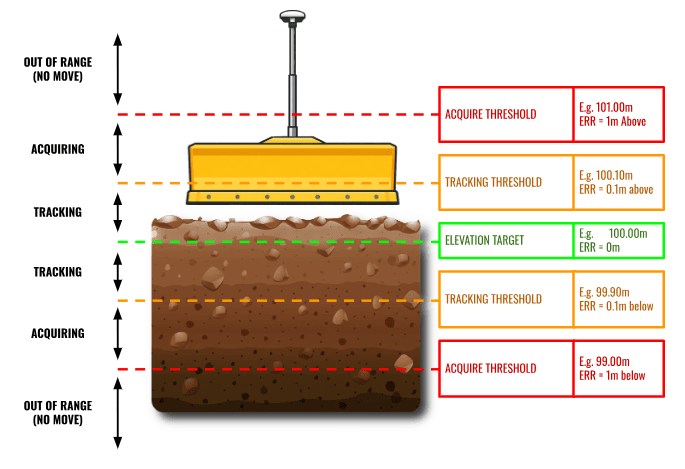 *Automatic Control transitions between Acquisition, Tracking and Out-of-Range regions according to the current error between the implement and the design surface.*The default **Tracking Threshold** and **Acquire Threshold** values are suitable for almost all applications and should not normally require adjustment. Modification of these parameters is generally not recommended.
Three operating regions are used: #### Tracking Region (e.g. < 10cm Error) The Tracking Region is the area immediately surrounding the design surface. This region provides the highest grading accuracy and is where the implement should spend most of its operating time. When the current error is within the configured **Tracking Threshold**, **COMMAND** continuously adjusts hydraulic output using its tracking control algorithm to accurately maintain the implement on grade. By default, the tracking threshold is 10cm for height functions, and 10 degrees for x-slope functions. Within the Tracking Region, hydraulic output is continuously adjusted between the calibrated minimum and maximum valve thresholds according to the current control error. #### Acquisition Region (e.g. > 10cm but < 1m Error) The Acquisition Region exists between the **Tracking Threshold** and **Acquire Threshold**. When the implement is outside the Tracking Region but remains within the **Acquire Threshold**, **COMMAND** prioritises returning the implement to the Tracking Region as quickly as possible. During acquisition, the ECU commands hydraulic output at the calibrated **Max %** threshold until the implement re-enters the Tracking Region. Once inside the Tracking Region, control automatically transitions back to normal tracking. #### Out of Range (e.g. > 1m Error) If the current error exceeds the configured **Acquire Threshold,** the implement is considered too far from the design surface for Automatic Control to operate safely or effectively. In this condition, **COMMAND** does not command hydraulic movement. This prevents large or unexpected hydraulic movements when the implement is significantly displaced from the design surface. The operator should manually reposition the implement closer to the design surface before Automatic Control resumes operation. ## Before Tuning Before tuning, verify the following diagnostic indicators report normal operating status: - **COMMAND** ECU Status - Input Status - Valve Status - Automatic Control Diagnostics Any active faults or invalid status conditions should be corrected before tuning begins. ## Tuning Procedure 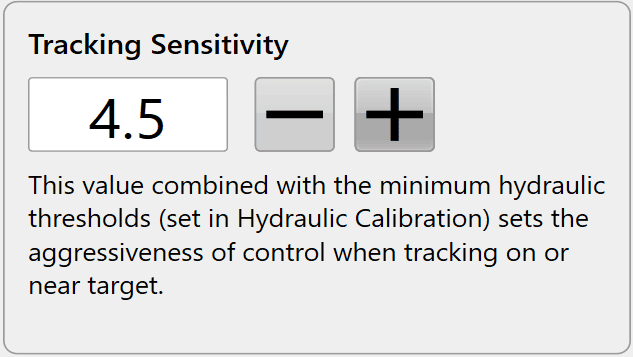 Tuning should always be performed under normal working conditions using the same machine speed, hydraulic flow settings and operating practices that will be used during production work. T3RRA Software currently provides a single tuning parameter called **Tracking Sensitivity**. The objective is to achieve stable control while maintaining accurate tracking of the target surface. 1. Load a suitable project or design surface. 2. Engage Automatic Control. 3. Perform several passes under normal operating conditions. 4. Observe implement behaviour and control performance. 5. Adjust **Tracking Sensitivity** as required. 6. Repeat until the implement follows the target smoothly without excessive lag or oscillation. During normal grading, the implement should enter the Acquisition Region only briefly before returning to the Tracking Region, where it should remain for most of the grading operation. If the implement spends excessive time acquiring, overshoots repeatedly or oscillates around the target surface, further tuning may be required.| Adjustment | Typical Effect |
|---|---|
| Increase Tracking Sensitivity | Faster response, more aggressive control, increased risk of overshoot or oscillation. |
| Decrease Tracking Sensitivity | Slower response, smoother control, increased risk of lag and persistent tracking error. |
Correct [valve calibration](https://docs.t3rra.com/link/1147#bkmrk-minimum-threshold-%28m)—particularly the **Min** **%** thresholds—is essential before tuning begins. Incorrect **Min** **%** calibration can produce symptoms similar to incorrect **Tracking Sensitivity** and cannot be corrected through tuning alone.
#### Tracking Sensitivity Too Low - Implement responds slowly - **Current Error** remains visible for extended periods - Blade struggles to reach target grade - **DPF** remains elevated due to persistent tracking error Recommended Adjustment > Increase **Tracking Sensitivity**. [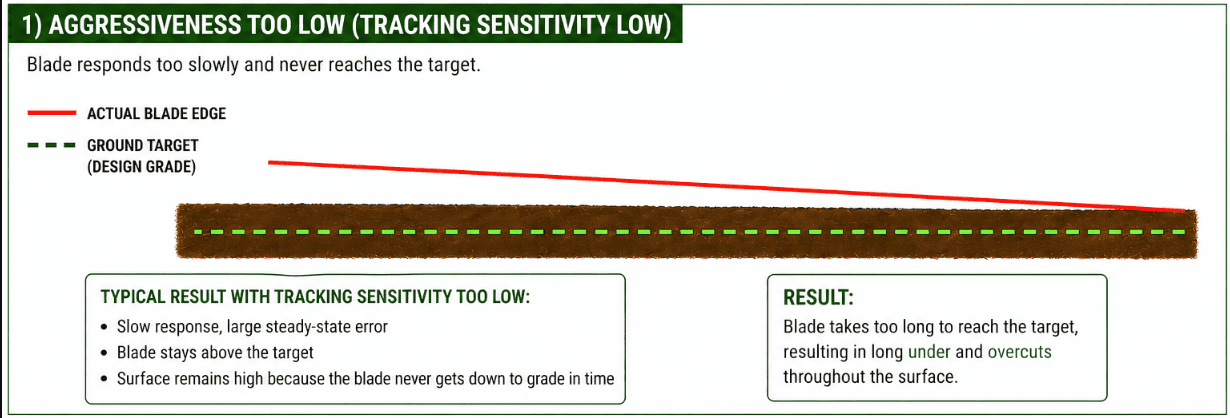](https://docs.t3rra.com/uploads/images/gallery/2026-06/zCOFaLwX6CtHlDpj-image.png) #### Tracking Sensitivity Too High - Implement reacts aggressively - Blade overshoots the target surface - Oscillation develops - **DPF** increases due to instability and overcorrection Reduce **Tracking Sensitivity**. Recommended Adjustment > Reduce **Tracking Sensitivity**. [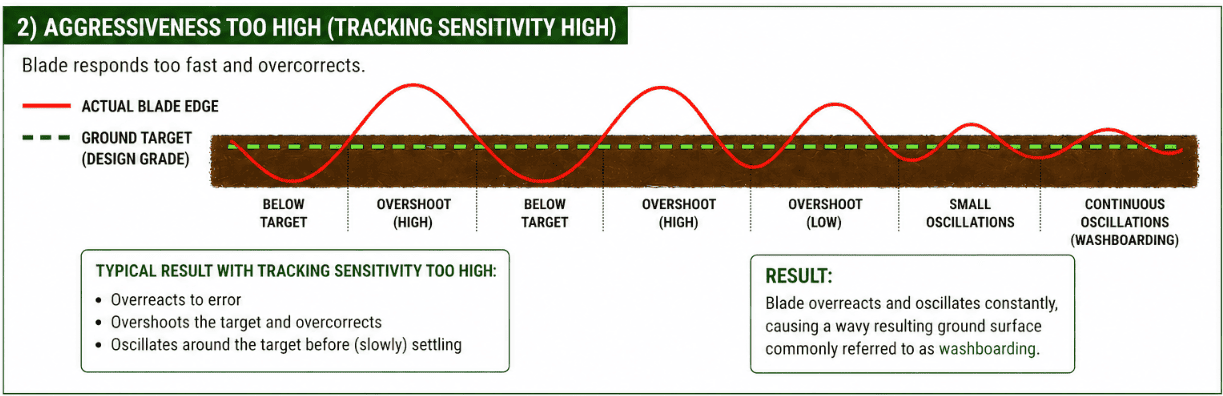](https://docs.t3rra.com/uploads/images/gallery/2026-06/k91zV9bYz3fcuqJi-image.png) Once Automatic Control is performing at an acceptable level, continue on to **3.9 | Validating System Operation**. # 4.9 | Validating System Operation ## Status Validation Checks| **Item** | **Expected Result** |
|---|---|
| ECU Status | Connected and operating normally |
| GNSS Status | Fixed RTK solution |
| Position Accuracy | Within expected limits |
| Inertial Sensors | Reporting valid data |
| Valve Outputs | Available and responding |
| Machine Configuration | Correct implement selected |
| Active Faults | None present |
| Validation Item | Pass |
|---|---|
| ECU communicating successfully | ☐ |
| GNSS selected and stable with RTK Fix | ☐ |
| X-Slope sensor angle values updating correctly | ☐ |
| Hydraulic outputs verified | ☐ |
| Cylinder calibration completed | ☐ |
| Automatic Control engages correctly | ☐ |
| Control direction verified | ☐ |
| Tracking Sensitivity tuned | ☐ |
| Grade tracking validated | ☐ |
| Automatic Control performance acceptable | ☐ |
| No active faults present | ☐ |
Once all validation checks have been completed successfully and Automatic Control performance has been verified, the machine is ready for operator training and production use.
# 4 | Creating Projects # 4.1 | Main page / New Project Page The **Main Page** appears when T3RRA software opens and when you select **New Project** within the Wizard. Use the Main Page to access display settings, software configuration, the Operator’s Manual and T3RRA support tools. [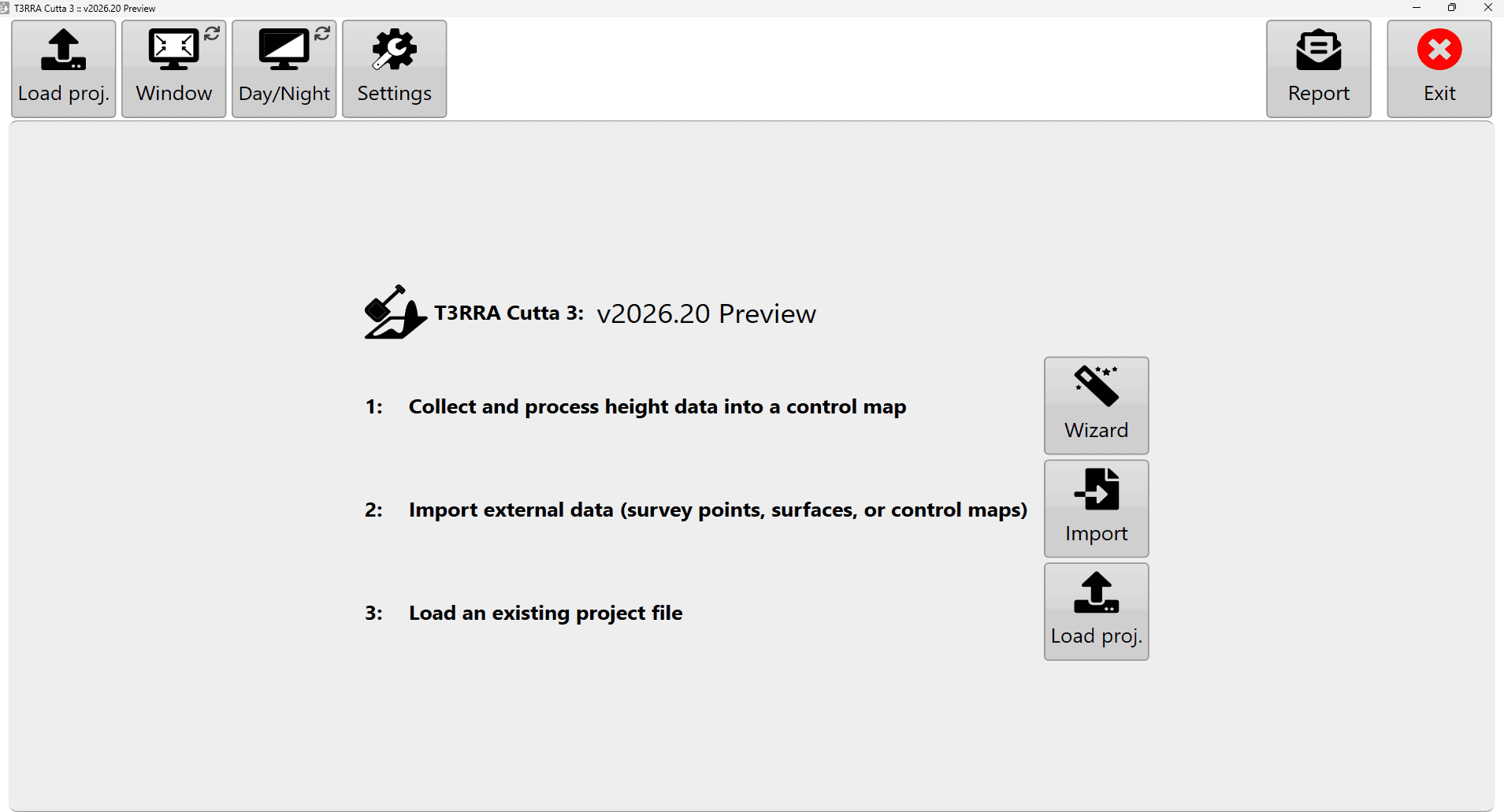](https://docs.t3rra.com/uploads/images/gallery/2026-10/3Xeimage.png)*Main Page with display, settings, manual and report controls, and project-start options* ## Application Information In windowed mode, the title bar shows information about the running application and current project. The information varies with the software and may include: - The name of the currently loaded project file. - The T3RRA application name, such as **T3RRA Cutta 3**, **T3RRA Ditch 3**, **T3RRA Plane 3**, **T3RRA Survey 3** or **T3RRA Apply 3**. - The installed software version.| Mode | Description |
|---|---|
| **Day** | Standard light interface with a white background. This is the display mode used throughout this manual. |
| **High Contrast** | Uses an inverted colour scheme to improve visibility in some lighting conditions. |
| **Night** | Uses a dark background with a green foreground to reduce screen brightness during low-light operation. |
**NOTE:** ‘Implement width’ is required to enable the As-applied feature.
# 5.3 | COMMAND Tab # 5.4 | Limits Tab ## Blade shift increment **Blade Shift Increment** sets the height adjustment applied by the up/down elevation adjustment buttons in the implementation wizard step. 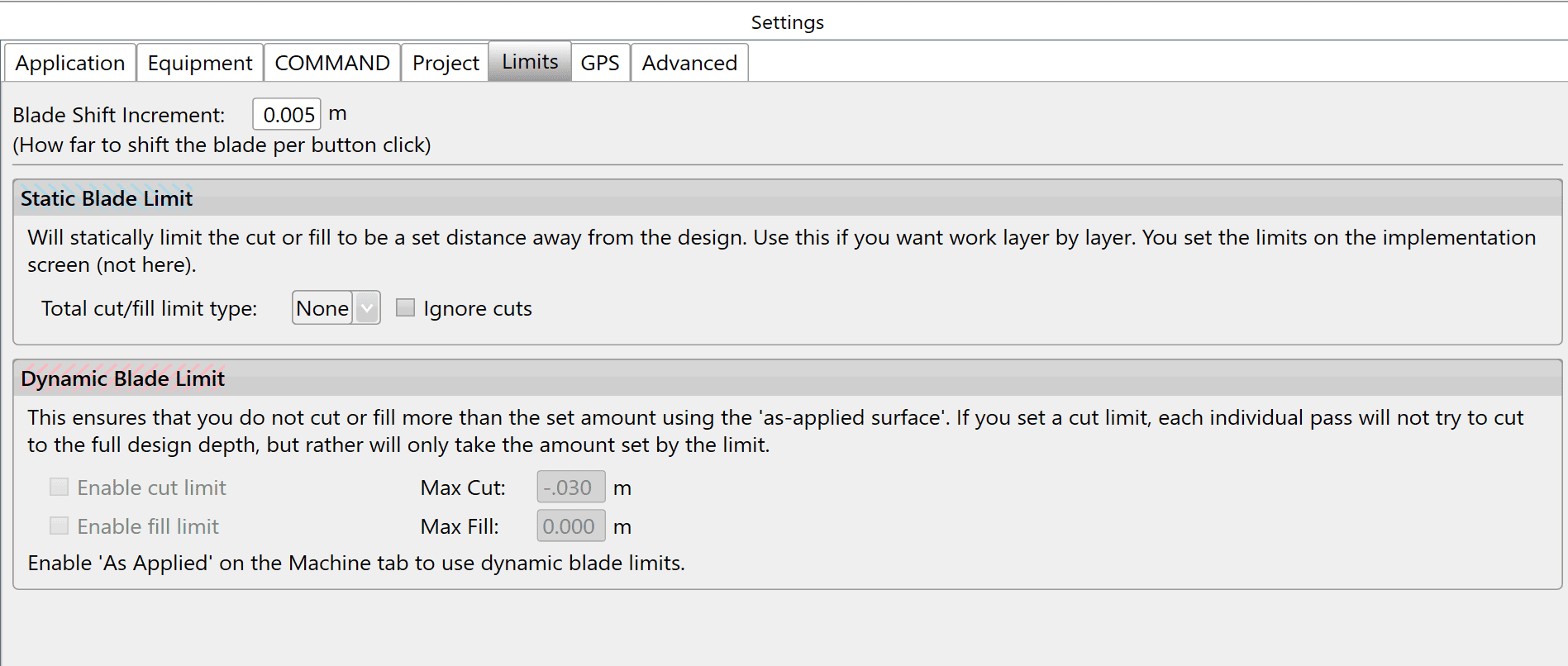*Limits tab with Blade Shift Increment, Static Blade Limit and Dynamic Blade Limit controls; As Applied is required***NOTE** — The recommended blade shift increment is 0.03 - 0.06 feet (0.4 - 0.8 inches, or 0.01m - 0.02m).
## Static blade limit **Static Blade Limit** temporarily changes target design heights by a specified amount. At 50%, target cut and fill heights become 50% of the design values. It can also overfill a design by a percentage to allow for soil to sink over time: at 110%, a 100mm fill becomes 110mm to allow for future compaction. Build banks, roads or mounds in gradual steps to allow even compaction of dirt. **Ignore cuts** is useful when gradually building a mound. Use the vertical nudge to lower the design surface below the current surface, then slowly nudge it upwards so filling begins at the apex and proceeds outwards. In this case, avoid cutting where the nudged mound design is below the original surface. **NOTE:** Ignore cuts can be activated even when Static Blade Limit is set to “None”. Set the static blade limit amount on the implementation screen. ### Methods for progressively adding layers of dirt to a fill area**NOTE:** T3RRA software and iGrade™ must have identical Com port and Baud Rate settings in order to communicate.
## Configuration and diagnostics **Warning/Error Configuration** settings changed on this page remain in effect after the system is turned off. **Current** displays the most recent GPS information received in a table. **Raw GPS data** displays the most recent GPS data received. It is primarily used for diagnostics when support is required. **Output Data** displays the most recent outgoing communications. It is primarily used for diagnostics when support is required. **Recent GPS errors** lists the most recent GPS errors so that intermittent errors can be reviewed. **Open Device Manager** is used to investigate COM port issues when required. **Connect and Disconnect** manually start or stop communication with the app controller. ## Serial port parameters **Com port**: The adapter assigns the Com port #. The drop-down box lists all available com ports. Select the serial port physically connected by cable to the iGrade™ Application Controller. Windows Device Manager provides diagnostics for the current serial ports; you can open it using the button at the bottom left of **Settings > GPS**. 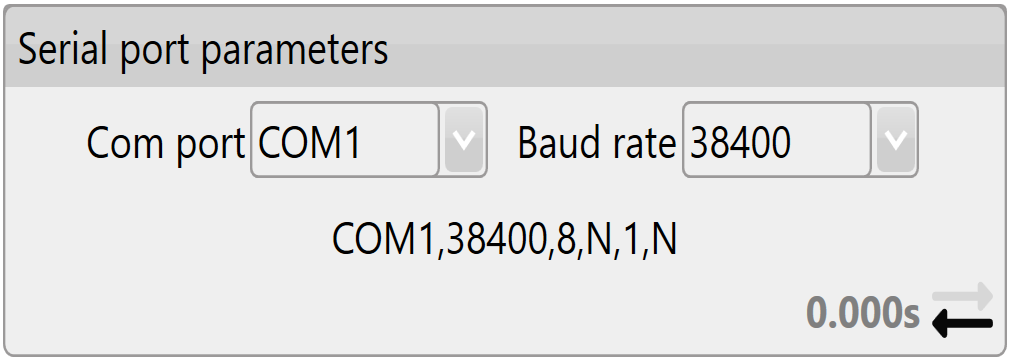 **Baud rate**: This is the speed of communication with iGrade™. It must match the iGrade™ settings, or T3RRA software cannot communicate with iGrade™. For iGrade v1, the recommended baud rate is 38400. For iGrade™ v2, the recommended baud rate is 115200, with **NMEA Message Type** set to “All”. ## Warning Thresholds **Idle timeout**: An error warning appears if no GPS messages are received within this time period. 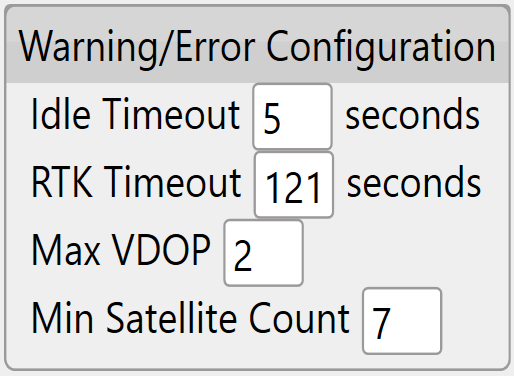 **RTK Timeout**: This monitors the time since the last good RTK correction packet. It should not normally be set above 10-20sec. **Max VDOP**: Vertical Dilution of Precision measures altitude accuracy. Keep this value as low as possible for the most accurate implementation, but setting it lower than 2 may interrupt use of T3RRA software. **Min Satellite Count**: Sets how few satellites the GPS needs to see before a warning appears. ## Input/Output [](https://docs.t3rra.com/uploads/images/gallery/2026-10/4fMimage.png)| Field | Meaning |
|---|---|
| Current & Raw GPS Data: | Current shows the receiver’s current position data. Raw GPS Data shows all incoming messages. |
| Output Data: | Outgoing command messages |
| Recent GPS errors | Current GPS state and any errors |
| Lat & Lon: | Your current location coordinates (latitude and longitude). |
| Altitude: | Your current height above sea level, displayed in the chosen measurement format. |
| Num Sats: | The number of satellites currently tracked by your GPS. It is linked to Min Satellite Count in Warning thresholds: an error appears if the count drops below that setting. |
| Fix: | The type of position solution calculated. |
| Time: | The current GPS time. |
| Last Correction: | The time since the last differential correction message from the base station. Keep it as low as possible for the most accurate readings. It is linked to RTK Timeout in Warning thresholds: an error appears if it exceeds that limit. |
| VDOP: | Vertical Dilution of Precision. An error appears if this number exceeds Max VDOP in warning thresholds. |
| Speed: | Your current travel speed |
| Heading: | Current heading out of 360 degrees |
| Tool and availability | Controls |
|---|---|
| Zoom Controls | [](https://docs.t3rra.com/uploads/images/gallery/2026-10/zVTimage.png)[](https://docs.t3rra.com/uploads/images/gallery/2026-10/4zgimage.png) |
| Choose Model/Layer | [](https://docs.t3rra.com/uploads/images/gallery/2026-10/Kpdimage.png) |
| Markers (limited to surveying and implementation) | [](https://docs.t3rra.com/uploads/images/gallery/2026-10/qVFimage.png) |
| Start, Stop, and Pause Survey | [](https://docs.t3rra.com/uploads/images/gallery/2026-10/Piqimage.png)[](https://docs.t3rra.com/uploads/images/gallery/2026-10/FrOimage.png) |
| Edit Drain (limited to surveying and surfacing) | [](https://docs.t3rra.com/uploads/images/gallery/2026-10/Zy9image.png) |
| Extend Drain (limited to surveying and surfacing) | [](https://docs.t3rra.com/uploads/images/gallery/2026-10/H2Oimage.png) |
| Split Drain (limited to surveying and surfacing) | [](https://docs.t3rra.com/uploads/images/gallery/2026-10/BYTimage.png) |
| Delete Points (limited to surveying and surfacing) | [](https://docs.t3rra.com/uploads/images/gallery/2026-10/ozRimage.png) |
| Tracking Options 2D View(limited to surveying and implementation) [](https://docs.t3rra.com/uploads/images/gallery/2026-10/Y58image.png) | [](https://docs.t3rra.com/uploads/images/gallery/2026-10/5oRimage.png)[](https://docs.t3rra.com/uploads/images/gallery/2026-10/Vmcimage.png) [](https://docs.t3rra.com/uploads/images/gallery/2026-10/8L7image.png)[](https://docs.t3rra.com/uploads/images/gallery/2026-10/V6Zimage.png) |
| Tracking Options 3D View(limited to surveying and implementation)  | [](https://docs.t3rra.com/uploads/images/gallery/2026-10/OjCimage.png)[](https://docs.t3rra.com/uploads/images/gallery/2026-10/hgwimage.png) |
| Screenshots |  |
| Battery power indicator |  |
NOTE: Best practice is to not overlap different survey types. Instead, press Pause when traveling over different survey points then Resume once clear.
(the icons below: Field survey on left, Drain survey in center, Boundary survey on right)|  |  |  |
|  |  |
NOTE: You should always use ‘**Save proj.**’ to save your T3RRA project. This saves in the native file format and is the easiest file type to reopen in T3RRA software. Exporting is optional, and depending on the type of export you perform you may not always be saving all the information that exists with your T3RRA software project.
Video: [Watch the surveying workflow video on YouTube](https://www.youtube.com/watch?v=ikGuhZYBri8). # 7.3 | Field Surveying {{@720}} # 7.4 | Magic Plane {{@721}} # 7.5 | Drain Surveying {{@722}} # 7.6 | Boundary Survey {{@723}} # 7.7 | Survey Guidelines {{@724}} # 7.8 | Surveying Tips and FAQ {{@725}} # 7.9 | Surveying with extra sensors (T3RRA Survey 3 only) **T3RRA Survey 3** allows you to bring data in from additional survey types. When you hit the “start” button to begin surveying, you will be presented with various options. Choose the first option (GPS data) if you don’t have anything additional to collect with. After choosing your sensor, the collected elevation points will be based on the sensor, so you get a color gradient showing the collected sensor data. The “Current” in the top left of the screen will also show your current sensor value. The GPS screen will allow you to debug the sensor data After you’ve selected your sensor, surveying works the same as for the other tools, so read on to learn more about the available options to you. **How to export/view surveyed data** To export all the data gathered in the survey, go out to the wizard step and go to the final step “Export”. Currently, “CSV” and “PCT AgCloud” exports will allow the sensor data to be retrieved.  # 8 | Surfacing # 8.1 | Surfacing {{@678}} # 8.2 | Setting the Search Radius Manually {{@679}} # 8.3 | Inline Offset {{@680}} # 8.4 | Surfacing a Survey also creates a design {{@681}} # 8.5 | Survey point edit controls {{@682}} # 8.6 | Survey Point edit controls {{@683}} # 9 | Design # 9.1 | DesignIf you are in doubt, please seek the advice of a professional irrigation designer or engineer.
The design step is not compulsory and can be skipped if desired. HOWEVER this is not recommended unless you have a specific task where only a copy of the surveyed data is required.
## **Design capabilities present in different T3RRA software packages** The ‘**Create design**’ page is presented to you when you advance to the ‘**Design**’ wizard step. The tools you will see differ based on the specific T3RRA software you are using. This is because each package is aimed at a certain user type and market segment. A surfaced elevation map is the starting point for creating a new field design. Determining an optimal terrain design is very specific to the conditions that exist on an individual farm. Cropping practices, existing topography, soil types, costs, available machinery, and many other factors apply. Even if you are not intending to do full field land forming (such as is the case when only creating ditches) we still see great value in fully surveying a field. All of our packages allow you the capability of doing this. All of our design tools show you the surface in 3D and can run a rainfall simulation on it. In general, the design aims of each package are explained over the next few pages: T3RRA Cutta 3 provides tools for GPS based land-forming, ditching, and levee creation. 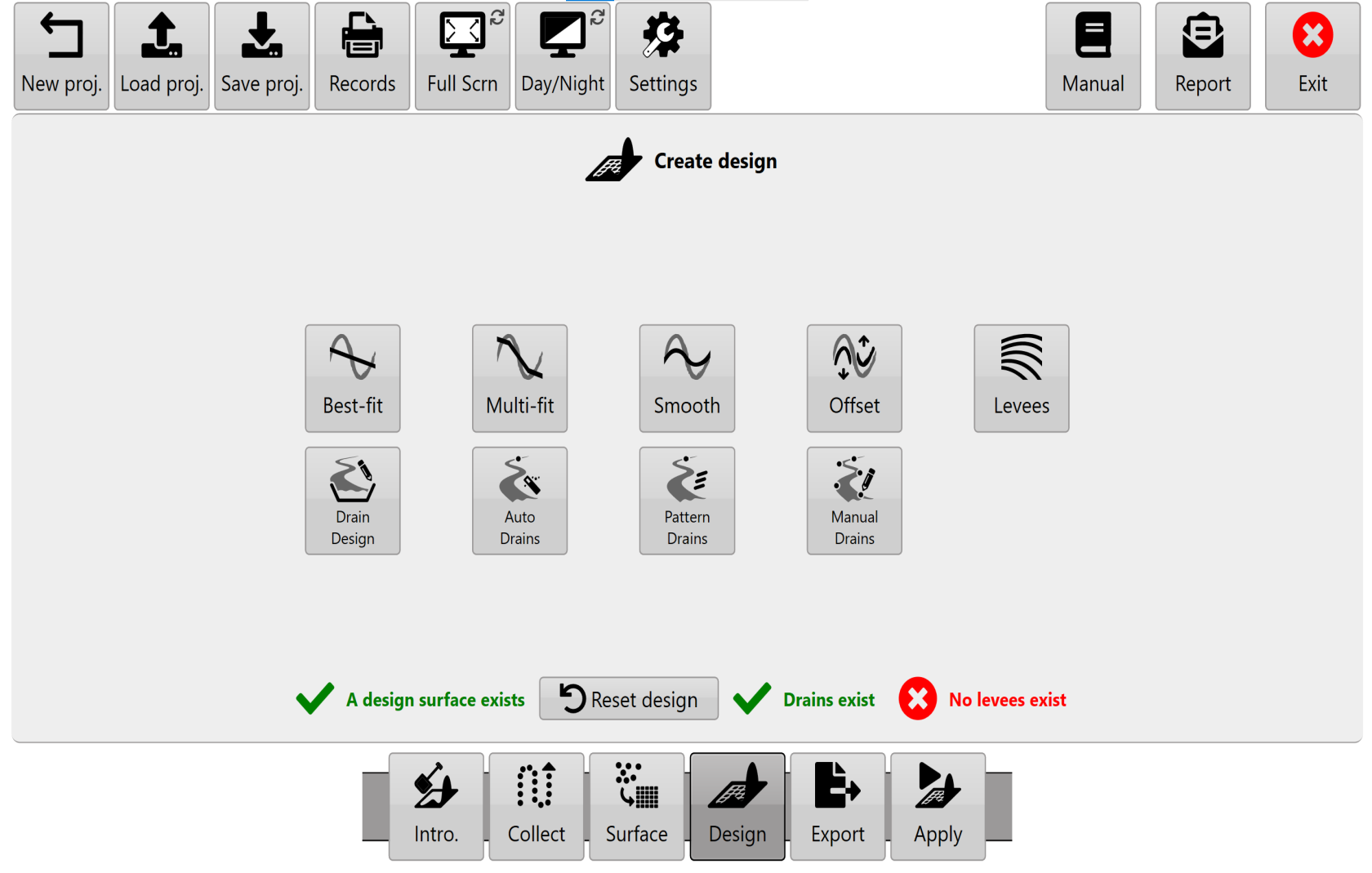 In order to provide solutions that are as broadly applicable as possible T3RRA Cutta includes a variety of design methods:NOTE: A powerful capability of T3RRA Cutta is the ability to “chain” designs together. As well as performing designs on the original field surface, you can also perform designs on an existing design. For instance, after performing a multi-fit design, you can then go and use the '**Smoothing**' tool to smooth the multi-fit design. Use this capability methodically and with care - it is easy to get confused!
T3RRA Ditch 3 provides tools for ditching and levee work 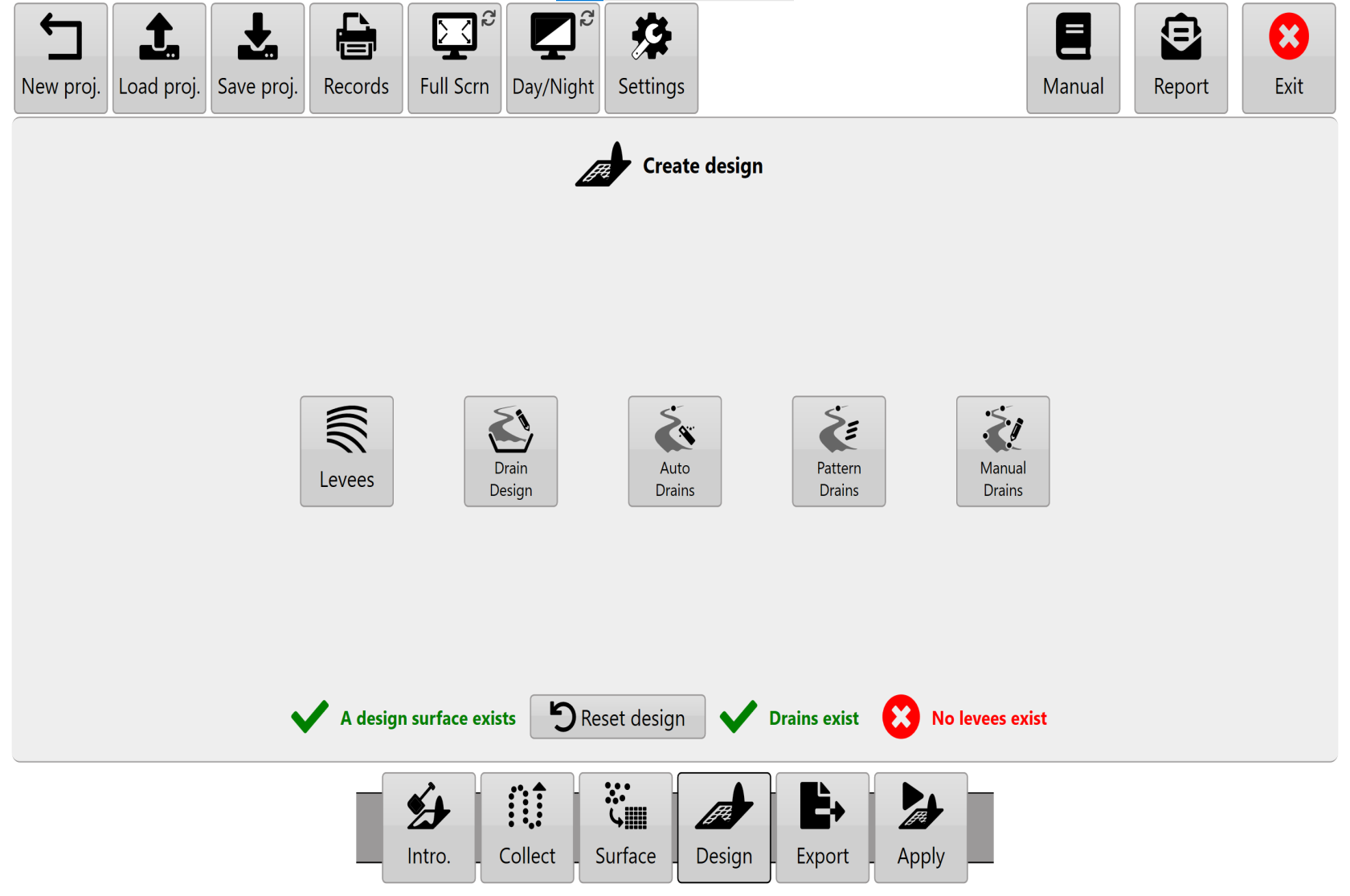 - Drain profile and cross section design - Automated drain path creation - Pattern drain design - Levees (including regions) - Manual drain design T3RRA Plane 3 provides tools for laser based levelling and ditches 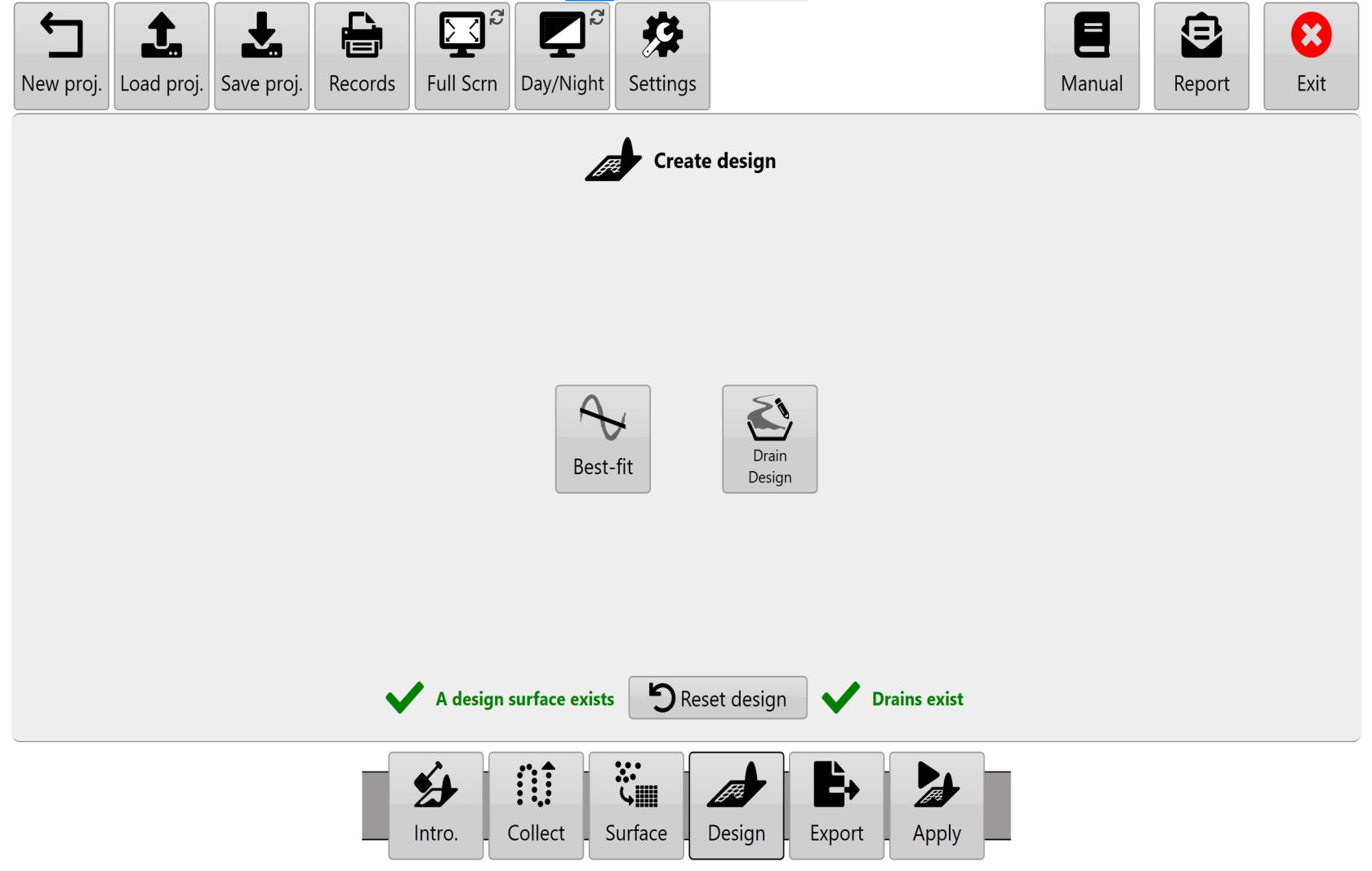 T3RRA Plane 3 can’t do non-linear surface designs. But we wanted to make sure that it can do anything you can do with a laser level.