6 | Wizard
- 6.1 | The T3RRA Wizard
- 6.2 | Common tools found in the Wizard
- 6.3 | Zoom Controls
- 6.4 | Image Overlays
- 6.5 | Choose Mode/Terrain/Layer
- 6.6 | Markers
- 6.7 | Start, Pause and Stop Survey
- 6.8 | Drain Surveying specific edit controls
- 6.9 | 2D Current Position Tracking Options
- 6.10 | 3D Current Position Tracking Options
- 6.11 | Screenshot
- 6.12 | Battery Level
6.1 | The T3RRA Wizard
The wizard guides you through the 4 logical steps in the T3RRA software process.

To start a new project, press New proj. in the top left corner of any wizard page. This returns you to the Main Page/New Project Page.


T3RRA Survey 3 does not include the Design or Apply (Implementation) wizard steps. Manual sections about these steps do not apply to T3RRA Survey 3.
6.2 | Common tools found in the Wizard
Several buttons appear on multiple wizard pages. The reference below shows the tools and any limits on where they are available.
| Tool and availability | Controls |
|---|---|
|
Zoom Controls |
|
| Choose Model/Layer |
|
| Markers (limited to surveying and implementation) |
|
| Start, Stop, and Pause Survey |
|
| Edit Drain (limited to surveying and surfacing) |
|
| Extend Drain (limited to surveying and surfacing) |
|
| Split Drain (limited to surveying and surfacing) |
|
| Delete Points (limited to surveying and surfacing) |
|
|
Tracking Options 2D View(limited to surveying and implementation)
|
|
|
Tracking Options 3D View(limited to surveying and implementation)
|
|
| Screenshots |  |
| Battery power indicator |  |


6.3 | Zoom Controls
Pinch to zoom
Use a two-finger pinch on the screen: move your fingers together to zoom out, or apart to zoom in.
Enable zoom buttons
Alternatively, use the zoom in and zoom out buttons on the bar at the top right.


Show the entire surface grid
The Zoom to full button works independently of these zoom controls and does not need to be enabled. Press it to zoom in or out to the largest map view that shows the entire surface grid.

6.4 | Image Overlays
Image overlays imports geo-referenced image data into a field.
To access the image overlay, press the view button on the top of the screen.
Load image
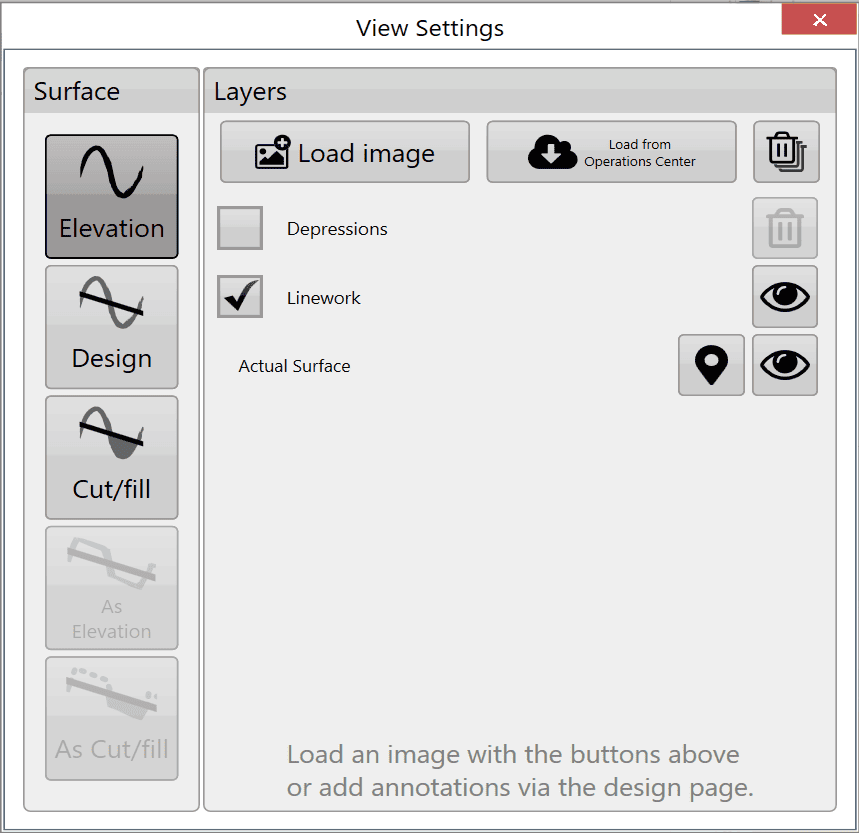
Use Load image as the primary method of adding overlay images to the field. Press the button to open a file window, then select the desired file. Supported overlay image types are .KML, .TIFF, .JPG, .JPEG, .PNG, .GIF, .BMP, .JSONGRID and .KMZ.
Load image from JDOC
Download images from the John Deere Operations Center into the image overlay to compare previous data, such as yields, with current survey data.
Delete images

To delete an overlay image, uncheck the box next to it, then press the delete images button. This removes the layer from the available list. Images can only been deleted if they are not selected in check box and currently visible.
Transparency

To see the layers below an overlay image, check the box to the left of its layer, then press the transparency button on the right side.
Layers
Press a layer to display it over the other layers.
6.5 | Choose Mode/Terrain/Layer
Mode
2D View displays the map as a 2D aerial view by default.
3D View shows terrain as small hills and valleys. Press the vertical scale magnifier shown below to exaggerate the hills and valleys, making them easier to identify. To change the focal point in 3D, quickly double tap a position.


View

A map has several display options.
Surface
Surface selects the source of the map’s 3D topography and coloring. There are 6 options:

Elevation shows the original surface before any dirt is moved. Its Red to Blue gradient shows low areas in Red and high areas in Blue.
Design shows the applied design: the surface you are trying to reach at the end of the dirt moving process. It uses the same color scheme as Elevation.
Cut/Fill shows where the design will take dirt from and where it will put dirt. The layer’s coloring depends on the current Cut/Fill color scheme in Settings > Application.
As applied shows changes as they occur, providing a real-time view of work progress. It uses the same color scheme as Elevation.
This terrain is only available if As Applied mapping has been enabled in the machine tab of Settings.
As Cut/Fill shows where the design will take dirt from and where it will put dirt. The layer’s coloring depends on the current Cut/Fill color scheme in Settings > Application.
Pass Count shows how many passes you have made over an area.
This layer is only available once pass count tracking has been enabled in Settings > Machine.

Layers
Turn defined layers on or off here, including the current surface described above, depressions, drains, linework, and loaded overlays such as KML. The buttons at the top load and clear layers. Each layer has a transparency toggle button beside it; click that button to change the layer’s transparency.

NOTE: The depressions layer is not shown if the project only has drains (and no elevation surface).
6.6 | Markers
Markers identify points of interest at user-selected locations on a design. A marker can also serve as a benchmark “control point” location. For instructions on using a marker as a Benchmark location, see Set Zero using a marker in this manual’s Implementation section.

Use Set marker to place a marker on the map. Markers are always placed at the current location.
Creating a new marker opens a window where you can enter its name.

Edit Marker opens a window where you can select and edit any marker on the map.

The Edit Marker window displays information about each placed marker, including its heading, distance and height relative to your current position.

6.7 | Start, Pause and Stop Survey
On the Surveying screen, Start, Pause, and Stop control the beginning and ending of the relevant activities.


Normal function
Start begins surveying data. The button’s title reflects the action it will start.
Pause lets you continue a path after moving around obstacles. For example, while surveying a drain, press Pause, move around the obstacle, then press Start. The system treats the drain at your new position as a continuation of the same drain.
Stop ends surveying the area. The next Start begins a separate area. For example, while surveying a drain, press Stop, move, then press Start. The system treats this as a new, separate drain.
Drain Surveying function
When the software is set to survey drains, the functions of Start, Pause, and Stop change slightly.
Start starts surveying a drain.
Stop ends the current drain survey. Pressing Start afterward starts a new drain.
Pause collection when the collecting vehicle cannot physically traverse a section of drain line.
6.8 | Drain Surveying specific edit controls
These tools are available in the Collection and Surfacing stages when drain survey points exist.
- Edit Drain
- Merge Drains
- Extend Drain
- Split Drain

Edit Drain


Press Edit drain to open a window listing the available drain paths. Select a drain, then press the corresponding button to rename or delete it.
Merge drains
Use this tool to join two drains at either end. Merging creates a copy of the original drains with a joining line. You then have the option to delete the originals.


Extend drain

Use this tool to extend a drain from either end of its surveyed path. This is useful when the drain needs to reach a location that the surveying vehicle could not access directly.
Press Extend Drain to open the extension screen. You can extend the drain in any direction.
The red arrow indicates both the direction of the extension and the end of the drain that will be extended.
Use the controls on the left to select a drain. Then choose the extension’s length, elevation and direction.

Rel elevation adds or subtracts the entered value from the existing drain end’s elevation to calculate the extended end’s elevation.
Abs elevation sets the extended drain end’s elevation to the entered value.
For example, to extend a drain 1ft below an ending elevation of 100ft, use either of these values:
Rel elevation value: -1ft
Abs elevation value: 99ft
After making the adjustments, press Extend Drain.
Split drain
Use Split drain to divide one drain into two separate drains.

First, select the drain from the Which drain to split? drop-down menu at the bottom center.

After selecting a drain, press anywhere along its profile. A blue arrow shows where the split will occur. You can also move the arrow using the left and right arrows to the right of Split at Distance.
Choose the Marker button to create a Marker for reference.
Enter a name in New drain name. When the settings are satisfactory, press Split Drain At Point to apply the split.
NOTE: The new drain name must differ from every existing drain name. If it matches an existing name, Split Drain At Point is disabled.
6.9 | 2D Current Position Tracking Options
When surveying or implementing, four options control how the vehicle location is tracked on the screen in 2D: Scroll, Center, Dir. up, and Manual.
Scroll

The GPS position indicator moves freely on the screen. As it approaches the edge, the screen moves to keep the indicator visible.
Dir. Up

When Direction Up is active, the map rotates so that the direction of travel is always at the top of the screen.
Center

The Center option has two parts: it locks the indicator to the center of the screen, moving the map as the indicator moves to keep it centered; it also locks the map orientation with north always at the top of the screen.
Manual

Manual does not lock the map direction or fixate on the indicator location, so you can inspect other sections of the map while surveying or implementing.
Caution: in this mode the vehicle icon can move off the edge of the map.
6.10 | 3D Current Position Tracking Options
When surveying or implementing in 3D, choose between two tracking options: Follow Tractor and Stop Following.
Follow Tractor

Press Follow Tractor to place the camera behind the tractor. This option keeps the tractor at the center of the screen at all times. In 3D, the camera can only be moved to view the tractor from different angles; it rotates with the tractor as the primary focus.
Stop Following

With Stop Following, the camera stops following the tractor. The tractor can drive off the edge of the screen without the camera following it. However, whenever you change the camera angle, the camera snaps back to the tractor's current position and uses the tractor as the focal point.
6.11 | Screenshot
 To capture the current screen, press the camera button at the top right of any mapping window.
A pop-up appears after the screenshot is taken. Press ‘Yes’ to open the folder where the screenshot is saved.

6.12 | Battery Level
To capture the current screen, press the camera button at the top right of any mapping window.
A pop-up appears after the screenshot is taken. Press ‘Yes’ to open the folder where the screenshot is saved.