# 5 | Settings

# 5.1 | Application Tab

<figure id="bkmrk-"><figcaption id="bkmrk-application-tab-show">![image.png](https://docs.t3rra.com/uploads/images/gallery/2026-10/scaled-1680-/F4Eimage.png)

*Application tab settings*</figcaption></figure>## Units

**Language** changes the application language.

**Length** selects the distance measurement unit.

**Area** selects the area measurement unit.

**Volume** selects the volume measurement unit.

<figure id="bkmrk--2"><figcaption>## Estimated cost

<span id="bkmrk--3"></span>**Estimated Cost** sets the estimated cost per volume of dirt moved. To customise the currency format, click the button to the right. Enter custom text before and/or after the amount, such as a currency code or other information. The Custom currency example shows the resulting format.

The cost is per cubic meter or cubic yard and is calculated for cuts only.

Custom currency example: $1,234.56+tax (Before $, After +tax; two decimals)

</figcaption><span id="bkmrk--33"></span>![Custom currency dialog with Before set to $, After to +tax, two decimals and example $1,234.56+tax](https://docs.t3rra.com/uploads/images/gallery/2025-03/scaled-1680-/uWQvk3y0dyfoxcrj77578endsudgemv6p28ra-png.png)</figure><figure id="bkmrk--7"><span id="bkmrk--6"><span id="bkmrk--35"></span><span id="bkmrk--36"></span></span>![Surface elevation map with grid lines and a red arrow pointing to the 200ft x 200ft grid dimensions](https://docs.t3rra.com/uploads/images/gallery/2025-03/scaled-1680-/LvL6j5gqrficvfuafr-3thc515e7xd9fnjnbg-png.png)<figcaption id="bkmrk-surface-elevation-ma">*Elevation map: 200ft x 200ft grid dimensions (red arrow)*</figcaption></figure>## Map display

<span id="bkmrk--38"></span>**Surface Grid** <span id="bkmrk-%C2%A0--determines-whethe">controls whether grid lines appear on the map. By default, the grid resizes to best fit the field. The grid dimensions appear in the lower-right corner of the scanned area.</span>

**Lock grid size to:** sets the grid size manually. Set it to 0 for auto-size.

<figure id="bkmrk--12"><span id="bkmrk--39"><span id="bkmrk--40"></span></span><iframe height="476" id="bkmrk--41" src="https://www.youtube.com/embed/9fSbZdnzvh0?&wmode=opaque" style="width: 846px; height: 476px;" title="Application settings video: surface grid" width="846"></iframe>

</figure><span id="bkmrk--42"></span>**Cut/Fill Color Style** selects Magenta/Green or Red/Green/Blue. In Magenta/Green, magenta represents cuts and green represents fills. In Red/Green/Blue, red represents cuts, green is neutral and blue represents fills.

**Surface Color Style (Low,High)** changes the colours representing surface highs and lows. Choose from the drop-down menu; choices are limited to that menu.

**Zero Cut/Fill Range** sets the vertical range considered “on-grade”, helping identify areas requiring heavy earth moving. It does not change the design height or scraper blade height.

**Slope Display** shows slope as a *Percentage* or *Ratio*, for example 0.1% or 1/1000.

## <span id="bkmrk--43"></span>Buttons

**Show zoom buttons** enables buttons for zooming in and out instead of two-finger touch zoom.

Check **Big buttons** to enlarge the menu buttons.

**Show Project Swapper button** controls whether the project swapper button is displayed.

**Transparent button background** switches button backgrounds between gray and transparent on the design or implementation screens.

## <span id="bkmrk--44"></span>Input options

**Show screen keyboard** opens the keyboard automatically when needed.

**Show Calculator** displays a calculator when needed while entering values.

## <span id="bkmrk--45"></span>Behaviour

With **Hide buttons after delay** checked, buttons fade after 15 seconds on the implementation screen. Touch the screen to retrieve them.

**Collection Beep** enables audible notifications when elevation points are collected.

## Updates and support

<span id="bkmrk--46"><span id="bkmrk--47"></span><span id="bkmrk--48"></span></span>Use **Download Updates** to update to the latest version when connected to the internet.

**Show update log** lists software update details.

**Set Support** helps your dealer provide remote support. An Internet connection is required.

<figure id="bkmrk-click-the-setup-remo"><figcaption>Click the **Setup remote support** button.

Get Support before installation: Setup remote support; Not installed

</figcaption>[![Get Support dialog before installation, with Setup remote support button and Not installed status](https://docs.t3rra.com/uploads/images/gallery/2026-04/scaled-1680-/hYXigd3FRkGauaKN-image.png)](https://docs.t3rra.com/uploads/images/gallery/2026-04/hYXigd3FRkGauaKN-image.png)</figure><figure id="bkmrk--10">[![Get Support dialog after installation, displaying a remote-support code and online status](https://docs.t3rra.com/uploads/images/gallery/2026-04/scaled-1680-/H3oPomaDUkr3drzj-image.png)](https://docs.t3rra.com/uploads/images/gallery/2026-04/H3oPomaDUkr3drzj-image.png)<figcaption>*Get Support after installation: remote-support code and online status*

After installation, a code appears. Your support person uses this code to connect to your computer and help you. When they connect, AnyDesk opens a confirmation window. Click the green **\[Accept\]** button to accept their help.

</figcaption></figure>Select **Close** to save settings and exit the settings dialog.

<iframe height="474" id="bkmrk--29" src="https://www.youtube.com/embed/9rlCn1VuGlo?&wmode=opaque" style="width: 843px; height: 474px;" title="Application settings video: application tab" width="843"></iframe>

# 5.2 | Equipment Tab

![image.png](https://docs.t3rra.com/uploads/images/gallery/2026-10/scaled-1680-/DUOimage.png)*Equipment Tab Settings*

## Look ahead delay time

To control blade height, the software receives an elevation from iGrade™, processes it, then returns a control signal to iGrade™. Although this control loop is quick, its delay can cause inaccurate implementation in some situations.<span id="bkmrk--3"></span>

A normal “Look ahead” time is 0.3 to 0.5 seconds. The exact time is machine specific and can be determined by experimentation; see [Bi-Directional error in T3RRA in the troubleshooting section](https://t3rra-help.freshdesk.com/en/support/solutions/articles/51000330270-bi-directional-error-in-igrade-). Look ahead time helps account for the control-loop delay.<span id="bkmrk--4"></span>

If look ahead time is not set, the delay can cause a consistent “bi-directional error”: the blade offsets incorrectly, moving up when travelling down a slope and down when travelling up a slope. If the time is too LOW, the implement always grades high down-slope and low up-slope; if it is too HIGH, the opposite occurs. Bi-directional error is most noticeable on steep slopes at higher speeds.<span id="bkmrk--5"></span>

### Blade positioning

**Blade positioning** specifies which part of the soil profile under the blade has priority in determining blade position. This option is available only after you enter ‘Implement width’ and enable ‘Output cross slope commands’.<span id="bkmrk--16"></span>

<figure id="bkmrk-classic%C2%A0--this-posit">![Machine tab with the Blade positioning menu open: Classic, Average, Average, on top, Snap fit and Single point.](https://docs.t3rra.com/uploads/images/gallery/2025-03/scaled-1680-/vd7pyp-enrmdknk2vfedy2j9kg1heoblrqu4a-png.png)<figcaption id="bkmrk-blade-positioning-op">*Blade positioning options*  
  
</figcaption></figure>**Classic** uses the design elevation as the target under the blade centre. Cross-slope is determined by design elevations under the left and right blade points. This makes it easy to over-dig down the midline of ditches or clip the top off a bank when straddling its ridge.

**Average** follows the overall trend of the design surface under the blade. It works well for reproducing a full-field design, but is less suited to abruptly changing slopes.

**Average, on top** determines slope in the same way as Average, but positions the blade above that trend to always avoid overcutting.

**Snap fit** attempts to find the best blade position without overcutting. As you traverse a break line, the blade snaps from one position to another. This is intended to cut and fill most efficiently, minimising passes and rework risk, and is tailored for abruptly changing slopes.

**Single point** provides Control-by-point: choose a blade position represented by the red arrow. That point follows the design elevation and cross slope even if the blade cuts below the design elsewhere. This is envisioned to work well for features such as V-ditches.

### As-applied tracking

**Enable As-applied calculations** shows a graphic representation of the surface’s current state as work progresses. See [Understanding how “As-applied” works](https://t3rra-help.freshdesk.com/en/support/solutions/articles/51000330199-understanding-how-as-applied-works).

<p class="callout info">**NOTE:** ‘Implement width’ is required to enable the As-applied feature.</p>

# 5.3 | COMMAND Tab


# 5.4 | Limits Tab

## Blade shift increment

**Blade Shift Increment** sets the height adjustment applied by the up/down elevation adjustment buttons in the implementation wizard step.
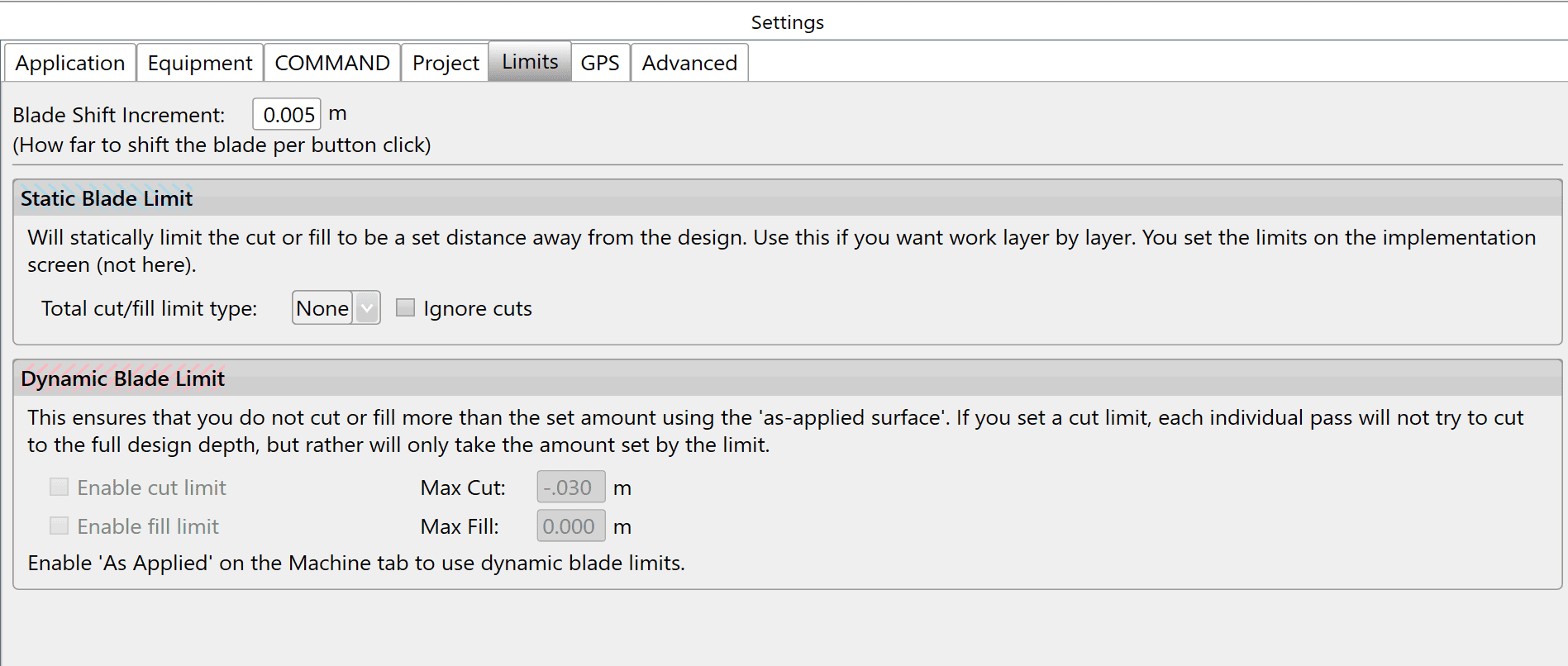
![image.png](https://docs.t3rra.com/uploads/images/gallery/2026-10/scaled-1680-/Dicimage.png)*Limits tab with Blade Shift Increment, Static Blade Limit and Dynamic Blade Limit controls; As Applied is required*

<p class="callout info">**NOTE** — The recommended blade shift increment is 0.03 - 0.06 feet (0.4 - 0.8 inches, or 0.01m - 0.02m).</p>

## Static blade limit

<span id="bkmrk--1"></span>**Static Blade Limit** temporarily changes target design heights by a specified amount. At 50%, target cut and fill heights become 50% of the design values. It can also overfill a design by a percentage to allow for soil to sink over time: at 110%, a 100mm fill becomes 110mm to allow for future compaction.

<span id="bkmrk--2"></span>Build banks, roads or mounds in gradual steps to allow even compaction of dirt.

<span id="bkmrk--3"></span>**Ignore cuts** is useful when gradually building a mound. Use the vertical nudge to lower the design surface below the current surface, then slowly nudge it upwards so filling begins at the apex and proceeds outwards. In this case, avoid cutting where the nudged mound design is below the original surface. **NOTE:** Ignore cuts can be activated even when Static Blade Limit is set to “None”.

<span id="bkmrk--4"></span>Set the static blade limit amount on the implementation screen.

### Methods for progressively adding layers of dirt to a fill area

<section id="bkmrk-static-blade-limitby"><span id="bkmrk--5"><span id="bkmrk--6"></span></span><figure id="bkmrk-static-blade-limit-b">![Static Blade Limit by Percent: dashed curved layers progressing from the original surface towards the mound design](https://docs.t3rra.com/uploads/images/gallery/2025-03/scaled-1680-/fXsyhu0-xepx-hulm3tuy8s4pcwwjwglzg5hq-png.png)<figcaption id="bkmrk-static-blade-limit-b-1">Static Blade Limit by Percent — Static Blade Limit by Percent: dashed curved layers progressing from the original surface towards the mound design</figcaption></figure><figure id="bkmrk-static-blade-limit-b-2">![Static Blade Limit by Absolute Value: horizontal dashed fill layers beneath a curved mound design](https://docs.t3rra.com/uploads/images/gallery/2025-03/scaled-1680-/AnPbiywpjnhoodr5rx1fqp8slpkkkgo4sytsq-png.png)<figcaption id="bkmrk-static-blade-limit-b-3">Static Blade Limit By Absolute Value — Static Blade Limit by Absolute Value: horizontal dashed fill layers beneath a curved mound design</figcaption></figure><figure id="bkmrk-combination-of-verti">![Vertical blade offset with Ignore cuts: dashed mound profiles rising from below the original surface](https://docs.t3rra.com/uploads/images/gallery/2025-03/scaled-1680-/jNLtqktbk7z82sr45bo1p41hqxxpyguwzzfgg-png.png)<figcaption id="bkmrk-combination-of-verti-1">Combination of vertical blade offset + Ignore cuts — Vertical blade offset with Ignore cuts: dashed mound profiles rising from below the original surface</figcaption></figure></section>

# 5.5 | GPS Port Settings Tab

## GPS connection settings

![image.png](https://docs.t3rra.com/uploads/images/gallery/2026-10/scaled-1680-/zjMimage.png)

<figure id="bkmrk-gps-settings-with-ra"><figcaption id="bkmrk-gps-settings-with-ra-1">*GPS settings with Raw GPS Data displayed*  
  
</figcaption></figure>**GPS** displays the COM port used to communicate with the GPS. Select the correct port from the drop down menu.<span id="bkmrk--2"></span>

**Baud (Rate)** sets the communication speed between the software and GPS. It should match the GPS baud rate.<span id="bkmrk--3"></span>

**Scan for GPS** checks available COM ports and usual baud rates for valid GPS data.<span id="bkmrk--4"></span>

<p class="callout info">**NOTE:** T3RRA software and iGrade™ must have identical Com port and Baud Rate settings in order to communicate.</p>

## Configuration and diagnostics

**Warning/Error Configuration** settings changed on this page remain in effect after the system is turned off.<span id="bkmrk--5"></span>

**Current** displays the most recent GPS information received in a table.<span id="bkmrk--6"></span>

**Raw GPS data** displays the most recent GPS data received. It is primarily used for diagnostics when support is required.<span id="bkmrk--7"></span>

**Output Data** displays the most recent outgoing communications. It is primarily used for diagnostics when support is required.<span id="bkmrk--8"></span>

**Recent GPS errors** lists the most recent GPS errors so that intermittent errors can be reviewed.<span id="bkmrk--9"></span>

**Open Device Manager** is used to investigate COM port issues when required.<span id="bkmrk--10"></span>

**Connect and Disconnect** manually start or stop communication with the app controller.

## Serial port parameters

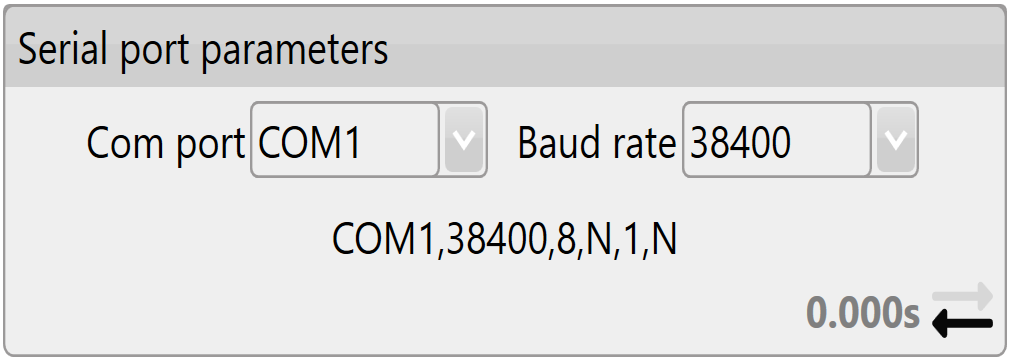
**Com port**: The adapter assigns the Com port #. The drop-down box lists all available com ports. Select the serial port physically connected by cable to the iGrade™ Application Controller. Windows Device Manager provides diagnostics for the current serial ports; you can open it using the button at the bottom left of **Settings &gt; GPS**.

![Serial port parameters panel with Com port COM1 and Baud rate 38400 drop-downs and send/receive arrows.](https://docs.t3rra.com/uploads/images/gallery/2025-03/scaled-1680-/PAhvfdrdmpoteveimu4p71tgyvjyoz51dnyva-png.png)

**Baud rate**: This is the speed of communication with iGrade™. It must match the iGrade™ settings, or T3RRA software cannot communicate with iGrade™. For iGrade v1, the recommended baud rate is 38400. For iGrade™ v2, the recommended baud rate is 115200, with **NMEA Message Type** set to “All”.

## Warning Thresholds

<span id="bkmrk--14"></span>

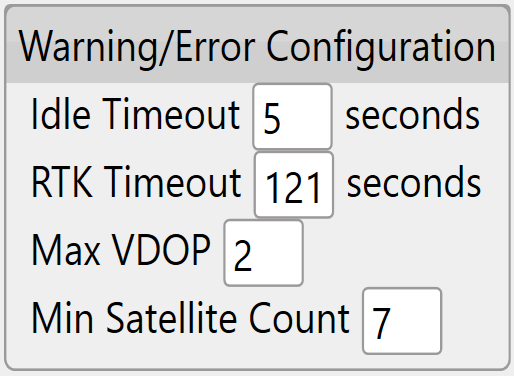
**Idle timeout**: An error warning appears if no GPS messages are received within this time period.
![Warning/Error Configuration panel with Idle Timeout, RTK Timeout, Max VDOP and Min Satellite Count fields.](https://docs.t3rra.com/uploads/images/gallery/2025-03/scaled-1680-/vdElc-g0gijblg1c-ep-b8l8ofkbkcwdy8f9g-png.png)

<span id="bkmrk-empty-spacer-17"></span>

**RTK Timeout**: This monitors the time since the last good RTK correction packet. It should not normally be set above 10-20sec.

<span id="bkmrk--18"></span>

**Max VDOP**: Vertical Dilution of Precision measures altitude accuracy. Keep this value as low as possible for the most accurate implementation, but setting it lower than 2 may interrupt use of T3RRA software.

<span id="bkmrk--20"></span>

**Min Satellite Count**: Sets how few satellites the GPS needs to see before a warning appears.

<span id="bkmrk--22"></span>

## Input/Output

[![image.png](https://docs.t3rra.com/uploads/images/gallery/2026-10/scaled-1680-/4fMimage.png)](https://docs.t3rra.com/uploads/images/gallery/2026-10/4fMimage.png)

<table id="bkmrk-fieldmeaningcurrent-"><thead id="bkmrk-fieldmeaning"><tr id="bkmrk-fieldmeaning-1"><th id="bkmrk-field" scope="col">Field</th><th id="bkmrk-meaning" scope="col">Meaning</th></tr></thead><tbody id="bkmrk-gps-output-body"><tr id="bkmrk-current-%26-raw-gps-da"><th id="bkmrk-current-%26-raw-gps-da-2" scope="row">Current &amp; Raw GPS Data:</th><td id="bkmrk-current-shows-the-re">Current shows the receiver’s current position data. Raw GPS Data shows all incoming messages.<span id="bkmrk--24"></span></td></tr><tr><th scope="row">Output Data:</th><td>Outgoing command messages </td></tr><tr><th scope="row">Recent GPS errors</th><td>Current GPS state and any errors </td></tr><tr id="bkmrk-lat-%26-lon%3A%C2%A0your-curr"><th id="bkmrk-lat-%26-lon%3A" scope="row">Lat &amp; Lon:</th><td id="bkmrk-your-current-locatio">Your current location coordinates (latitude and longitude).<span id="bkmrk--25"></span></td></tr><tr id="bkmrk-altitude%3A%C2%A0your-curre"><th id="bkmrk-altitude%3A" scope="row">Altitude:</th><td id="bkmrk-your-current-height-">Your current height above sea level, displayed in the chosen measurement format.<span id="bkmrk--26"></span></td></tr><tr id="bkmrk-num-sats%3A%C2%A0the-number"><th id="bkmrk-num-sats%3A" scope="row">Num Sats:</th><td id="bkmrk-the-number-of-satell">The number of satellites currently tracked by your GPS. It is linked to Min Satellite Count in Warning thresholds: an error appears if the count drops below that setting.<span id="bkmrk--27"></span></td></tr><tr id="bkmrk-fix%3A%C2%A0the-type-of-pos"><th id="bkmrk-fix%3A" scope="row">Fix:</th><td id="bkmrk-the-type-of-position">The type of position solution calculated.<span id="bkmrk--28"></span></td></tr><tr id="bkmrk-time%3A%C2%A0the-current-gp"><th id="bkmrk-time%3A" scope="row">Time:</th><td id="bkmrk-the-current-gps-time">The current GPS time.<span id="bkmrk--29"></span></td></tr><tr id="bkmrk-last-correction%3A-tim"><th id="bkmrk-last-correction%3A" scope="row"><span id="bkmrk--30"></span>Last Correction:</th><td id="bkmrk-the-time-since-the-l">The time since the last differential correction message from the base station. Keep it as low as possible for the most accurate readings. It is linked to RTK Timeout in Warning thresholds: an error appears if it exceeds that limit.<span id="bkmrk--31"></span></td></tr><tr id="bkmrk-vdop%3A%C2%A0vertical-dilut"><th id="bkmrk-vdop%3A" scope="row">VDOP:</th><td id="bkmrk-vertical-dilution-of">Vertical Dilution of Precision. An error appears if this number exceeds Max VDOP in warning thresholds.<span id="bkmrk--32"></span><span id="bkmrk--33"></span></td></tr><tr><th scope="row">Speed:</th><td>Your current travel speed</td></tr><tr><th scope="row">Heading: </th><td>Current heading out of 360 degrees</td></tr></tbody></table>

# 5.6 | Advanced Settings Tab

![image.png](https://docs.t3rra.com/uploads/images/gallery/2026-10/scaled-1680-/gJMimage.png)*Advanced tab in Settings*

## Logging

### Enable GPS data log

Keeping this enabled is highly recommended. The GPS data log accompanies error reports to help find a solution.<span id="bkmrk--2"></span>

### Enable diagnostic data

Keeping this enabled is highly recommended: the collected data helps support assist you when issues occur.<span id="bkmrk--3"></span>

### Use early access for update

Enables software updates to early access (preview) versions of the software. Opt in to receive new features, enhancements and fixes before they are included in a stable release.

### Root save folder

Specifies the default location where T3RRA saves project files and associated data. Users can manually enter a folder path or select the folder icon to browse for a different location. The reset icon restores the default save location (`C:\ProgramData\T3RRA\Saves`).

## Troubleshooting tools

**Open Task Manager** opens the computer's task manager tool, which displays all systems currently running on the computer.<span id="bkmrk--4"></span>

**Show Wi-Fi networks** opens the computer's Wi-Fi network panel. The tablet needs to be connected to Wi-Fi to enable the use of the remote support tools.

**Explore error logs area** opens the Windows folder on the tablet containing all error log files. If an issue occurs, send support the latest file to help identify and correct the cause quickly.<span id="bkmrk--5"></span>

### Version Manager

Use Version Manager to downgrade the software version if you experience a particularly bad error. Adding a support request when you use this is highly recommended.<span id="bkmrk--6"></span>

### Disable serial mouse

Disabling the serial mouse can correct a cursor that jumps around the screen or “COM in use” errors.<span id="bkmrk--7"></span>

**Reset to Default** resets all settings to default.<span id="bkmrk--8"></span>

## Saving Settings 

**Save settings** will save the current software configuration and preferences for future use.

**Load settings** will load previously saved settings.

**Reset to default** will restore all software settings to their original default values.

## Backup and display settings

**Automatic backup frequency** is a drop-down menu for changing how often T3RRA Software backs up your work. Options are Never, Low, Medium and High.<span id="bkmrk--10"></span>

**Terrain model Quality** defaults to High. Its effect is most visible on surfaces in 3D: lowering it may smooth out displayed details. The details and depressions remain, but are not represented in the 3D display.<span id="bkmrk--11"></span>

**Map update rate** changes how often the map updates during Surveying and Implementation.