4 | Creating Projects
- 4.1 | Main page / New Project Page
- 4.2 | Importing External Files
- 4.3 | Importing Data
- 4.4 | Loading a Project
- 4.5 | Saving and Auto-Saving Projects
4.1 | Main page / New Project Page
The Main Page appears when T3RRA software opens and when you select New Project within the Wizard.
Use the Main Page to access display settings, software configuration, the Operator’s Manual and T3RRA support tools.
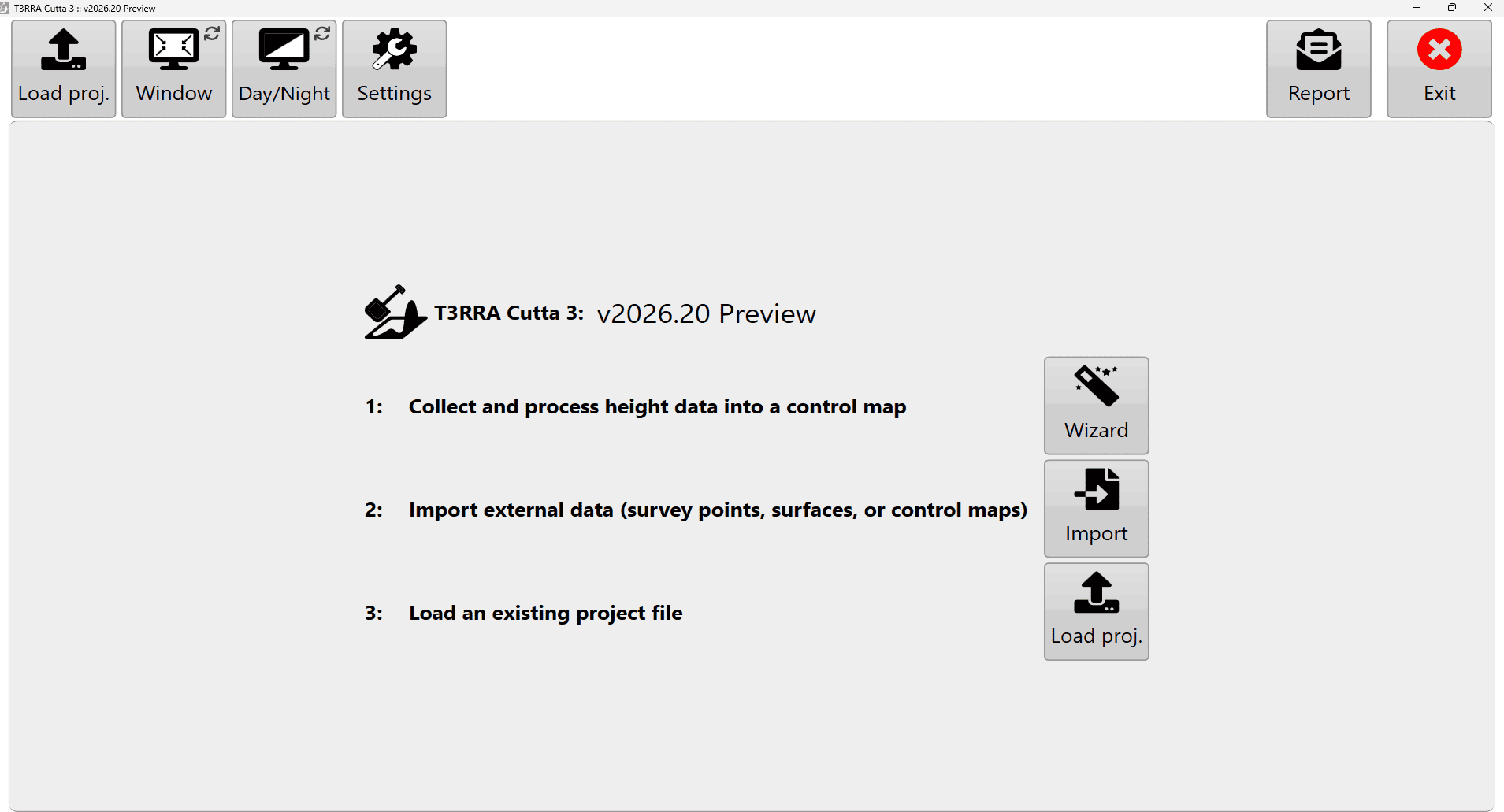 Main Page with display, settings, manual and report controls, and project-start options
Application Information
In windowed mode, the title bar shows information about the running application and current project.
The information varies with the software and may include:
- The name of the currently loaded project file.
- The T3RRA application name, such as T3RRA Cutta 3, T3RRA Ditch 3, T3RRA Plane 3, T3RRA Survey 3 or T3RRA Apply 3.
- The installed software version.
Full Screen Mode
Use Full Scrn to toggle between full-screen and windowed operation.
Full-screen mode maximises the display area available to T3RRA. Use windowed mode when you also need another application or a Windows function.
With a keyboard connected, F11 also switches between full-screen and windowed modes.
Display Modes
Three display modes help improve visibility in different operating conditions:
| Mode | Description |
|---|---|
| Day | Standard light interface with a white background. This is the display mode used throughout this manual. |
| High Contrast | Uses an inverted colour scheme to improve visibility in some lighting conditions. |
| Night | Uses a dark background with a green foreground to reduce screen brightness during low-light operation. |
Settings
Open Settings to review or configure the application.
Before starting work, check that the software configuration is correct for the machine, implement, project and GNSS system in use.
Refer to the Settings chapter for the available settings and their functions.
Open Manual
Use Open Manual to access the T3RRA Operator’s Manual.
On first use, this option downloads and installs a local copy of the manual on the tablet. After installation, Open Manual opens that copy directly.
The first download requires an internet connection.
Report
Use Report to open the T3RRA bug report and feature request window.
Use this window to:
- Report unexpected software behaviour.
- Submit information about a problem.
- Request or suggest new functionality.
Licence details automatically populate the Name and Email Address fields.
Submitting a report requires an active internet connection.
4.2 | Importing External Files
T3RRA software uses the T3RRA Project File (.tci) as its native project format. Data from supported external file formats can be imported and converted for use within a T3RRA project.
To import external data, select Import from the Main Page and choose the appropriate file or data source.
T3RRA Design provides additional import and conversion capabilities and can be used to prepare many other file formats for use with T3RRA software.
Supported Import Formats
The available import options depend on the type and source of the data.
Survey and Elevation Data
| Data Type | Supported Formats / Sources |
|---|---|
| Drain Paths | CSV (.csv); PCTXYZ |
| Full Field Surveys | CSV (.csv); PCTXYZ; John Deere RCD Log; John Deere ADAPT Log; John Deere SWM Survey; MyJohnDeere Field Operation* |
| Survey Data | KML (.kml) |
*An internet connection is required when importing from MyJohnDeere.
Digital Elevation Models
JSONGrid; ESRI ASCII; Field Level II; AGPS Design File; Trimble Grid (.xyzout).
Control Files
| Data Type | Supported Format |
|---|---|
| Drain Paths | John Deere Ditch Tracks (SWP Ditch Tracks) |
| Full Field | Field Level II |
4.3 | Importing Data
The native project format for T3RRA software is the T3RRA Project File (.tci). Before using data from a supported external source in a project, bring it into the project with Import.
T3RRA Design offers additional import and conversion capabilities for preparing many other file formats for use with T3RRA software.
T3RRA Apply does not support data import. It can only use designs created in, or provided by, other T3RRA projects.
Loading and importing
In T3RRA software and this manual, loading and importing are distinct operations:
- Loading opens an existing T3RRA
.tciproject file. - Importing brings external or third-party data into a T3RRA project.
A .tci project can normally be loaded directly. External data may need extra import steps: T3RRA may require information about the source data, or may need to interpret or convert it before use.
Import a file
Import external data while creating a project, or add it to an existing project at any time.
1. Open the Import window
Select Import on the Main Page or in the Wizard's Collect step.
With a keyboard connected, you can also open the Import window by pressing Ctrl+I.
2. Select the import type and file
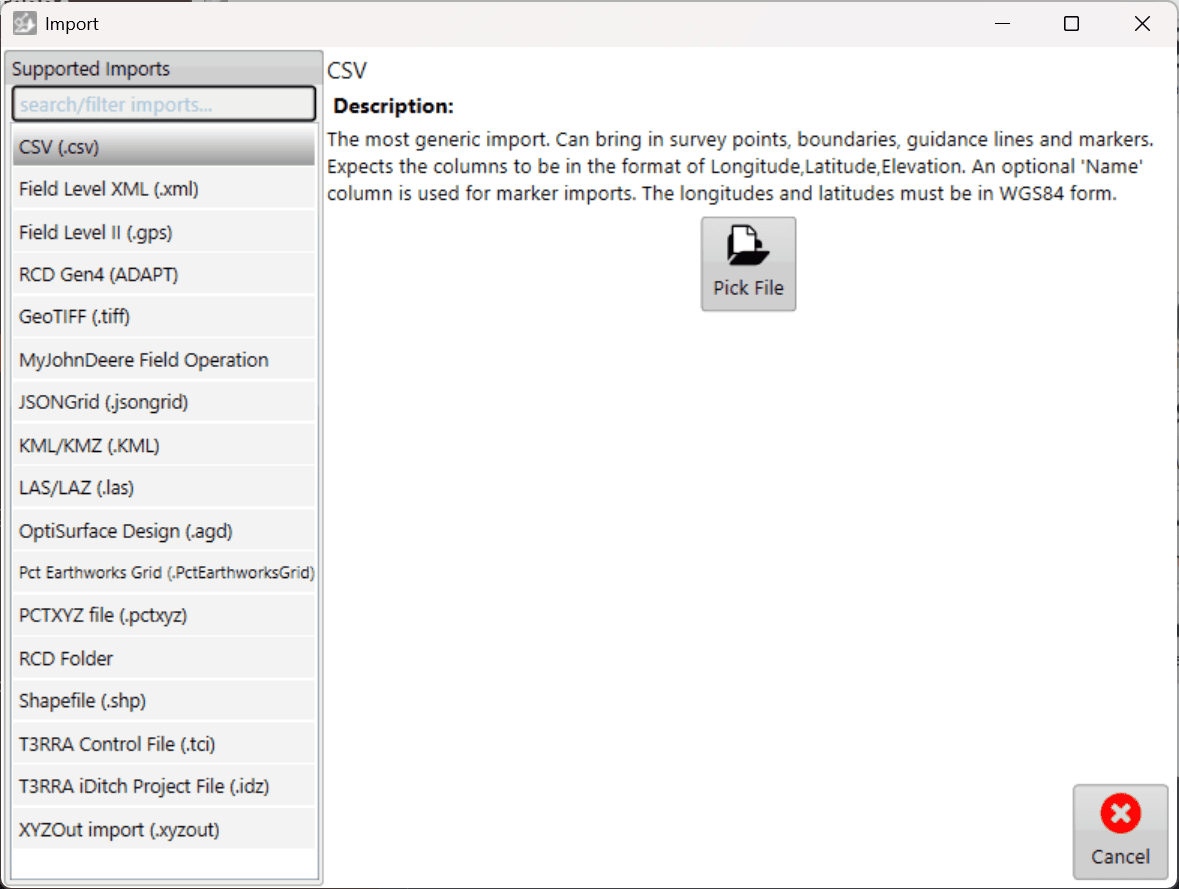
Choose the appropriate data or file type from the left side of the Import window.
Select Pick File, then browse to the file you want to import and select it.
3. Configure the import
Some file types need additional information before they can be read, such as the coordinate system or projection.
Enter the required information, then select Read in the lower-right corner.
CSV data containing latitude and longitude coordinates must use WGS84 for those coordinates.
4. Review the data
After the file has been read, select the data to import. The right side of the window shows a preview of the available data.
T3RRA attempts to identify the file's data type automatically. If it identifies the wrong type, select the correct type using the available drop-down menus.
Review the data and your selections, then select Import.

5. Continue with the imported data
After the import finishes, the data is available in the project for surfacing and design operations as required.
Importing elevation survey point data automatically creates the corresponding surface in T3RRA.

4.4 | Loading a Project
Use Load proj. to open an existing T3RRA project (.tci) from the standard project structure, another location on the tablet PC, or external storage such as a USB drive.
Start by selecting Load proj. on the Main Page.
Loading from Grower/Farm/Field
The standard T3RRA file structure organises projects by Grower, Farm and Field profiles.
Choose the appropriate Grower, Farm and Field. Then select the project and press OK.
See the section later in this chapter for information on creating and managing Grower, Farm and Field profiles.

Managing Saved Projects

Each project has three management buttons:
Use these controls to organise existing project files within T3RRA software.
Finding a Project Manually
T3RRA projects are standard Windows files; they do not have to be kept in the default T3RRA folder structure.
For a project saved elsewhere, select Find manually.

Browse to the required T3RRA project (.tci) in Windows File Explorer. Select the file, then select Open.

You can also use this option to open a project on external media, such as a USB drive.
Finding All T3RRA Projects
If the saved location is unknown, select Show all files.
T3RRA scans the computer’s C: drive for compatible project files, adding them to the list as they are found. The lower-right progress bar shows that scanning is still underway.
Filter the results by project filename using the Search field.

Select the required project once you find it, then press OK.
Continuing a Loaded Project
Loading a project opens the Wizard at its appropriate stage. Saved progress is retained so you can continue where you left off.
If the project is ready for machine control, proceed directly to the Apply stage.

When ready to implement the project, select Start. You must accept the displayed Disclaimer before machine control can begin.

4.5 | Saving and Auto-Saving Projects
Saving a project retains its survey, design and other associated data so you can close T3RRA software and resume work later.
Although T3RRA software includes an automatic backup system, regularly saving your project is strongly recommended to minimise the risk of data loss.
Saving a Project
The Save project button is available from the main Wizard pages.
Select Save project to open the project save window. T3RRA's standard project structure organises projects using the following information:
- Grower
- Farm Name
- Field Name
- Project Name
Enter the required information, or use the drop-down lists to select an existing Grower, Farm or Field.
Select OK to save the project within the standard T3RRA project structure.

Saving to Another Location
T3RRA project files are standard Windows files and can also be saved outside the default T3RRA project structure.
Select Manually Choose Location to specify an alternative save location.
The save window can be navigated using either the folder tree on the left or the main file browser. Navigate to the required location, enter a filename, then select Save.
You can save elsewhere on the tablet PC or to another available storage location.

Important — Back Up Your Projects
Regularly copy important project files to a location separate from the in-cab tablet PC. This provides an additional copy of your project data if the tablet is damaged, lost or experiences a hardware failure.
Consider backing up at appropriate stages during a job instead of waiting until all work is complete.
Auto-Saving
T3RRA software automatically creates backup copies of project data while you are working. Autosaving helps protect against data loss if the application closes unexpectedly or the tablet PC experiences a software or hardware failure.
The autosave interval can be configured under Settings > Advanced.
Autosave files are stored in the same location as the active project and use the same project filename with an additional .backup suffix.

Recovering an Auto-Saved Project
When you load an existing project, T3RRA checks for its corresponding autosave file.
If an autosave exists and has a newer date and time than the saved project, T3RRA will prompt you to choose whether to load the newer autosaved version.
After an unexpected shutdown or other interruption, this can recover work completed since the last manual save.
Manually Recovering an Auto-Save
An autosave contains the same project data format as a regular T3RRA project and can also be recovered manually if required.
Using Windows File Explorer, locate the appropriate autosave file and make a copy before modifying it. Rename the copied file by removing the .backup suffix:
ExampleProject.tci.backup → ExampleProject.tci
Open the recovered copy as a normal T3RRA project, keeping both the original project and the autosaved version.