All requirements in this section must be confirmed before installing the **COMMAND** system.
Failure to meet these requirements may result in improper operation or system damage.
**Confirm the following before proceeding:** - Tractor compatibility - Power supply suitability - Communication interfaces (ISOBUS or CANBUS, RS232 NMEA 0183) Details for each requirement are provided in the following sections. {{@801}} # 3.2 | Pre-Installation Power Requirements {{@770}} # 3.3 | Pre-Installation ISOBUS Requirements {{@771}} # 3.4 | Electronic Control Unit (ECU) Installation**IMPORTANT**: Please ensure you have read the safety information in the previous chapter before commencing installation of **COMMAND**.
### Machine Preparation Complete the following steps before beginning installation of the **COMMAND** ECU:| **Step** | **Check** |
| Move the tractor and implement to a level, hard surface suitable for maintenance work. | |
| Center the steering wheels. For articulated tractors, engage the articulation locks to prevent movement. | |
| Fully lower any attachments or implements to the ground to ensure stability. | |
| Turn off the engine and remove the ignition key. | |
| Block both the front and rear wheels to prevent accidental movement of the machine during installation. | |
| Allow the engine and hydraulic system to cool completely before working near hot components. | |
| Disconnect the battery cables. Place a **“Do Not Operate”** tag in a visible location in the cab, and install a **lockout box** on the battery terminal to prevent accidental power reconnection. | |
| Before opening any hydraulic, pneumatic, or coolant lines, relieve system pressure. Use caution when removing fill caps or hose fittings—cover the area with a clean rag to contain any residual pressure or fluid spray. | |
| Unbox all kit components and verify the contents against the packing list. Lay out the parts on a clean, organized work surface to streamline installation. |
This section covers installation of a typical RuggON tablet supplied by T3RRA, but these instructions are also relevant to those opting to use their own tablet PC.
## Tablet Mounting Options [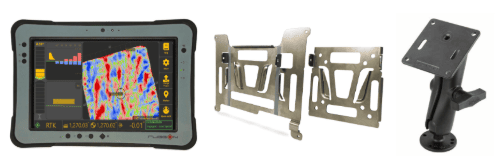](https://docs.t3rra.com/uploads/images/gallery/2026-09/6qQimage.png) The tablet must be mounted somewhere in the cab where the operator can maintain good visibility of the screen.**Ensure the tablet does not obstruct operator visibility while driving.**
Installation of the tablet for **T3RRA Software** is carried out in the same fashion as for any other T3RRA software installation. We highly recommend the RuggON PX501 or SOL7 as a tablet computer solution for use with **T3RRA Software** and provide various accessories for mounting them in the T3RRA Shop. ## Mounting the Tablet 1. Fasten the square silver tablet VESA plate to the square black RAM arm VESA plate. 2. Using a suitable RAM mount or adapter bracket, create a mounting point for the swivelling RAM arm and fasten it to the tractor cab. 3. Position the VESA plate appropriately so that the tablet can be slotted into and removed from the mount easily when required. 4. Fasten the larger silver tablet plate to the back of the PX501 using the provided screws. 5. The tablet is now ready to be slotted into the VESA plate on the black RAM arm and repositioned to the correct viewing angle. 6. The tablet is now ready for connection to **COMMAND**. ## Connecting the Tablet to COMMAND [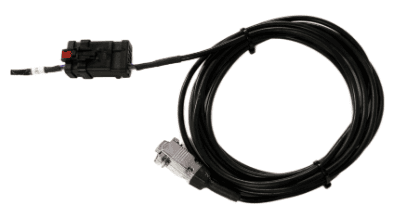](https://docs.t3rra.com/uploads/images/gallery/2025-07/wtZdGGvTz1VKzyxH-image.png) [](https://docs.t3rra.com/uploads/images/gallery/2025-05/cutout-ruggon-rammount.png) 1. Using a **T3H-T001** or **T3H-T002** cable, connect the 12-way AMPSEAL connector to the matching red and black AMPSEAL connector on the T3H-C002 ECU breakout harness. 2. Run the serial cable along the tractor cab wall neatly and fasten to any available points using zip or twist ties. 3. Connect the silver DB9 right angled (RA) or straight connection to the tablet and then secure the connector screws using a small screwdriver. 4. Bundle and tie up any extra length of cable somewhere out of the way. # 3.9 | Joystick Connection (Optional) {{@807}} # 3.10 | Tractor Valve Set-up -John Deere # Modern John Deere (CANBUS) {{@760}} --- # John Deere Legacy (Analog) {{@762}} # 3.11 | Tractor Valve Set-up - CNH # CNH Direct Connect (AFS Connect / PLM Intelligence) {{@761}} --- # CNH Pre AFS Connect / PLM Intelligence {{@844}} # 3.12 | Tractor Valve Set-up - Versatile # Versatile — Analog Scraper Control {{@1255}} # 3.13 | Tractor Valve Set-up - Fendt ## Fendt ONE — 900 Gen 6/7 & 1000 Gen 2/3 {{@1260}} --- # Fendt 800 SCR/S4 {{@1263}} --- # Fendt 900 SCR/S4 {{@1261}} --- # Fendt / Challenger MT {{@1262}} # 3.14 | Receiver Connection and Configuration - John Deere StarFire {{@752}} # 3.15 | Receiver Connection and Configuration - Modern NMEA 2000 # Case, New Holland, Trimble {{@754}} # 3.16 | Receiver Connection and Configuration - Trimble FMX/GFX/TMX with Ag25 {{@753}} # 3.17 | Receiver Connection and Configuration - NMEA 0183 (RS232) {{@756}} # 3.18 | IMU Installation and Configuration {{@751}}