3 | COMMAND Installation
3 | Installation Overview
The COMMAND system is to be installed in a structured sequence to ensure correct operation and to minimise installation issues.
Follow the steps below in order. Do not skip steps or complete them out of sequence.
Installation Steps
- Complete Pre-Installation Requirements
Confirm that the tractor, power supply, and components meet system requirements. - Install the ECU
Select a suitable mounting location and securely install the COMMAND ECU. - Install Cab Components
Install operator interface components including the arm/engage switch, joystick, and tablet. - Connect Hydraulic Interfaces
Connect the system to the tractor’s electrohydraulic valves or external valve interfaces. - Install and Configure GNSS and IMU
Connect and configure the GNSS receiver and IMU as required. - Configure Display and Communication
Set up NMEA output and ensure communication between system components is functioning correctly. - Verify System Operation
Perform system checks to confirm correct installation and functionality before operation.
- 3.1 | Pre-Installation Tractor Requirements
- 3.2 | Pre-Installation Power Requirements
- 3.3 | Pre-Installation ISOBUS Requirements
- 3.4 | Electronic Control Unit (ECU) Installation
- 3.5 | Powering COMMAND
- 3.6 | Connecting COMMAND to the ISOBUS
- 3.7 | Arm/Engage Switch Installation
- 3.8 | RuggON Tablet Installation
- 3.9 | Joystick Connection (Optional)
- 3.10 | Tractor Valve Set-up -John Deere
- 3.11 | Tractor Valve Set-up - CNH
- 3.12 | Tractor Valve Set-up - Versatile
- 3.13 | Tractor Valve Set-up - Fendt
- 3.14 | Receiver Connection and Configuration - John Deere StarFire
- 3.15 | Receiver Connection and Configuration - Modern NMEA 2000
- 3.16 | Receiver Connection and Configuration - Trimble FMX/GFX/TMX with Ag25
- 3.17 | Receiver Connection and Configuration - NMEA 0183 (RS232)
- 3.18 | IMU Installation and Configuration
3.1 | Pre-Installation Tractor Requirements
All requirements in this section must be confirmed before installing the COMMAND system.
Failure to meet these requirements may result in improper operation or system damage.
Confirm the following before proceeding:
- Tractor compatibility
- Power supply suitability
- Communication interfaces (ISOBUS or CANBUS, RS232 NMEA 0183)
Details for each requirement are provided in the following sections.
Tractor Requirements
COMMAND's tractor requirements are as follows:
- Provide a suitable power supply as specified in Section 4.3.
- Have compatible SCVs or auxiliary control valves
- The tractor does not need to be ISOBUS-equipped; however, upgrading to ISOBUS is strongly recommended to provide the necessary connections (e.g. implement breakaway connector).
- Be capable of manual implement control.
- Be in good working condition with fully functional hydraulics.
If any requirement in this section cannot be met, installation should not proceed.
Implement Compatibility
Supported Implement Configurations
COMMAND is currently suitable for use with the following types of implements:
- Implements with a single hydraulic height control function and a single receiver, i.e. requiring a single valve. This includes implements with multiple height cylinders if the cylinders are linked together and controlled by the same valve. e.g. a basic tractor-pulled bucket scraper.
- Implements with a single hydraulic height control function, single receiver, and a single cross-slope/tilt control function, i.e. requiring a single separate valve for each (2 total). e.g. JN&R tractor-pulled scraper with cross-slope / tilt cylinder.
Future Configurations
- Implements with a single hydraulic height control function and dual receivers, i.e. requiring a single valve for height control and a single valve for cross-slope control with both a left and right implement mounted receiver.
- Tandem implements (convoy) each with a single hydraulic height control function, i.e. one valve controls front scraper height and another valve controls rear scraper height.
- Implements with two separate hydraulic height control functions, i.e. two separate valves are required to control each side of the implement. e.g. grader-style blades with independent left/right control.
- Two implements towed in tandem with a single height control function each, i.e. requiring one valve for each implement. e.g. two basic bucket scrapers towed in tandem.
Implement Definitions
The naming conventions below will help to avoid confusion later:
Single implement - One single blade with one receiver positioned in centre (single-axis or dual-axis) (May or may not be accompanied by IMU).
Tandem implements - Two blades in front/behind one another as a train, each with a single receiver positioned in the centre (single-axis control only).
Dual receiver - One single blade with two receivers positioned on the left and right sides of the blade for dual-axis control. The tilting point is assumed to be the centre of the blade edge, in the middle of the two receivers.
3.2 | Pre-Installation Power Requirements
A switched 12V DC power supply with a minimum capacity of 10A is required.
The harnessing system has been designed to provide flexibility in sourcing 12V DC switched power depending on where the ECU is mounted, and where sources of protected 12V DC power are freely available.
The following power supply options are supported:
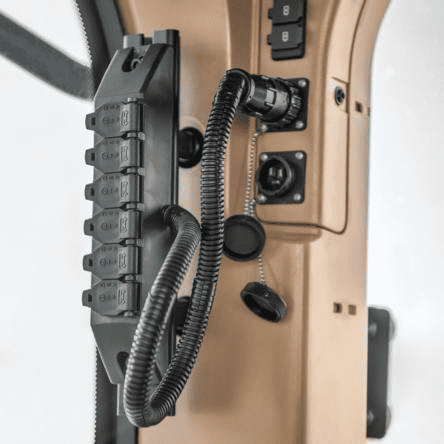
Cab Convenience Sockets
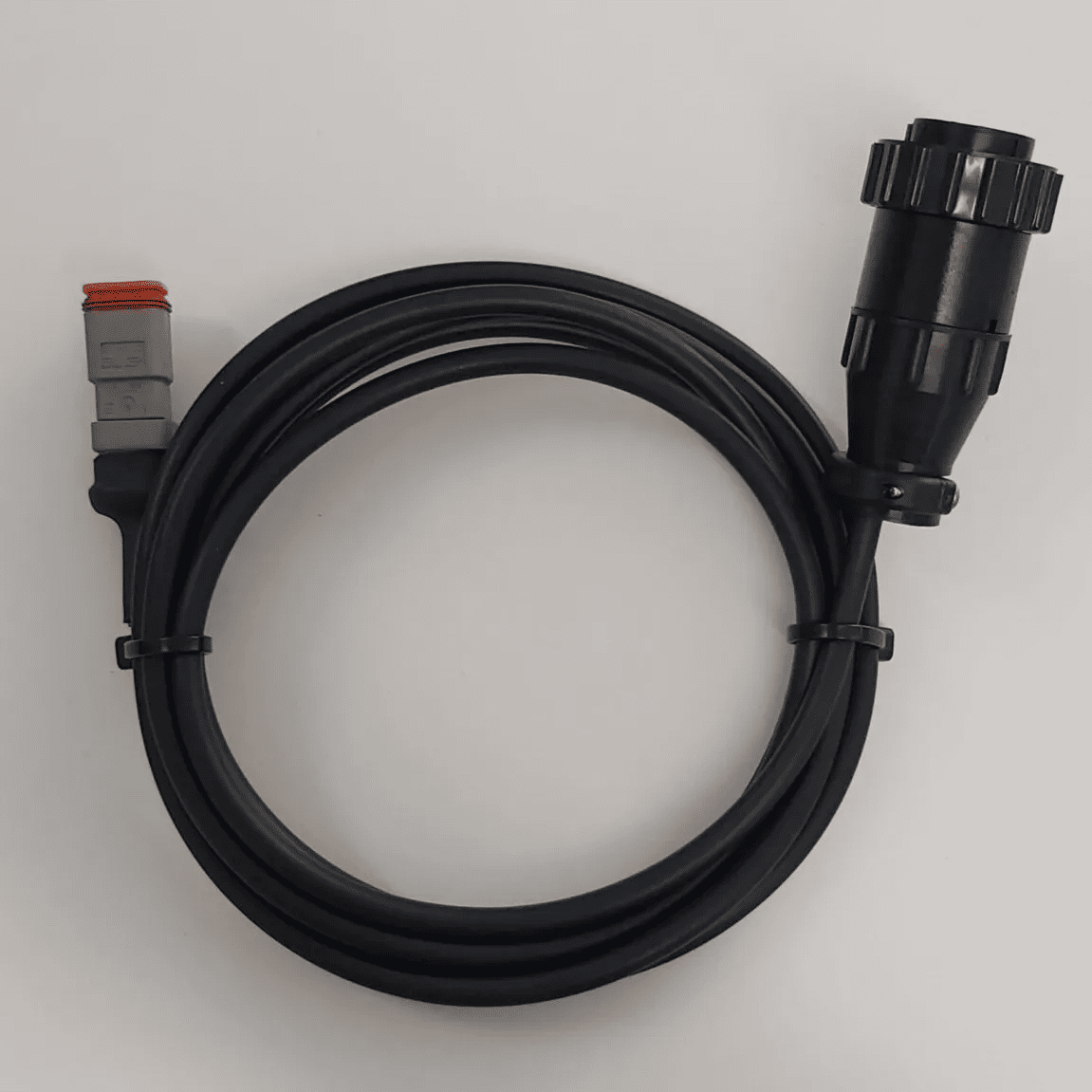
COMMAND can be powered using an available cab convenience power socket along with the T3H-F001 Power Adaptor provided by T3RRA.
NOTE: A minimum of two cab convenience sockets are required in total if providing power to COMMAND and implement harnessing, and a RuggON tablet. Three are required if adding an ISOBUS breakaway connector that requires a convenience power connection e.g. JD ISOBUS plug kit.
If fewer than two convenience ports are available, another power option may need to be used for COMMAND or the tablet.
WARNING: Convenience power supply sockets should be load-dump protected and fused appropriately within tractor electrical systems, and generally are but it's always best to make sure.
 |
|
Using a Constant Power Harness
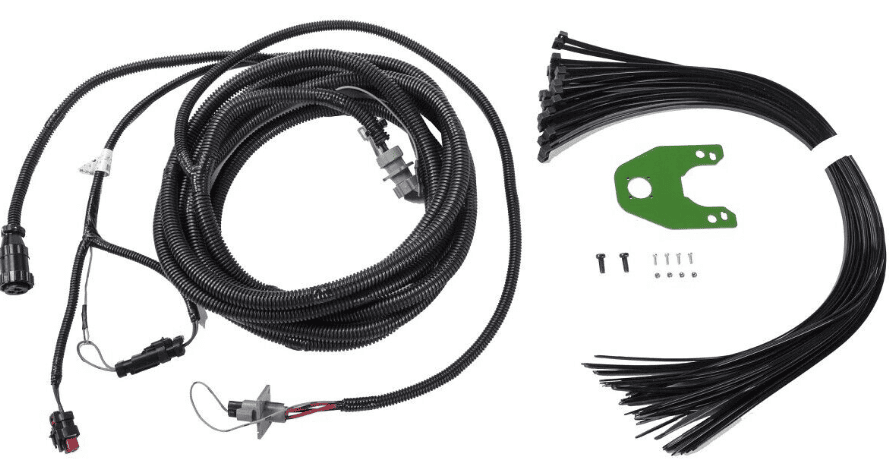
The Constant Power Harness (CNH 115-0172-397/8 OR JD BPF10403/4) can be connected to the COMMAND harnessing system at connector C6 on the T3H-C005 exterior breakout harness.
NOTE: The Constant Power Harness may not possess its own fusing, but a fuse is supplied on the T3H-C005 harness to protect against electrical faults.
Connection can also be made directly into the T3H-C002 EXT branch (Connector C6) if the T3H-C005 is not required but the aforementioned fuse must still be added for appropriate protection using a T3H-F003 Inline Fuse Adapter.
Providing a Custom Power Connection
A custom connection to switched 12V power can be made using the T3H-F002 Power Adaptor (DT06-2S & Loose Wire Ends). The installing technician must provide the appropriate connections / terminations depending on their own requirements.
NOTE: Avoid routing power cables near high-current or noisy signals if possible (e.g. alternator).
WARNING: The power supply must be rated and protected appropriately for the application!
Custom Power Supply Requirements
If a custom power source is used, it must meet the following requirements:
| Description | Nominal Range / Rating | Notes |
| Supply Voltage (V) | 9-32V DC | Ripple/noise ≤ 100 mV peak-to-peak recommended; ensure DC/DC converters are well-filtered. |
| Supply Current (A) |
1A for general ECU operation plus 2A per proportional solenoid in use |
Depends on connected loads, MCU, sensors, and interfaces. |
| Power Supply Protections |
Overvoltage protection
|
Must be protected against load dump, inductive spikes, and cranking via TVS diodes or suppression circuits.
Transient protection required (TVS diode, suppressor per ISO 7637-2). |
|
Overcurrent protection |
Must include a fuse or circuit breaker rated to a maximum of 10A. |
3.3 | Pre-Installation ISOBUS Requirements
COMMAND does not explicitly require the tractor to be fitted with an ISOBUS system to operate; however, we strongly recommend taking the opportunity to upgrade any tractor to be used with COMMAND to be ISOBUS capable as well, thereby future proofing for other future devices at the same time. ISOBUS / CANBUS harnessing may also be mandatory depending on choice of GNSS receiver.
ISOBUS / CANBUS GNSS Data
COMMAND may make use of the ISOBUS to read GNSS data of NMEA 2000 or StarFire message formats, which will be present and readily available to the COMMAND ECU if both the ECU and the GNSS receiver are connected to the ISOBUS.
ISOBUS Auxiliary Valve Control
COMMAND may also make use of the tractor ISOBUS when performing control of the electrohydraulic valves. Messages are sent to a tractor hydraulic controller over the ISOBUS in some configurations. Usually, if the tractor's hydraulic controller is capable of control via external messages, the machine will already have ISOBUS harnessing and functionality.
ISOBUS Overview
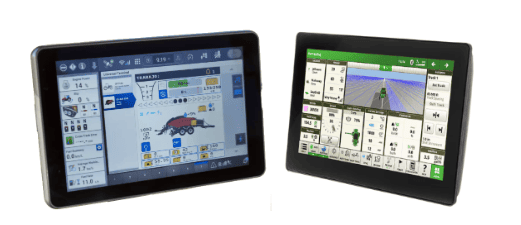
ISOBUS is a standardised CANBUS communication protocol that enables communication between tractors, implements, and control systems. This system simplifies operations, reduces clutter, and improves efficiency by allowing operators to control multiple implements from a single interface.
A typical ISOBUS setup will often include an ISOBUS terminal display along with various different ISOBUS harnesses that set up the standardised harnessing and messaging framework on the machine. Other types of ISOBUS compatible devices can then be added for all kind of functionality including auto-steering, automated land levelling, automated planting/seeding/spreading/spraying and more.
Next Step
If all requirements in this section have been met, proceed to Section 5 | ECU Installation & Mounting.
3.4 | Electronic Control Unit (ECU) Installation
IMPORTANT: Please ensure you have read the safety information in the previous chapter before commencing installation of COMMAND.
Machine Preparation
Complete the following steps before beginning installation of the COMMAND ECU:
|
Step |
Check |
|
Move the tractor and implement to a level, hard surface suitable for maintenance work.
|
|
|
Center the steering wheels. For articulated tractors, engage the articulation locks to prevent movement.
|
|
|
Fully lower any attachments or implements to the ground to ensure stability.
|
|
|
Turn off the engine and remove the ignition key.
|
|
|
Block both the front and rear wheels to prevent accidental movement of the machine during installation.
|
|
|
Allow the engine and hydraulic system to cool completely before working near hot components.
|
|
|
Disconnect the battery cables. Place a “Do Not Operate” tag in a visible location in the cab, and install a lockout box on the battery terminal to prevent accidental power reconnection.
|
|
|
Before opening any hydraulic, pneumatic, or coolant lines, relieve system pressure. Use caution when removing fill caps or hose fittings—cover the area with a clean rag to contain any residual pressure or fluid spray.
|
|
|
Unbox all kit components and verify the contents against the packing list. Lay out the parts on a clean, organized work surface to streamline installation.
|
|
ECU Mounting Overview
The COMMAND ECU can be installed in one of three locations depending on the tractor and application:
1. In-cab (preferred)
2. Behind rear cab panel
3. Rear of tractor near ISOBUS connection
The selected mounting location will determine harness routing and connection layout. Please follow the relevant installation instructions based on the selected mounting location.
Connections Overview
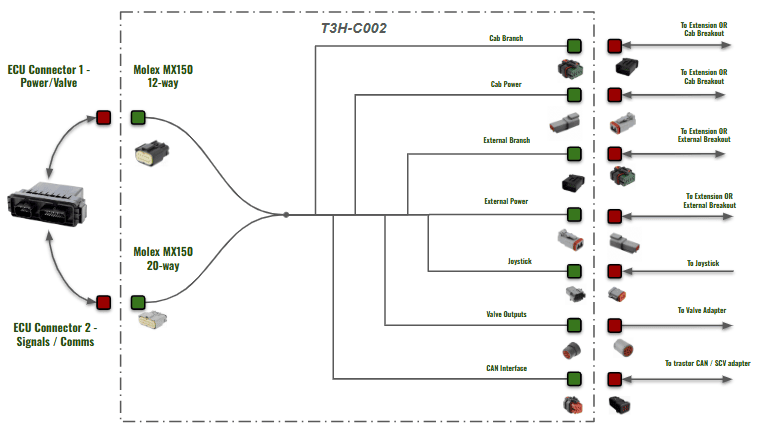
Mounting Locations
Select the mounting location based on available space, environmental exposure, and ease of harness routing.
In-Cab (Preferred)
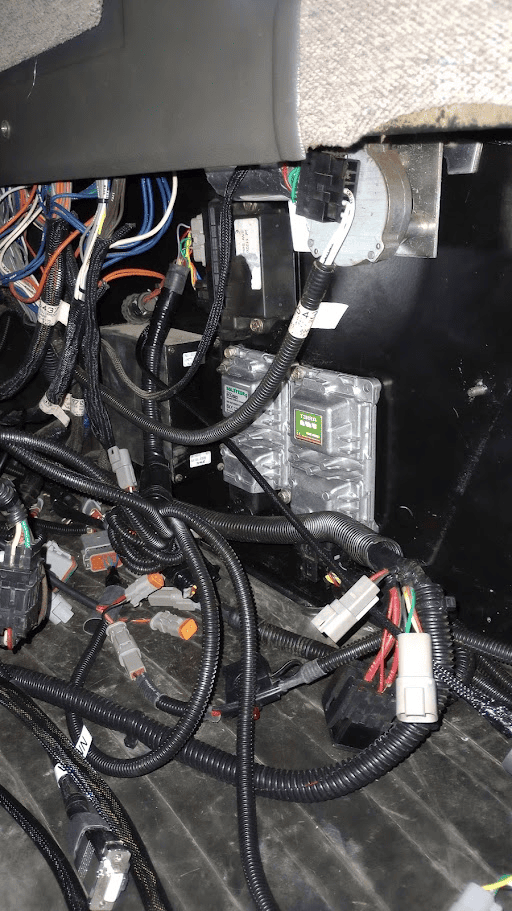
Mounting in the cab of the tractor is the preferred option, as it best protects the ECU and harnessing from the elements. Mounting the ECU in-cab is best suited to tractors with paneling, compartments or normally covered cab walls with enough room to mount the ECU.
Being mounted in cab will provide access to the following for the T3H-C002 ECU breakout harness:
- Power via convenience plug or power strip
- Arm/Engage Switch
- Tablet
- 4-way ISOBUS connection if present in cab harnessing
- Diagnostic ports for tractor CAN access
- Joystick
- Valve output connections to Case EHR inputs or JD legacy proportional inputs
Cabling will need to be run outside of the cab if:
- Proportional solenoid or Danfoss PVE valve cabling must be run out to an external valve block
The photos above show some suitable mounting locations found in older Case tractor models, where an ECU can either be magnet mounted or Rivnut mounted depending on preference.
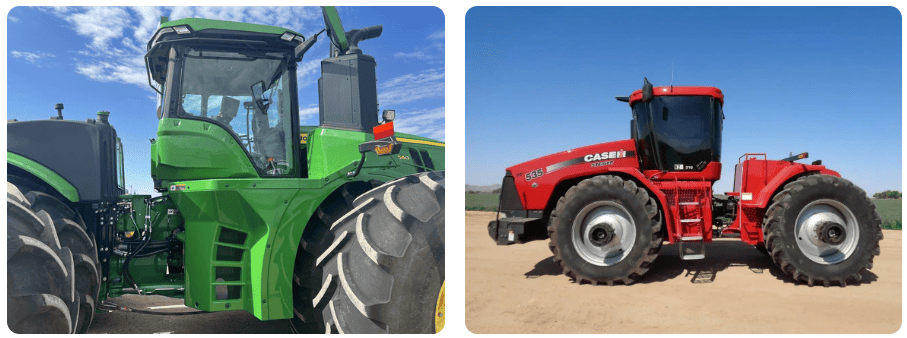
Rear Panel Mounting
In situations where the cab doesn't have enough suitable space for mounting the ECU and neatening the harnessing, the ECU can be mounted at the back of the tractor behind rear paneling if enough space is available.
The ECU should be mounted with enough space for connection and disconnection of the breakout harness, which will also require some space itself when tying up and neatening the T3H-C002 harness.
The ECU can be mounted in much the same way as in-cab - see following pages for information on ECU dimensions and mounting methods.
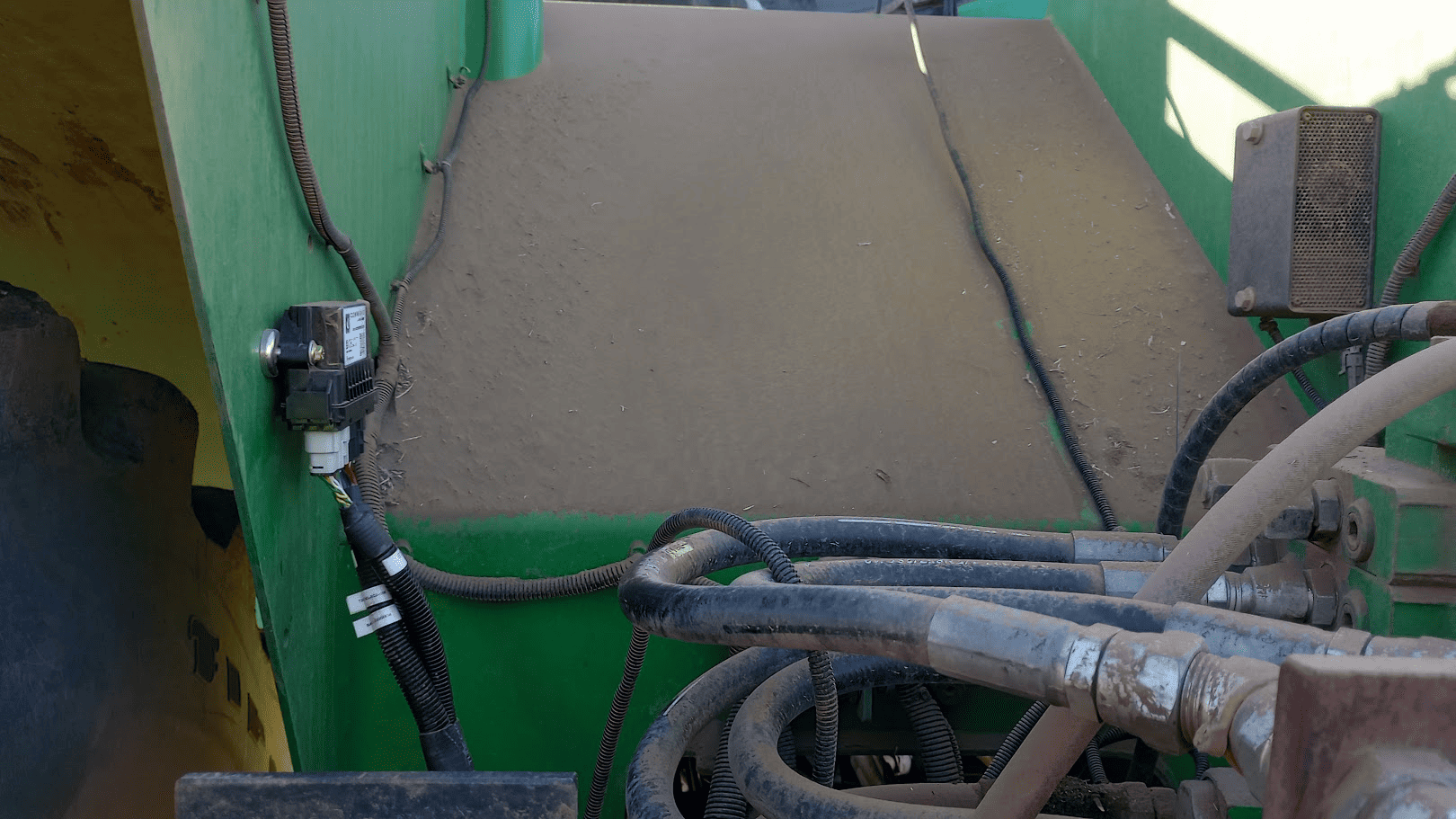
Rear Breakaway Mounting
If there isn't enough space present in the cab or behind the rear paneling of the cab, then there is generally plenty of space to be able to mount the controller at the rear of the tractor near or next to the ISOBUS implement breakaway connector.
If mounting here, magnets are not recommended as there is a lot of potential for dirt and rocks to knock the ECU. Custom bracketing is recommended when installing the controller at the rear of the tractor to help shield the ECU from dirt and rocks, and to also provide a reliably secure mounting connection through the use of bolts and nylon-lock nuts.
Mounting Methods
Magnets
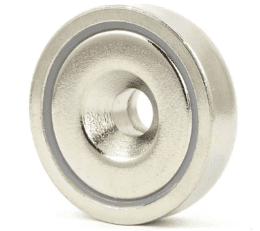
Mounting with strong neodymium magnets can provide a quick and robust method of mounting the COMMAND ECU.
Neodymium magnets with a countersunk centre hole of 7mm diameter along with 7mm fasteners should be used.
Rivnuts
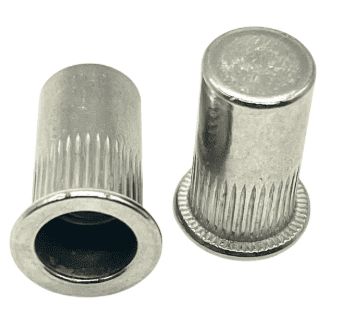
Mounting with Rivnuts is another effective way of securing the ECU to the inner or outer wall of the tractor.
Care should be taken to drill an appropriately sized hole of the Rivnut, then use the expansion tool and fasten the ECU securely.
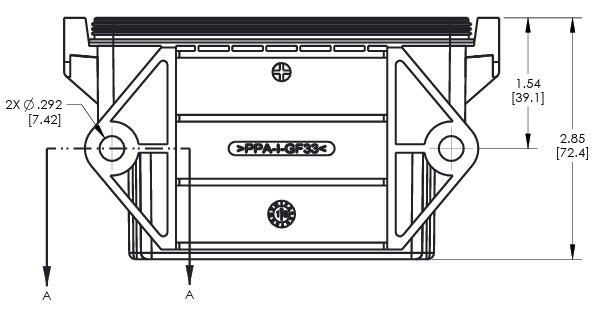
Dimensions Drawing
Mounting orientation
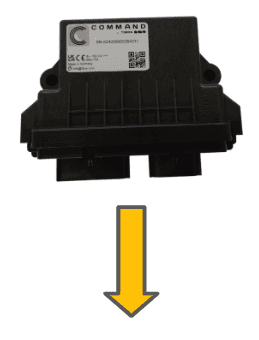
The ECU must be mounted with electrical connectors facing downward to prevent moisture and dirt ingress. Do not mount the ECU with the connectors facing upward or to the side as moisture or dirt may accumulate and cause corrosion and/or connection issues.
Connecting the ECU Breakout Harness
Once the ECU is mounted securely in place:
- Connect the T3H-C002 to the ECU with the black and beige paired ECU plugs shown below.
- Push each plug in until a click is felt.
- Gently pull on the plug to ensure that it has mated correctly.
To unplug the ECU connection later, press down on the tab at the top of the connectors (facing toward you with the ECU mounted in the direction specified above) and pull the plug downward away from the ECU.

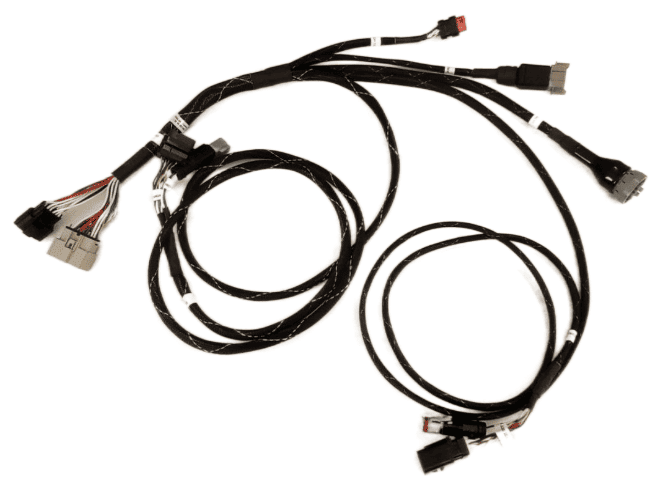
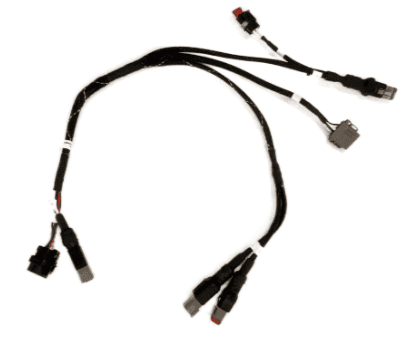
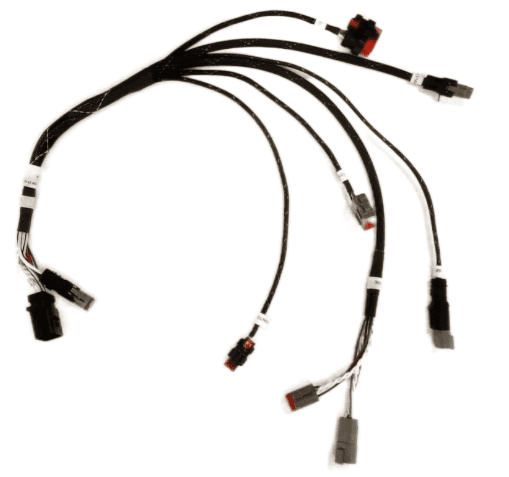
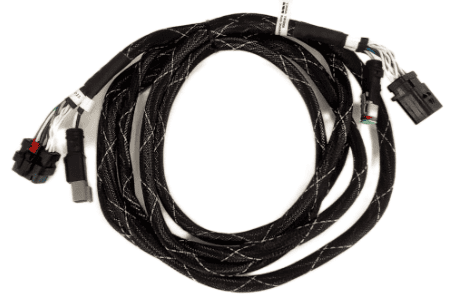
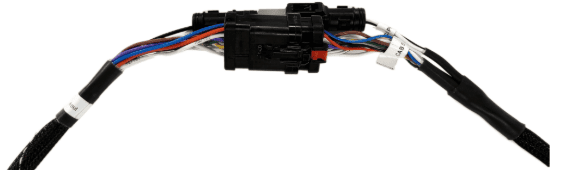
Once the T3H-C002 ECU breakout harness has been connected to the ECU, connections to the external and cab breakout harnesses need to be made. The T3H-C005 exterior breakout harness is designed to be positioned at the rear of the tractor, while the T3H-C006 cab breakout harness is designed to be positioned inside the tractor cab.
T3H-C002 - ECU Breakout Harness
T3H-C005 - Exterior Breakout Harness
T3H-C006 - Cab Breakout Harness
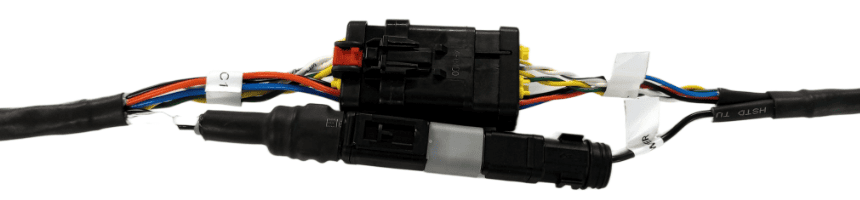
Connecting the Exterior and Cab Breakout Harnesses
The T3H-C002 breakout harness provides 2m branches for cab and exterior breakout connections. Use T3H-C008 extension harness if additional length is required (up to 6m total).
Cab-Mounted ECU
Avoid routing the cabling out of the cab through windows/doors if possible as these may pinch and damage the wires in the harness.
If the COMMAND ECU has been mounted inside the tractor cab, then the exterior branch will need to be routed outside of the cab through a hole/cable gland to the rear of the tractor next to the ISOBUS implement breakaway connector.
Connect the 12-pin and 2-pin connectors on the T3H-C005 exterior breakout to the T3H-C002 ECU breakout connectors, extended with T3H-C008 if necessary and run the cable out of the cab and to the rear of the tractor.
Once the exterior breakout has been connected and routed, connect the T3H-C006 cab breakout harness to the CAB 12-pin AMPSEAL and 2-pin Deutsch DT connectors on the T3H-C002 ECU breakout inside the cab.
An extension should not be needed for the cab breakout harness, and the cab breakout harness should be positioned somewhere out of the way behind covers wherever space is available.
Exterior-Mounted ECU
Avoid routing the cabling into the cab through windows/doors if possible as these may pinch and damage the wires in the harness.
If the COMMAND ECU has been mounted outside the tractor cab, then the cab branch will need to be routed inside of the cab through a hole/cable gland from the rear of the tractor where the ECU is mounted.
Connect the 12-pin and 2-pin connectors on the T3H-C006 cab breakout to the T3H-C002 ECU breakout connectors and route to the cab, extended with T3H-C008 if necessary.
Once the cab breakout has been connected and routed, connect the T3H-C005 exterior breakout to the EXT 12-pin AMPSEAL and 2-pin Deutsch DT connectors at the rear of the tractor.
An extension should not be needed for the exterior breakout harness, and the exterior breakout harness should be positioned somewhere that doesn't block access to other components at the rear of the tractor.
3.5 | Powering COMMAND
Select the appropriate power supply method based on ECU mounting location.
Cab-Mounted ECU
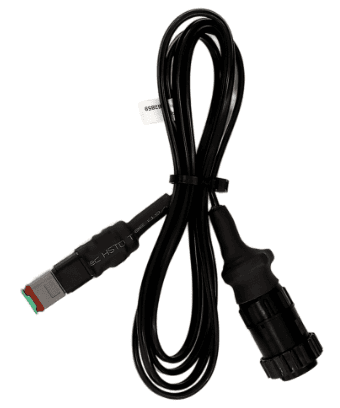
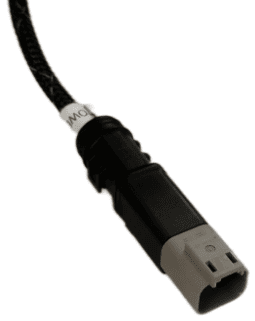
COMMAND can be powered using an available cab convenience power socket along with the T3H-F001 Power Adaptor provided by T3RRA. When mounted in-cab this is the preferred option. If no convenience power outlets are available, consider using a adapter instead of T3H-F001 if power strip connections are available.
|
Convenience Power and Power Strip Outlets |
T3H-F001 |
T3H-C002 / T3H-C006 2-pin Power Input |
Rear-Panel / ISOBUS Mounted ECU
If the COMMAND ECU is mounted under the rear panel of the tractor, we recommend powering using a Constant Power Harness kit (CNH 115-0172-397/8 OR JD BPF10403/4).
Alternative Power Connection
Alternatively, connecting to any available switched power studs underneath the cab, making sure to use a T3H-F003 inline fuse adapter and creating a 2-core cable of appropriate length.
Do NOT connect unswitched/battery power to COMMAND's power input as this will drain battery while the tractor is switched off.
3.6 | Connecting COMMAND to the ISOBUS
ECU Mounted In-cab
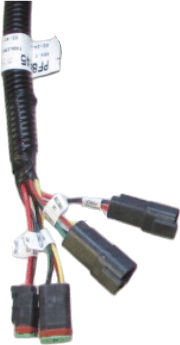
With the COMMAND ECU mounted in-cab:
- Locate the in-cab 4-way ISOBUS connector.
- Connect the 4-way ISOBUS connection on the T3H-C006 cab breakout to the connector.
- Use an additional adapter if connecting to 9-way cab ISO receptacle.
ECU Mounted at Rear of Tractor
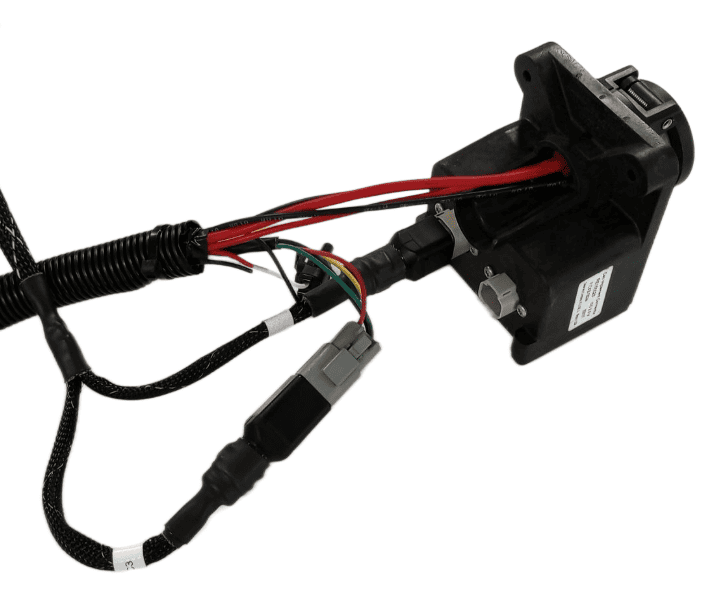
With the COMMAND ECU mounted at the rear panel or near the ISOBUS breakaway plug:
- Disconnect the existing 4-way plug from the ISOBUS implement breakaway connector.
- Connect the disconnected plug to the receptacle on the ISOBUS "T" connection on the T3H-C005 external breakout.
- Connect the 4-way ISOBUS "T" plug into the ISOBUS implement breakaway connector.
3.7 | Arm/Engage Switch Installation
The COMMAND Arm/Engage Switch is used by the operator to both Arm/Disarm ECU control outputs, and also to Engage/Disengage automatic control mode.
Mounting Location
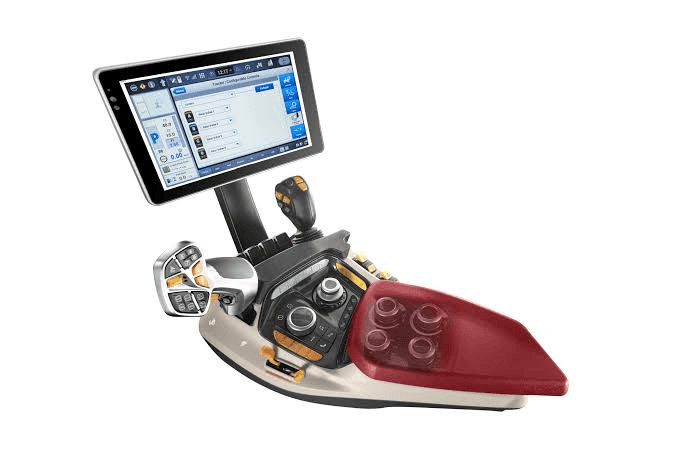

The Arm/Engage Switch should be mounted close to the operator's typical hand resting around the armrest for easy access to Engage or Disengage COMMAND's automatic control mode.
Ideally there may be a spare switch position in the armrest as shown below, but if this is not the case then a suitable bracket or enclosure will need to be added to the side of the armrest for example, to provide somewhere for the switch to be mounted.
Installation Steps

- Mount the switch near the operator’s armrest for easy access.
- Install the switch into an available switch cavity or bracket.
- Connect the T3H-C003 adapter to the T3H-C004 switch.
- Insert the adapter into the mounting location and pull through until the switch is close to the panel.
- Insert the switch into the mounting location and ensure it is seated correctly.
- Connect the T3H-C003 adapter to the T3H-C006 cab breakout harness.

Functionality (Operation)
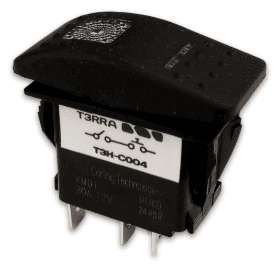
The switch has a configuration of OFF-ON-(ON). While in the OFF position, the ECU is disarmed and will not activate outputs or send hydraulic flow commands. The OFF position LED indicates that the ECU is powered.
When moved to the middle ON position, COMMAND is Armed and prepared for sending output signals or hydraulic flow commands. If using a joystick, COMMAND must be armed before the ECU will move the hydraulics.
Once in the middle ON position, the operator can then momentarily push into the third (ON) position, which toggles automatic control mode on or off. Please note that automatic control will only Engage once appropriate conditions are met. The idea here, is that once armed the operator may press the momentary button as needed to Engage or Disengage automatic control depending on their requirements.
IMPORTANT: In the event of an emergency, the operator should switch the Arm/Engage switch to the OFF position to completely disable movement of hydraulics. Please also note that Disarming COMMAND will also disable joystick functionality.
3.8 | RuggON Tablet Installation
This section covers installation of a typical RuggON tablet supplied by T3RRA, but these instructions are also relevant to those opting to use their own tablet PC.
Tablet Mounting Options
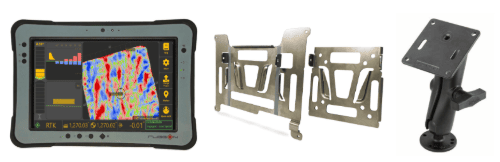
The tablet must be mounted somewhere in the cab where the operator can maintain good visibility of the screen.
Ensure the tablet does not obstruct operator visibility while driving.
Installation of the tablet for T3RRA Software is carried out in the same fashion as for any other T3RRA software installation. We highly recommend the RuggON PX501 or SOL7 as a tablet computer solution for use with T3RRA Software and provide various accessories for mounting them in the T3RRA Shop.
Mounting the Tablet
- Fasten the square silver tablet VESA plate to the square black RAM arm VESA plate.
- Using a suitable RAM mount or adapter bracket, create a mounting point for the swivelling RAM arm and fasten it to the tractor cab.
- Position the VESA plate appropriately so that the tablet can be slotted into and removed from the mount easily when required.
- Fasten the larger silver tablet plate to the back of the PX501 using the provided screws.
- The tablet is now ready to be slotted into the VESA plate on the black RAM arm and repositioned to the correct viewing angle.
- The tablet is now ready for connection to COMMAND.
Connecting the Tablet to COMMAND
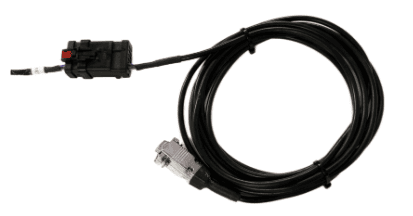
- Using a T3H-T001 or T3H-T002 cable, connect the 12-way AMPSEAL connector to the matching red and black AMPSEAL connector on the T3H-C002 ECU breakout harness.
- Run the serial cable along the tractor cab wall neatly and fasten to any available points using zip or twist ties.
- Connect the silver DB9 right angled (RA) or straight connection to the tablet and then secure the connector screws using a small screwdriver.
- Bundle and tie up any extra length of cable somewhere out of the way.
3.9 | Joystick Connection (Optional)
Overview
In most cases the manual control of hydraulic functions are already available (e.g. when using existing tractor auxiliary valves). In some limited cases it may be necessary to add operator control for hydraulic functions, e.g. when using an additional valve module, or using direct PWM operation of hydraulic valves from the COMMAND ECU. In these situations, two options are available: An analog joystick, or a J1939 CANBUS joystick.
If using a compatible analog or J1939 CANBUS joystick, this can be connected to the T3H-C002 directly or via a joystick extension harness.
- Ensure the joystick is fitted with an 8-way Deutsch DT plug (DT06-8S).
- Mount the joystick in an appropriate location in-cab according to manufacturer mounting instructions.
- Connect the plug to the connector labelled “Joystick” on the T3H-C002 harness.
- Verify correct pin alignment before connecting.
See below for the pin positions and connector information noting that this is the receptacle on the T3H-C002 ECU breakout harness.
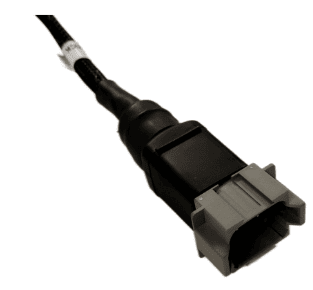
Mating joystick connector parts:
- Connector: DT06-8S / DT06-8SA
- Contacts: 1062-16-0122 or AT62-16-0122
 Analog Joystick Installation
Analog joysticks from brands such as APEM, Parker, Suregrip Controls or Danfoss can be connected to the system and used to manually control one or both available functions, e.g. Height and X-Slope.
Analog Joystick Specification Requirements
- Expected output range: 1.0 - 4.0V
- Expected resting voltage: 2.5V
Analog Joystick Connection
The T3H-C002 ECU Breakout Harness has an 8-pin joystick connection available that can be used to provide switched 12V power and access to the analog joystick signal inputs. Generally, Joystick Axis 1 and Joystick Axis 2 should be connected to the Y and X axis of the joystick respectively.
1. Connect joystick to the 8-pin joystick connector on the T3H-C002 harness.
2. Connect power to Switched 12V and GND.
3. Connect signal outputs to joystick axis inputs.
4. Verify voltage range is within 1.0–4.0V.
NOTE: The Joystick Axis 3 signal is currently not in use - COMMAND is currently capable of controlling 2 functions for manual control.
Analog Voltage Signal Requirements
The joystick output voltage must be centred at 2.5V when not being manipulated, and should lower in voltage to a minimum of 1V in one direction, and to a maximum of 4V when moved in the opposite direction.
IMPORTANT: 0-5V Output range joysticks cannot be used with COMMAND, as input voltages of 0V and 5V are assumed to be a short circuit to ground or 5V respectively.
J1939 / CANBUS Joystick Installation
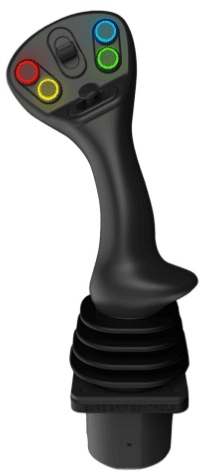
A ruggedised multifunction J1939 CANBUS joystick with suitable output messages can be connected to the joystick connection on COMMAND harnessing to provide manual operator control of the scraper.
A J1939 joystick such as the APEM HF Series J1939 joysticks can be connected to the system and used to manually control the two available functions, e.g. Height and X-Slope.
Interface Parameters
- Baud rate: 250 kbps
- Transmission repetition rate: Recommended 10 hz or higher
Connection
The joystick connector on COMMAND harnessing can provide a 12V DC supply for the joystick, and then receive joystick position messages back via CANBUS. The COMMAND ECU has been programmed with J1939/ISO basic joystick message types to provide selection between fore/aft, left/right and twist axes for each of COMMAND's control functions. See below for pinout information.
1. Connect joystick power to Switched 12V and GND.
2. Connect CAN HI and CAN LO to ISOBUS HI and LO.
3. Verify communication at 250 kbps.
4. Confirm joystick inputs are detected in Level COMMAND.
Expected Message Protocol
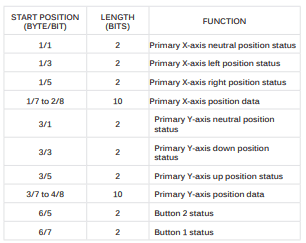
Message 1 - BJM1 - PGN 0xFDD6
Primary X-axis or Y-axis can be assigned to COMMAND function 1 or function 2.
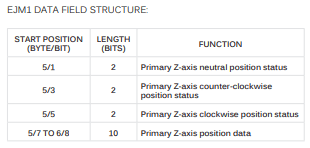
Message 2 - EJM1 - PGN 0xFDD7
Primary Z-axis or Y-axis can be assigned to COMMAND function 1 or function 2.
For more assistance in setting the selected joystick type and joystick axes within Level COMMAND, please refer to the Level COMMAND manual.
3.10 | Tractor Valve Set-up -John Deere
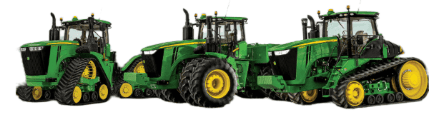
Modern John Deere (CANBUS)
Applicable to:
John Deere tractors with CANBUS-based SCV control (typically 2005+ models).
Connection Method
John Deere CANBUS-based SCV systems are controlled by COMMAND directly over the ISOBUS, so the only hardware requirement for direct control is that COMMAND be connected to the tractor ISOBUS via the 4-way Deutsch DT connections on either the cab (T3H-C006) or external (T3H-C005) breakout harnesses.
Installation Steps
1. Connect COMMAND to the ISOBUS using either:
- T3H-C006 (in-cab), or
- T3H-C005 (rear ISOBUS)
2. Ensure a secure connection at the 4-way Deutsch connector.
3. Power on the system and verify ISOBUS communication.
(See Section 5.4)
Operation Notes
COMMAND interfaces with modern John Deere tractors by sending CANBUS messages to the integrated valve controller, commanding either port A or port B flow of the rear tractor SCVs.
To operate the SCVs in automatic control mode, the user must push the respective SCV lever into the detent position (not float). This will cause "AUTO" to appear on the console/display to indicate that the SCV is ready for automatic control commands.
Moving the lever will disengage AUTO mode on the console/armrest but "AUTO" may remain visible in the SCV status area as it's still in automatic control mode. To re-enter AUTO mode, push the SCV lever into detent position again.
IMPORTANT: Moving the SCV lever will disengage AUTO mode in modern JD tractors, so movements based on any current valve signals will cease. Always keep this in mind during operation - the lever must be pushed into detent position again to resume automatic control.
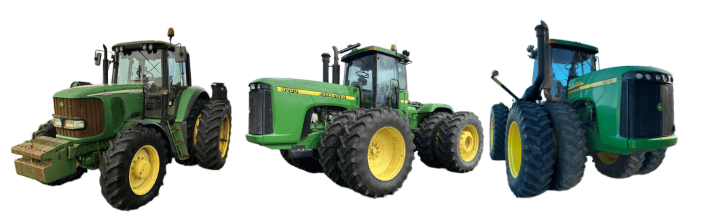
John Deere Legacy (Analog)
Applicable to:
John Deere tractors with analog SCV control (typically pre-2005 models).
Connection Method
COMMAND can control John Deere legacy valve systems through the use of a T3H-V001 COMMAND Legacy Output Adapter.
Installation Steps
10-way Metripack 150 Series Connection
- Connect the T3H-V001 adapter to the T3H-C002 ECU breakout harness at the round Deutsch HD series connector.
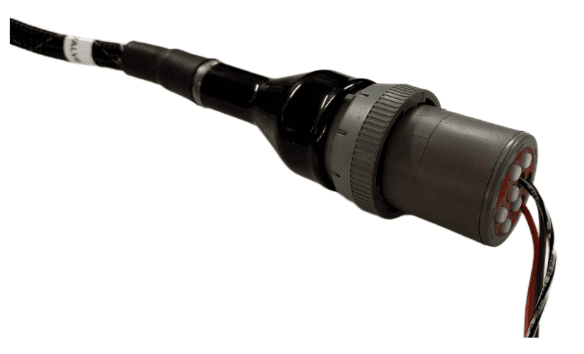
2. Connect the 10-way Metripack connector on T3H-V001 to the tractor's SCV signal input plug.
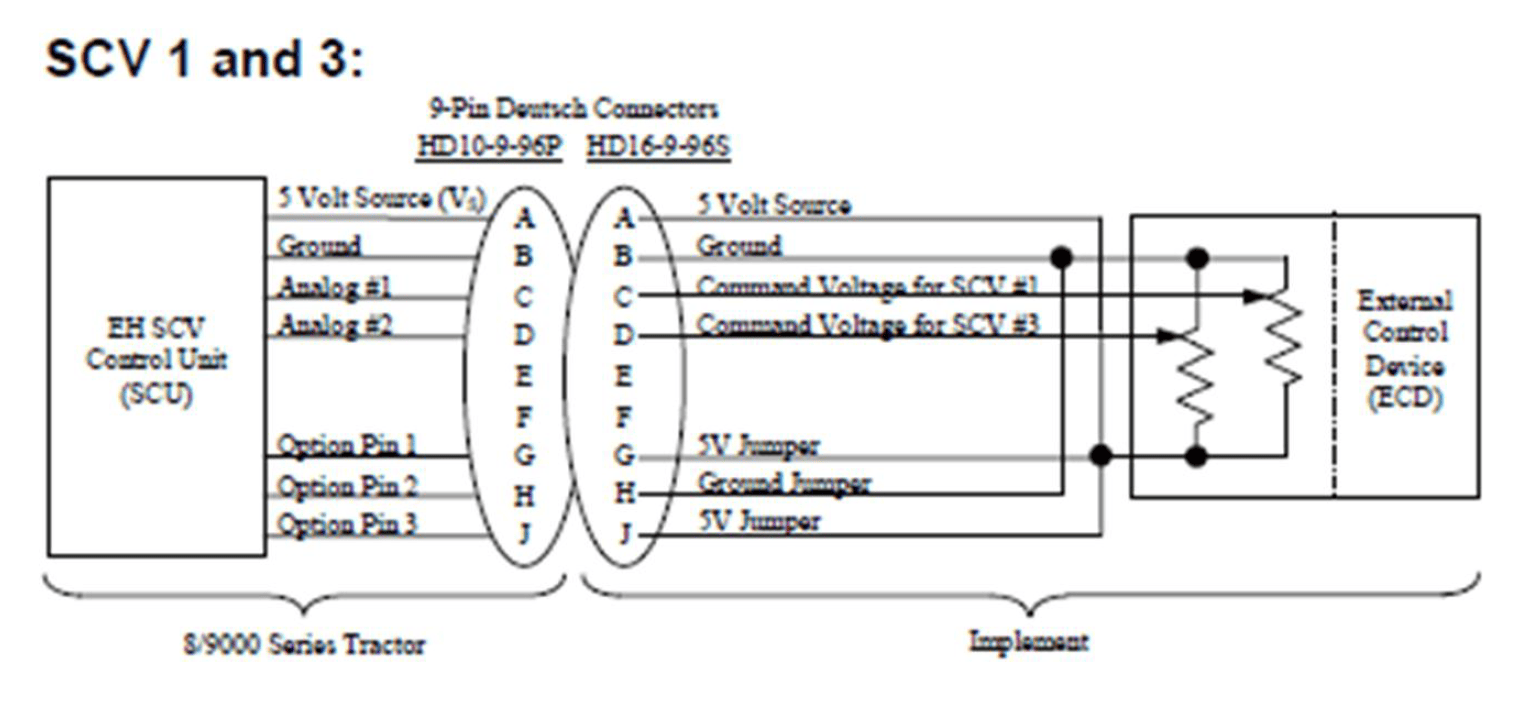
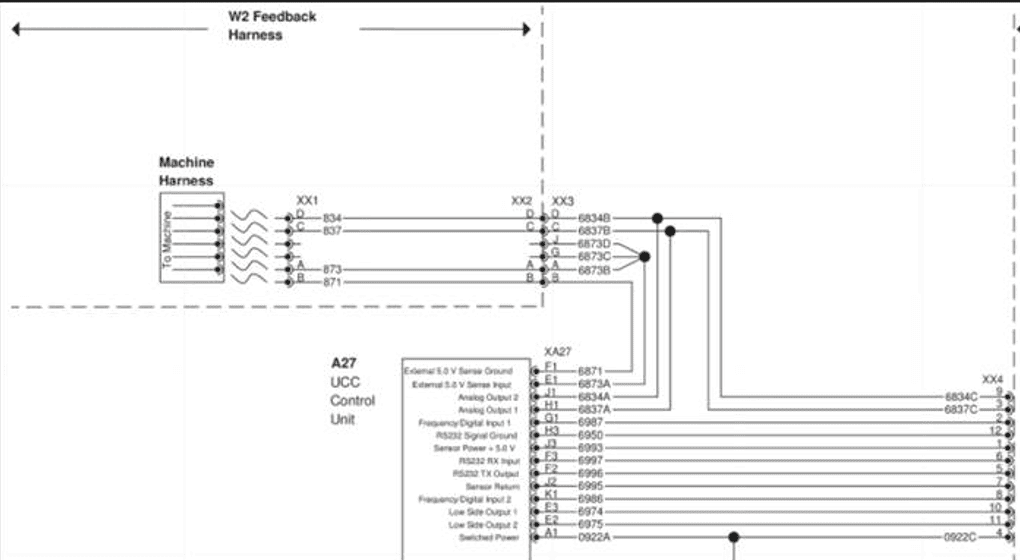
John Deere SCV Controller Connection Overview
Operation Notes
COMMAND interfaces with legacy John Deere tractor SCVs by sending analog voltage signals to the integrated valve controller, commanding either port A or port B flow of two of the rear tractor SCVs (generally SCV1 and SCV3).
To operate the SCVs in automatic control mode, the user must push the respective SCV lever forward into the detent position. This will cause "AUTO" to appear on the console/display to indicate that the SCV is ready for automatic control commands.
Moving the lever will disengage AUTO mode on the console/armrest. To re-enter AUTO mode, push the SCV lever into detent position again.
IMPORTANT: Moving the SCV lever will disengage AUTO mode in modern JD tractors, so movements based on any current valve signals will cease. Always keep this in mind during operation - the lever must be pushed into detent position again to resume automatic control.
3.11 | Tractor Valve Set-up - CNH
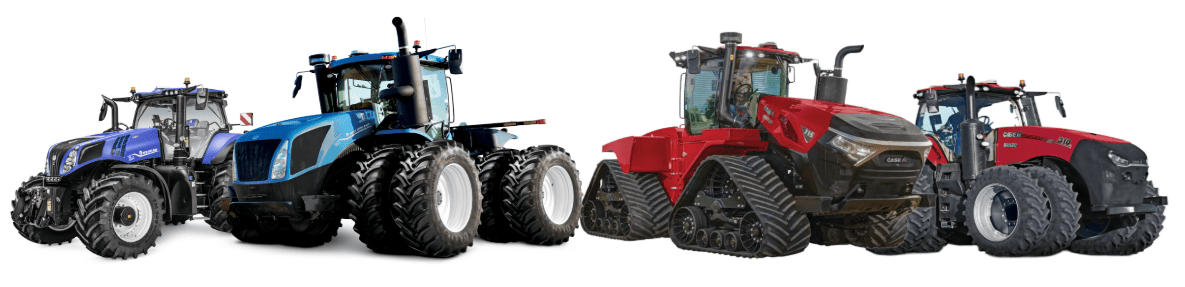
CNH Direct Connect (AFS Connect / PLM Intelligence)
Applicable to:
Case IH / New Holland tractors with AFS Connect or PLM Intelligence systems.
Connection Method
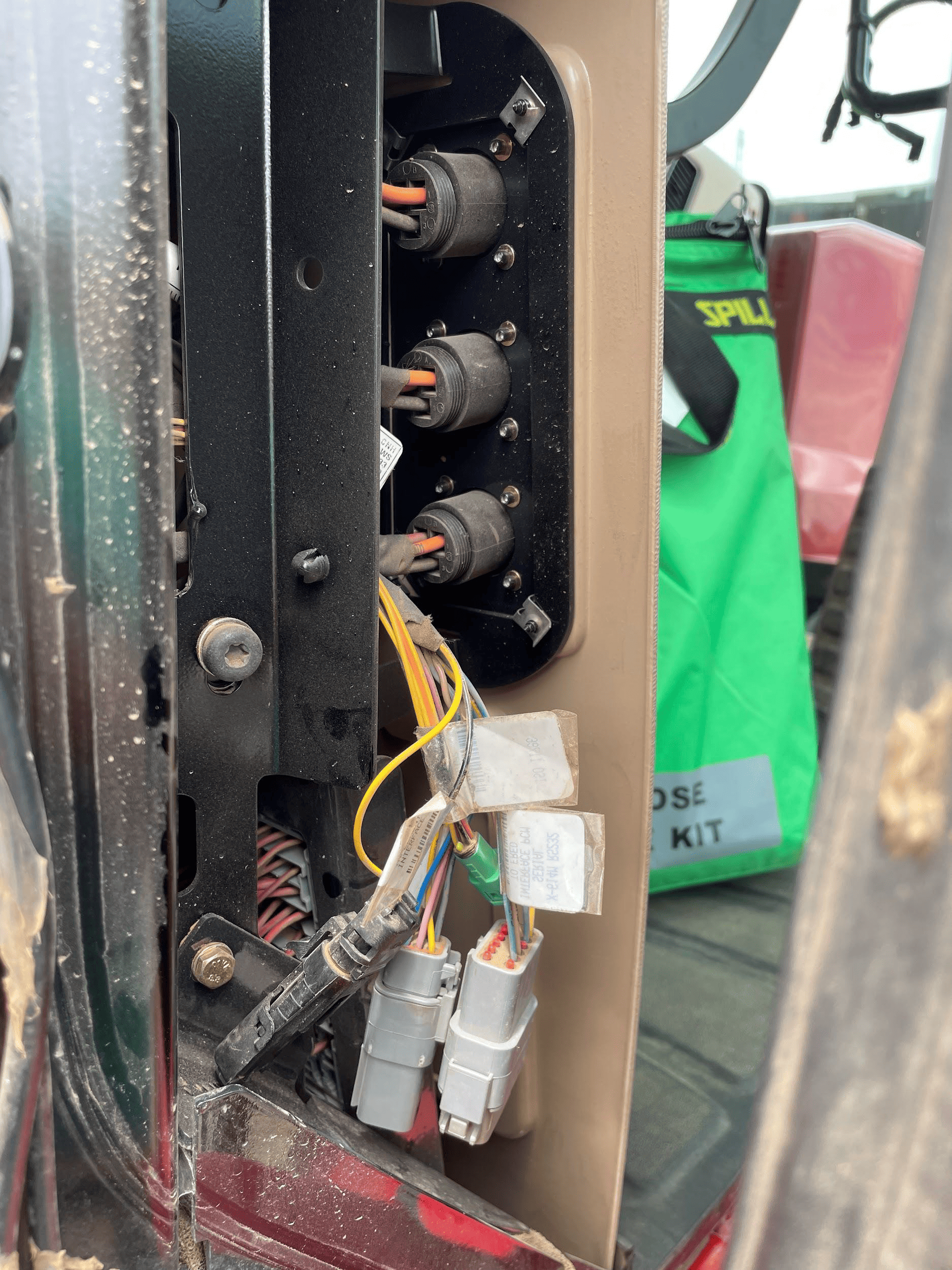 COMMAND can control Case & New Holland rear tractor valve (EHR) systems through the use of a T3H-V001 COMMAND Legacy Output Adapter.
Installation Steps
The Case / New Holland tractor connection for analog control signal inputs via the T3H-V001 adapter are generally found in one of three locations depending on tractor model:
1. Locate the tractor SCV signal input connector:
- Fuse compartment
- Behind driver seat
- Under cab exterior (4WD models)
2. Connect the T3H-V001 adapter to the tractor connection.
3. Connect the T3H-V001 adapter to the T3H-C002 harness.
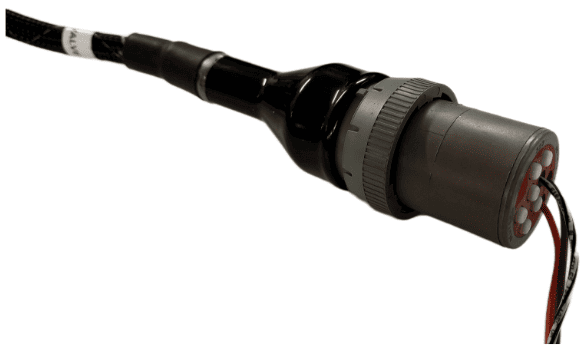
Tractor Valve Configuration
1. After completing the physical connection, the system must be configured on the tractor armrest display.
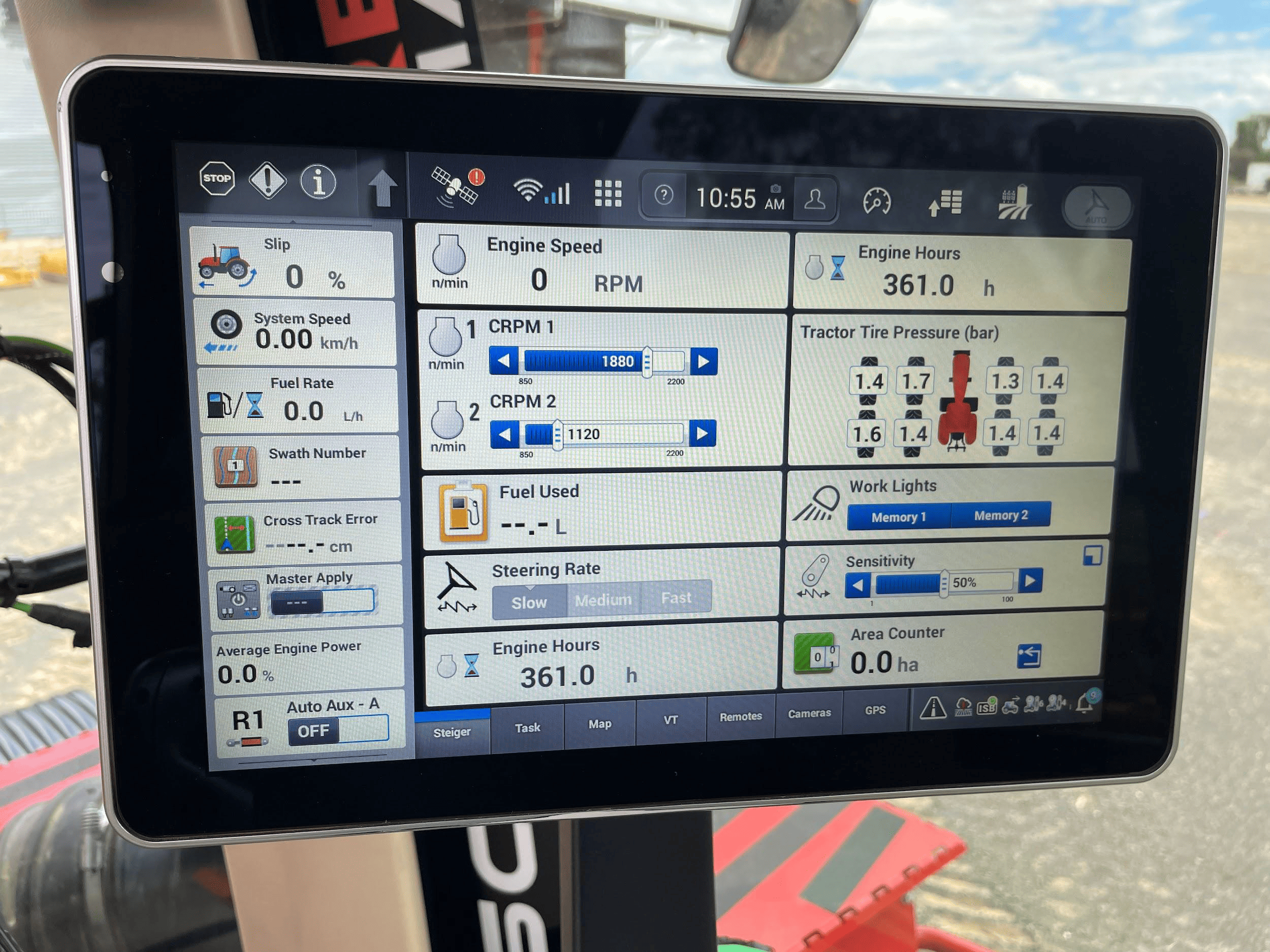
2. Ensure that a new implement profile has been created for use with the scraper, or that the currently selected profile is
appropriate.
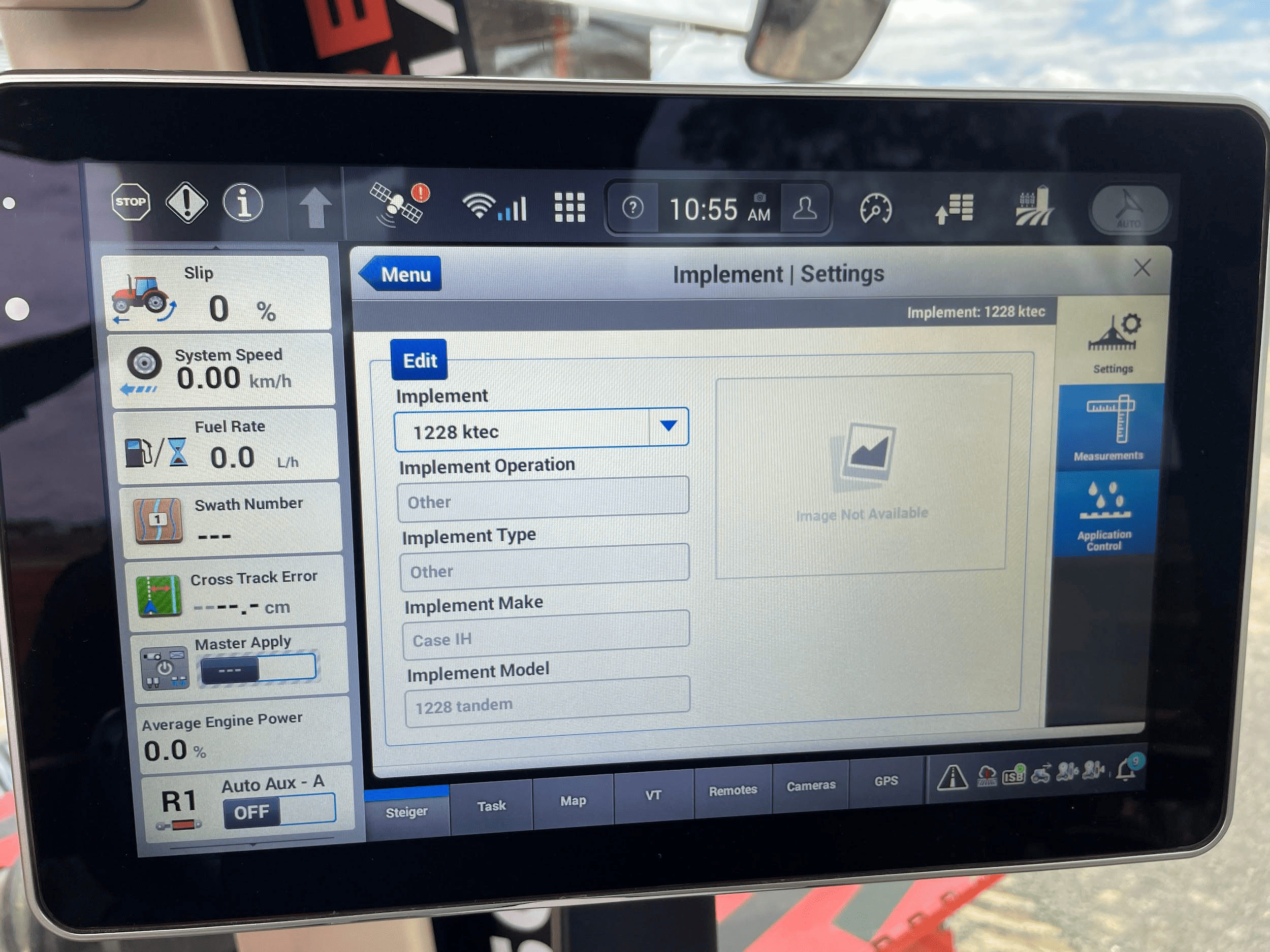
3. Open the “Remotes” settings tab to display remote valve configuration.
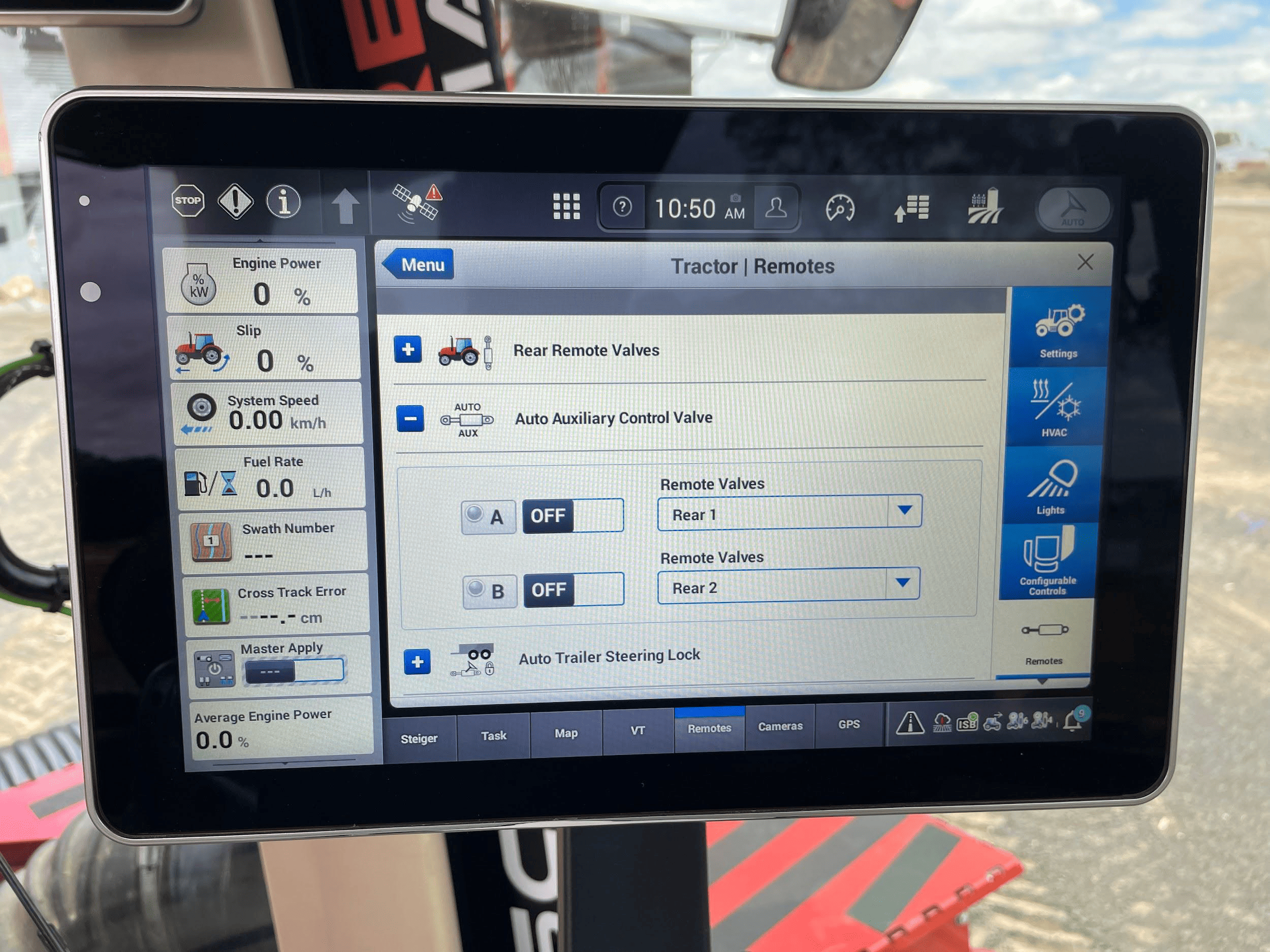
4. Set the desired remote valve outputs at the back of the tractor to the desired function (A or B).
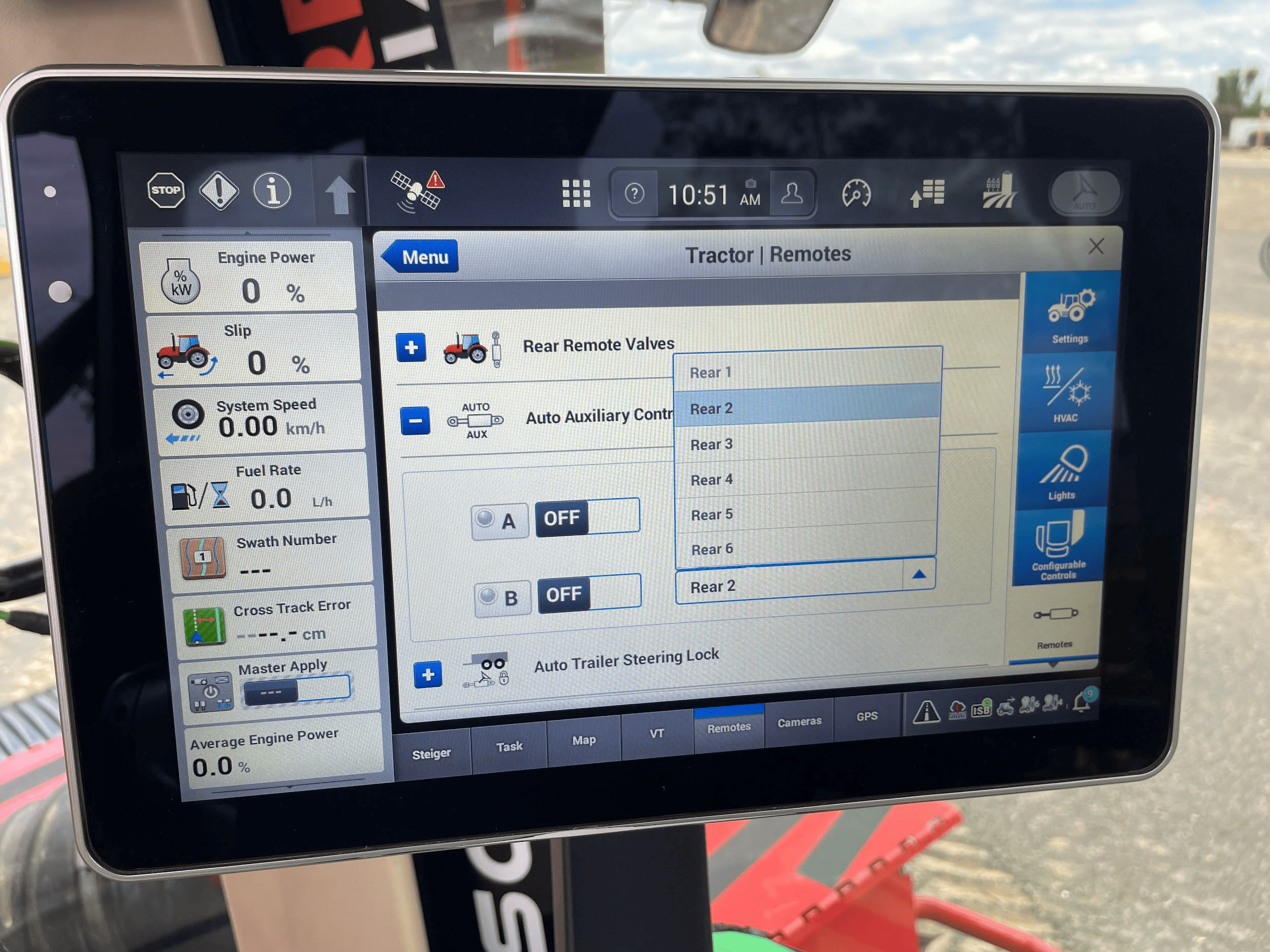
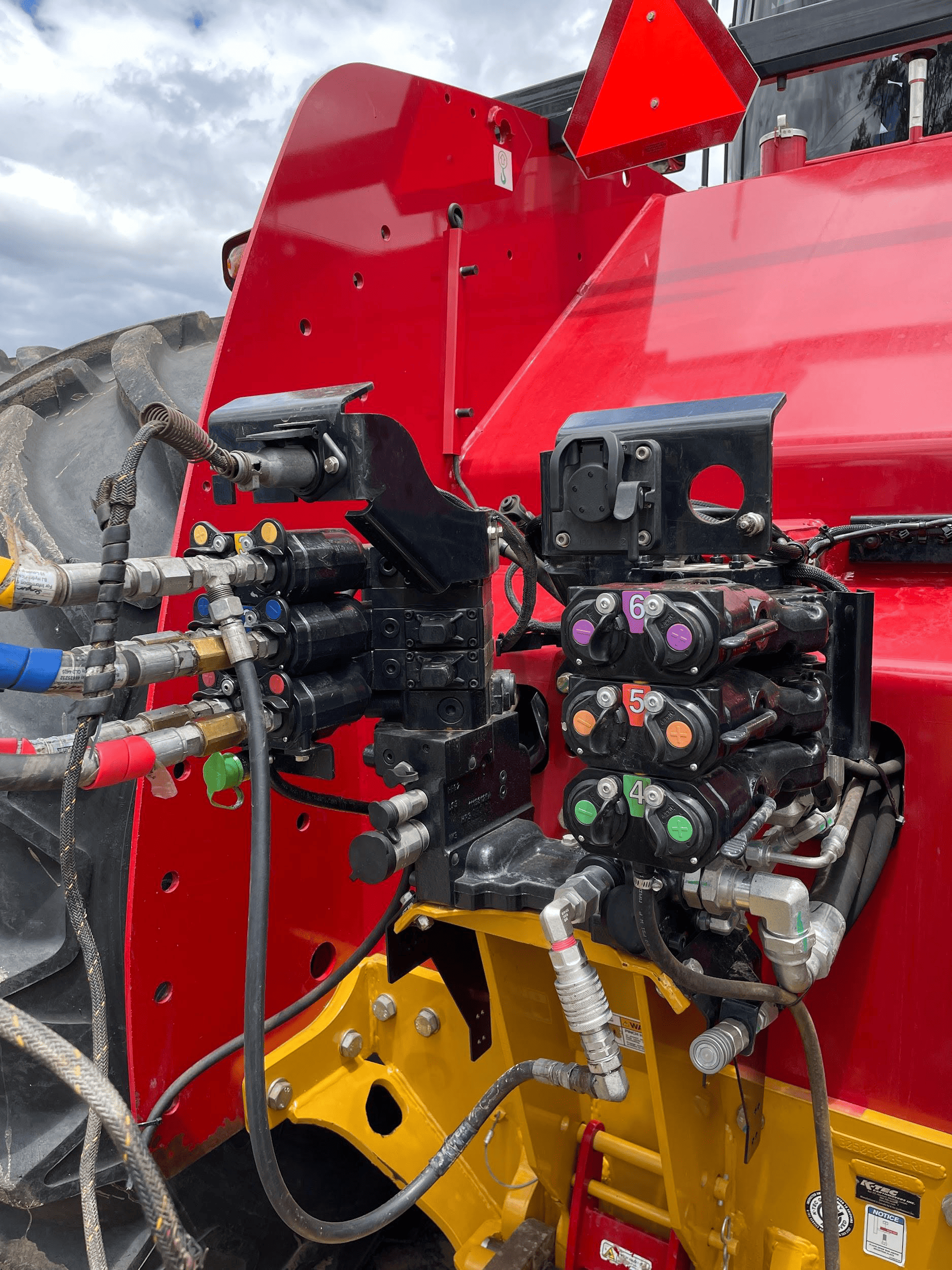
NOTE: The remote valves selected for A and B should be matched to the valve connections at the back of the tractor pictured
below. We recommend setting auxiliary valve A to remote valve “Rear 1”, and setting auxiliary valve B to remote valve “Rear 2”,
which will configure remote valves 1 and 2 at the back of the tractor for use with COMMAND.
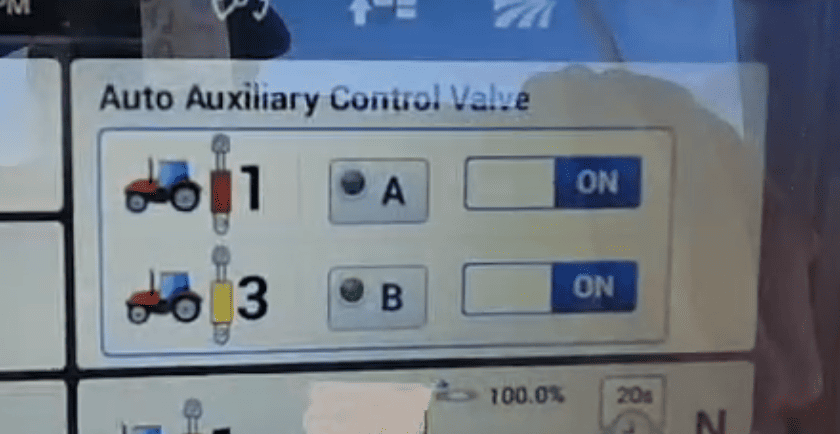
5. Once the remote valves on the tractor have been set to the desired auxiliary function, the machine should now be fully configured and ready for use. In order to engage auxiliary control, the user must ensure that the Auto Auxiliary Control Valves A & B have been turned on in the relevant area on the “Remotes” page.
6. The “Auto Auxiliary Control Valve” can be accessed either by the hydraulic cylinder shortcut next to the display navigation dial on the armrest, or by adding the menu to the display home page. Once this menu is accessed, turn either or both required function to the on position and briefly push the selected remote valve lever forward until it clicks, then release it. The lever returns to its resting position.
Operation Notes
COMMAND interfaces with the Case / New Holland tractor valves by sending analog signals to the integrated valve controller, commanding either port A or port B flow of two of the rear tractor SCVs (For AFS Connect models any SCV can be linked to either of the two analog inputs).
To operate the SCVs in automatic control mode, the user first needs to arm one or both of the configured auto SCVs by toggling the Auto Auxiliary Control Valve toggles to ON.
Then, either push the respective SCV lever forward into the detent position or press the respective SCV button in front of the levers. This will cause the A and/or B LEDs on the pro 1200 screen to change to solid green, indicating the valves are active for automatic control.
Levers can be moved manually, which will override automatic control and once let go, automatic control will resume. To disable automatic control, pull or push the respective SCV lever until it clicks. The A or B LED on the pro 1200 screen should now begin flashing, meaning that automatic control is paused until the operator resumes by pushing the lever to detent or pressing the SCV button again.
IMPORTANT: Moving the SCV lever alone will NOT disengage AUTO mode in modern case tractors, so movements based on any current valve signals will continue. Always keep this in mind during operation.
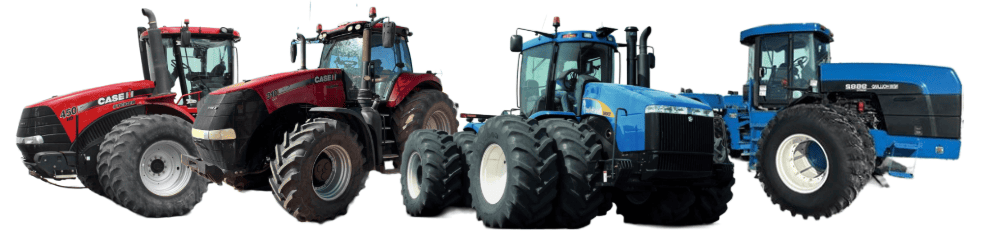
CNH Pre AFS Connect / PLM Intelligence
Applicable to:
Case IH / New Holland tractors prior to AFS Connect or PLM Intelligence systems.
Connection Method
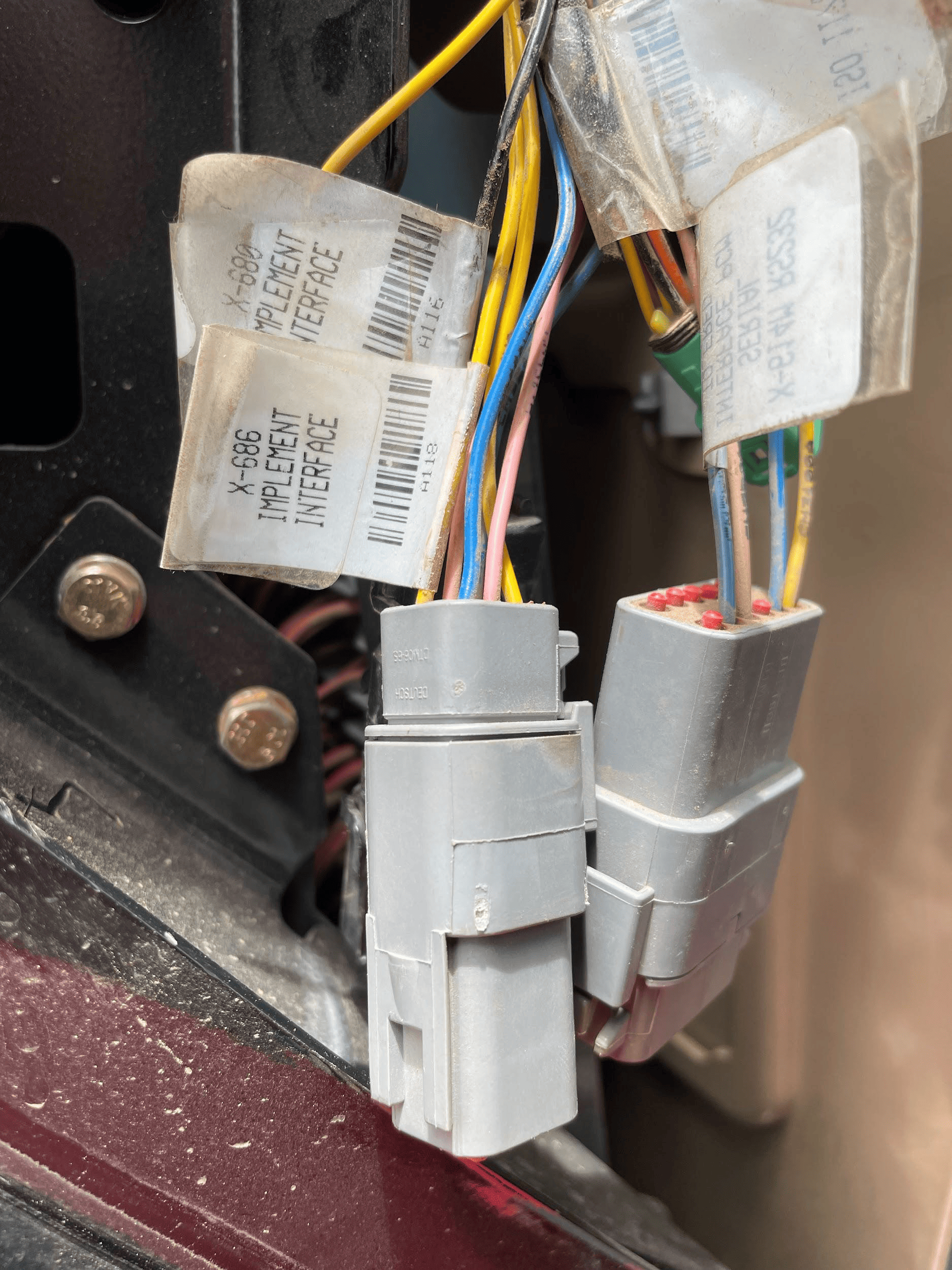 COMMAND can control Case analog input (EHR) valve systems through the use of a T3H-V001 COMMAND Legacy Output Adapter.
Installation Steps
The Case / New Holland tractor connection for analog control signal inputs via the T3H-V001 adapter are generally found in one of three locations depending on tractor mode:
1. Locate the tractor SCV signal input connector:
- Fuse compartment
- Behind driver seat
- Under cab exterior (4WD models)
2. Connect the T3H-V001 adapter to the tractor connection.
3. Connect the T3H-V001 adapter to the T3H-C002 harness.
Tractor Valve Configuration
Select the applicable configuration method:
- New-style instrument cluster
- Old-style instrument cluster
- Tier IV systems
New-style Instrument Cluster
Entering The Configuration Menu
- Locate the corner post instrument cluster in the tractor cab (Pictured right).
- Power up the tractor and press the PROG button on the instrument cluster until “CONFIG MENU” appears.
- Press the “DECR” button until AUX/Hitch/PTO is highlighted and then press the “PROG” button.
- Navigate to “EHR MENU” using the up and down arrow buttons and press the “PROG” button.
Setting Auxiliary Mode
- Use the Up/Down arrow buttons to find “AUX VIEW” and then press the “PROG” button.
- Use the Up/Down arrow buttons until “SCRPR OPTION” appears and then press the “PROG” button.
- Depending on the implement being used, select the correct option using the Up/Down arrow buttons and then press the “PROG” button.
- For single implement height control only - “1 LASER”
- For dual implement height control - “2 LASER”
- For single implement height & cross-slope control - “2 LASER”
Exiting The Configuration Menu
- Press the Up/Down arrow buttons until “AUX EXIT” is shown and then press the “PROG” button.
- Press the Up/Down arrow buttons until “EXIT TMF MENU” is shown and then press the “PROG” button.
- Press the Up/Down arrow buttons until “EXIT” is shown and then press the “PROG” button.
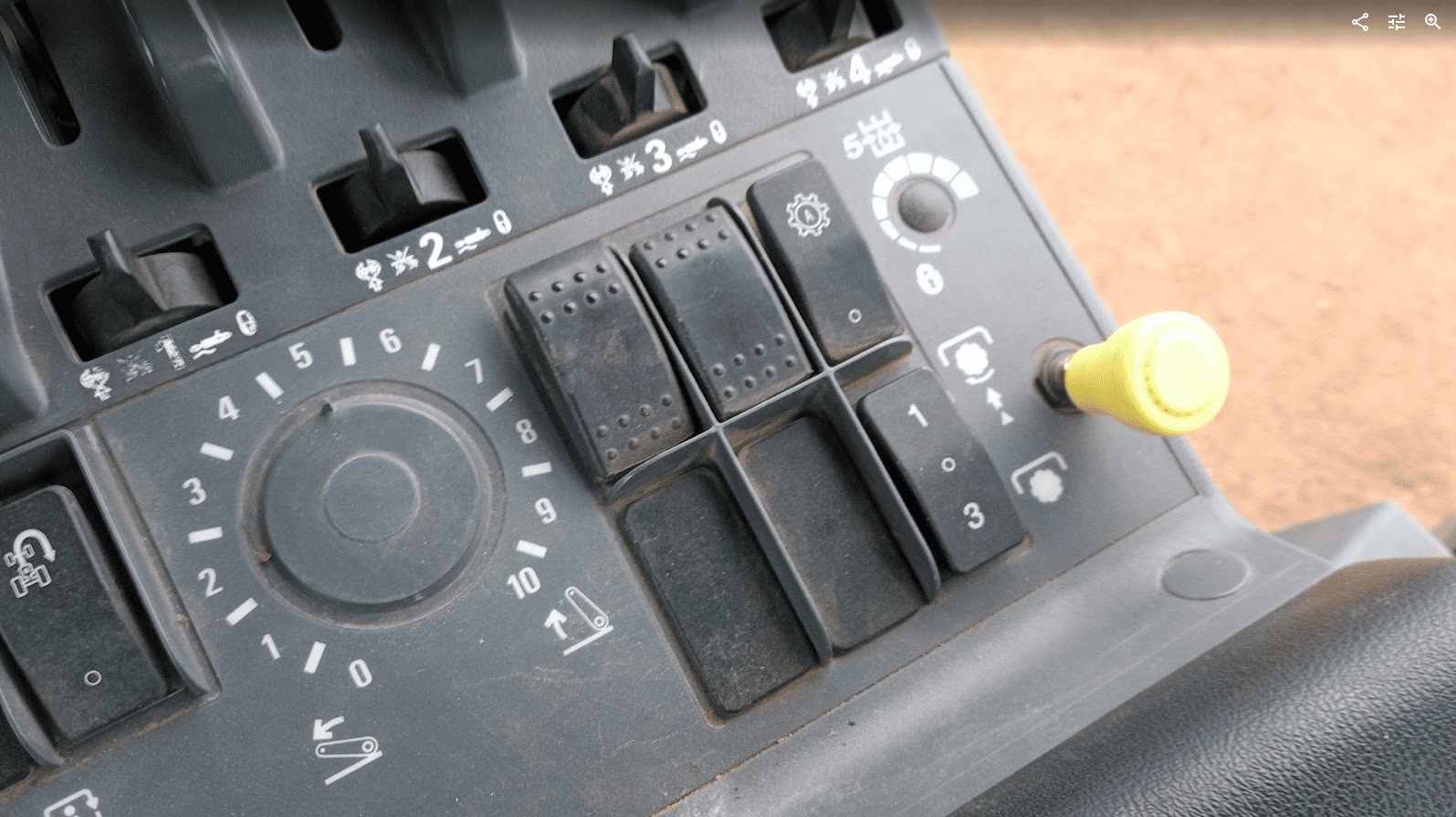
Auto/Manual System Operation
- The tractor will require an Auxiliary (1-3) switch, which is used to toggle between automatic and manual operation for
the two auxiliary inputs. - To toggle between Automatic and Manual operation for either SCV1 or SCV3, press the relevant side of the auxiliary
(1-3) switch.
Old-style Instrument Cluster
Enabling Auxiliary/Remote Valve Control
- Turn on the tractor key switch and within 10 seconds, press and hold the “PROG” button on the instrument cluster for 3 seconds - “INST SET MENU” should appear.
- Press the “INCR” or “DECR” buttons until “AUX SET MENU” is displayed, then press the “PROG” button.
- Press the “INCR” or “DECR” buttons until “AUX SETUP” is displayed, then press the “PROG” button.
- Press the “INCR” or “DECR” buttons to set the required number of “scrapers” between NONE, 1 and 2. In this situation a “scraper” can be considered equivalent to an SCV.
- For single implement height control - select 1 SCRAPER
- For dual implement height control - select 2 SCRAPER
- For single implement height & cross-slope control - select 2 SCRAPER
- Press the “PROG” button to accept the number of scrapers on the display.
Exiting The Configuration Menu
- Press the “INCR” or “DECR” buttons until “AUX EXIT” is displayed, then press the “PROG” button.
- Press the “INCR” or “DECR” buttons until “EXIT SET MENU” is displayed, then press the “PROG” button.
- To complete the calibration process, use the key to turn the ignition off.
CNH Tier IV
Enabling Auxiliary/Remote Valve Control
- Turn on the tractor ignition key switch and within 10 seconds, press and hold the “ENTER” button on the keypad to enter the Config Menu.
- Press the Up or Down arrow keys until “TCU” is displayed and then press “ENTER”.
- Press the Up or Down arrow keys until “EHR MENU” appears and then press “ENTER”.
- Press the Up or Down arrow keys until “EHR SETUP” is displayed and then press “ENTER”.
- “SCRPR NONE” will likely be displayed on the screen. Press the Up or Down arrow button until either “SCRPR 1 LASER” or “SCRPR 2 LASER” is displayed depending on the user’s application and then press “ENTER”.
- For single implement height control only - select 1 LASER
- For dual implement height control - select 2 LASER
- For single implement height & cross-slope control - select 2 LASER
- For single implement height control only - select 1 LASER
- The user can now navigate out of the setup screens or turn the key off - the selected setting will be saved.
Auto-Auxiliary Mode Operation
- The user can toggle between Automatic and Manual operation of the auxiliary outputs using the “1” and “3” buttons on
the console. - The LED on the relevant button will be illuminated when in Automatic operation mode.
- During operation in automatic mode, the upper portion of the programmable display will show the auto state of the auxiliary
outputs. - Automatic control can be temporarily overridden by the operator using the remote hydraulic lever, which will cause the indicator LED on the “1” or “3” console button to flash.
Operation Notes
COMMAND interfaces with the CNH external remotes/valves by sending analog signals to the integrated valve controller, commanding either port A or port B flow of two of the rear tractor SCVs (For AFS Connect models any SCV can be linked to either of the two inputs, whereas older models are limited to SCV1 and SCV3).
To operate the SCVs in automatic control mode, the user first needs to arm one or both of the configured auto SCVs using the 1/3 switch, display or buttons on the armrest .
IMPORTANT: Moving the SCV lever alone will NOT disengage AUTO mode in modern case tractors, so movements based on any current valve signals will continue. Always keep this in mind during operation.
3.12 | Tractor Valve Set-up - Versatile
Versatile — Analog Scraper Control
Applicable to: Supported Versatile L4WD and DeltaTrack tractors fitted with the 6-pin C920 laser/scraper control interface connected to the tractor Gateway Control Module (GCM).
NOTE: MFWD models may use a different interface arrangement. The 400 HP R3T3 MFWD documentation specifies separate installation instructions; the connection and setup procedure below has not been verified for that arrangement.

Connection Method
COMMAND controls the tractor’s rear electrohydraulic remote valves through the T3H-V001 analog output adapter and the tractor’s 6-pin scraper interface connection.
The tractor interface provides control of two remote valves:
- Input 1: Remote valve 1
- Input 2: Remote valve 3
Installation Steps
1. Complete the machine preparation steps in Section 5.1 and isolate the tractor electrical supply.
2. Remove the electrical compartment cover at the rear of the cab, behind the operator’s seat.
3. Locate the 6-pin scraper interface connector near the Gateway Control Module. In the Versatile installation documentation, this connector is identified as C920.

4. Connect the tractor-side 6-pin connection of the T3H-V001 adapter arrangement to the scraper interface.
5. Connect the T3H-V001 adapter to the valve output connection on the T3H-C002 ECU breakout harness.

6. Secure the harness clear of moving parts and sharp edges, refit the compartment cover and restore the electrical supply.
NOTE: If the scraper interface is not fitted, the appropriate tractor interface harness must be installed first. Versatile specifies interface kit 86053584 for the models covered by installation instructions 89004246.
The documented 400 HP R3T3 MFWD arrangement uses kit 86094592, with installation instructions 89007622. Have the Versatile dealer confirm the correct kit for the tractor model and serial number and follow the corresponding installation instructions.
Tractor Valve Configuration
The tractor’s scraper control interface is disabled by default and must be enabled through the Electronic Instrument Cluster.
1. Keep COMMAND disarmed and turn on the tractor ignition.
2. Use the display Up/Down buttons to navigate to CALIBRATION.
3. Press OK (SELECT) until Scraper Control is displayed.

4. Press Show subscreen.
5. Press OK to change the setting from OFF to ON.

6. Press EXIT to complete the setup.
7. On the EHR monitor, select Manual Operation for remote valves 1 and 3, and leave both hydraulic control levers in neutral.
IMPORTANT: Do not select Continuous mode for remote valves 1 and 3 when using the scraper control interface.
NOTE: Compatible tractor software is required. Versatile instructions 89004246 specify gateway software D2T411 or later for the covered Tier 4i models, D2T311 or later for the covered Tier 3 models, and dash software EICD214.
Software requirements for other models must be confirmed with the Versatile dealer. If the Scraper Control option is unavailable, have the dealer verify the tractor’s software and interface configuration.

Operation Notes
Once Scraper Control is enabled and the remotes are configured as above, the tractor accepts external control signals while the remote levers are in neutral. No lever detent action is required to activate the interface.
Use the COMMAND Arm/Engage switch to arm the system and engage automatic control.
The remote levers can temporarily override automatic hydraulic control. Returning a lever to neutral allows the tractor to respond to COMMAND again if automatic control remains engaged.
IMPORTANT: Moving a tractor remote lever does not disengage COMMAND automatic control. To stop automatic control, disengage it directly using the COMMAND Arm/Engage switch. Disengage by pressing the momentary side or move the switch to OFF to disarm COMMAND and disable its hydraulic control outputs.
3.13 | Tractor Valve Set-up - Fendt
Fendt ONE — 900 Gen 6/7 & 1000 Gen 2/3
Applicable to: Supported Fendt 900 Gen 6/7 and Fendt 1000 Gen 2/3 tractors using the COMMAND Fendt ONE valve interface.
Connection Method
COMMAND connects to the tractor’s rear SCV system using the T3H-V005 ISO Valve Adapter.
The adapter is installed inline between the tractor chassis harness and the SCV-bank harness. It connects the tractor-side and valve-side CAN networks to COMMAND through the CAN Interface connection on the T3H-C002 ECU breakout harness.
The tractor connection is located at the rear of the machine, on the right-hand side behind the ISOBUS socket.
Installation Steps
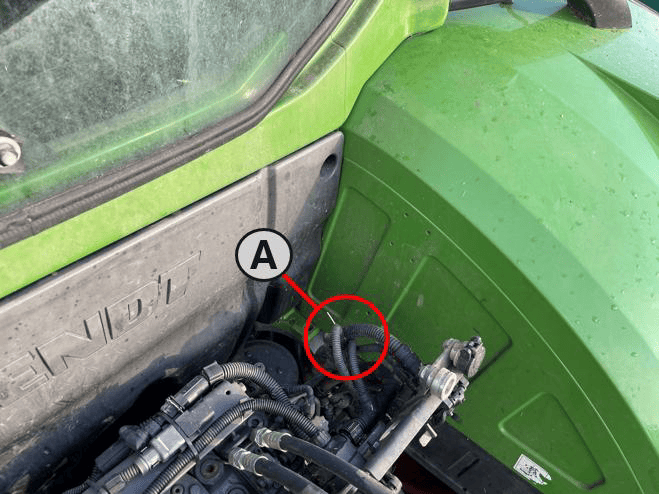 1. Complete the machine preparation steps in Section 5.1 and isolate the tractor electrical supply.
2. Locate the SCV-bank harness connection behind the rear ISOBUS socket, shown as A in the location image.
(A) – SCV / Chassis Harness connection
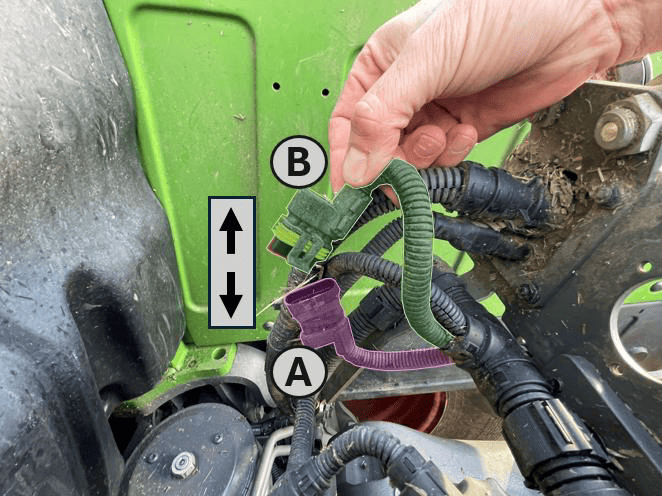
3. Release the connector latch and disconnect the SCV-bank harness receptacle (A) from the tractor chassis harness plug (B).
(A) – SCV Bank Harness Receptacle
(B) – Tractor Chassis harness plug
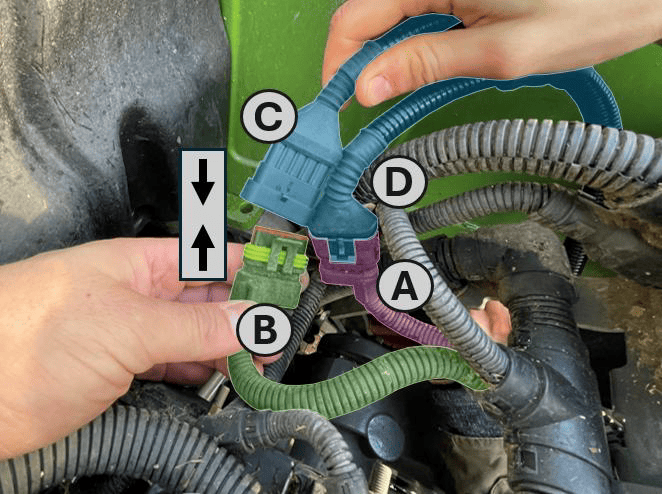
4. Connect the tractor-side receptacle (C) on the T3H-V005 adapter to the tractor chassis harness plug (B).
5. Connect the valve-side plug (D) on the T3H-V005 adapter to the SCV-bank harness receptacle (A).
(A) – SCV Bank Harness Receptacle
(B) – Tractor Chassis Harness Plug
(C) – T3H-V005 Harness ‘Tractor’ Receptacle
(D) – T3H-V005 Harness ‘Valve Block’ Plug
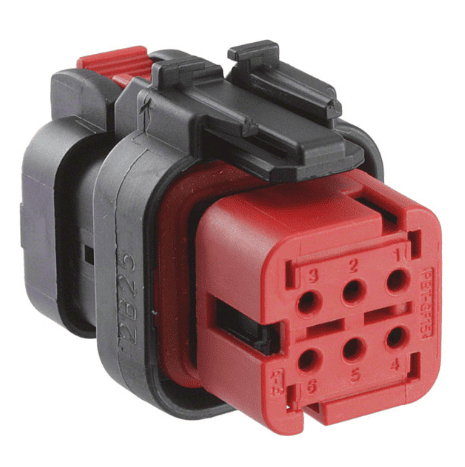 6. Route the adapter to the COMMAND ECU and connect it to the Tractor/Valve CAN Interface connector (pictured right) on the T3H-C002 ECU breakout harness.
7. Ensure all connectors are fully seated and latched. Secure the harness clear of moving parts, hot surfaces and sharp edges, leaving sufficient slack to avoid strain on the connectors.
8. Keep COMMAND disarmed and restore the electrical supply.
IMPORTANT: The SCV-bank harness connection and the nearby ISOBUS socket connection serve different purposes. Connect T3H-V005 to the SCV-bank harness as shown.
Where an ISOBUS connection is required for the installation, follow Section 5.4 using the appropriate COMMAND cab or exterior breakout harness.
Tractor Valve Configuration
- Ensure the required tractor SCVs are enabled and unlocked using the tractor’s controls.
- In Level COMMAND, select Fendt ONE as the valve interface.
- Assign the required SCVs to the controlled functions, such as height and cross-slope. These assignments must match the implement’s hydraulic hose connections.
- Verify valve communication and confirm that each function operates the intended valve in the correct direction.
- Complete valve configuration and calibration before automatic operation.
Operation Notes
To prepare the selected SCVs for automatic control:
- Ensure the required tractor SCVs are enabled and unlocked.
- Move the COMMAND Arm/Engage switch to the middle ON position to arm COMMAND.
- Move each selected SCV’s tractor control lever into the float position to enable external control of that valve.
- Press the momentary side of the COMMAND Arm/Engage switch to engage automatic control once the system is ready.
NOTE: For SCVs configured for COMMAND control, the lever’s float position enables external hydraulic control. It does not place the valve into hydraulic float.
Before handing over the installation, verify manual valve operation and demonstrate how to enable, disengage and resume automatic control.
IMPORTANT: To disengage COMMAND automatic control, press the momentary side of the COMMAND Arm/Engage switch. Move the switch to OFF to disarm COMMAND and disable its hydraulic control commands.
Fendt 800 SCR/S4
Applicable to: Supported Fendt 800 SCR/S4 tractors using the COMMAND Fendt SCR/S4/MT valve interface.
Connection Method
COMMAND connects to the tractor’s rear SCV system using the T3H-V005 ISO Valve Adapter and the S/109 — Fendt 800 SCR/S4 Adapter Harness, specified for SolSteer kit K/SCV/008.
The S/109 harness is installed inline between the tractor chassis harness and the valve harness. It connects to T3H-V005, which routes the tractor-side and valve-side CAN networks to the CAN Interface connection on the T3H-C002 ECU breakout harness.
The tractor connection consists of a pair of 4-way connectors, located behind the panel under the rear-right wheel arch.
NOTE: Depending on the tractor specification, an additional valve harness may be connected in series, providing two identical connections in this harness chain. Either of these connections can be used.
Installation Steps
1. Complete the machine preparation steps in Section 5.1 and isolate the tractor electrical supply.
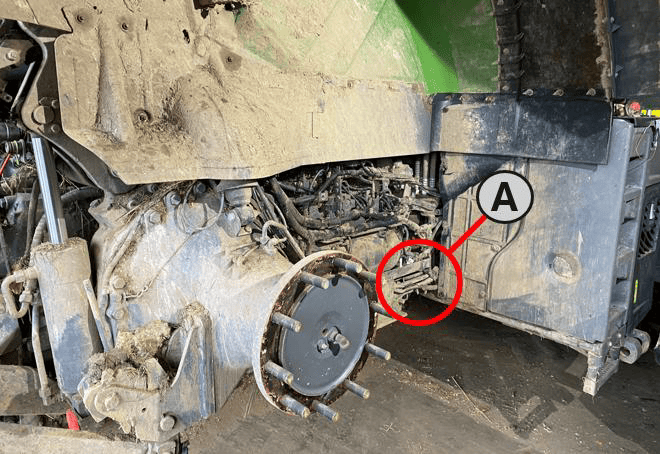
2. Locate the valve/chassis harness connection behind the panel under the rear-right wheel arch, shown as A in the location image.
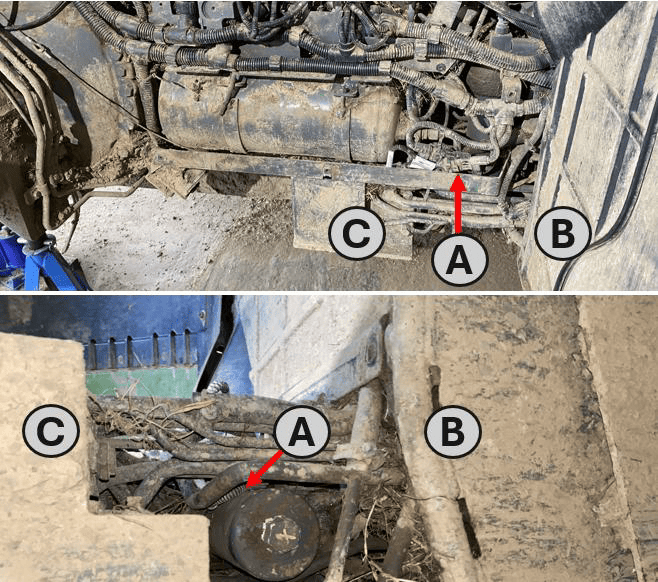
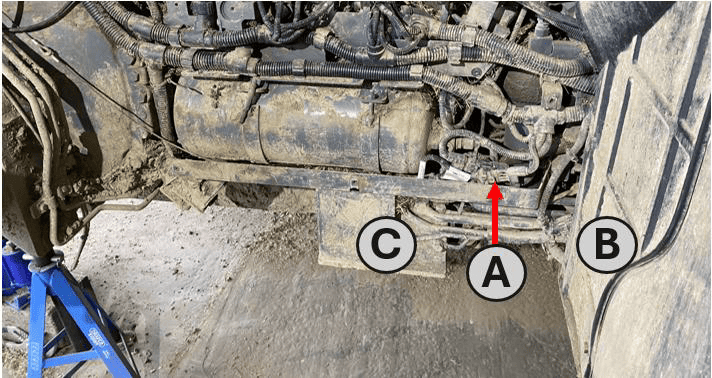
3. Alternatively, it may be accessed from underneath the machine (A) – the bundle can be found amongst the hydraulic lines between the front of the wheel arch (B) and the valve block bracket (C).
(A) - Valve/Tractor Harness bundle
(B) - Front of the Rear Right Wheel Arch
(C) - Valve Bracket, behind Rear Right Wheel
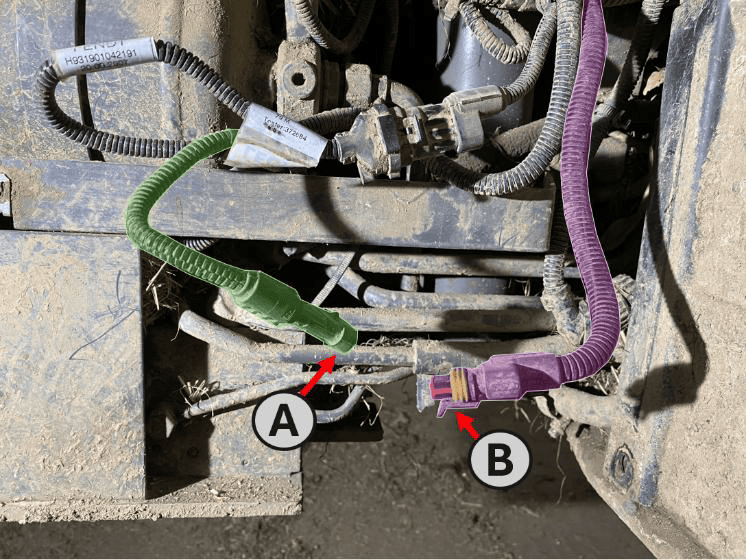
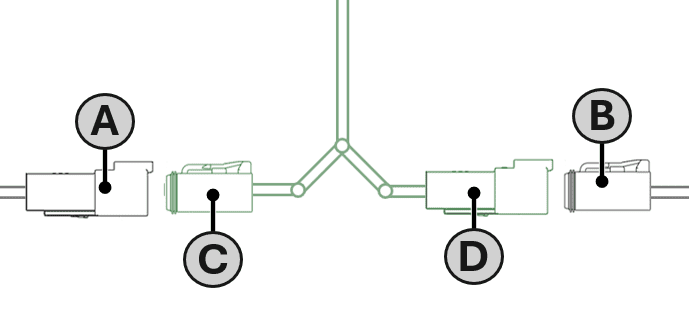
3. Release the connector latch and disconnect the 4-way valve harness receptacle (A) from the tractor chassis harness plug (B).
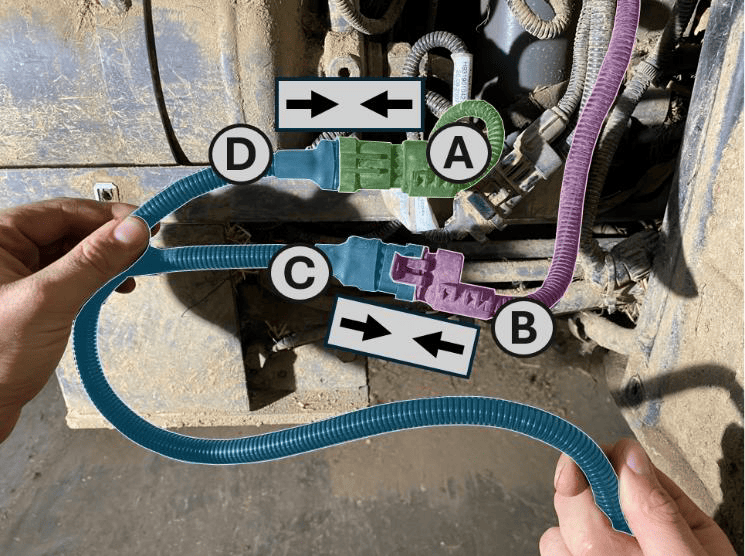
4. Connect the 4-way “Tractor” receptacle (C) on the S/109 harness to the tractor chassis harness plug (B).
5. Connect the 4-way “Valve” plug (D) on the S/109 harness to the valve harness receptacle (A).
(A) – Receptacle on Machine Valve Harness
(B) – Plug on Tractor Chassis Harness
(C) – ‘Tractor’ Receptacle on S/109 Adaptor Harness
(D) – ‘Valve’ Plug on S/109 Adaptor Harness
6. Route the S/109 harness towards the rear of the tractor.
7. Connect the 5-way receptacle on the S/109 harness to the valve-side plug on T3H-V005.
8. Connect the 5-way plug on the S/109 harness to the tractor-side receptacle on T3H-V005.
9. Route T3H-V005 to the COMMAND ECU and connect it to the CAN Interface connector on the T3H-C002 ECU breakout harness.
10. Ensure all connectors are fully seated and latched. Secure the harness clear of the tyre, moving parts, hot surfaces and sharp edges, leaving sufficient slack to avoid strain on the connectors.
11. Refit any components removed for access. Keep COMMAND disarmed and restore the electrical supply.
IMPORTANT: The valve-harness connection and the connection at the rear ISOBUS socket serve different purposes. Connect S/109 to the valve/chassis harness connection identified above.
Where an ISOBUS connection is required for the installation, follow Section 5.4 using the appropriate COMMAND cab or exterior breakout harness.
Tractor Valve Configuration
- Ensure the required tractor SCVs are enabled and unlocked using the tractor’s controls.
- In Level COMMAND, select Fendt SCR/S4/MT as the valve interface.
- Assign the required SCVs to the controlled functions, such as height and cross-slope. These assignments must match the implement’s hydraulic hose connections.
- Prepare the selected SCVs for external control as described below, then verify that each function operates the intended valve in the correct direction.
- Complete valve configuration and calibration before automatic operation.
Operation Notes
To prepare the selected SCVs for automatic control:
- Ensure the required tractor SCVs are enabled and unlocked.
- Move the COMMAND Arm/Engage switch to the middle ON position to arm COMMAND.
- Move each selected SCV’s tractor control lever into the float position to enable external control of that valve.
- Press the momentary side of the COMMAND Arm/Engage switch to engage automatic control once the system is ready.
NOTE: For SCVs configured for COMMAND control, the lever’s float position enables external hydraulic control. It does not place the valve into hydraulic float.
IMPORTANT: To disengage COMMAND automatic control, press the momentary side of the COMMAND Arm/Engage switch. Move the switch to OFF to disarm COMMAND and disable its hydraulic control commands.
Before handing over the installation, verify manual valve operation and demonstrate how to enable, disengage and resume automatic control.
Fendt 900 SCR/S4
Applicable to: Supported Fendt 900 SCR/S4 tractors using the COMMAND Fendt SCR/S4/MT valve interface.
Connection Method
COMMAND connects to the tractor’s rear SCV system using the T3H-V005 ISO Valve Adapter and the S/111 — Fendt 900 S4/SCR Adapter Harness.
The S/111 harness is installed inline between the tractor chassis harness and the valve harness. It connects to T3H-V005, which routes the tractor-side and valve-side CAN networks to the Tractor & Valve CAN Interface 6-way connection on the T3H-C002 ECU breakout harness.
Installation Steps
NOTE: The connection may be accessed from beneath the tractor, between the front of the rear-right wheel arch and the valve-block bracket. Removing the rear-right wheel and access panel provides additional access where required; follow the tractor manufacturer’s service instructions.
1. Complete the machine preparation steps in Section 5.1 and isolate the tractor electrical supply.
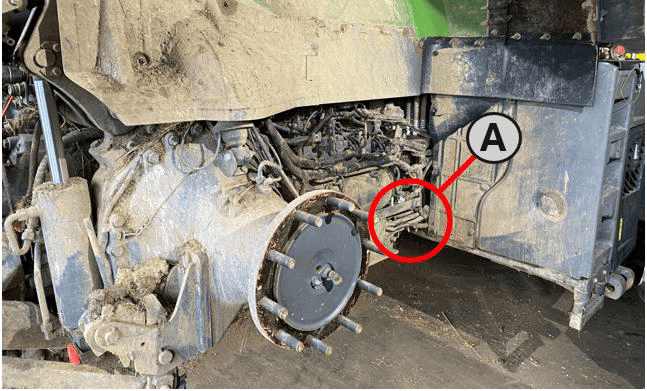 2. Locate the valve/chassis harness connection behind the panel under the rear-right wheel arch, shown as A in the location image.
(A) - Valve/chassis harness connection
3. Release the connector latch and disconnect the valve harness receptacle (A — X1587_P) from the tractor chassis harness plug (B — X1586_S).
(A) - Valve/Chassis Harness connection
(B) - Front of the Rear Right Wheel Arch
(C) - Valve Bracket, Inside Rear Right Wheel
4. Connect the 4-way “VALVES” plug (C) on the S/111 harness to the valve harness receptacle (A).
(A) - Valve harness receptacle (X1587_P)
(B) - Chassis harness plug (X1586_S)
(C) - ‘VALVES’ Plug S/111 Adaptor Harness
(D) - ‘TRACTOR’ Receptacle S/111 Adaptor Harness
5. Connect the 4-way “TRACTOR” receptacle (D) on the S/111 harness to the tractor chassis harness plug (B).
6. Connect the 5-way plug on the S/111 harness to the tractor-side receptacle on T3H-V005.
7. Connect the 5-way receptacle on the S/111 harness to the valve-side plug on T3H-V005.
8. Route T3H-V005 to the COMMAND ECU and connect it to the CAN Interface connector on the T3H-C002 ECU breakout harness.
9. Ensure all connectors are fully seated and latched. Secure the harness clear of the tire, moving parts, hot surfaces and sharp edges, leaving sufficient slack to avoid strain on the connectors.
10. Refit any components removed for access. Keep COMMAND disarmed and restore the electrical supply.
IMPORTANT: The 4-way valve-harness connection and the 4-way connection at the rear ISOBUS socket serve different purposes. Connect S/111 to the valve/chassis harness connection identified above.
Where an ISOBUS connection is required for the installation, follow Section 5.4 using the appropriate COMMAND cab or exterior breakout harness.
Tractor Valve Configuration
- Ensure the required tractor SCVs are enabled and unlocked using the tractor’s controls.
- In Level COMMAND, select Fendt SCR/S4/MT as the valve interface.
- Assign the required SCVs to the controlled functions, such as height and cross-slope. These assignments must match the implement’s hydraulic hose connections.
- Prepare the selected SCVs for external control as described below, then verify that each function operates the intended valve in the correct direction.
- Complete valve configuration and calibration before automatic operation.
Operation Notes
To prepare the selected SCVs for automatic control:
- Ensure the required tractor SCVs are enabled and unlocked.
- Move the COMMAND Arm/Engage switch to the middle ON position to arm COMMAND.
- Move each selected SCV’s tractor control lever into the float position to enable external control of that valve.
- Press the momentary side of the COMMAND Arm/Engage switch to engage automatic control once the system is ready.
NOTE: For SCVs configured for COMMAND control, the lever’s float position enables external hydraulic control. It does not place the valve into hydraulic float.
IMPORTANT: To disengage COMMAND automatic control, press the momentary side of the COMMAND Arm/Engage switch. Move the switch to OFF to disarm COMMAND and disable its hydraulic control commands.
Before handing over the installation, verify manual valve operation and demonstrate how to enable, disengage and resume automatic control.
Fendt / Challenger MT
Applicable to: Supported Fendt and Challenger MT tractors using the COMMAND Fendt SCR/S4/MT valve interface.
Connection Method
COMMAND connects to the tractor’s rear SCV system using the T3H-V005 ISO Valve Adapter and the S/082 — Fendt/Challenger MT Adapter Harness.
The S/082 harness is installed inline between the tractor chassis harness and the SCV-bank harness. It connects to T3H-V005, which routes the tractor-side and valve-side CAN networks to the Tractor & Valve CAN Interface connection on the T3H-C002 ECU breakout harness.
The tractor connection is located at the rear-left of the machine. The SCV-bank harness receptacle is a flange-mounted 12-way Deutsch connector, secured to a bracket behind the SCV bank.
Installation Steps
1. Complete the machine preparation steps in Section 5.1 and isolate the tractor electrical supply.
2. Connect the 5-way plug on the S/082 harness to the tractor-side receptacle on T3H-V005.
3. Connect the 5-way receptacle on the S/082 harness to the valve-side plug on T3H-V005.
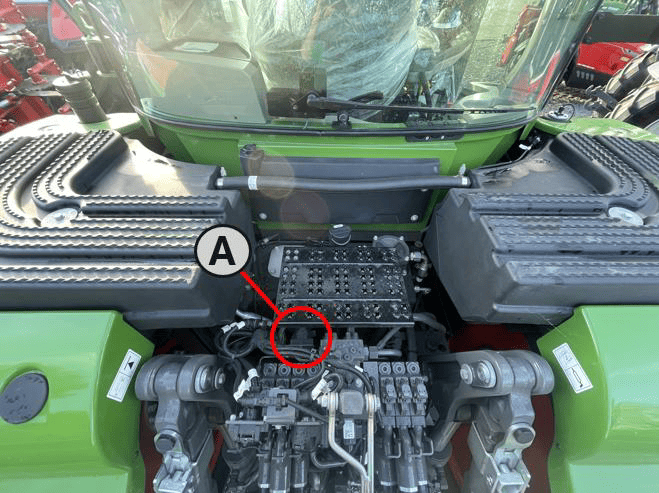
4. Locate the 12-way SCV-bank harness connection at the rear-left of the tractor.
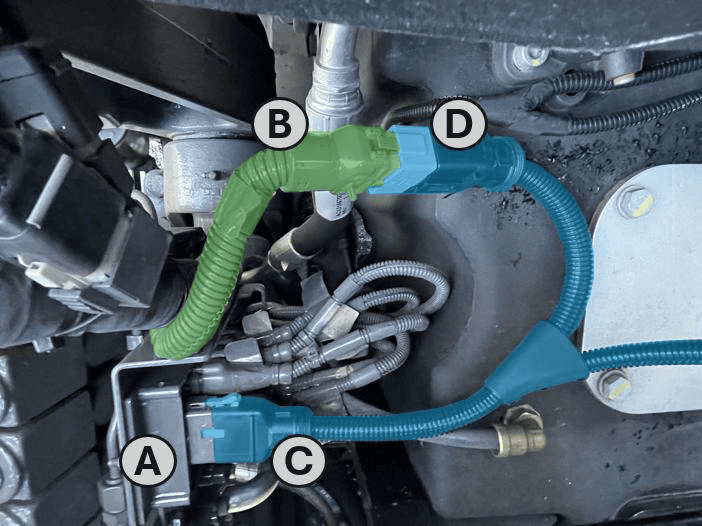
(A) - SCV Bank Harness connections
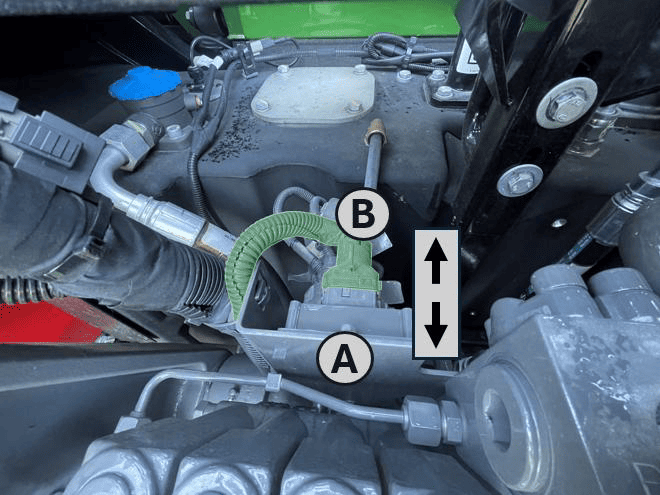
5. Release the connector latch and disconnect the tractor chassis harness plug (B) from the SCV-bank harness receptacle (A).
(A) – SCV Bank Harness Receptacle
(B) – Tractor Chassis Harness Plug
6. Connect the tractor chassis harness plug (B) to the 12-way “Tractor” receptacle (D) on the S/082 harness.
7. Connect the 12-way “Implement PCB” plug (C) on the S/082 harness to the SCV-bank harness receptacle (A).
(A) – SCV Bank Harness Receptacle
(B) – Tractor Chassis Harness Plug
(C) – Implement PCB Plug, S/082 Harness Adaptor
(D) – Tractor Receptacle, S/082 Harness Adaptor
8. Route T3H-V005 to the COMMAND ECU and connect it to the CAN Interface connector on the T3H-C002 ECU breakout harness.
9. Ensure all connectors are fully seated and latched. Secure the harness clear of moving parts, hot surfaces and sharp edges, leaving sufficient slack to avoid strain on the connectors.
10. Keep COMMAND disarmed and restore the electrical supply.
IMPORTANT: The 12-way SCV-bank harness connection and the connection at the rear ISOBUS socket serve different purposes. Connect S/082 to the SCV-bank harness connection identified above.
Where an ISOBUS connection is required for the installation, follow Section 5.4 using the appropriate COMMAND cab or exterior breakout harness.
Tractor Valve Configuration
- Ensure the required tractor SCVs are enabled and unlocked using the tractor’s controls.
- In Level COMMAND, select Fendt SCR/S4/MT as the valve interface.
- Assign the required SCVs to the controlled functions, such as height and cross-slope. These assignments must match the implement’s hydraulic hose connections.
- Prepare the selected SCVs for external control as described below, then verify that each function operates the intended valve in the correct direction.
- Complete valve configuration and calibration before automatic operation.
For detailed configuration and calibration instructions, refer to the Level COMMAND Manual.
Operation Notes
To prepare the selected SCVs for automatic control:
- Ensure the required tractor SCVs are enabled and unlocked.
- Move the COMMAND Arm/Engage switch to the middle ON position to arm COMMAND.
- Move each selected SCV’s tractor control lever into the float position to enable external control of that valve.
- Press the momentary side of the COMMAND Arm/Engage switch to engage automatic control once the system is ready.
NOTE: For SCVs configured for COMMAND control, the lever’s float position enables external hydraulic control. It does not place the valve into hydraulic float.
IMPORTANT: To disengage COMMAND automatic control, press the momentary side of the COMMAND Arm/Engage switch. Move the switch to OFF to disarm COMMAND and disable its hydraulic control commands.
Before handing over the installation, verify manual valve operation and demonstrate how to enable, disengage and resume automatic control.
3.14 | Receiver Connection and Configuration - John Deere StarFire
Applicable to:
John Deere StarFire 3000, 6000, 7000 & 7500 GNSS receivers using implement harnessing.
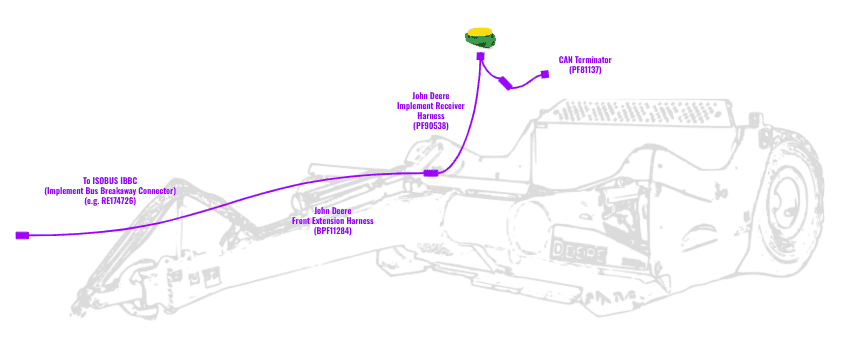
Harnessing Layout Overview
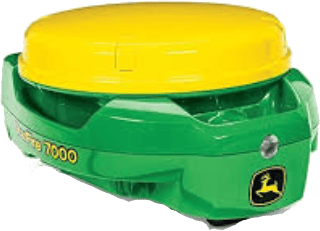
For use with COMMAND, the John Deere StarFire can be set up with typical John Deere implement harnessing:
- RE174726 - Greenstar ISOBUS IBBC (Implement Bus Breakaway Connector) if not present, IBBC from other manufacturers are also appropriate for COMMAND.
- BPF11117 - John Deere Front Extension Harness with Terminator (10m)
- OR BPF11284 - John Deere Front Extension Harness (10m)
- AND PF81137 - John Deere Implement Pigtail Terminator Wiring Harness
- PF90538 - John Deere Implement Receiver Wiring Harness Kit
Connection Process
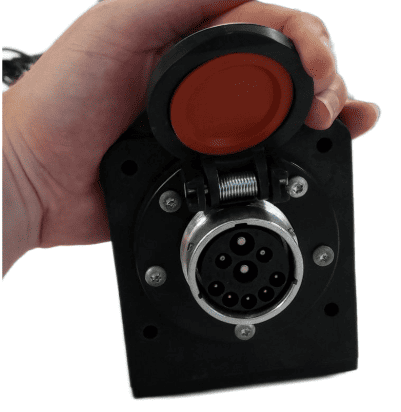
1. Connect the John Deere Front Extension Harness to the ISOBUS breakaway connection.
2. Route along the implement, allowing slack at pivot points and avoiding snag hazards.
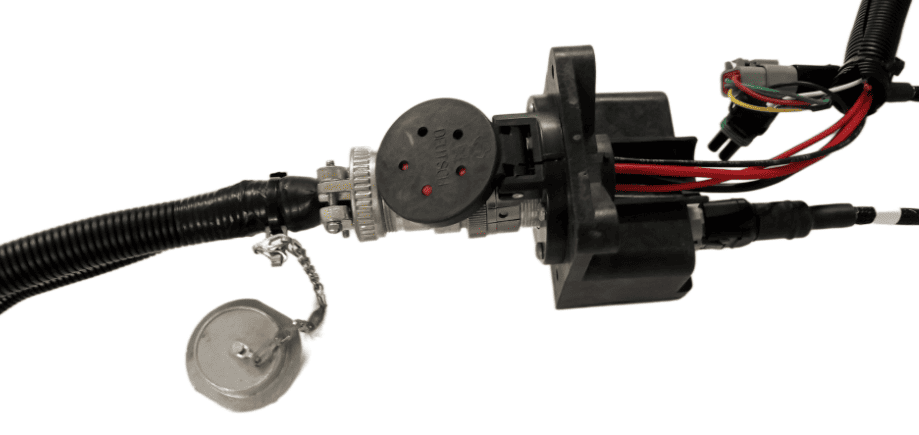
3. Connect the Implement Receiver Wiring Harness to the Front Extension Harness and route the cabling up toward the receiver mast.
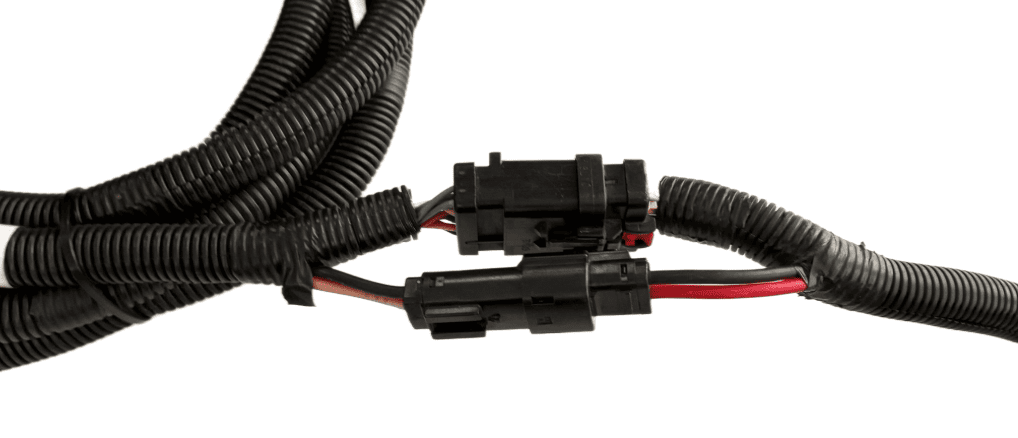
4. Connect the Implement Receiver Wiring Harness to the Starfire receiver 12-pin DT connector. A 12-pin Deutsch gender change adapter may be needed to connect the DT06-12SA connector on the implement receiver harness to the DT06-12SA connector on the StarFire Receiver.
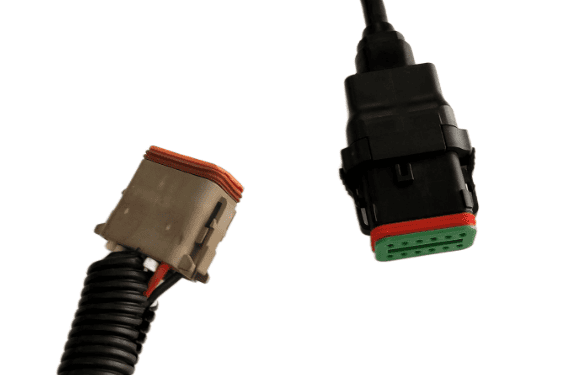
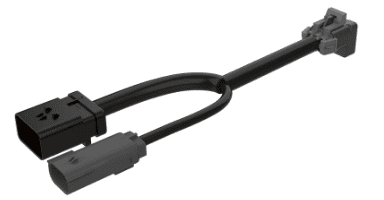
5. Connect the PF81137 Implement Pigtail Terminator to the Implement Receiver Wiring Harness and secure the terminator to the implement receiver wiring harness.
Verify:
- Receiver powers on
3.15 | Receiver Connection and Configuration - Modern NMEA 2000
Case, New Holland, Trimble
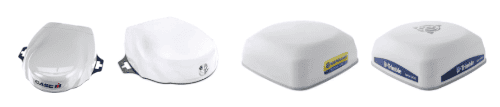
This section covers connection of Novatel-based GNSS receivers using a 12-pin Deutsch interface.
Applicable to receivers including:
Case IH - Vector Pro
New Holland - PLM Cygnus
Trimble / PTx Trimble - AG-372, AG-392, NAV-900, NAV-960
Steyr - S-Guide
Parts Required
- CNH 115-7100-009/10 - Front Extension Harness or JD BPF11284 - Front Extension Harness
- CNH 115-7100-005 - Cable Adapter Terminator Gen I ISOBUS or JD PF81137 - Implement Pigtail Terminator Wiring Harness
- T3H-G002 - COMMAND Impl Adapter - NAV-900
- T3H-S001 - COMMAND Impl Adapter – Stub Junction
Connection Process
1. Connect the Front Extension Harness to the ISOBUS breakaway connection.
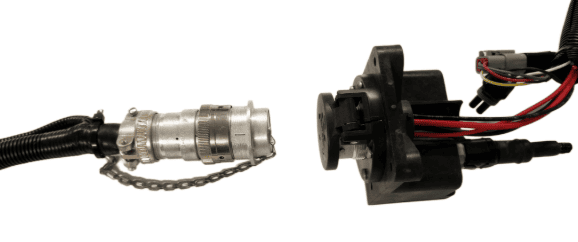
2. Route along the implement, allowing slack at pivot points and avoiding snag hazards.
3. Connect the T3H-S001 adapter to the Front Extension Harness.
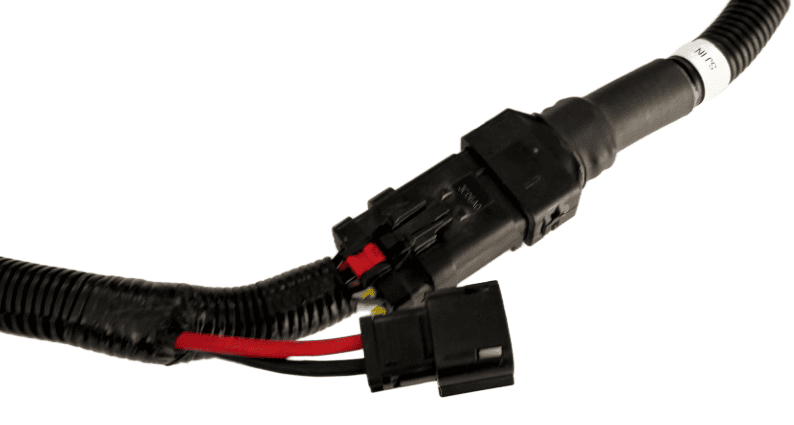
4. Connect the Implement Pigtail Terminator to the T3H-S001 adapter and secure the terminator to the implement receiver wiring harness.
5. Connect the T3H-G002 adapter to the T3H-S001 adapter.
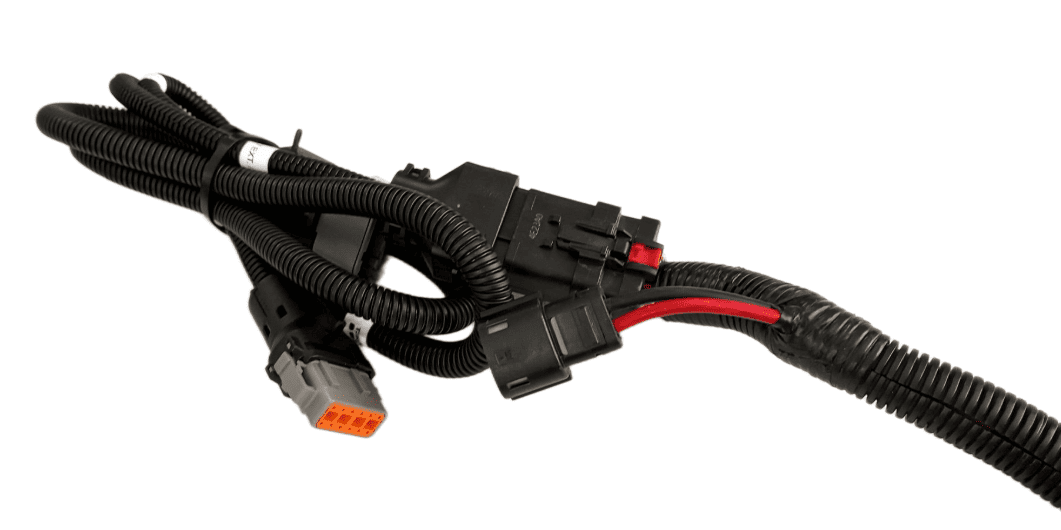
6. Connect the T3H-G002 adapter to the appropriate GNSS receiver port.
7. If using NMEA 0183 Serial, also connect the NMEA extension harness to the T3H-G002, then connect the other end to the T3H-C002 ECU breakout harness.
Verify:
- Receiver powers on
3.16 | Receiver Connection and Configuration - Trimble FMX/GFX/TMX with Ag25
Applicable to:
Trimble FMX, GFX, and TMX displays using NMEA 0183 RS232 output via 12-way DTM port.
Harnessing Layout Overview
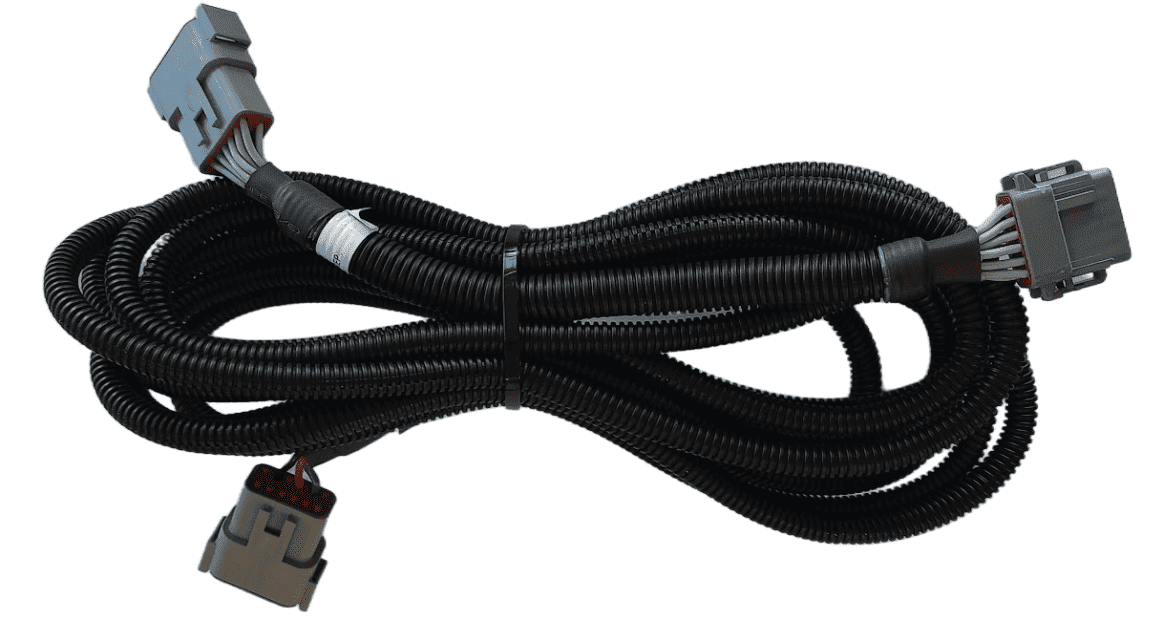
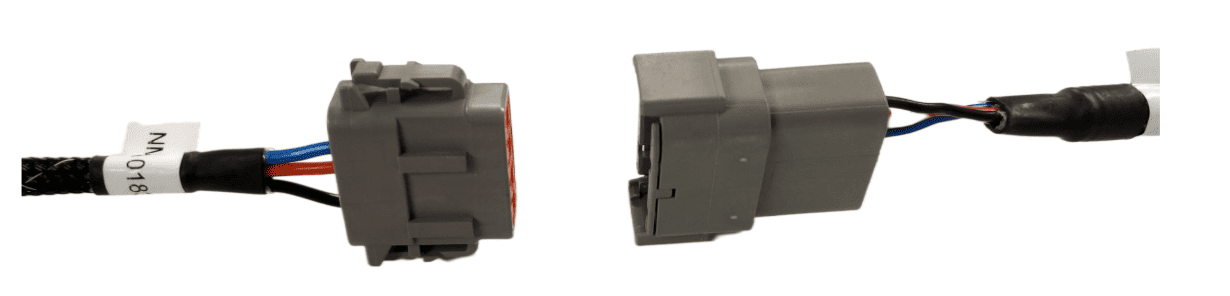
Usage of the FMX/TMX NMEA 0183 output only requires the addition of a T3H-G004 adapter to the T3H-C002 ECU breakout harness.
Parts Required
- T3H-G004 - COMMAND Trimble NMEA Output Adapter
Connection Process
NOTE: The T3H-G004 adapter routes the RS232 Tx and Rx connection to the COMMAND ECU and they are NOT replicated on the port replicator connector. All other pins are replicated for connection of other devices.
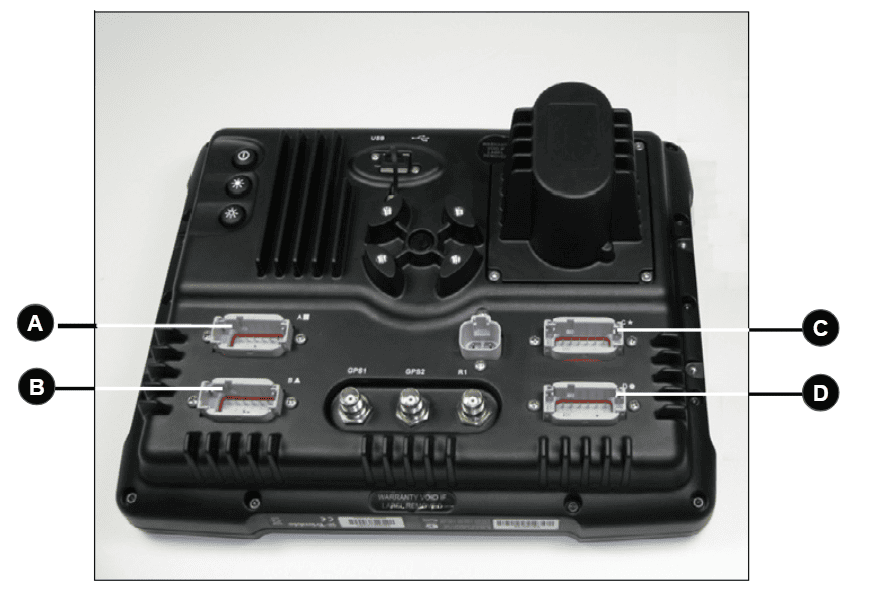
For FMX/FM1000
Connect the T3H-G004 adapter to Port C or Port D on the FMX display depending on whether antenna port 1 or 2 is to be used. Port C will provide the NMEA output for antenna port 1 while Port D will provide NMEA output for antenna port 2.
For GFX/TMX with TM-200 and EXP-100
Connect the T3H-G004 adapter to the EXP-100 port expander module.
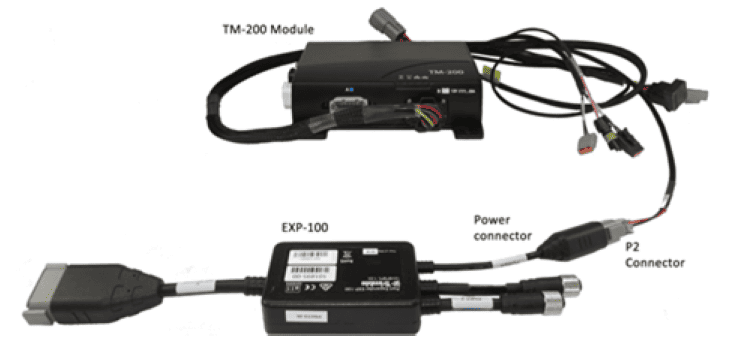
A port replicator is supplied in case the port was already in use for something else, if so disconnect the device, connect T3H-G004 and then reconnect the device using the port replicator on T3H-G004.
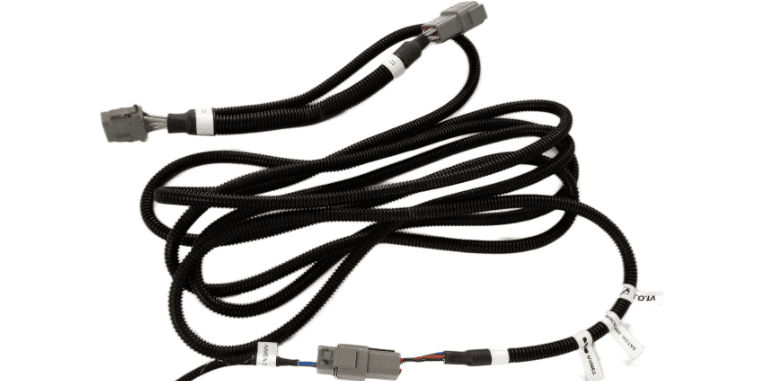
Connect the other end of T3H-G004 to the T3H-C002 ECU breakout harness.
Next, follow the setup process below for activating the NMEA output port on the FMX/TMX system.
Activating the NMEA Output - FMX/FM1000
Make sure that if present, Autopilot is configured for use on Port A - this leaves Port C and Port D free for NMEA output of either implement receiver.
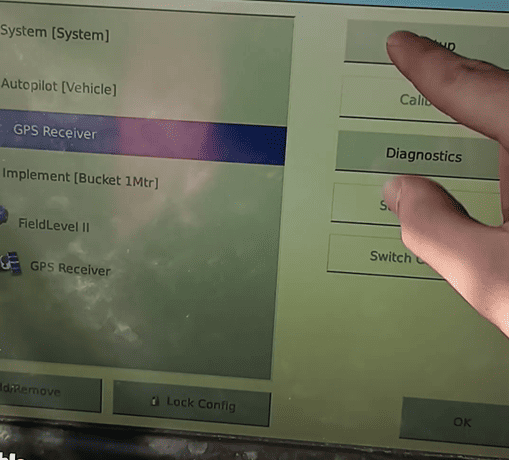
1. Select the GPS Receiver listed below Autopilot [Vehicle] and press "Setup".
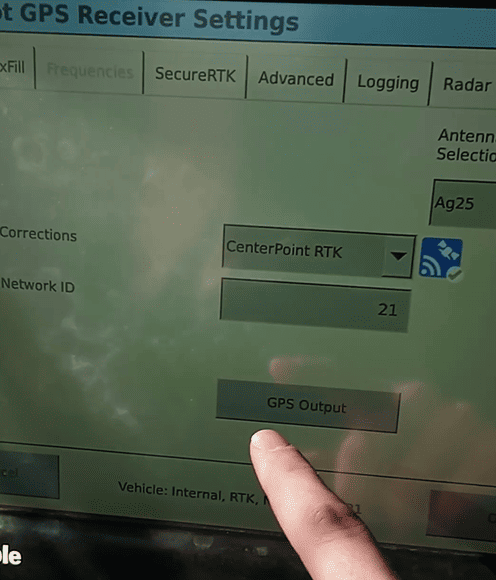
2. Press the "GPS Output" button.
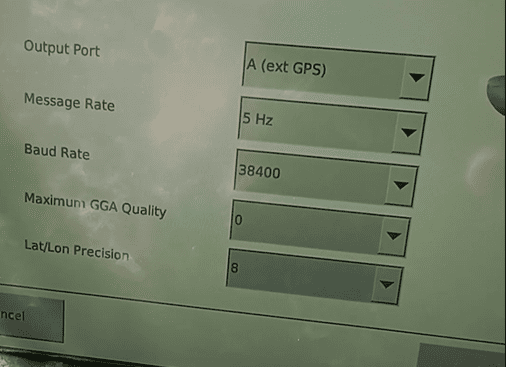
3. Configure the NMEA GPS Output port as below:
- Select Output Port A (ext. GPS)
- Select a message rate of 5 Hz
- Select a Baud Rate of 38400
- Set Maximum GGA Quality to 0
- Set Lat/Lon Precision to 8
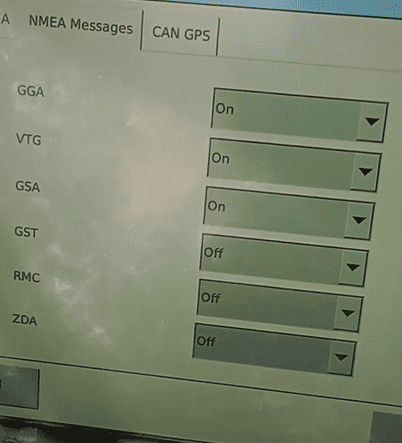
- Press the "NMEA Messages" Tab.
4. Configure the NMEA Messages as below:
- Set GGA, to "On".
- Set GSA, to "On".
- Set VTG, to "On".
- Leave all other messages set to "Off".
3.17 | Receiver Connection and Configuration - NMEA 0183 (RS232)
NMEA 0183 Serial (RS232) capable receivers can be connected to the COMMAND system.
IMPORTANT: If the GNSS receiver does not provide terrain compensation, an IMU must be installed to maintain accuracy.
Parts Required
- CNH 115-7100-009/10 - Front Extension Harness or JD BPF11284 - Front Extension Harness
- CNH 115-7100-005 - Cable Adapter Terminator Gen I ISOBUS or JD PF81137 - Implement Pigtail Terminator Wiring Harness
- T3H-S001 - COMMAND Impl Adapter – Stub Junction
- T3H-G001 / T3H-G007 - COMMAND NMEA Extension Harness (8m or 12m)
- Custom GNSS Adapter - Custom adapter for connection of the NMEA 0183 Serial compatible receiver to the T3H-S001 and T3H-G001/G007 adapters.
Connection Process
1. Connect the Front Extension Harness to the ISOBUS breakway connector.
2. Route along the implement, allowing slack at pivot points and avoiding snag hazards.
 3. Connect the T3H-S001 adapter to the Front Extension Harness.
4. Connect the Implement Pigtail Terminator to the Implement Receiver Wiring Harness and secure the terminator to the implement receiver wiring harness.
5. Connect the CUSTOM adapter to the T3H-S001 adapter.
6. Connect the CUSTOM adapter to the receiver's port ensuring connector keys are lined up.
7. Connect the NMEA extension harness T3H-G001 or T3H-G007 to the CUSTOM adapter, then connect the other end to the T3H-C005 external breakout harness.
Receiver Configuration
Perform necessary setup of the GNSS receiver using provided manufacturer tools or programs:
-
- Talker ID should be set to GP or GN
- Messages enabled - GGA, GSA, VTG
- Output Update rate - 10Hz recommended
- Baud Rate - 38400
Verify:
- Receiver powers on
3.18 | IMU Installation and Configuration
Applicable to:
Systems where the GNSS receiver does not provide terrain compensation and/or Cross-slope control is required.
IMPORTANT: Some GNSS receivers DO NOT possess an internal IMU for terrain compensation purposes. If the receiver doesn't have terrain compensation, we highly recommend running a Cross-slope IMU on the implement in this situation so that Level COMMAND can apply the necessary terrain compensation to maintain accuracy with drain batters and other steeper slopes.
IMPORTANT: The TARS-B IMU must be sourced from T3RRA (SKU: T3H-E003). These are supplied by T3RRA with the correct firmware and configuration to function with COMMAND.
The TARS-B IMU is used for systems where the GNSS receiver does not contain an integrated terrain compensation functionality, in addition to enabling Cross-slope control using COMMAND. The TARS-B IMU provides pitch and roll angle measurements to the COMMAND ECU for control of the implement's Cross-slope angle.
Required Parts
The IMU connects via the implement receiver harnessing.
- Front Extension harness
- TARS-B Mounting Kit (3 x M6 + Washer + Nut)
- T3H-E003 - COMMAND Inclination Sensor – TARS-B
- T3H-S001 - COMMAND Impl Adapter – Stub Junction
Mounting & Orientation
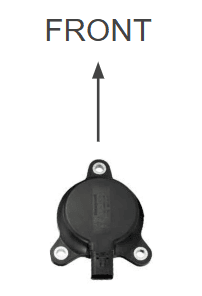
The TARS-B IMU should be mounted pointing toward the front of the machine, similar to an arrow or triangle pointing forwards. Mount the TARS-B IMU to the implement securely, preferably using a suitable bracket. If suitable bracketing isn't available, neodymium magnets are also suitable, but must have enough pull-strength that there is minimal danger of the IMU being knocked out of position.
Connection Process
- Connect the T3H-S001 adapter to the Front Extension Harness.
- Connect the T3H-E003 to the T3H-S001 stub junction using the 4-way AMPSEAL connection.
- Check that COMMAND is receiving Cross-slope angle input data - for more information please refer to the Level COMMAND manual.
Verify:
- IMU is securely aligned, mounted and connected.